By default Debits skips transactions that QuickBooks Online already has fully coded. Turn this setting on when you also want transactions pulled in because a required field is blank — for example every expense must carry a customer.
Before you start
- You need an accountant owner or admin role, or bookkeeping permission to manage company settings.
- Class is only offered if class tracking is turned on for that company in QuickBooks Online. Department is only offered if location or department tracking is turned on there.
Steps
-
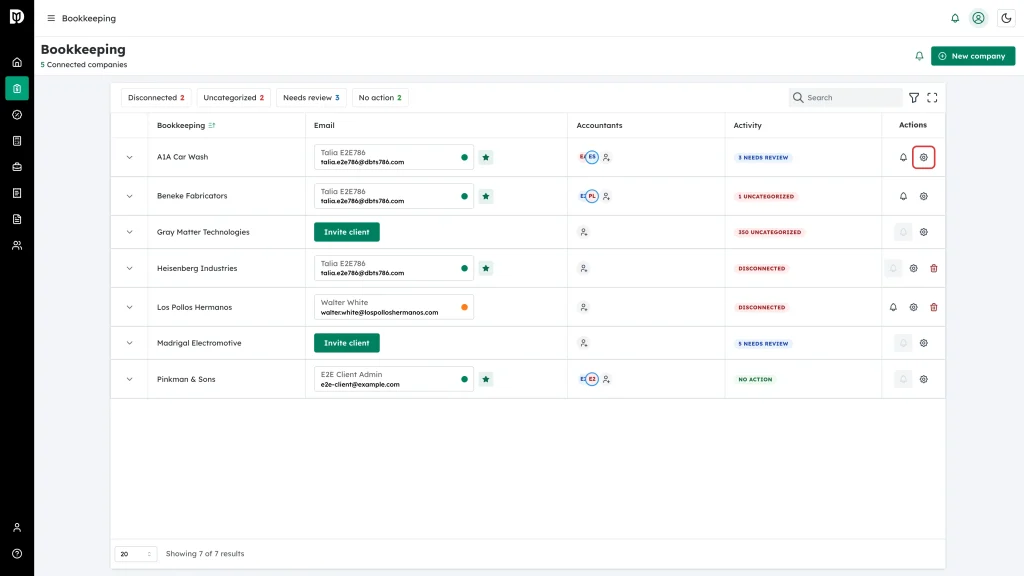
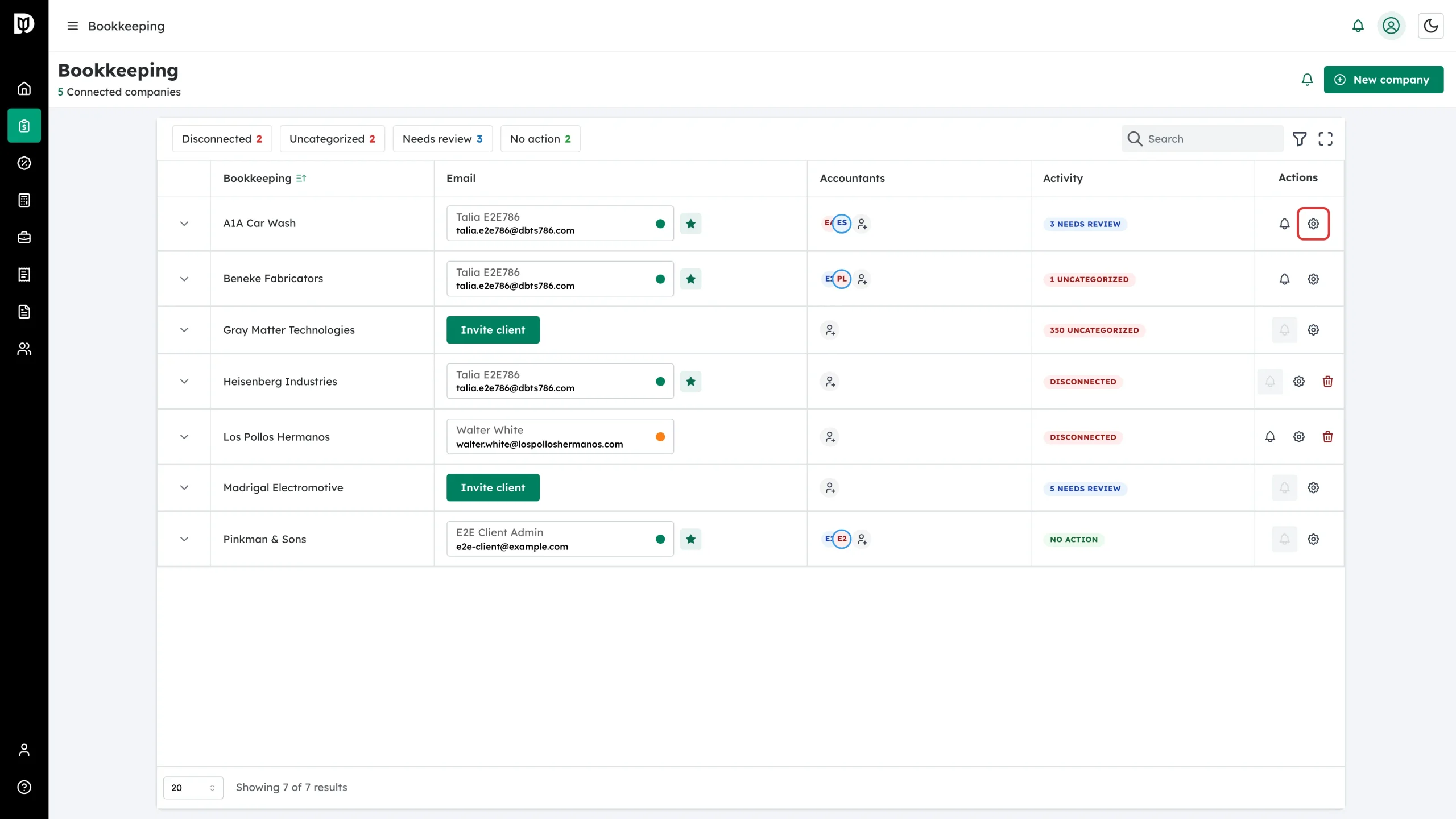
In the left sidebar, open Bookkeeping. In the Actions column of the company you want to change, click the gear icon.
-
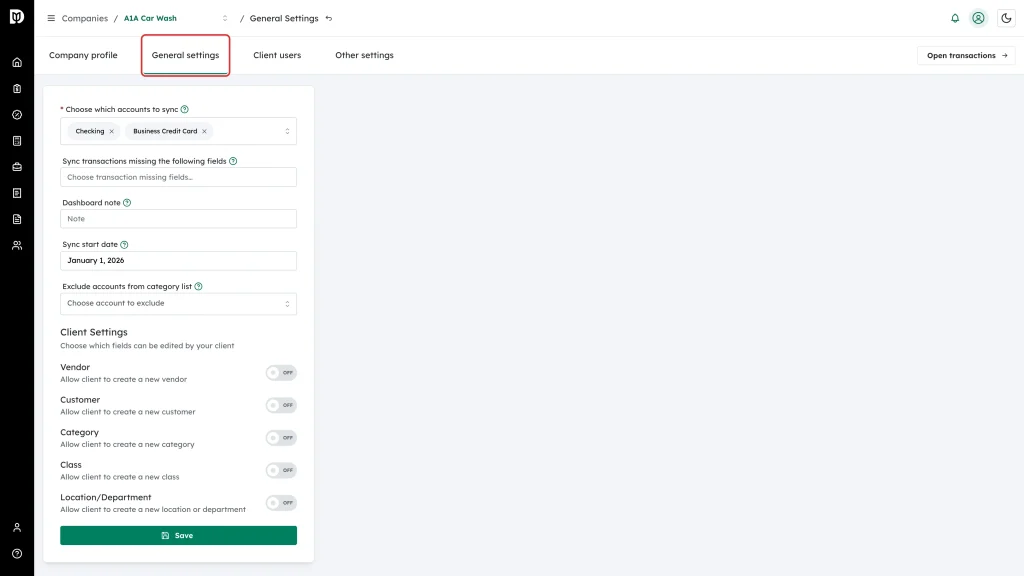
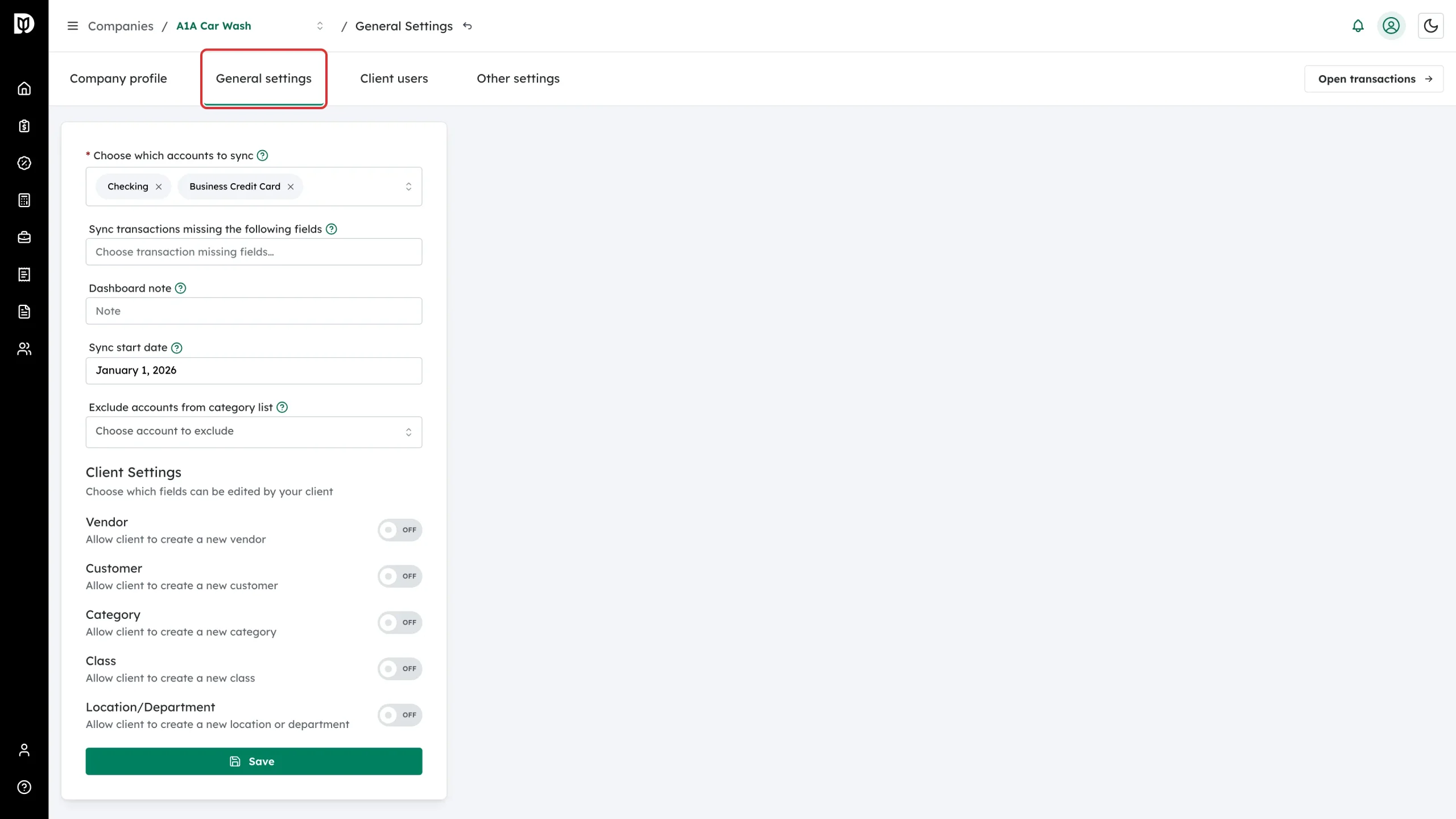
Open the General settings tab.
-
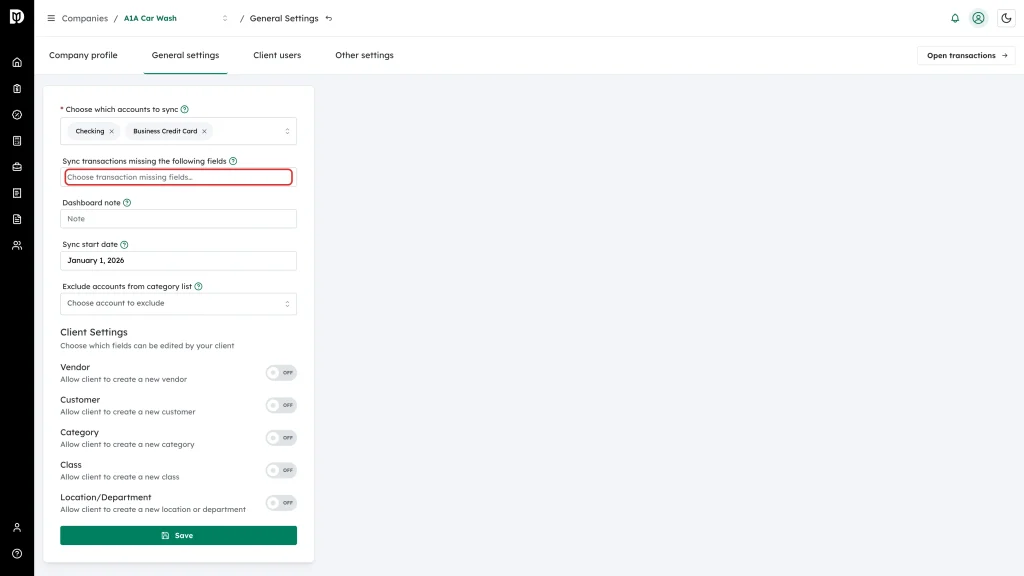
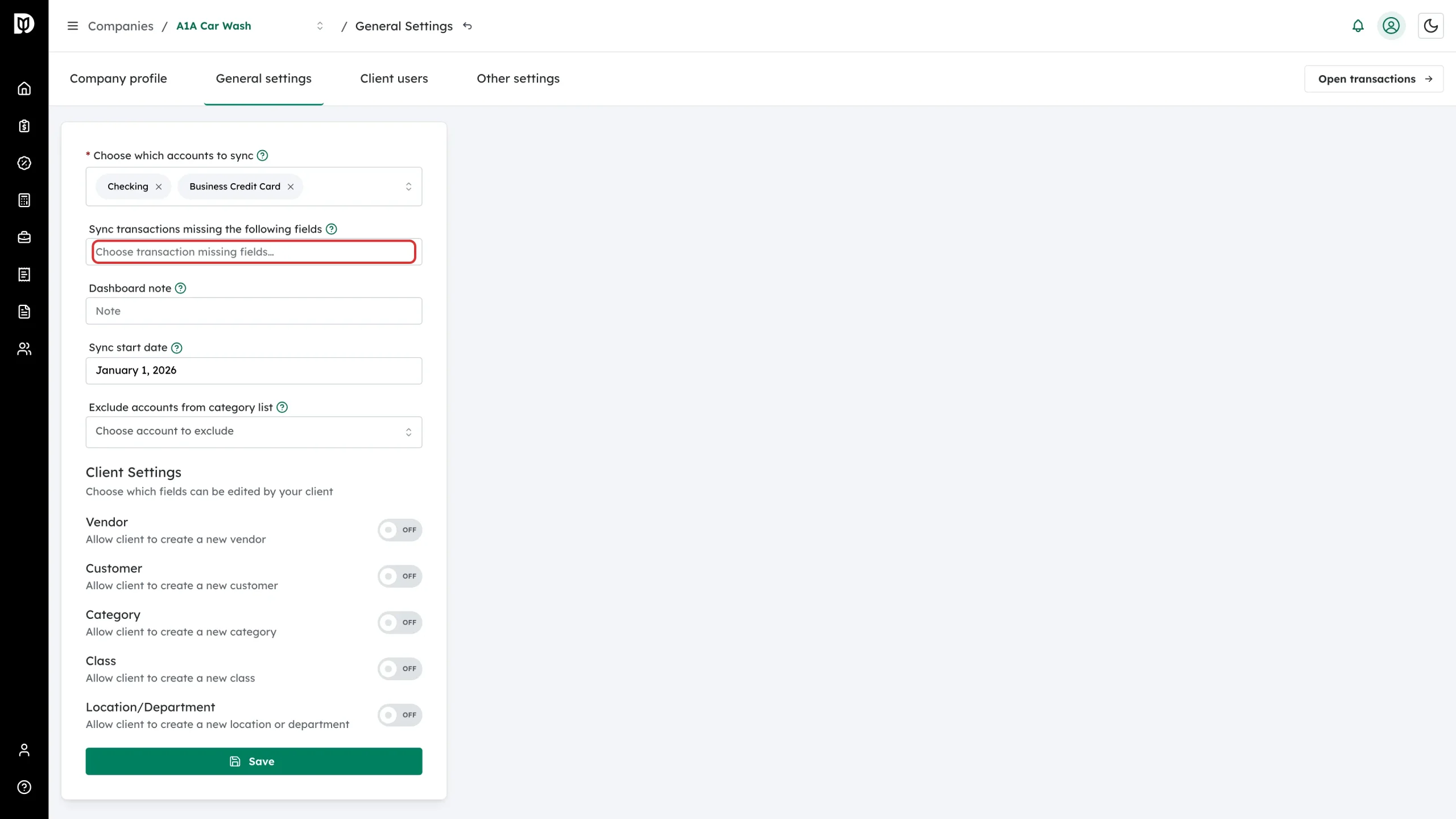
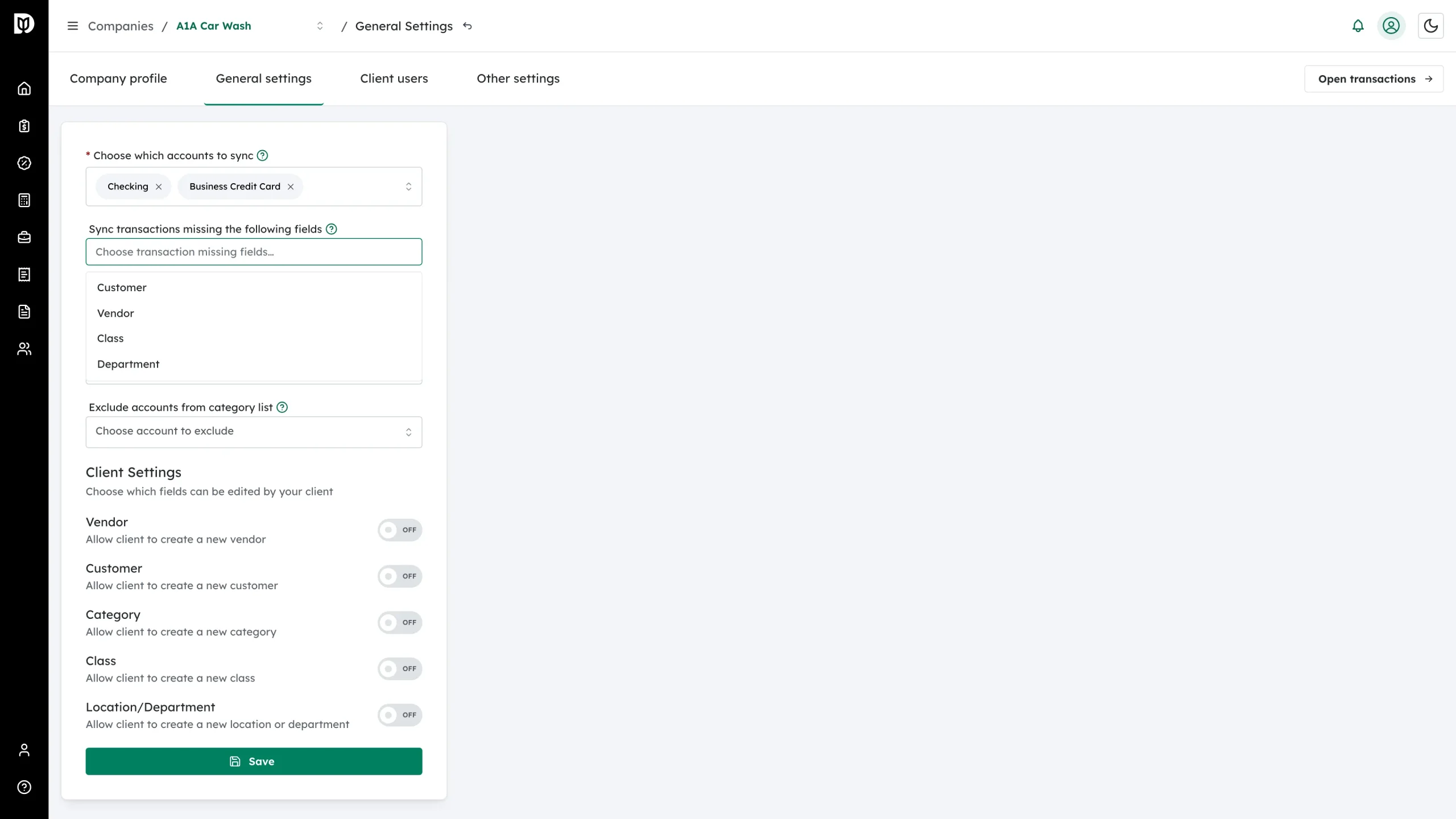
Click the Sync transactions missing the following fields box.
-
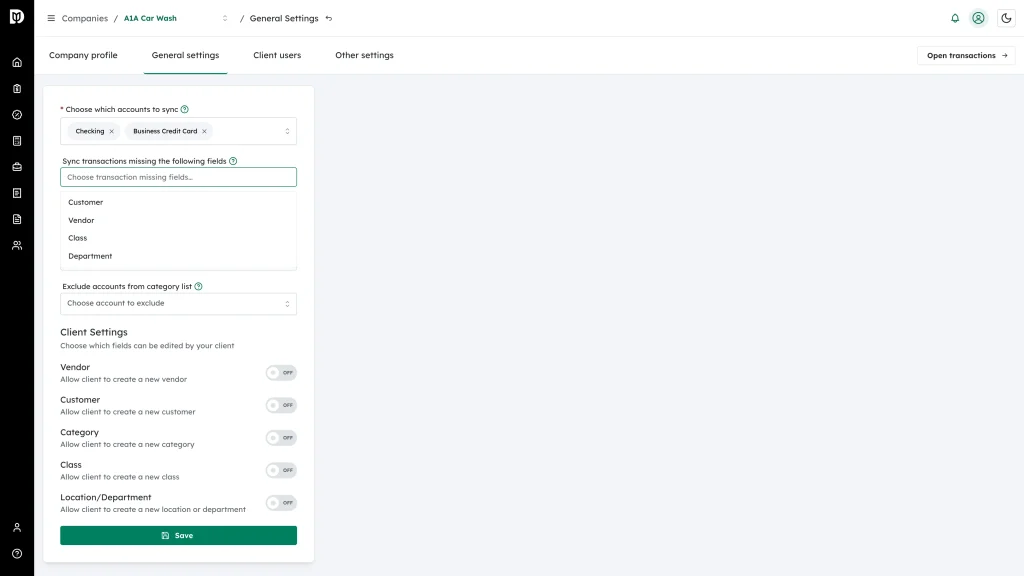
Pick the fields you want Debits to watch for. The list shows Customer, Vendor, and — when the company tracks them in QuickBooks — Class and Department.
-
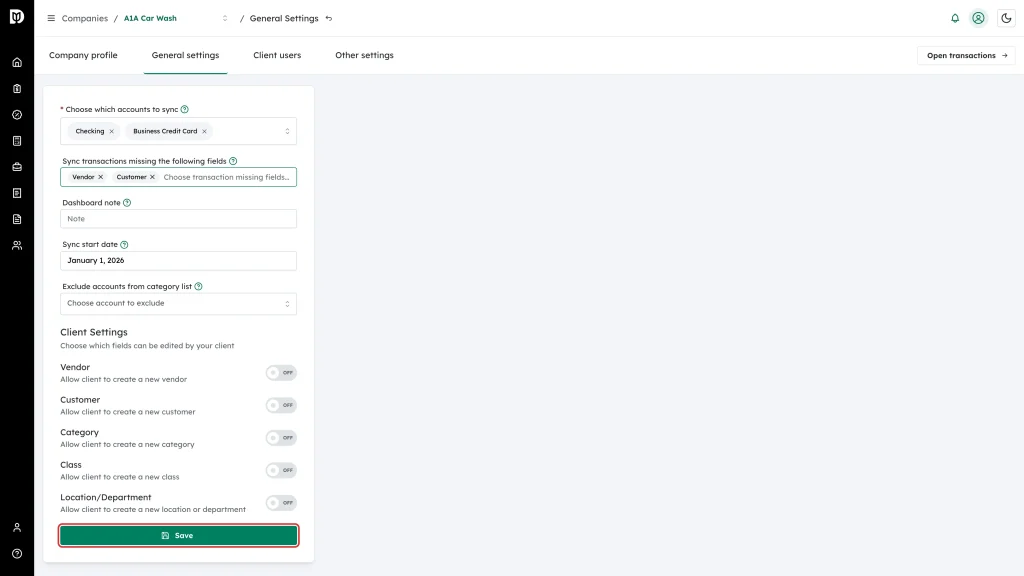
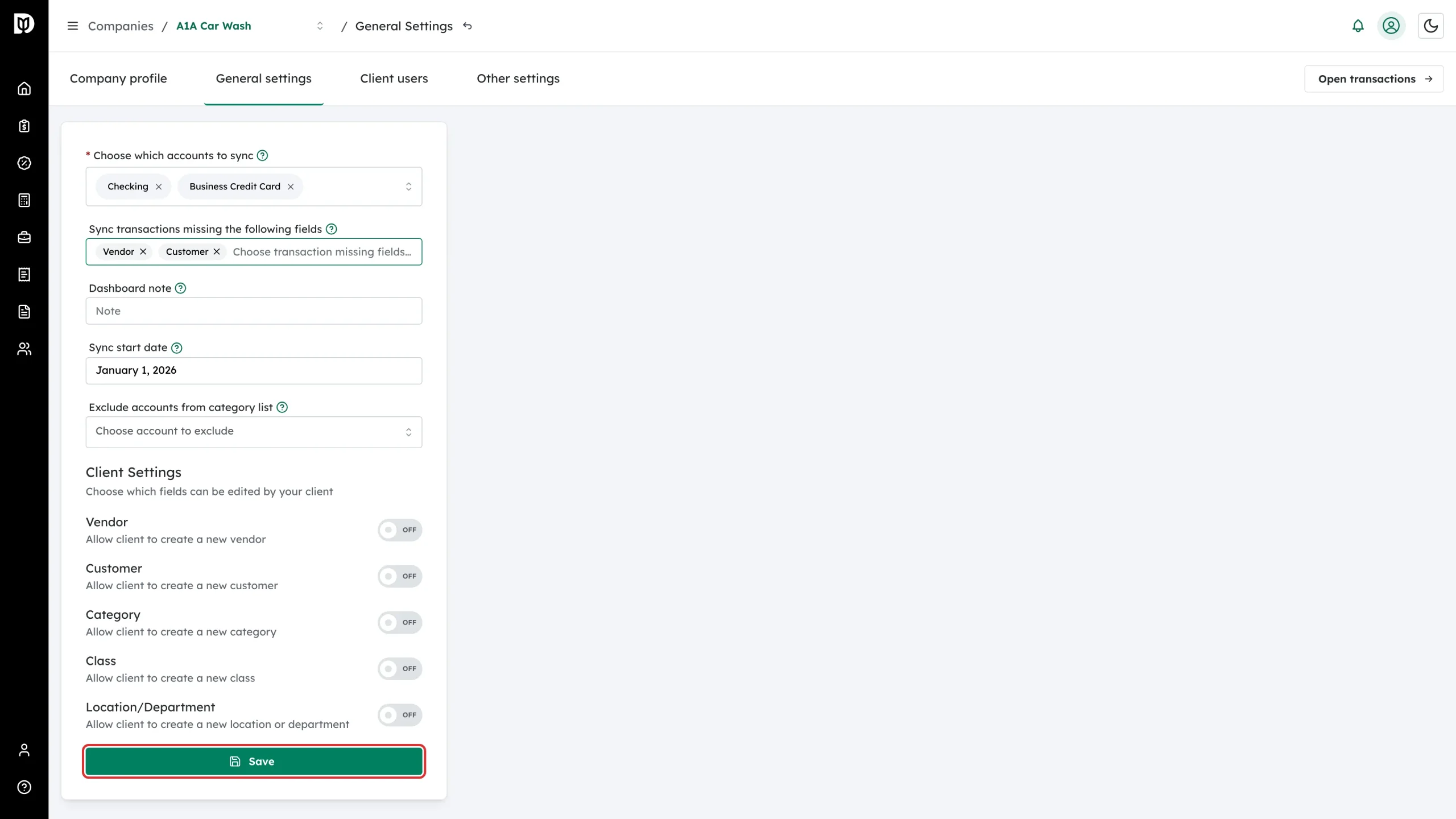
Each field you pick becomes a tag in the box. Click Save.
What happens next
- On the next sync, transactions that are missing any of the chosen fields are pulled in even if QuickBooks Online already considers them categorised.
- They show up on the company’s Categorize tab so you or your client can fill in the gap.
- To remove a field, click the x on its tag and save again.
Notes
- Debits does not guess or auto-fill these values. Clients answer, accountants approve.
- The Department option here is the same data the transactions table shows in the Location column.