QuickBooks Online is the only data source Debits connects to. Adding a company means authorising Debits against that company’s QuickBooks file, choosing what to sync, and then inviting the client.
Before you start
- You need a bookkeeping package and the permission to add companies. If you cannot see the New company button, ask your firm owner.
- You need QuickBooks Online sign-in details with admin rights for the company you are connecting.
- If the QuickBooks company is already connected to another firm in Debits, the connection is refused and you are told to disconnect it first.
Steps
-
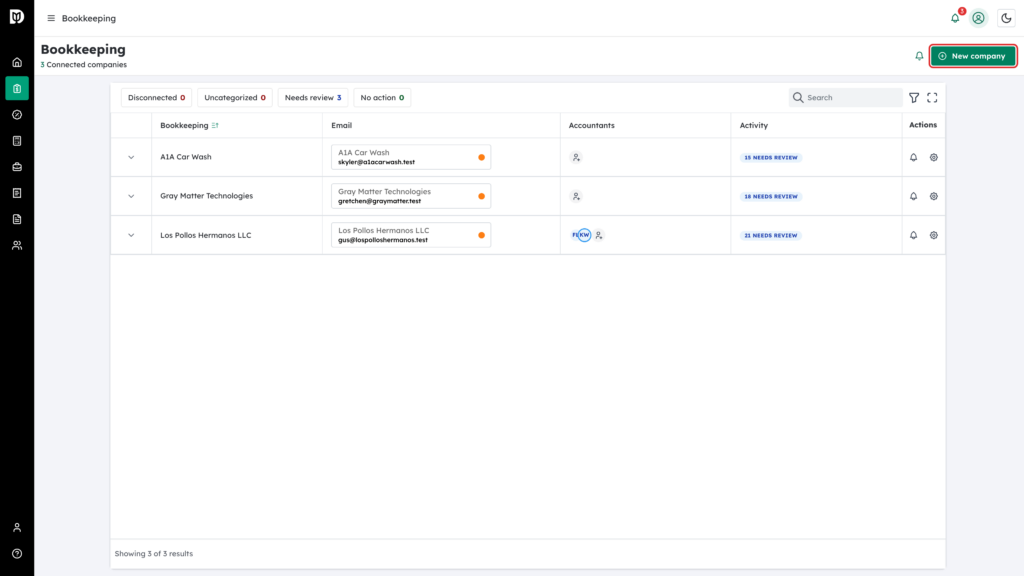
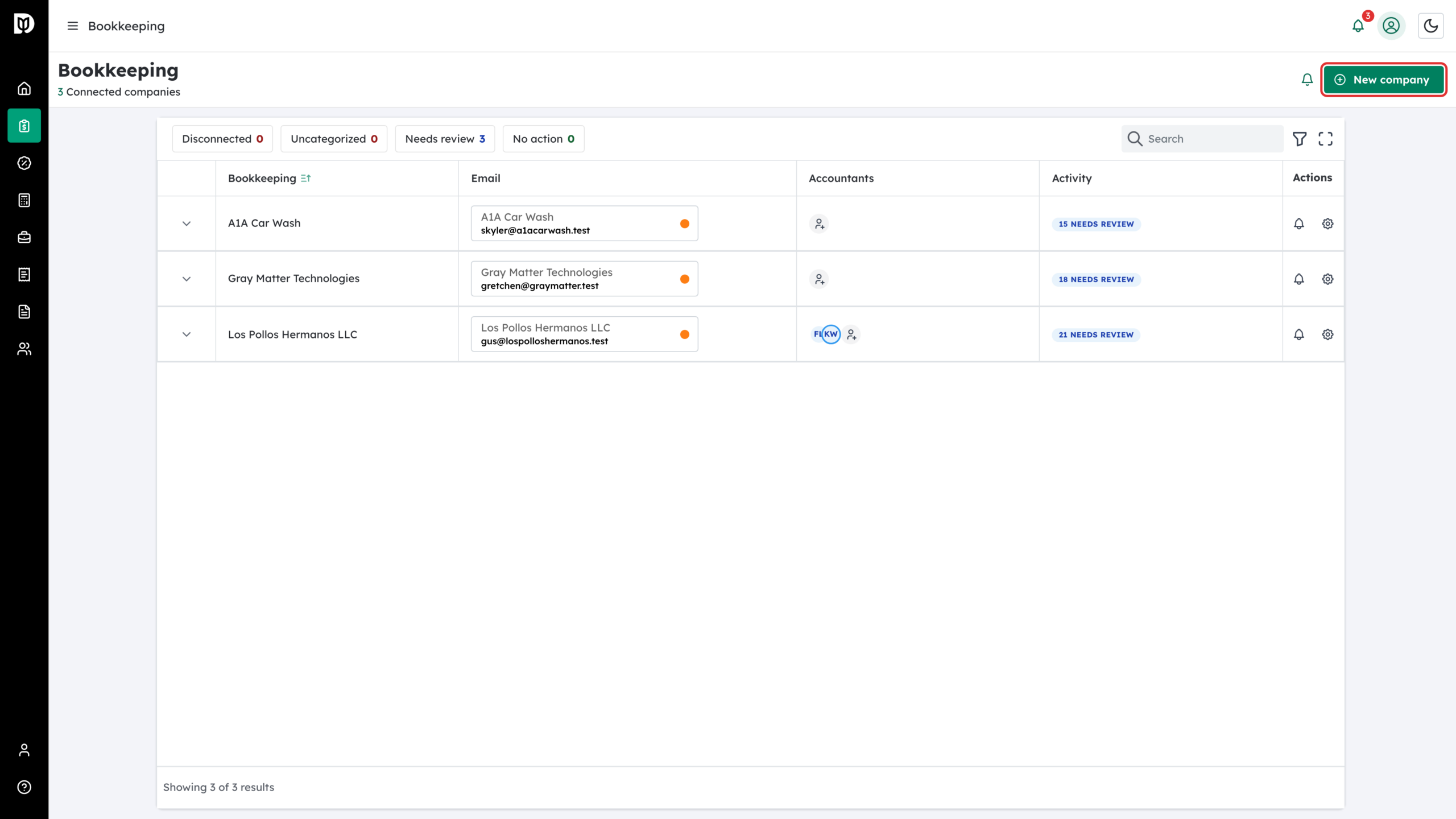
In the left sidebar, open Bookkeeping, then click New company at the top right.
-
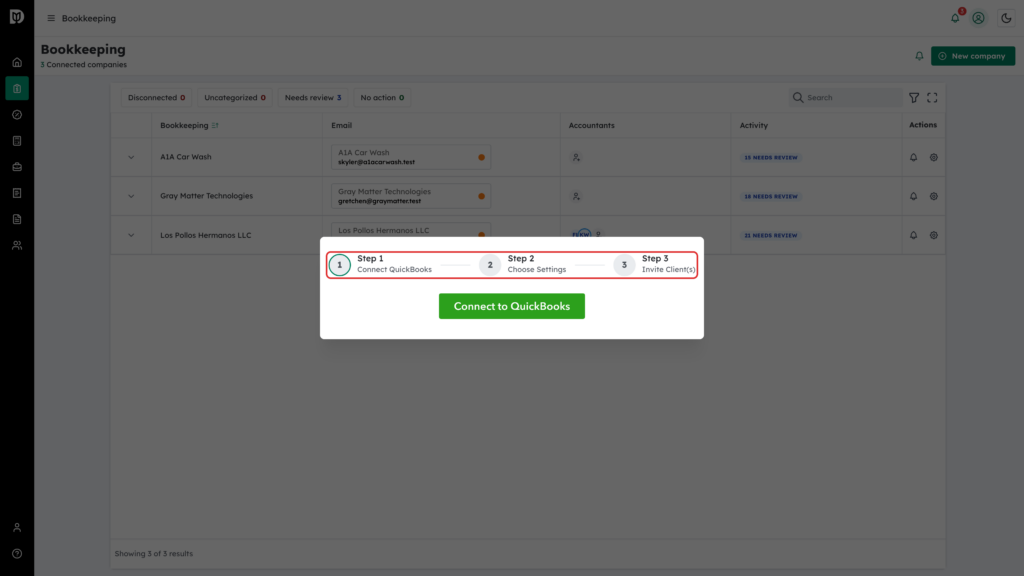
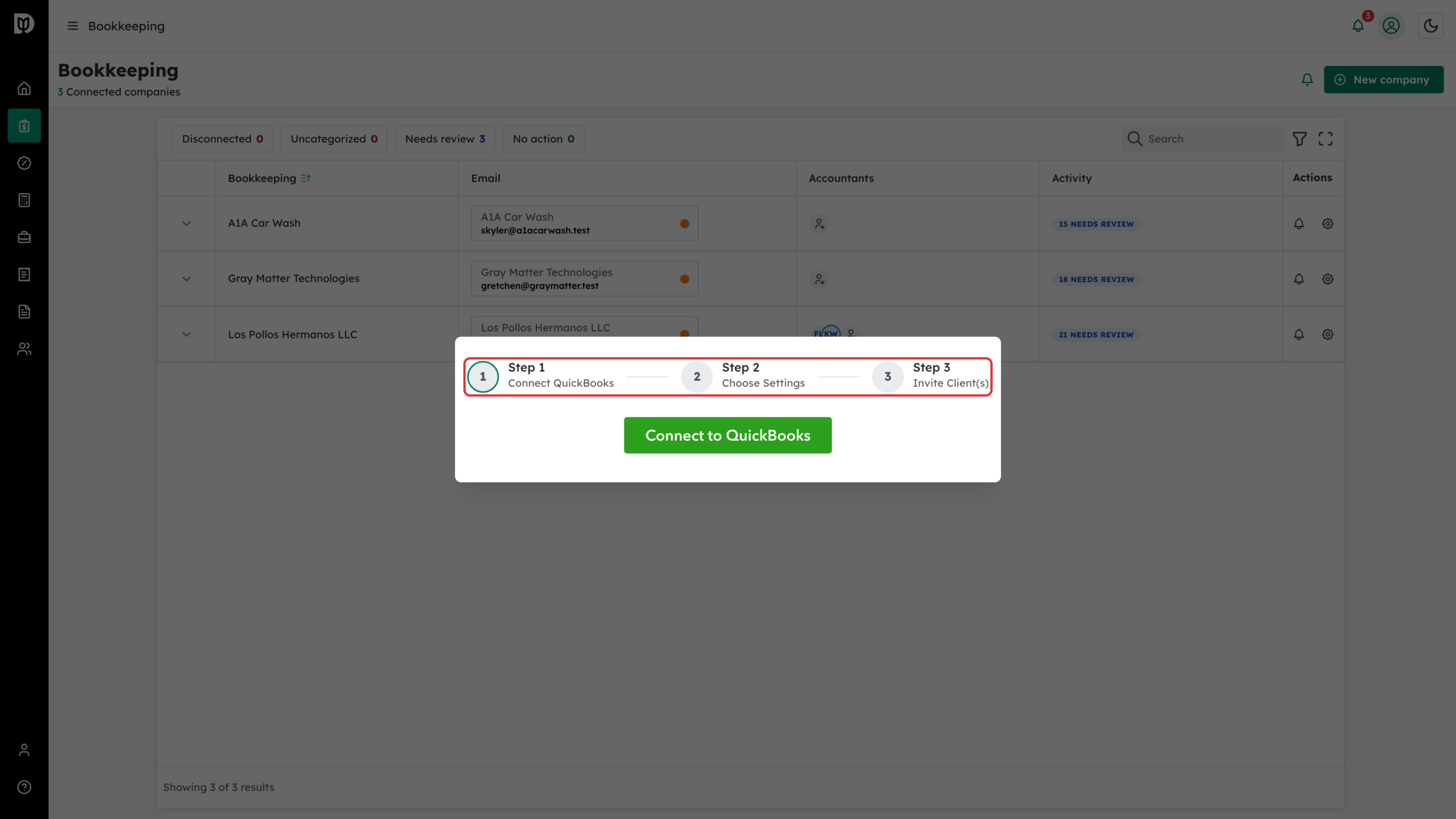
The connect wizard opens on Step 1 Connect QuickBooks. The three steps are shown across the top: Connect QuickBooks, Choose Settings, Invite Client(s).
-
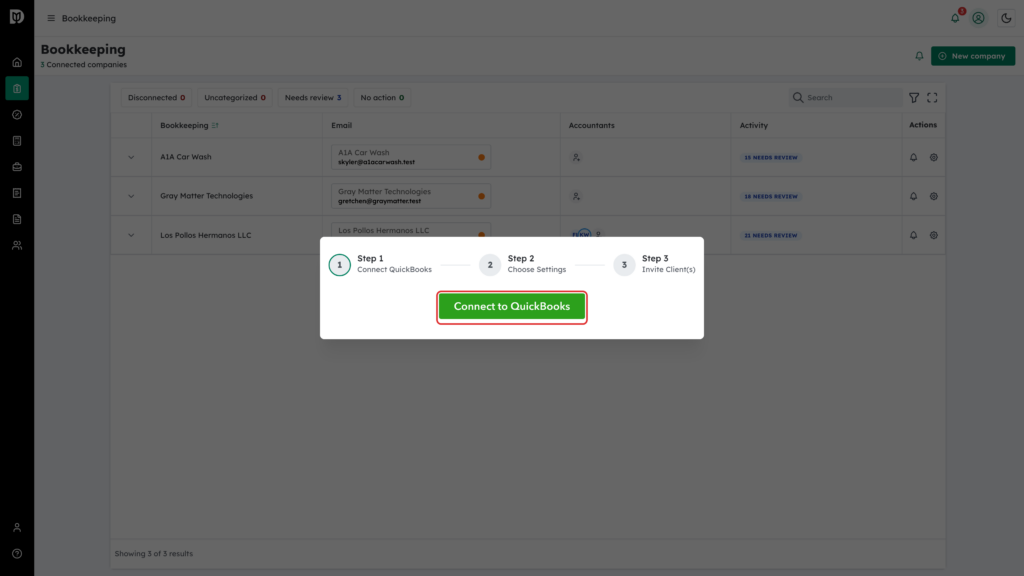
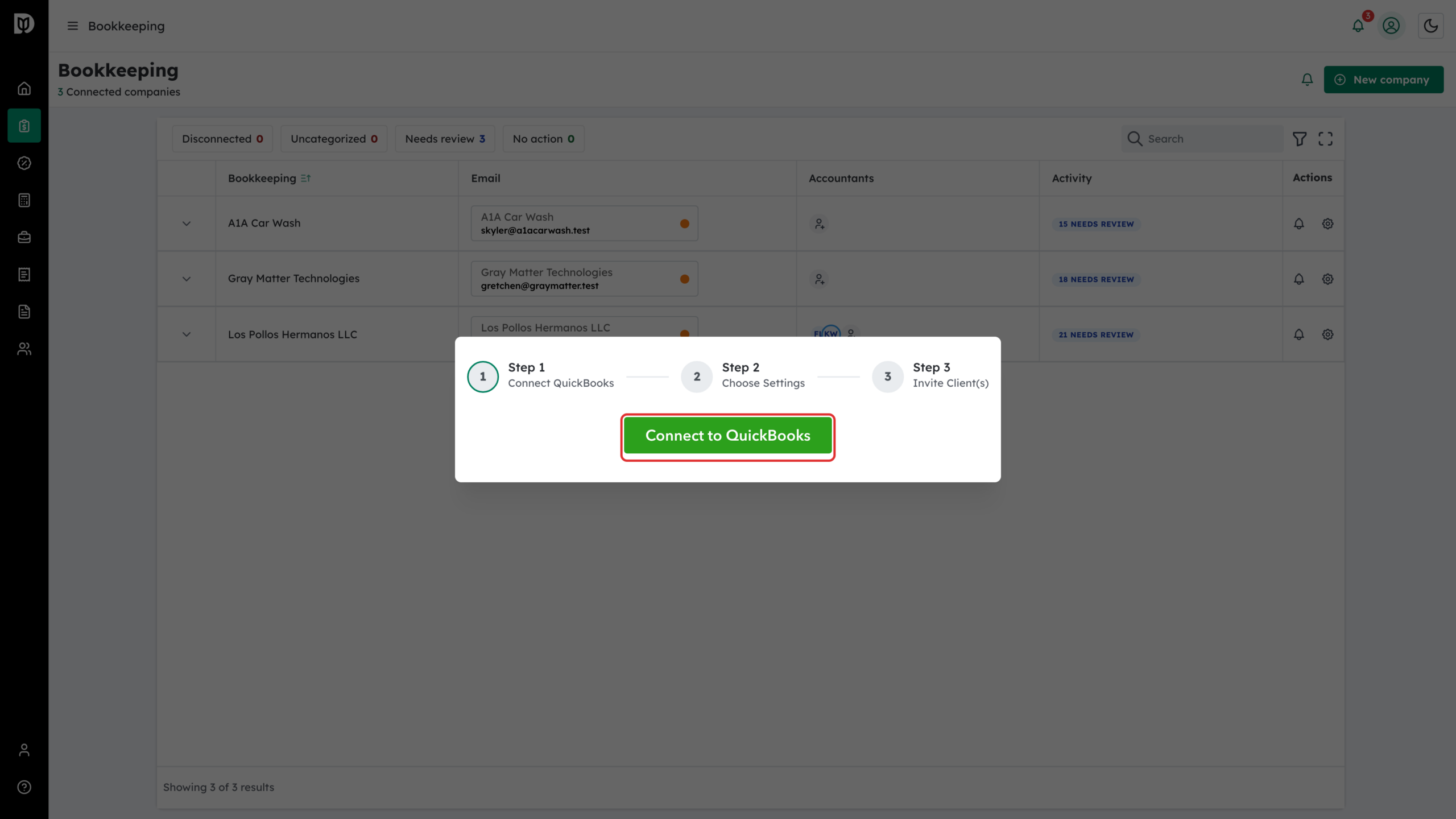
Click Connect to QuickBooks.
-
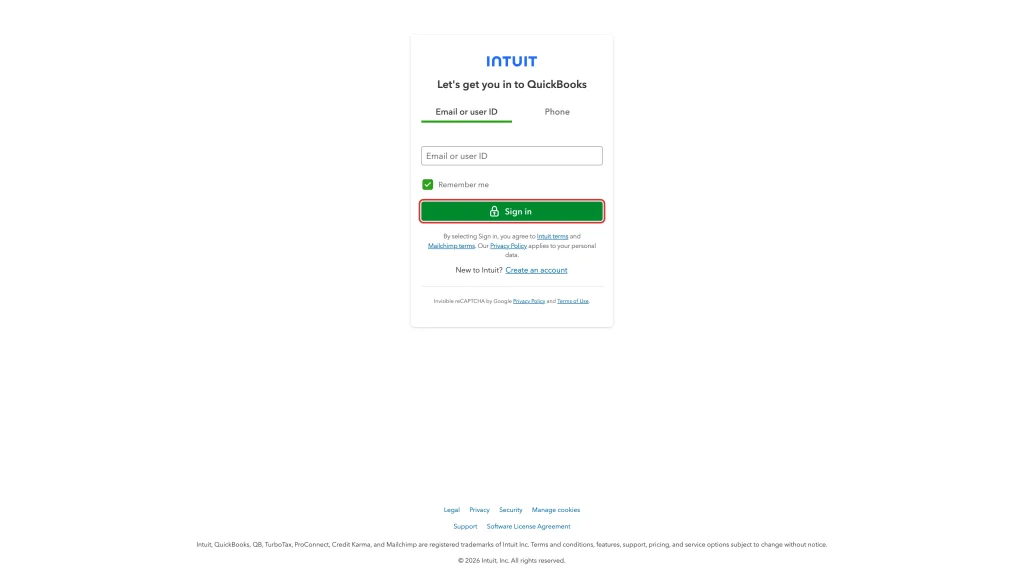
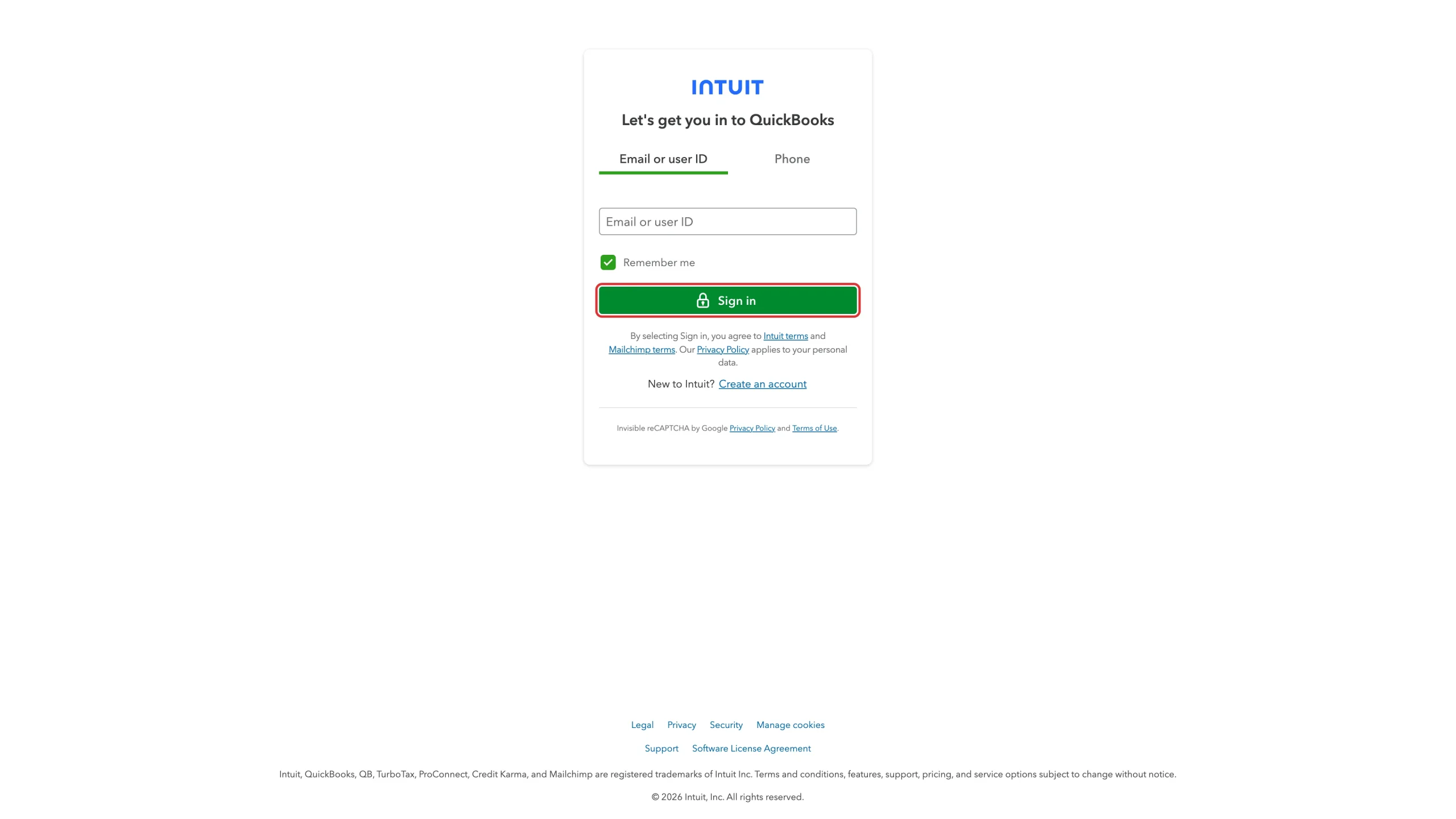
Debits sends you to Intuit. Sign in with the QuickBooks Online account that owns the company file, then choose that company and approve the access request on Intuit’s pages. Intuit returns you to Debits when you are done.
-
Back in Debits the wizard moves to Step 2 Choose Settings. Set the Sync start date and pick one or more accounts under Choose which accounts to sync, then click Next. At least one account is required. If you pick a start date in an earlier month than the one Debits suggests, a yellow Confirm sync date update notice appears with an Accept switch and explains the one-time charge per additional month, at the company’s bookkeeping package rate ($5 on Core, $10 on Complete).
-
On Step 3 Invite Client(s), choose Link existing contact and pick the contact if your firm already has one, or choose Add new client and type their Email address. Then click Link client or Invite client. If you would rather do this later, click Do this later.
What happens next
- Debits creates the company using the name and country from QuickBooks Online and starts the first sync.
- Class and Location tracking are switched on or off to match the tracking preferences in that QuickBooks file, so the Class and Location fields only appear if the client actually uses them.
- The Uncategorized Expense, Uncategorized Income and Uncategorized Asset accounts are pre-selected as sync accounts. Change this later on the company’s General settings tab.
- An invited client gets an email with a link to set up or sign in to their Debits account.
- The company appears in your Bookkeeping list with an activity badge such as 350 UNCATEGORIZED once the first sync finishes.
Troubleshooting
- “… is already connected to Debits.” Another firm still has that QuickBooks company. Disconnect it in that firm’s settings or in QuickBooks Online Apps first.
- No New company button. Your role or bookkeeping permissions do not include adding companies.
- Intuit rejects the sign-in. You need admin rights in that QuickBooks company. Ask the client to complete the connection instead.