Debits emails clients when they have transactions waiting on them. Each email has a magic link that takes the client straight to their Debits dashboard, with no password to remember.
There are two levels of control. The schedule is set once for the whole firm. Whether a particular client is included is set on that client’s contact record, which you can reach from the company.
Before you start
- You need an accountant owner or admin role.
- The client user must already be invited to the company, so that a contact record exists. The bell icon does not appear otherwise.
- Debits sends reminders by email only. There are no SMS reminders.
Turn reminders on or off for one client
-
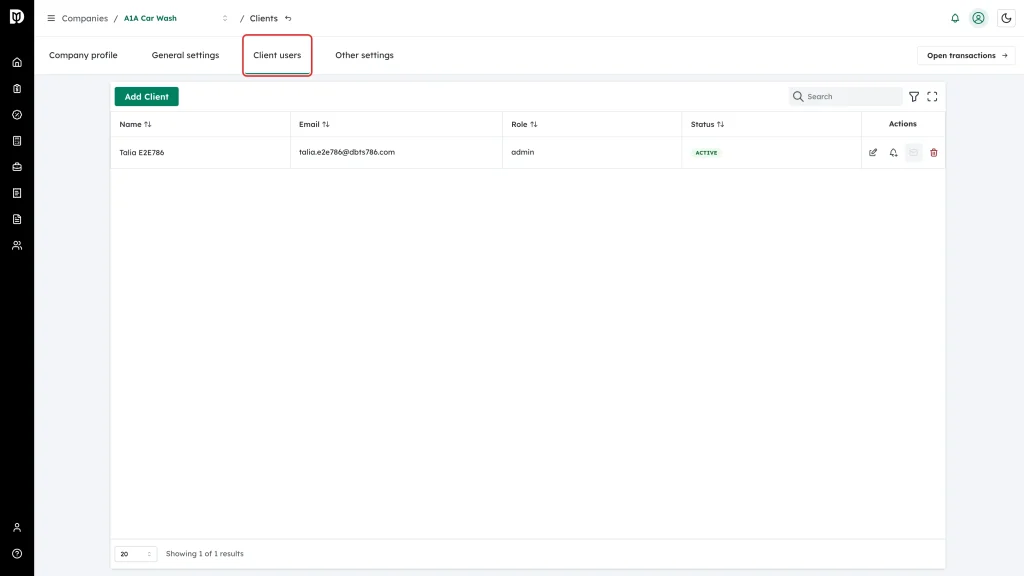
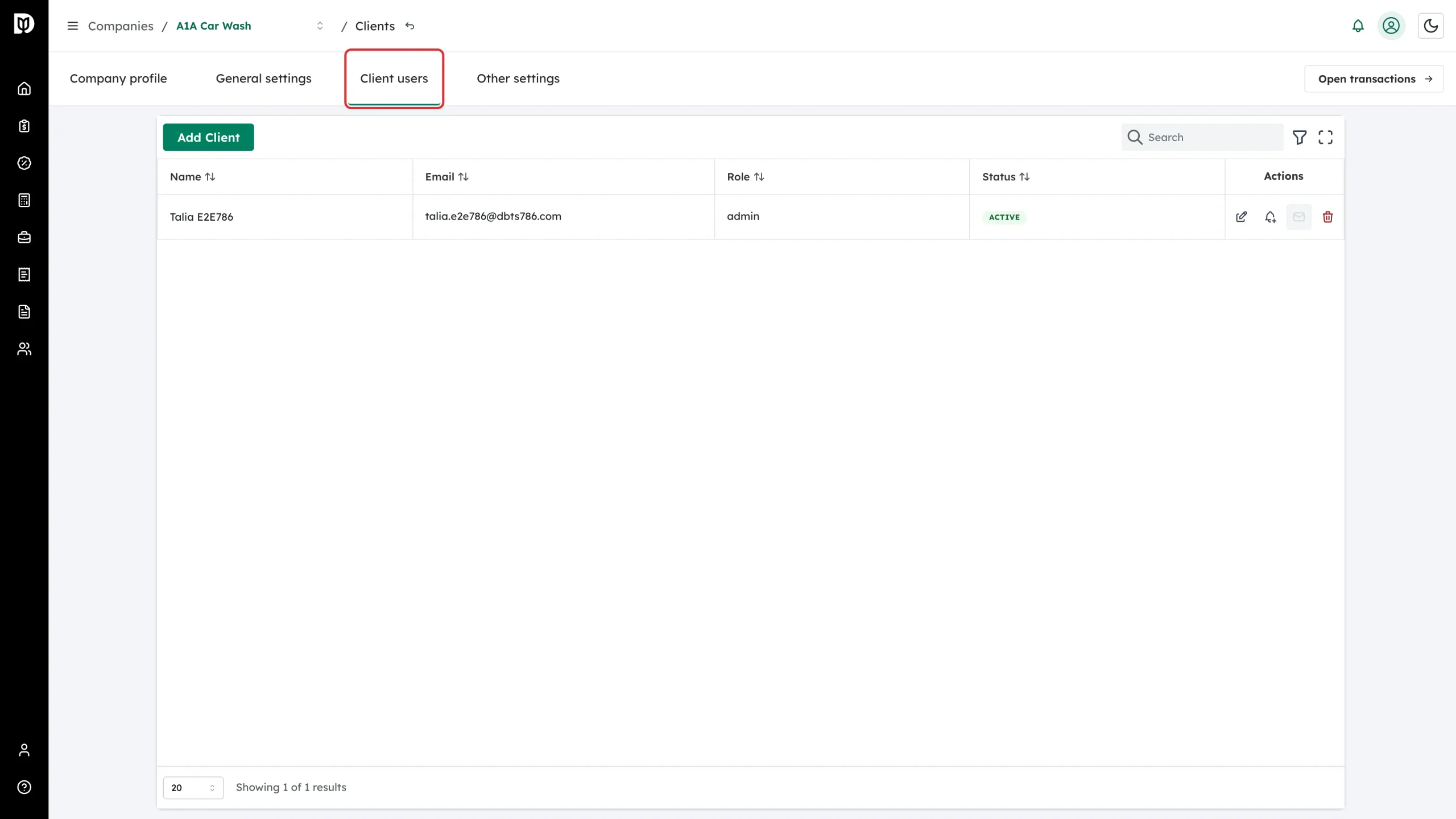
Open the company from Bookkeeping, then open the Client users tab.
-
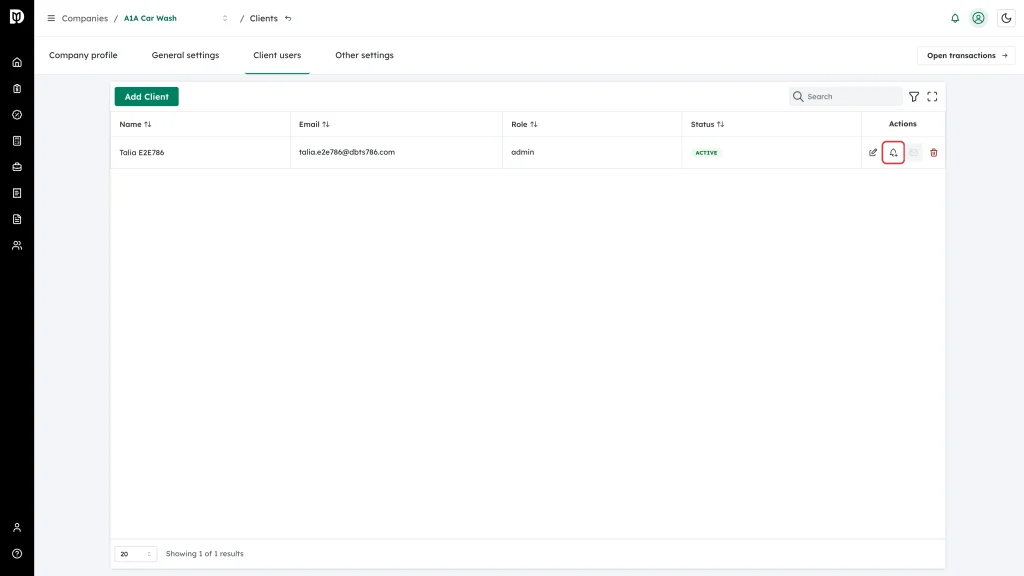
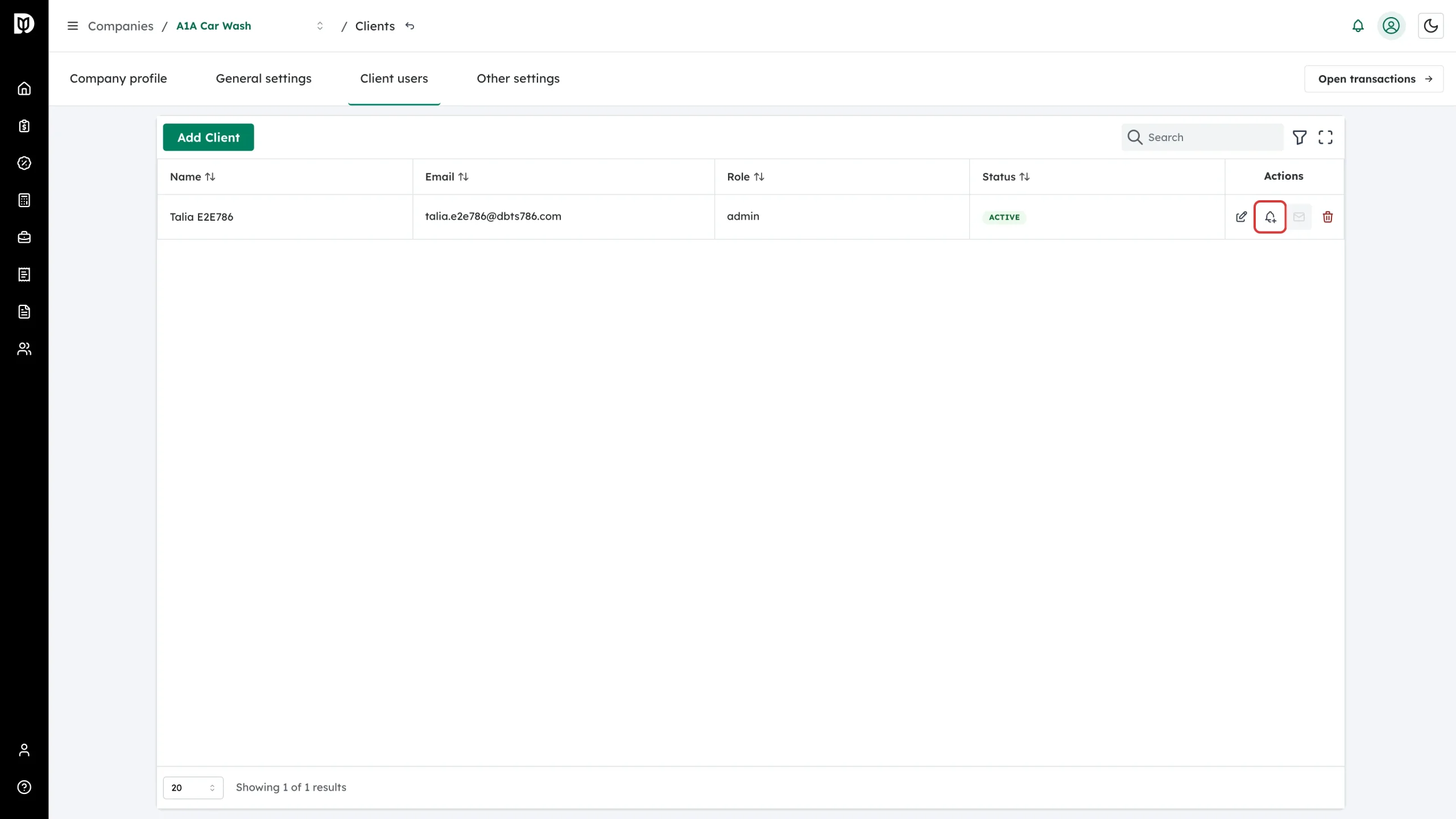
In the Actions column of the client’s row, click the bell icon. Its tooltip reads Reminder settings.
-
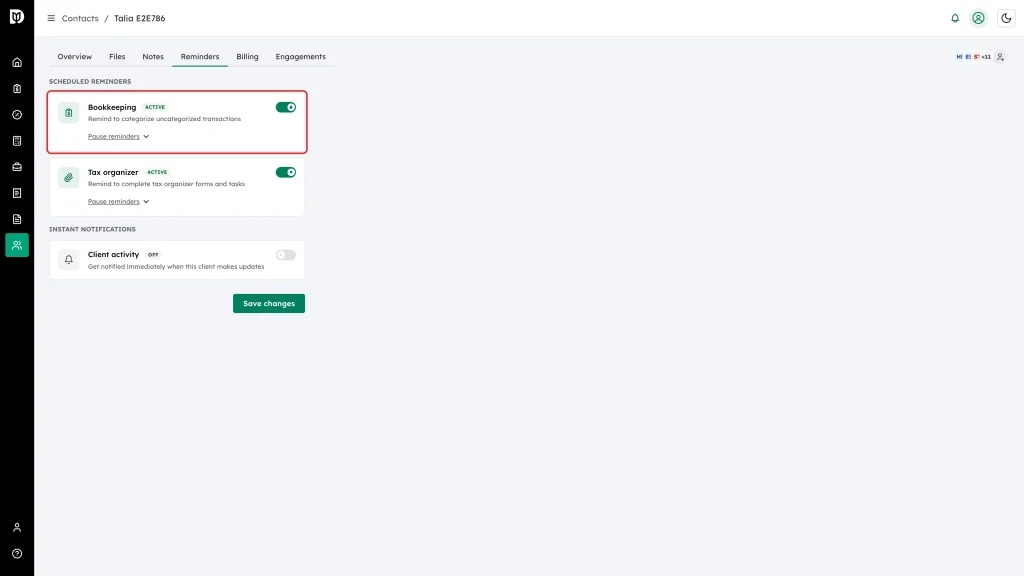
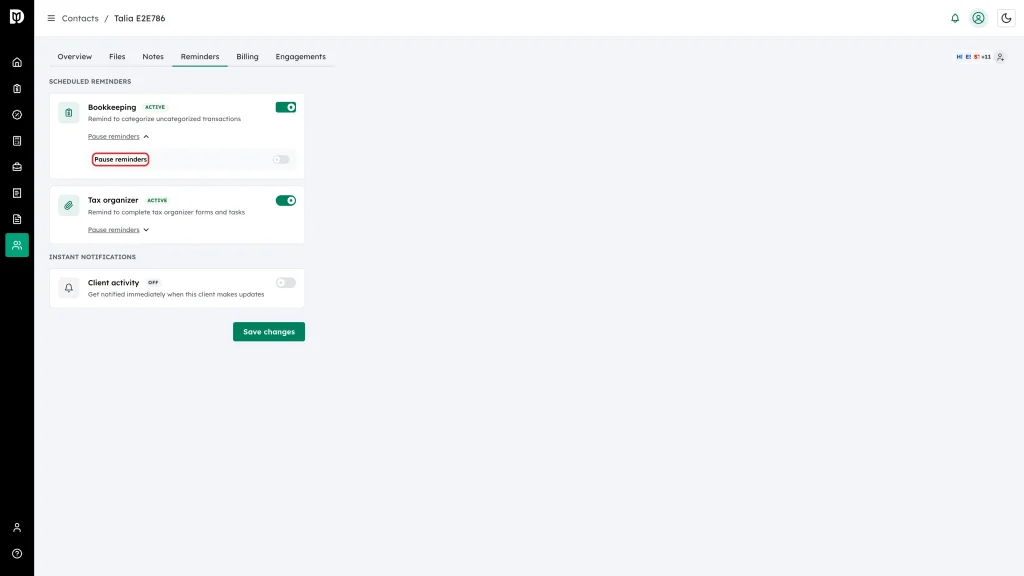
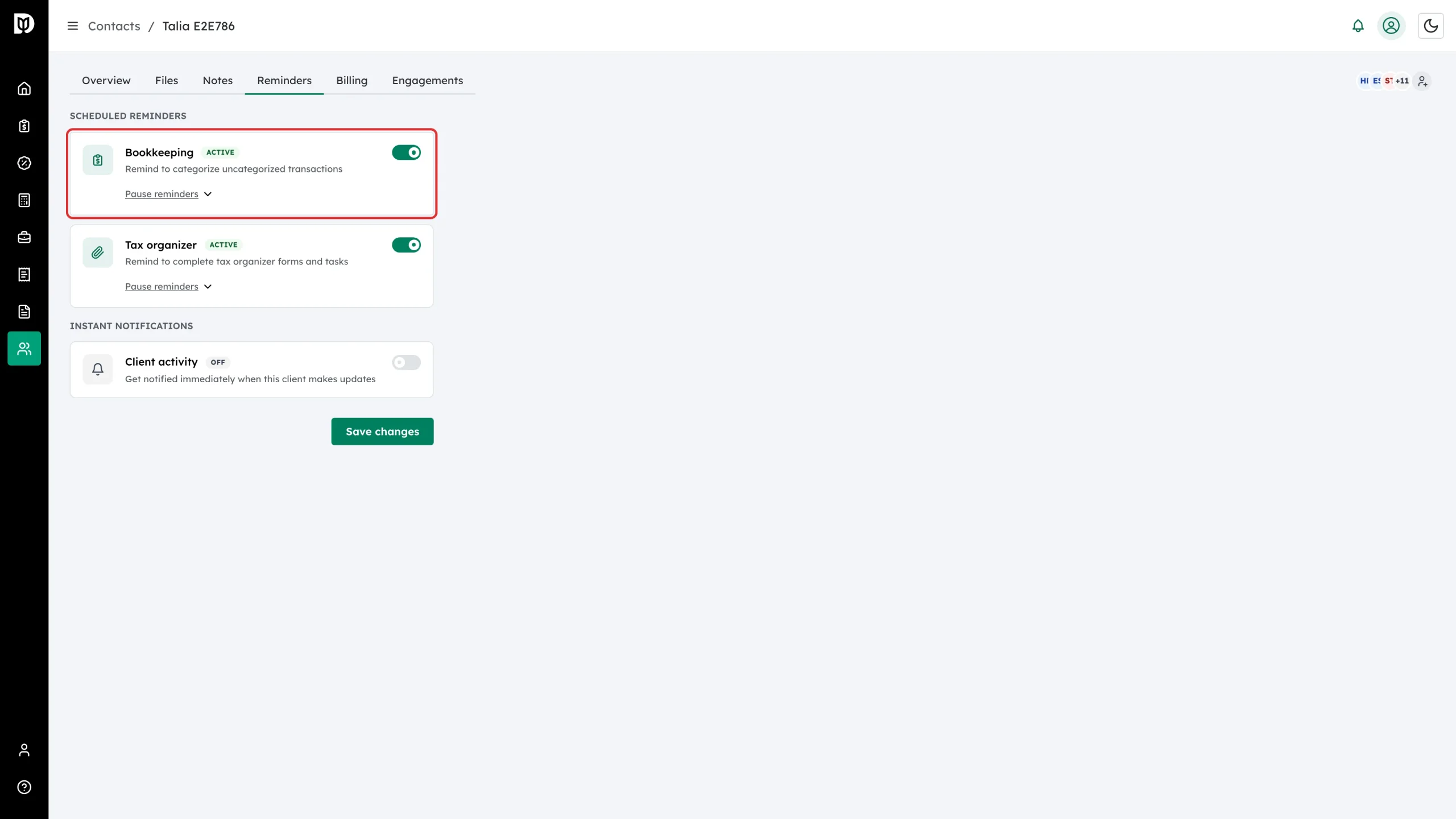
The contact’s Reminders tab opens. Under SCHEDULED REMINDERS, the Bookkeeping card controls emails about uncategorised transactions. The badge shows Active, Paused or Off.
-
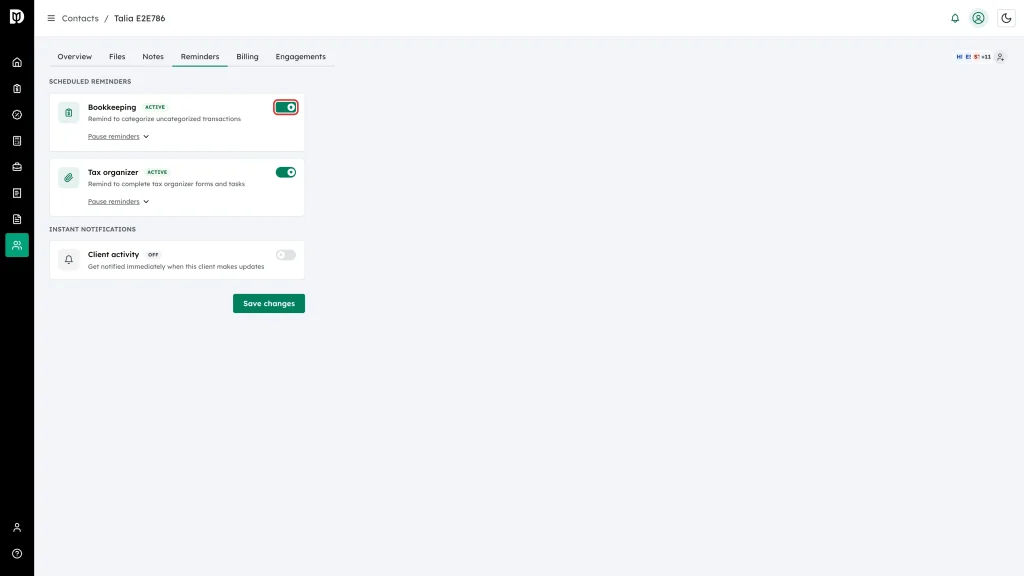
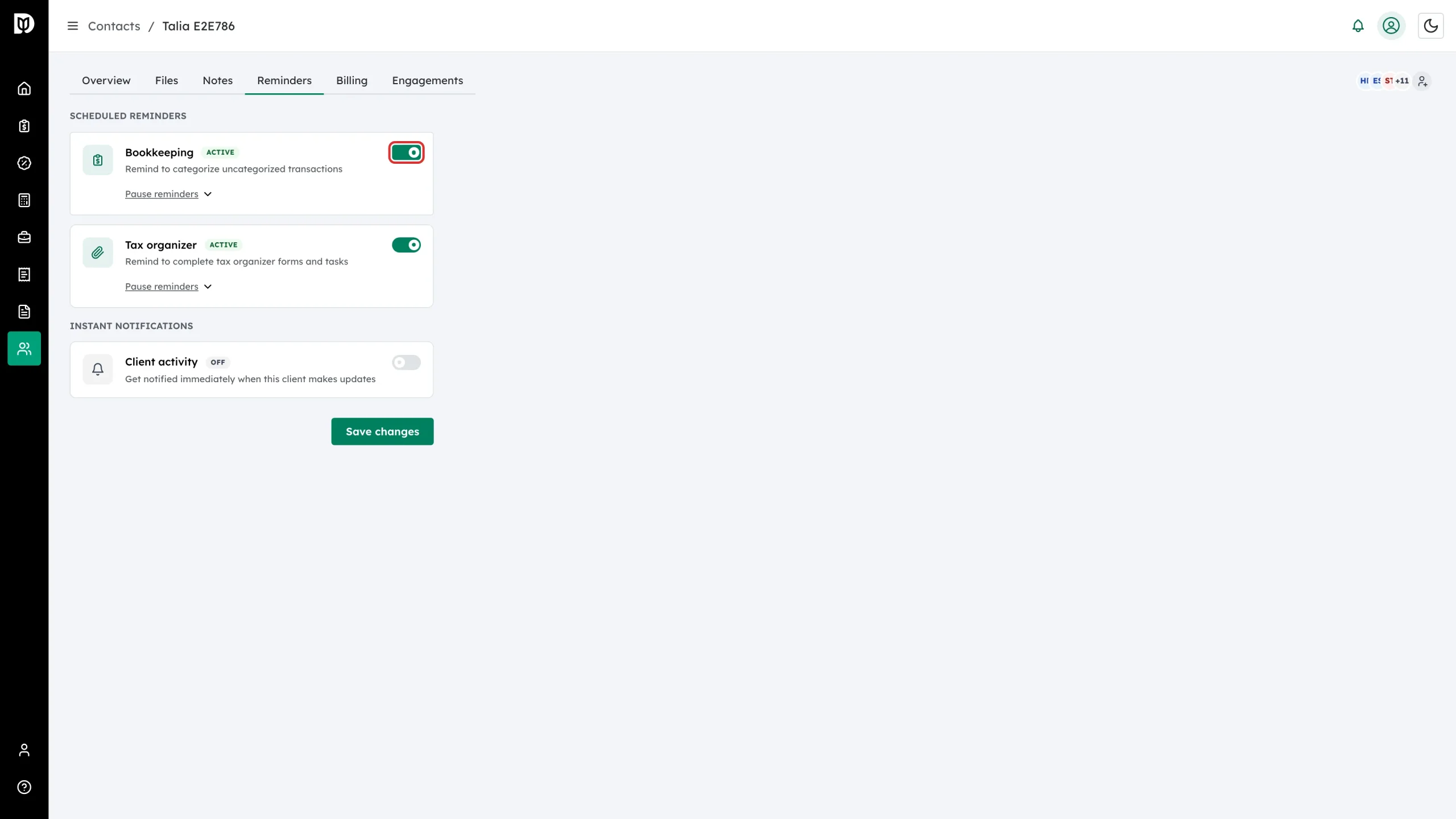
Use the switch on the card to include or exclude this client.
-
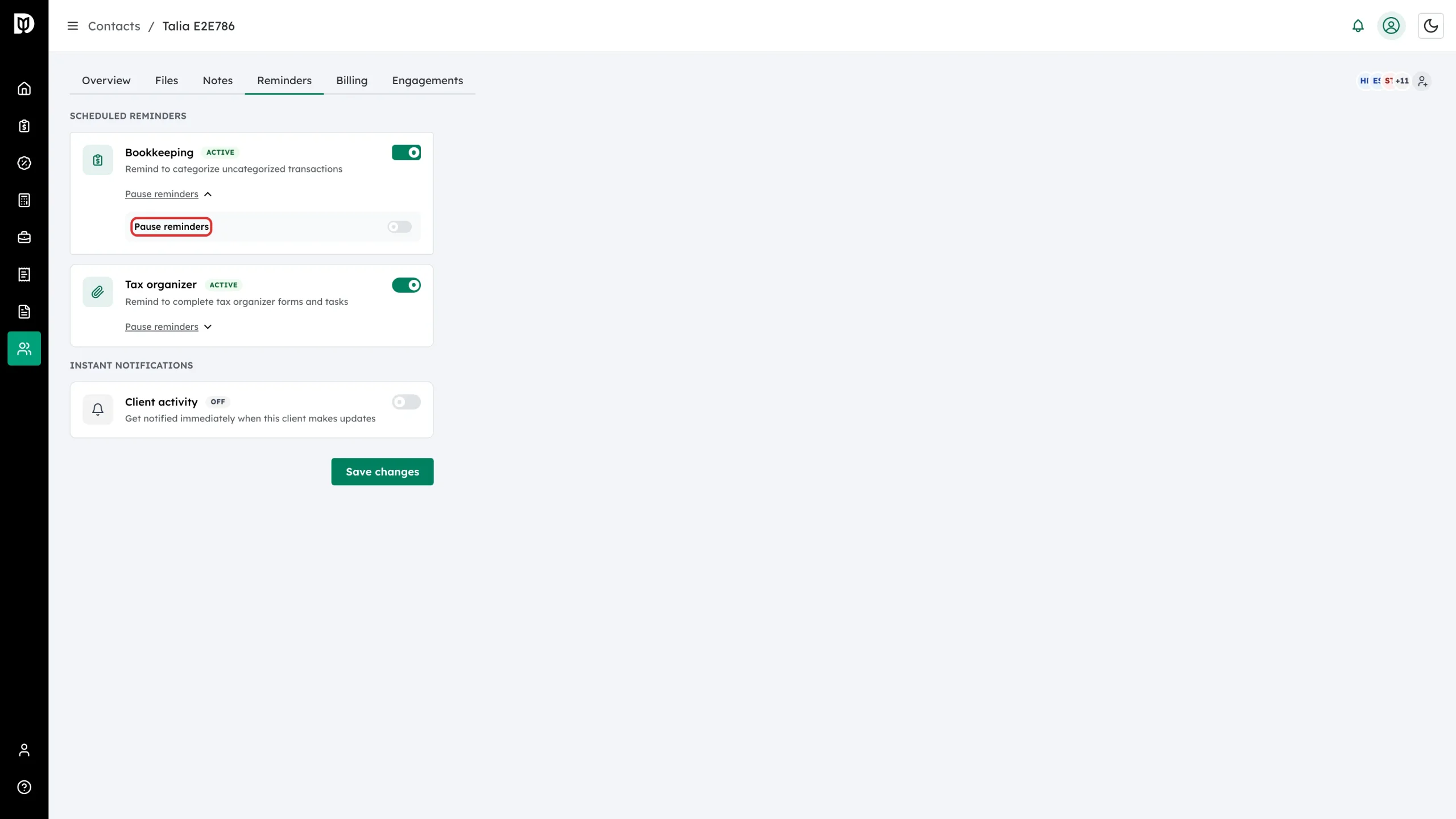
To stop reminders for a while without turning them off, click Pause reminders and switch the pause on. You can set a resume date, or leave it blank to pause until you change it back.
-
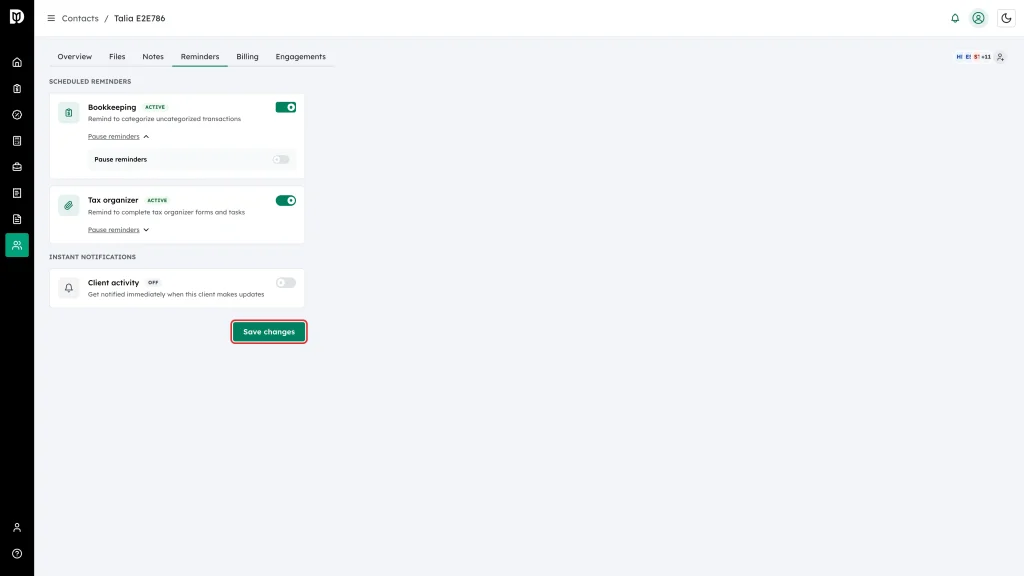
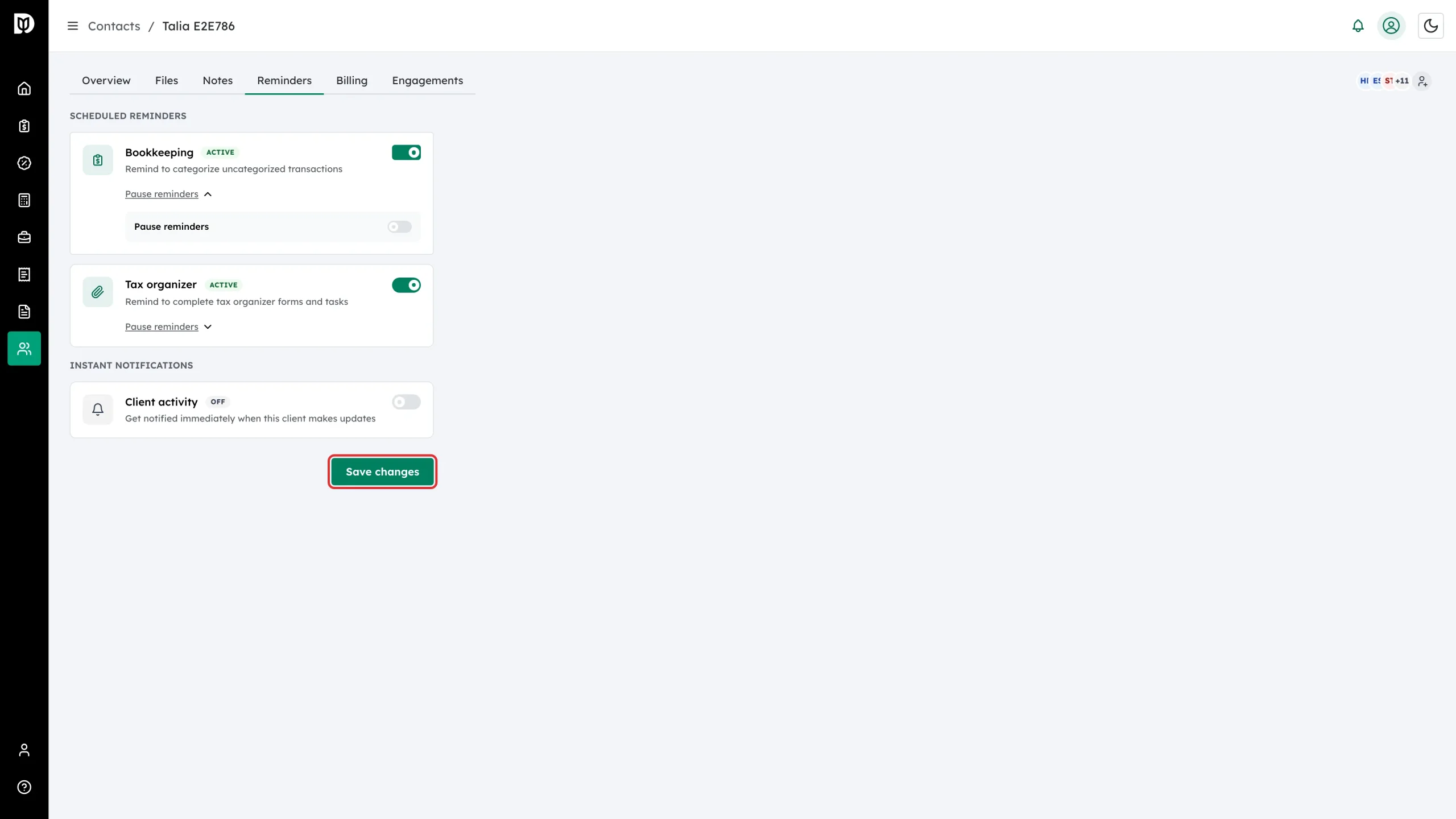
Click Save changes.
Change the schedule for the whole firm
-
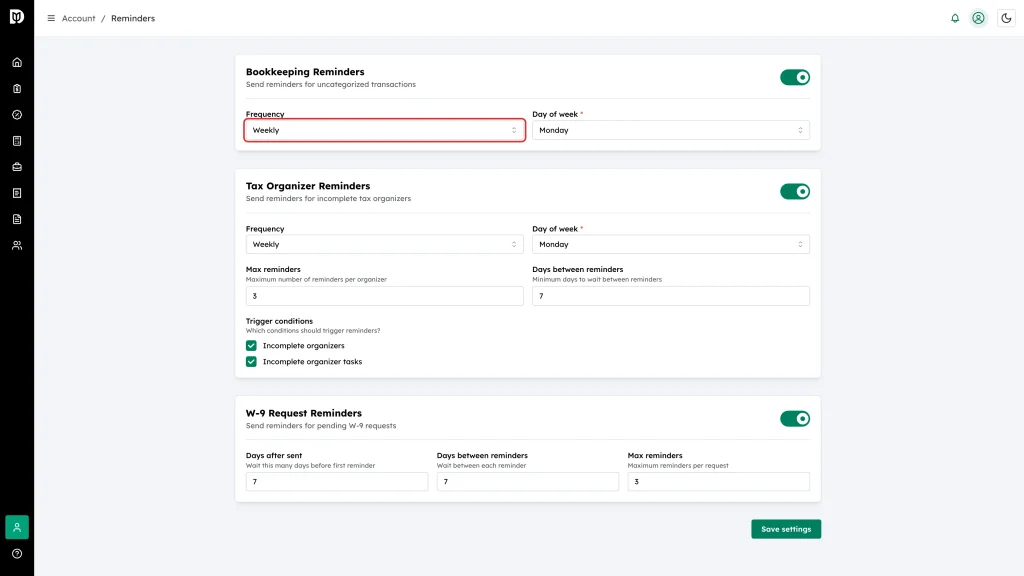
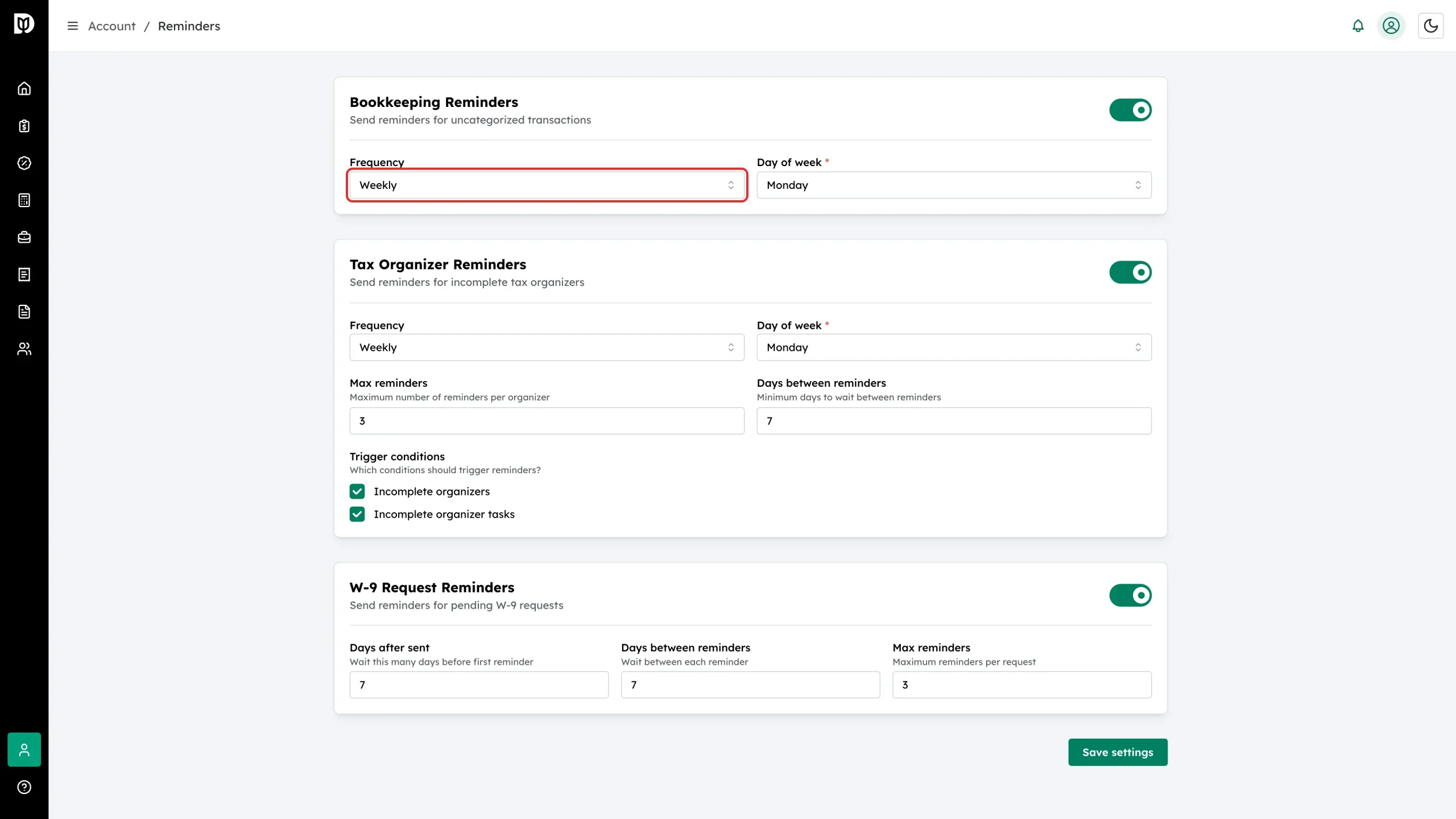
Go to Account → Reminders. On the Bookkeeping Reminders card, set Frequency to Daily, Weekly or Monthly. Weekly also asks for a Day of week; monthly asks for a Day of month. Click Save settings.
What happens next
- On each scheduled run, Debits emails every included client who has transactions waiting. Clients with nothing outstanding are skipped.
- Each email says how many transactions need attention and carries a magic-link button that signs the client in.
- The Client activity card under INSTANT NOTIFICATIONS is a separate thing: it emails you as soon as this client updates transactions.
Notes
- Frequency is a firm-wide setting. You cannot put one client on a weekly schedule and another on a daily one — only on, off or paused per client.
- The same page also carries Tax Organizer Reminders and W-9 Request Reminders, which have their own schedules.