Keep the receipt, bill or supporting document with the transaction it belongs to. Files are attached from the Docs column of the transactions table.
Before you start
- You can attach up to 5 files per transaction, each up to 5 MB.
- Allowed file types are .pdf, .jpg, .png and .docx.
- The drop zone is disabled on the Approved tab.
Attach a file
-
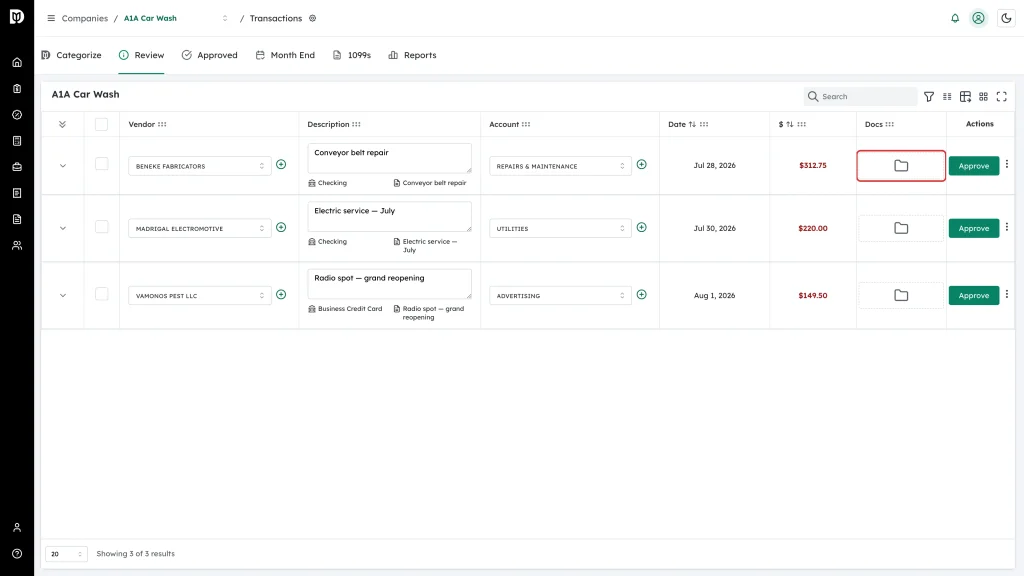
Open the company’s transactions and find the transaction. In the Docs column, click the dashed folder box to choose a file, or drag the file straight onto it.
-
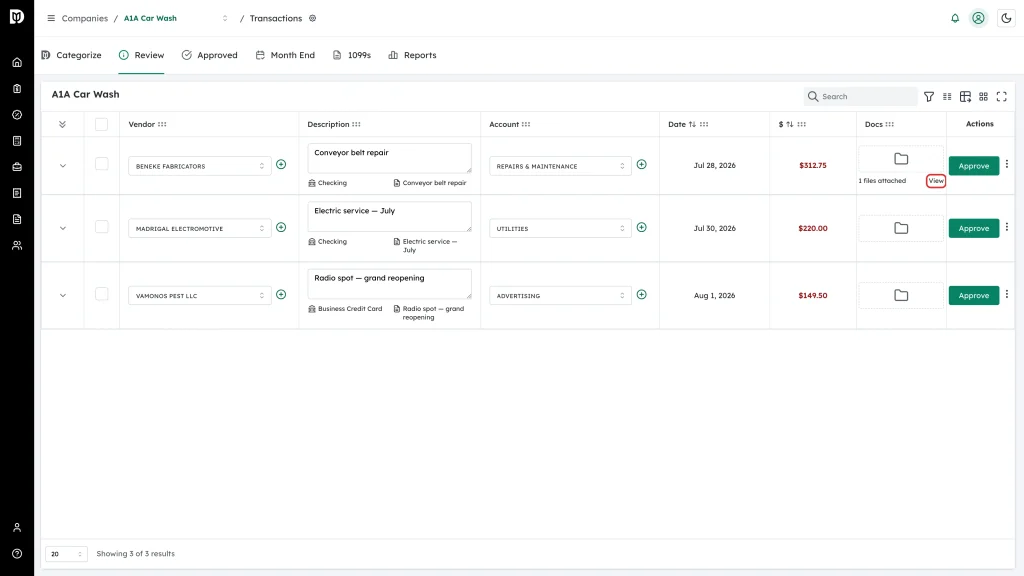
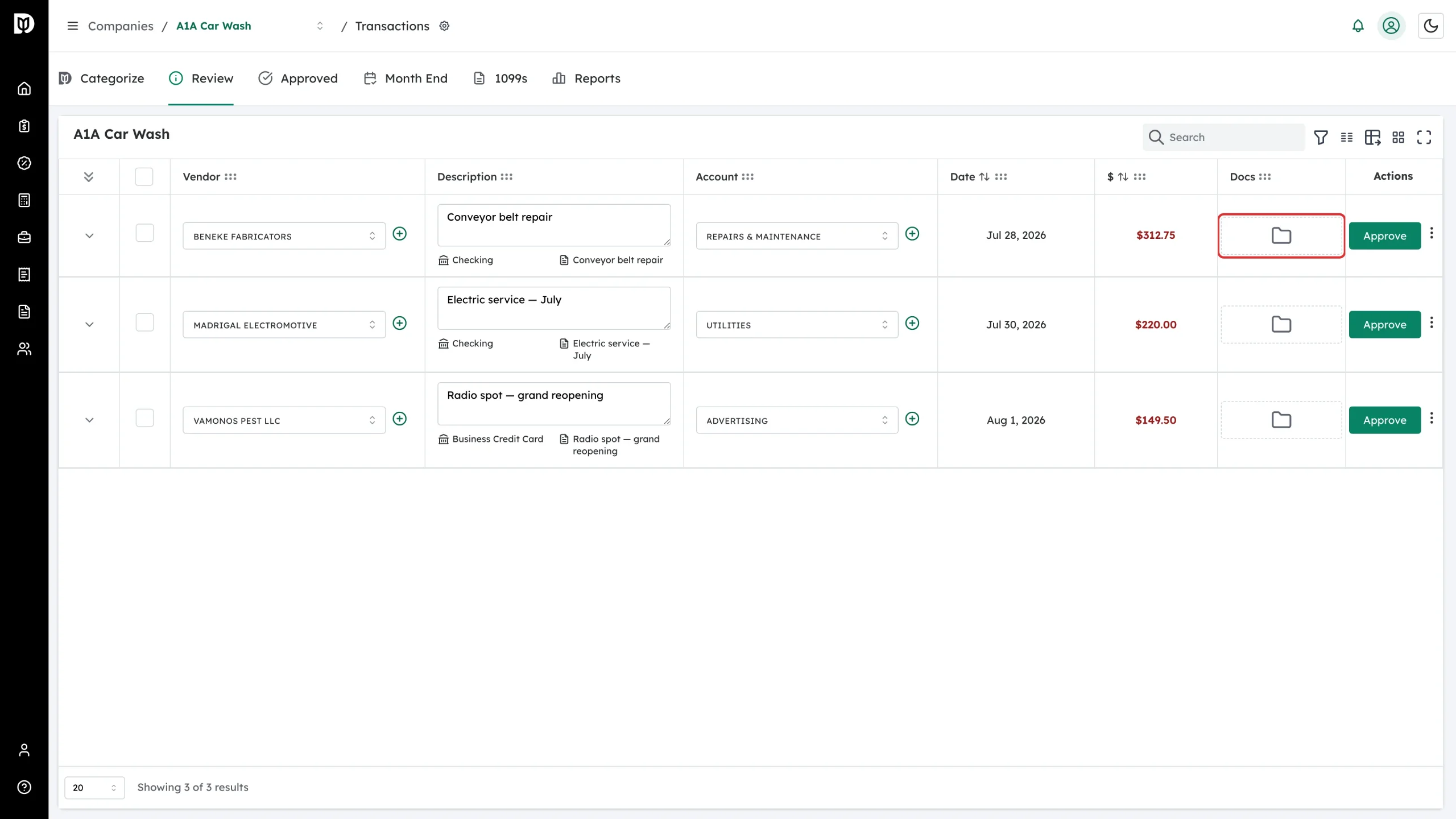
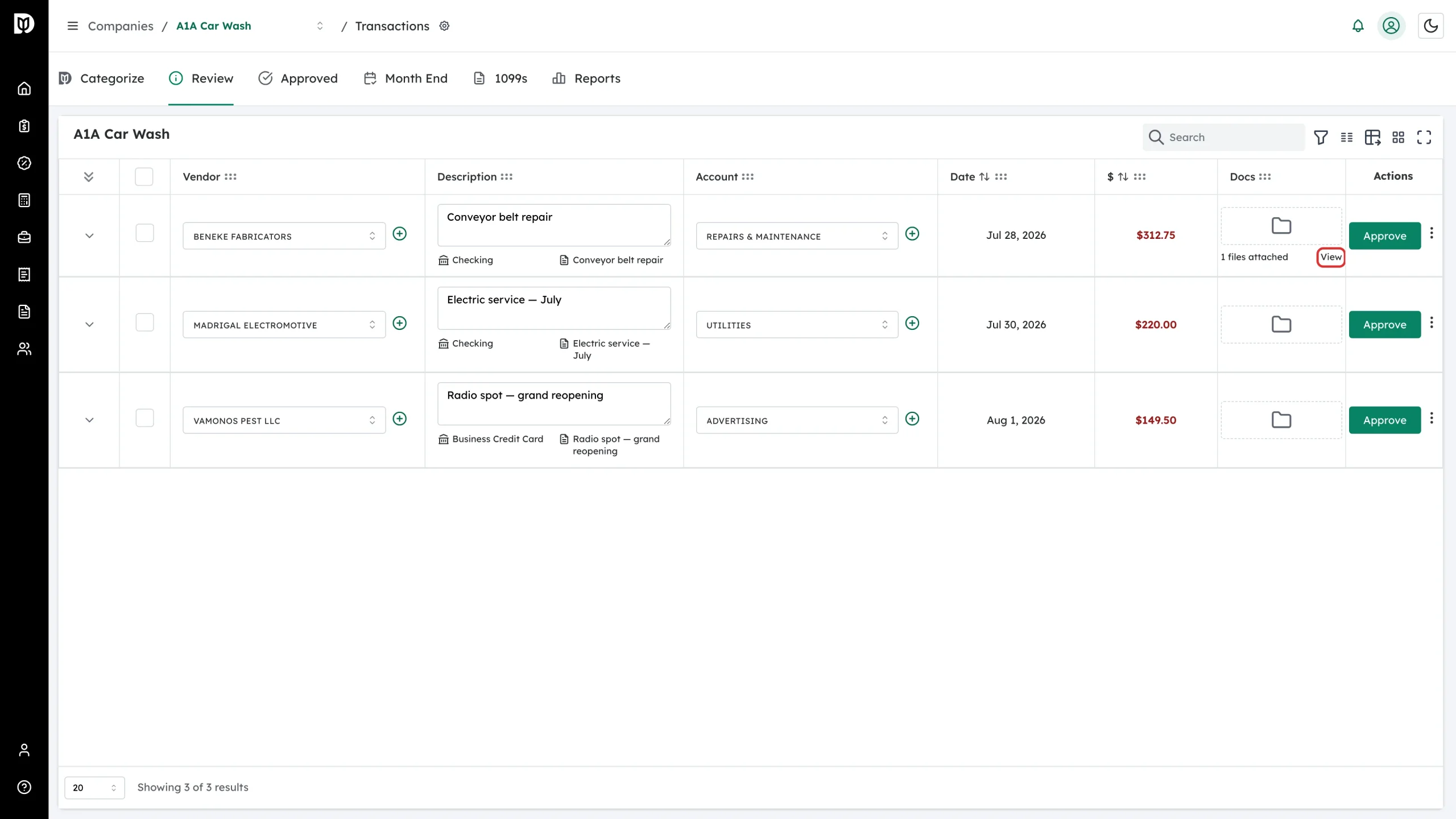
The file uploads right away. The cell then shows how many files are attached, with a View link.
See what is already attached
-
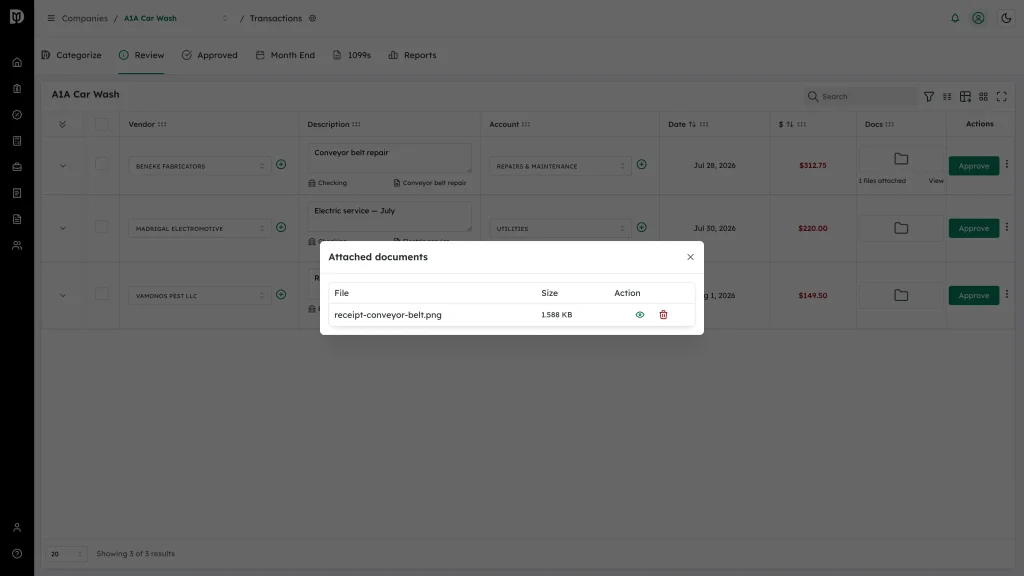
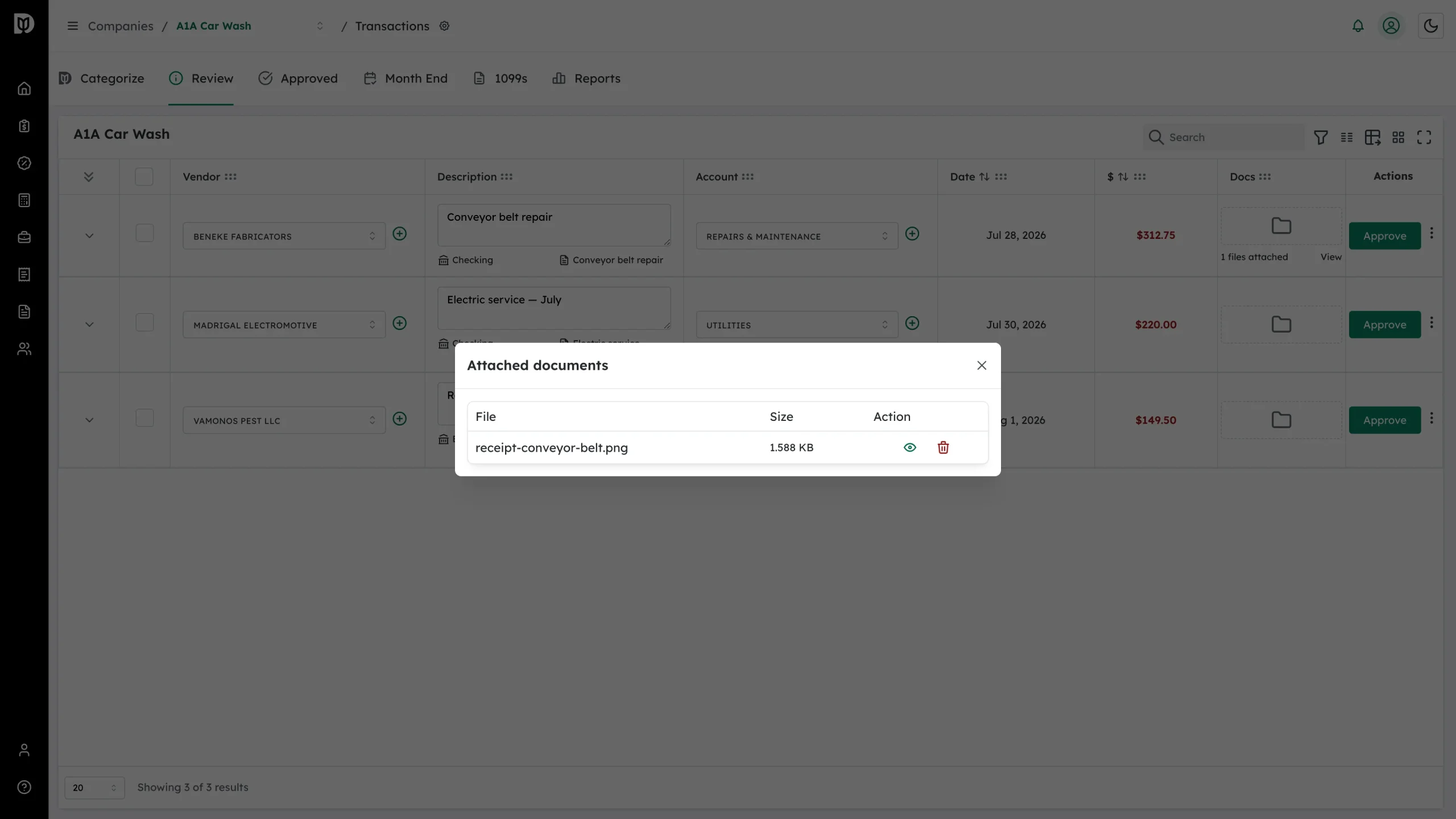
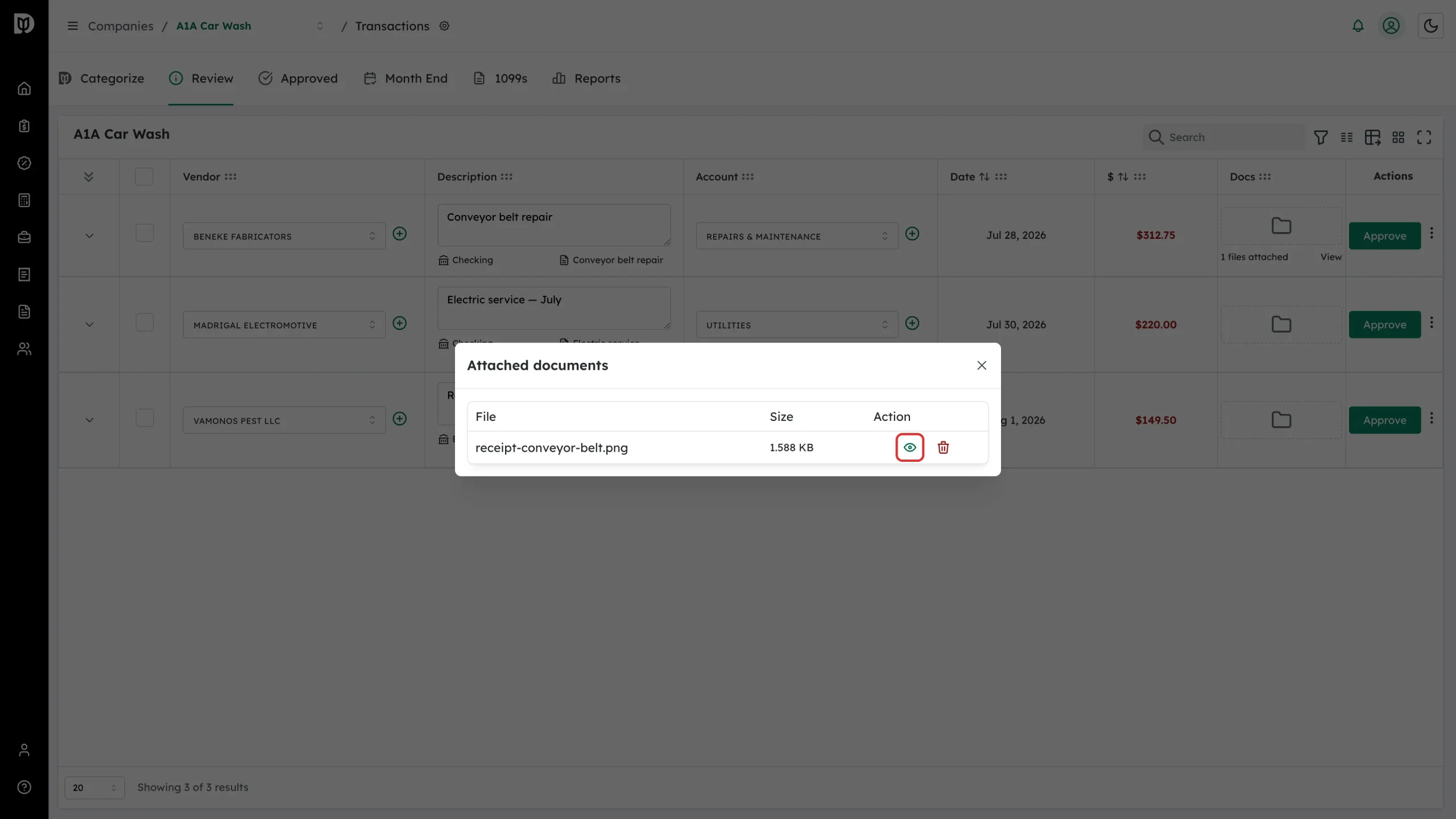
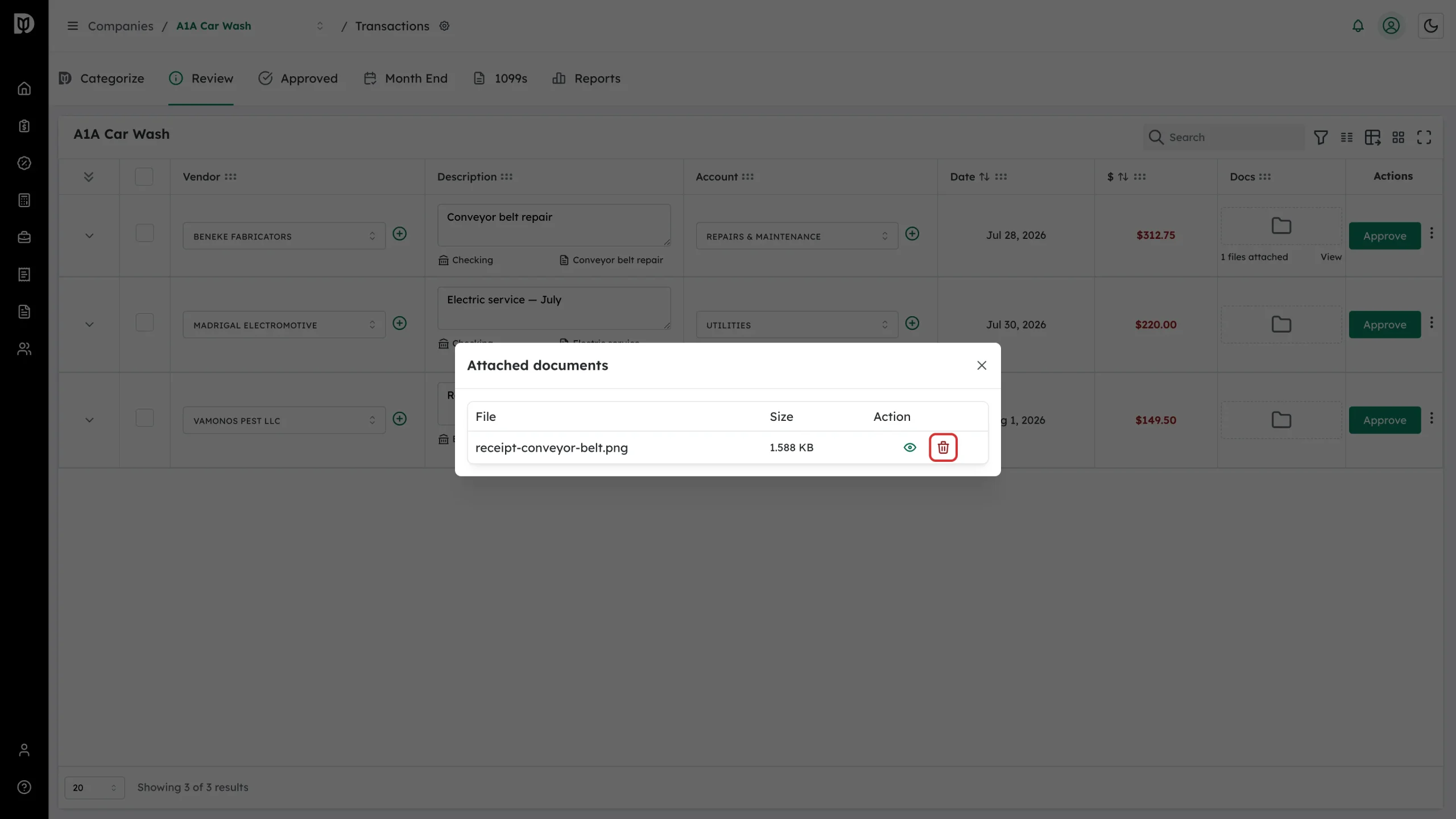
Click View. The Attached documents panel lists each file with its File name, Size and an Action column.
-
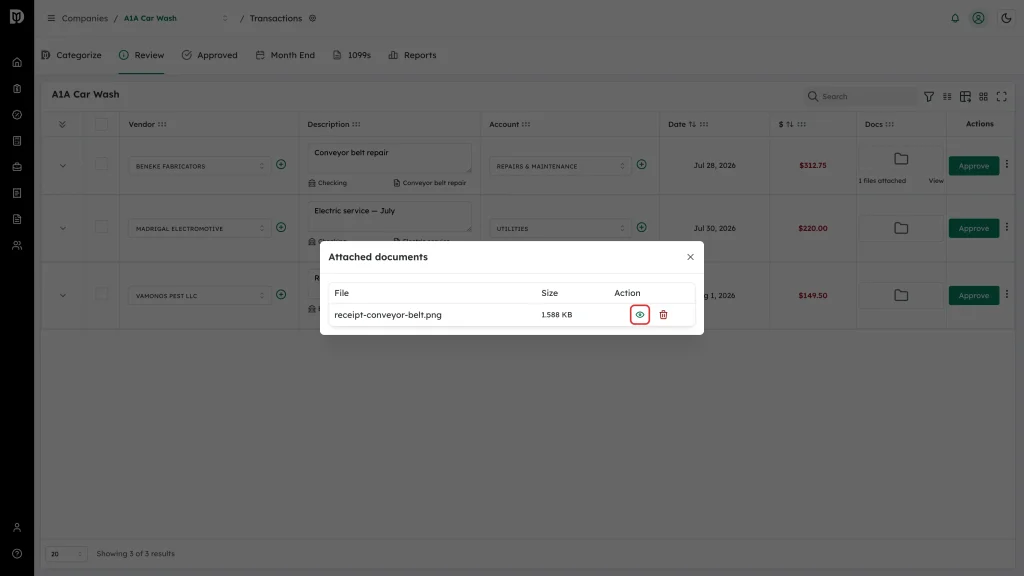
Click the eye icon to open a file in a new tab.
-
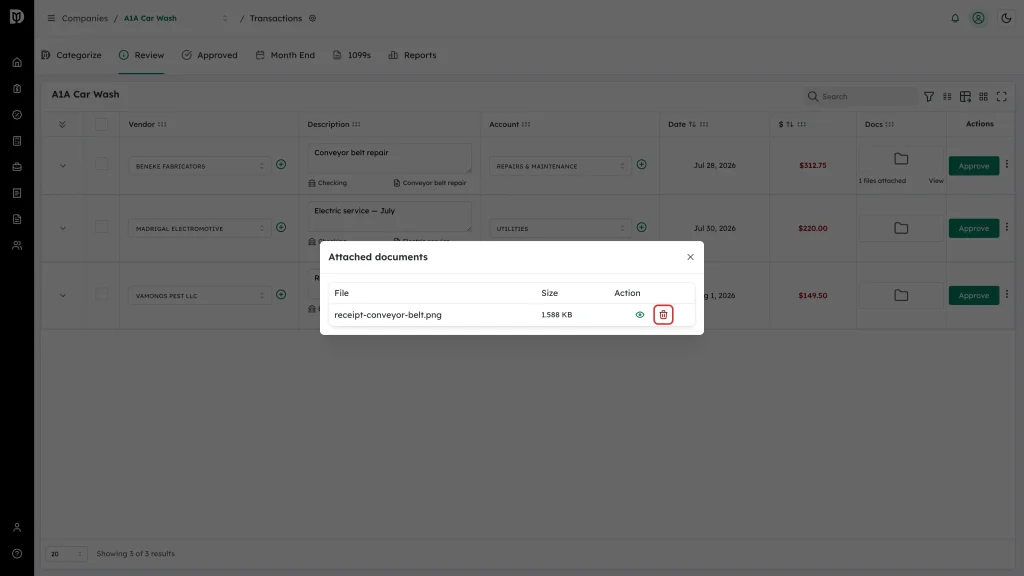
Click the red bin icon to remove a file.
What happens next
- The file stays with the transaction, so anyone reviewing it later can see the backup.
- Removing the last file hides the files attached text and the View link, and the drop zone returns to its empty state.
Troubleshooting
- “Maximum of 5 files to upload”. Remove a file before adding another.
- The file is rejected. Check the type is .pdf, .jpg, .png or .docx and the size is under 5 MB.
- The drop zone does nothing. You are on the Approved tab.