Create a customer while you are coding a transaction. The customer is added to QuickBooks Online and selected on that transaction.
Before you start
- Accountants can always do this. Client users only see the plus button if the accountant turns on Client Settings → Customer on the company’s General settings tab.
- A customer is also required before you can mark a purchase as billable.
Steps
-
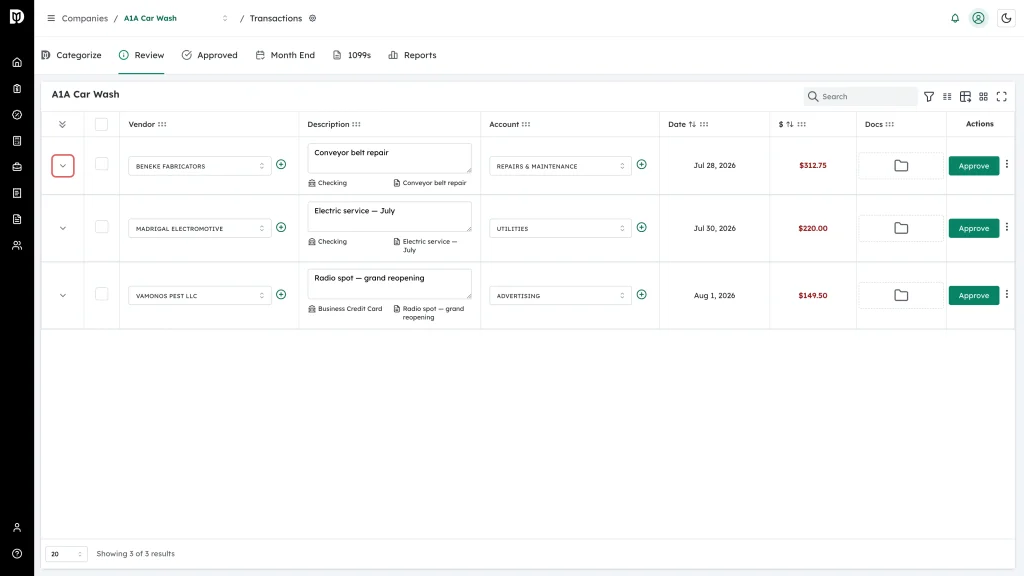
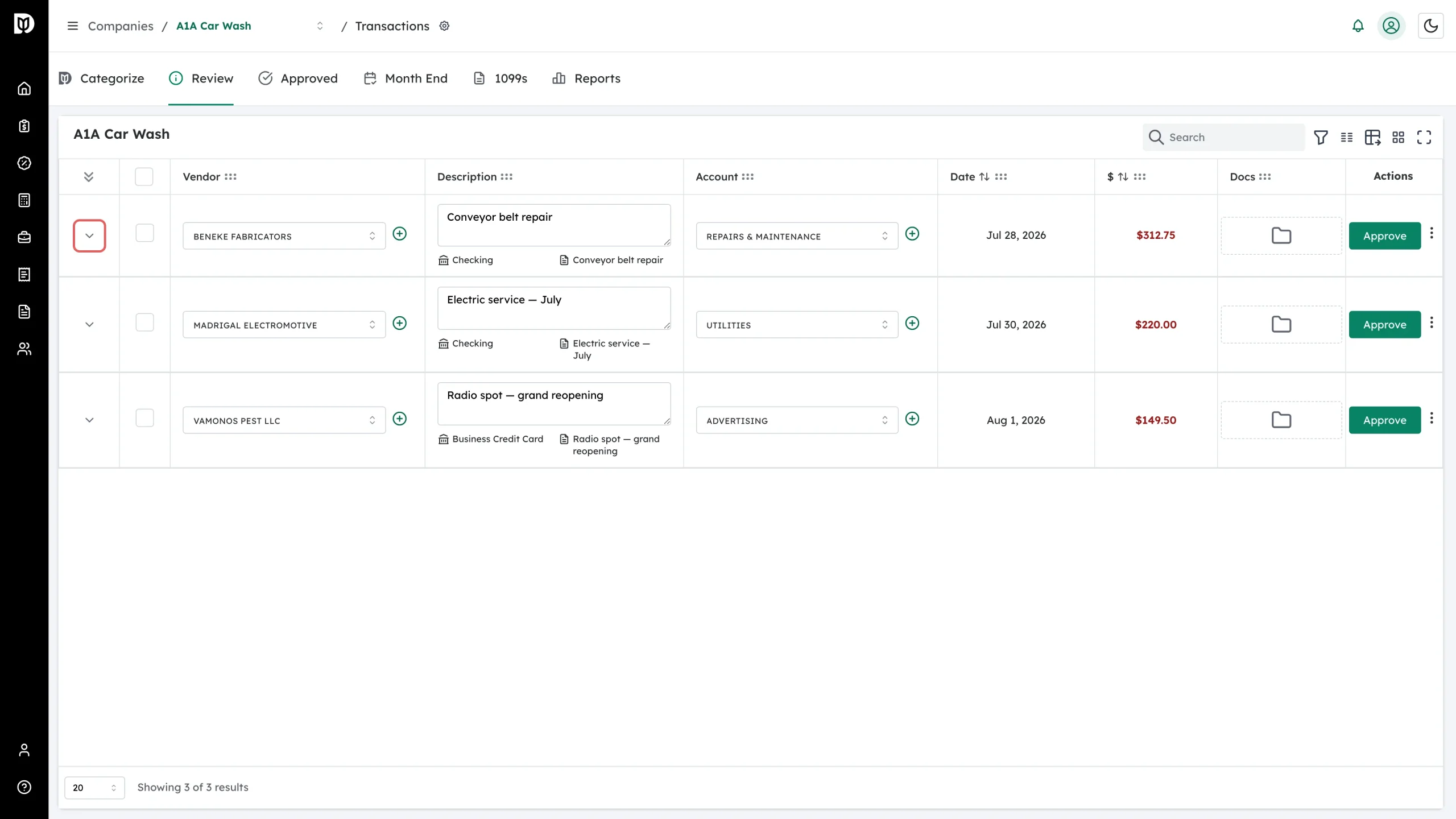
Open the company’s transactions, find the transaction, and click the chevron at the far left of the row to expand it.
-
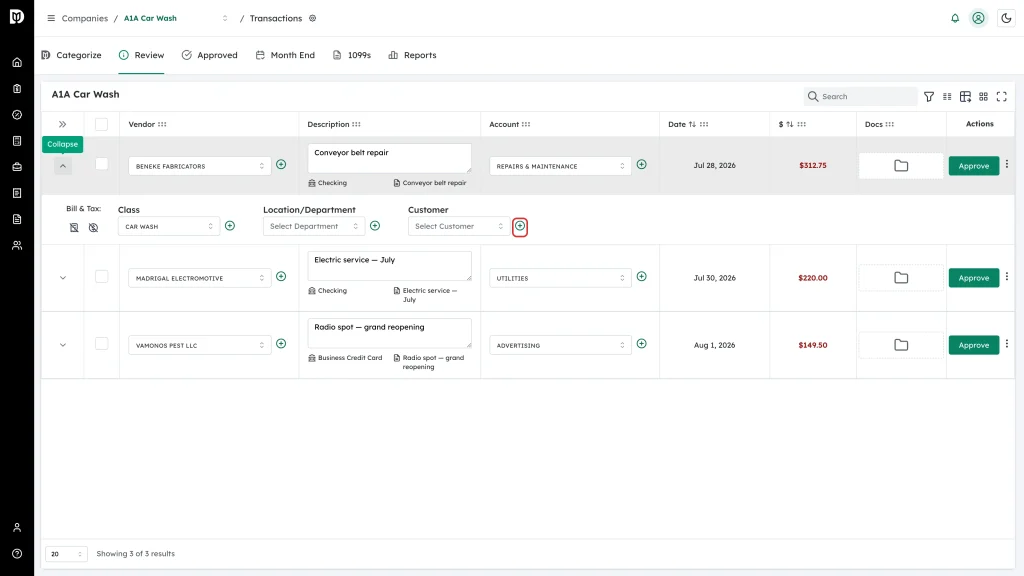
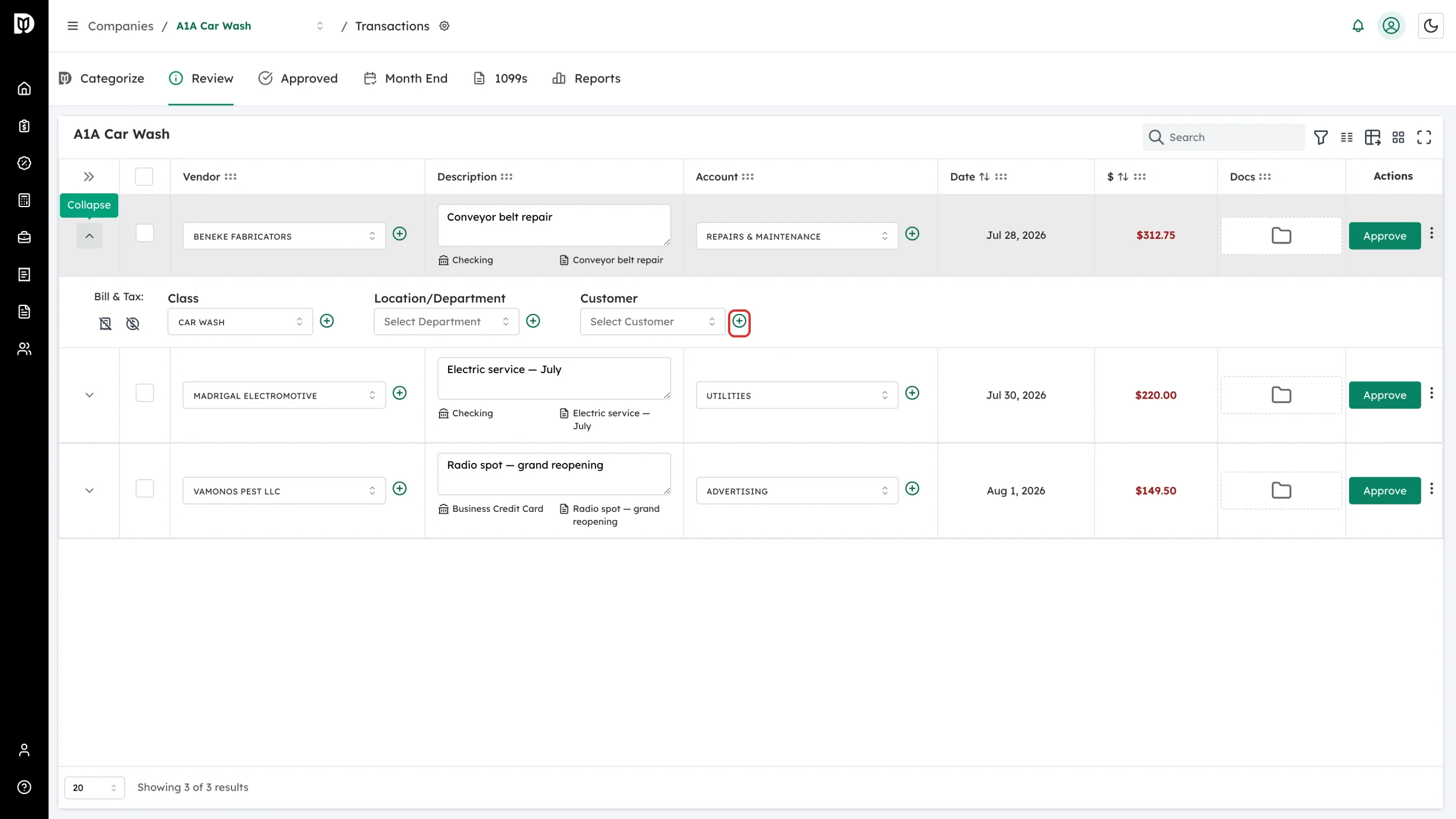
In the expanded panel, click the green + next to Customer.
-
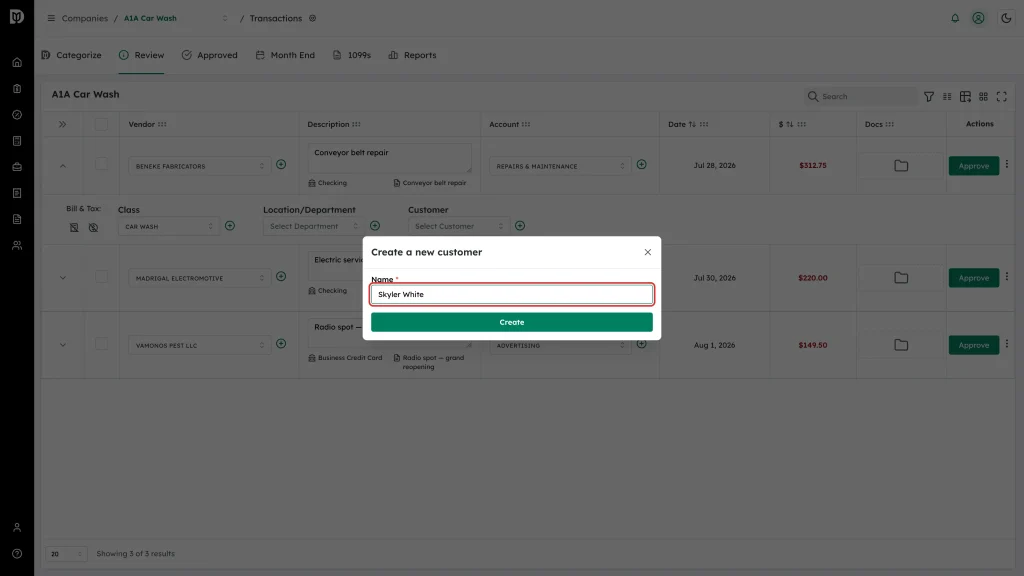
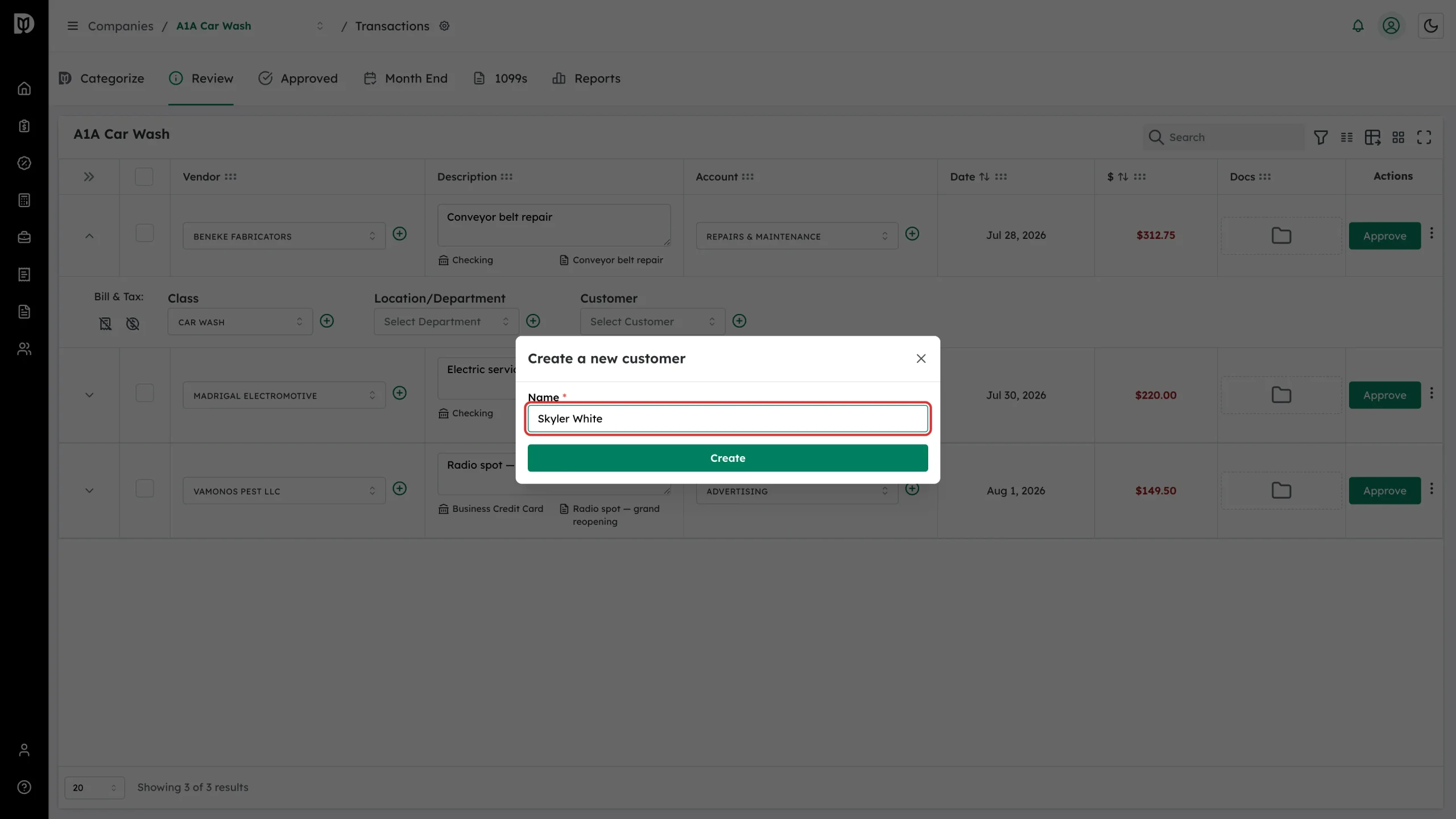
Type the customer’s name in Name.
-
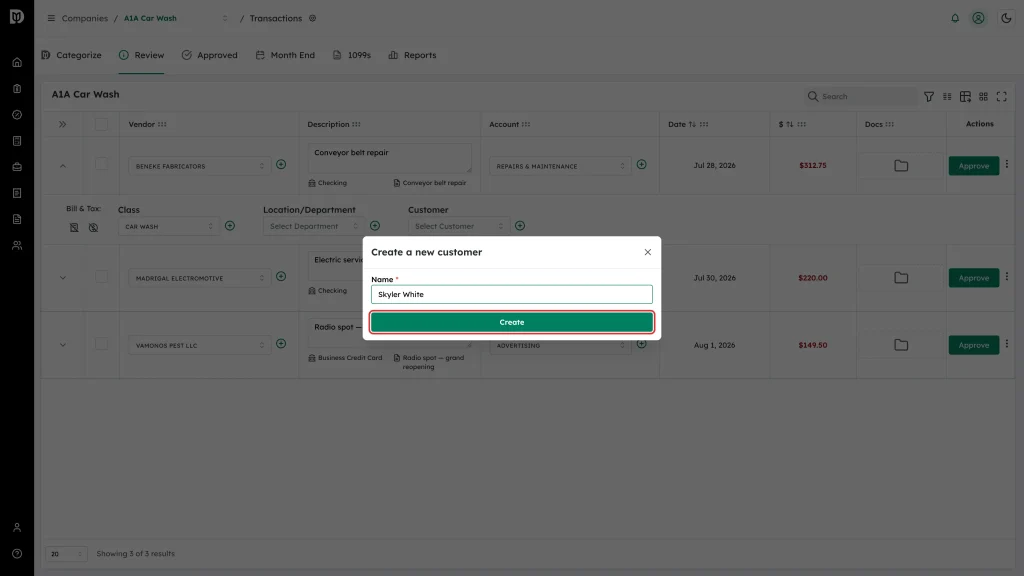
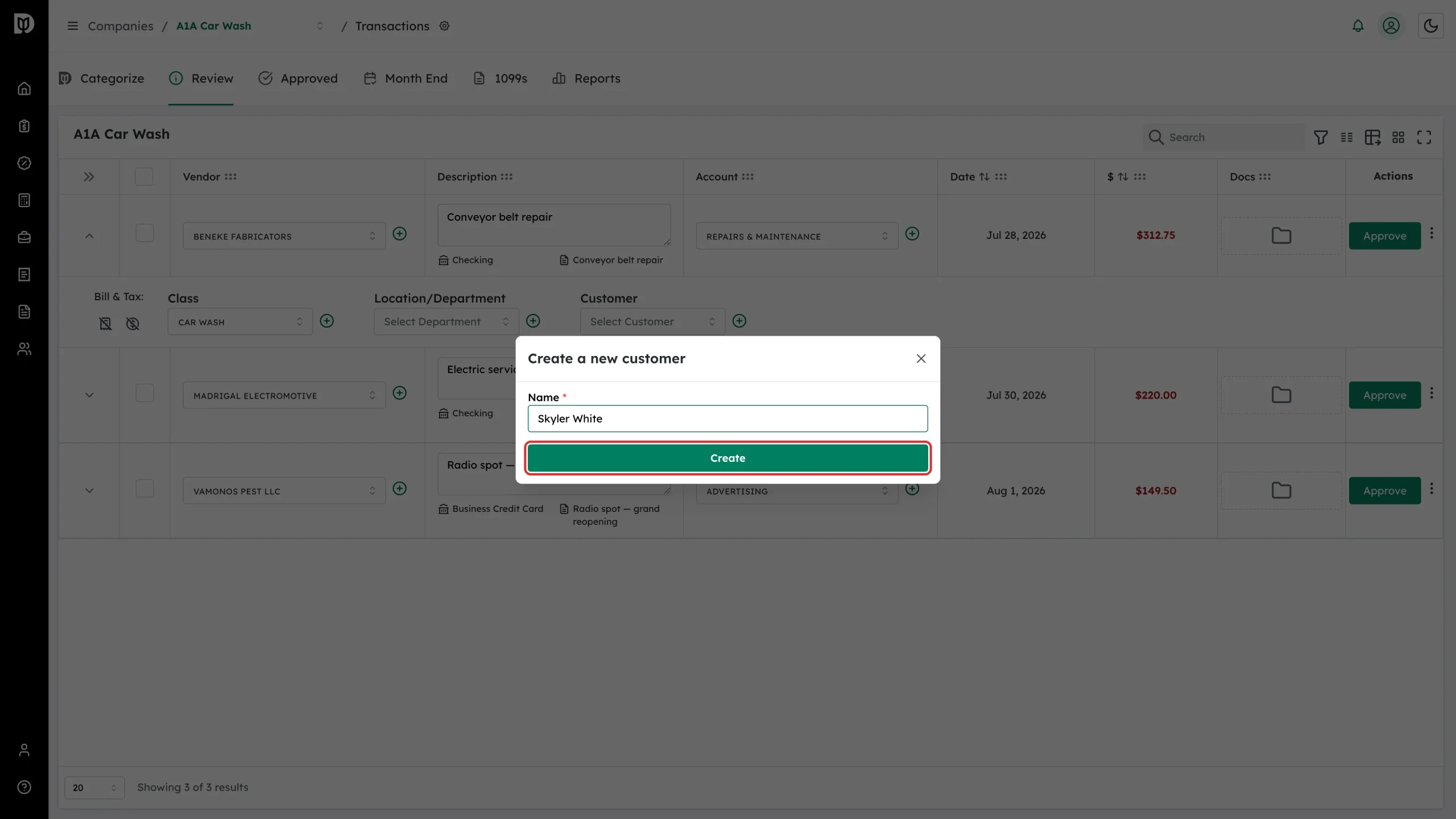
Click Create, then click Approve or Save on the transaction row to send the change to QuickBooks Online.
What happens next
- A New Customer Created message confirms the customer was written to QuickBooks Online.
- The customer is selected on the transaction and available in the Customer picker for that company from then on.