Flag an expense, bill or vendor credit so the client can rebill it to a customer. Debits sends the billable status to QuickBooks Online when you approve the transaction.
Before you start
- Billable applies to expenses, bills and vendor credits. Deposits, journal entries and sales receipts cannot be billable.
- The transaction needs a customer. If it does not have one, Debits asks you for it as part of this flow.
- The icons are read-only on the Approved tab.
Steps
-
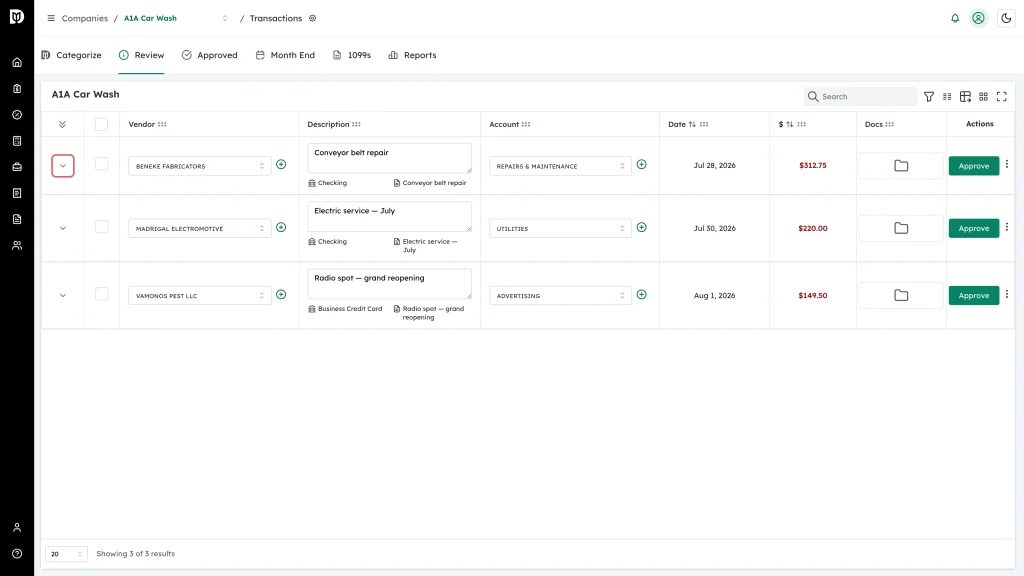
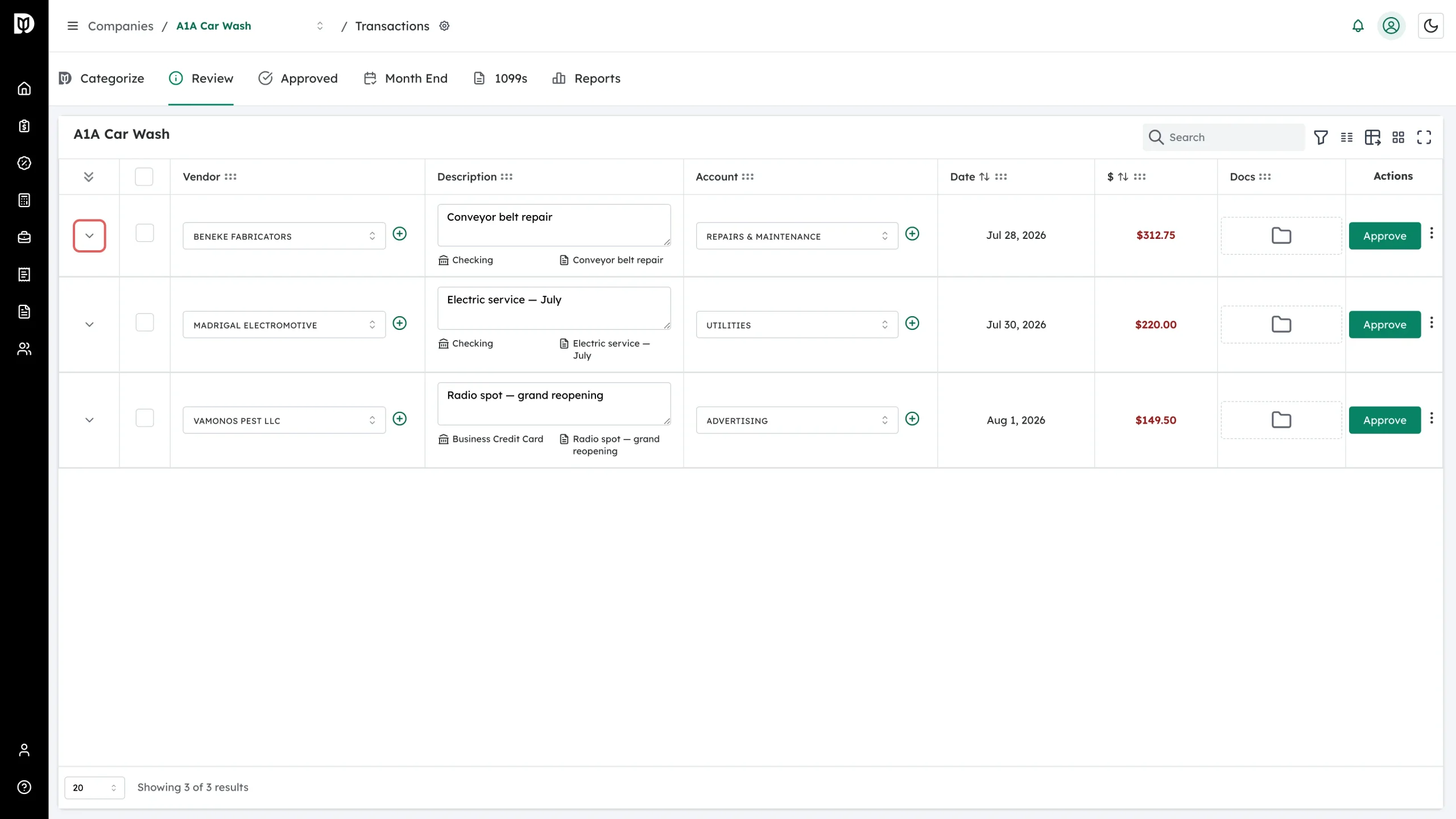
Open the company’s transactions, find the transaction, and click the chevron at the far left of the row to expand it.
-
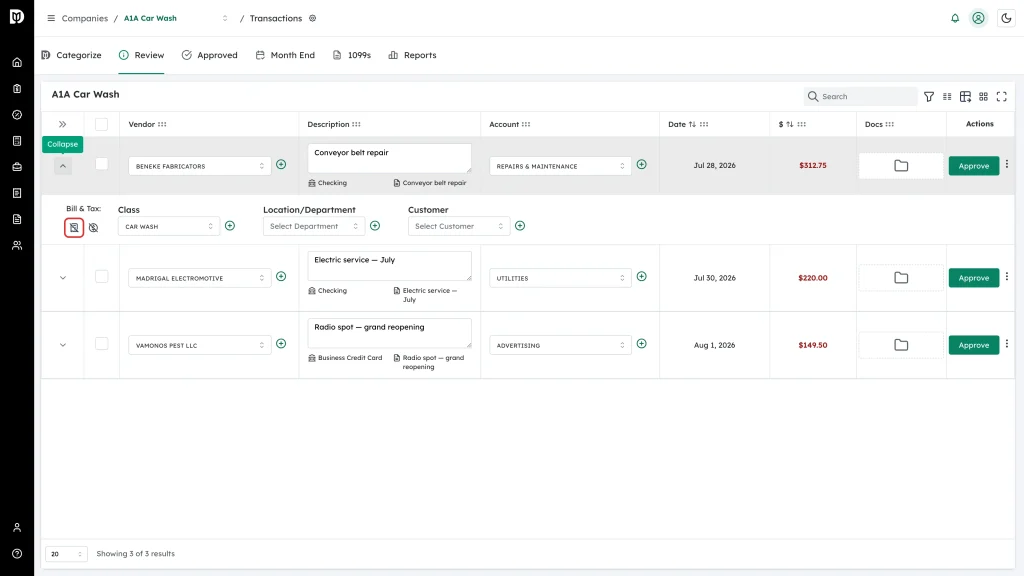
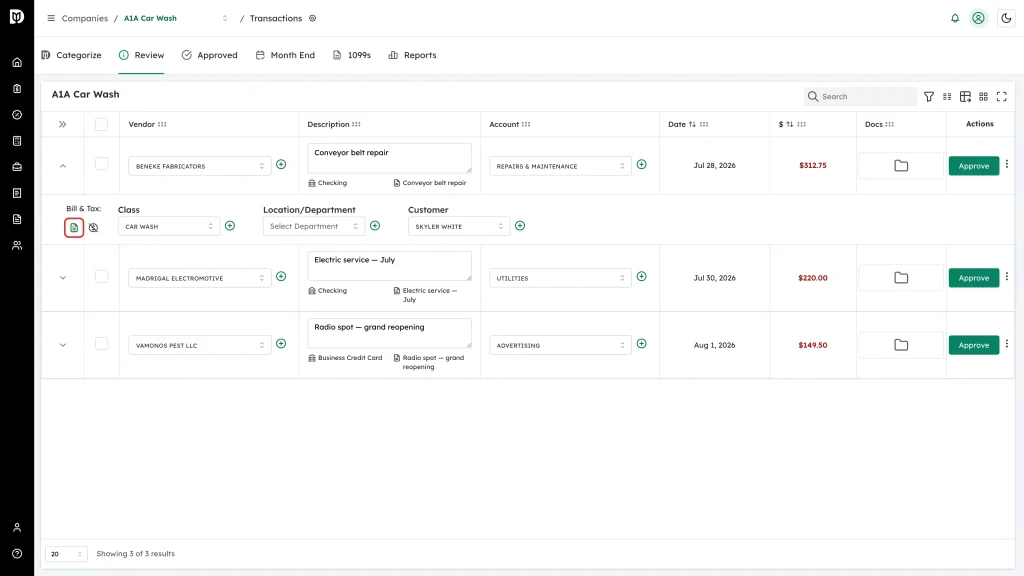
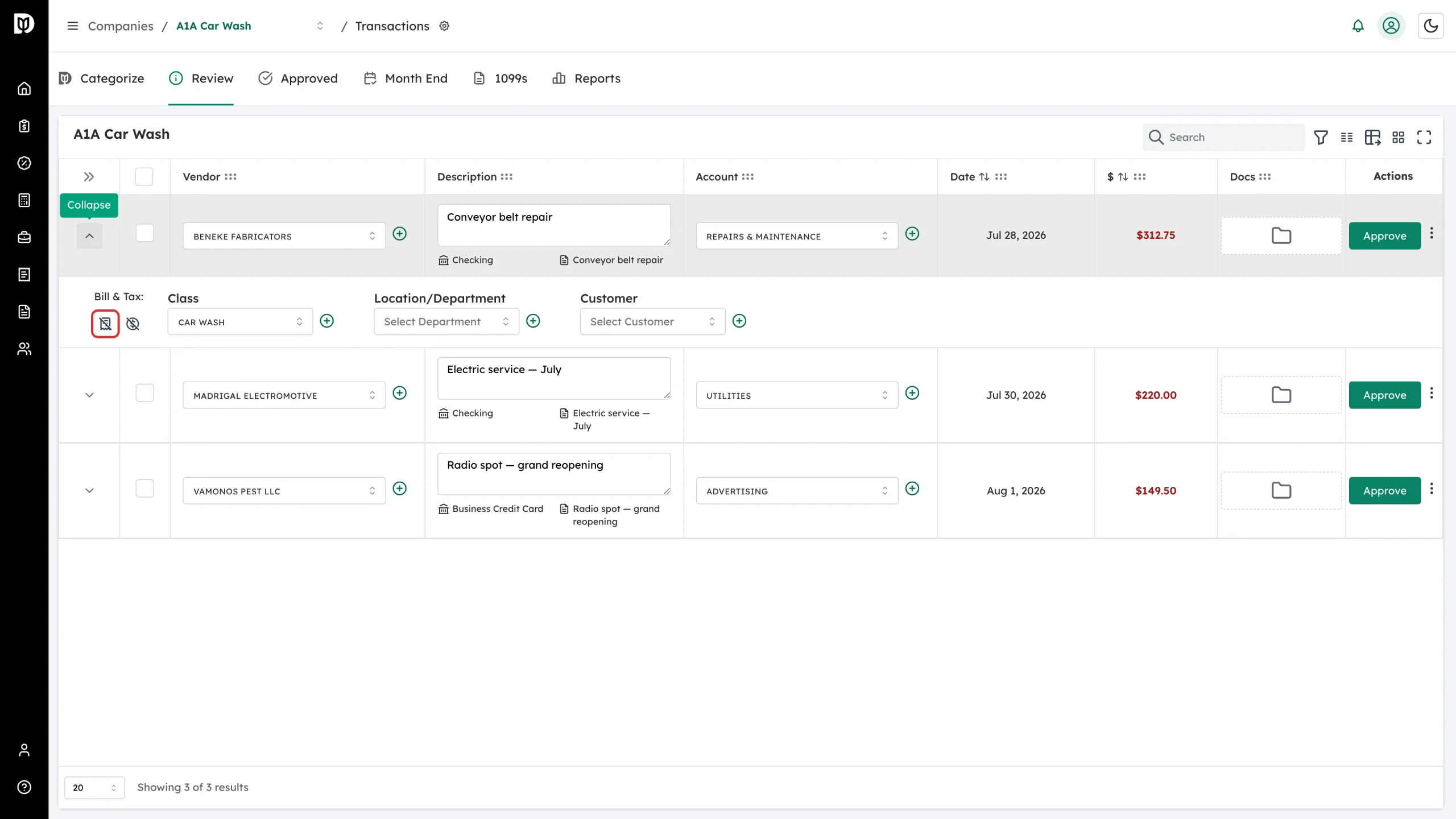
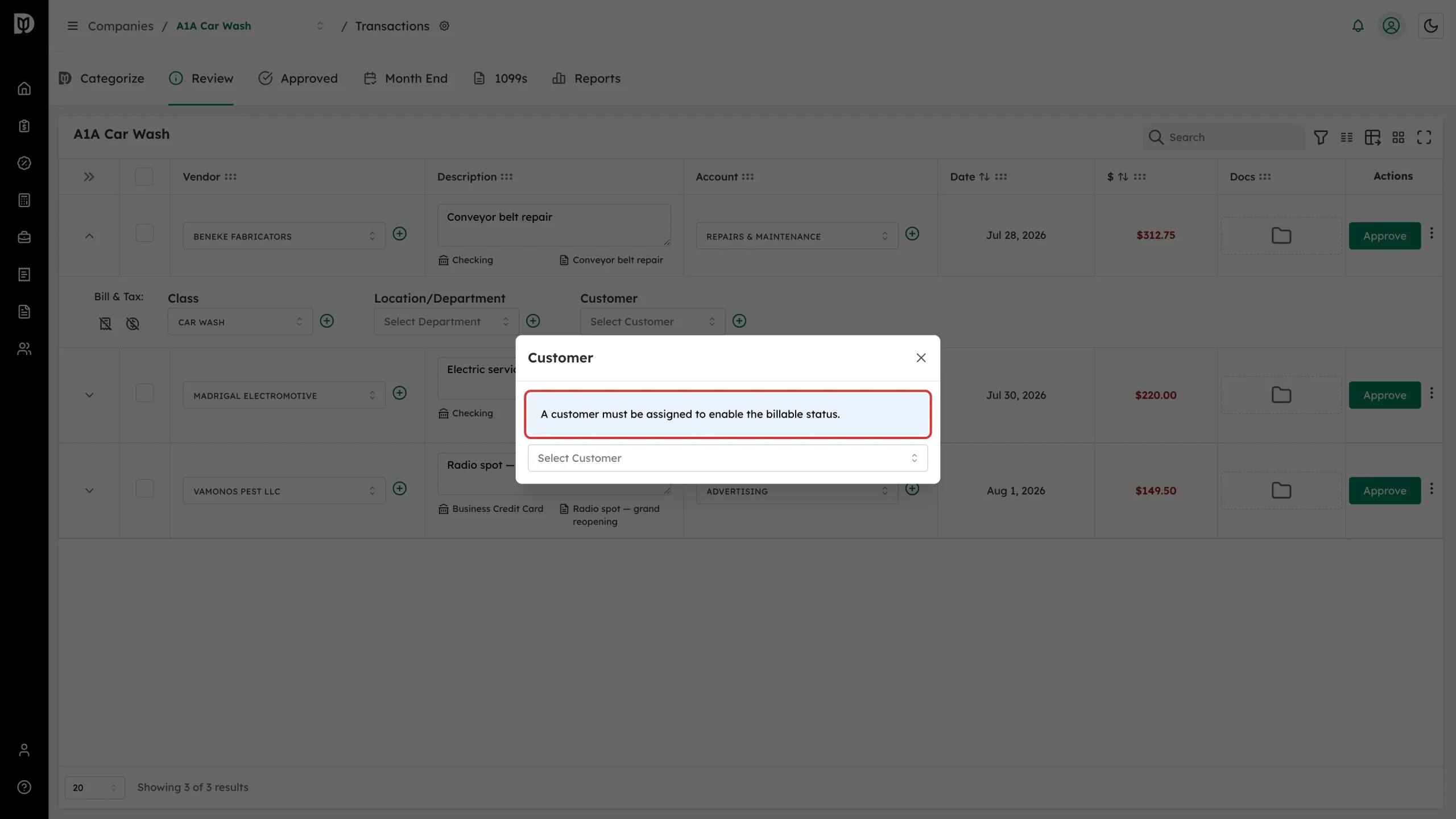
Under Bill & Tax, click the first icon. While the transaction is not billable the icon is grey with a line through it. Its tooltip reads Billable.
-
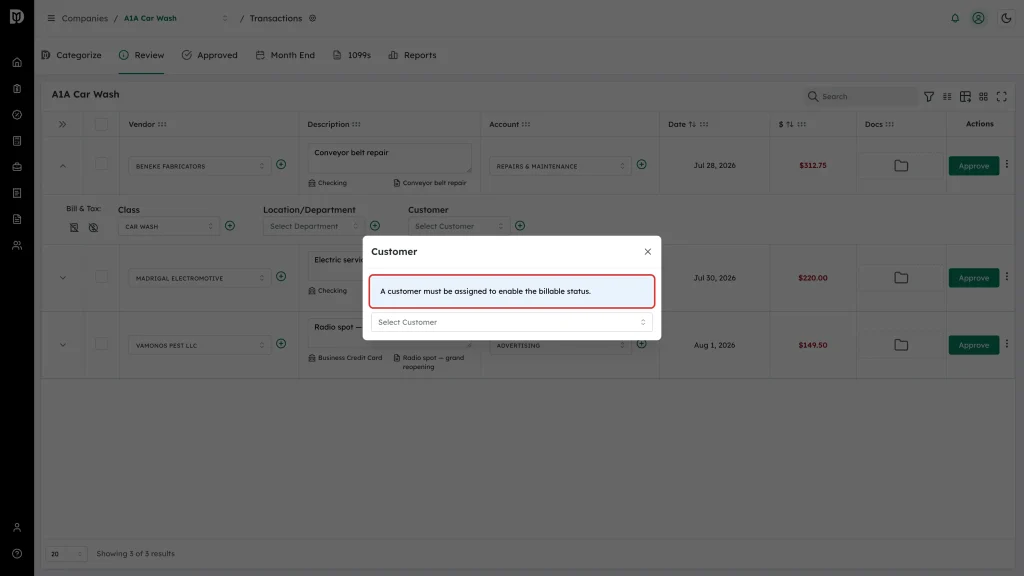
If the transaction has no customer yet, the Customer window opens with the notice A customer must be assigned to enable the billable status.
-
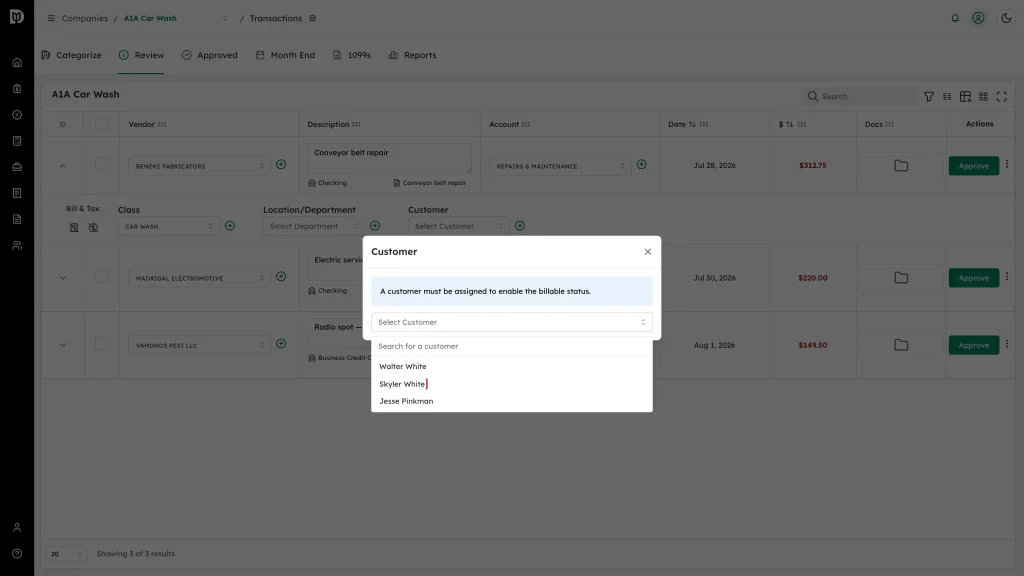
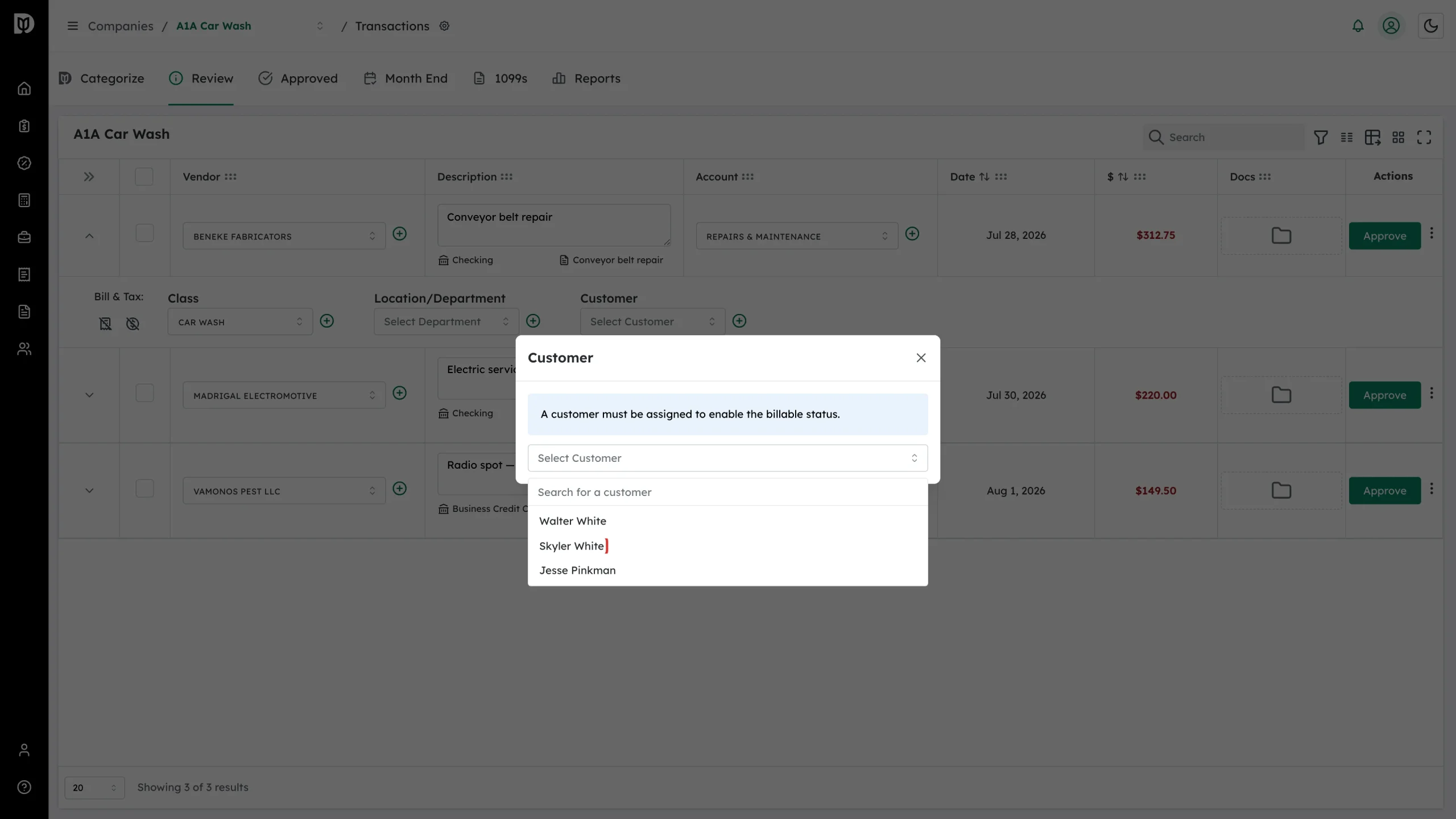
Click Select Customer and choose the customer to rebill.
-
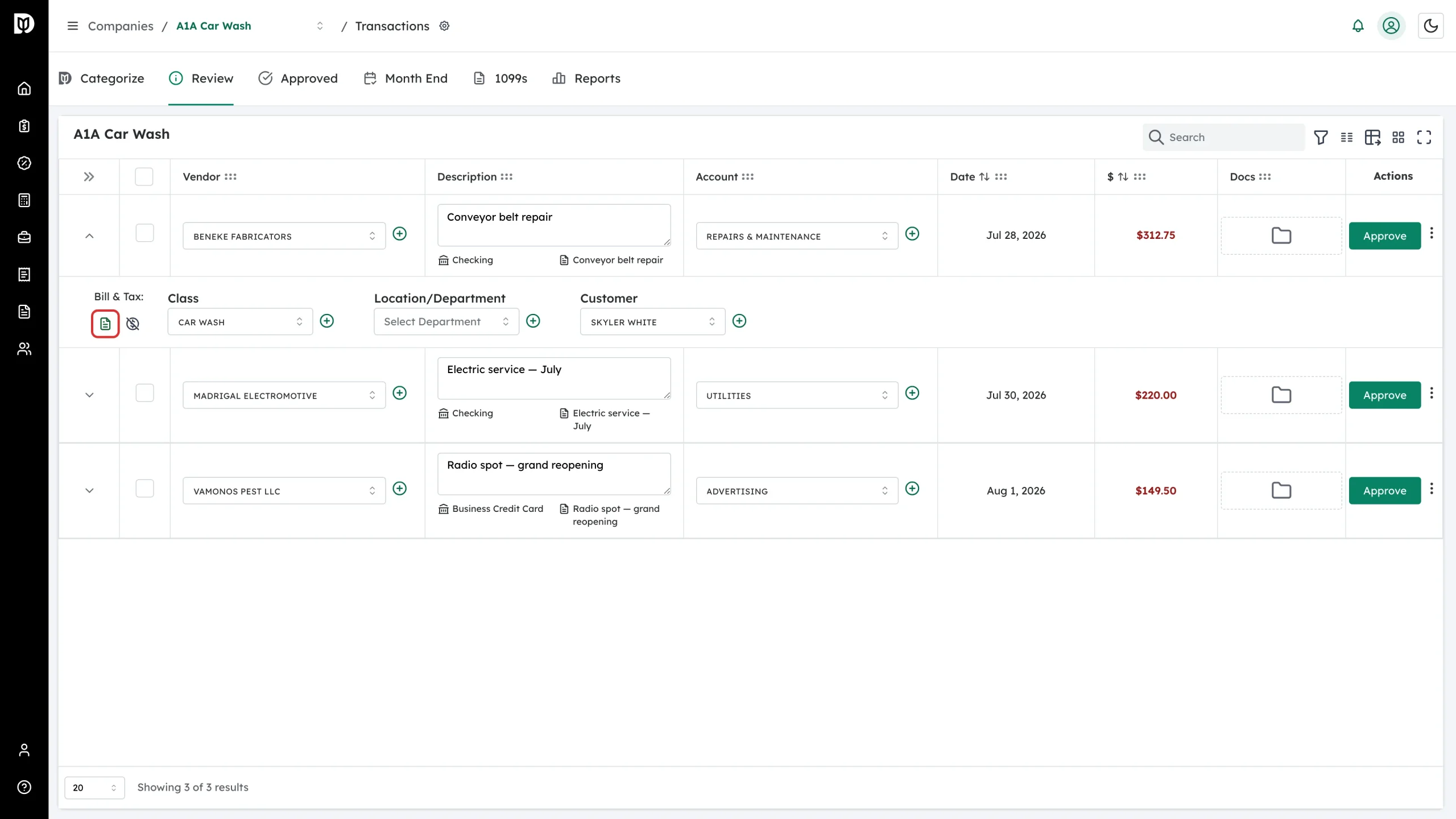
The billable icon turns green and the customer is filled in on the row.
-
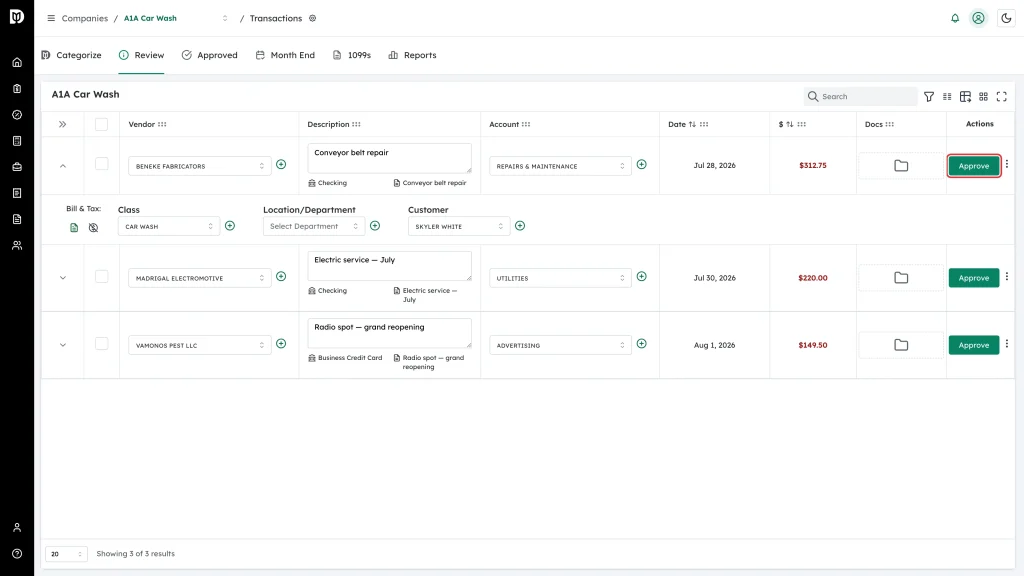
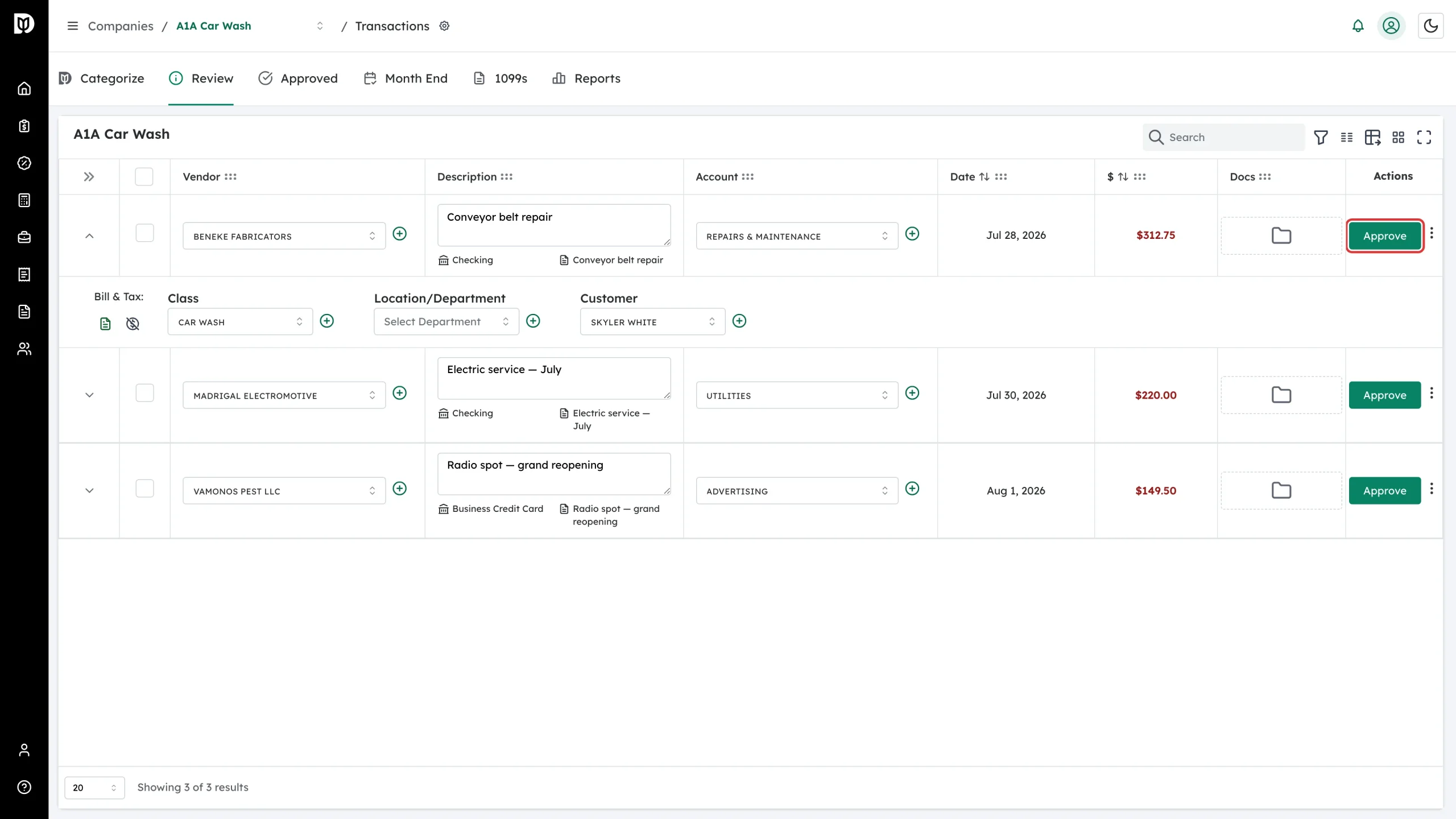
Click Approve on the Review tab, or Save on the Categorize tab, to send the change to QuickBooks Online.
What happens next
- QuickBooks Online records the transaction as billable to the customer you chose, so it can be picked up on the client’s next invoice.
- Click the green icon again to turn billable off. The customer stays on the transaction.
Troubleshooting
- “Billable is not supported for Deposit transactions.” (or Journal Entry or Sales Receipt) Only expenses, bills and vendor credits can be billable.
- Clicking the icon does nothing. You are on the Approved tab. Use Return to review first if you need to change it.