

Who this is for: Firms that produce the same style of report for many clients — for example a Fractional-CFO template, a Bookkeeping-client template, and detailed client-specific templates.
What you’ll learn: How to save a report as a template, set a default, apply a template to any company, and manage your templates.
Before you begin #
- Build a report the way you like it first — sections, order, custom KPIs, and disclaimer are all captured in the template.
- Templates can be company-specific (for one client) or firm-wide (available to every client).
Step-by-step instructions #
Step 1: Save a report as a template #
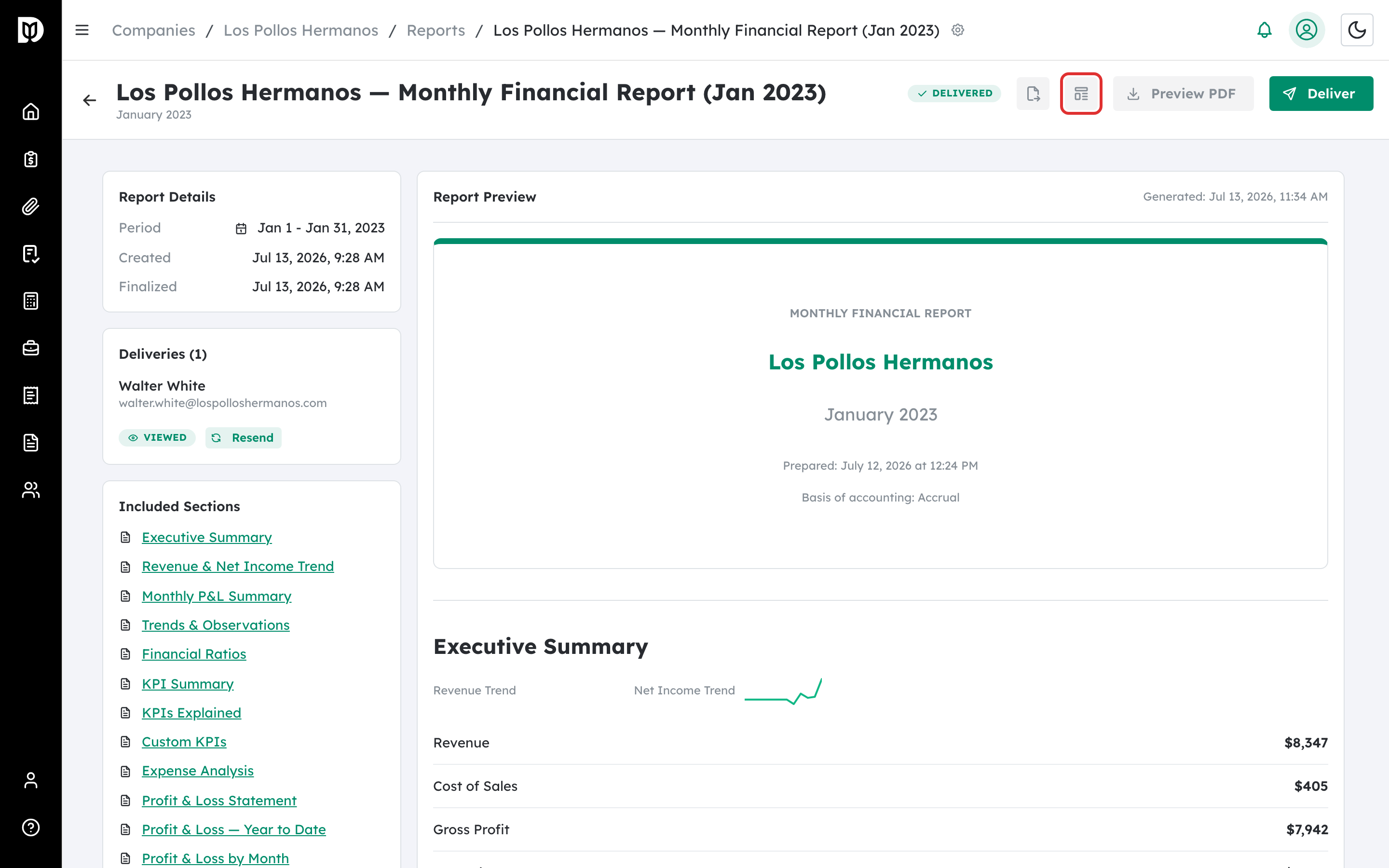
Open a report and select the Save as template icon in the header.
Step 2: Name it and choose who can use it #
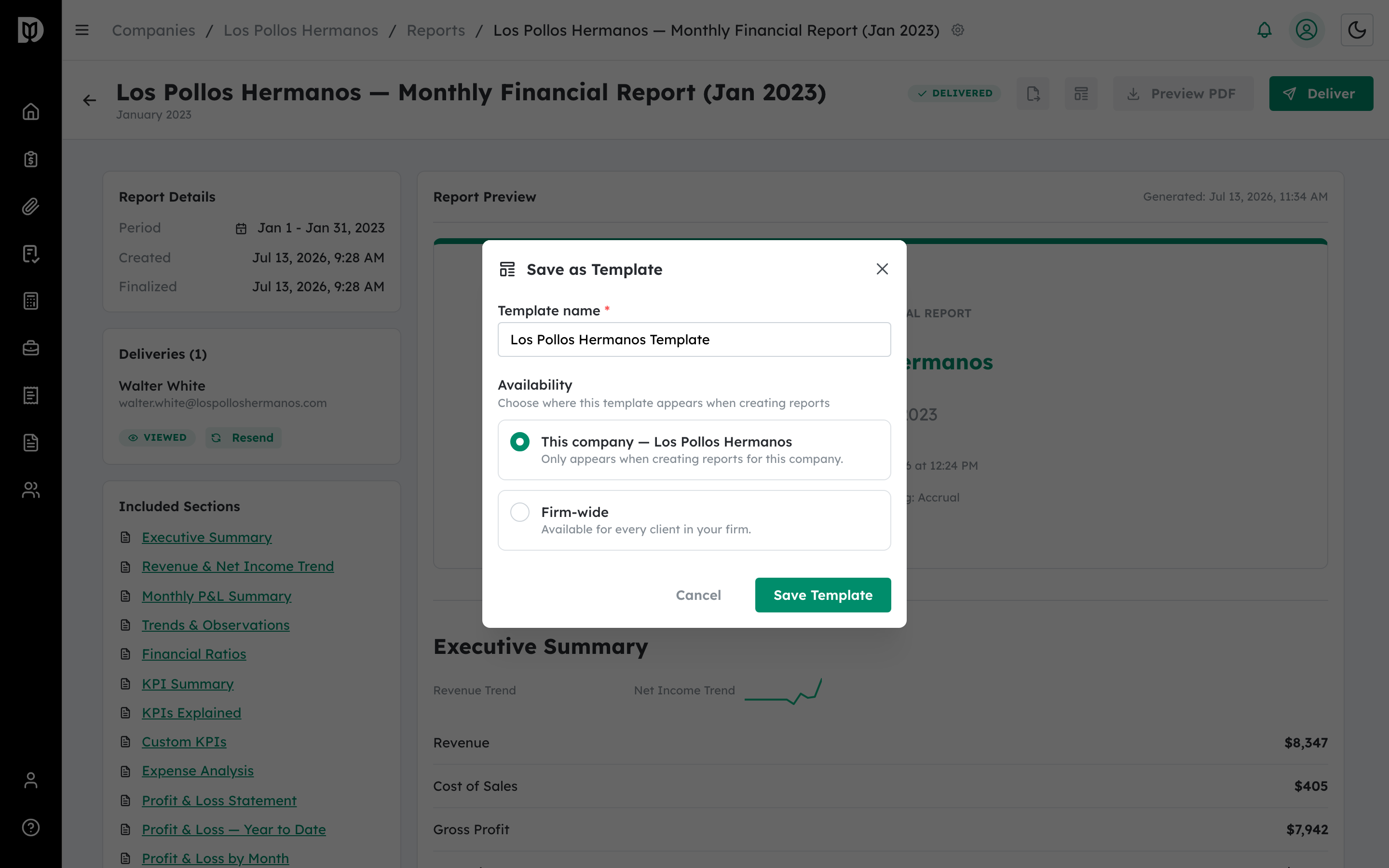
In Save as Template, enter a clear name and pick the availability: This company or Firm-wide.
Step 3: Manage your templates #
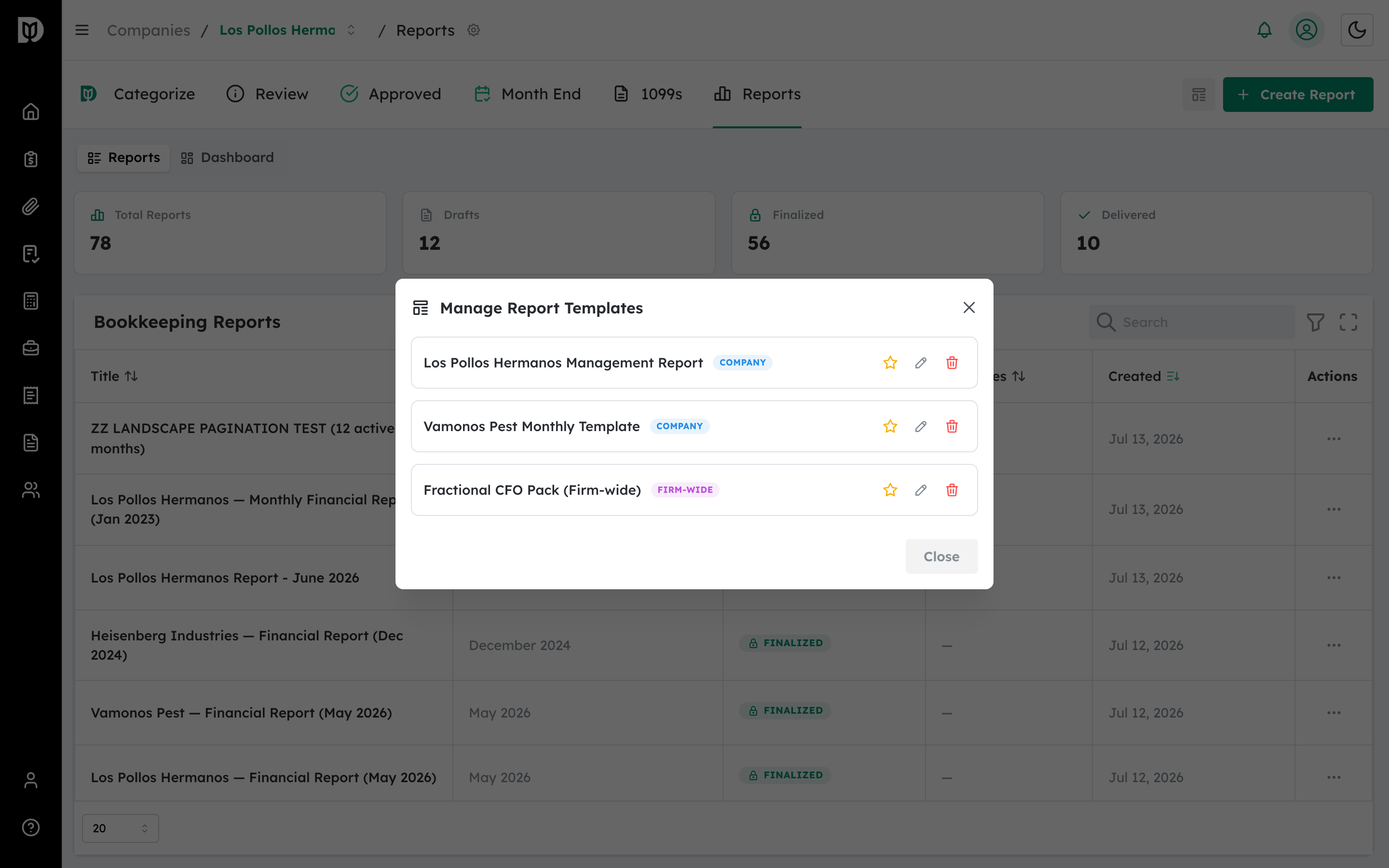
From the Reports workspace, select the Manage templates icon. Each template shows a Company or Firm-wide badge, and you can edit, delete, or set a template as the default.
Step 4: Set a default template #
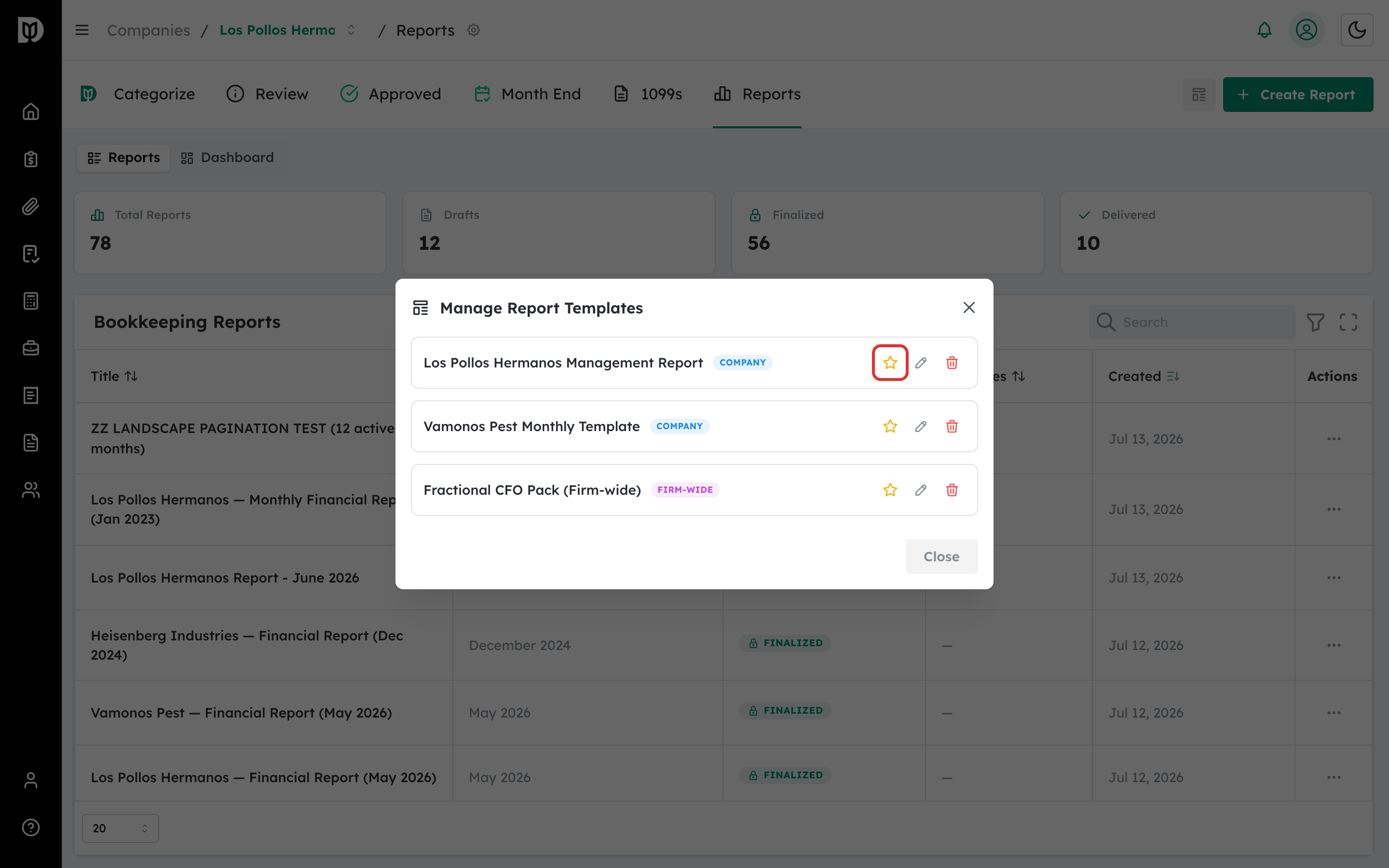
Select the star to make a template the default. A company-specific default is used for that client; otherwise the firm-wide default applies. The default is applied automatically when you create a new report.
Step 5: Apply a template to any company #
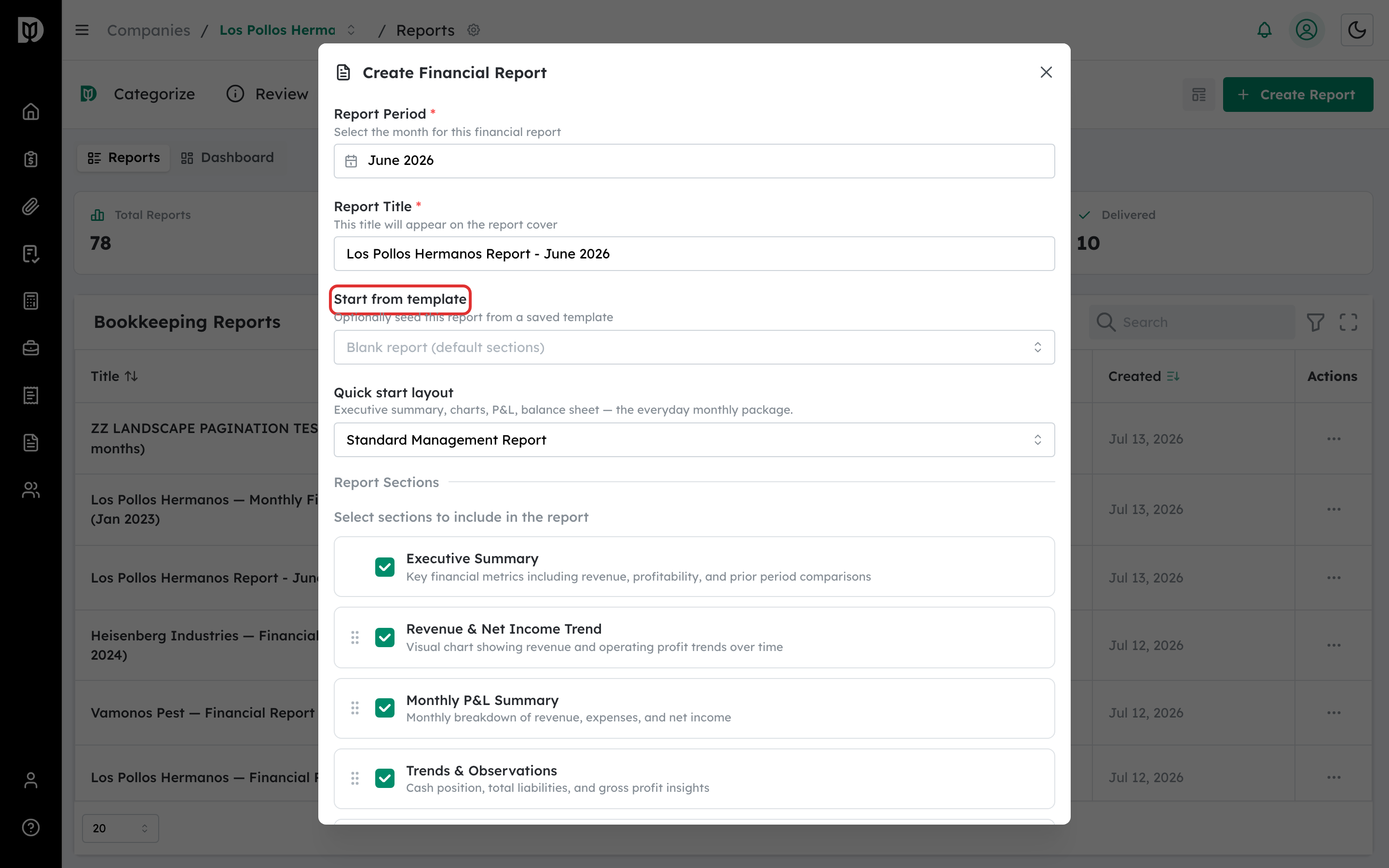
When creating a report, use Start from template to seed it. Firm-wide templates appear for every client, so you can reuse the same structure across companies.
What happens next #
The new report is seeded with the template’s sections. You can still adjust anything before finalizing.
Troubleshooting #
- Problem: A template doesn’t appear for a company. Company-specific templates only show for their own company; save it as Firm-wide to use it everywhere.
- Problem: No default was applied. Confirm a template is starred in Manage templates.


