Debits can email your clients on a schedule whenever they have uncategorized transactions waiting for an answer. The email contains a magic link that signs them straight into their Debits dashboard, so they do not need a password.
You set this once for your whole firm.
Before you start
- You need to be a firm owner or admin to open Account > Reminders.
- Clients only receive a reminder if they have at least one uncategorized transaction and their client user is Active.
Set the schedule
-
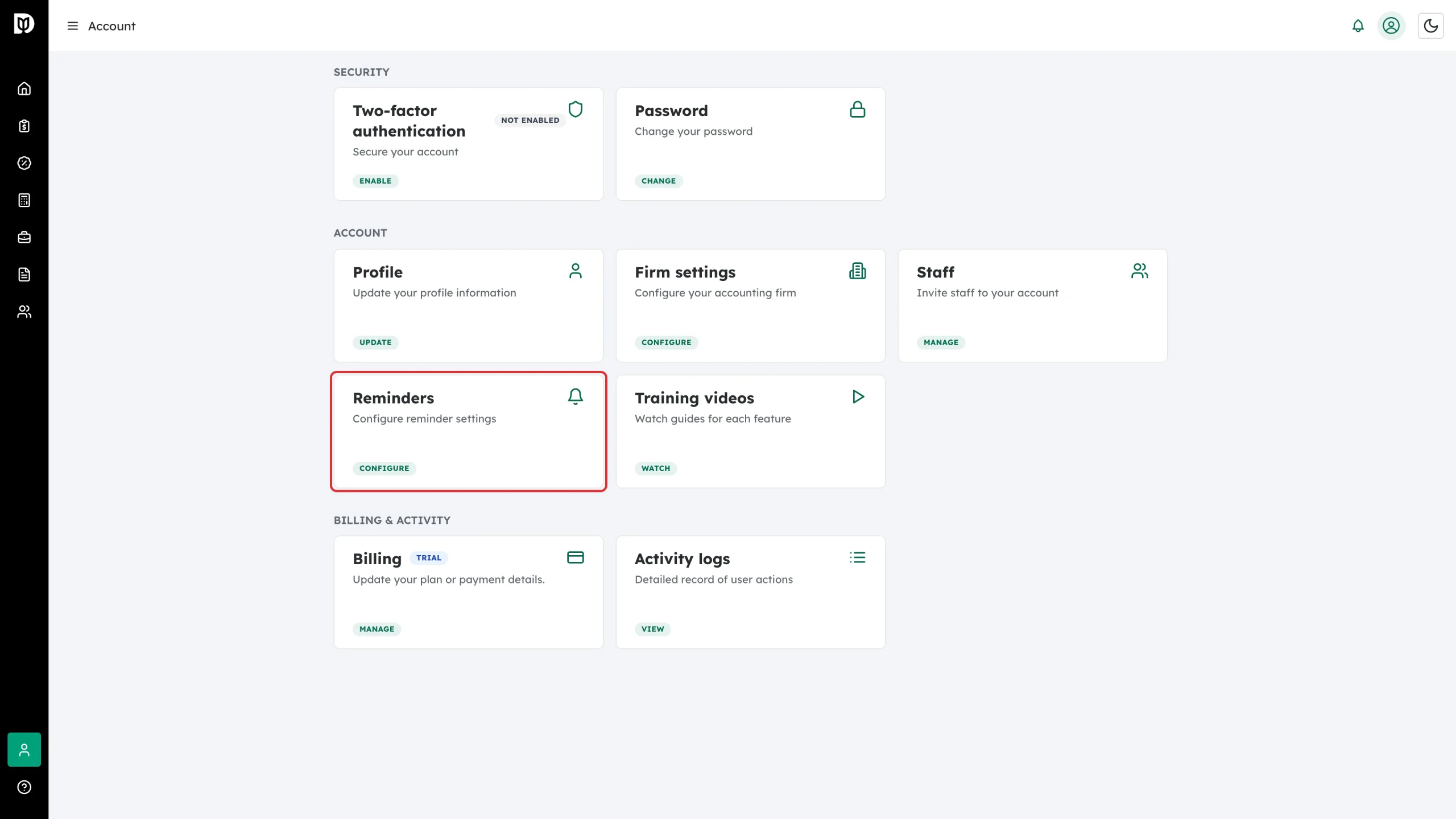
Open Account from the left sidebar and click Configure on the Reminders card.
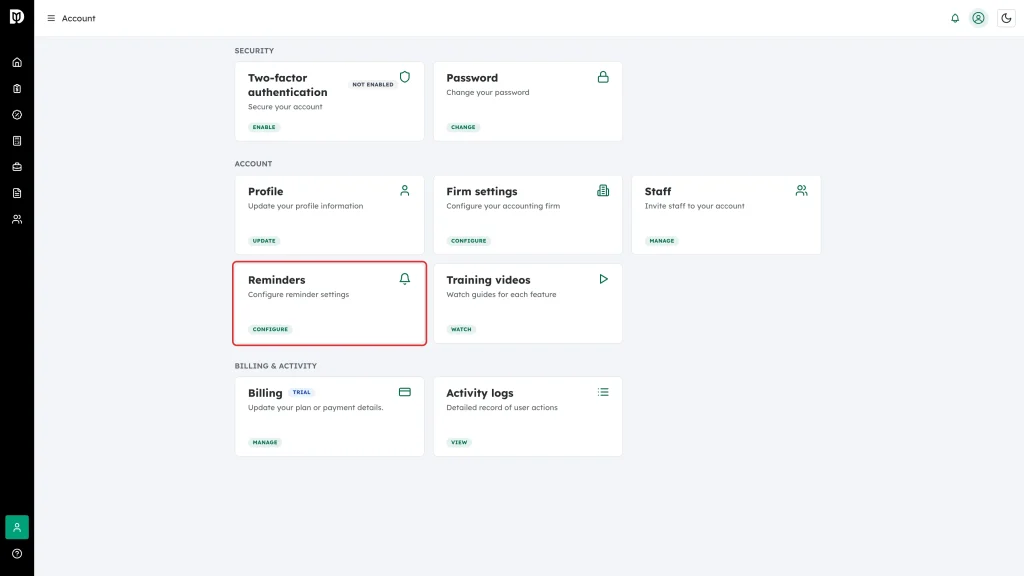
-
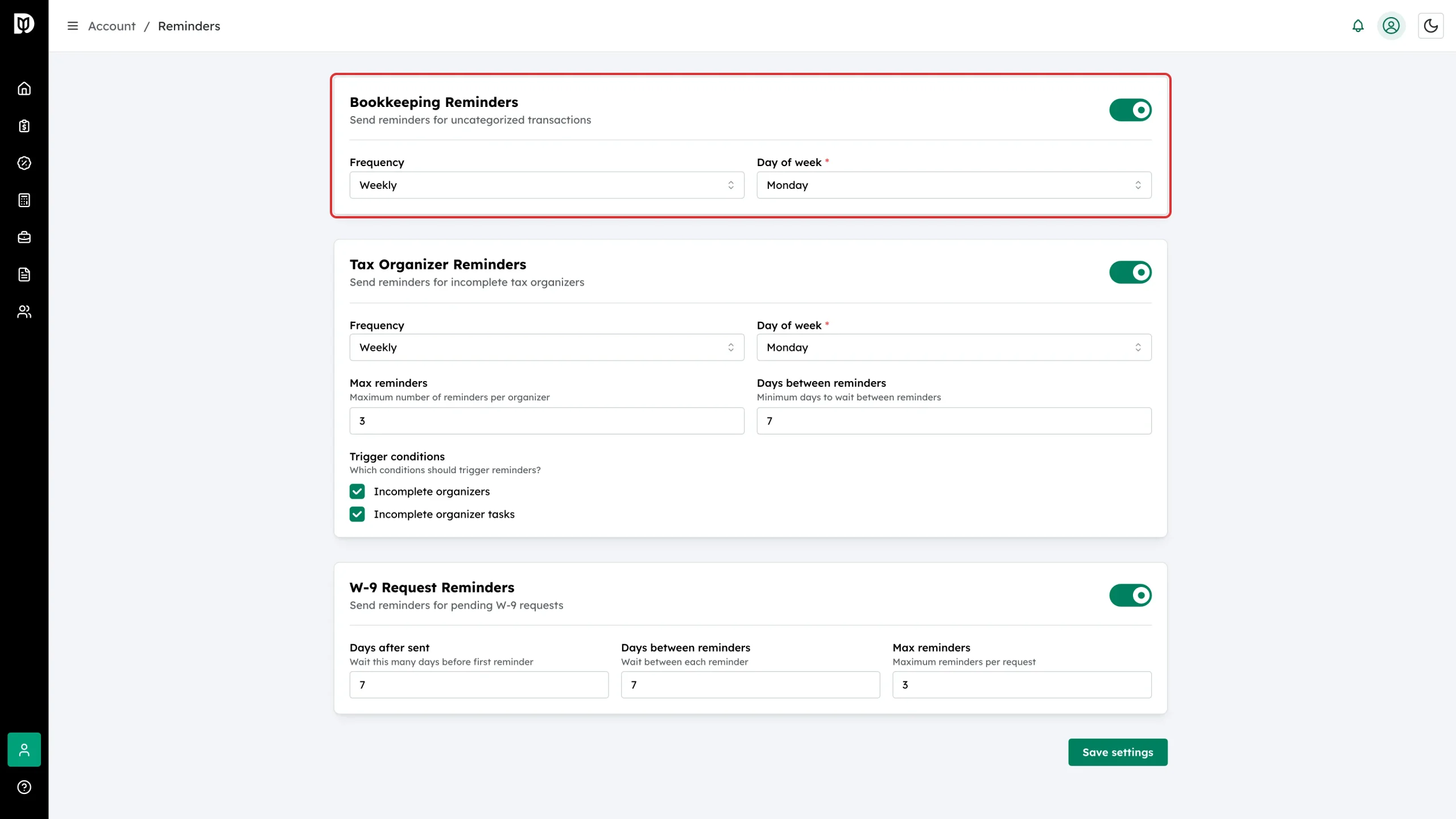
The first block is Bookkeeping Reminders — Send reminders for uncategorized transactions. Use the switch on the right to turn client reminders on or off for the whole firm.
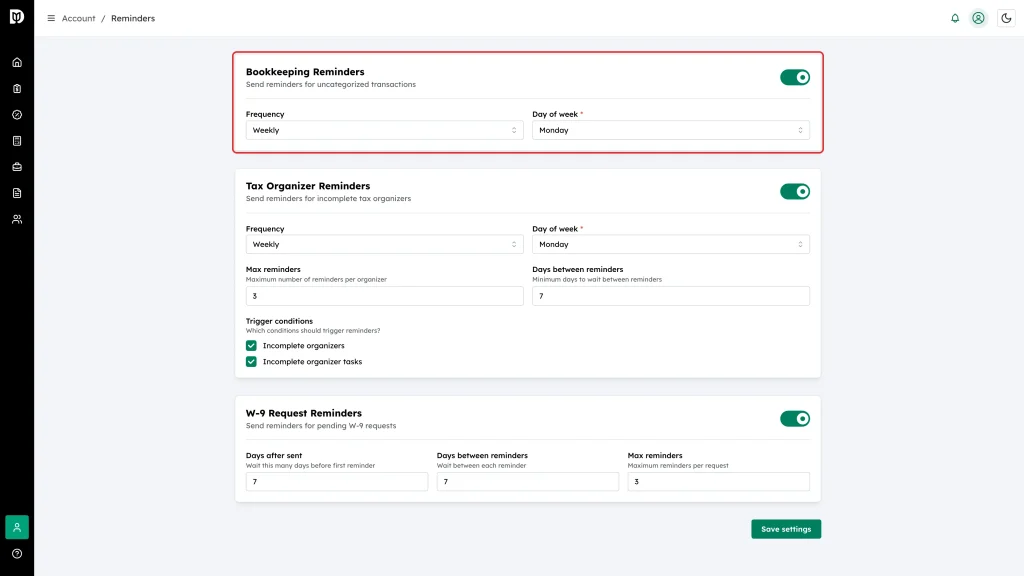
-
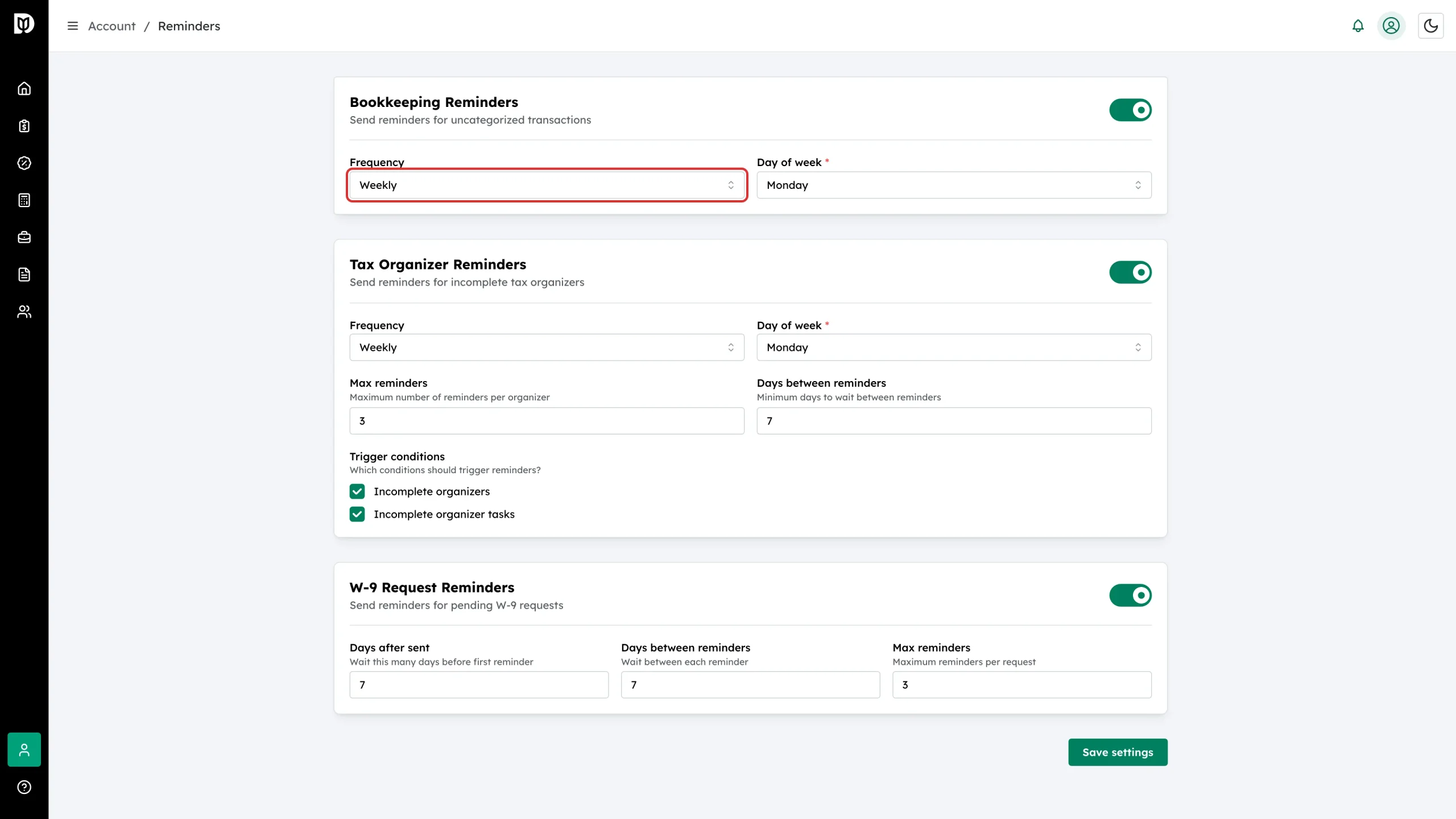
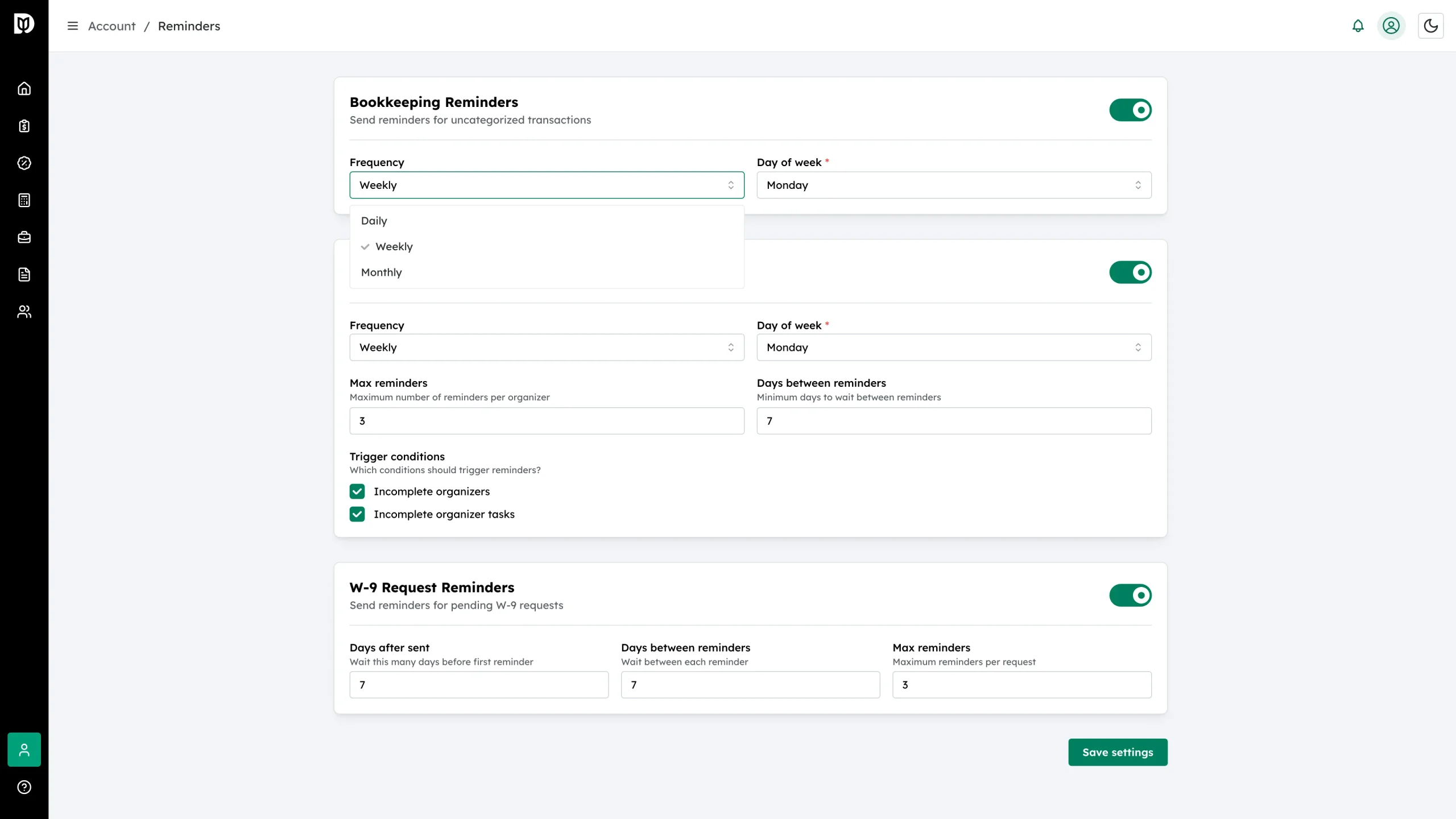
Open the Frequency field.
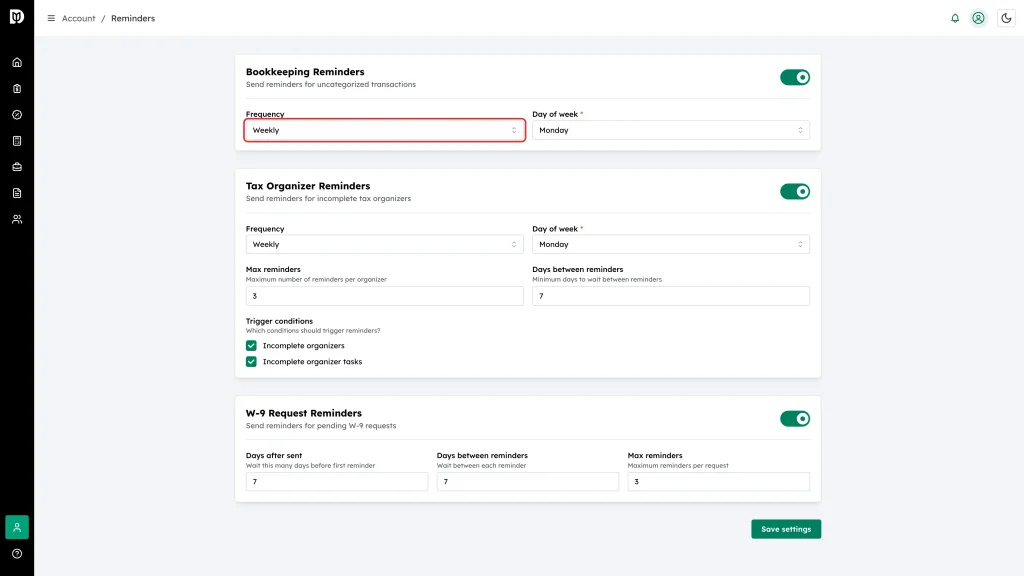
-
Choose Daily, Weekly or Monthly.
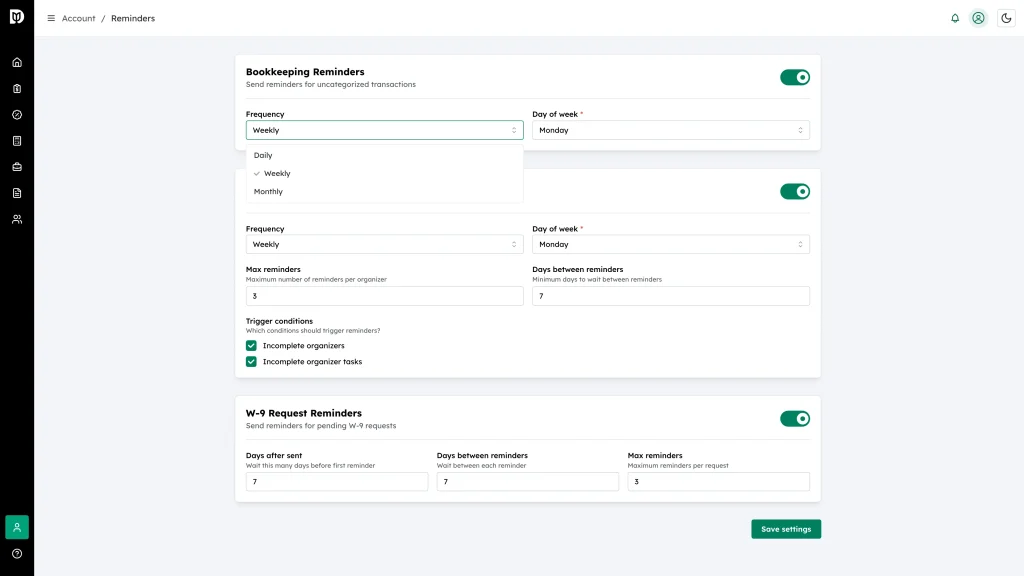
-
If you chose Weekly or Monthly, set Day of week. It is required.
-
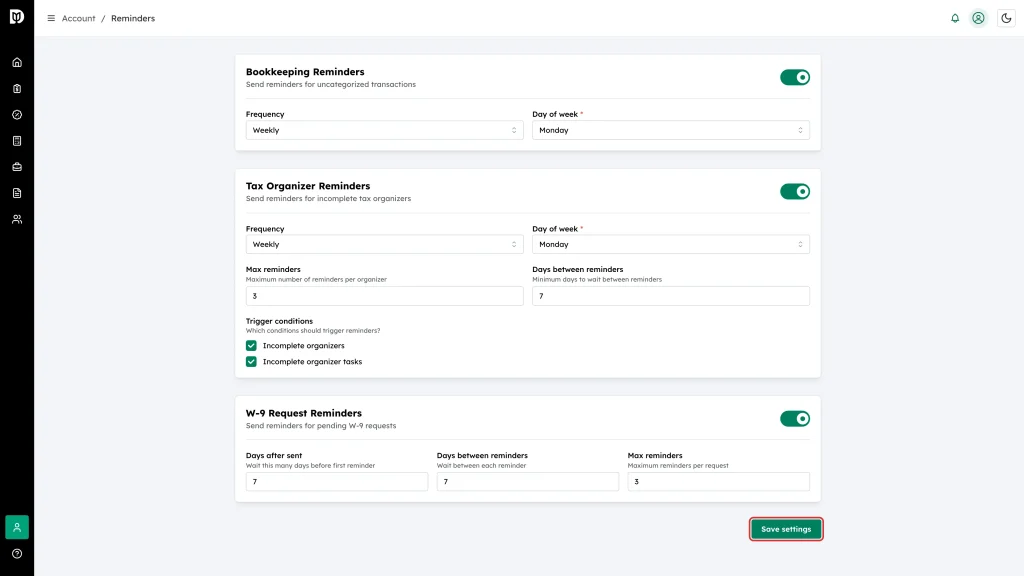
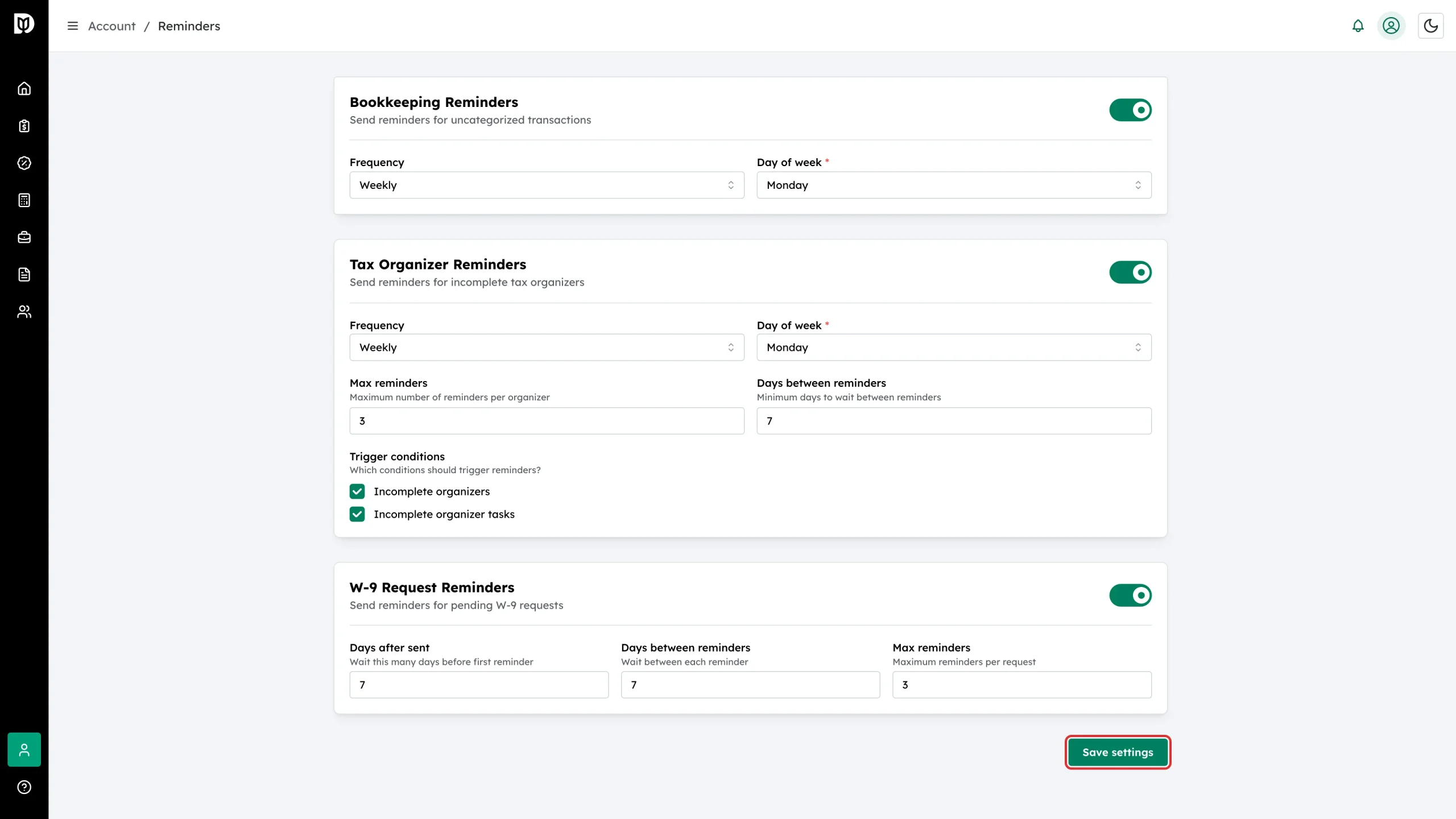
Click Save settings at the bottom of the page.
What your client receives
On each scheduled run, Debits checks every client user for uncategorized transactions. If there are none, nothing is sent. If there are, the client gets one email that says how many items are waiting and includes a button that opens their Debits dashboard, already signed in.
Overriding the schedule for one client
You can turn bookkeeping reminders off, or pause them until a date, for a single contact. Open Contacts, select the contact, and use the Reminders tab. A contact override always beats the firm-wide setting here.
The other reminder types on this page
- Tax Organizer Reminders — chases clients with incomplete organizers or organizer tasks.
- W-9 Request Reminders — chases vendors who have not returned a W-9.
Each has its own switch and its own settings, and all three are saved together by Save settings.