You can change your Debits password whenever you want, and you can reset it if you have forgotten it. Both take less than a minute.
Change your password when you know your current one
-
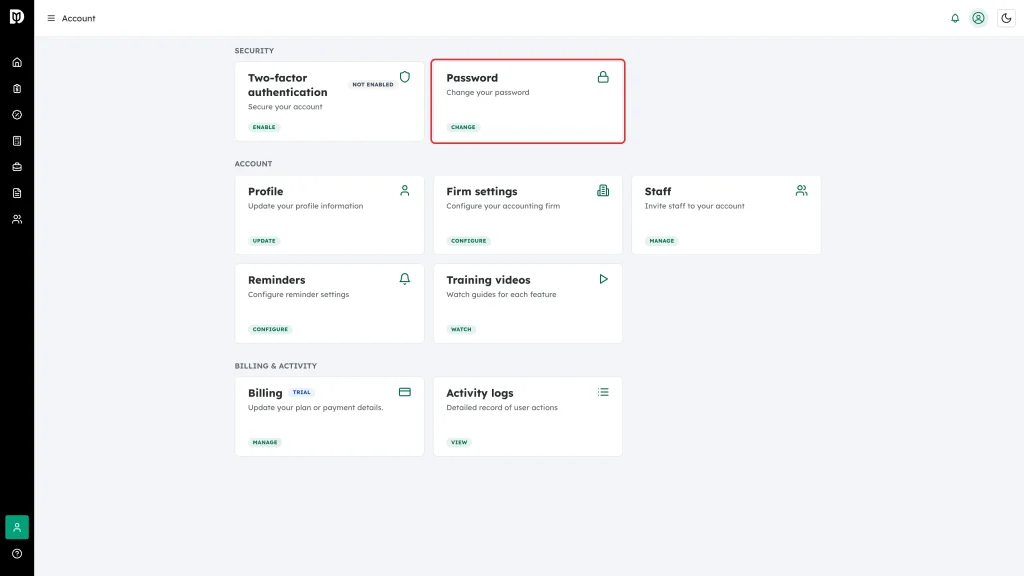
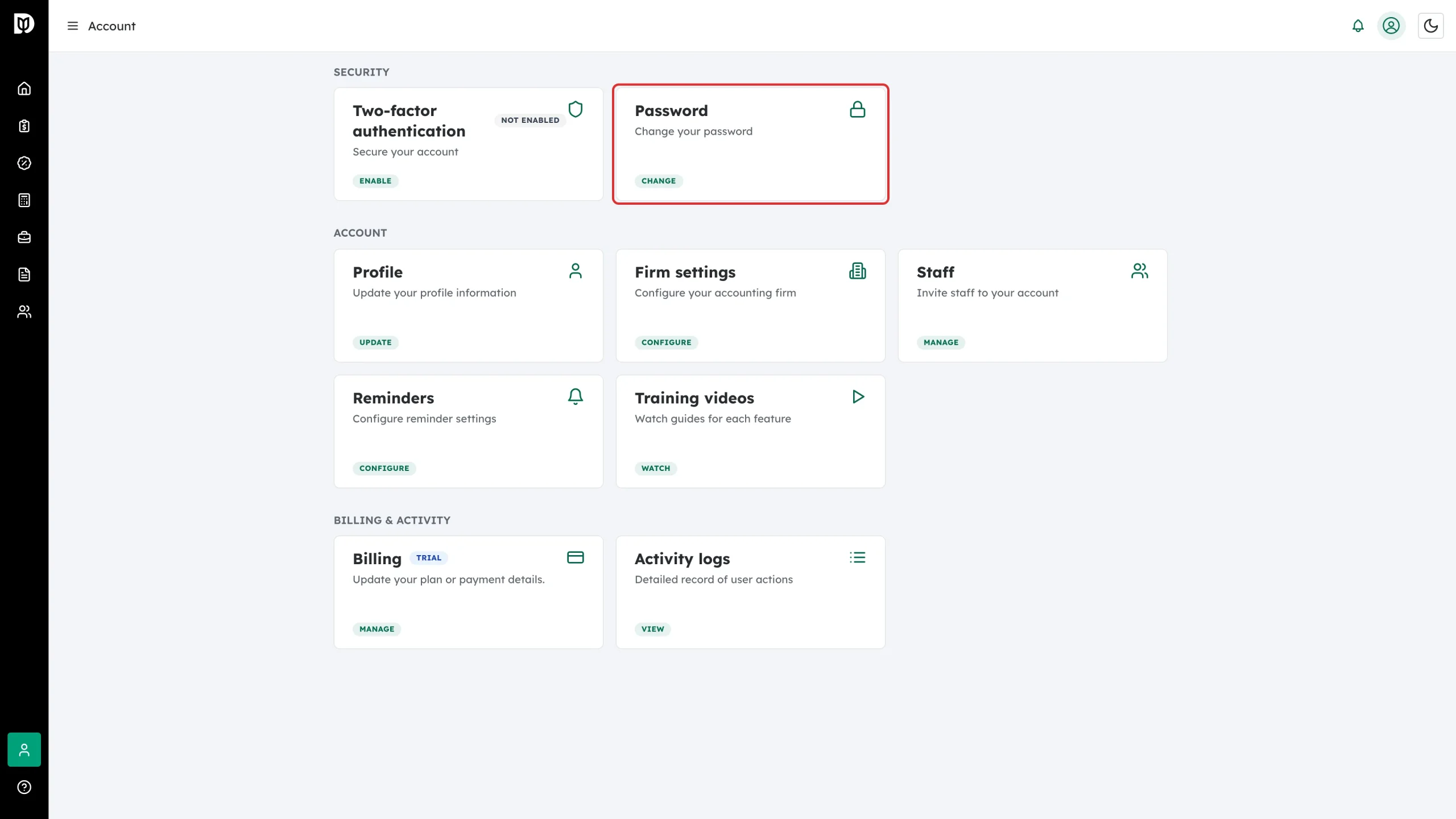
Sign in to Debits and open Account from the left sidebar. In the Security row, find the Password card and click Change.
-
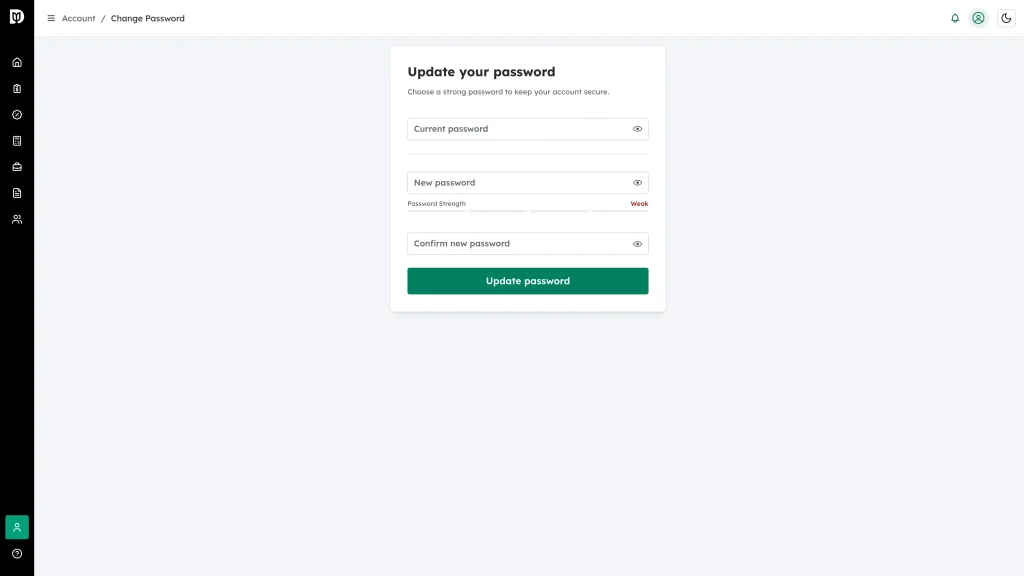
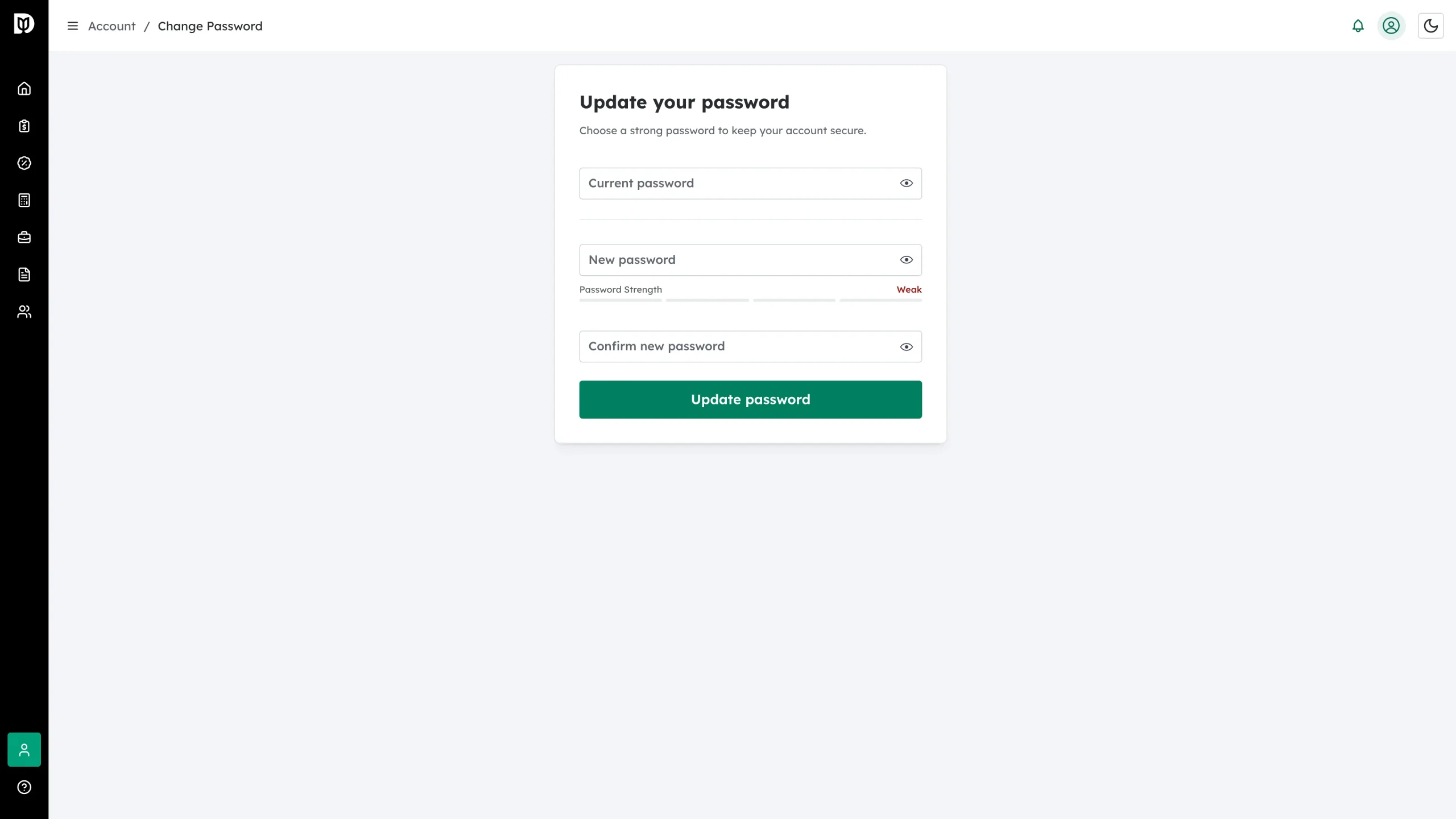
The Update your password page opens. It has three fields: Current password, New password and Confirm new password.
-
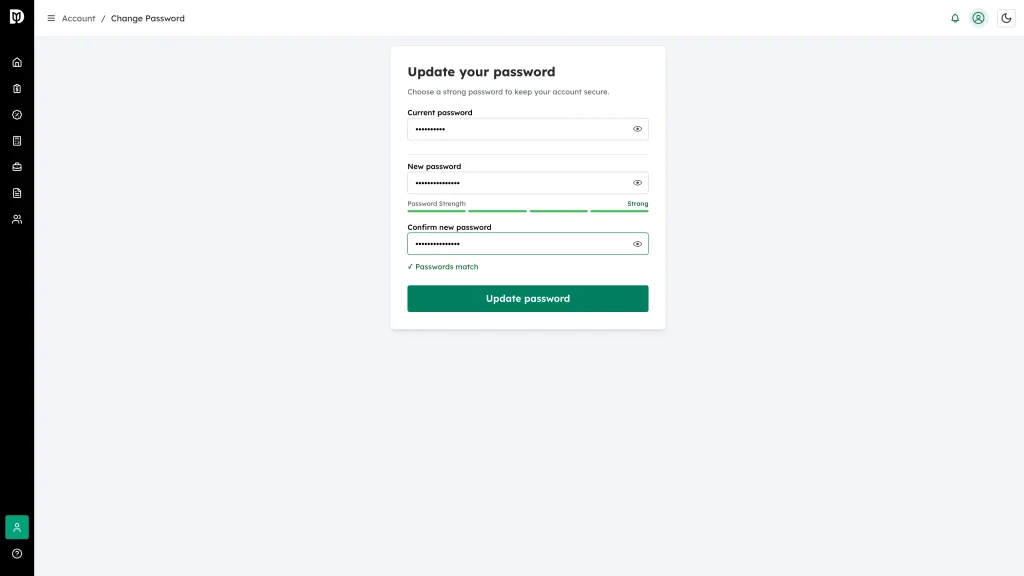
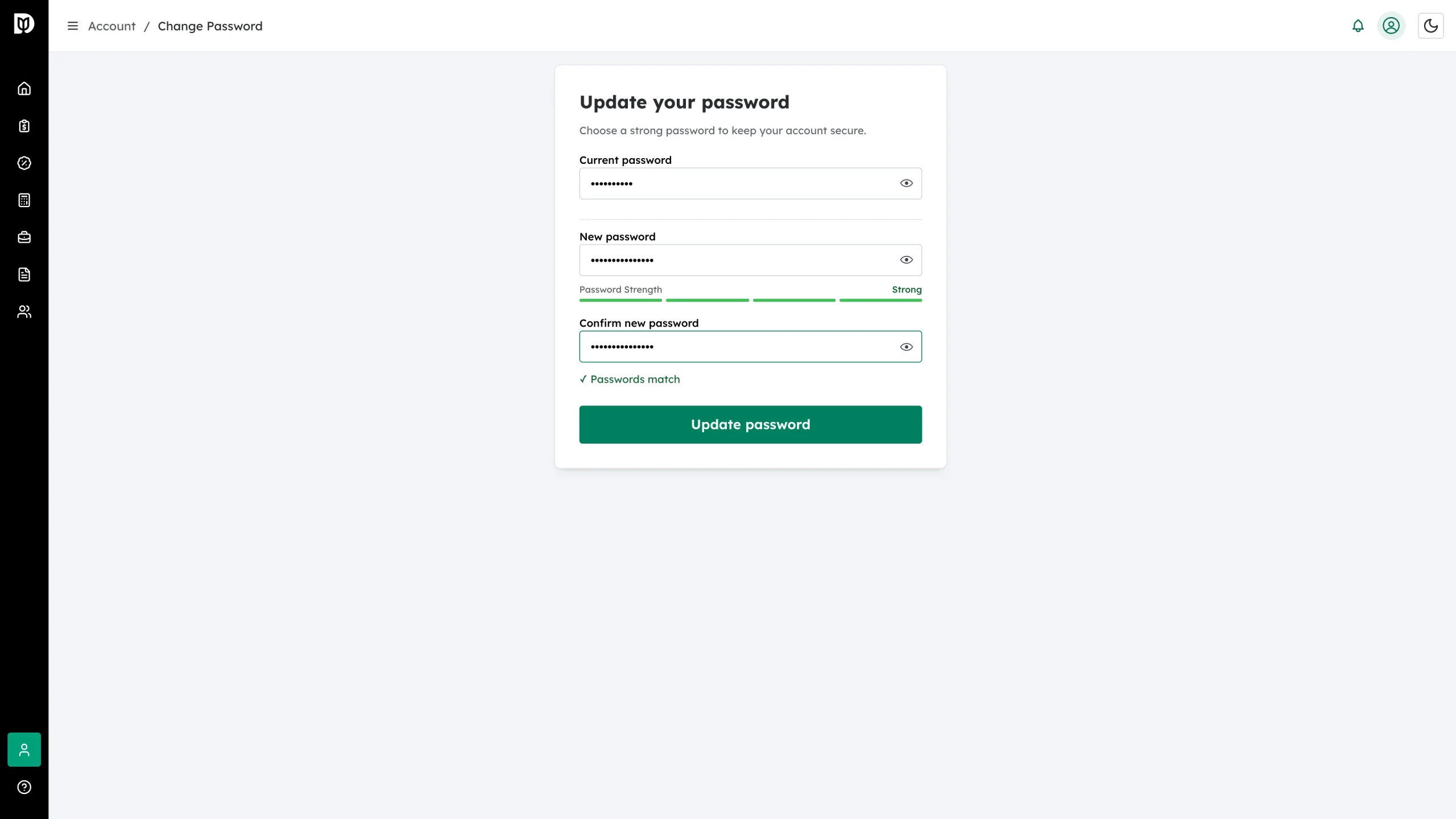
Type your current password, then type your new password twice. As you type, the Password Strength bar updates and a ✓ Passwords match message appears once the two new entries are identical.
-
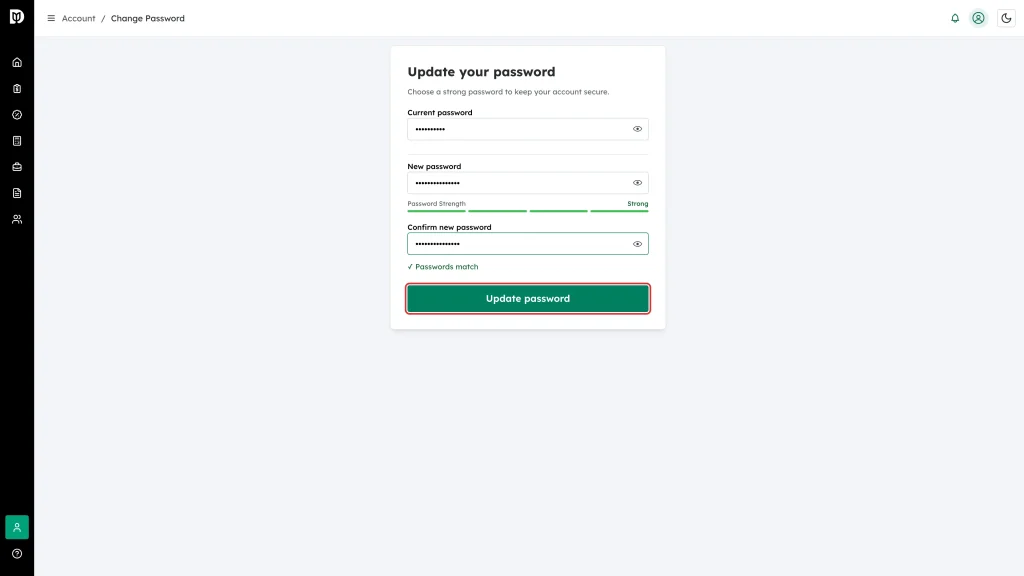
Click Update password.
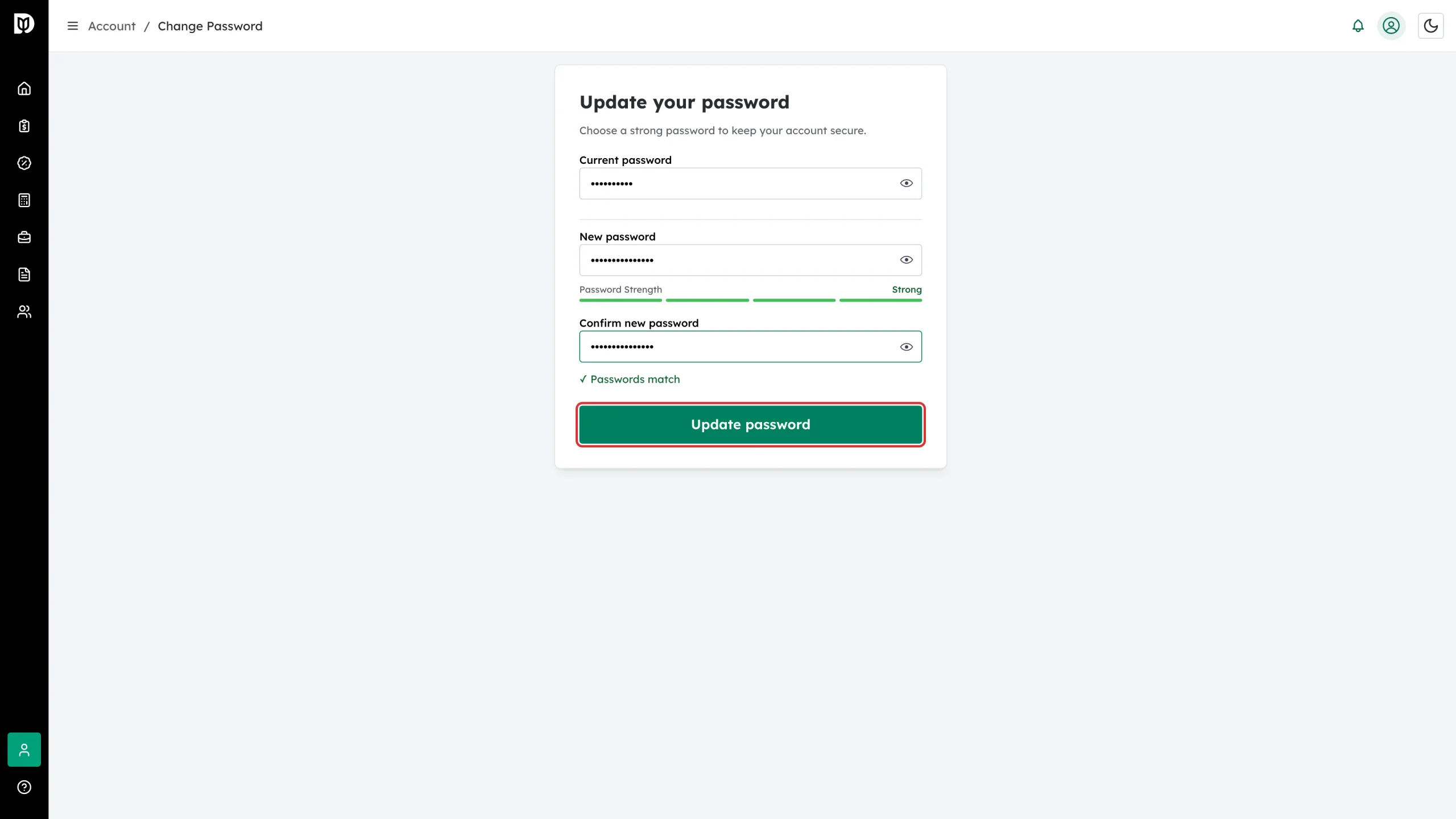
You will see a Password reset successful! message. You stay signed in on this device and on any other device you are already using.
What your new password must contain
Debits will not accept a new password unless it has all of the following:
- At least 8 characters
- At least one number
- At least one lowercase letter
- At least one uppercase letter
- At least one symbol, such as
!,@,#or*
If a rule is not met, the message under the field tells you which one.
Reset your password if you have forgotten it
-
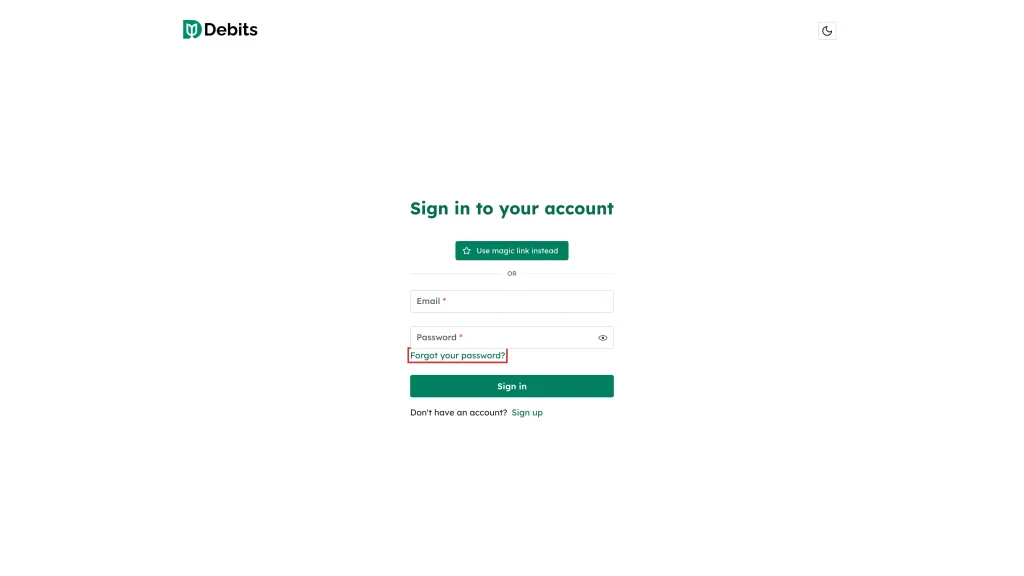
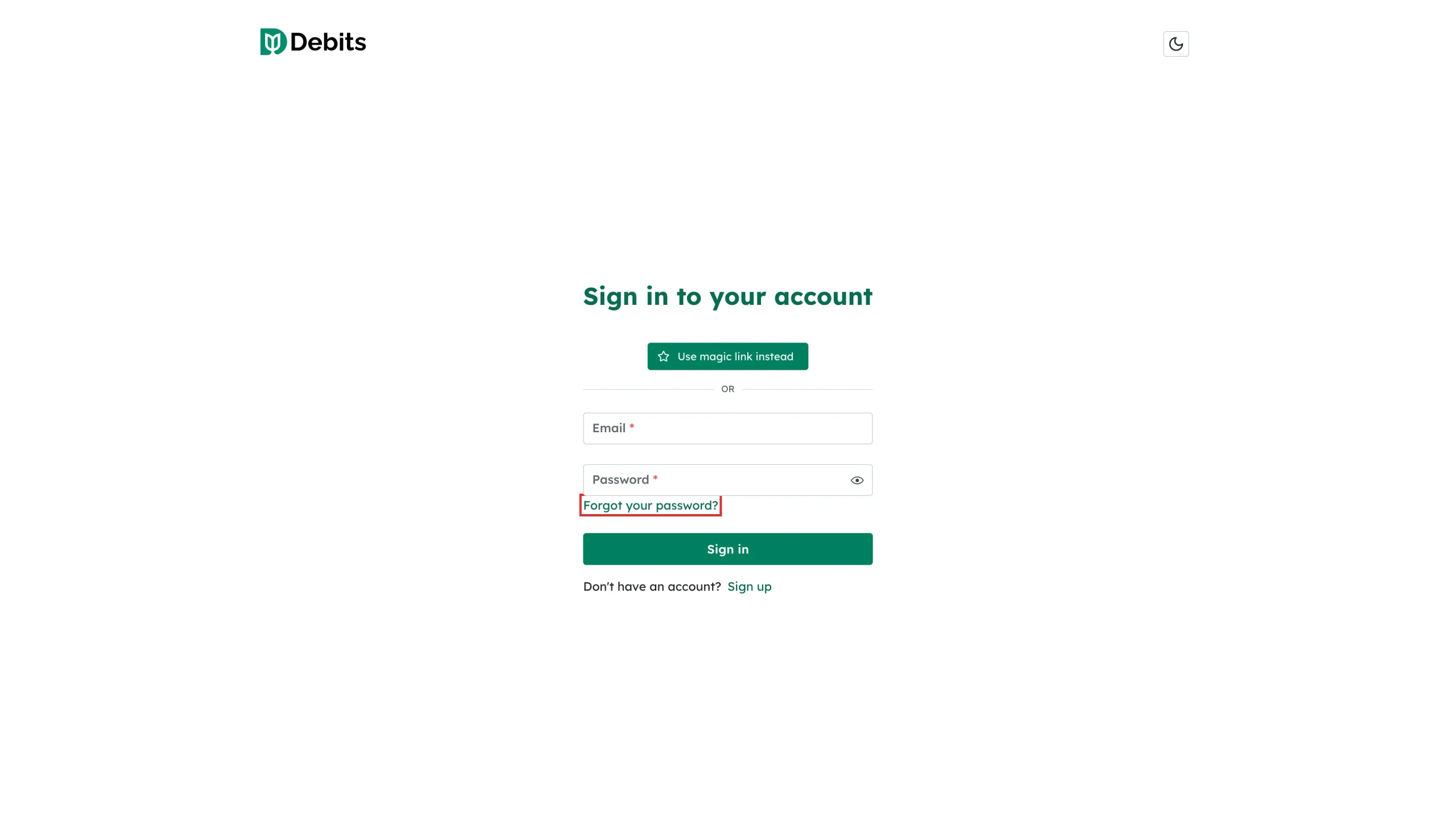
Go to the Debits sign-in page and click Forgot your password? under the Password field.
-
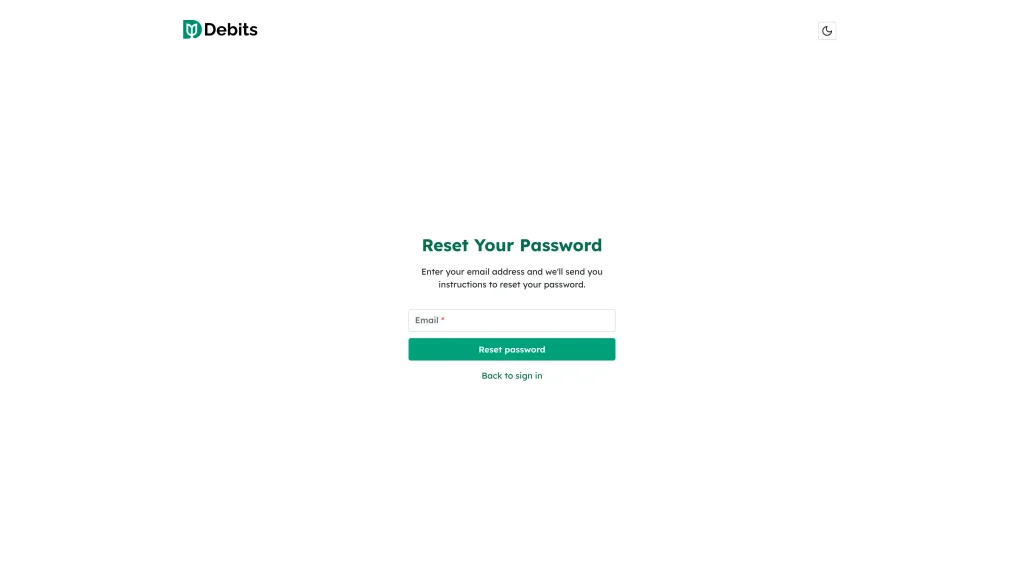
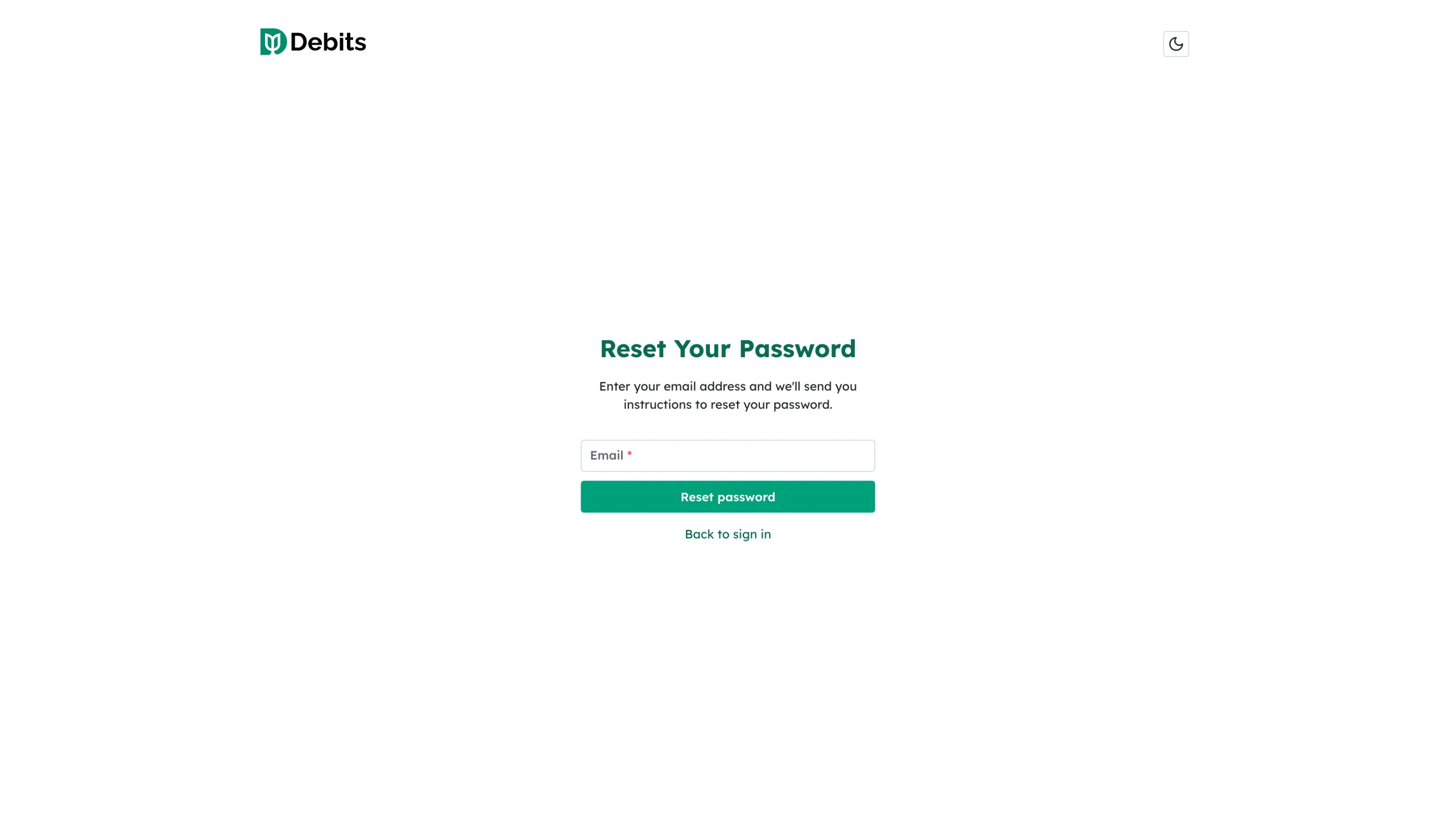
On the Reset Your Password page, enter the email address on your Debits account and click Reset password.
-
Check your inbox (and your spam folder) for the reset email, open the link, and choose a new password. The same password rules apply.
Can’t get to your email right now?
The sign-in page also has a Use magic link instead button. Debits emails you a one-click link that signs you in without a password, so you can get in first and change your password afterwards from Account > Password.
Tips
- Do not reuse a password from another site.
- Use a password manager to store a long, random password.
- For an extra layer of protection, turn on two-factor authentication from the Two-factor authentication card on the same Account page.