A dashboard note is a short message you write for one client. Your client sees it on their transactions dashboard in Debits, so it is the fastest way to tell them what you need without sending an email.
Use it to:
- Set a deadline — “Please answer these by Friday.”
- Ask a question — “Can you confirm what Vendor 4 is for?”
- Explain how you want something handled.
Before you start
- The company must be connected to QuickBooks Online. If it is disconnected, the Save button stays greyed out.
- You need the Adjust a client company’s general settings permission. Firm owners and admins have it by default. If you do not, the General settings tab will not appear.
Add the note
-
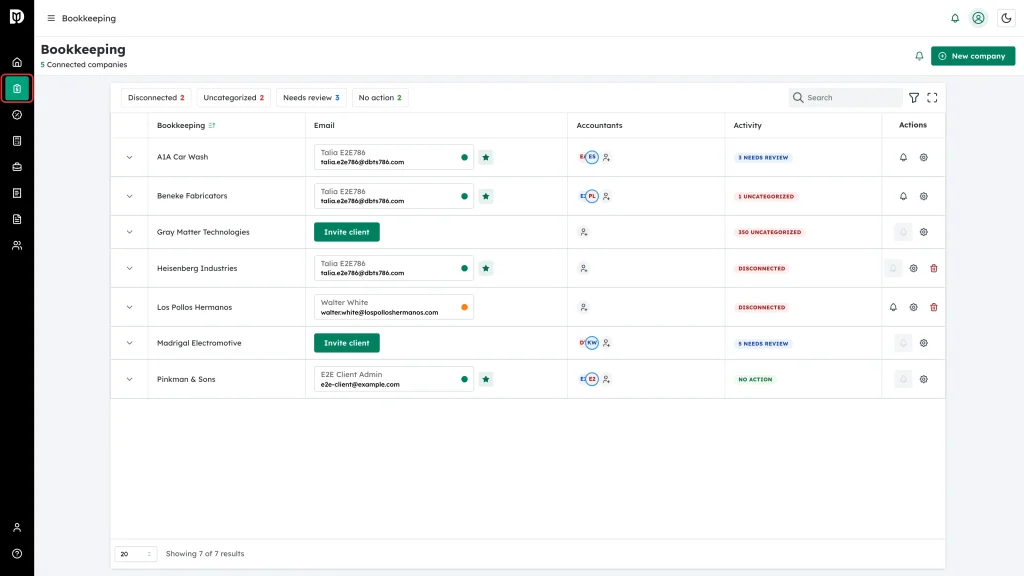
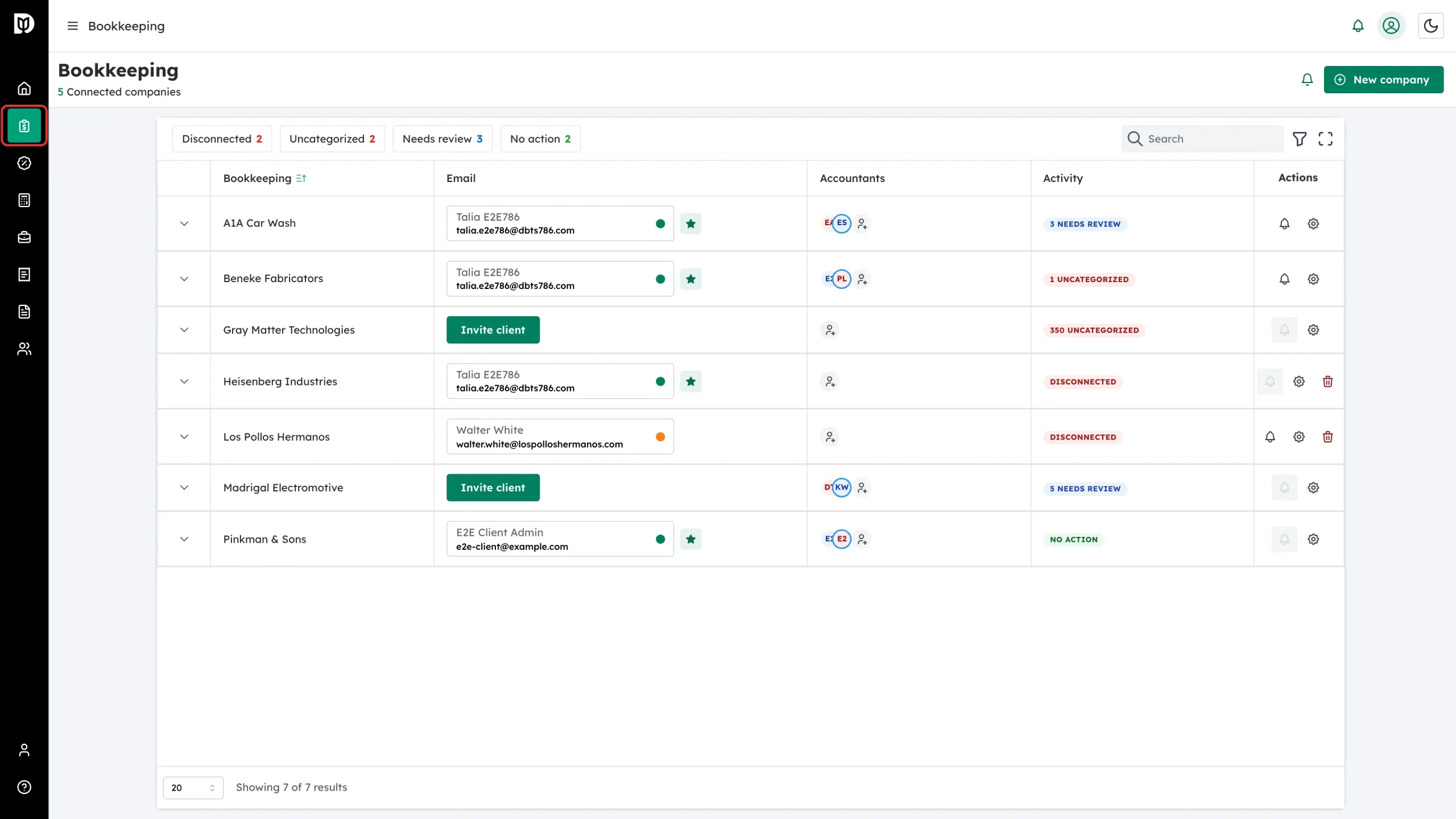
Click Bookkeeping in the left sidebar to open your list of client companies.
-
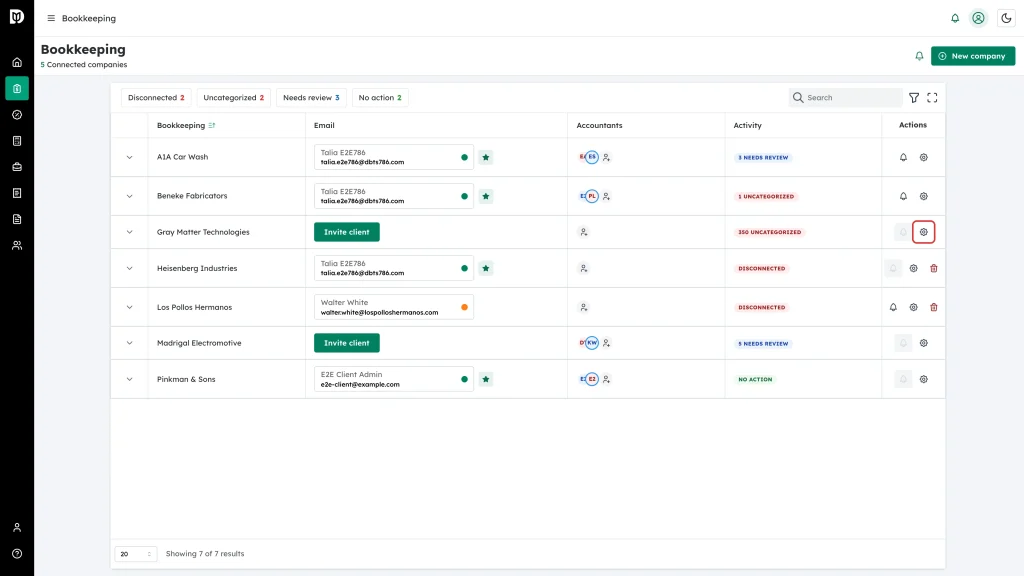
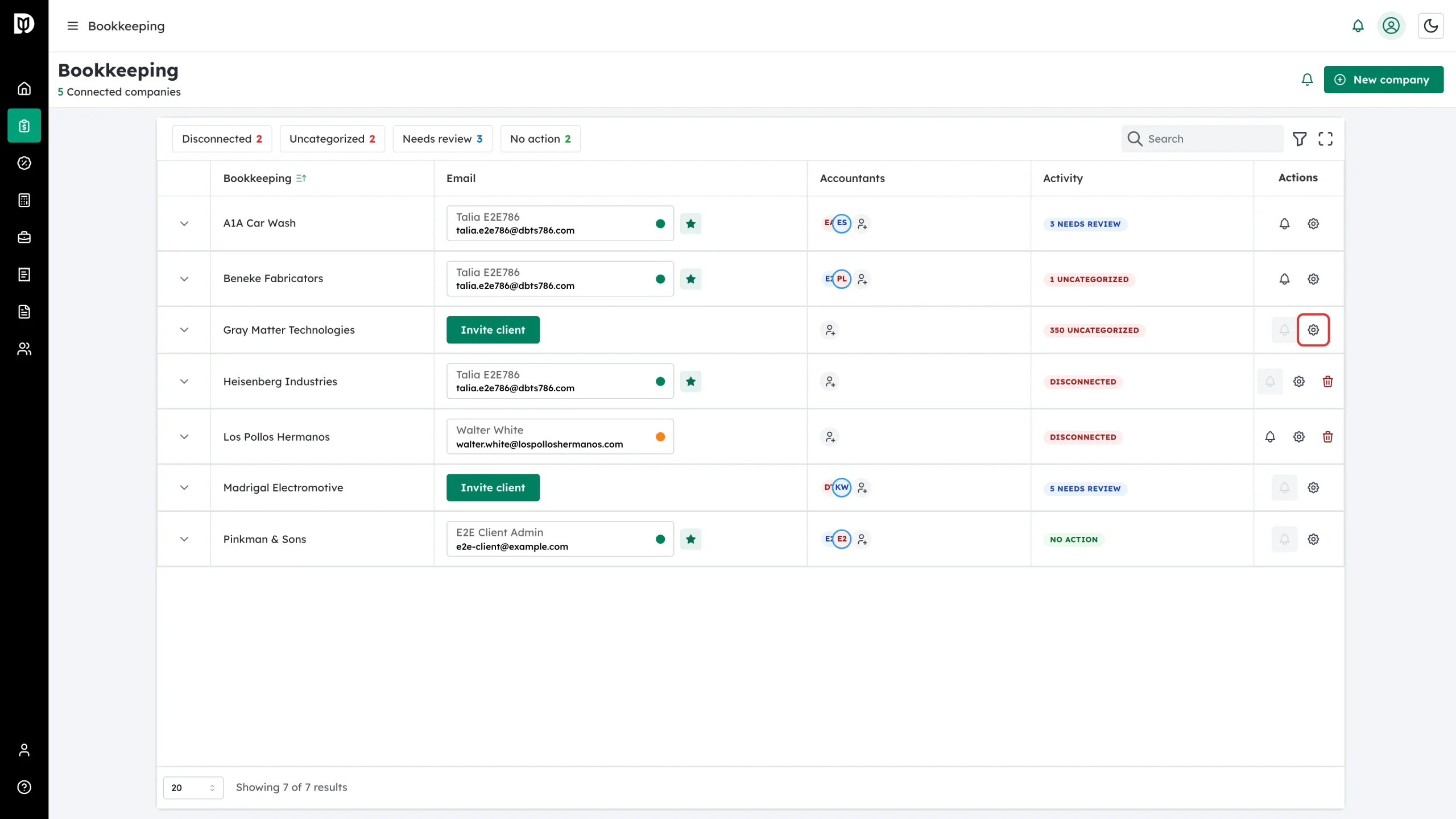
Find the company you want to write to and click the gear icon in its Actions column.
-
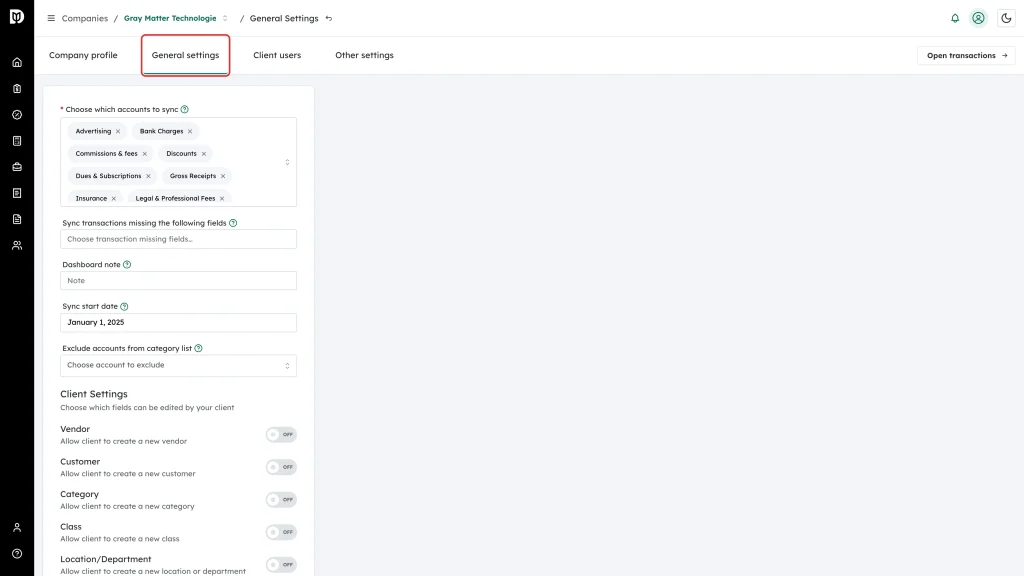
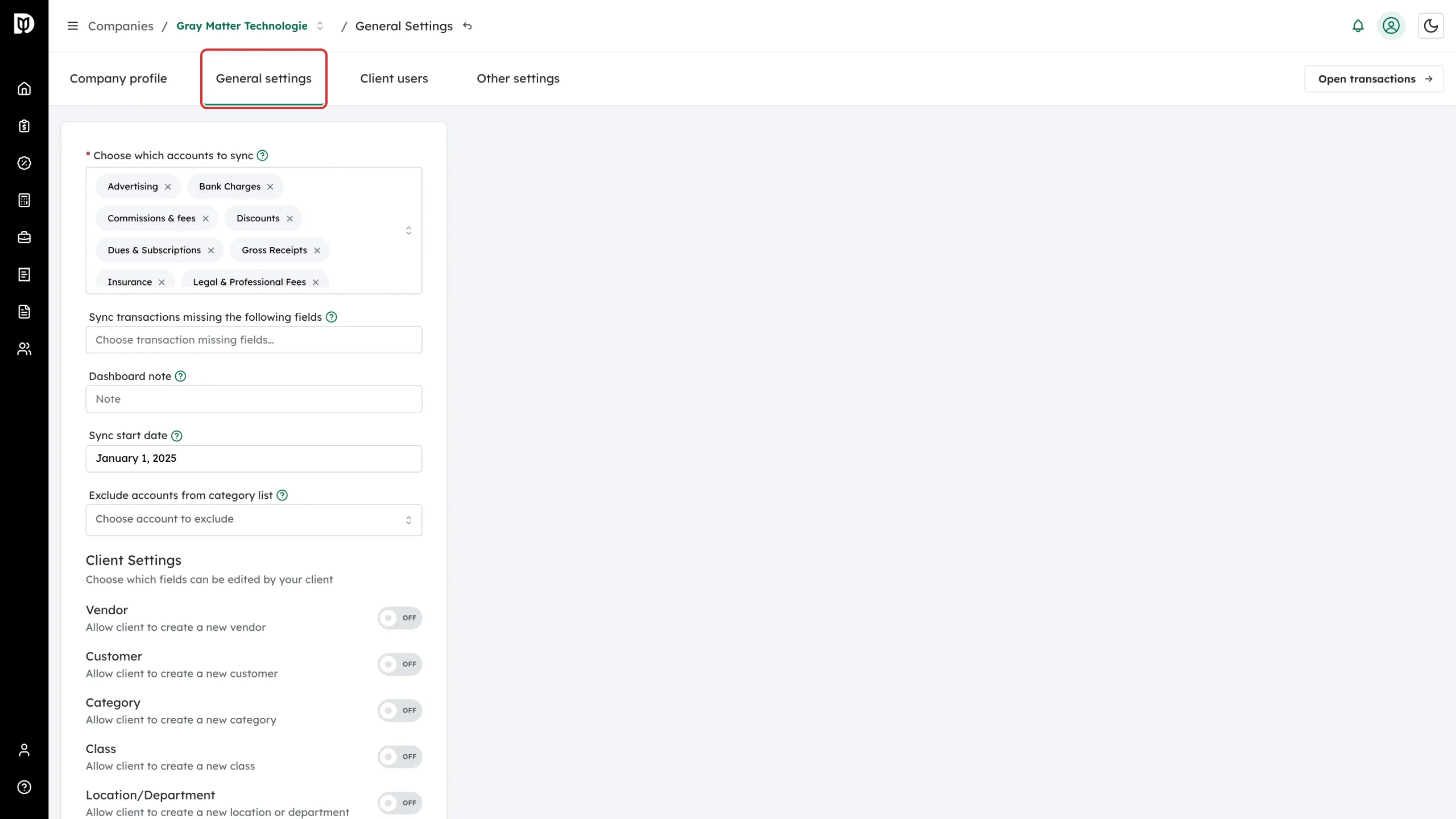
Open the General settings tab.
-
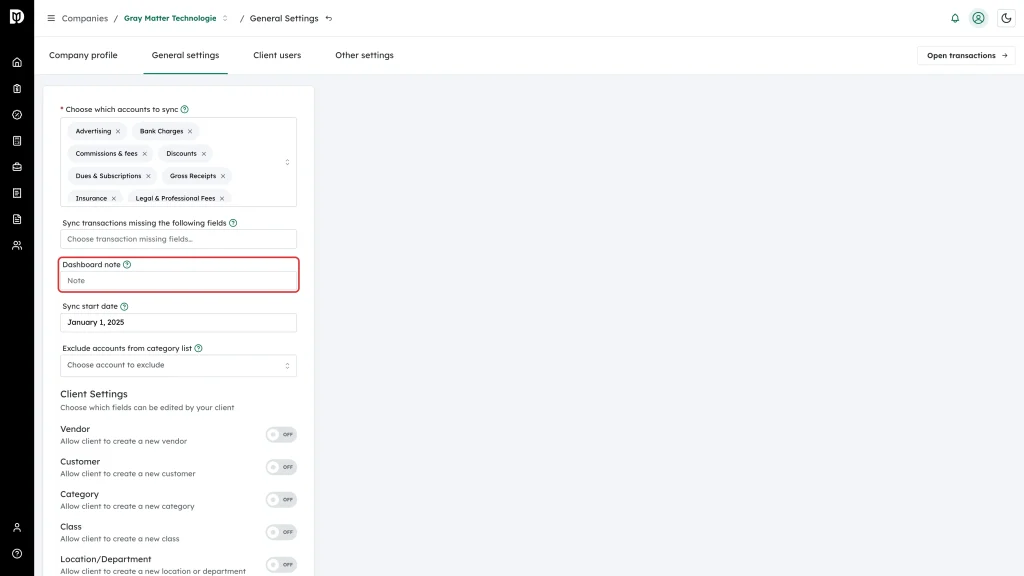
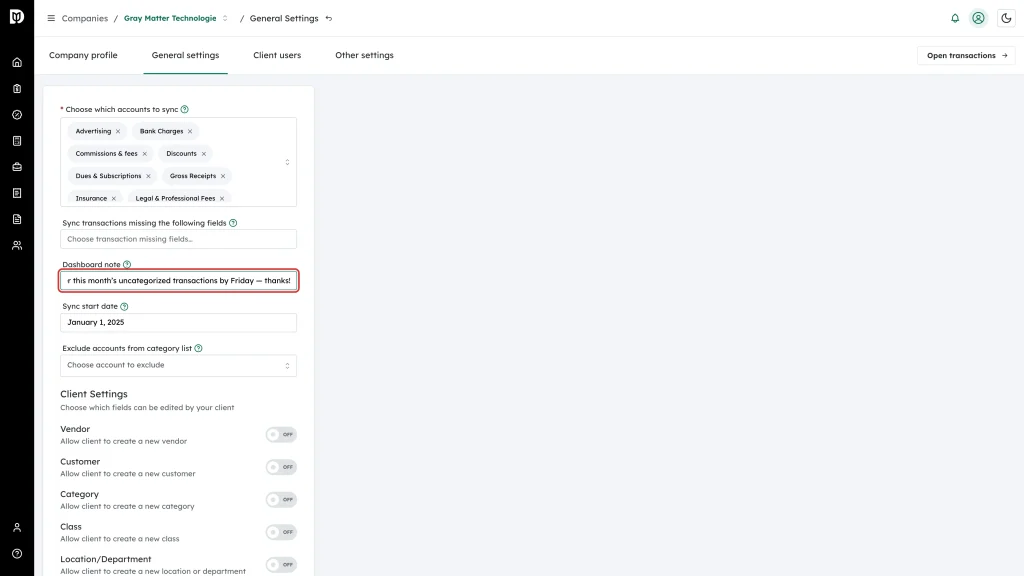
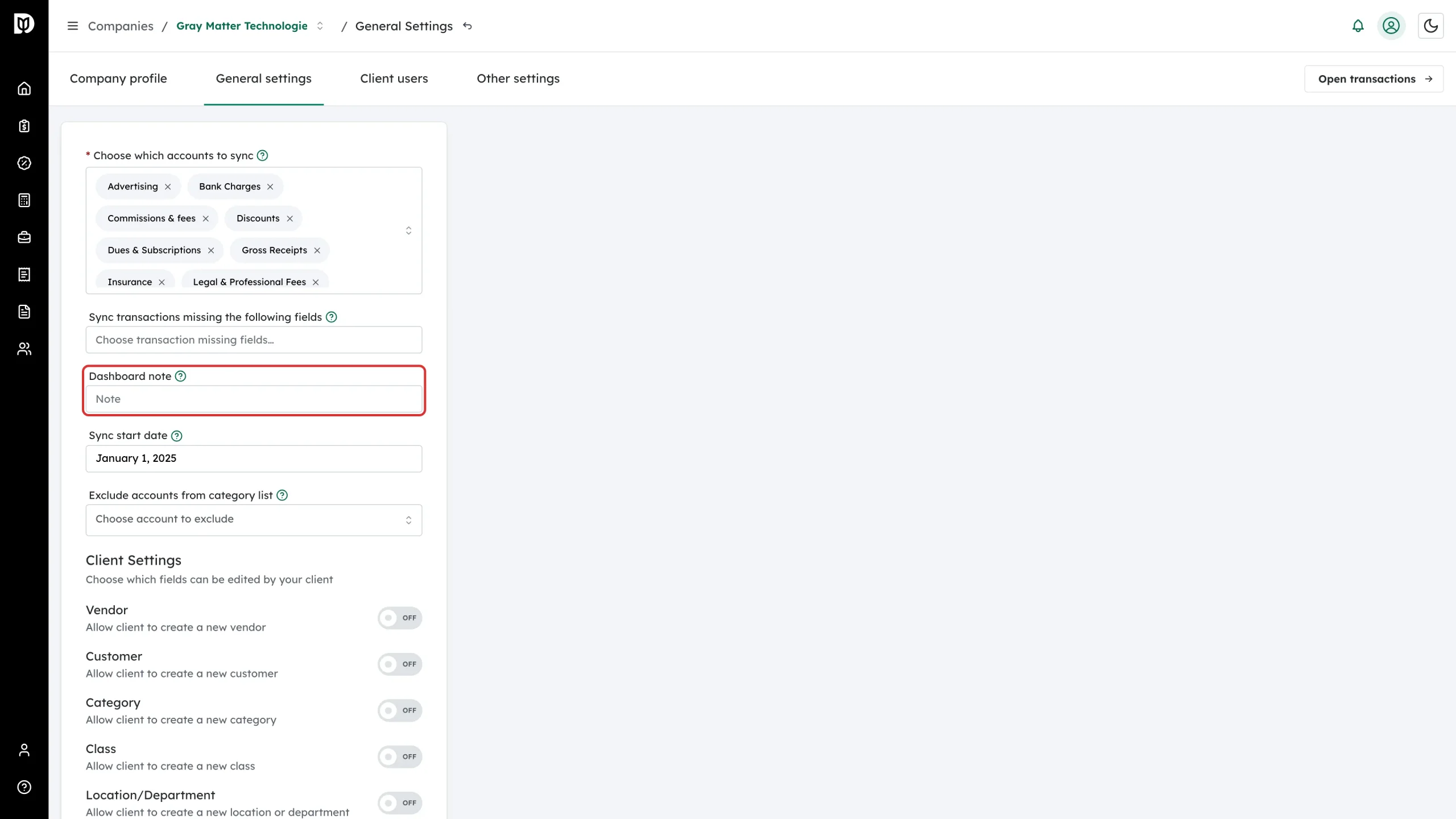
Find the Dashboard note field.
-
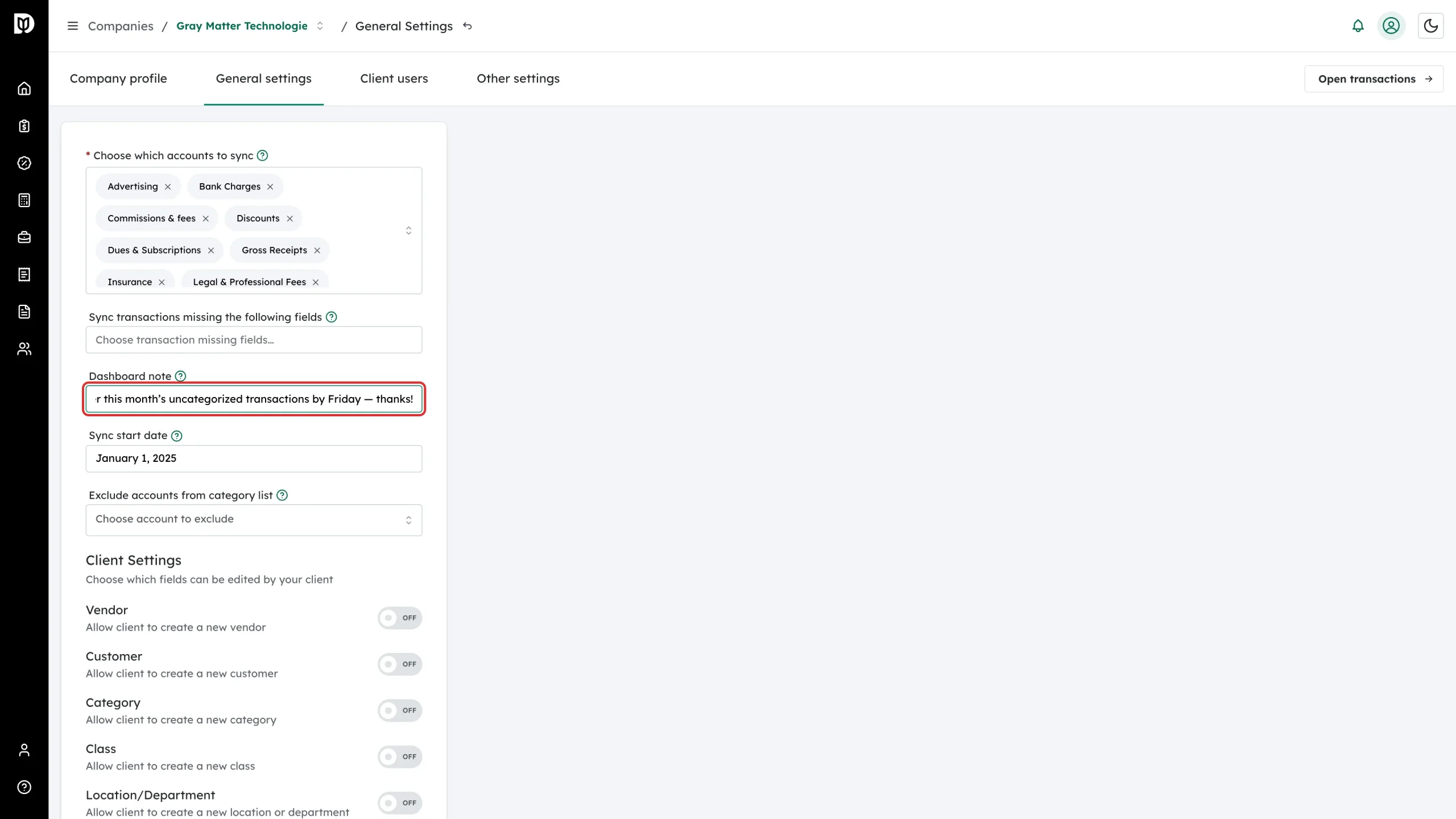
Type your message. Keep it to one or two sentences so it is easy to act on.
-
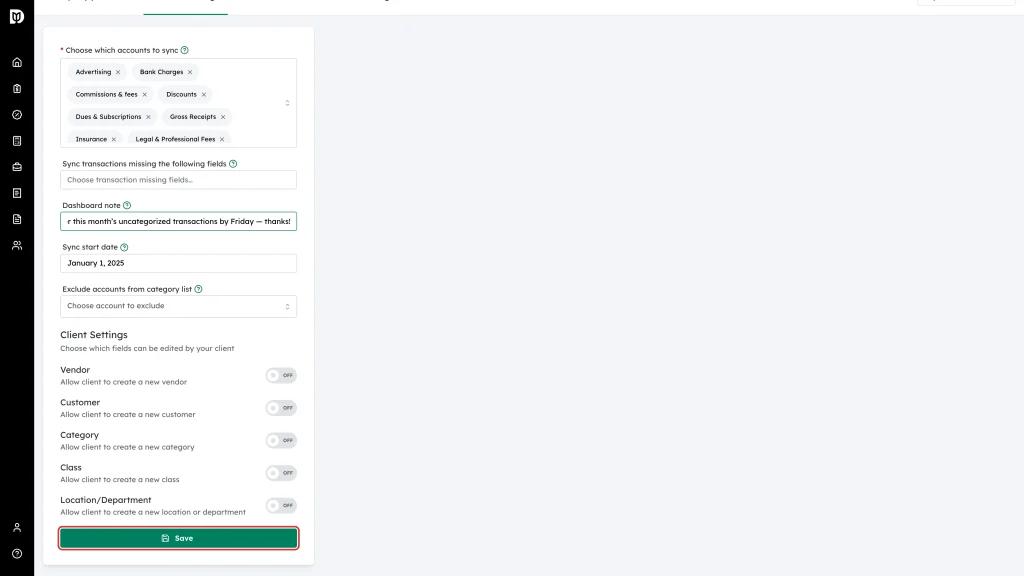
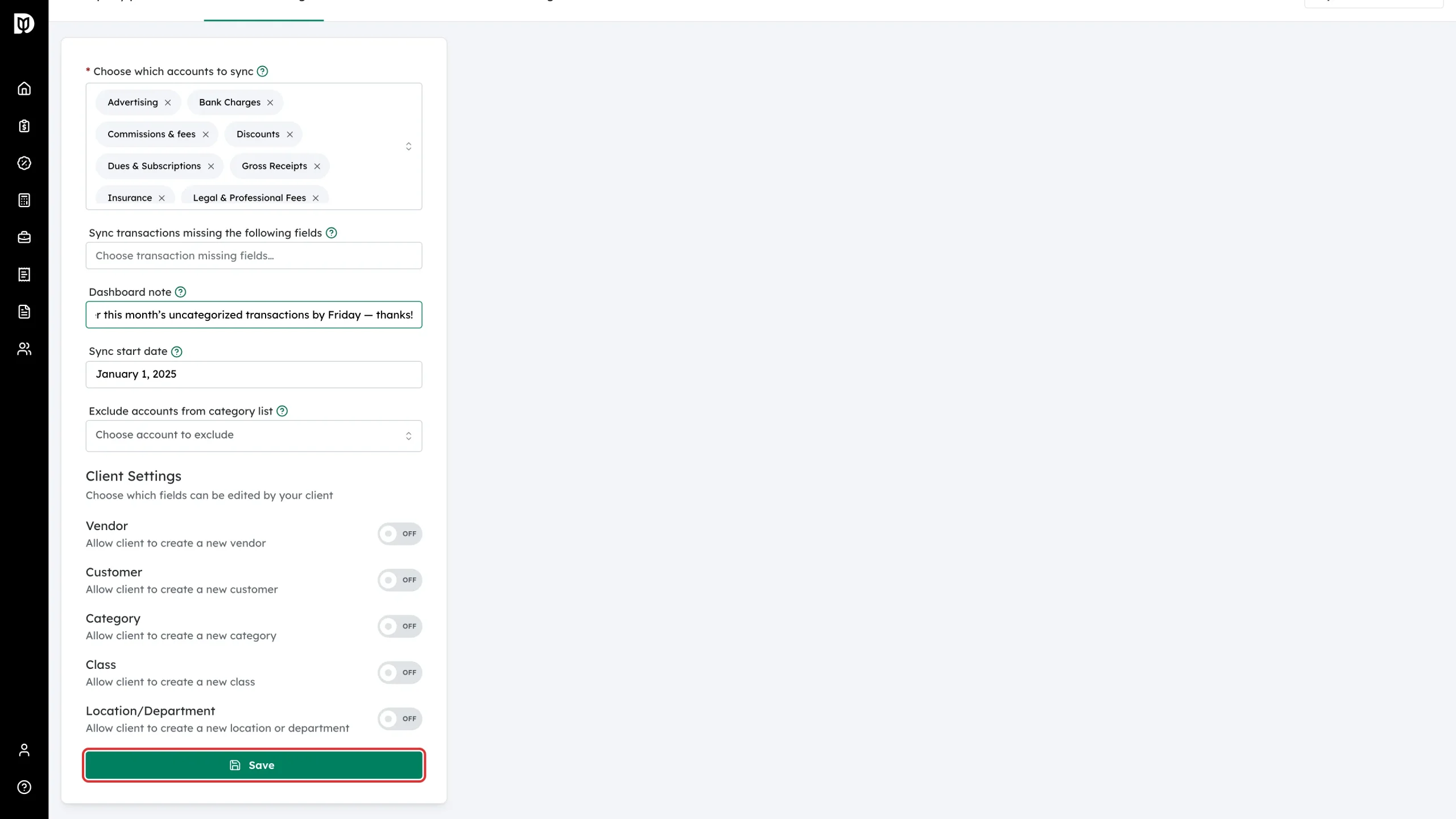
Click Save at the bottom of the page.
What happens next
The note appears for every client user on that company the next time they open their transactions in Debits. It stays there until you change it.
To update the note, come back to the same field, edit the text and click Save again. To remove it, clear the field and save.
Good to know
- Save saves the whole General settings form, so any other change you made on that page — sync accounts, sync start date, client settings — is saved at the same time.
- A dashboard note is not an email. If you want Debits to email the client, use the reminder schedule in Account > Reminders, or email them about one specific transaction from the transaction’s actions menu.