Who this is for: The owner of a firm that has just signed up.
What you’ll learn: How the first-time setup works, what each step does, and where to turn on the tools that setup does not switch on.
Before you begin
- Setup opens straight after you create your account. Only the firm owner sees it.
- Your 7-day free trial is already running. Nothing you choose in setup is billed.
- Every step can be skipped and done later.
Step-by-step instructions
Step 1: Start with the setup assistant
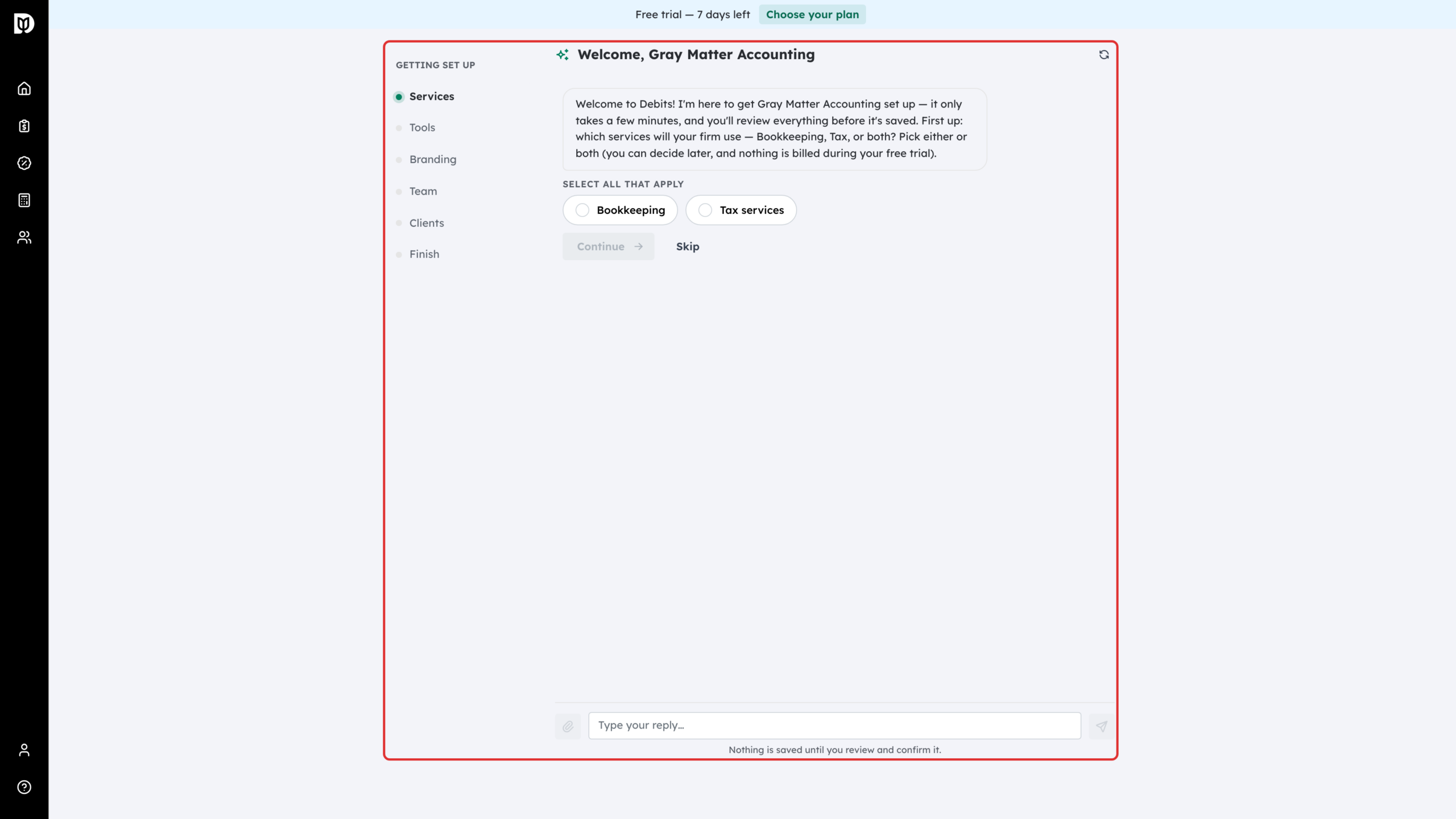
Debits opens a setup assistant that asks you questions one at a time. The Getting set up list on the left shows where you are: Services, Tools, Branding, Team, Clients and Finish. Answer with the buttons or type a reply. Nothing is saved until you review and confirm it.
Step 2: Switch to the classic setup if you prefer
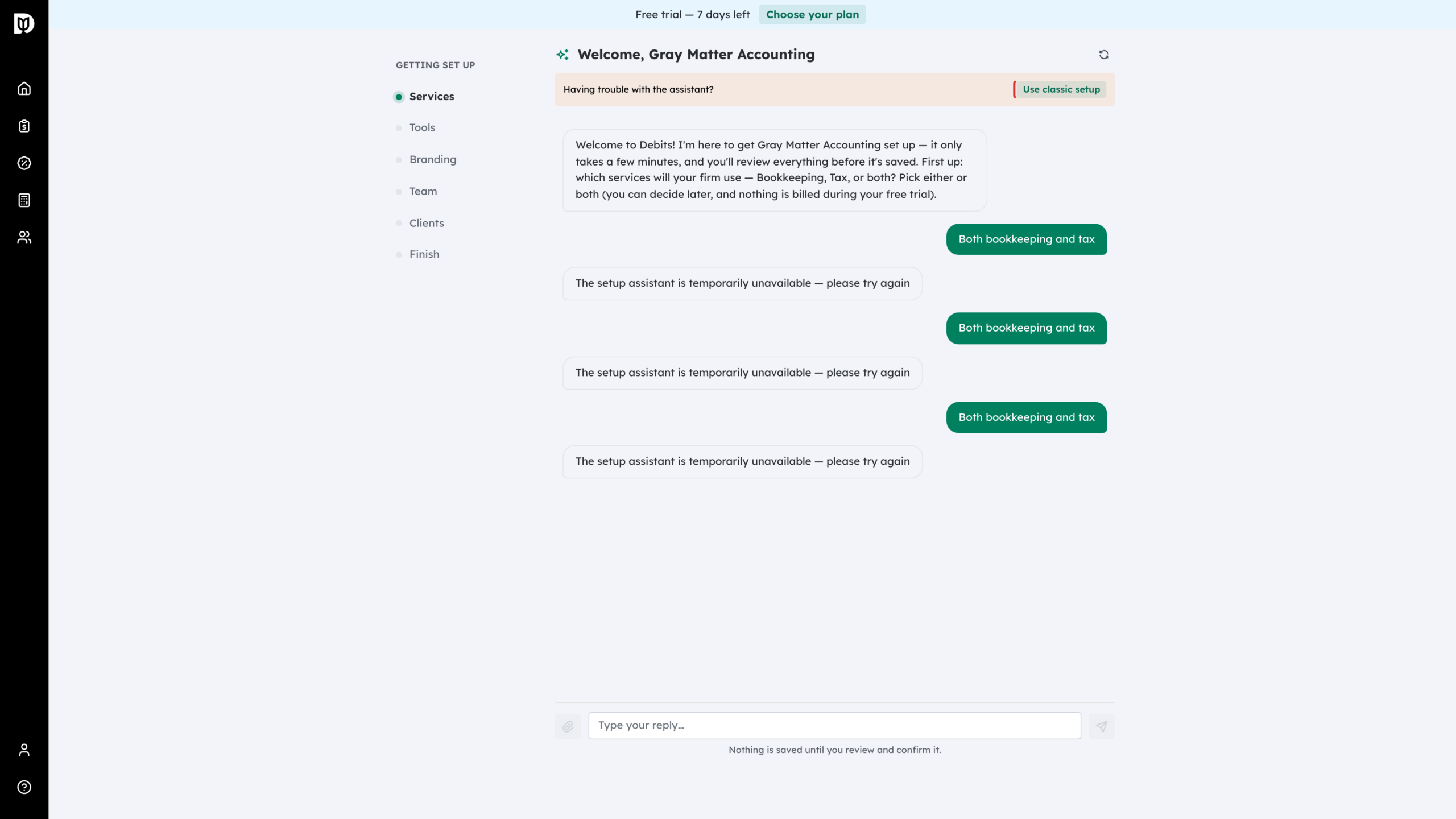
If the assistant has trouble answering, a Having trouble with the assistant? note appears. Select Use classic setup to finish with a short step-by-step form instead. The classic setup has four steps: Services, Branding, Team and Contacts. The rest of this article follows it.
Step 3: Choose your services
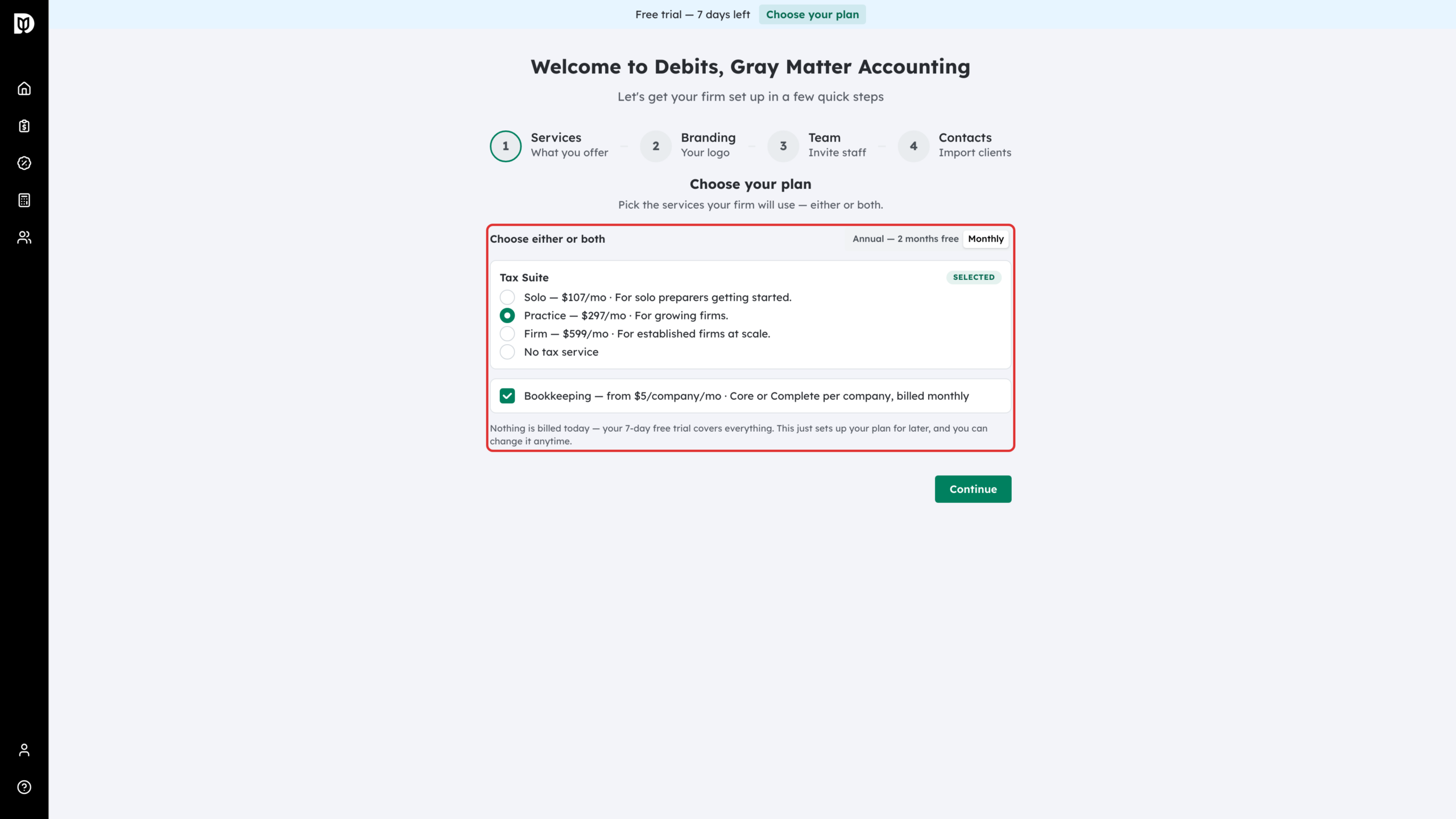
On Choose your plan, pick the services your firm will use. Choose either or both: a Tax Suite tier (or No tax service), and Bookkeeping. Use the Annual — 2 months free and Monthly switch to compare prices. Then select Continue. Your choice is saved for later, and the plan page selects it for you when you check out.
Step 4: Or decide later
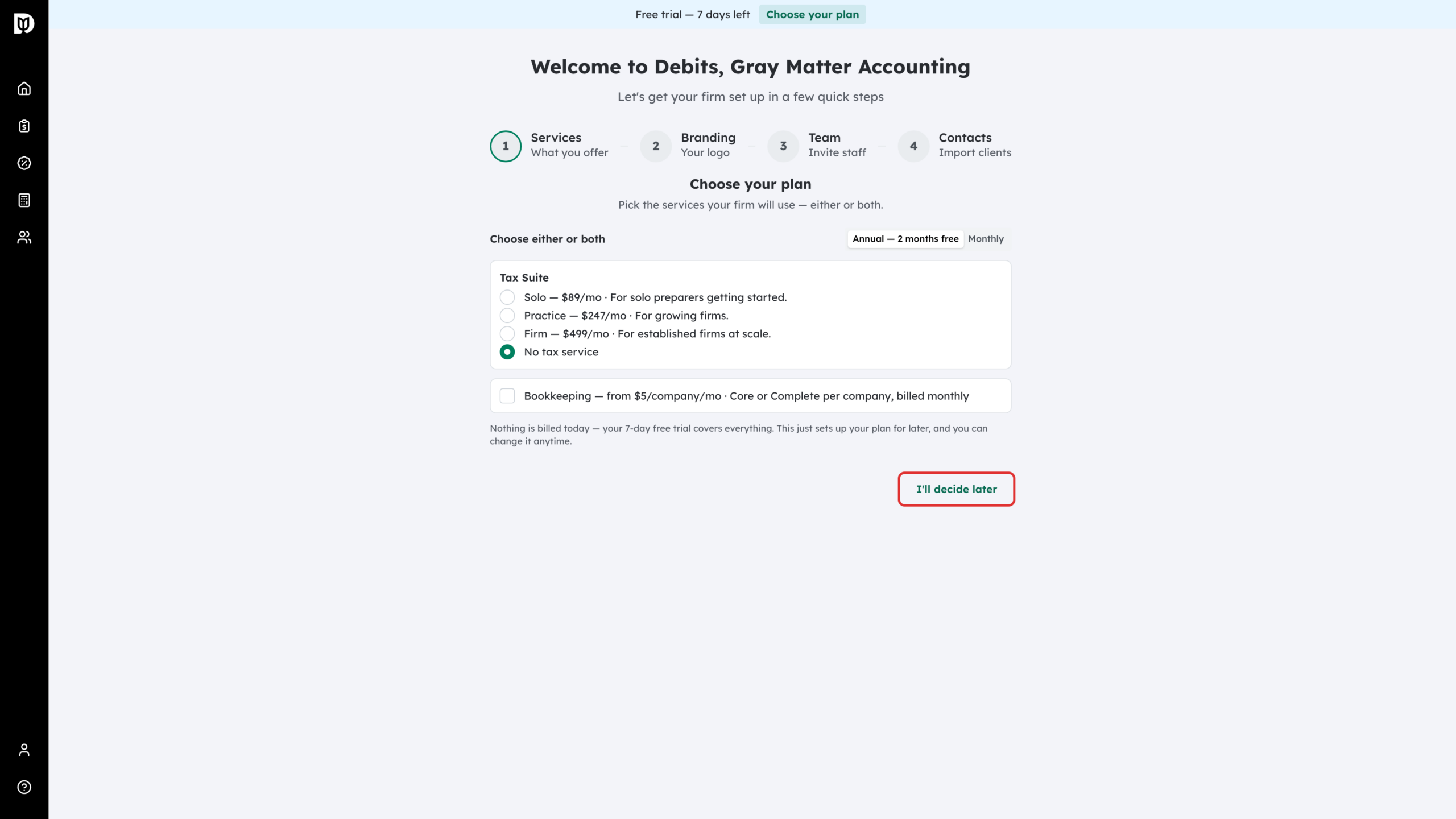
Not sure yet? Choose No tax service and leave Bookkeeping unticked. The button changes to I’ll decide later. You can pick a plan any time before your trial ends.
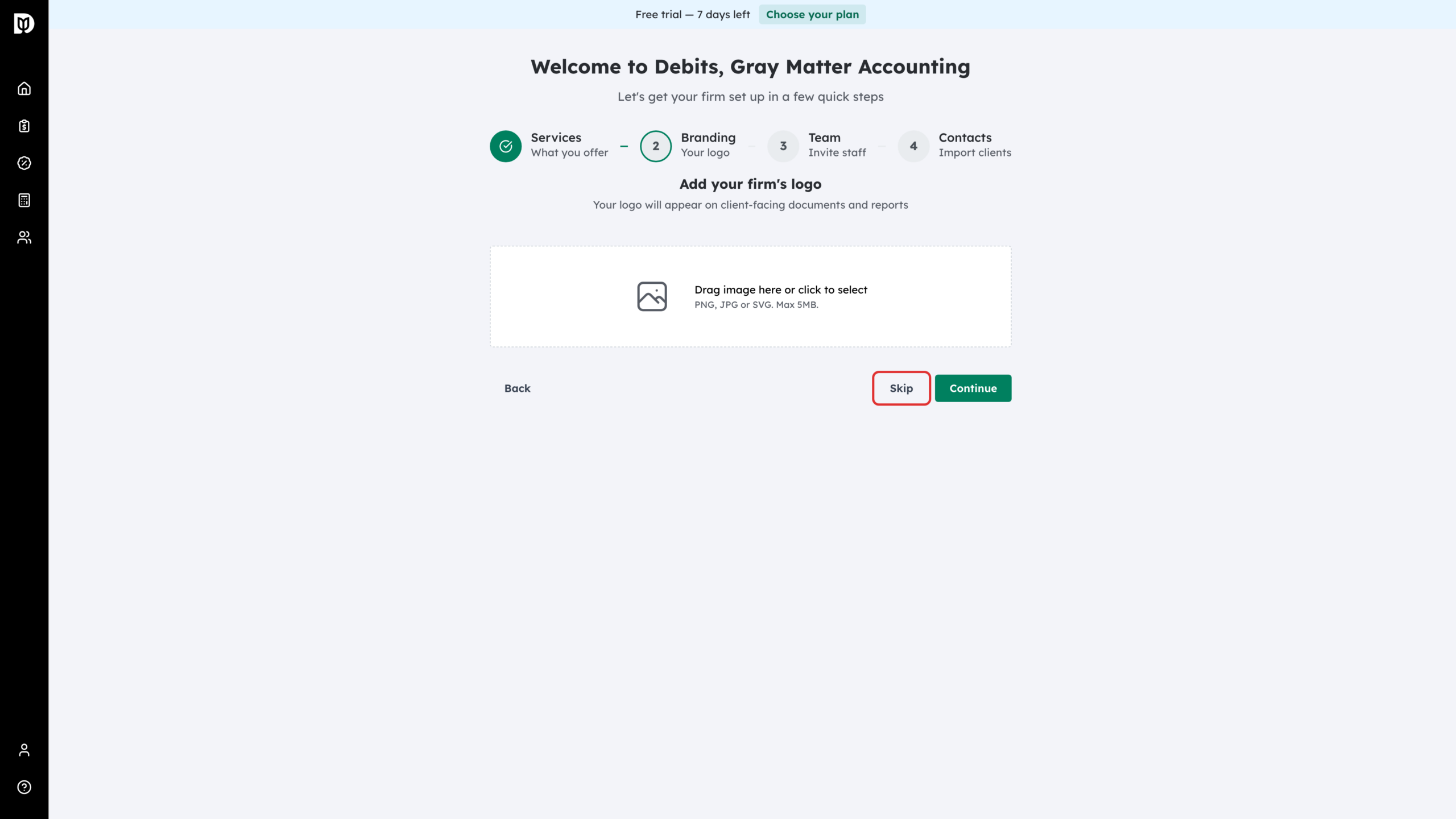
Step 5: Add your logo
Drop your firm’s logo into the box, or select Skip. Your logo appears on client-facing documents and reports.
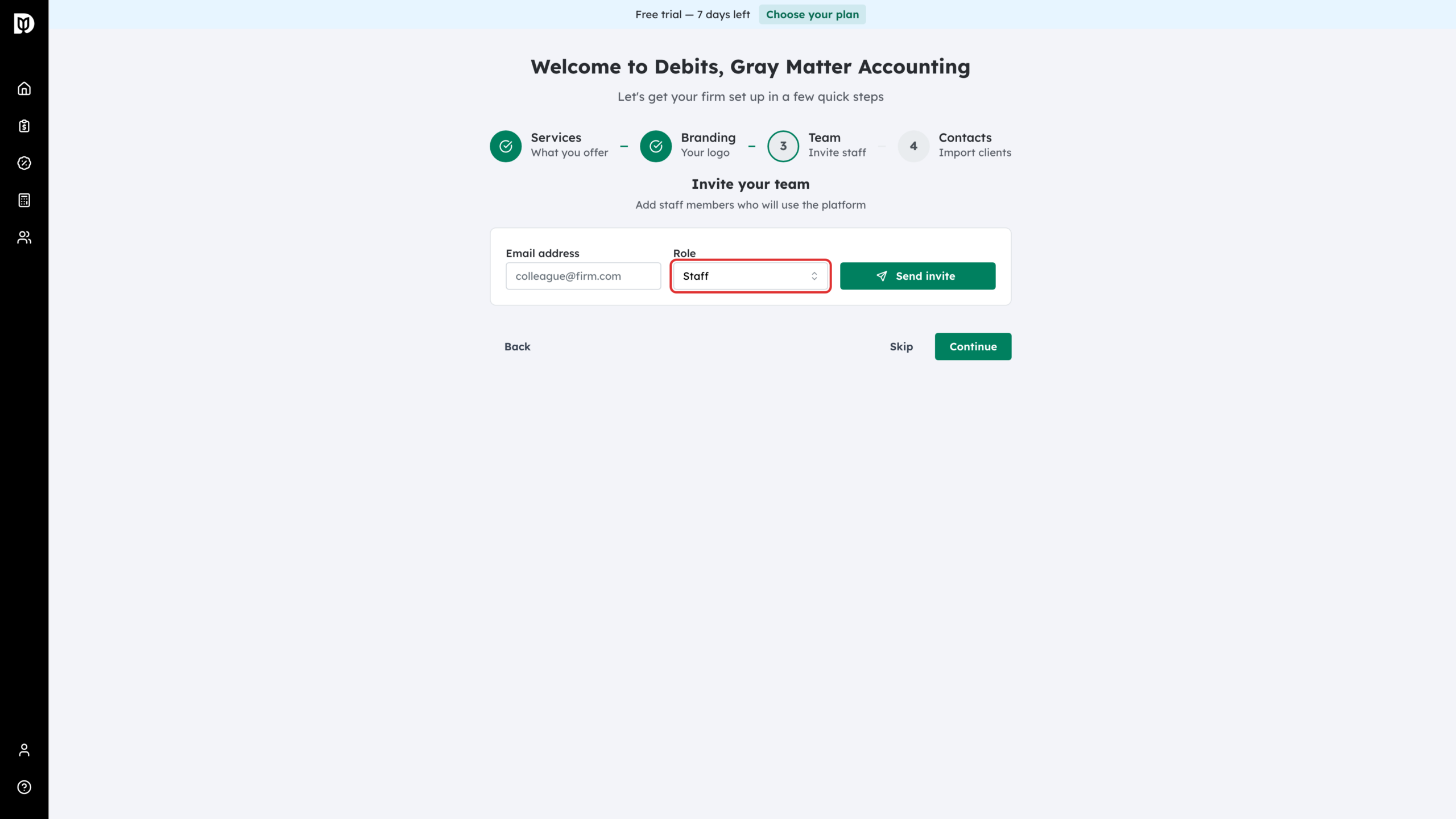
Step 6: Invite your team
Enter a colleague’s Email address, choose a Role (Admin, Manager or Staff) and select Send invite. Repeat for each person, then select Continue, or Skip to invite people later from Account > Staff.
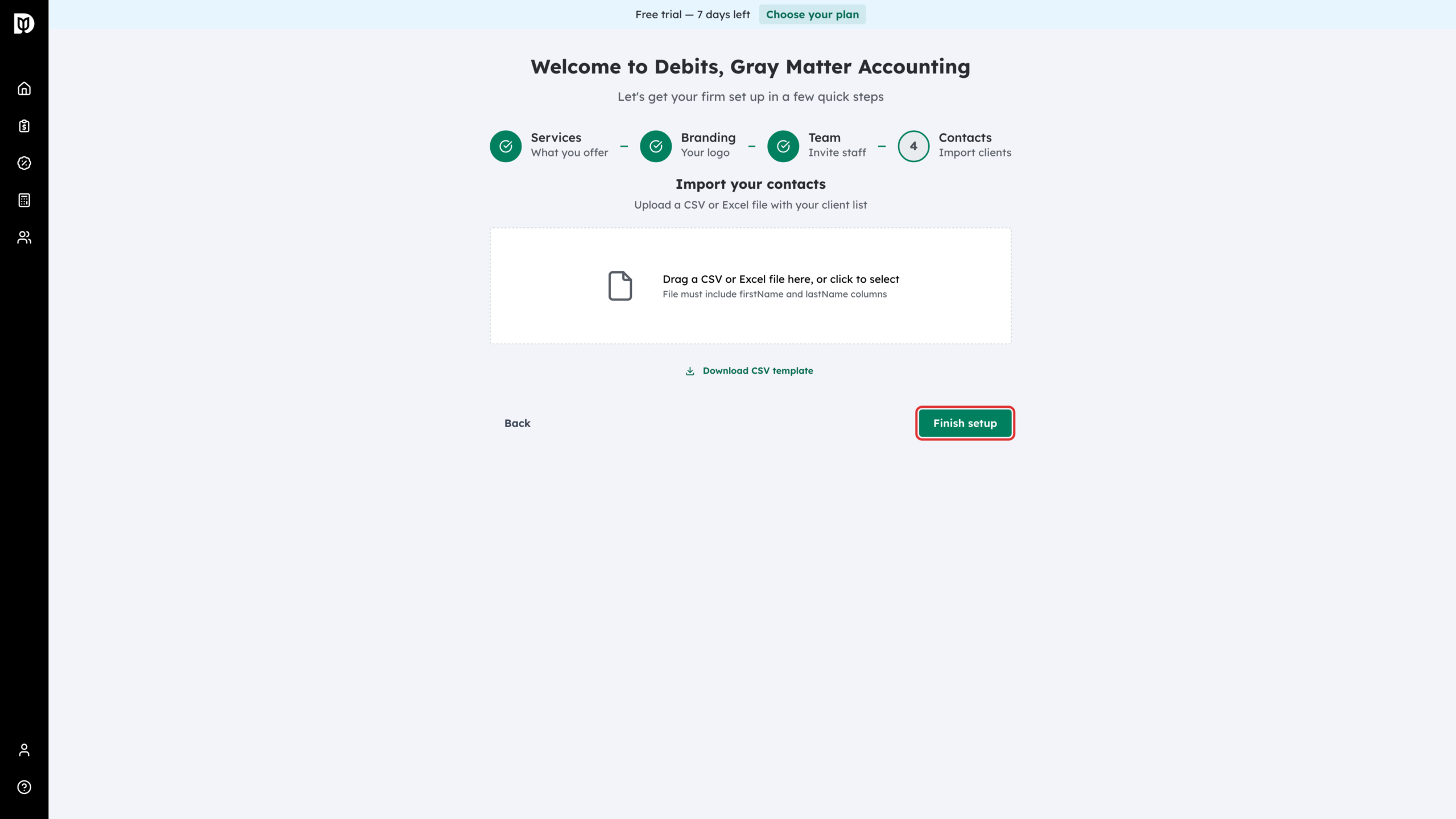
Step 7: Import your contacts and finish
Upload a CSV or Excel file of your clients. It must include firstName and lastName columns; Download CSV template gives you the right layout. Then select Finish setup. You can also finish now and import clients later.
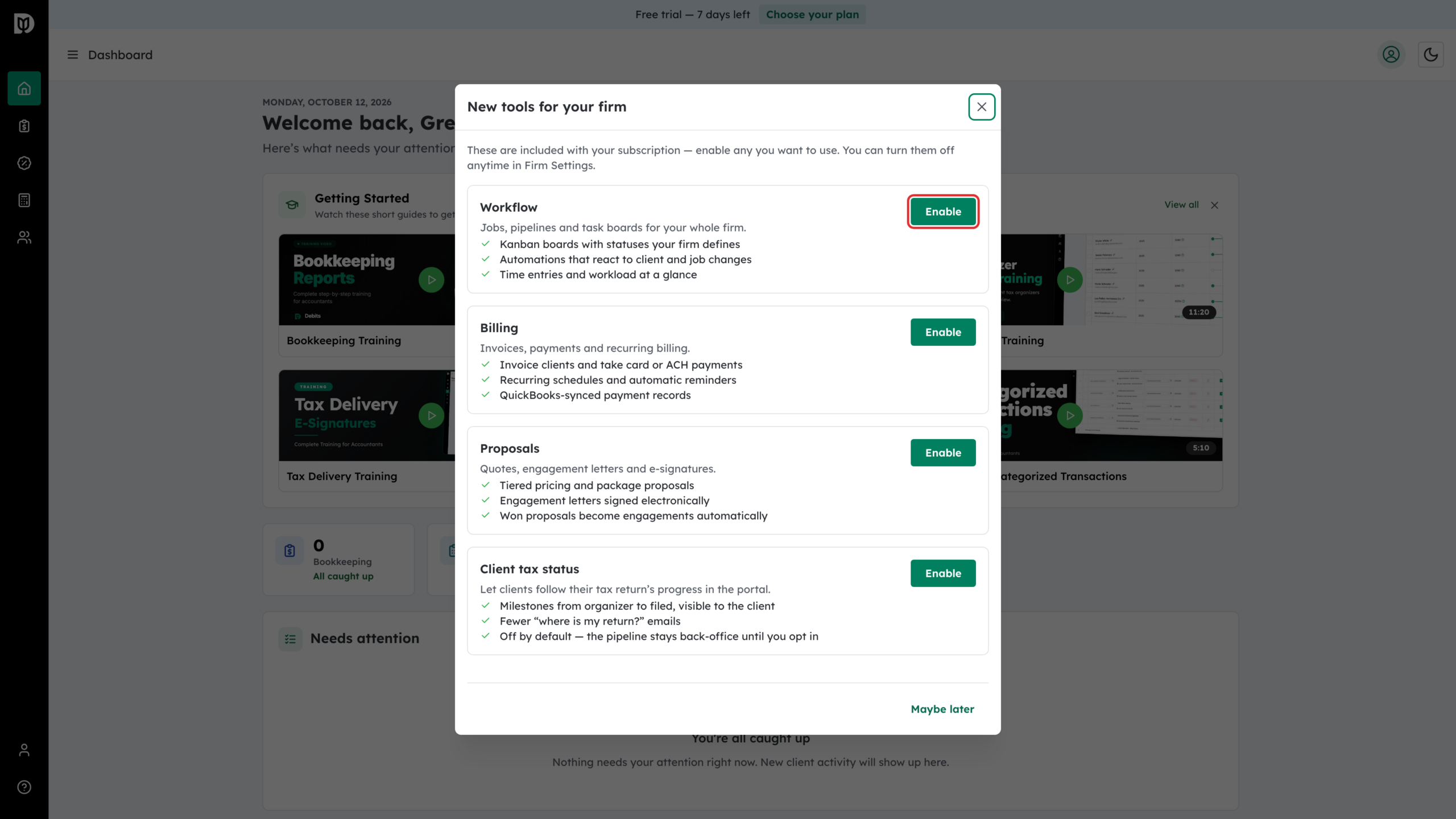
Step 8: Turn on the tools you want
Setup does not switch on Workflow or Proposals for you. The first time you reach your dashboard, a New tools for your firm window lists Workflow, Billing, Proposals and, for tax firms, Client tax status. Select Enable on each one you want, or Maybe later to close the window.
Step 9: Change features later in Firm settings
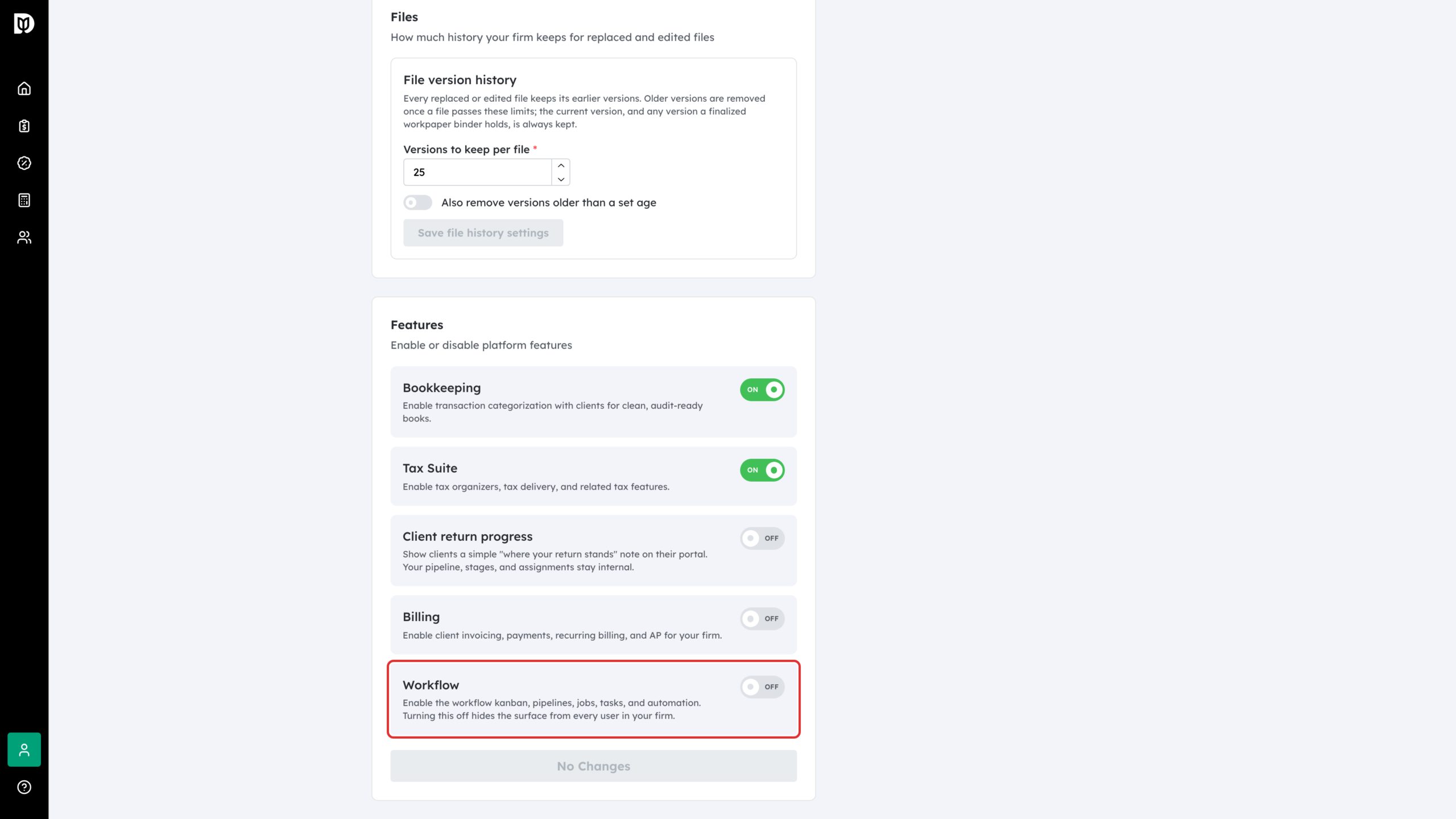
Go to Account > Firm settings. Under Features you can switch Billing, Workflow and Client return progress on or off at any time. Once your firm has a plan, Bookkeeping and Tax Suite follow your subscription instead, and you change them from the plan page.
Step 10: Reopen the tools list any time
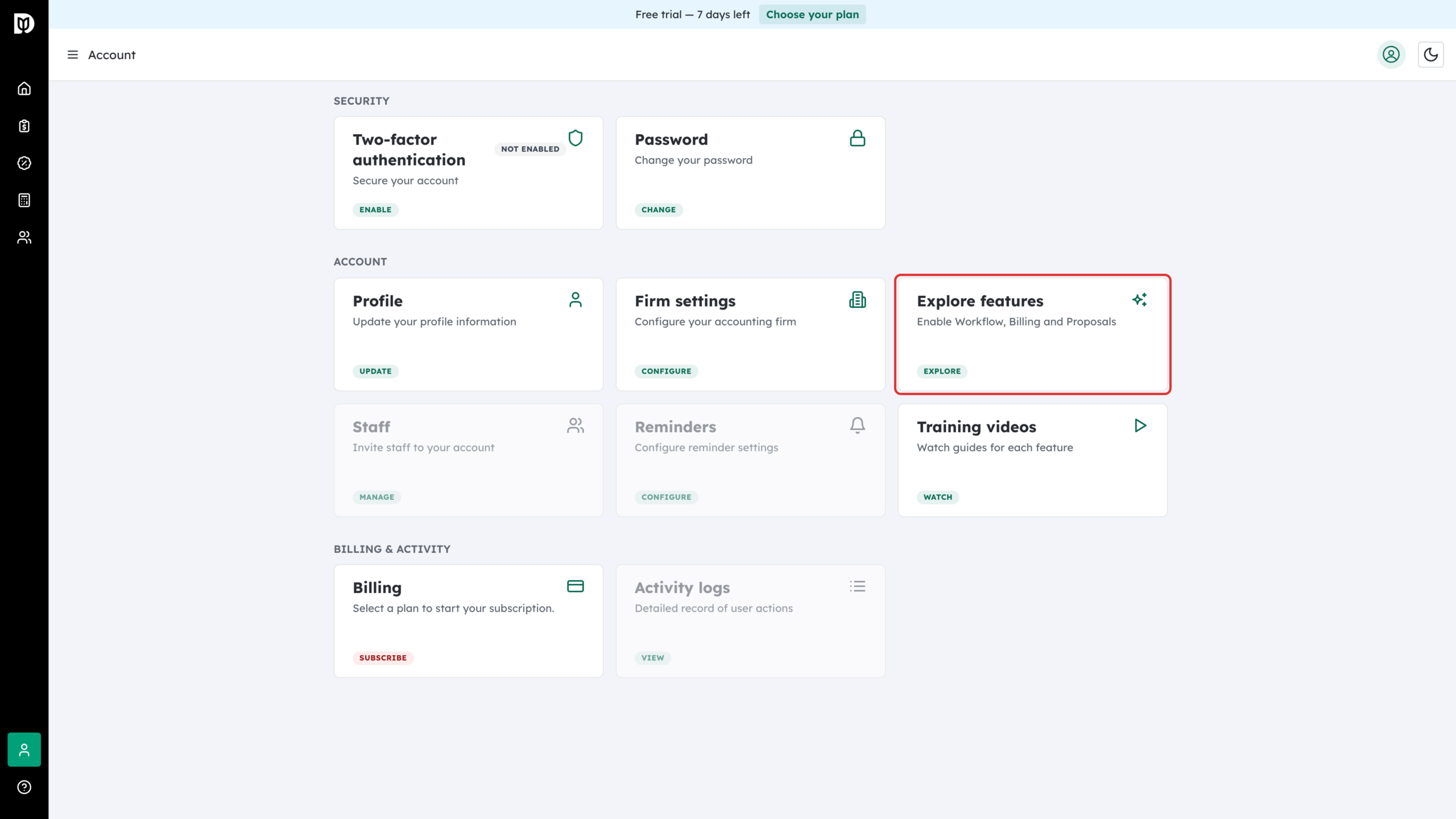
To enable a tool you skipped, such as Proposals, go to Account and select the Explore features card.
What happens next
Debits takes you to your dashboard. The free trial banner at the top shows how many days are left, with a Choose your plan button. Month-end close and financial reports are not switched on here: they come with the Complete bookkeeping package, which you choose for each company once your companies are connected.
Troubleshooting
- “The setup assistant is unavailable”: select Retry, or Use classic setup to carry on with the form.
- Workflow or Proposals is missing from the menu: it has not been turned on yet. Enable it from Account > Explore features. Workflow can also be switched on in Firm settings.
- Month-end close is missing for a company: that company is on the Core package. See “How to choose a bookkeeping package”.