When a single transaction needs an explanation, you can ask the client about that exact item without leaving Debits. Debits sends them the date, amount, description and memo, plus whatever you want to say.
Before you start
- The company must have at least one client user. If it does not, the Email action will not appear. See Add a client user to a company.
Send the email
-
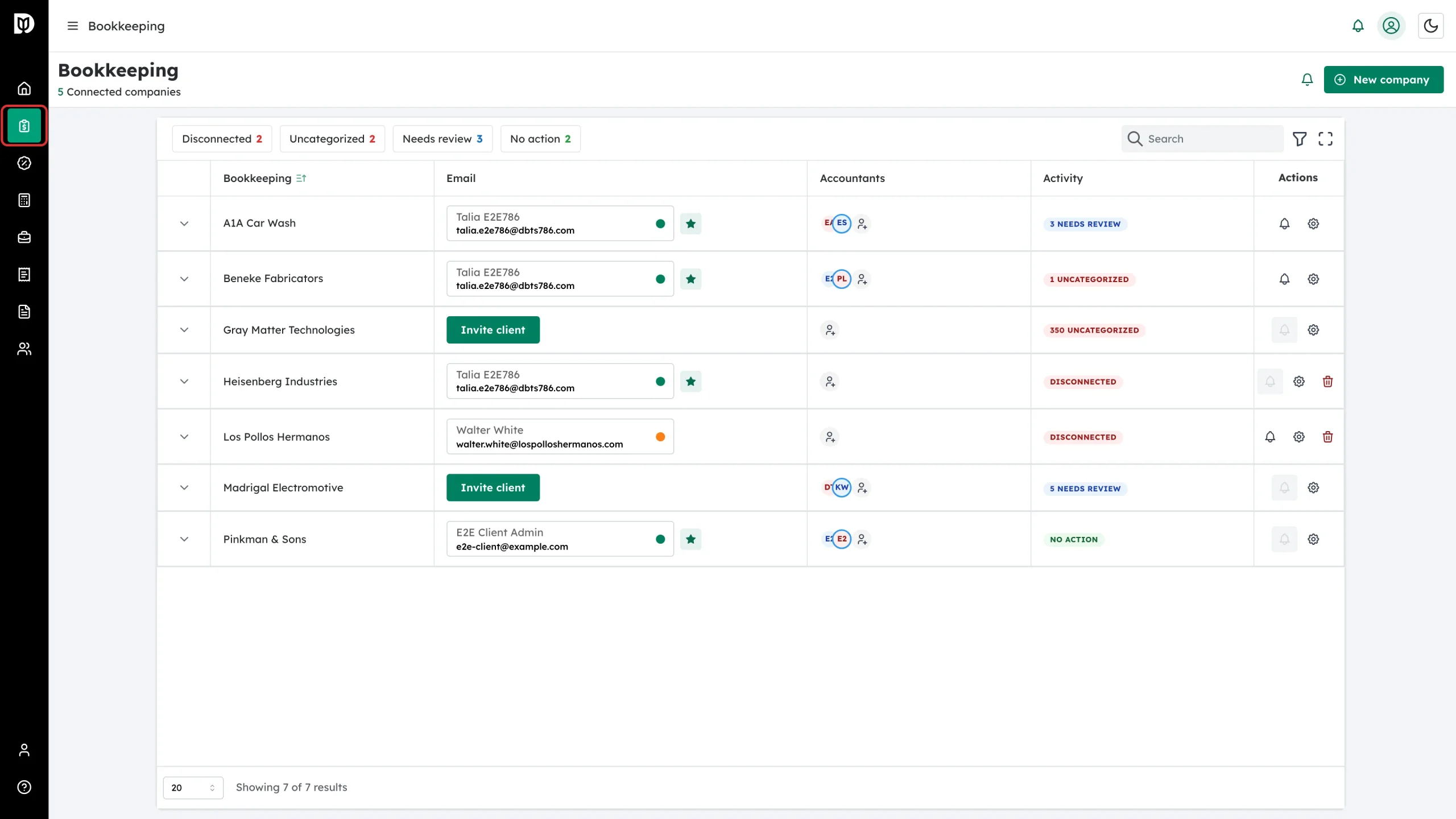
Click Bookkeeping in the left sidebar.
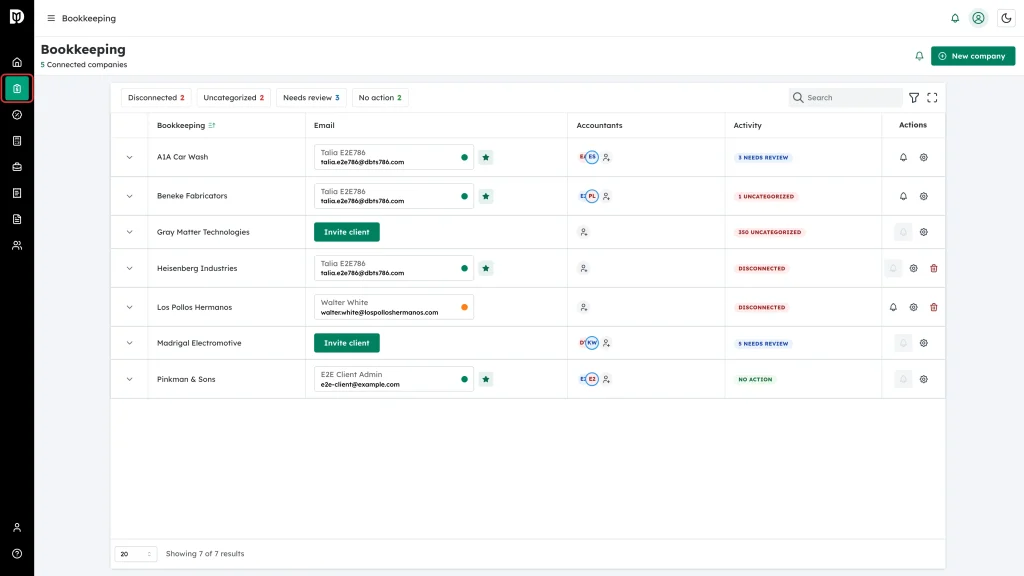
-
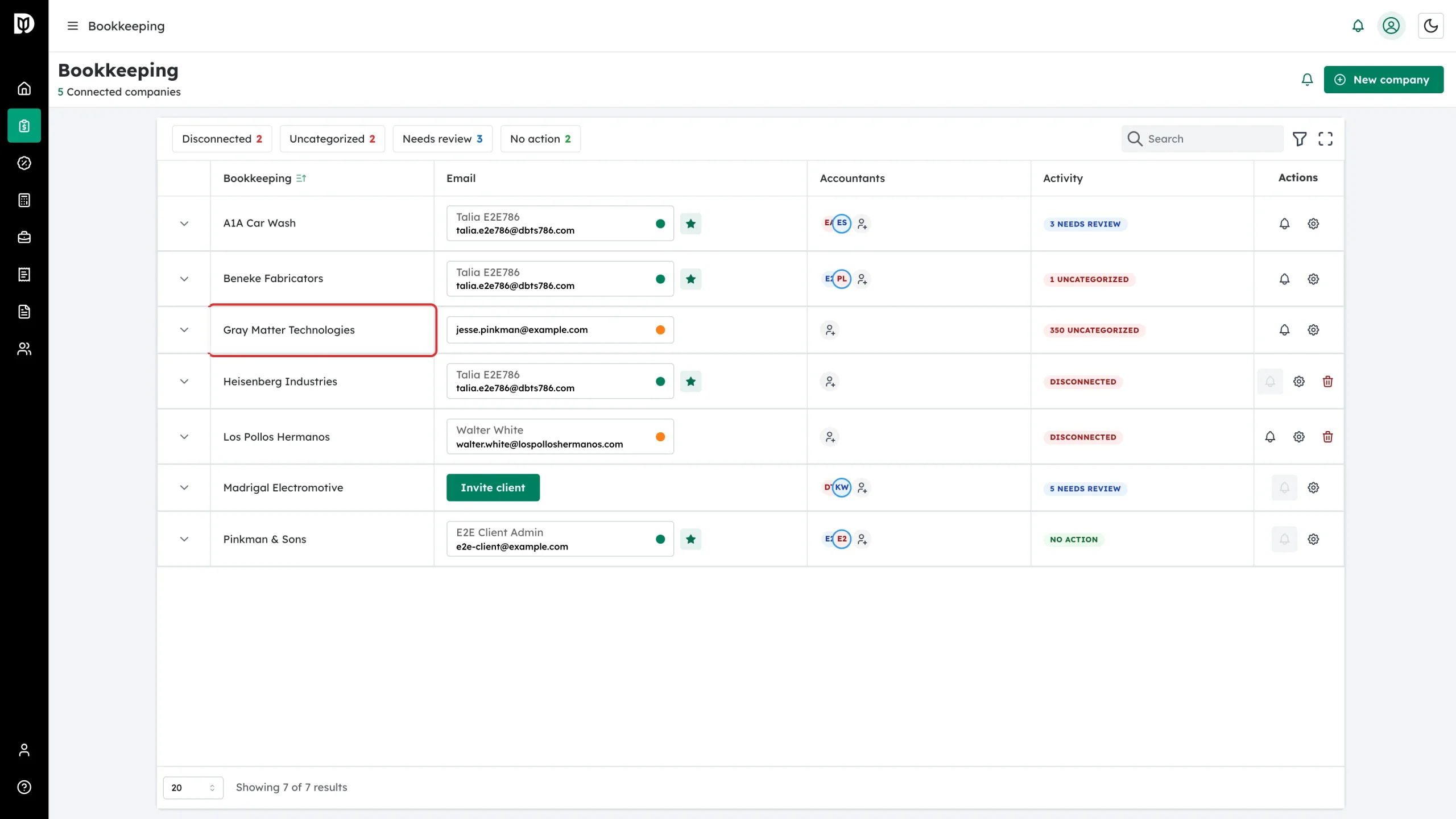
Click the company’s name to open its transactions.
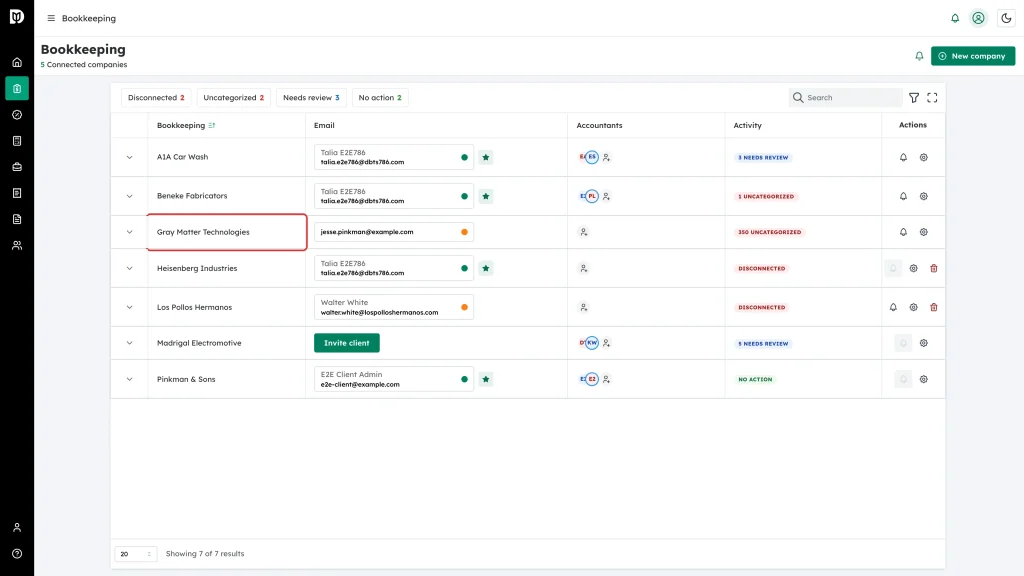
-
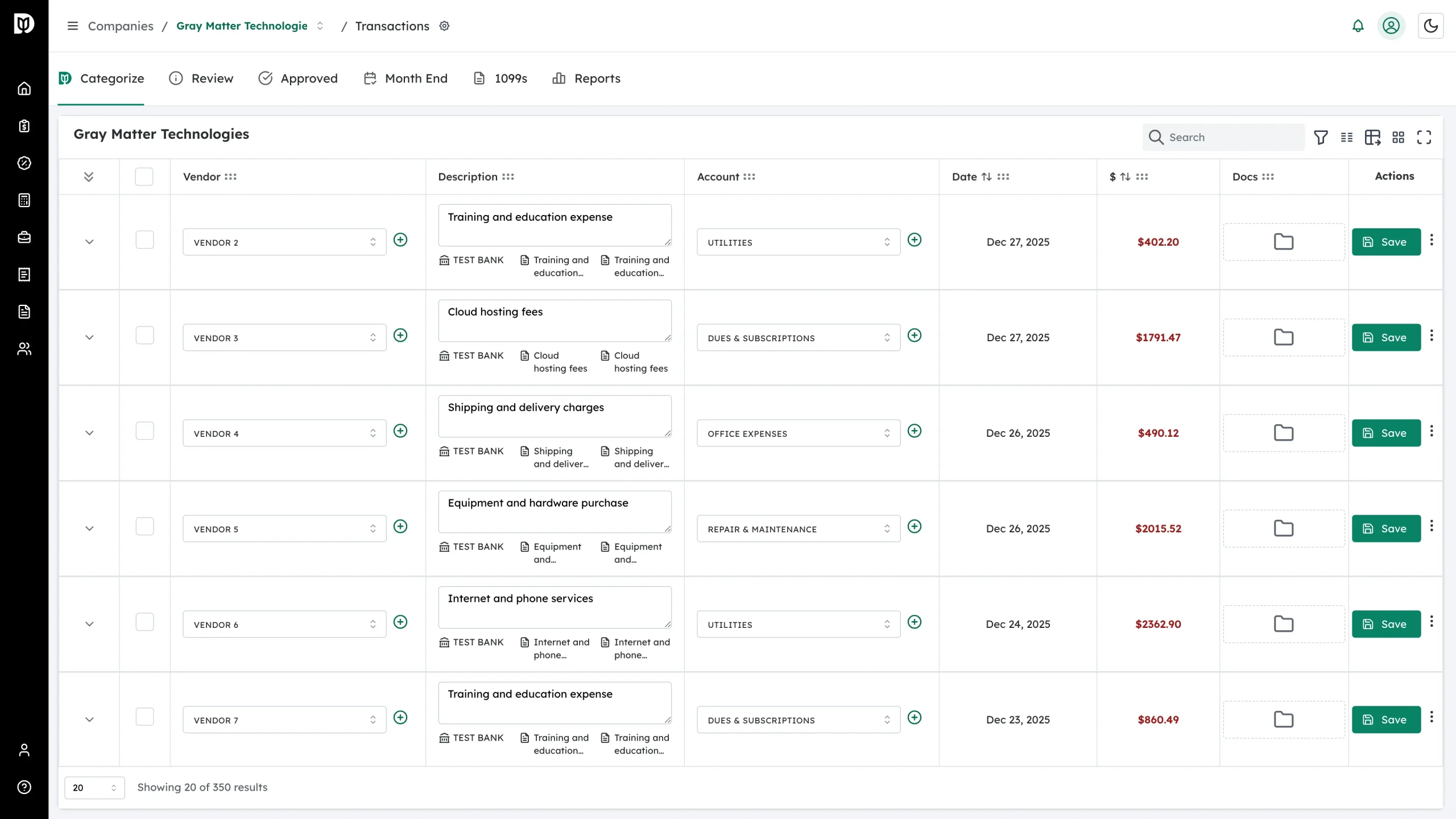
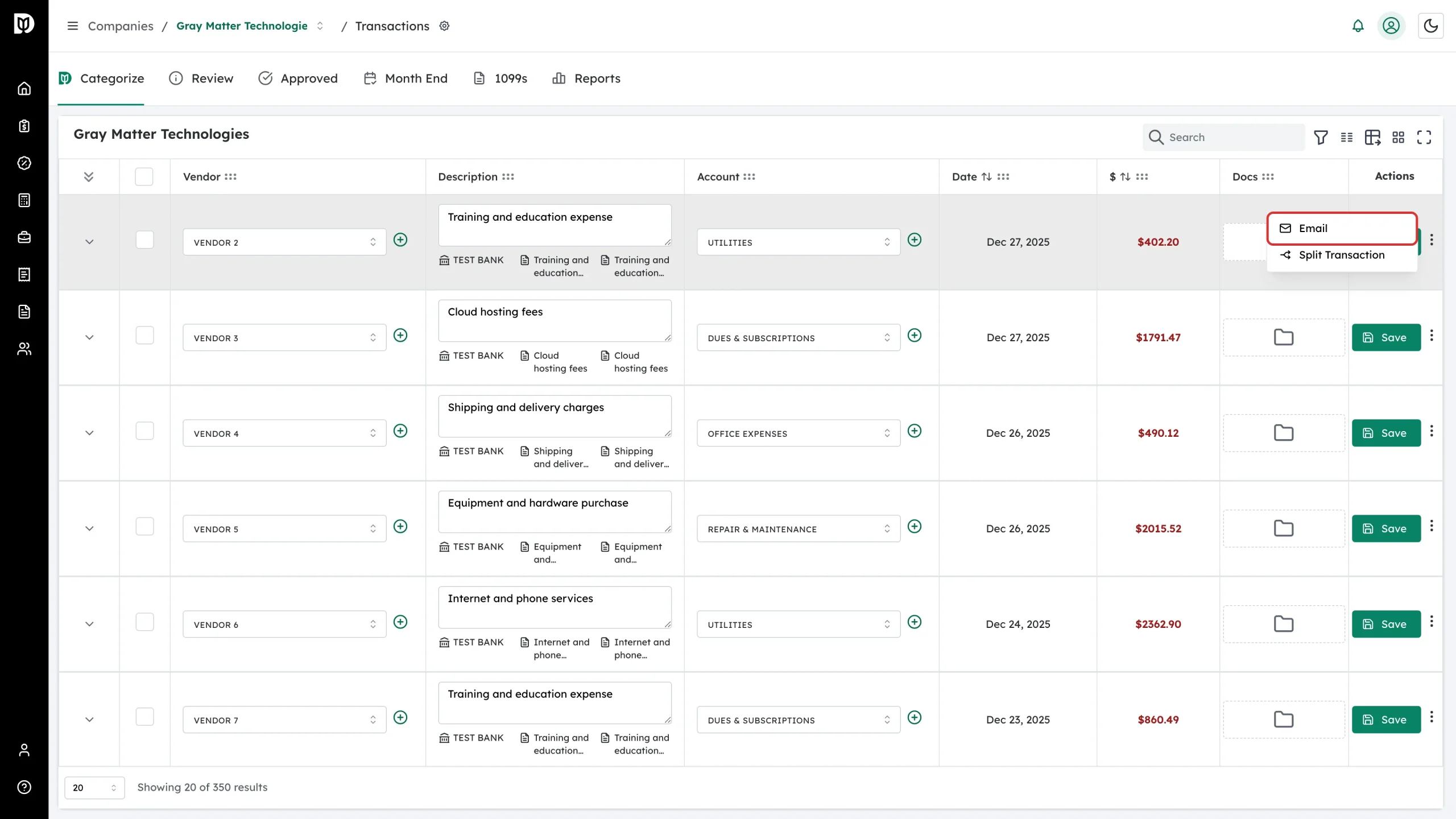
Find the transaction you have a question about. The tabs across the top — Categorize, Review and Approved — let you switch between stages.
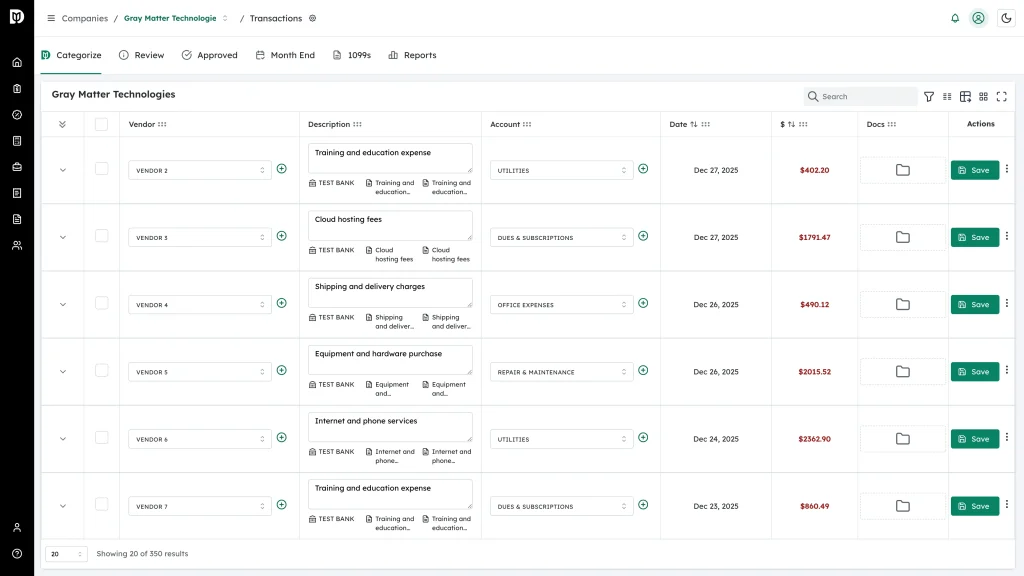
-
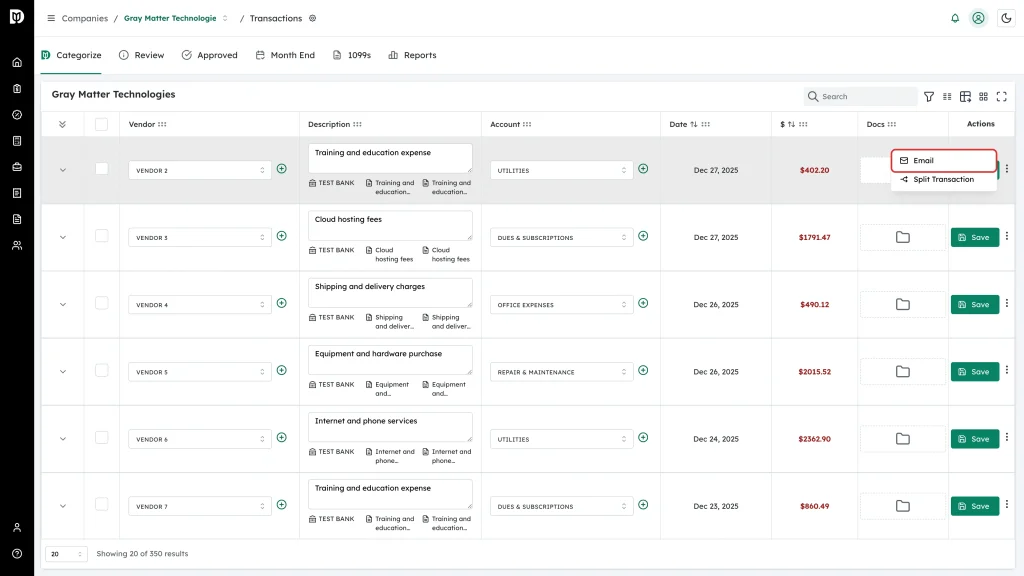
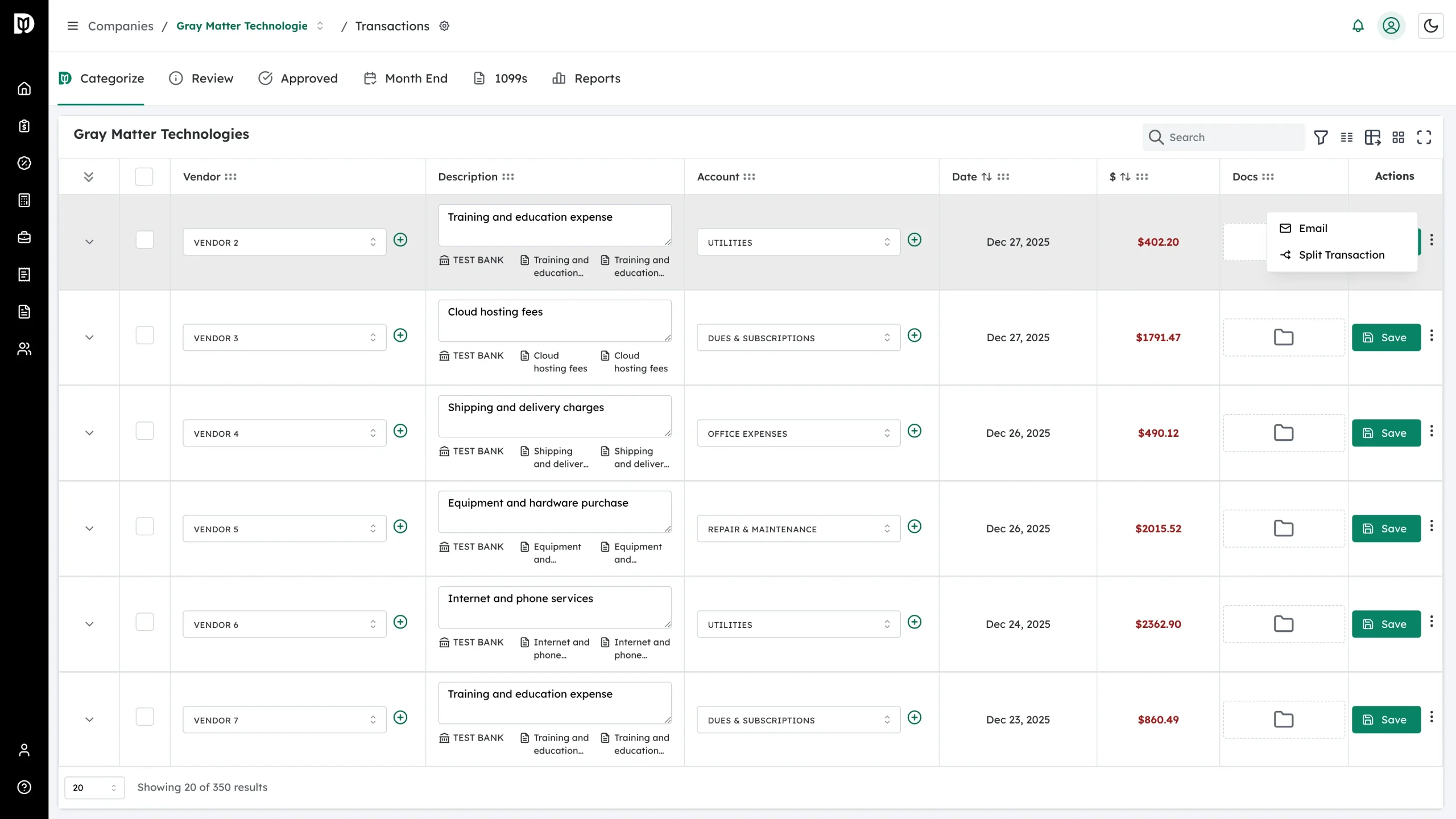
Click the ⋯ icon at the end of that row.
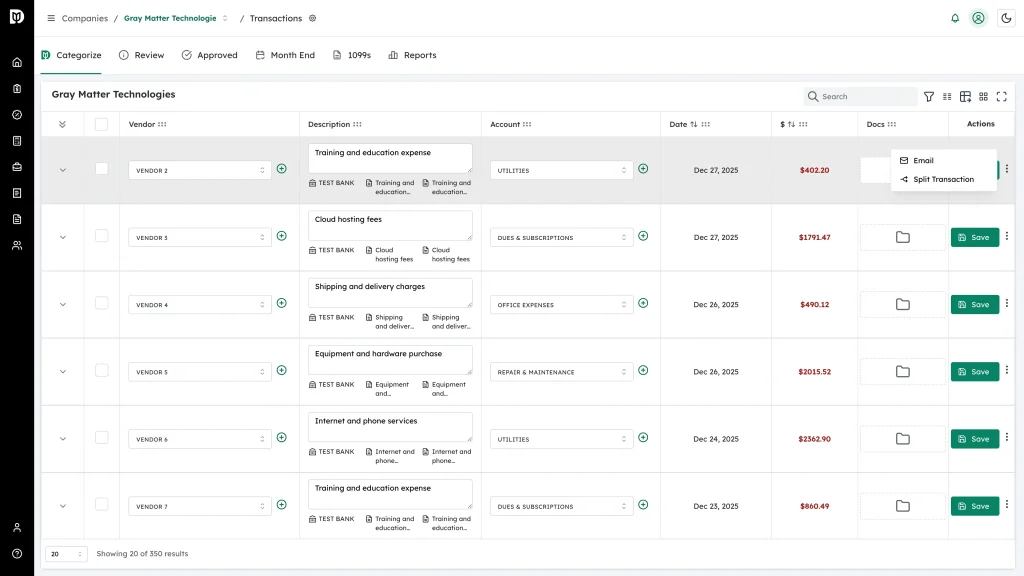
-
Click Email.
-
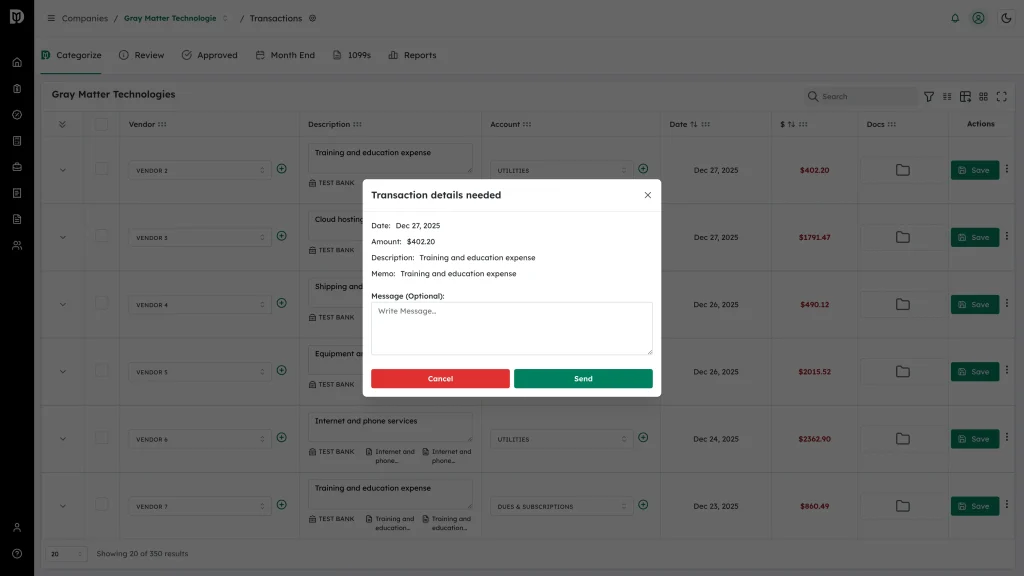
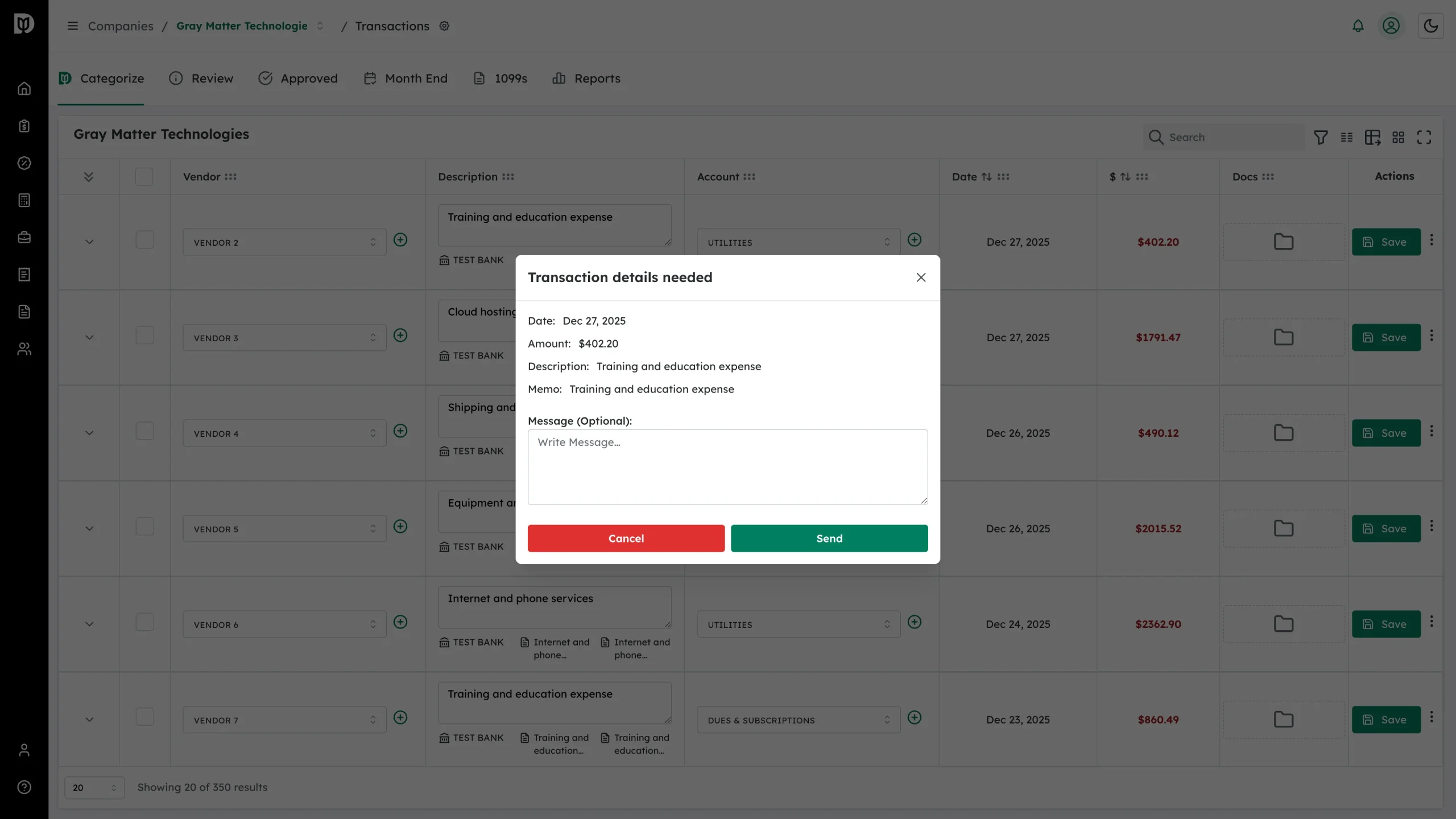
The Transaction details needed window opens with the transaction’s Date, Amount, Description and Memo already filled in. Check you have the right one.
-
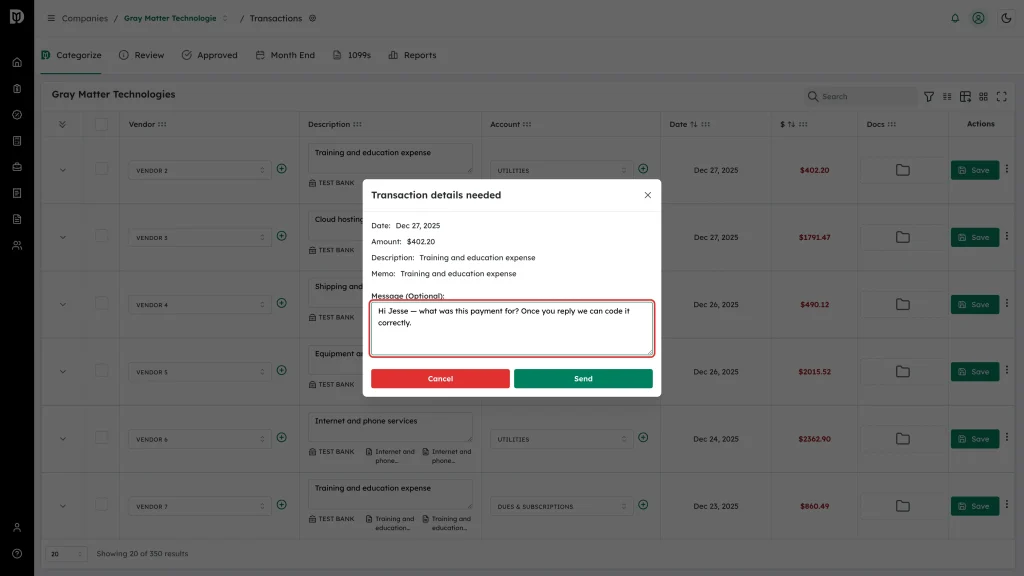
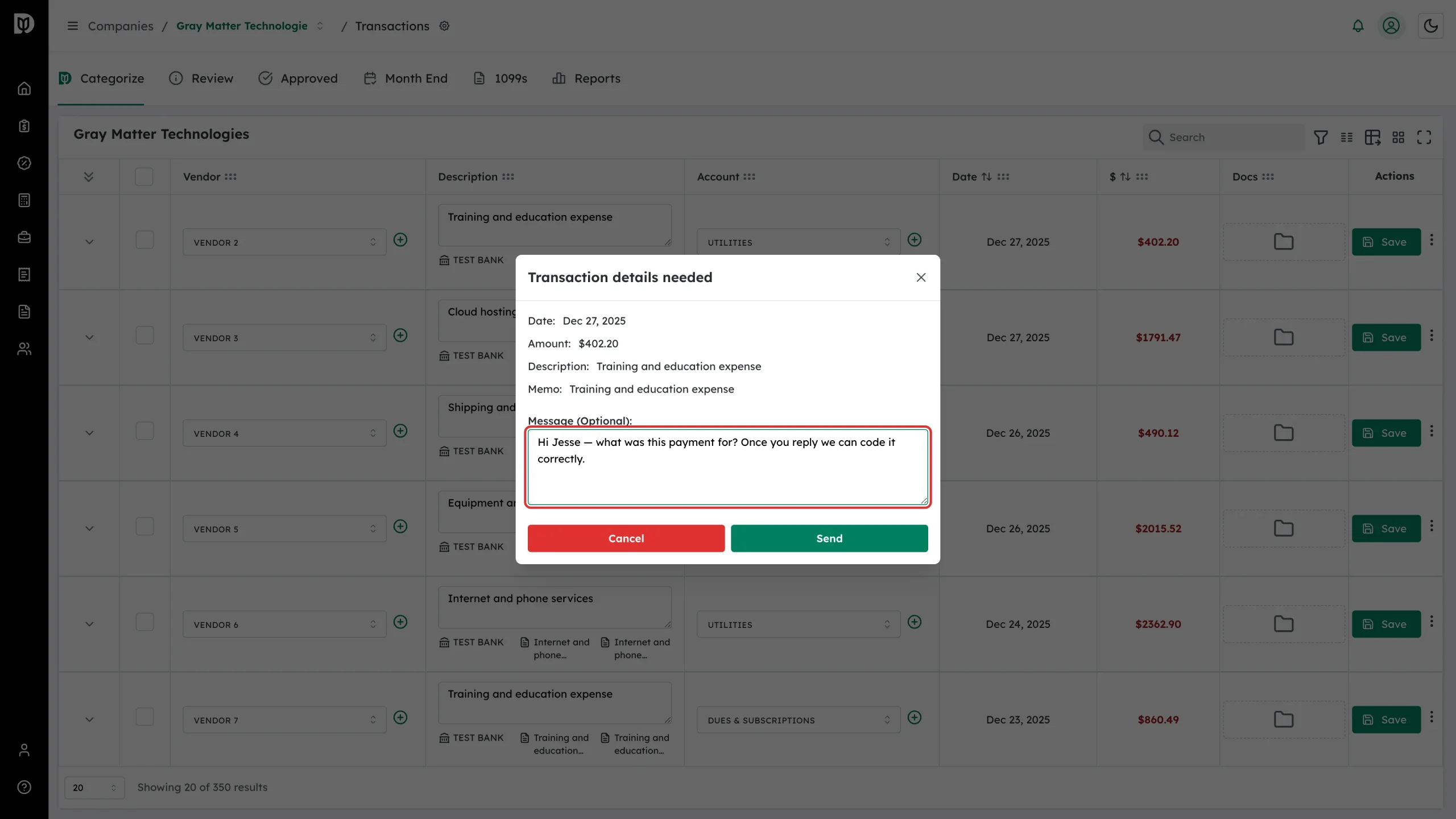
Type your question in Message (Optional). It is optional, but a specific question gets a faster answer.
-
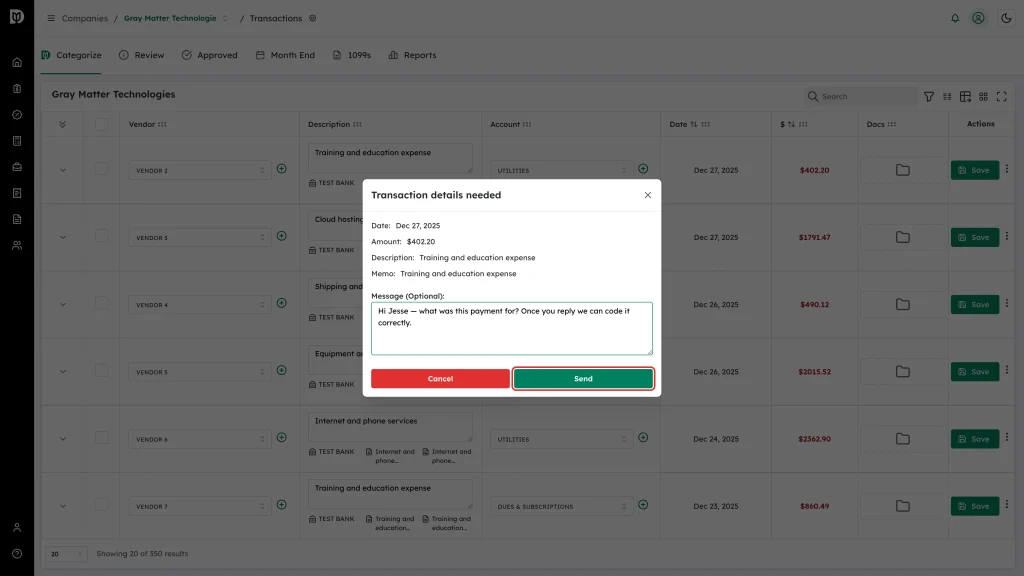
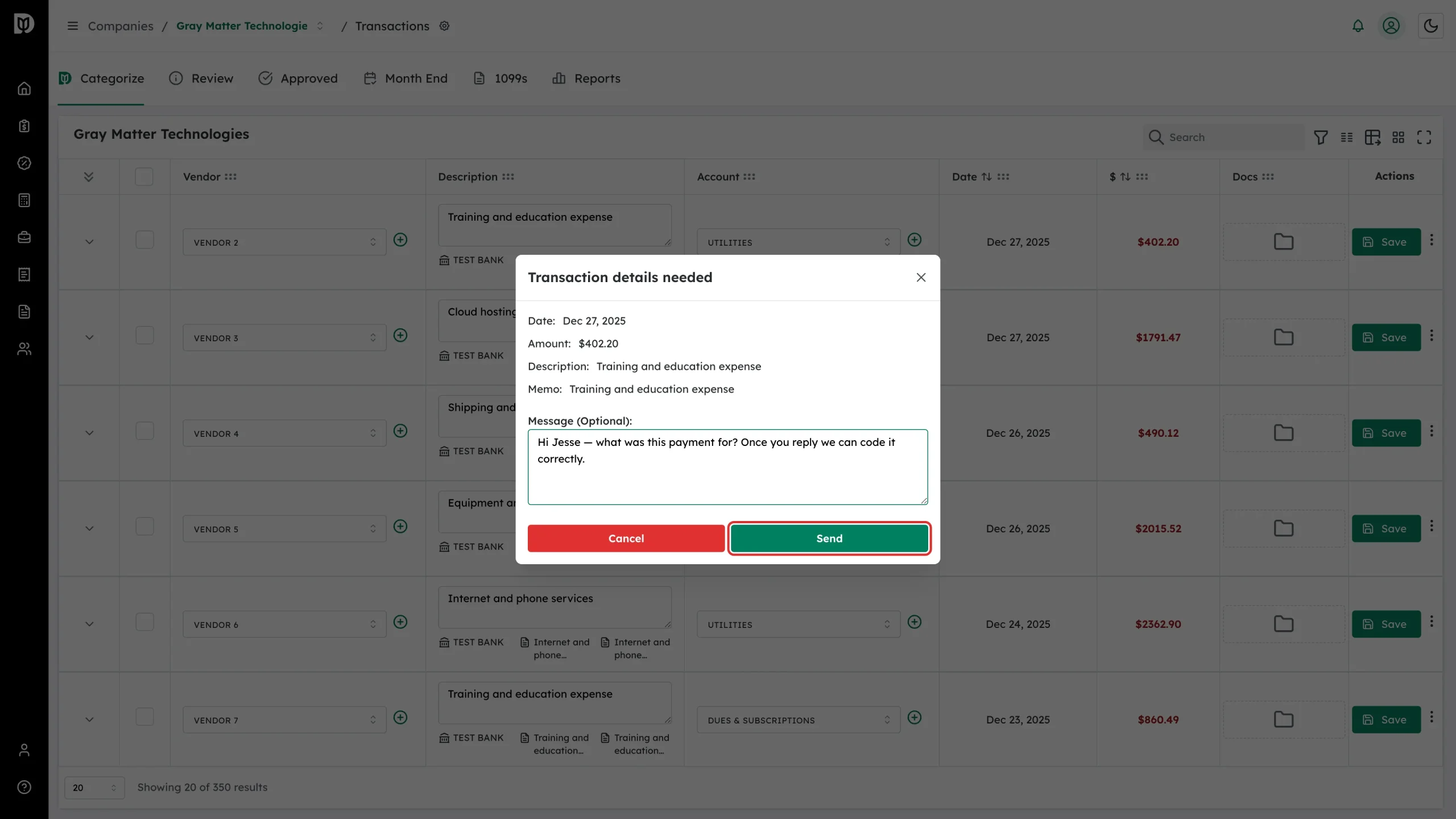
Click Send.
What happens next
Debits emails the company’s client users, the window closes and you get a confirmation message. The transaction stays exactly where it was — emailing does not move it between tabs.
Good to know
- There is no To field. Debits sends to the client users on that company, so control the audience by managing them on the Client users tab.
- On the Approved tab the same action is available as an envelope icon directly on the row.
- Client users see the same window in reverse — when they use Email, it goes to the accountants on the company.
- For a message about the whole month rather than one item, use a dashboard note or the reminder schedule instead.