Debits keeps itself in step with QuickBooks Online on its own. Sometimes you want it to catch up right now — for example after you add a vendor or a new account in QuickBooks and want to use it in Debits straight away.
Before you start
- The company must be connected to QuickBooks Online. If it is not, Other settings shows a notice with a Reconnect to QuickBooks button and the Sync button is greyed out.
Run a manual sync
-
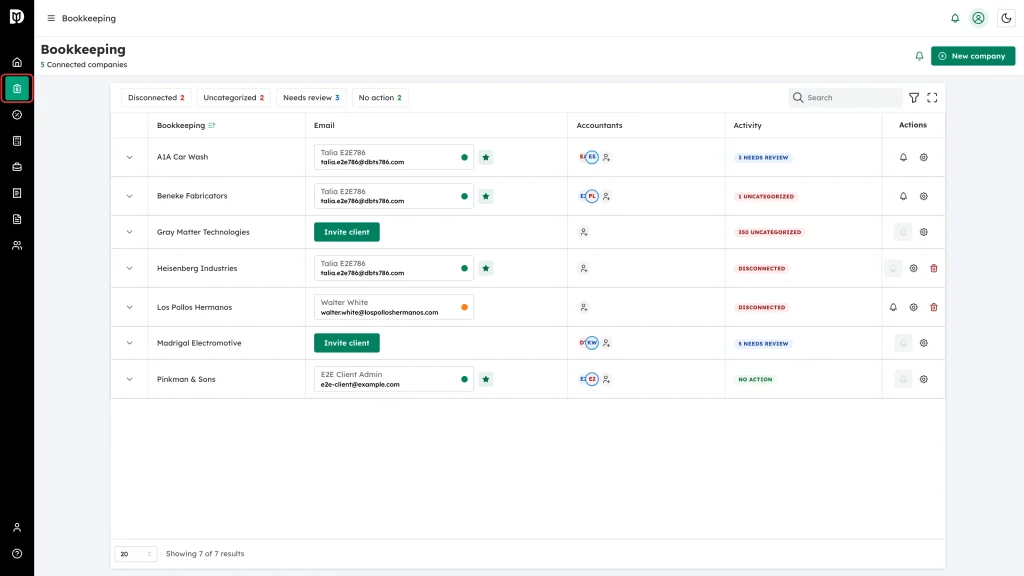
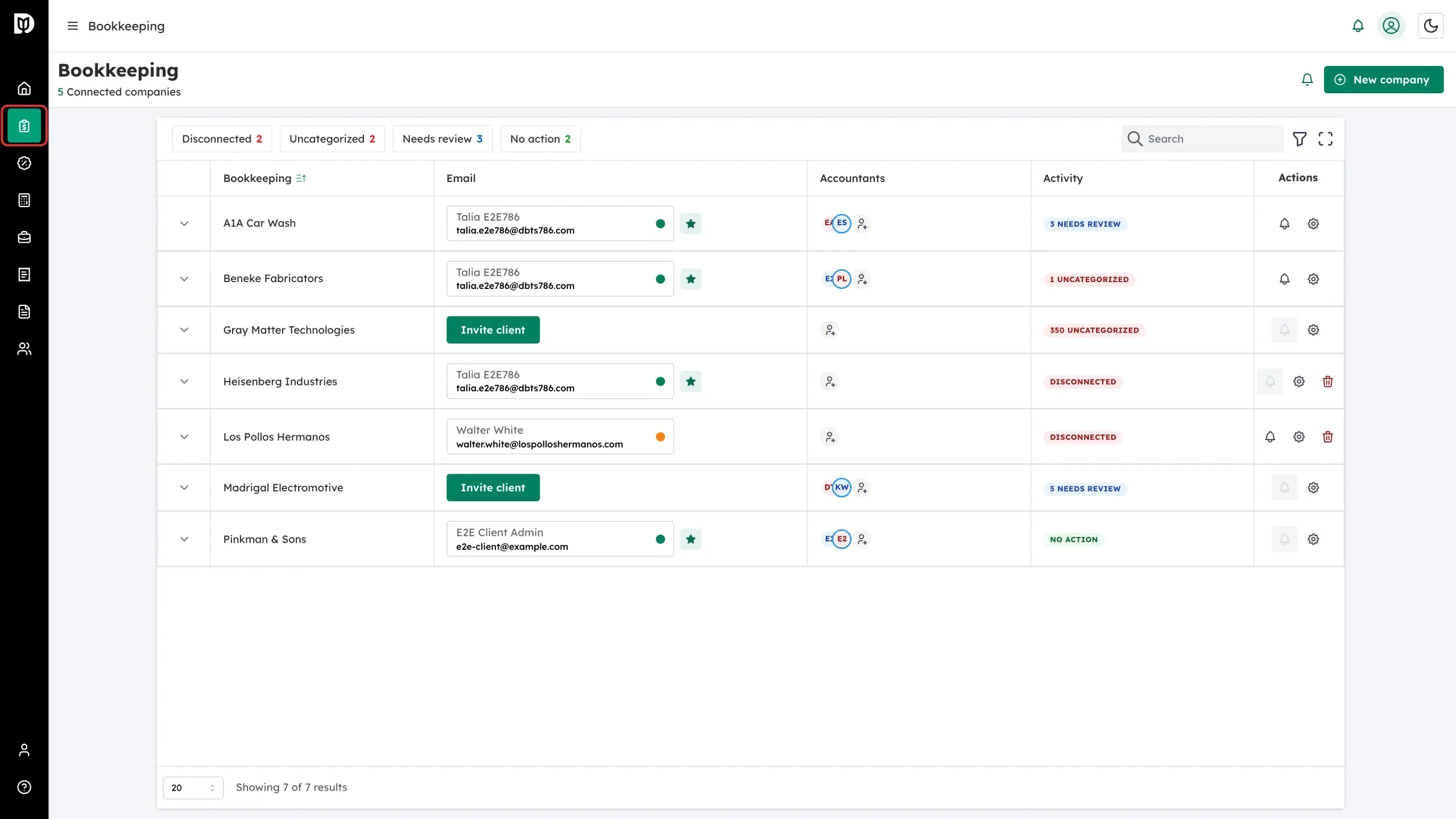
Click Bookkeeping in the left sidebar.
-
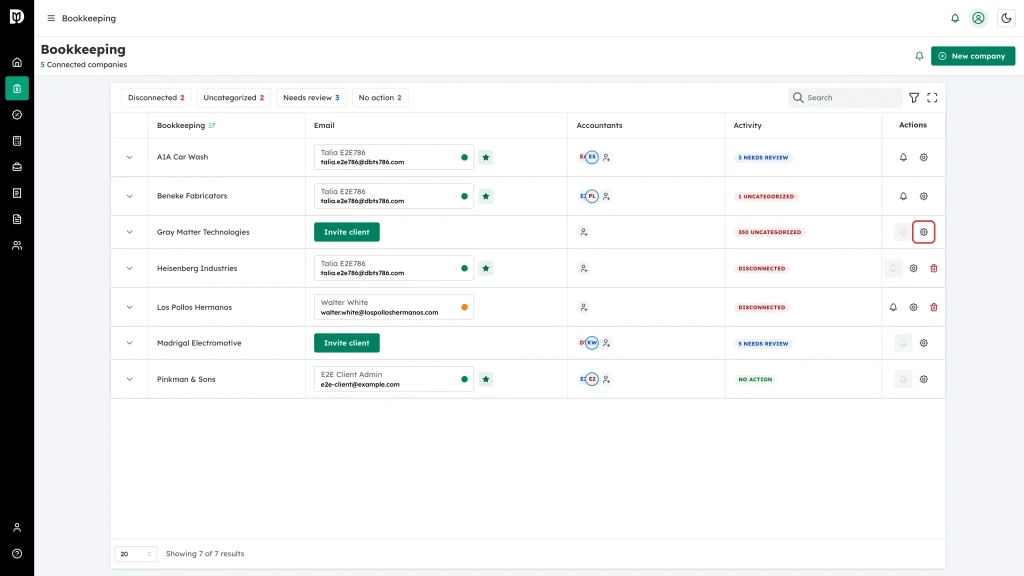
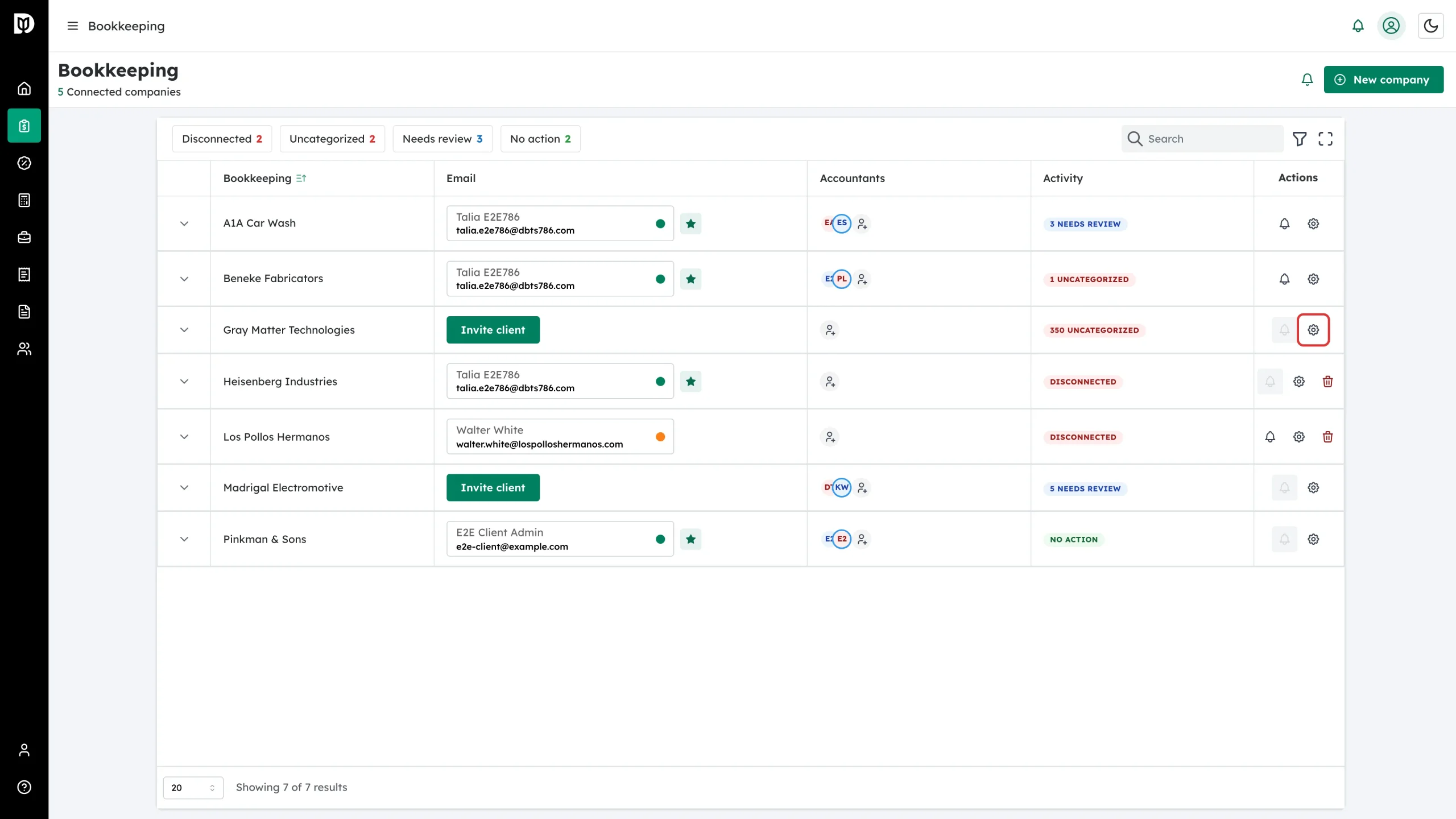
Find the company and click the gear icon in its Actions column.
-
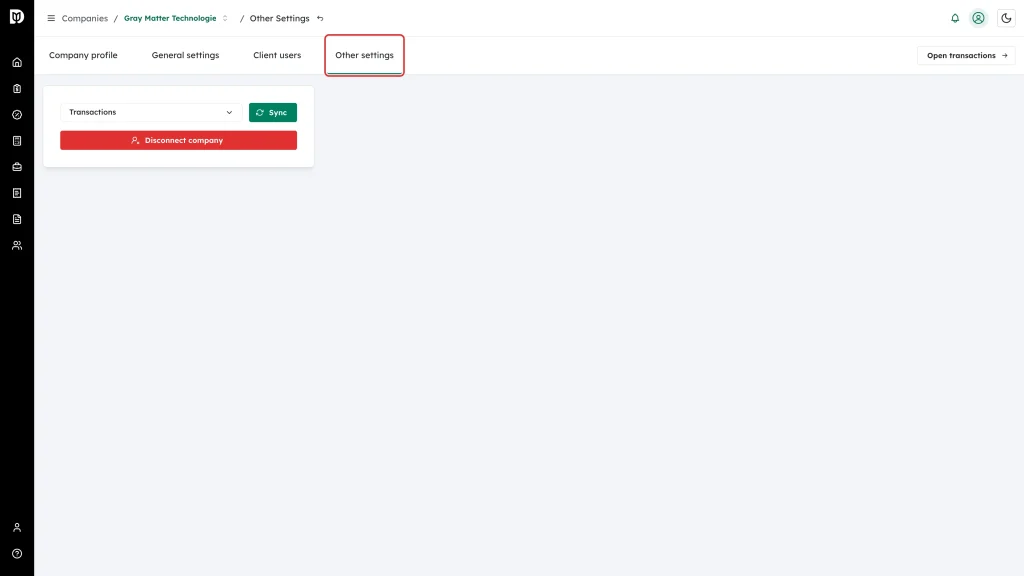
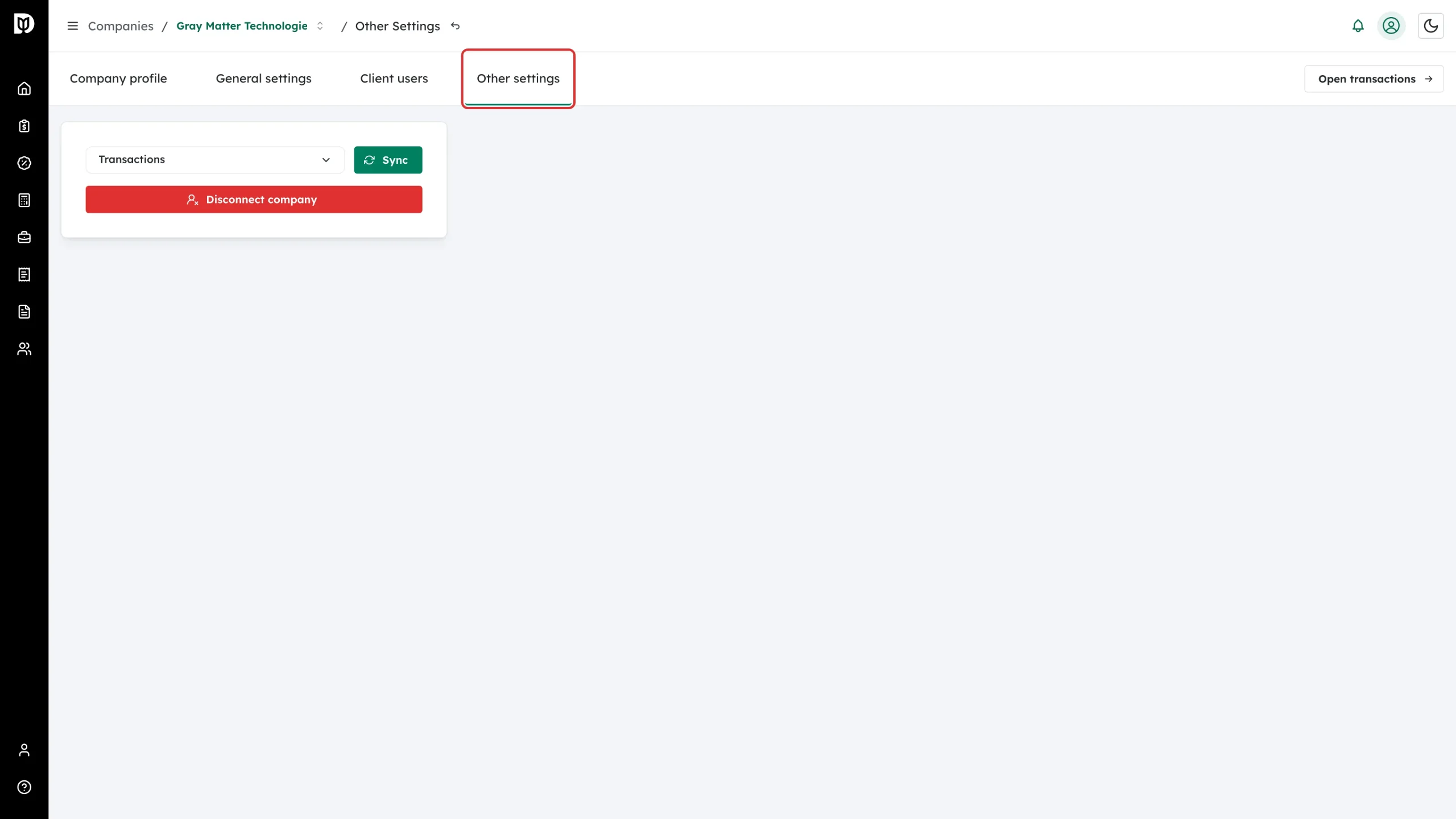
Open the Other settings tab.
-
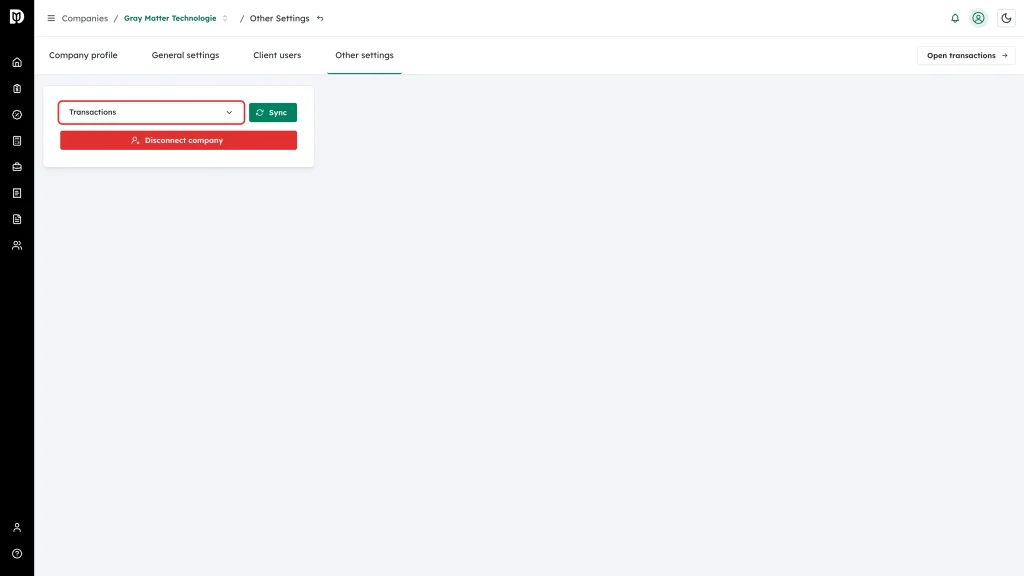
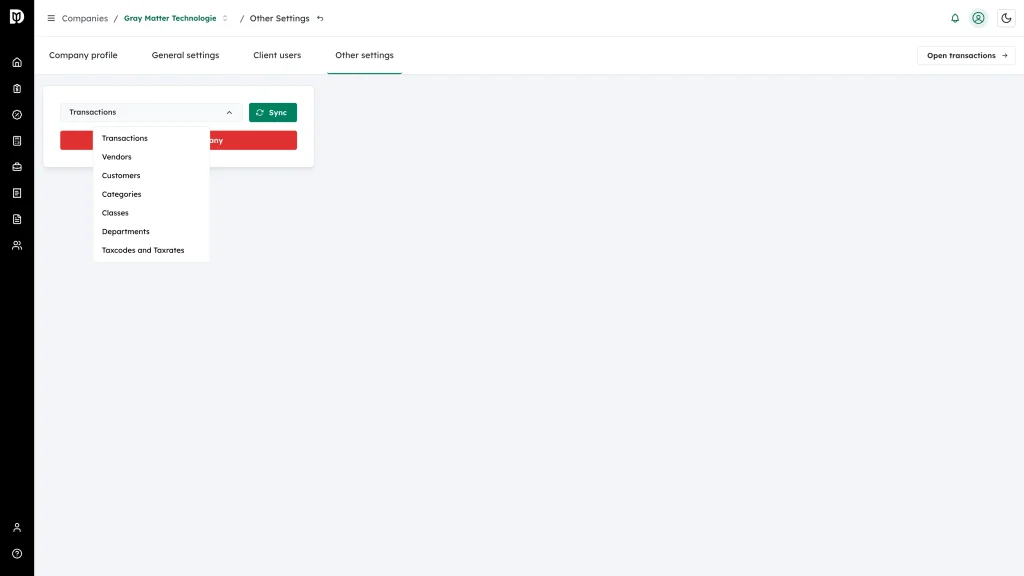
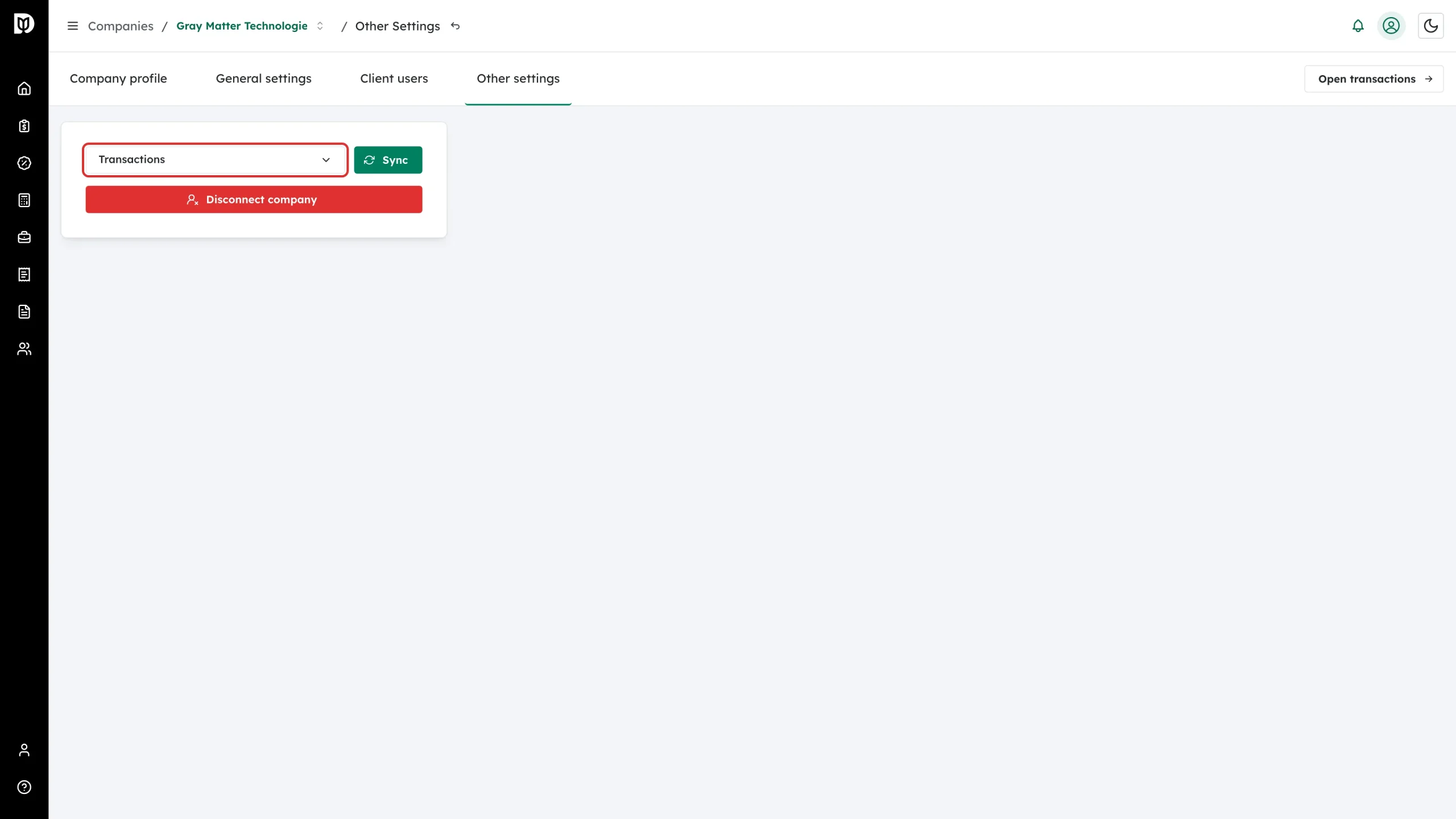
Use the picker on the left to choose what to sync. It starts on Transactions.
-
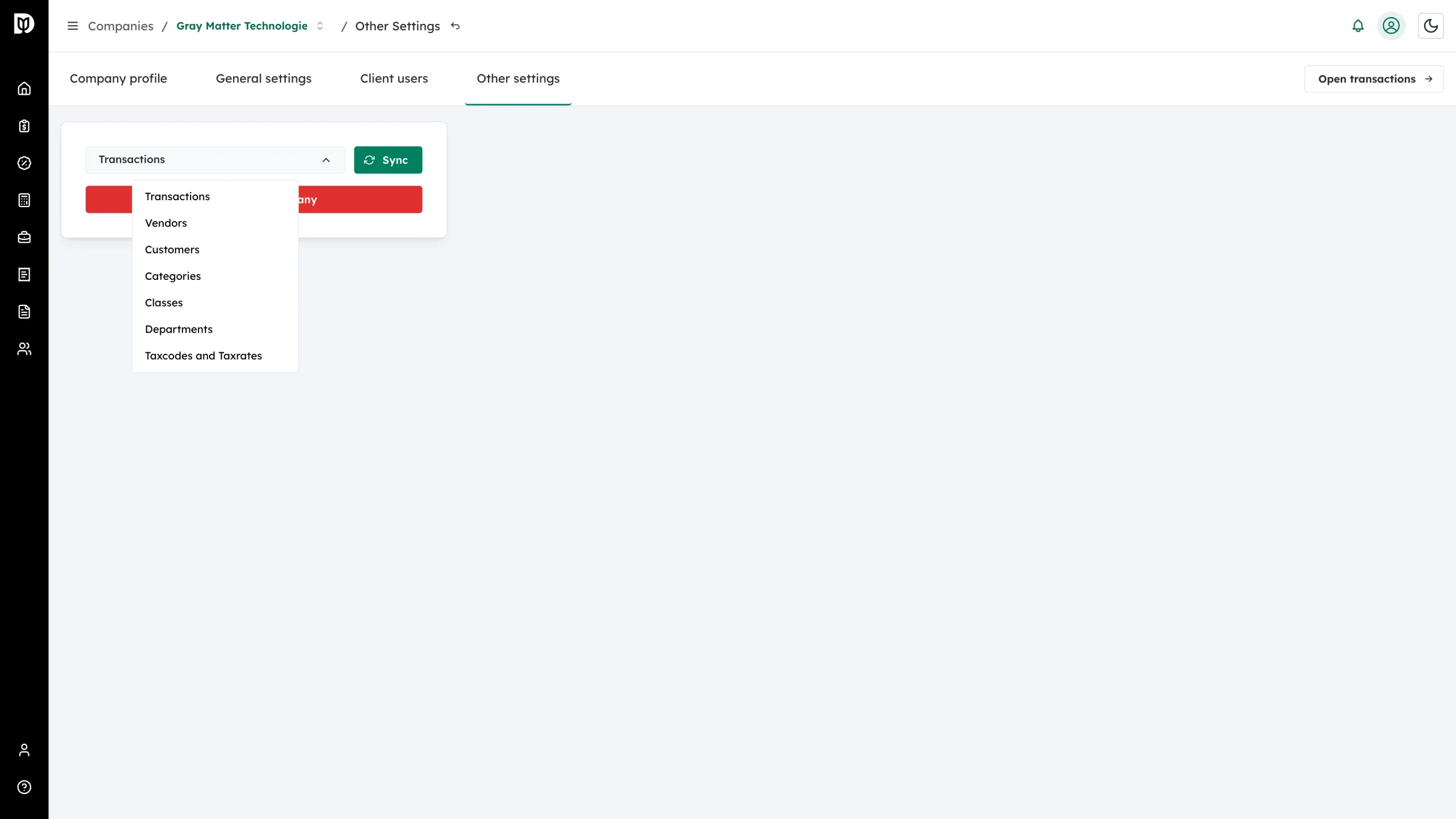
Open the picker to see everything you can pull in.
-
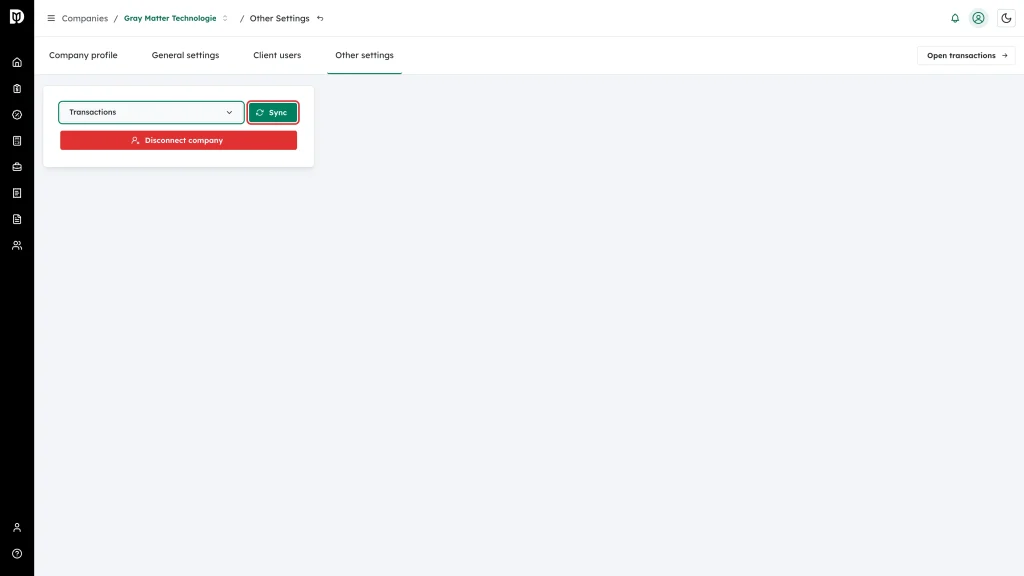
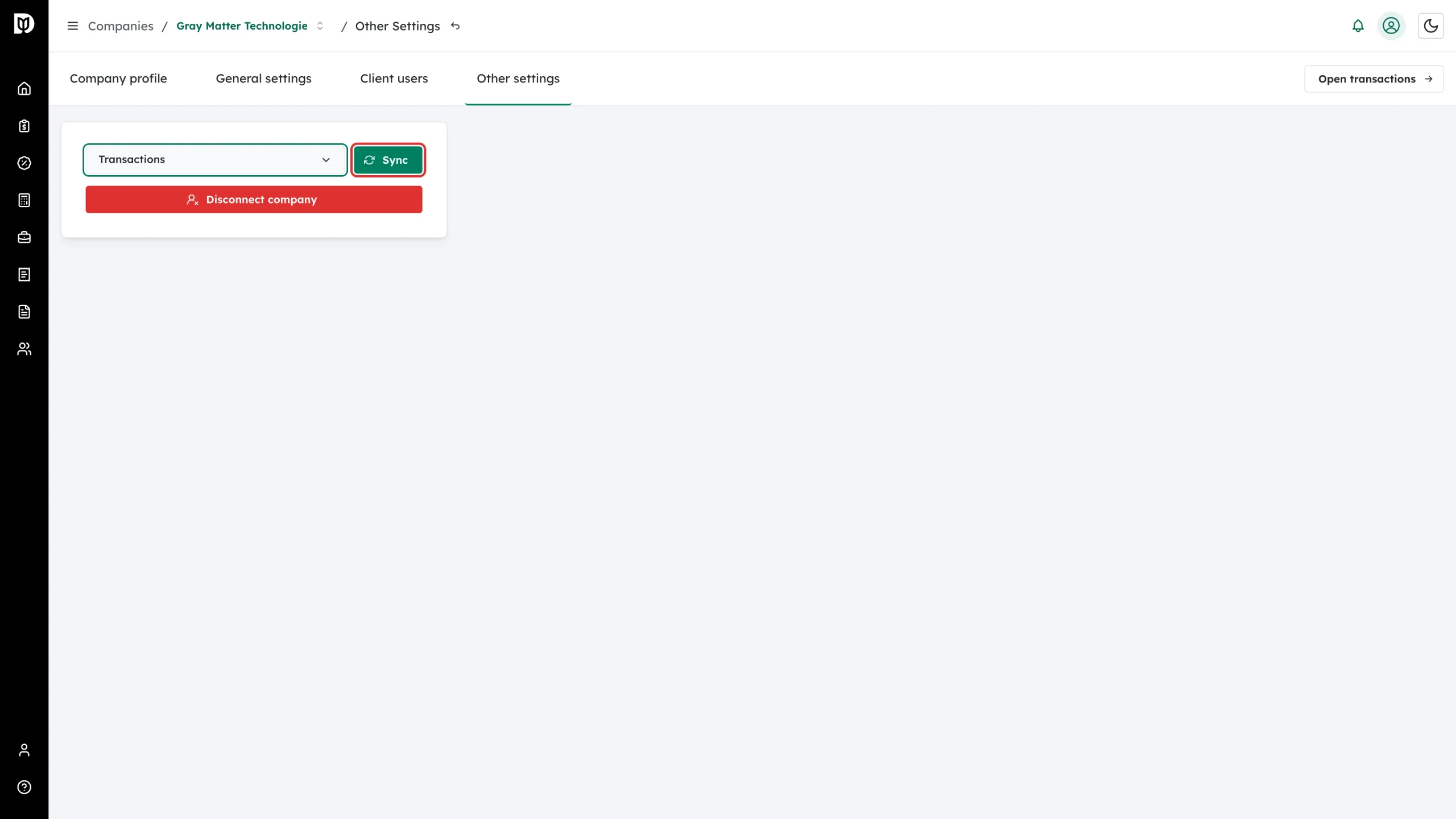
Click Sync.
What you can sync
- Transactions — pulls in new and updated transactions from the accounts you chose in General settings.
- Vendors and Customers — refreshes the name lists.
- Categories — refreshes the chart of accounts.
- Classes and Departments — refreshes those lists if the client uses them.
- Taxcodes and Taxrates — refreshes sales tax settings.
What happens next
Debits shows a status message when the sync finishes and the list you refreshed updates in place. A large transaction sync can take a little while.
Good to know
- A manual sync pulls from QuickBooks into Debits. It does not push anything the other way. Your edits reach QuickBooks when you approve a transaction.
- Debits re-reads the vendor and product/service lists when you open a picker, so new QuickBooks names usually appear on their own within a moment. If an account or a vendor is still missing from a dropdown, syncing Categories or Vendors is usually the fix. There is no manual sync for products and services; they refresh in the background.
- Only transactions from accounts selected under Choose which accounts to sync are pulled in. If a transaction never appears, check that setting first.