Who this is for: Accountants who need different reminder behavior for one client.
What you’ll learn: How to override the firm-wide reminder settings for a single contact, pause their reminders temporarily, and get instant notifications when they make updates.
Before you begin
- You need access to the contact.
- Firm-wide reminder settings (Account → Reminders) are the baseline; anything you change here affects this contact only.
Step-by-step instructions
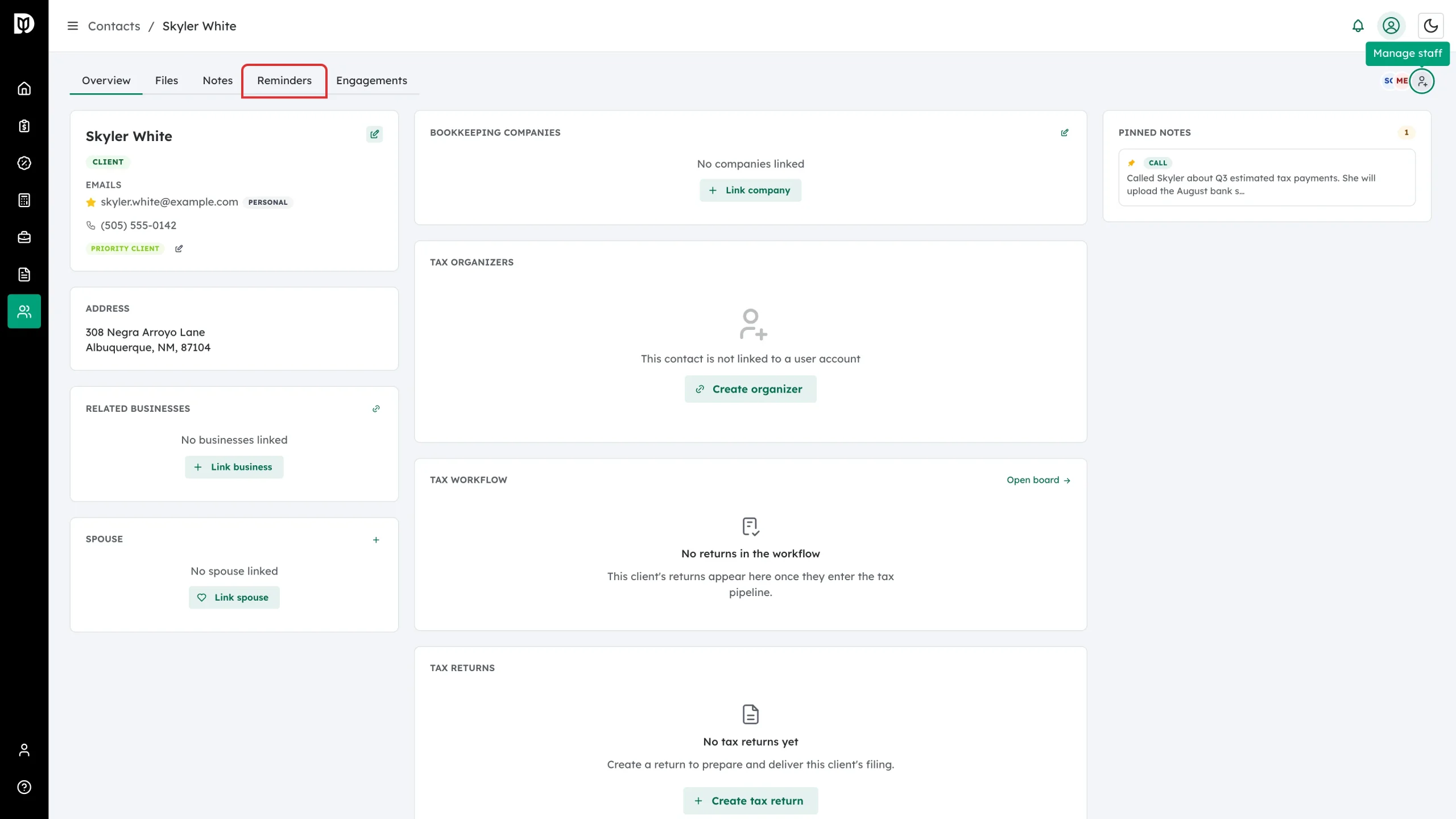
Step 1: Open the contact’s Reminders tab
Open the contact and click the Reminders tab.
Step 2: Toggle a scheduled reminder
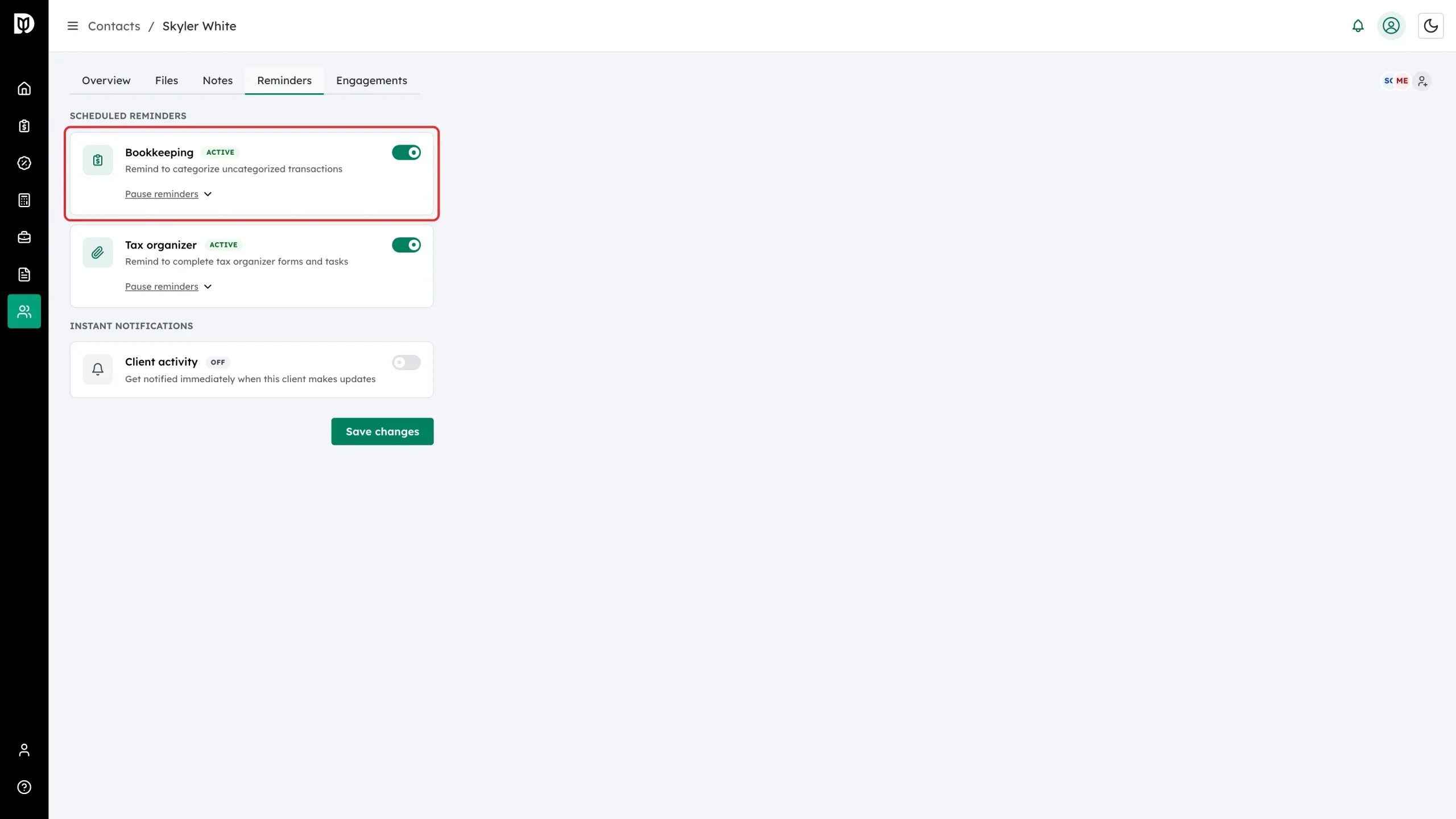
Under Scheduled Reminders, each card — Bookkeeping and Tax organizer — has a switch and a status badge: Active, Paused, or Off. Flip the switch to turn that reminder on or off for this contact only.
Step 3: Pause reminders temporarily
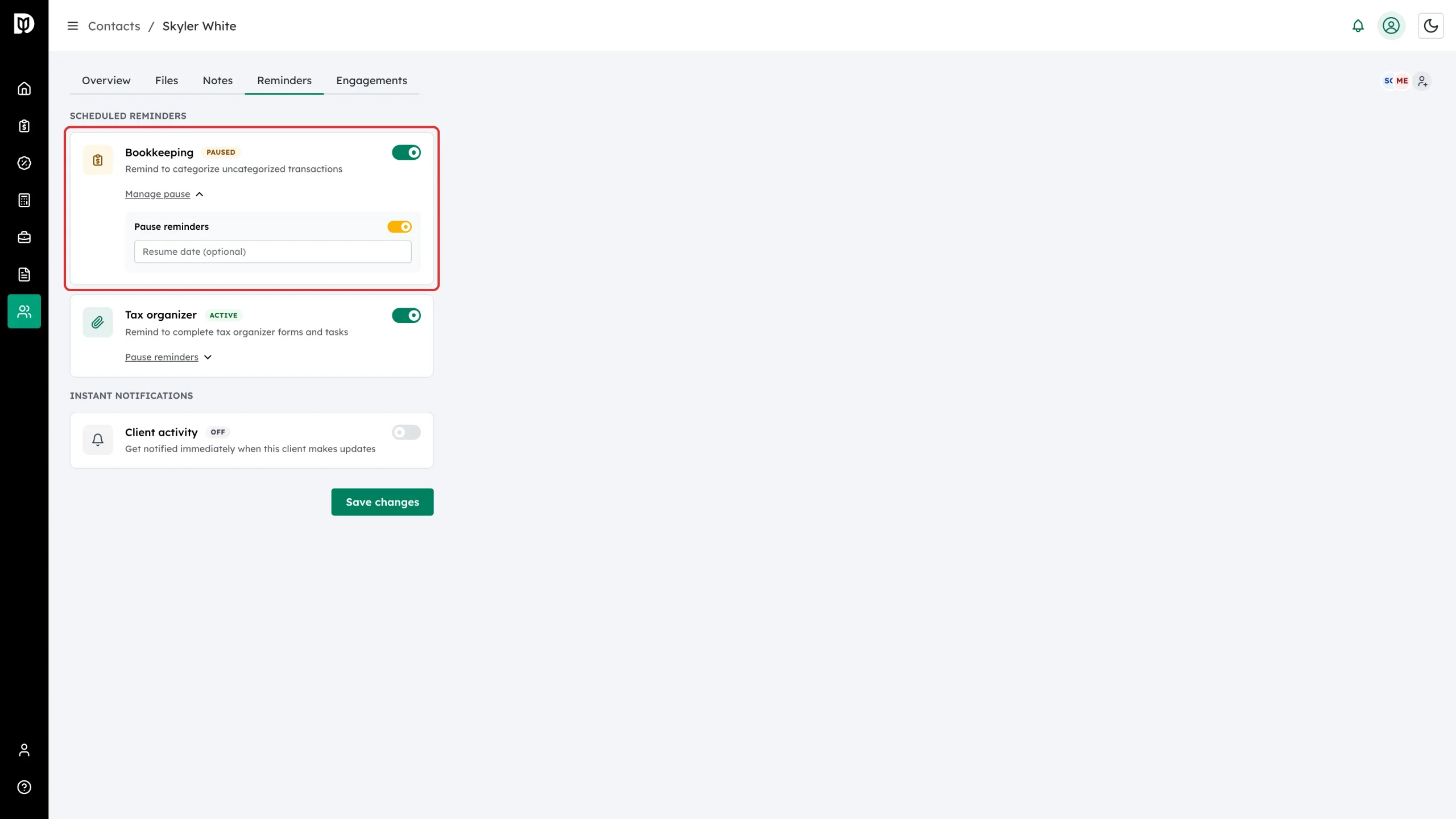
To stop reminders without turning them off:
- Click Pause reminders under the card (it reads Manage pause while paused).
- Flip the Pause reminders switch in the expanded section.
- Optionally pick a Resume date — reminders start again automatically on that day. Leave it empty to pause until you come back.
Step 4: Do the same for the Tax organizer card
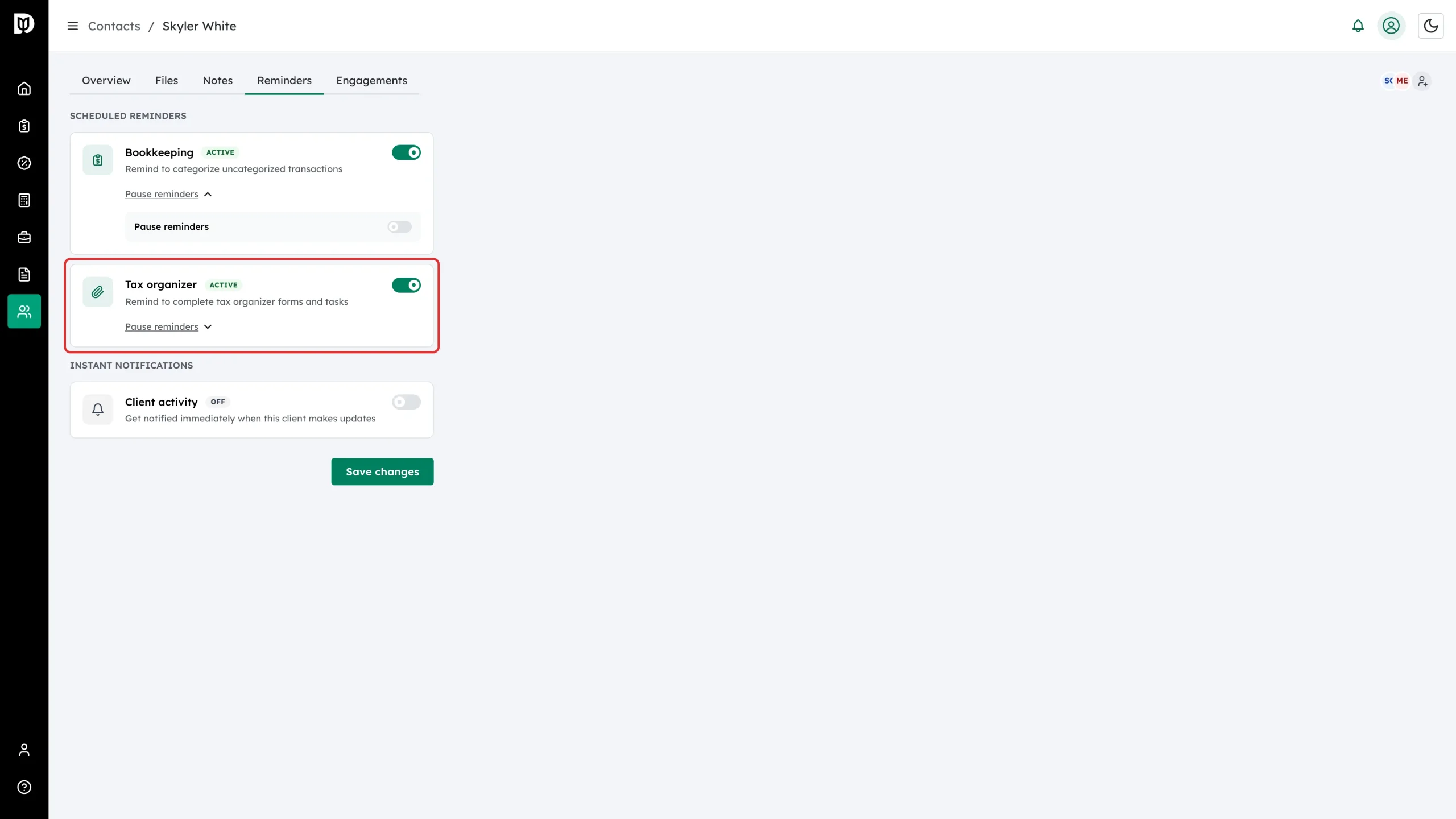
The Tax organizer card works the same way — toggle or pause reminders about incomplete organizer forms and tasks.
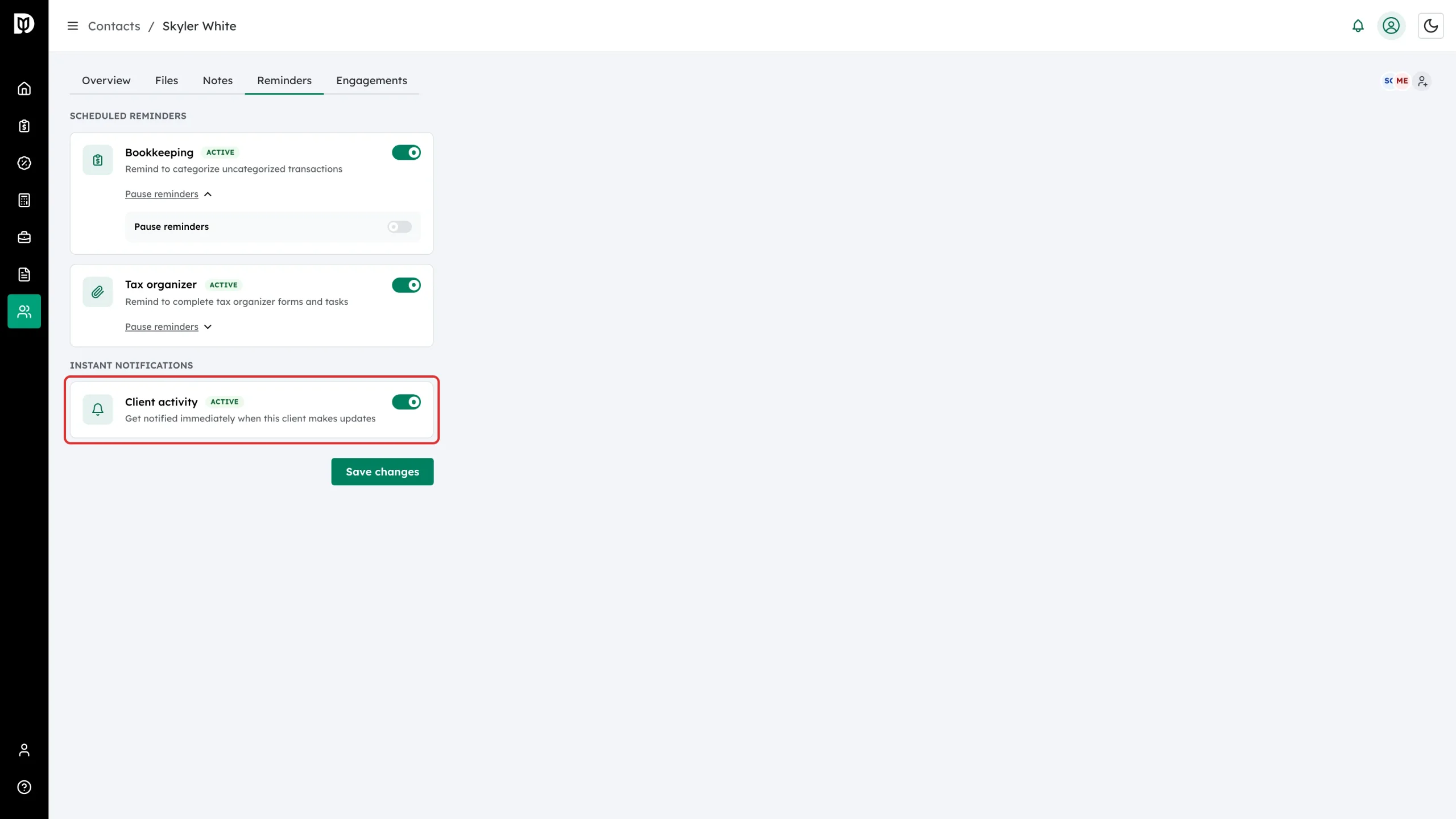
Step 5: Turn on instant notifications
Under Instant Notifications, flip on Client activity to get notified immediately whenever this client makes updates — useful during a busy close or filing deadline.
Step 6: Save
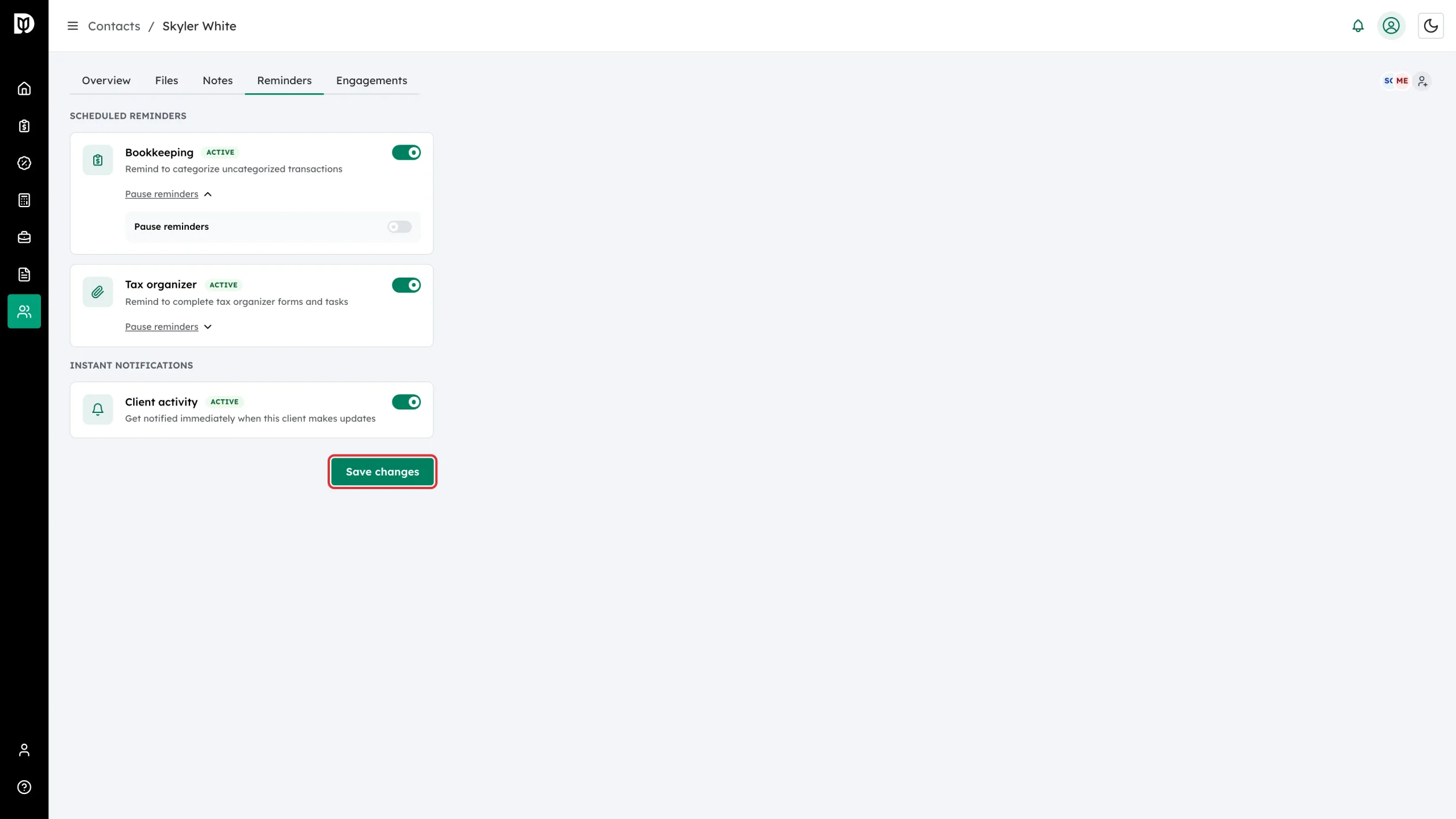
Click Save changes.
How overrides work
- Leave a switch at the firm-wide value and the contact simply follows the firm settings.
- Flip a switch and that value overrides the firm setting — for this contact only.
- Pausing is always contact-specific and never changes the firm-wide schedule.
What happens next
Your changes take effect for the next scheduled send. Paused reminders resume automatically on the resume date, or when you unpause them.
Troubleshooting
- Changes don’t stick: Make sure you clicked Save changes after editing.
- The resume date won’t accept a day: It must be in the future.
- The contact still gets no reminders after unpausing: Check the firm-wide setting is on (Account → Reminders), the contact has an email address, and the contact is not Inactive — an inactive contact receives no reminders at all.