Who this is for: Firm owners, admins and managers who set what staff can do in the tax area.
What you’ll learn: What each switch on the Tax permissions card controls, what staff can do by default, and why a staff member cannot see Send for signature.
Before you begin
- Tax permissions apply to people with the Staff role. Owners and admins can always do everything. Managers start with every switch on, and you can adjust them.
- The same five switches cover organizers, returns, workpapers and tax delivery.
The five tax permissions
- View the tax sections — open the tax area and see the clients they can reach. On by default for staff.
- Create returns and organizers, and invite clients — create returns and organizers, and send one client their organizer. On by default for staff.
- Edit returns, organizers and workpapers — change existing tax records. On by default for staff.
- Send bulk reminders, send for signature, and file — send a return to the client for signature, mark it as filed, and send reminders to many clients at once. Off by default for staff.
- Delete and archive tax records — delete or archive organizers, returns and workpapers. Off by default for staff.
Step-by-step instructions
Step 1: Open the staff member
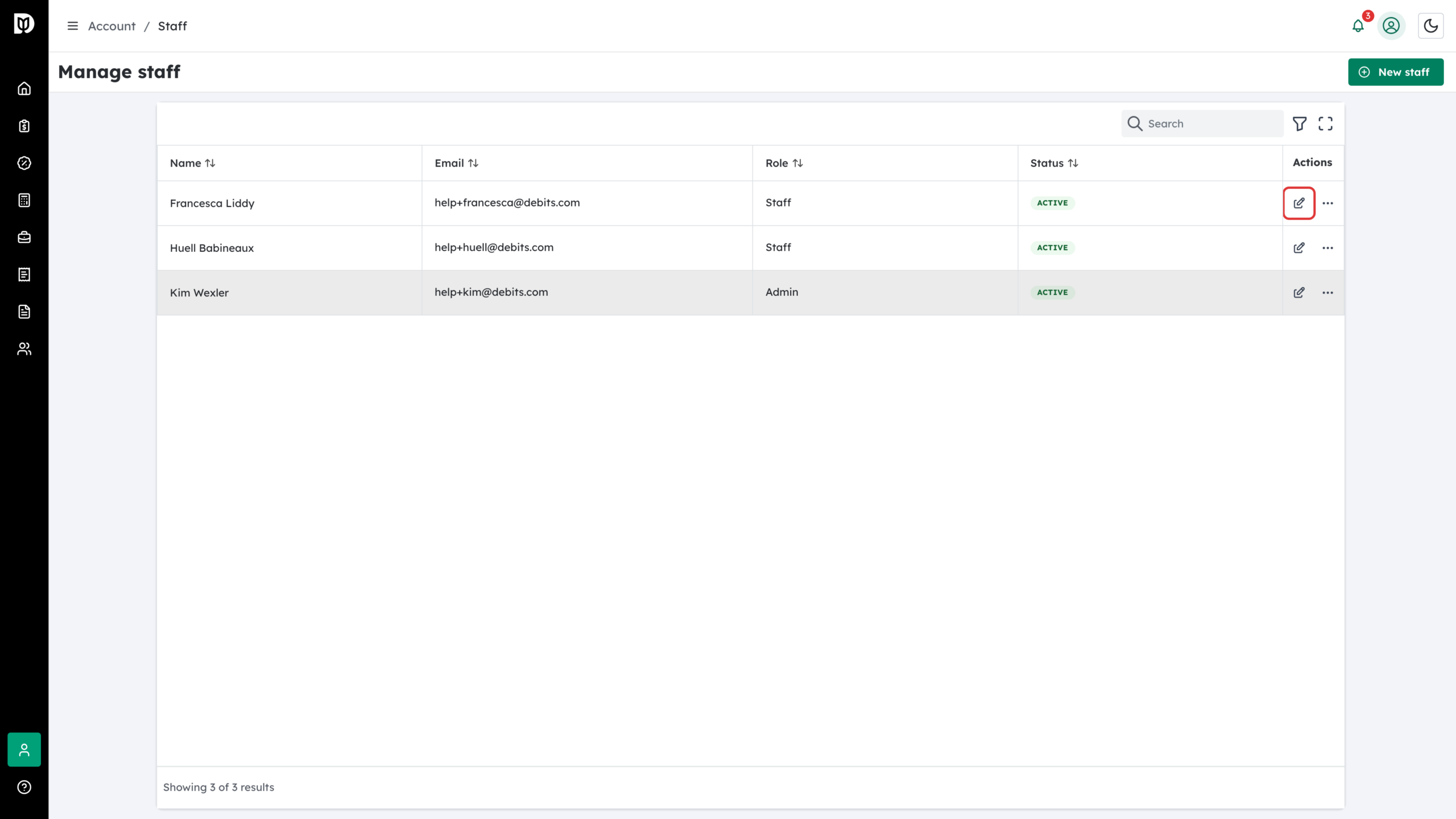
Go to Account > Staff and select the edit (pencil) icon on the person’s row.
Step 2: Find the Tax permissions card
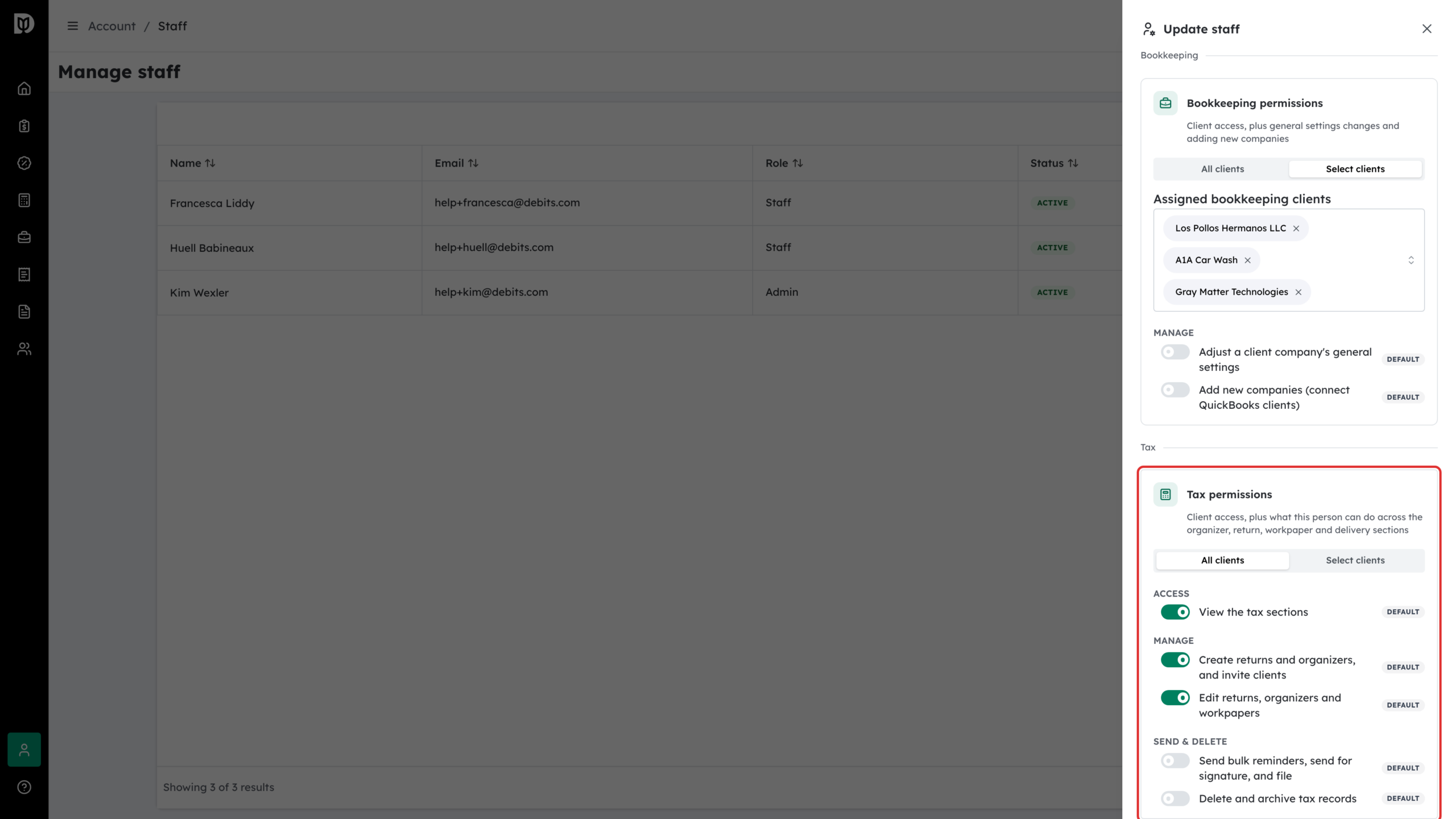
In the Update staff drawer, scroll to Tax permissions. At the top, choose All clients or Select clients. Below that are the five switches, each marked DEFAULT until you change it.
Step 3: Let them send for signature and file
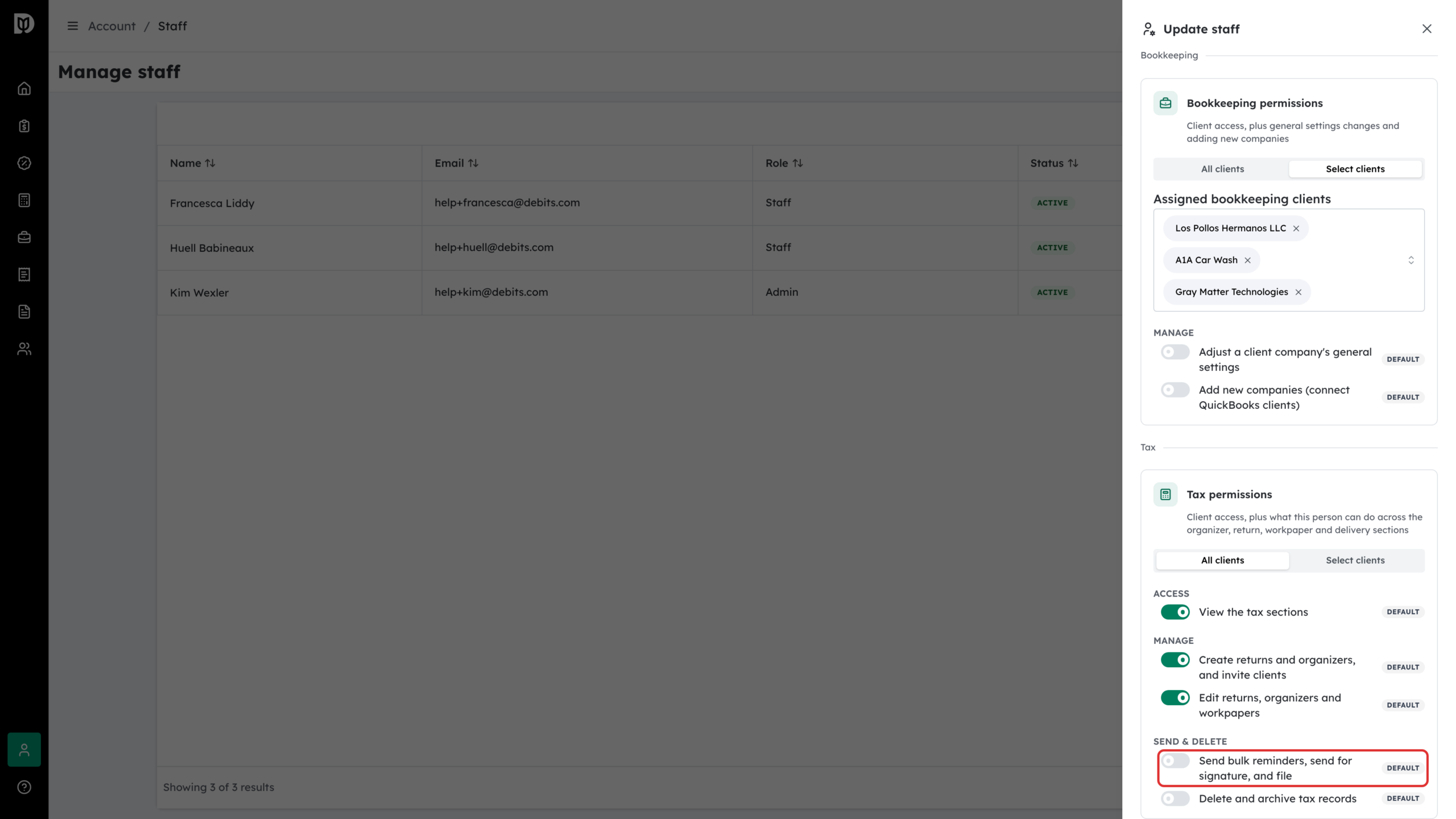
Under Send & delete, turn on Send bulk reminders, send for signature, and file. The badge changes to OVERRIDE. Select the X beside it at any time to go back to the default.
Step 4: Save
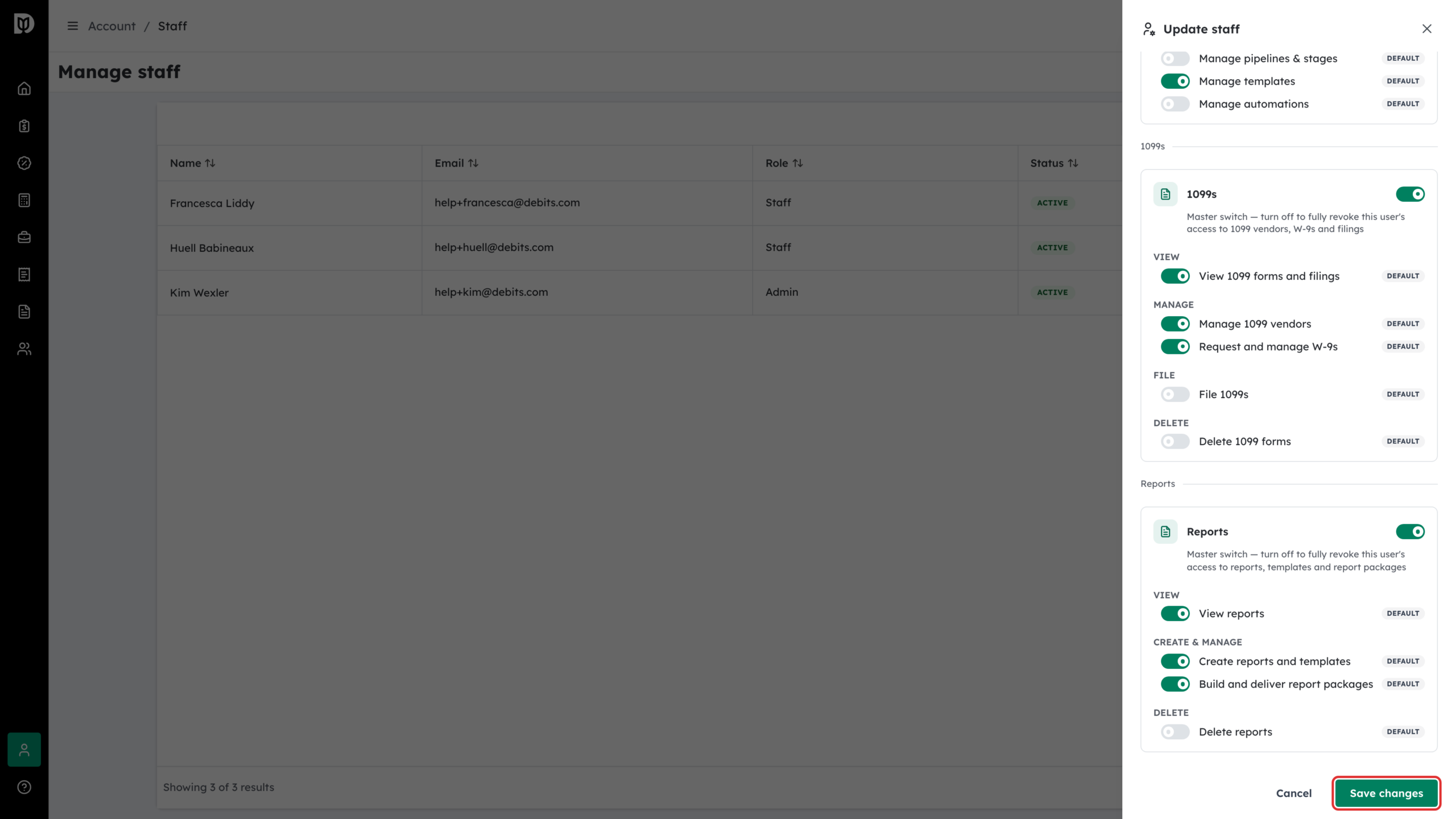
Select Save changes at the bottom of the drawer.
Why Send for signature is missing for staff
Sending a return for signature is part of Send bulk reminders, send for signature, and file, which is off for staff unless you turn it on. Until then:
- The row menu on the Delivery tab shows Send for signature to owners, admins and managers.
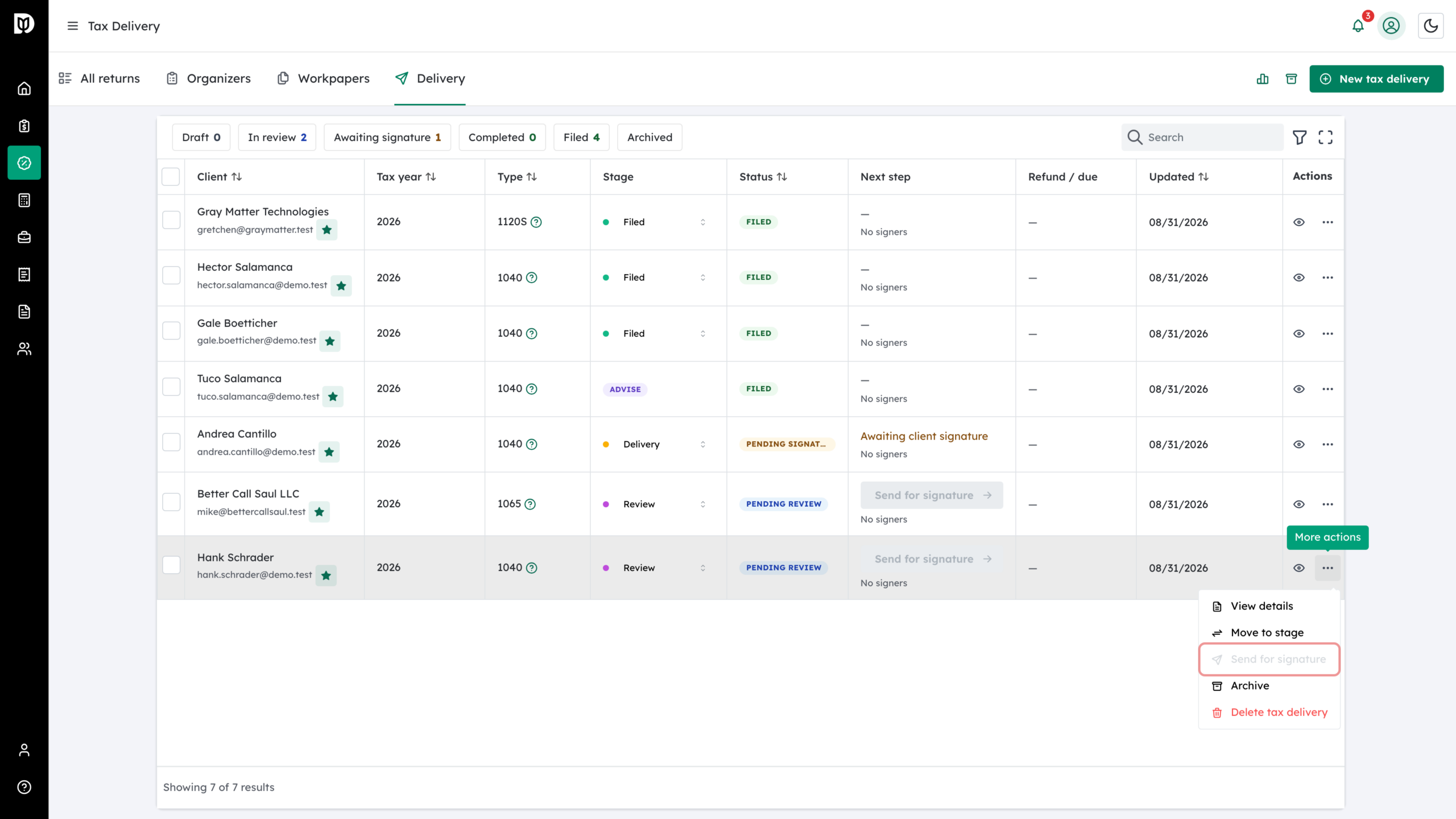
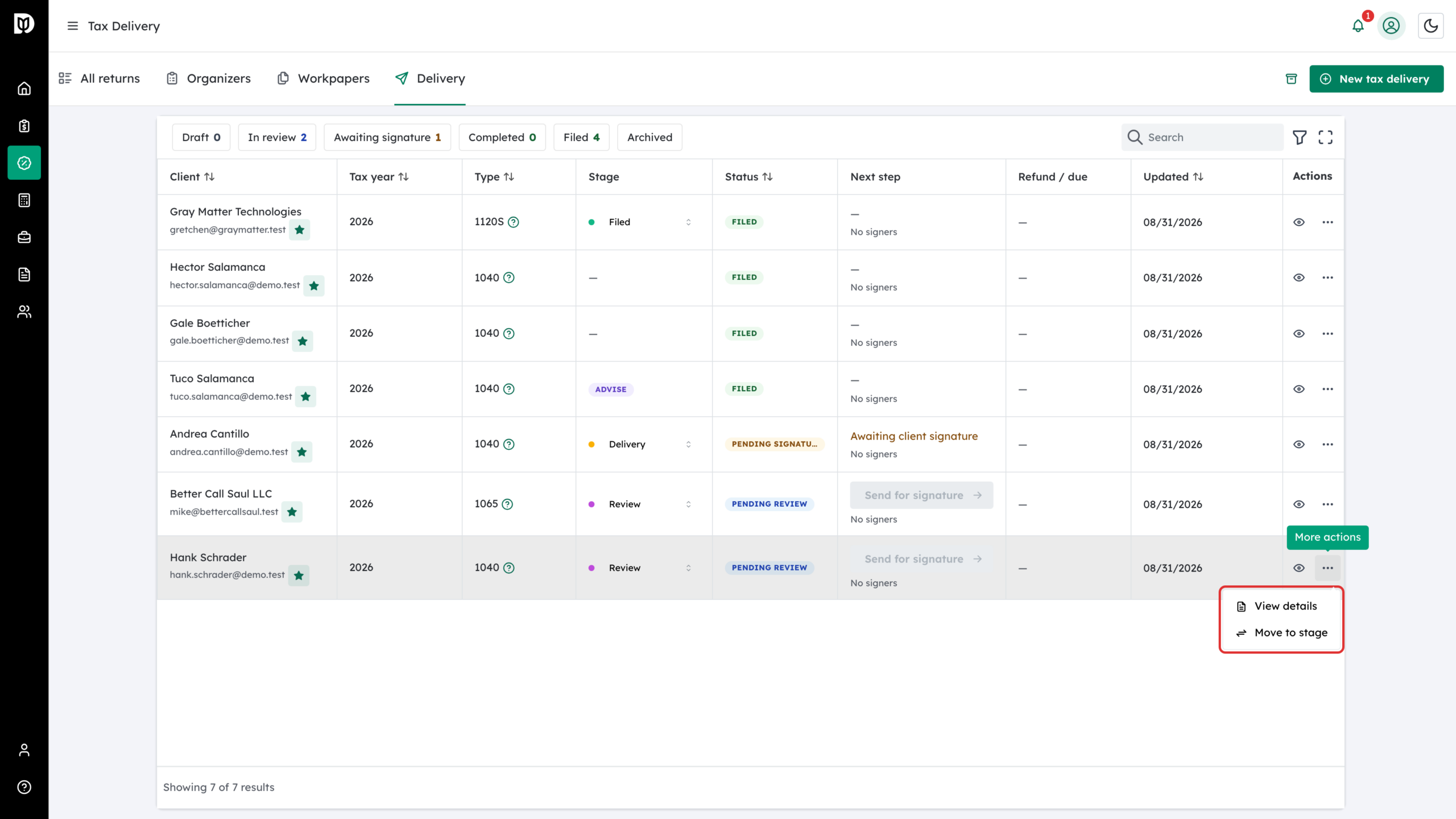
- A staff member’s row menu leaves it out.
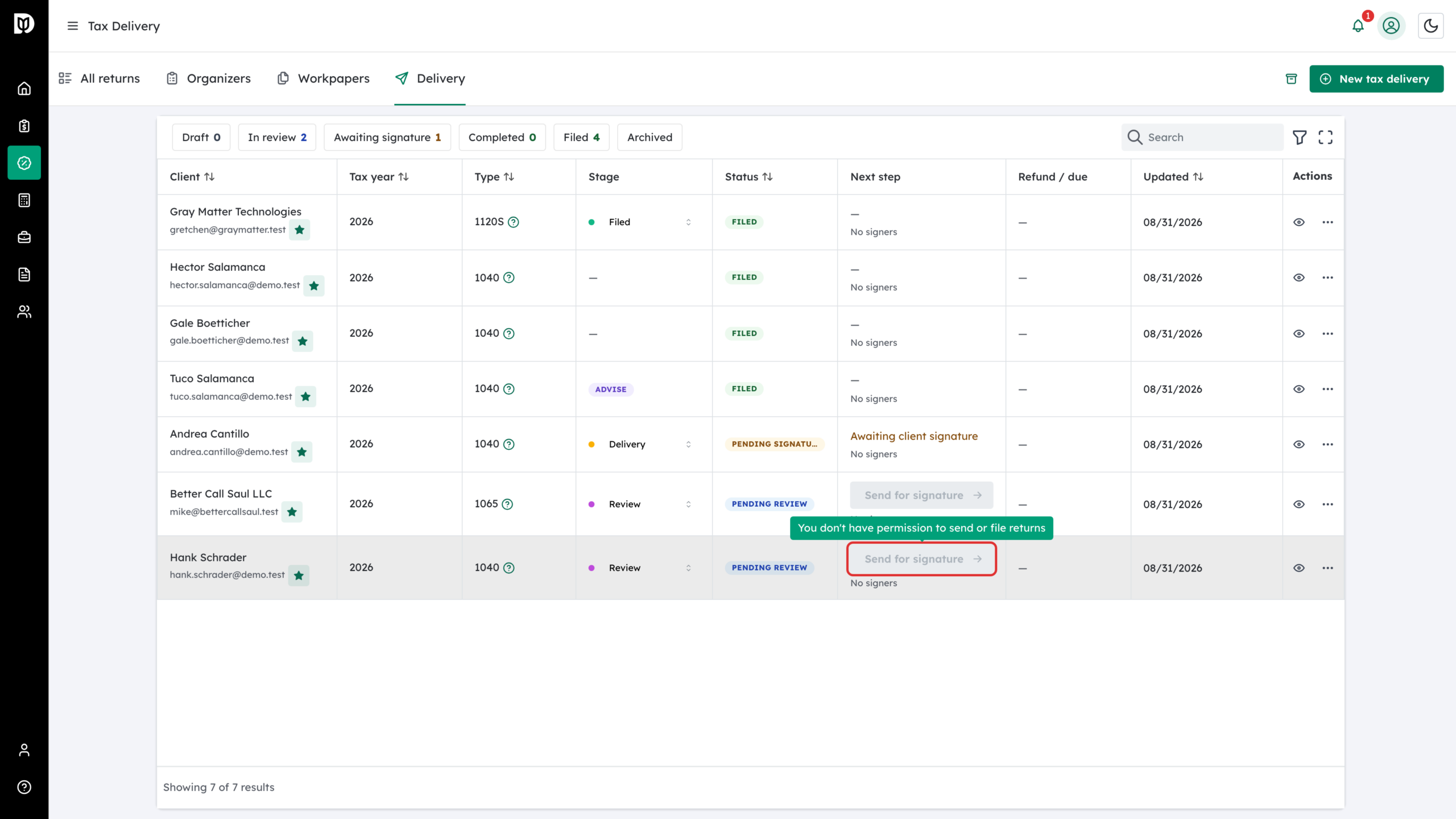
- The Send for signature button in the Next step column is greyed out. Hovering over it shows You don’t have permission to send or file returns.
What happens next
The new access applies as soon as you save. Staff can still create organizers and send one client their organizer by default; only sending for signature, filing and bulk reminders need the extra switch.
Troubleshooting
- A staff member cannot archive or delete an organizer: turn on Delete and archive tax records for them.
- The Send for signature button is greyed out for you as an owner: the return has no signers yet. Hover over the button to see Add a signer before sending.
- You do not see the Tax permissions card: your firm does not have the Tax Suite turned on.