Who this is for: Clients who use the Debits client portal.
What you’ll learn: How to upload files, replace a file you uploaded earlier, download several files at once, and use an upload link your accountant sends you.
Before you begin
- You need to be signed in to your client portal to use Files. Upload links work without signing in.
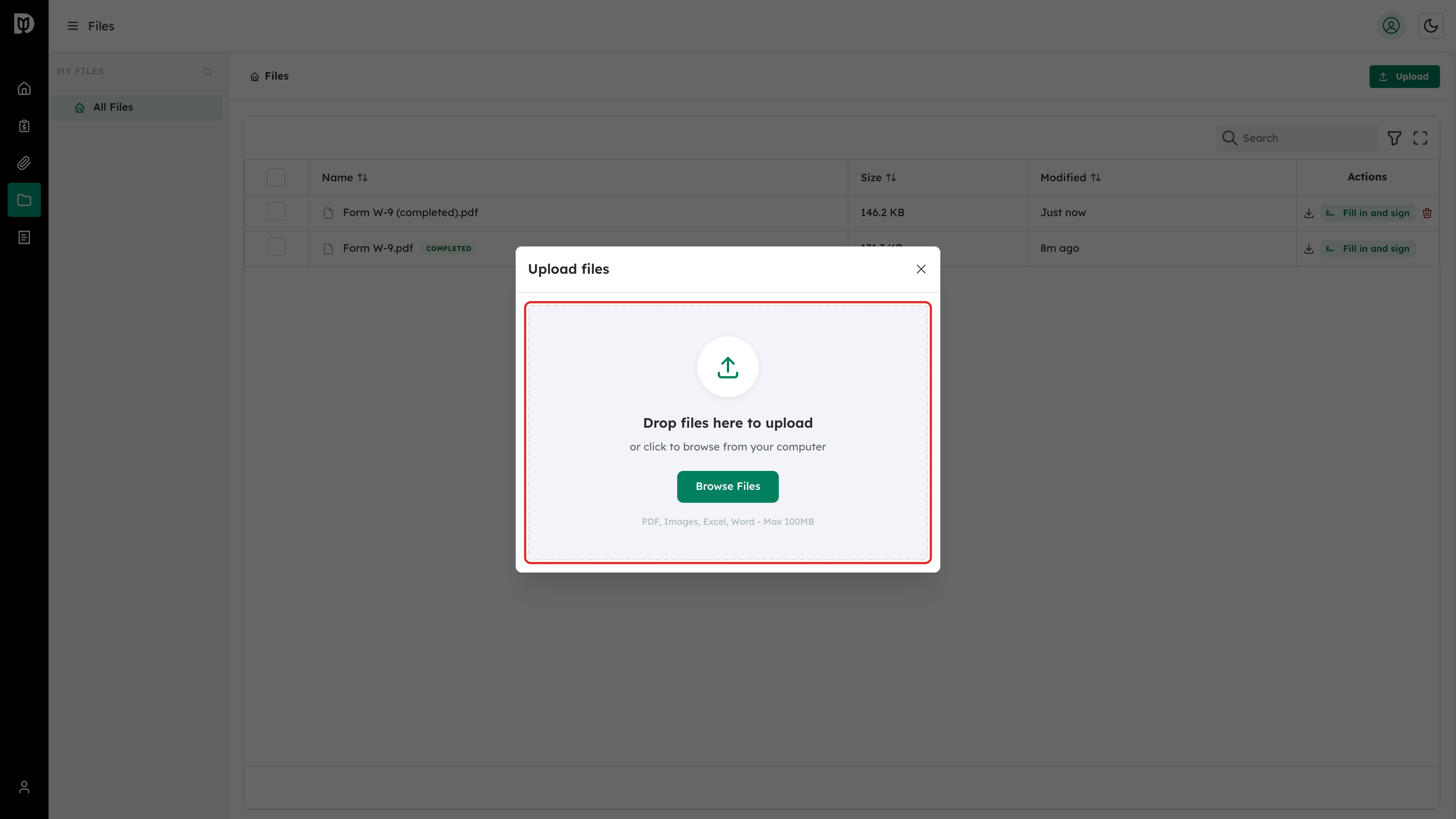
- You can upload PDFs, images, Excel and Word files up to 100 MB each.
- Your Files page shows the files you uploaded and the files your accountant shared with you.
Step-by-step instructions
Step 1: Open Files and select Upload
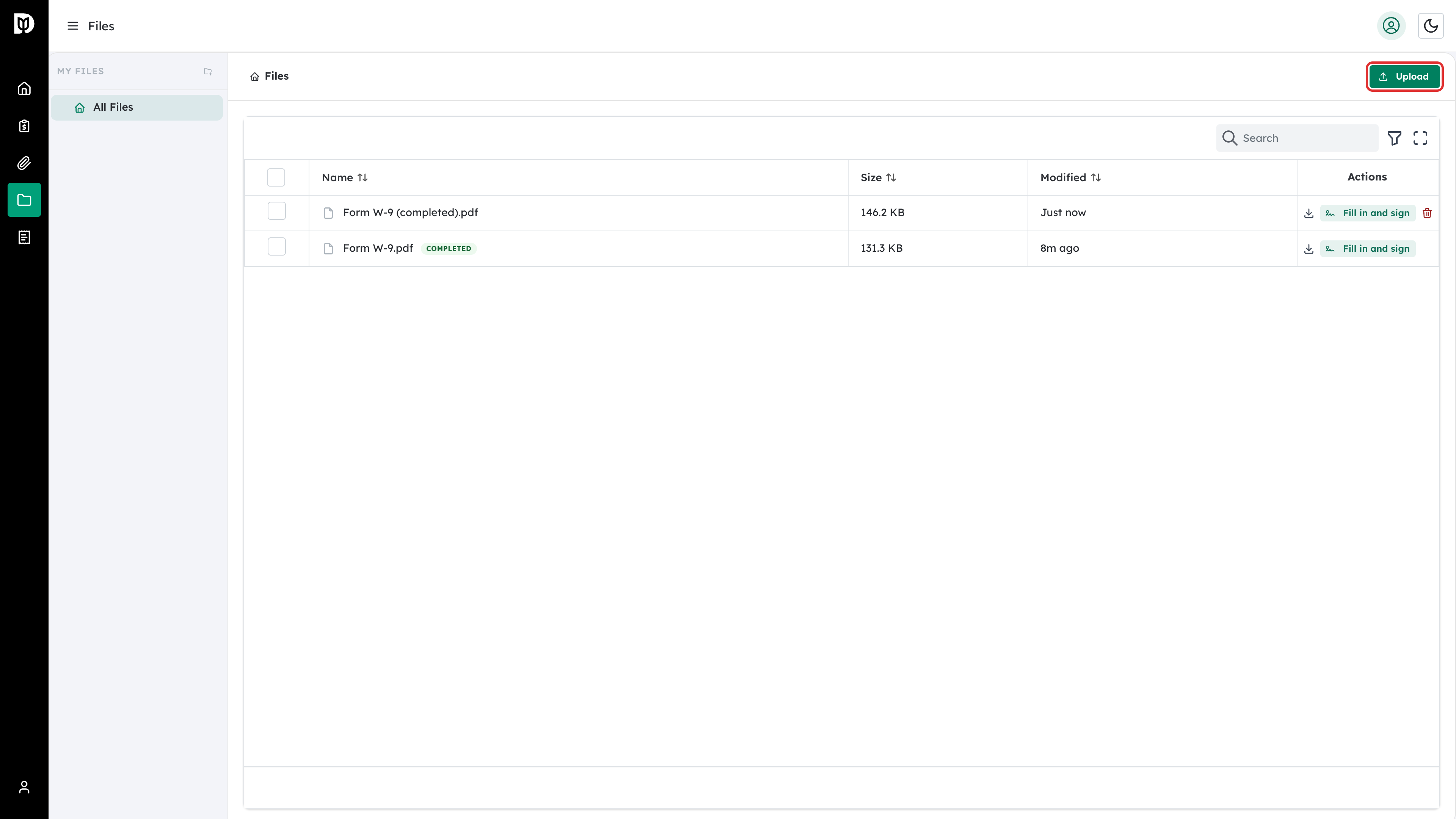
Open Files from the menu, then select Upload at the top right.
Step 2: Add your files
Drag files onto the box, or select Browse Files and pick them from your computer. You can add several files at once.
Step 3: Check the file arrived
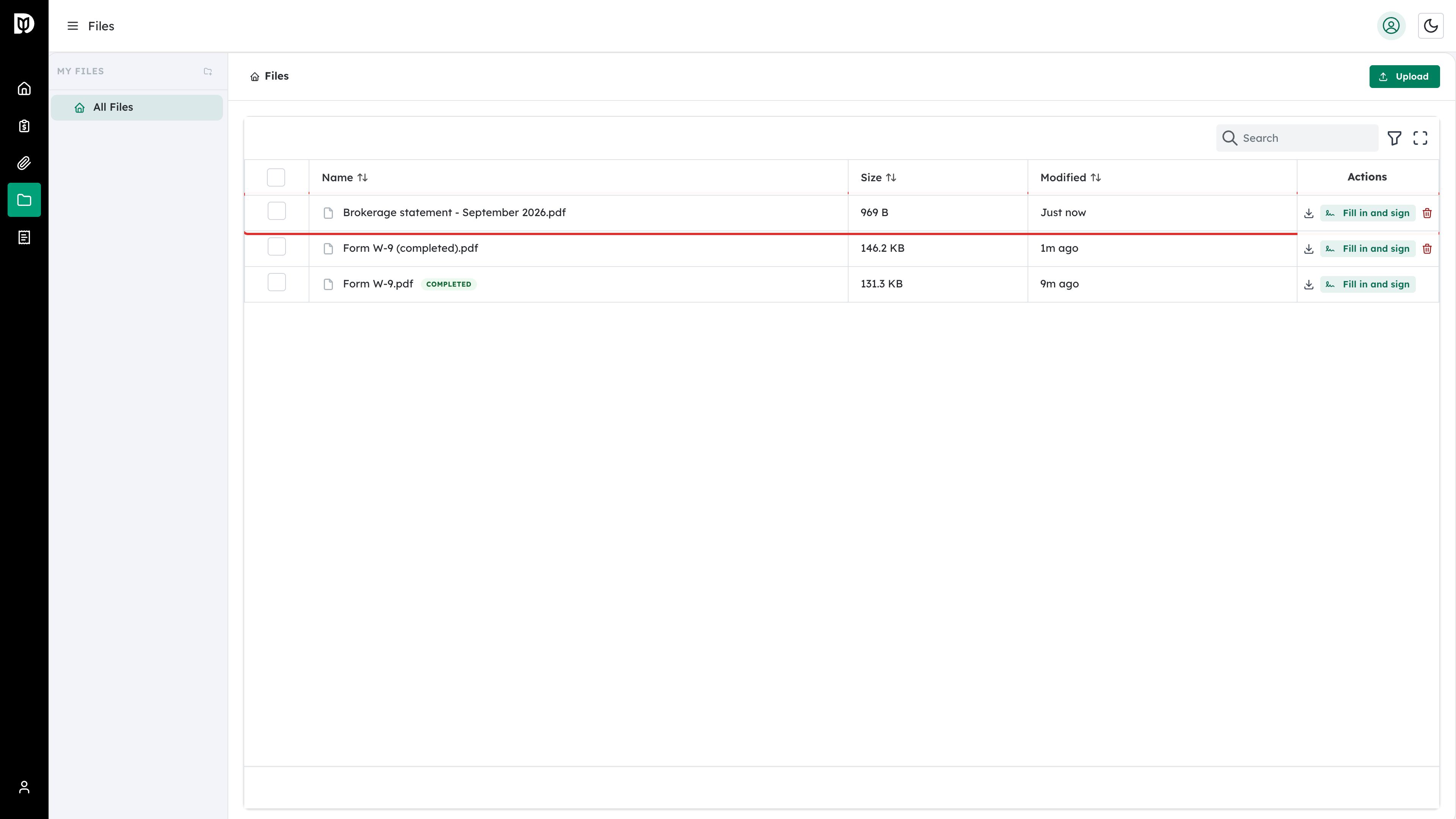
Your upload appears in the list. Files you uploaded yourself have a delete icon on their row, so you can remove one you sent by mistake. Files your accountant shared cannot be deleted from the portal.
Step 4: Replace a file you uploaded earlier
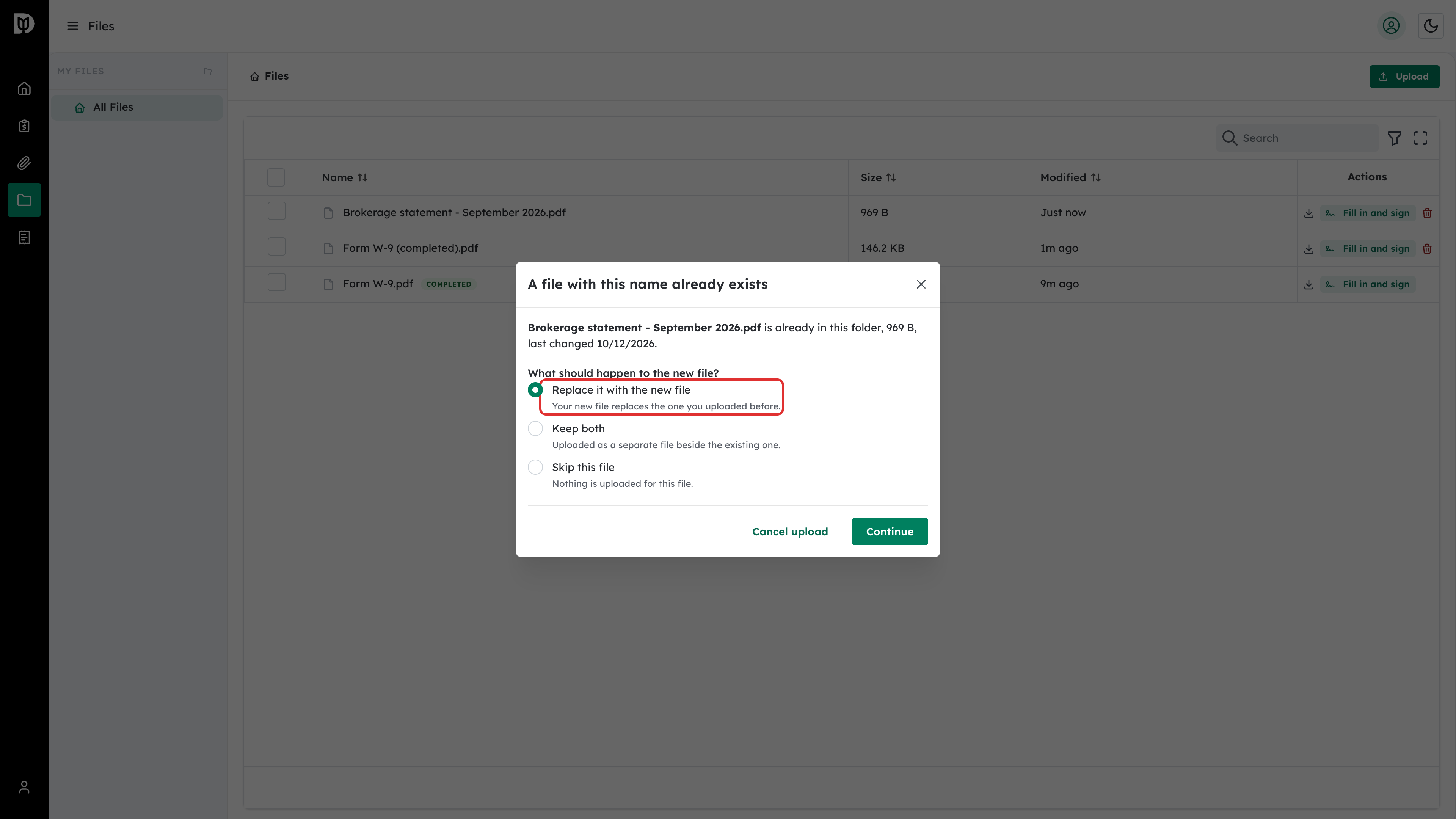
To send a corrected version, upload a file with the same name. Debits asks what should happen to the new file:
- Replace it with the new file (the default). Your new file replaces the one you uploaded before.
- Keep both. The new file is uploaded beside the existing one.
- Skip this file. Nothing is uploaded for that file.
Select Continue. You can only replace files you uploaded yourself. A document your accountant shared with you is never replaced from the portal.
Step 5: Download several files at once
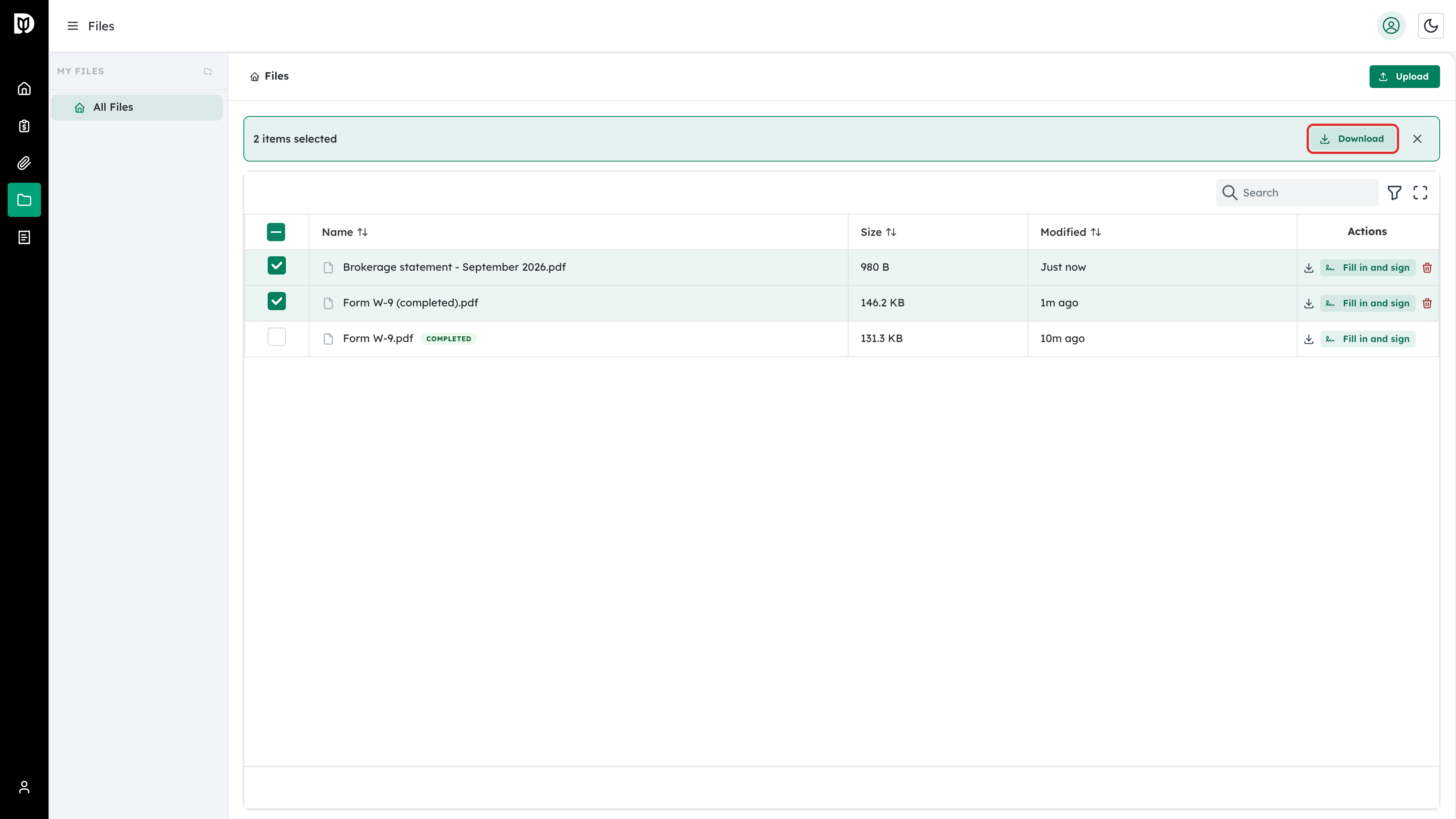
Tick the boxes next to the files you want, then select Download in the bar that appears. Debits saves them to your computer as one zip file. A large download shows Preparing archive while the zip is built. To download a single file, use the download icon on its row.
Step 6: Use an upload link from your accountant
Your accountant may email you a secure upload link for a document request instead. Open the link, add your files and send them. You don’t need to sign in.
- You can open the same link again later to send more files, for as long as your accountant keeps it active.
- If one file can’t be uploaded, for example because it is the wrong type or too large, the other files still go through. Debits lists the files that failed by name so you know which ones to send again.
- There is no limit on how many documents you can send through a link unless your accountant set one.
What happens next
Your accountant sees your uploads straight away in your client file. If you replaced a file, they see the new version and can still open the earlier one from its version history.
Troubleshooting
- An upload link says it is no longer active: Your accountant has closed the link, it has expired, or it reached its upload limit. Ask your accountant for a new link.
- A file was not uploaded: Check that it is a PDF, image, Excel or Word file under 100 MB, then upload it again.
- Some files were left out of a download: Debits names the files it couldn’t include. Try downloading those files one at a time.