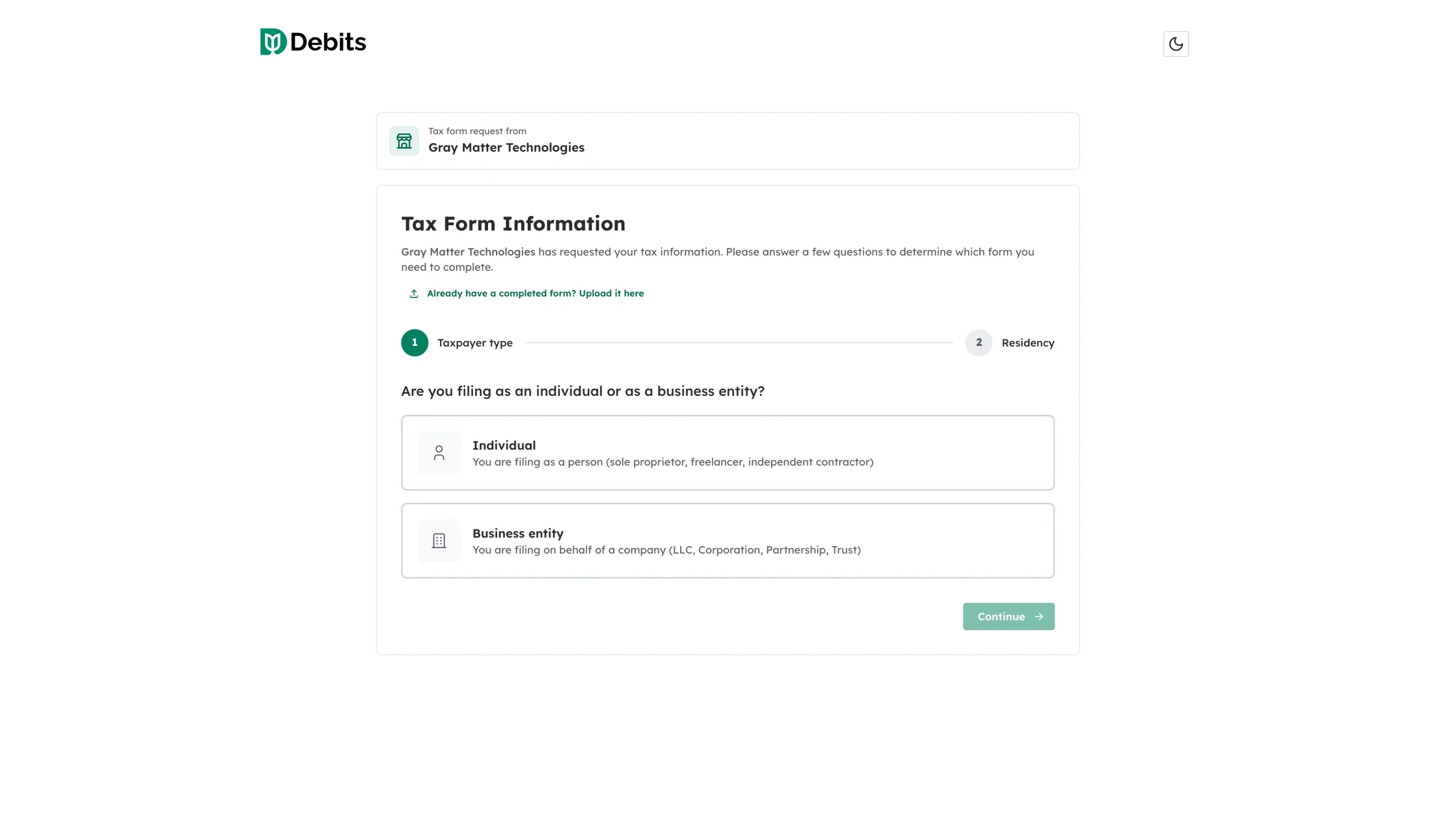
Once you have sent W-9 requests, the 1099s tab is where you chase them. Every request shows its state on the vendor row, and you can remind vendors without leaving the table.
Read the state of a request
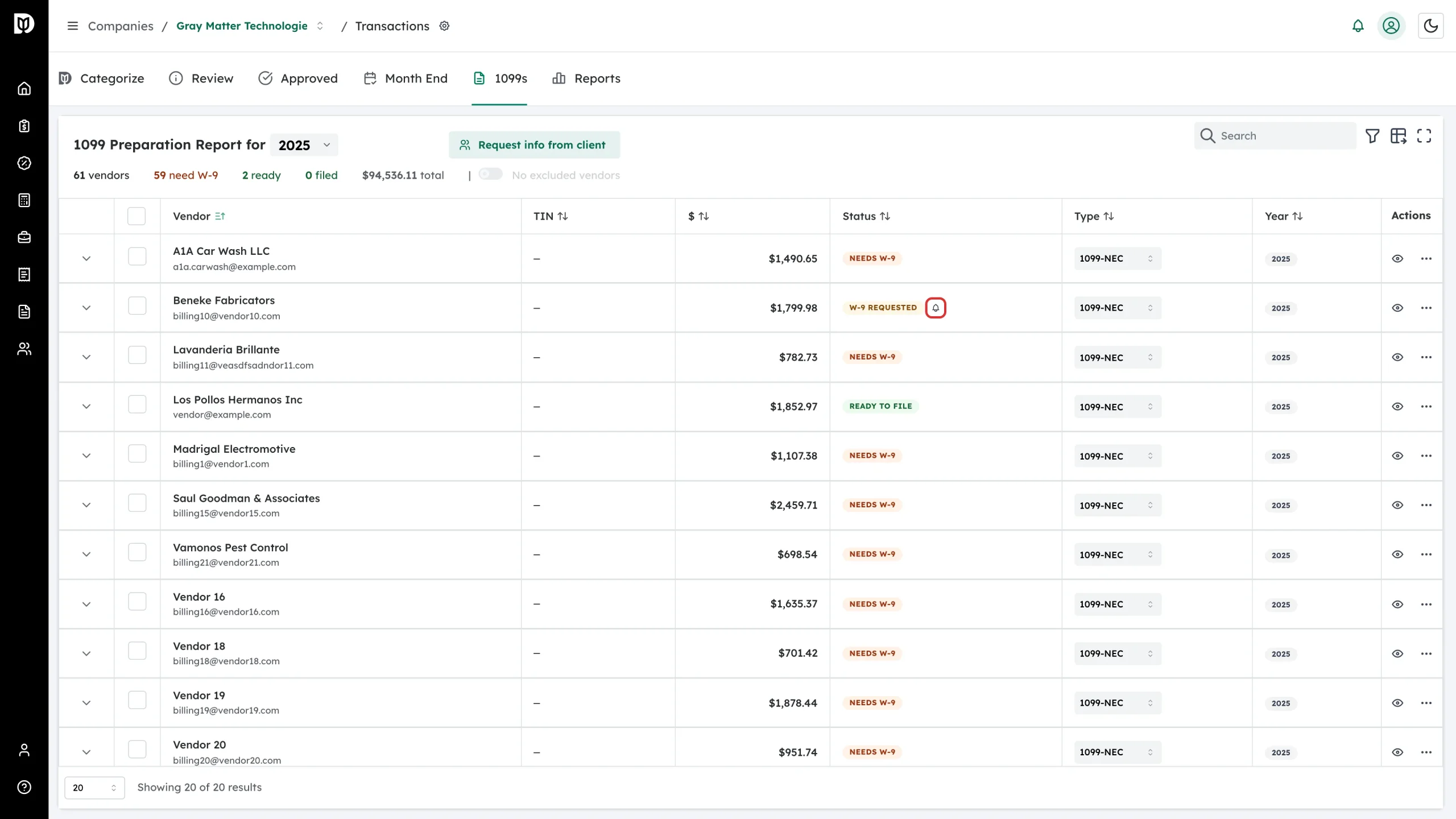
W-9 Requested means the email has gone out and the vendor has not finished the form. A bell icon sits beside the badge, and once you have reminded them the row says how many reminders you have sent.
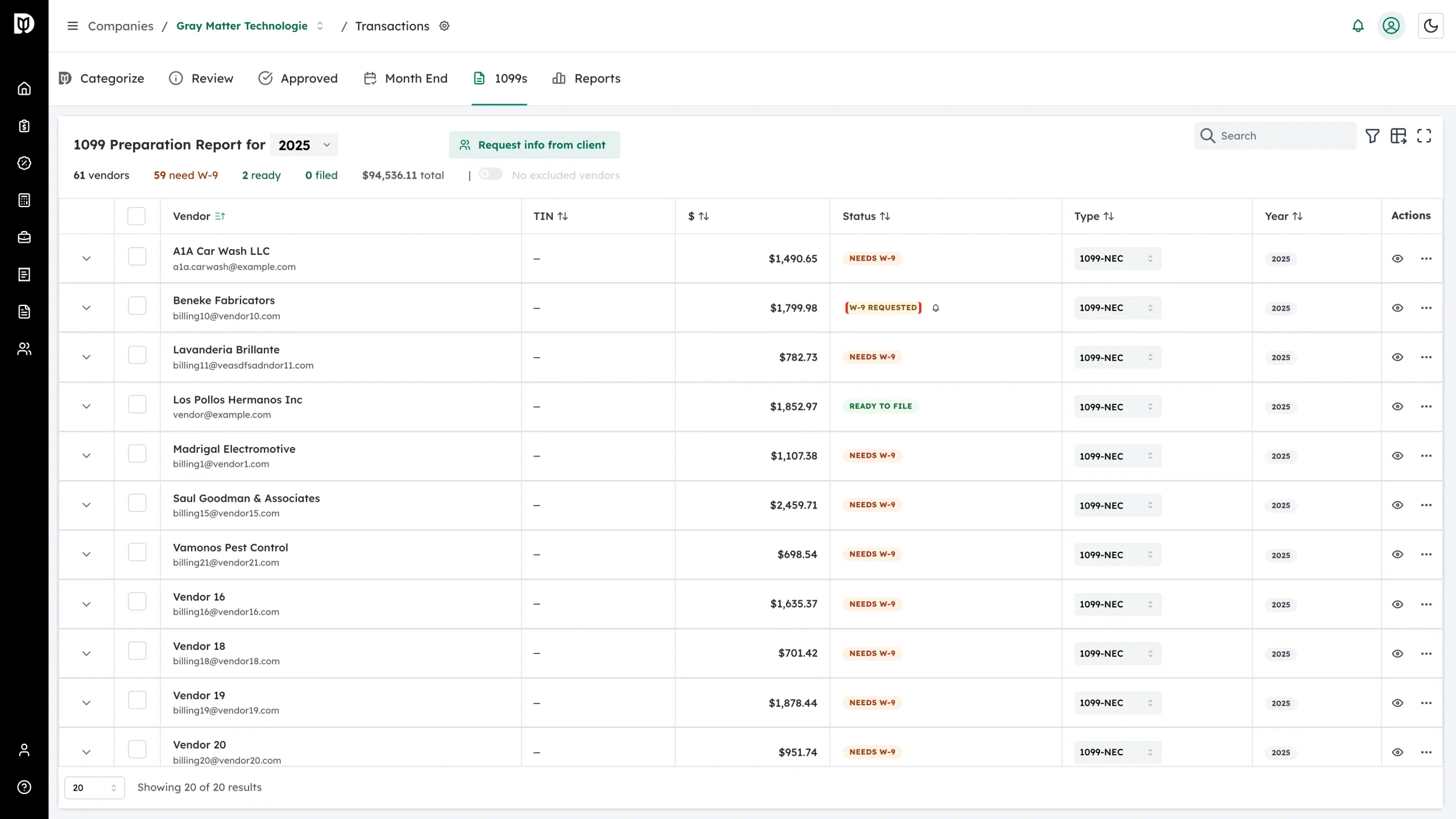
The other two states are Needs W-9 (nothing requested yet) and W-9 Received (the vendor has submitted the form).
Send a reminder
Click the bell beside the badge. Debits emails the vendor the same secure link again and adds one to the reminder count.
Requests expire 30 days after they are sent. If one has expired, send a fresh request from More actions → Request W-9 instead.
See only the vendors you are chasing
-
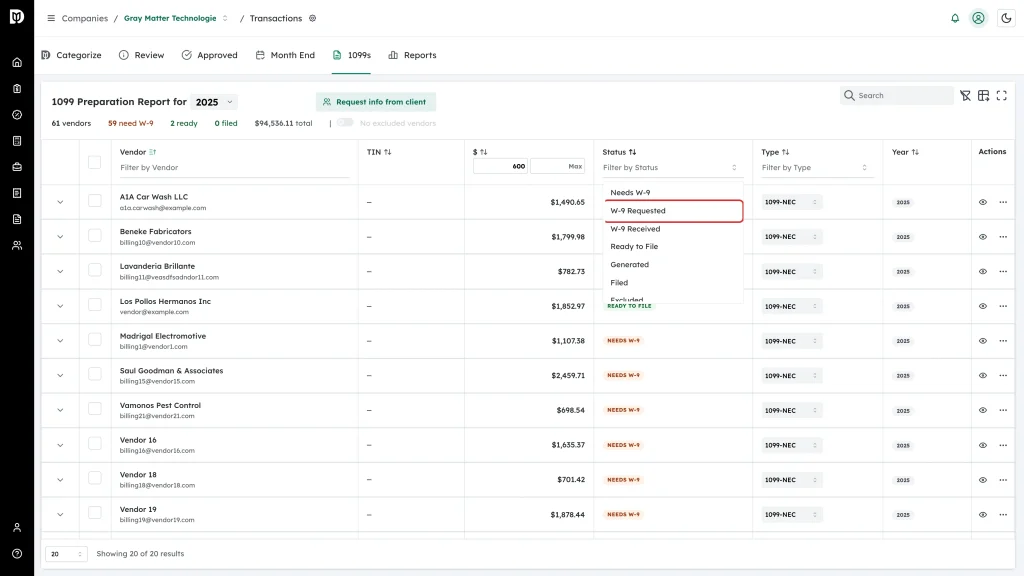
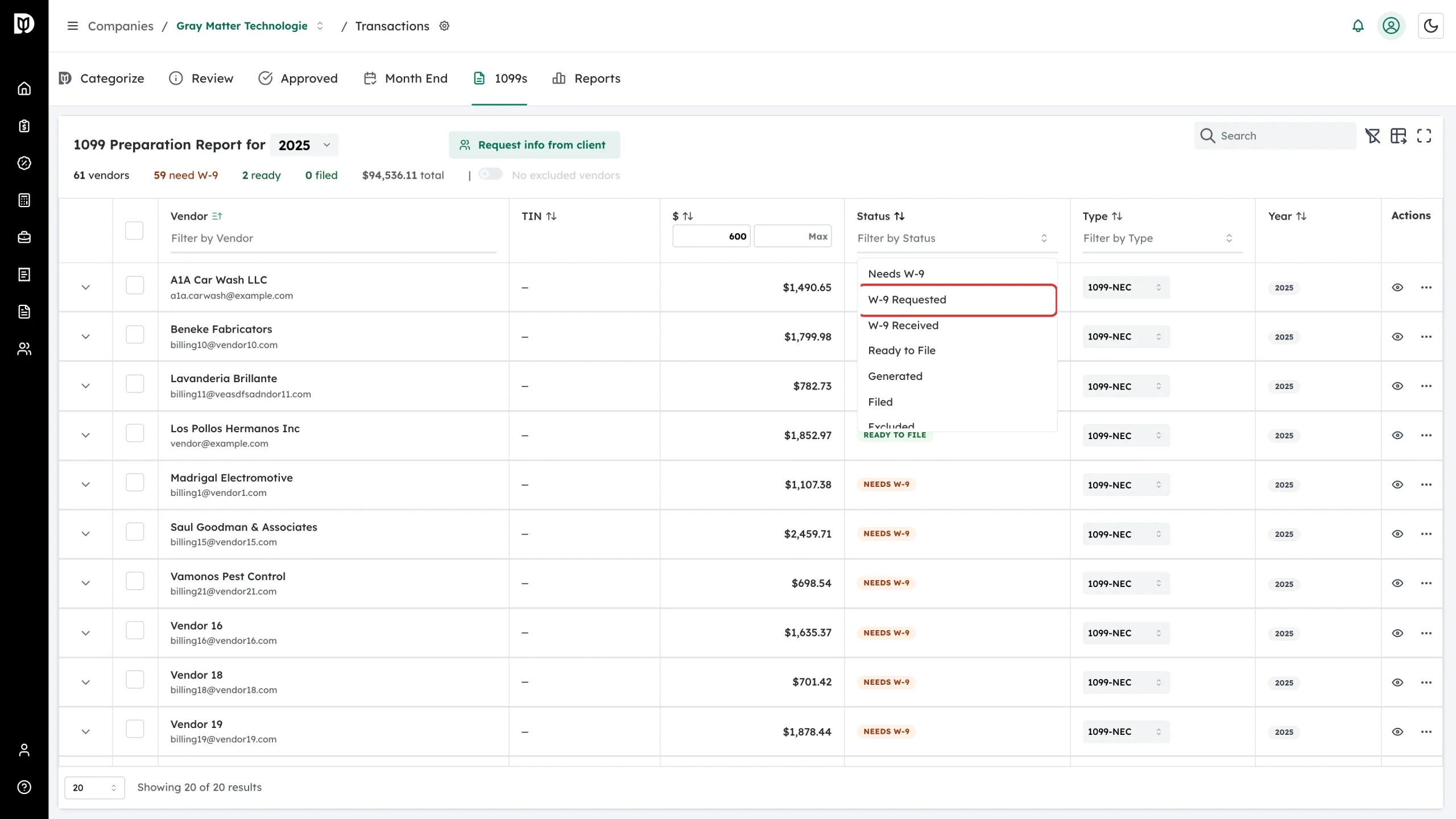
Open the table filters and set Status.
-
Choose W-9 Requested to see every outstanding request, or Needs W-9 to see who has not been asked yet.
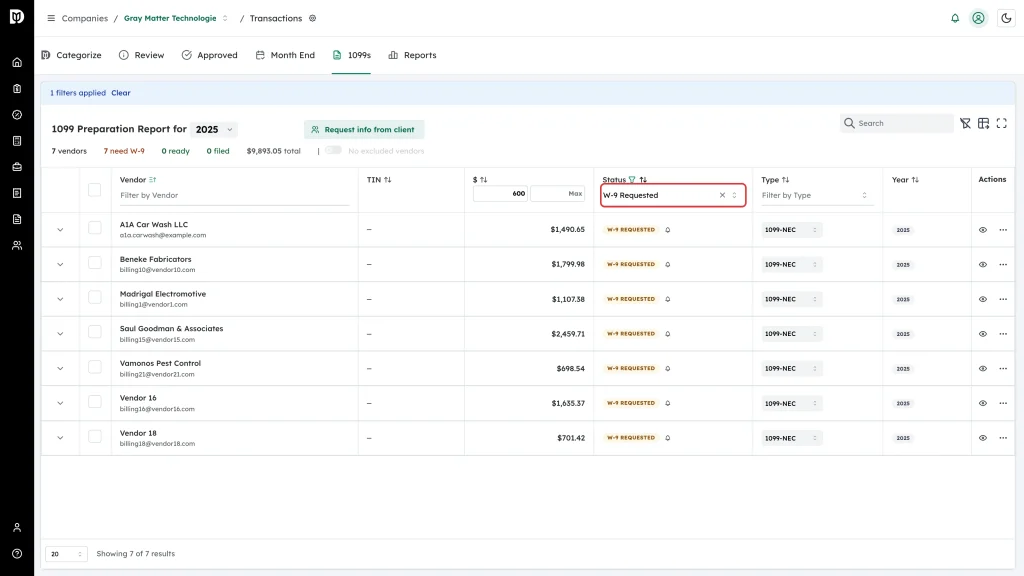
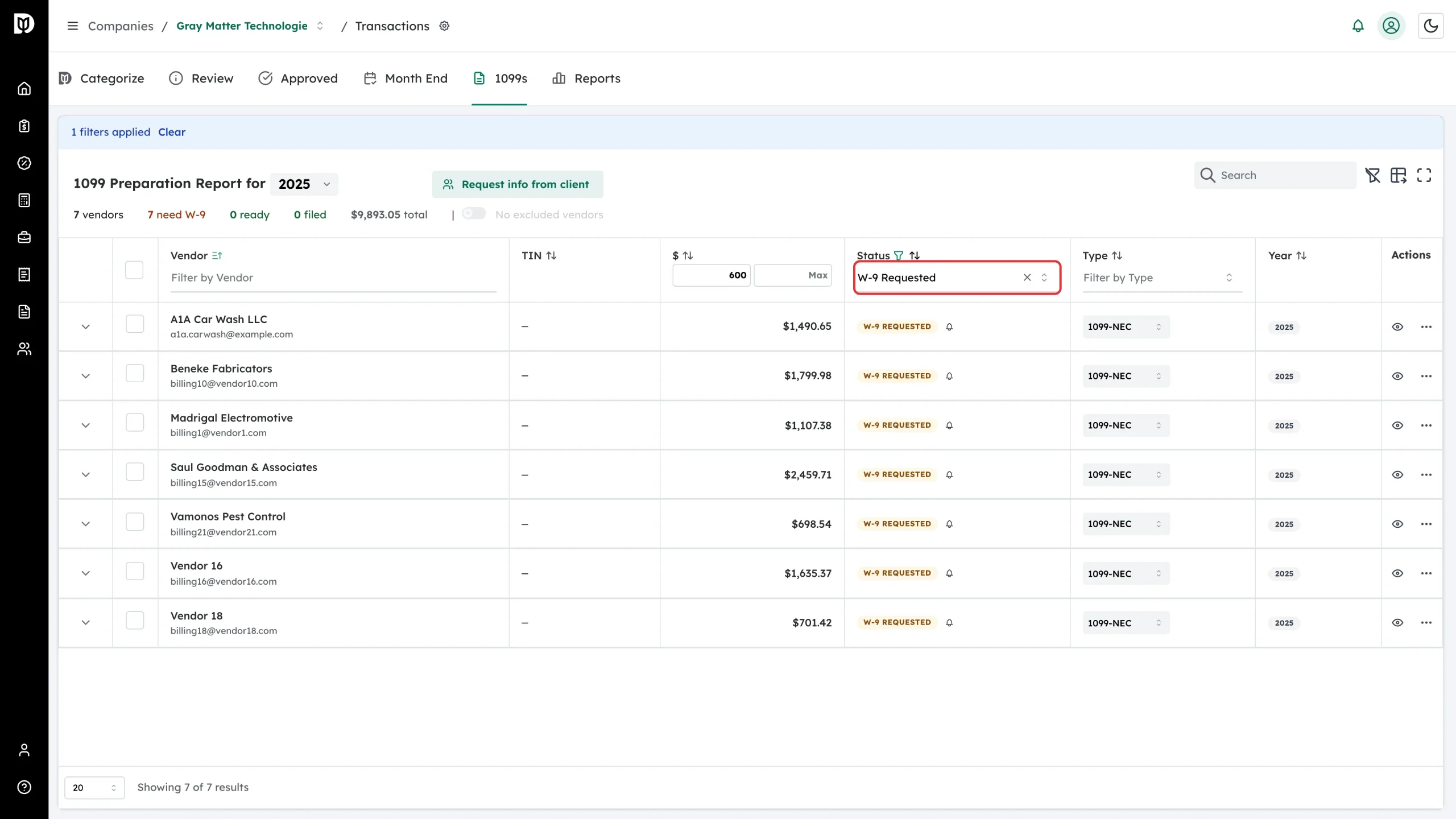
The summary row also counts vendors with an expired W-9 whenever there are any.
Check one vendor’s tax form
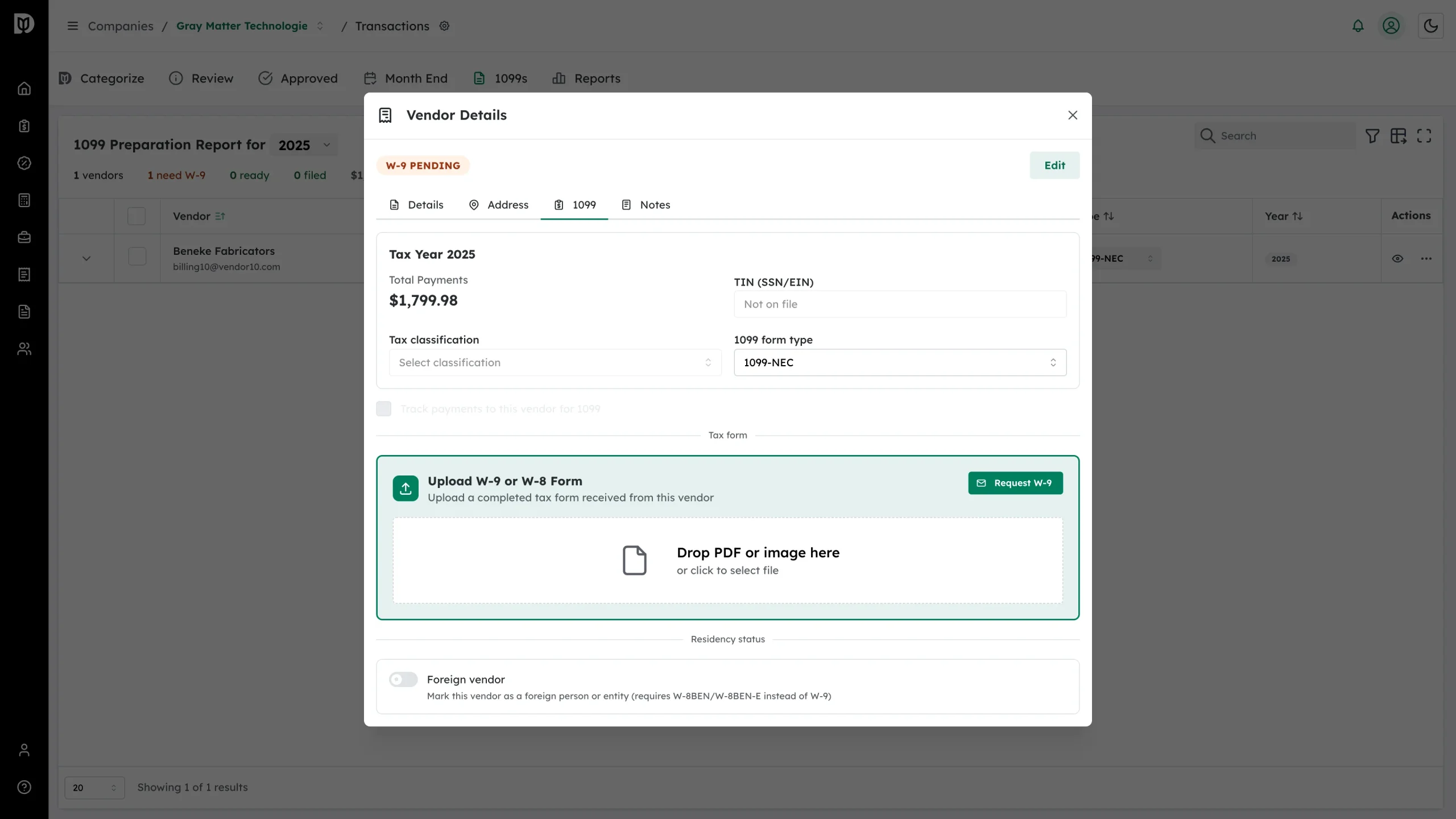
Open the vendor with the eye icon and go to the 1099 tab. The tax form card tells you where things stand: W-9 Required when the vendor is over the threshold with nothing on file, Upload W-9 or W-8 Form when you are waiting, and W-9 On File with the signing and expiry dates once it has arrived. A View W-9 button appears at that point.
What the vendor is being asked to do
The link in the email opens without a login. The vendor answers two questions — individual or entity, US or foreign person — and Debits gives them the matching form: a W-9, or a W-8BEN / W-8BEN-E if they are foreign. When they sign it, the vendor record updates on its own.