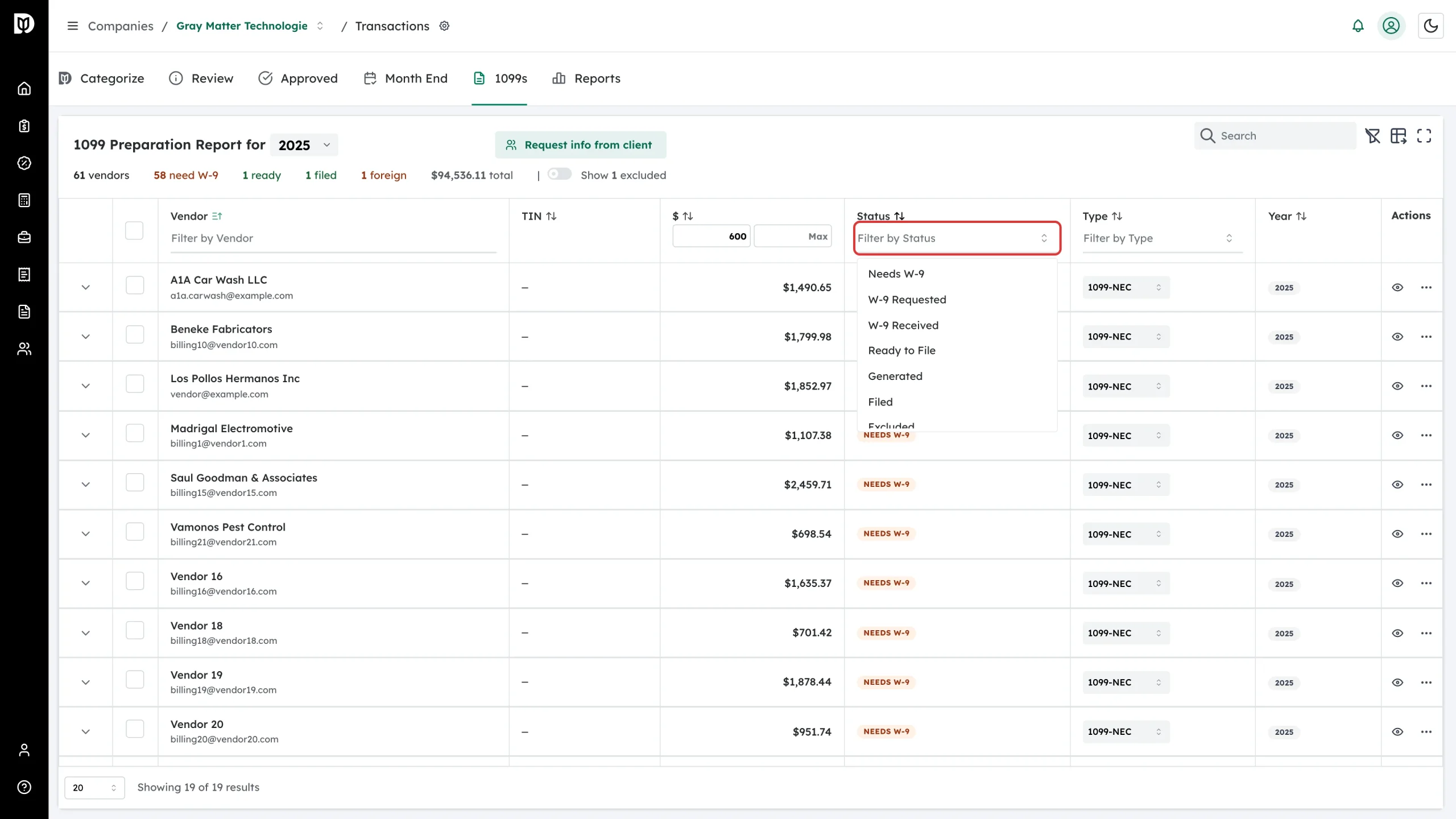
Every vendor in the 1099 report carries one status badge. It tells you what has to happen next for that vendor. This page explains each badge, in the order a vendor normally moves through them.
Needs W-9
Orange. Debits has no taxpayer ID or address for this vendor and no W-9 request is outstanding.
What to do: request a W-9. If the row shows no email address, add one first — click Add email in the vendor cell.
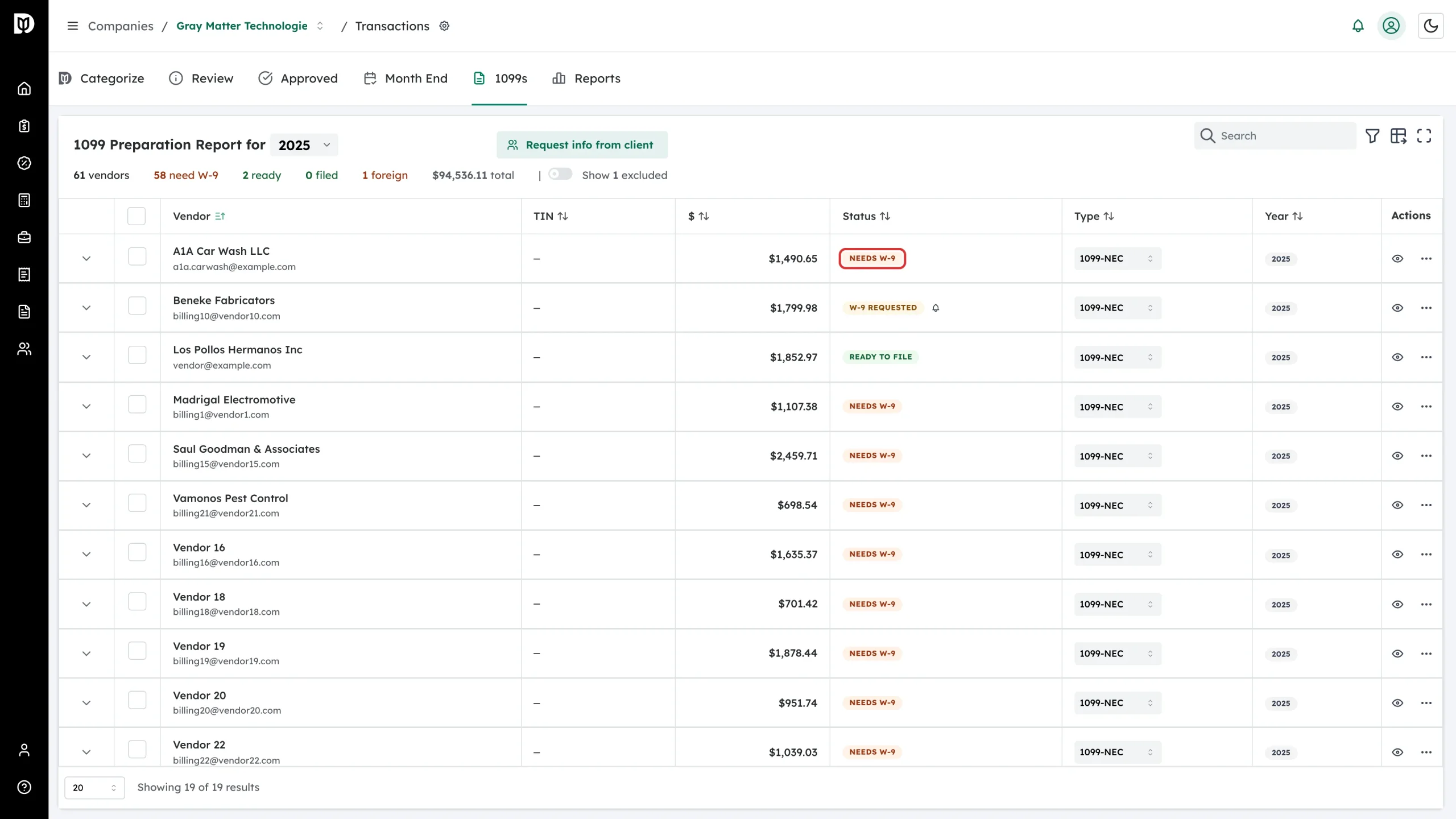
W-9 Requested
Yellow. A W-9 request has been emailed and the vendor has not finished the form yet. A bell icon appears beside the badge; use it to send a reminder, and the row shows how many reminders you have sent.
What to do: wait, then remind. Requests expire 30 days after they are sent.
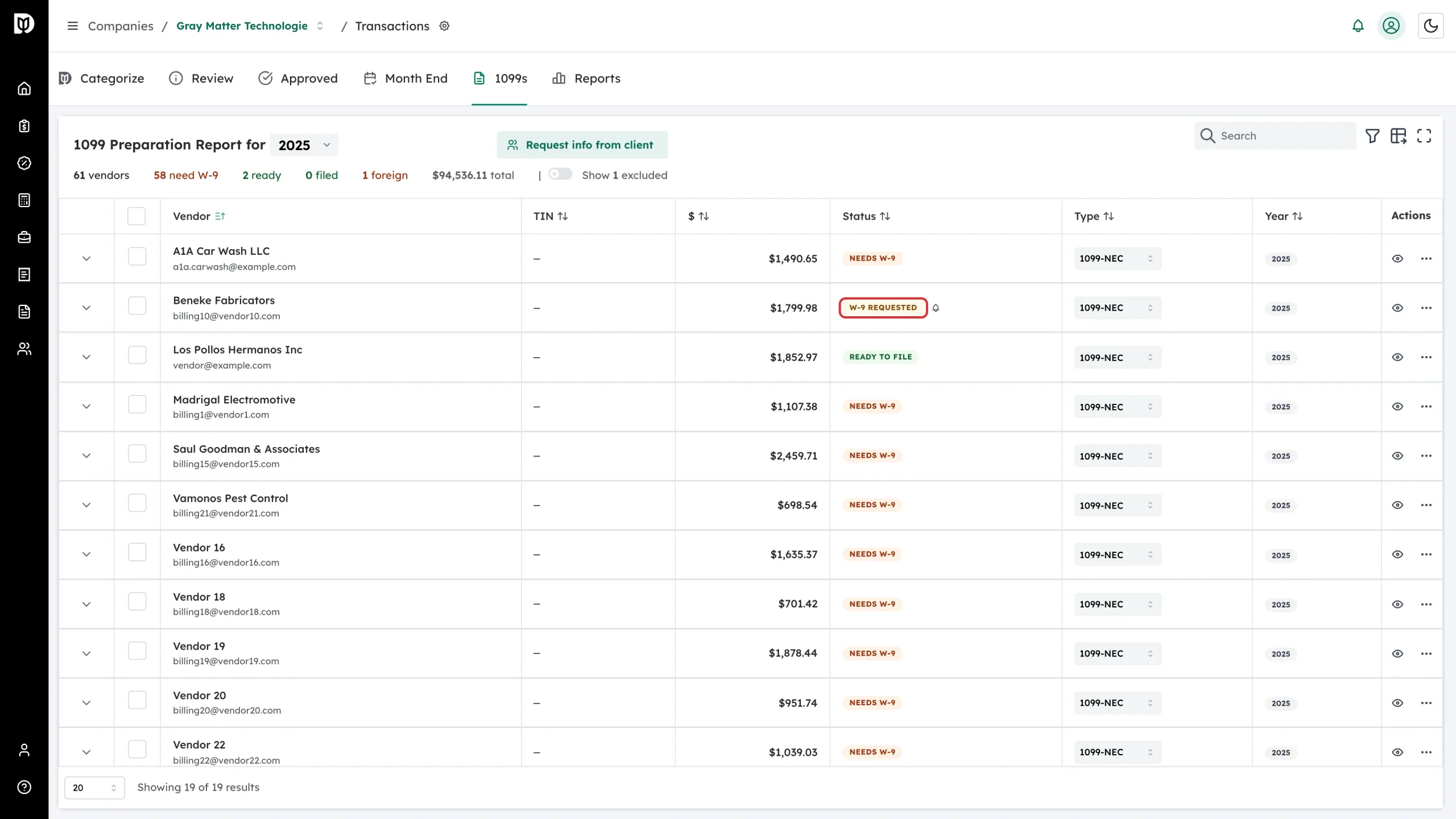
W-9 Received
Blue. The vendor submitted the form and it is on file, but the record is not yet complete enough to file from.
What to do: open the vendor and fill in whatever the badge tooltip says is missing.
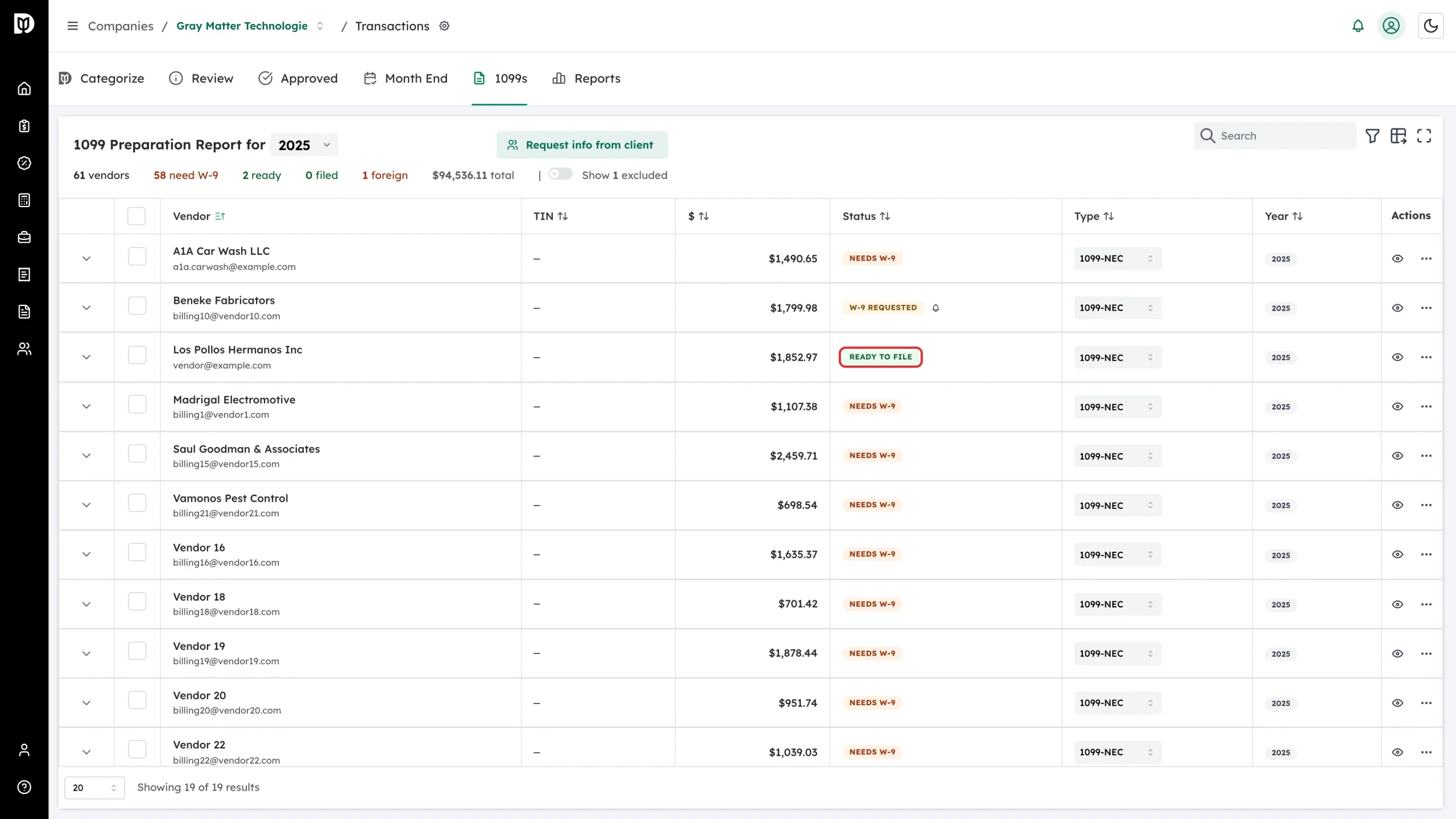
Ready to File
Green. Debits has a taxpayer ID and a mailing address for this vendor, either from a submitted W-9 or from QuickBooks. Only vendors in this state are included in an export.
What to do: check the tax classification and the form type, then export.
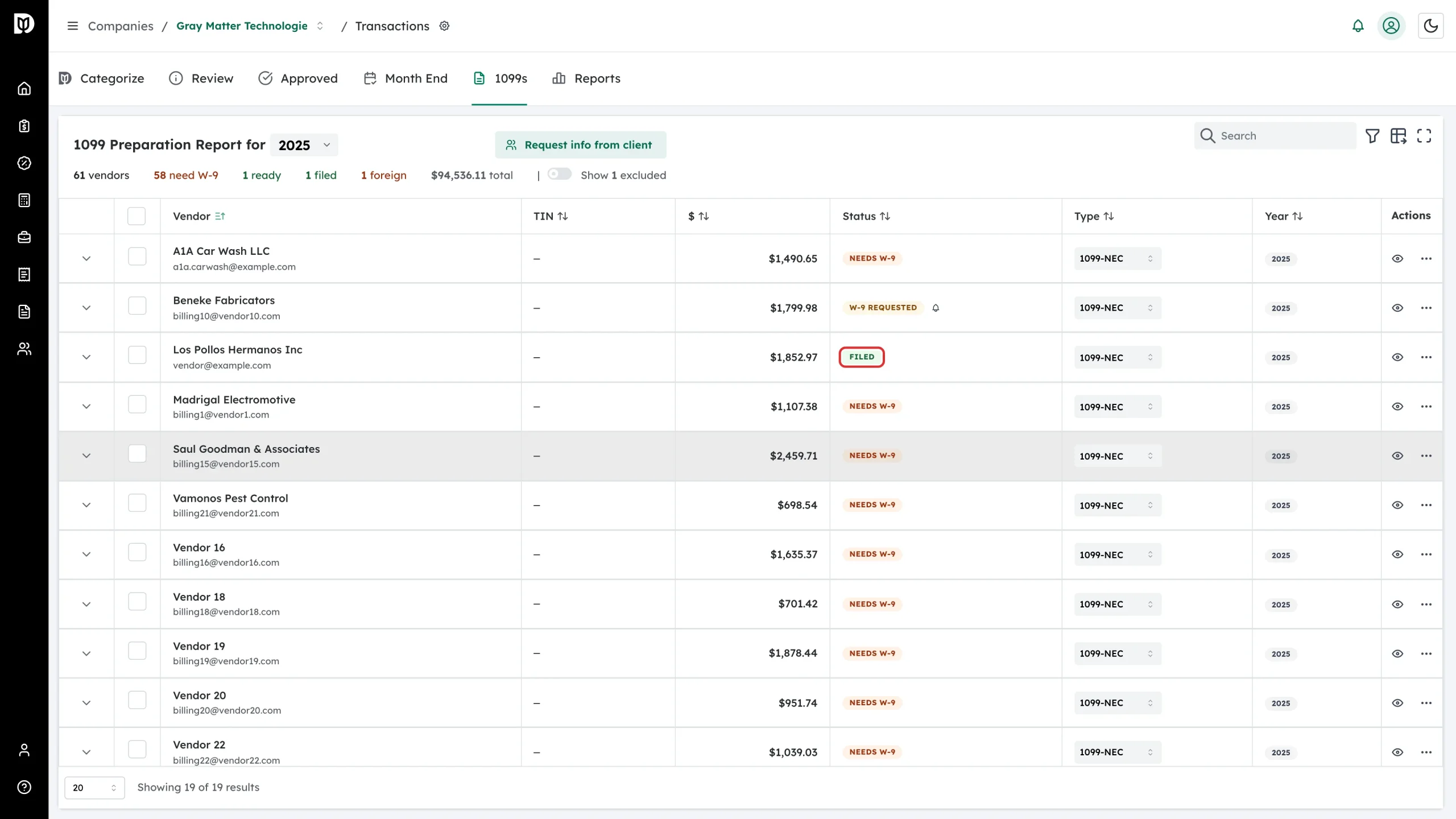
Filed
Green. You have marked this vendor as filed for the tax year. This is your own record — it does not send anything to the IRS.
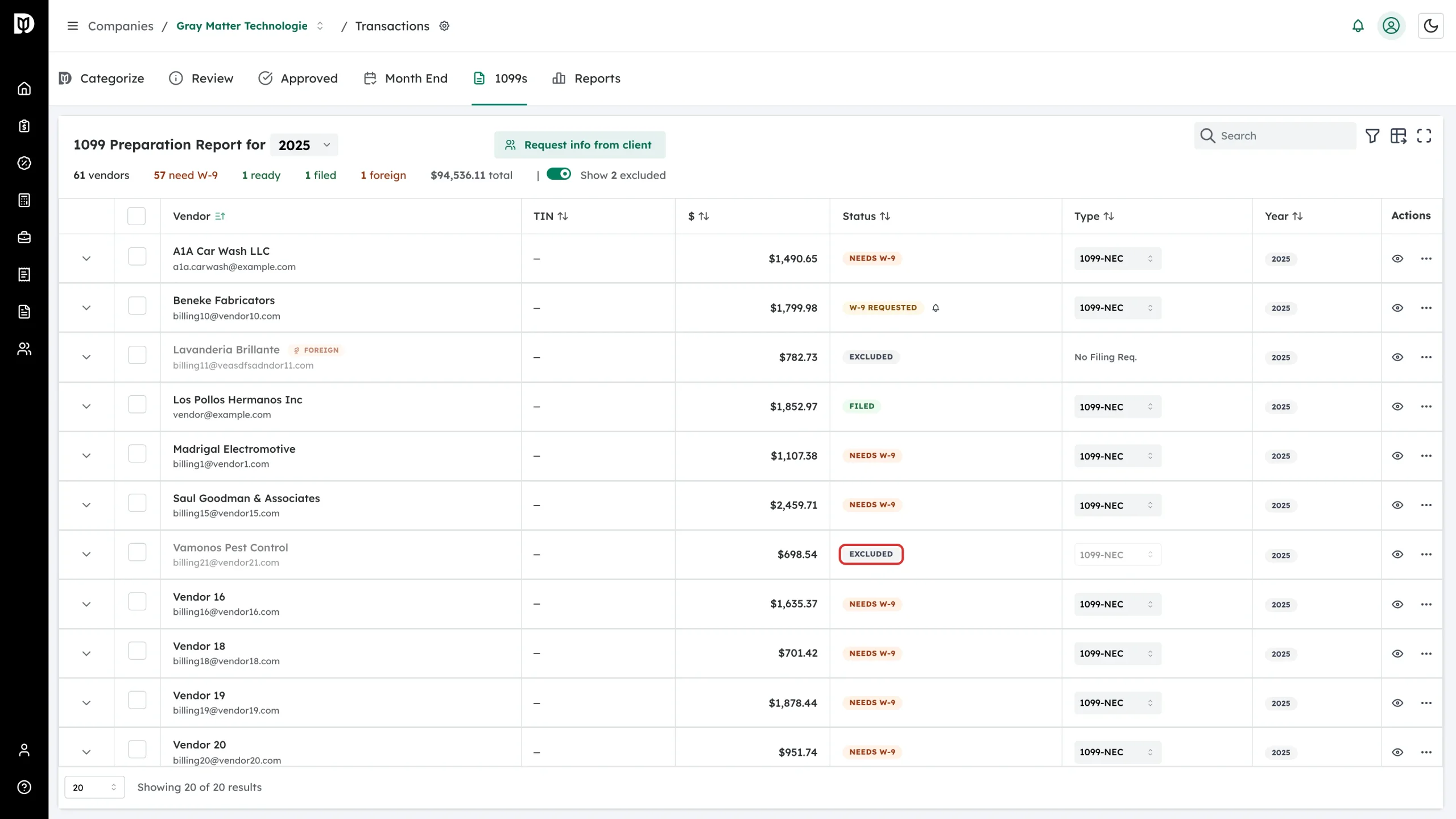
Excluded
Gray. The vendor is out of this year’s filing. A vendor is excluded when you exclude it by hand, when it is marked foreign, or when it is a corporation with no attorney or medical exception. Excluded rows are dimmed and hidden until you turn on Show N excluded.
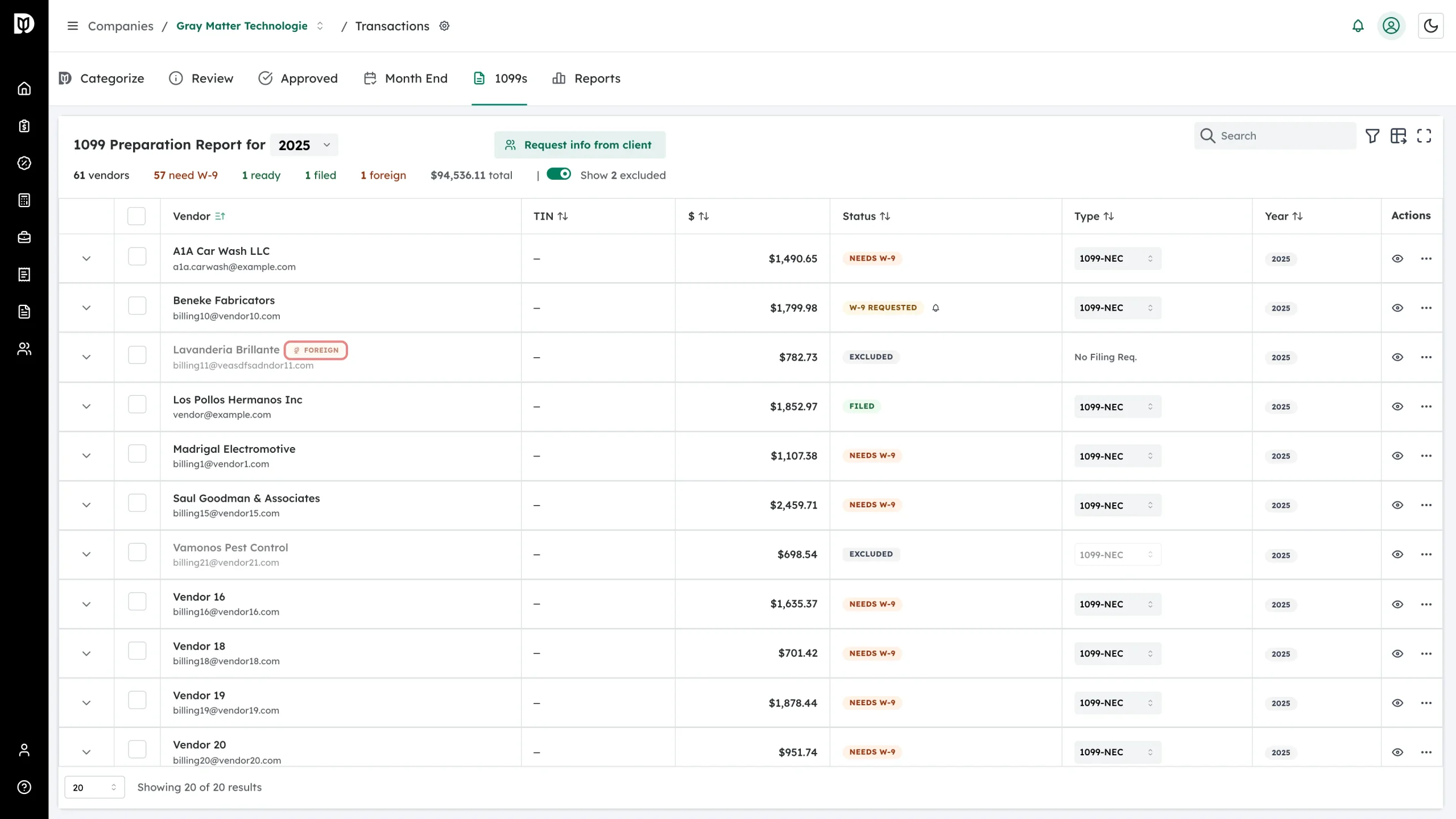
Foreign
An orange Foreign badge sits beside the vendor name, not in the status column. Foreign vendors are exempt from 1099 reporting, so their status is Excluded and their form type reads No Filing Req.
Hover a badge to see what is missing
When a vendor has open issues, the badge shows a help cursor. Hover it for the list.
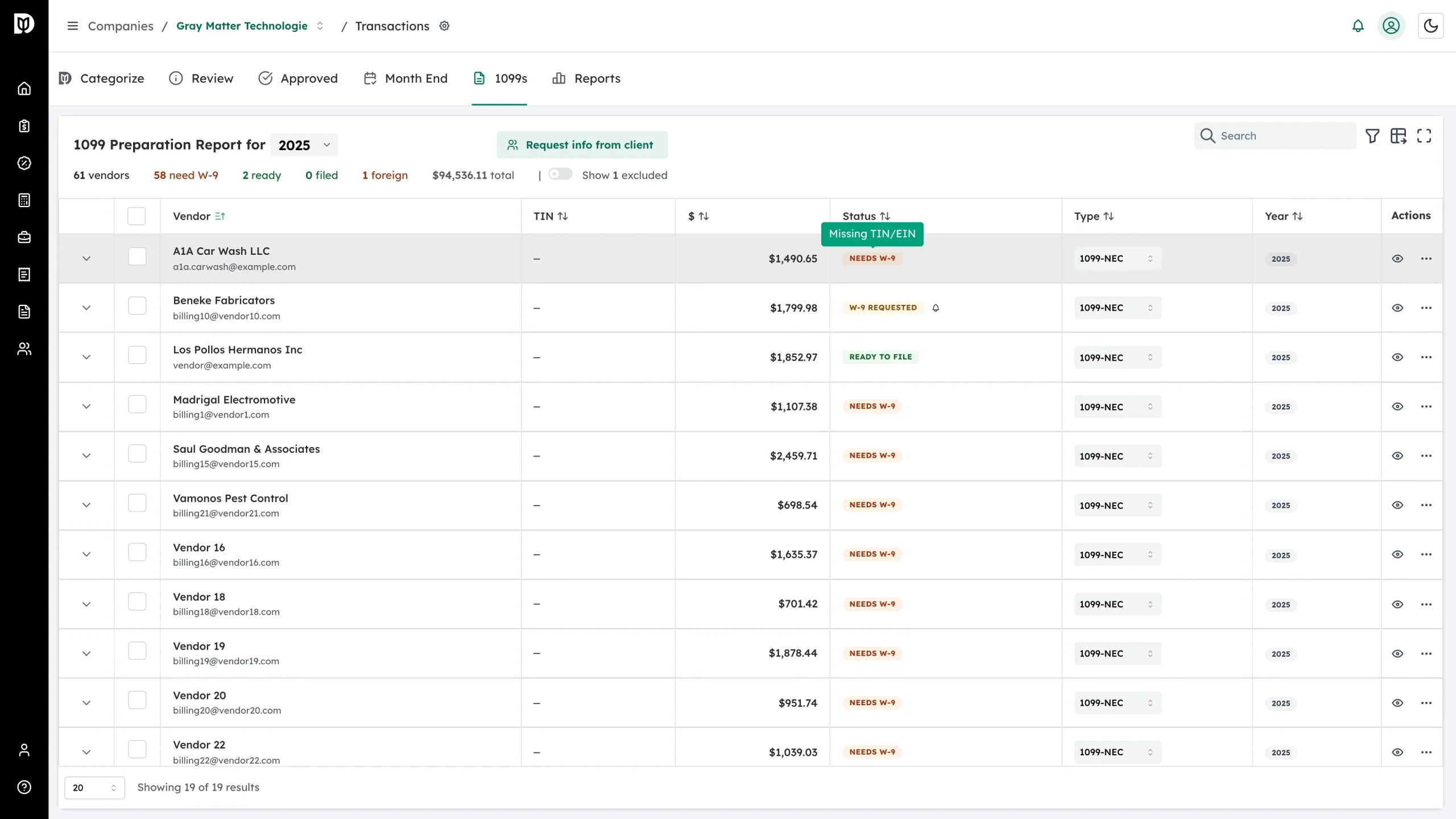
- Missing TIN/EIN — no taxpayer ID on file.
- Missing Address — no mailing address on file.
- Missing Email — no address to send a W-9 request to.
- W-9 Expired — the W-9 on file is past its expiry date. Request an updated one.
- W-9 Request Pending — a request is out and unanswered.
- Below reporting threshold — paid less than the threshold for this tax year: $600 through tax year 2025, and $2,000 from tax year 2026.
- Corporation (typically exempt) — the tax classification is a corporation, which usually needs no 1099. Attorneys and medical providers are the exceptions.
- Amount changed since filing — the vendor is marked filed, but their payment total has changed since then. You may need to file a corrected 1099.
Filter the list by status
Open the table filters and use the Status filter to work one group at a time — every vendor that needs a W-9, or everyone who is ready to file.