Build an invoice from scratch or from a saved template, then send it to your client. If you bill many clients for the same monthly work, you can raise all of those invoices in a single step.
-
Start a new invoice
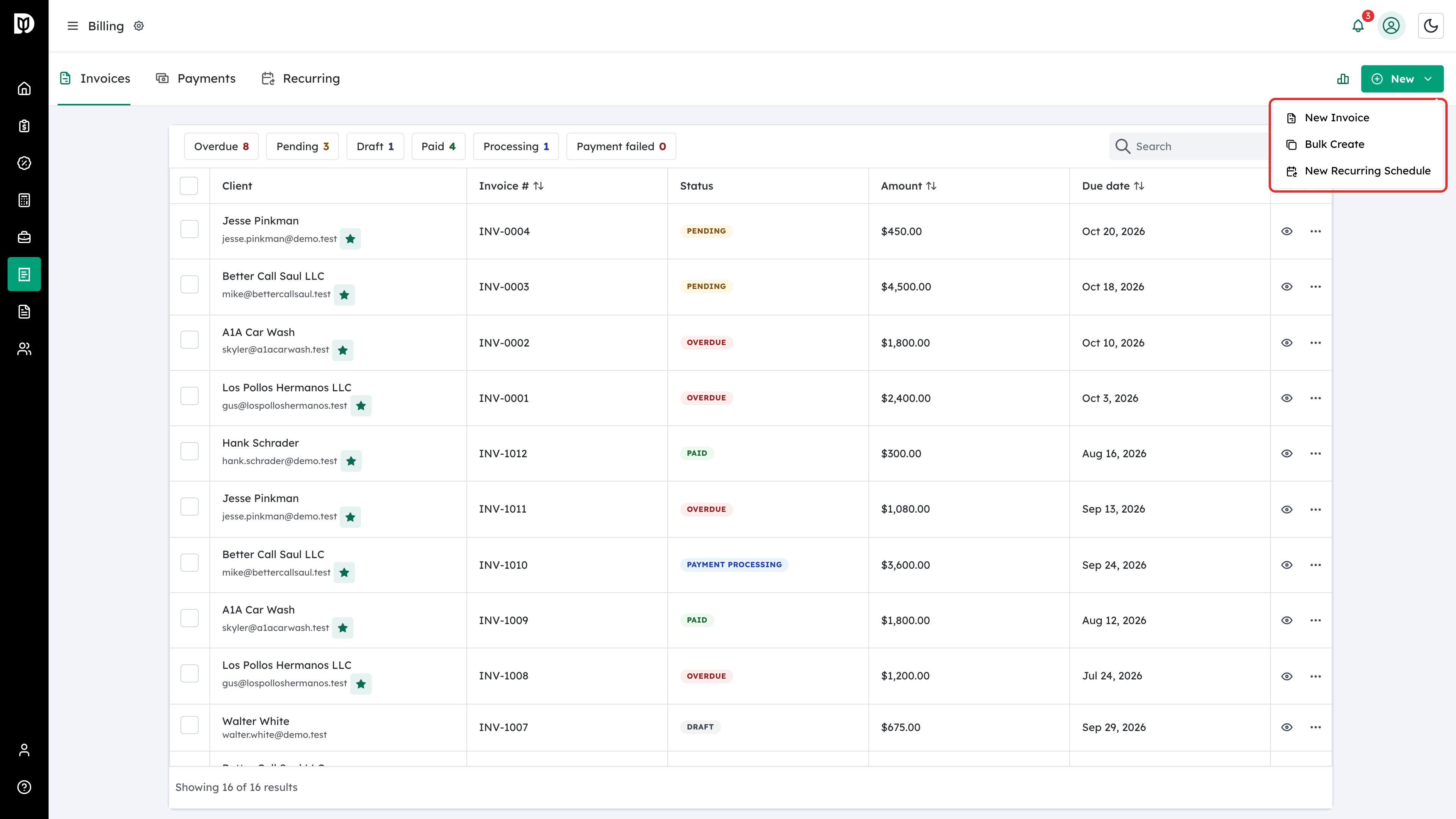
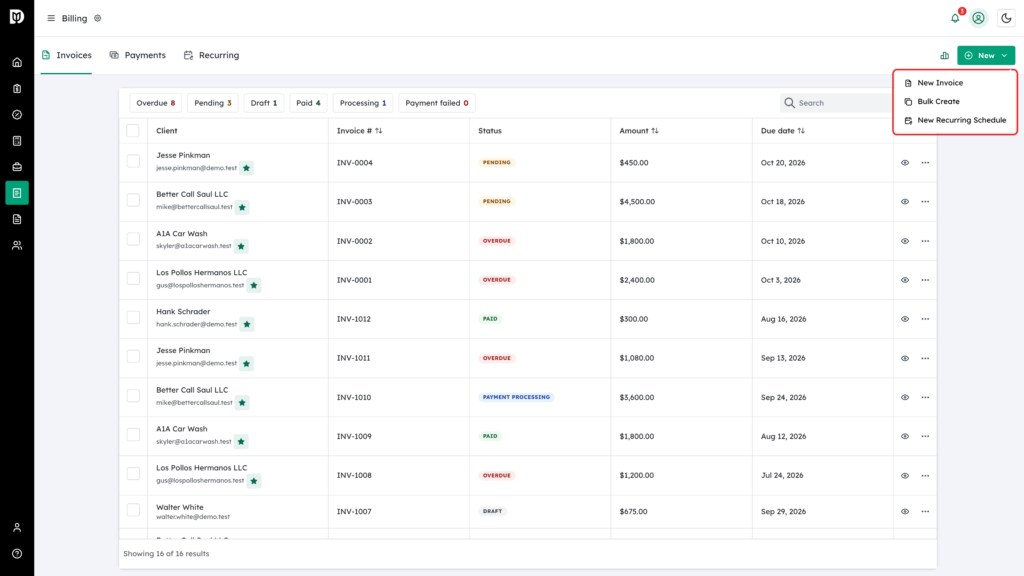
Use the New button at the top right of the Billing screen. You can create a single invoice, or open the bulk creation flow to bill several clients at once.
-
Fill in the invoice
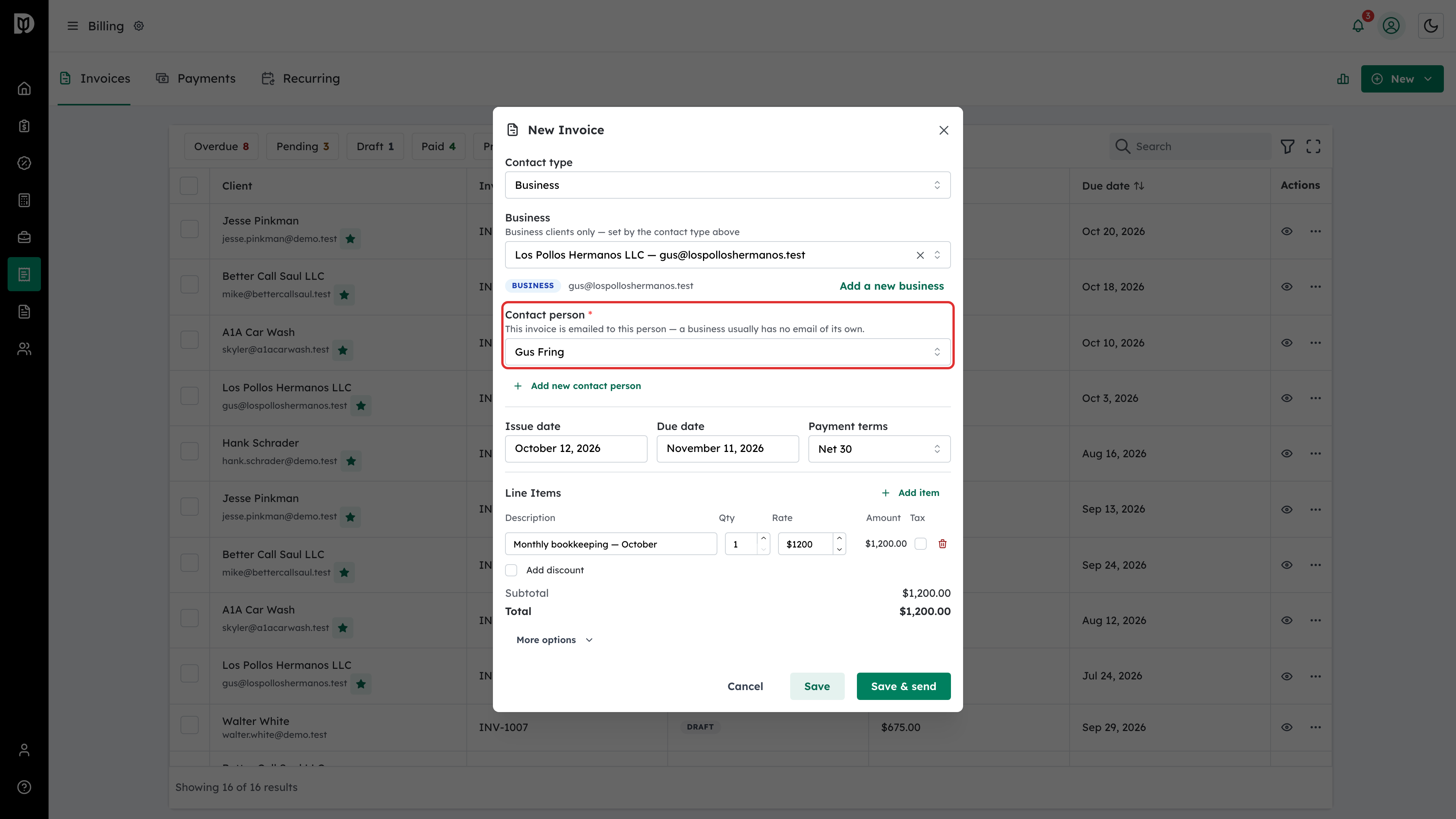
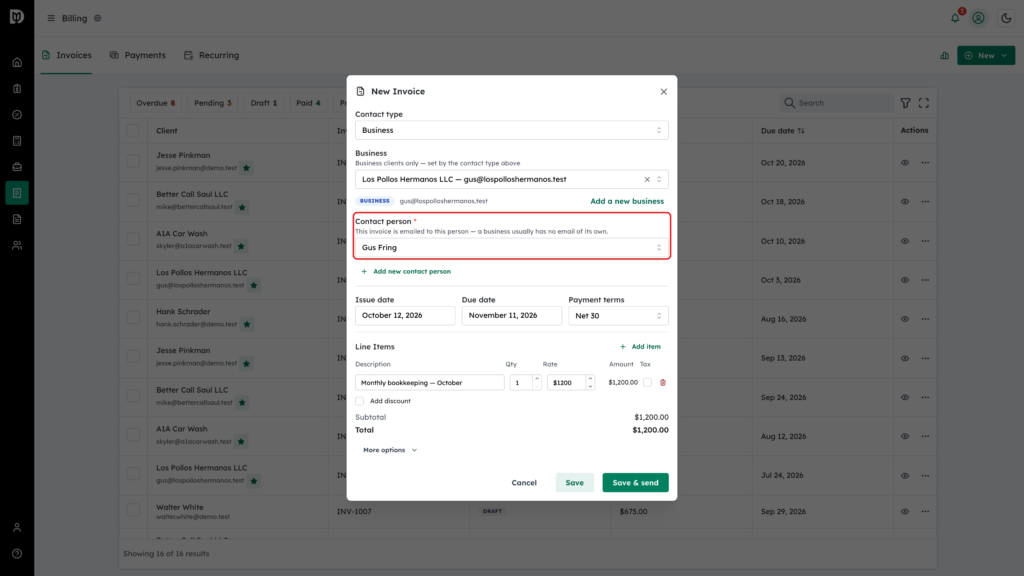
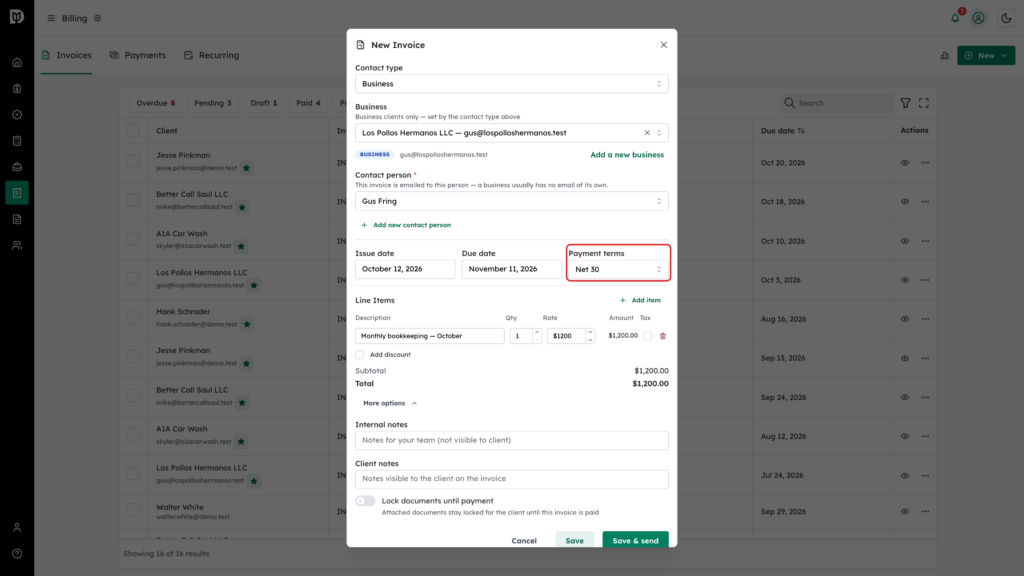
Choose the client, set the issue and due dates, and add your line items. For a business, also pick the Contact person: the invoice is emailed to them and the PDF is addressed to the business with an “Attn:” line for them. Each line takes a description, quantity, rate and an optional tax code; the totals update as you type.
-
Set the terms and options
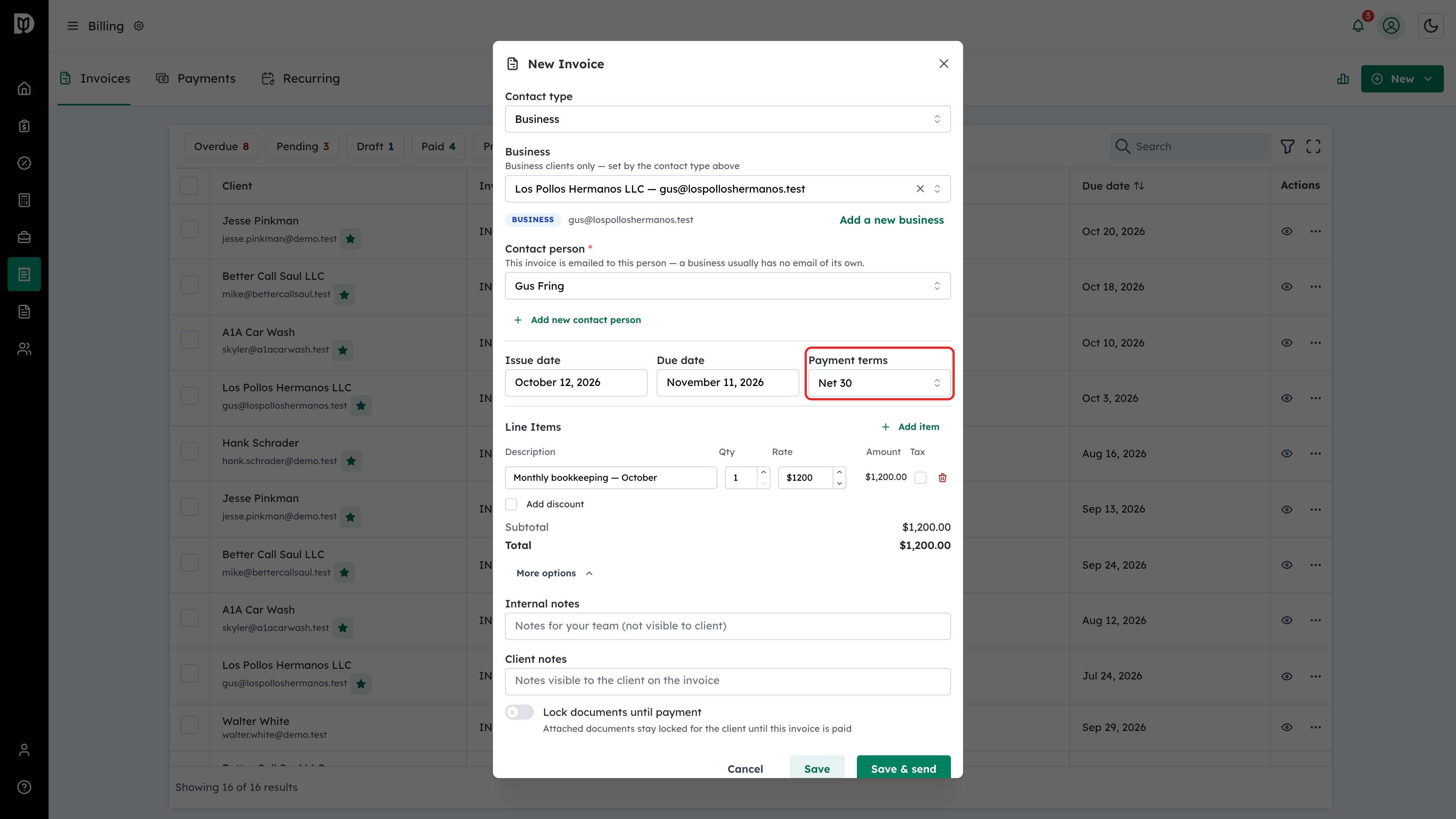
Payment terms, notes and the tax treatment live alongside the line items. Choosing Payment terms (or changing the issue date) recalculates the due date; you can still set a custom due date by hand afterwards. If you have saved a template for this kind of work, loading it fills the lines in for you.
-
Bill several clients at once
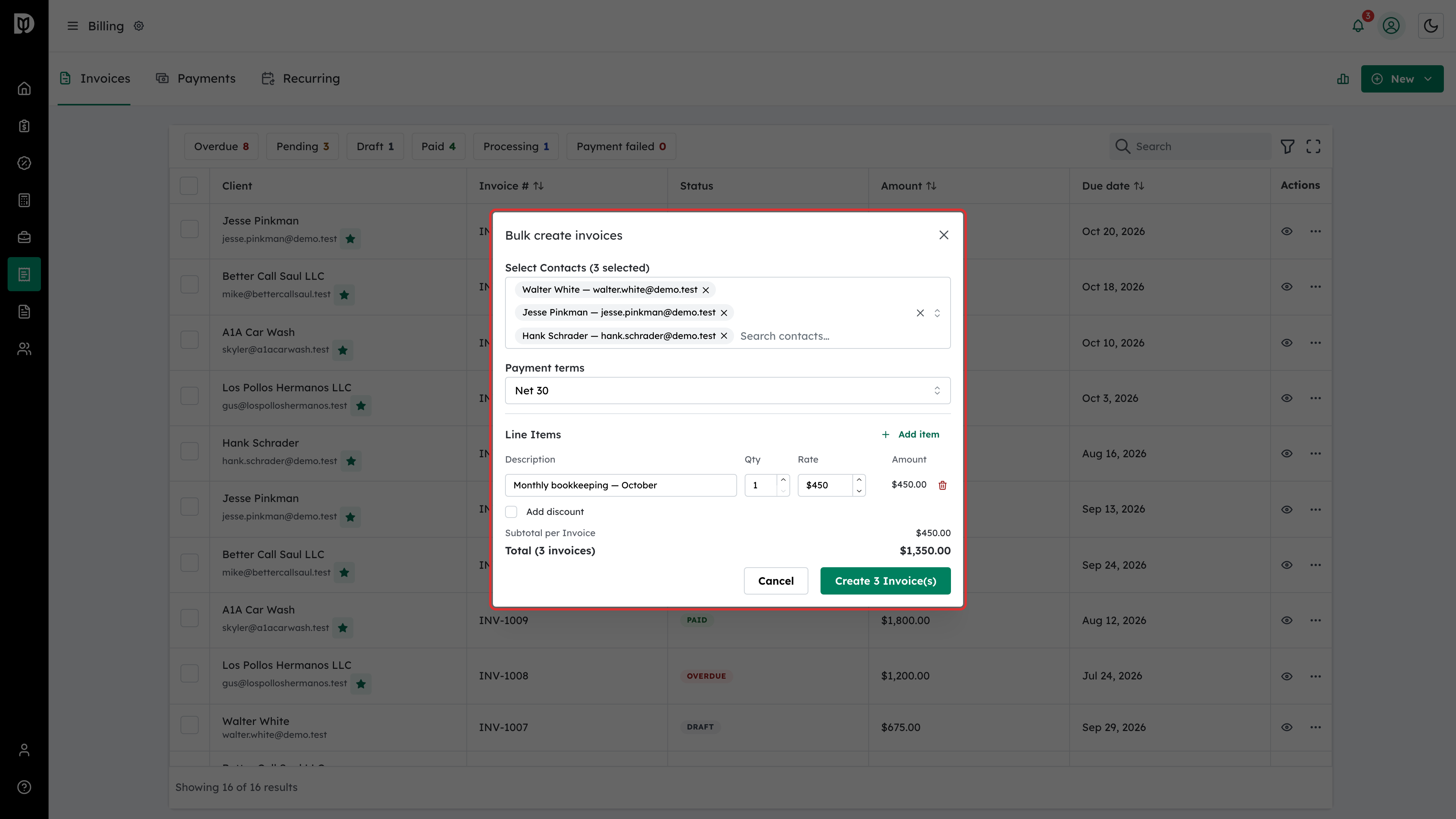
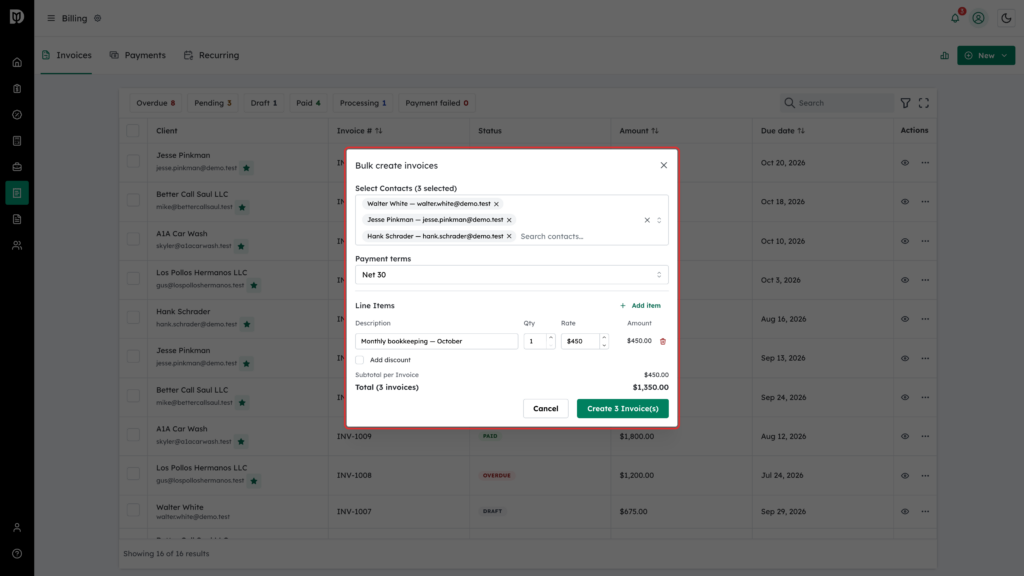
Bulk creation raises the same invoice against a list of clients — the monthly bookkeeping fee, for example — so recurring but non-scheduled work does not have to be entered one client at a time.
-
Send it
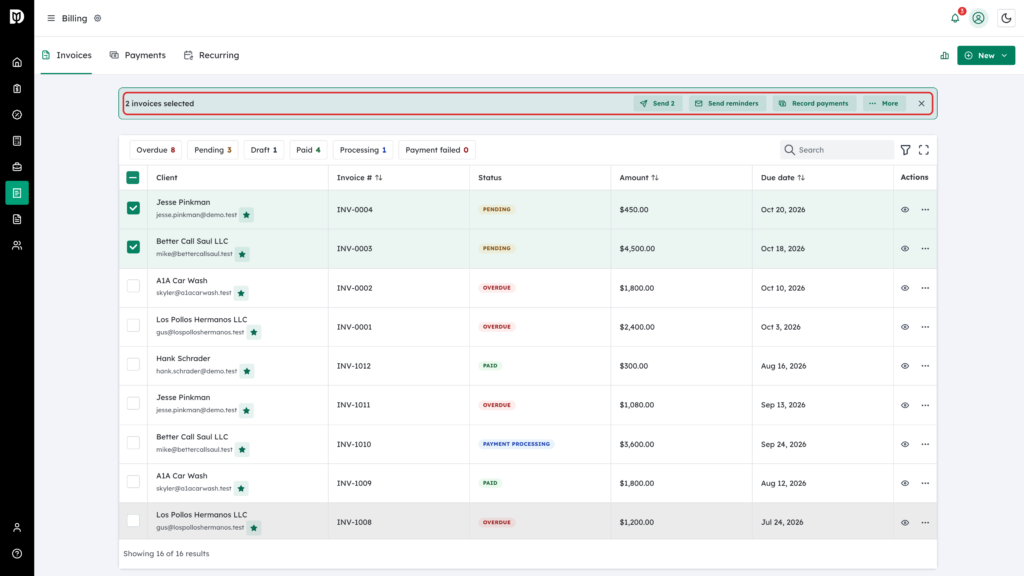
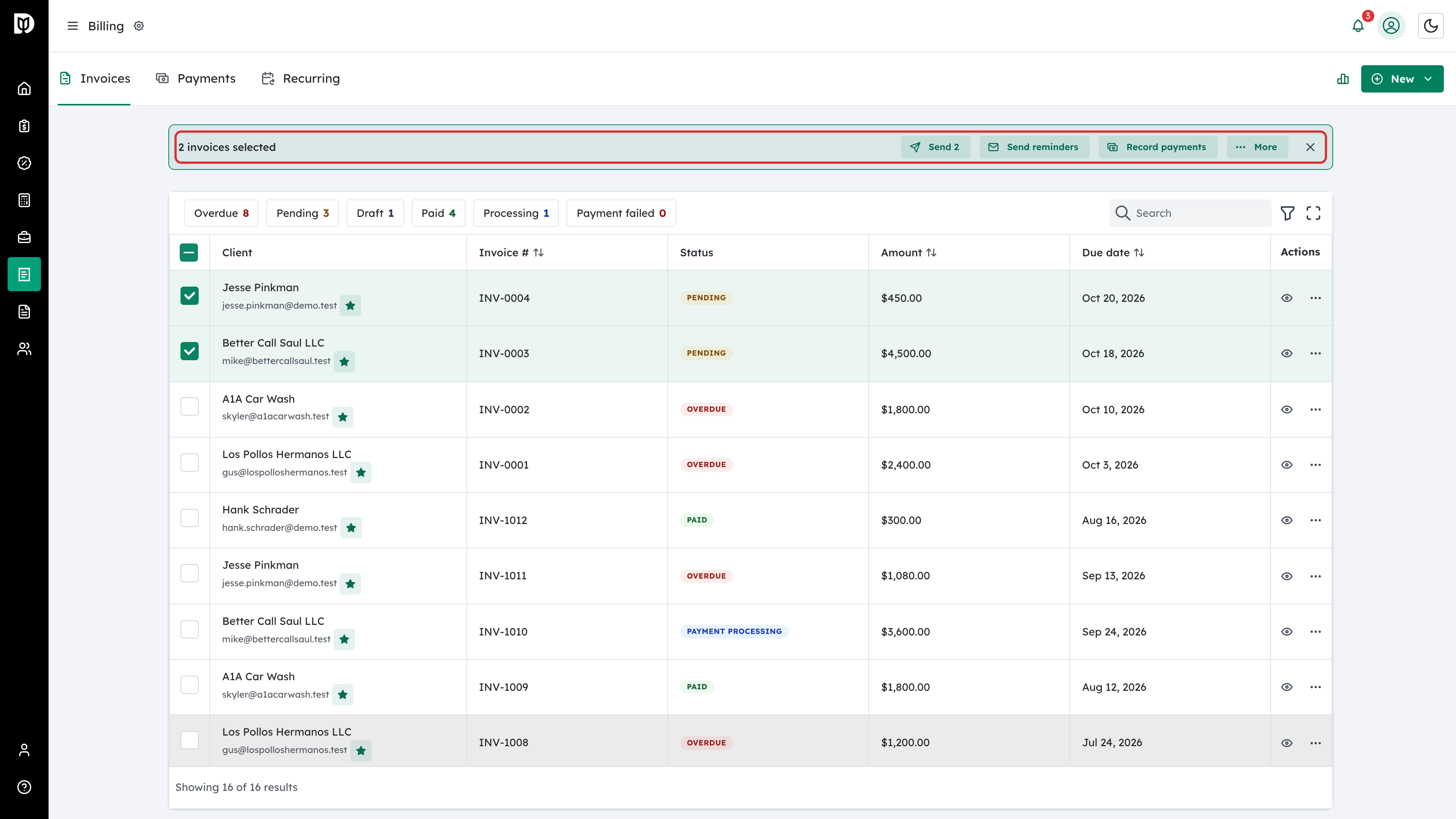
Select one or more invoices and use the bulk action bar to send them, fire off reminders for the ones already outstanding, export the selection to a spreadsheet, or void them. Sending an invoice emails the client a link and moves it from Draft to Pending.