The Payments tab is the record of everything that has come in — online and by hand — and what state each payment is in.
-
Open the Payments tab
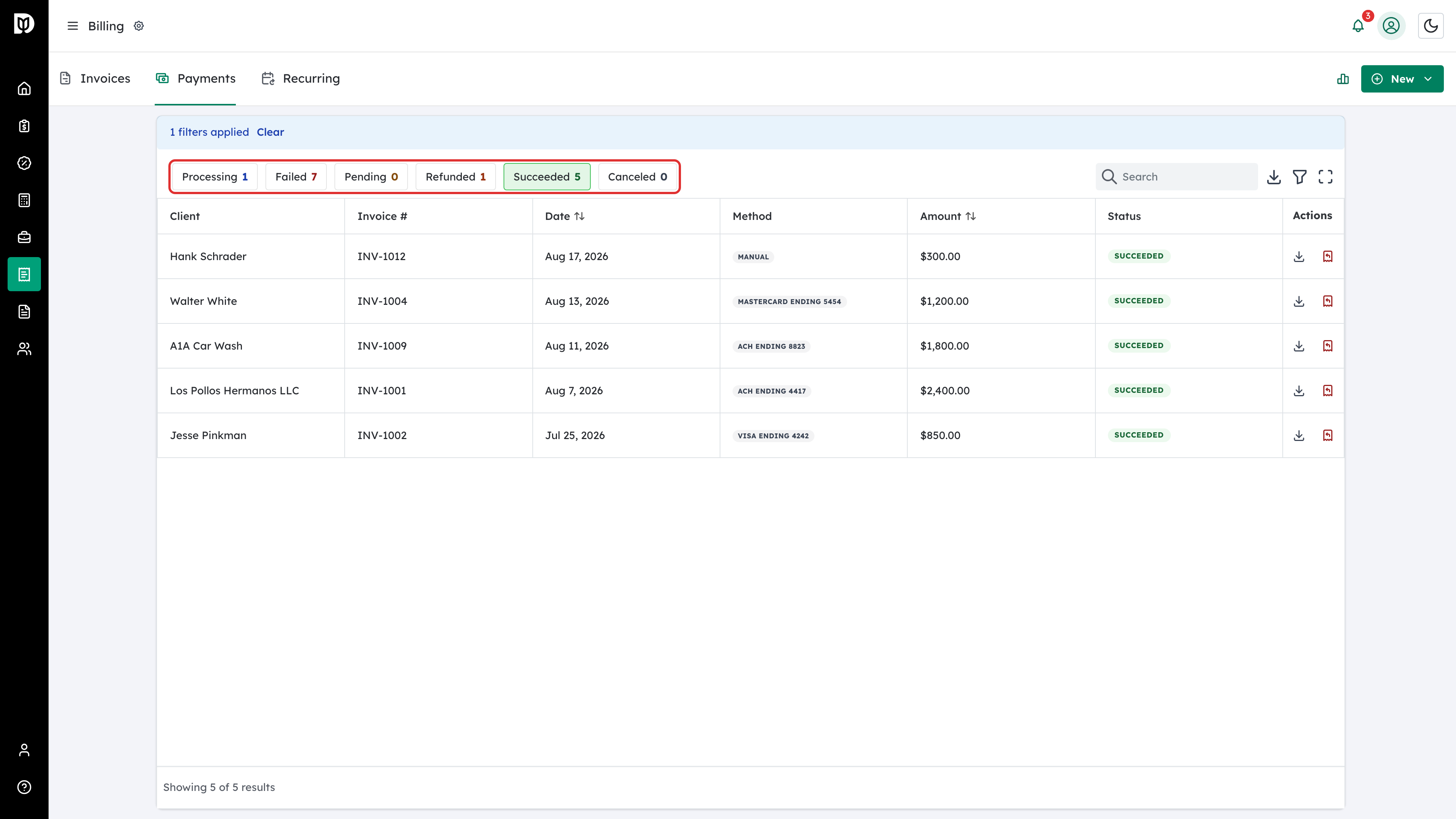
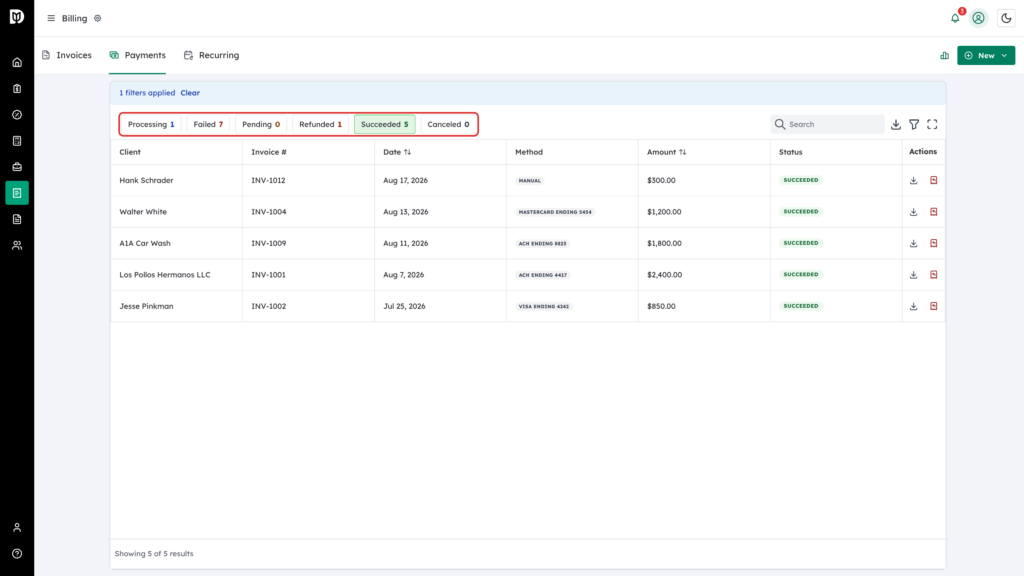
Each row shows the client, the invoice it belongs to, the date, the method, the amount and the status. The quick filters split them by state: succeeded, processing, failed, refunded, pending or canceled.
-
Understand a payment that is still clearing
A bank transfer that has not settled shows as Processing, with the date it is expected to clear. This is deliberate — it stops you chasing a client who has already paid. A declined card shows as Failed with the reason the processor gave.
-
Record a payment taken outside Debits
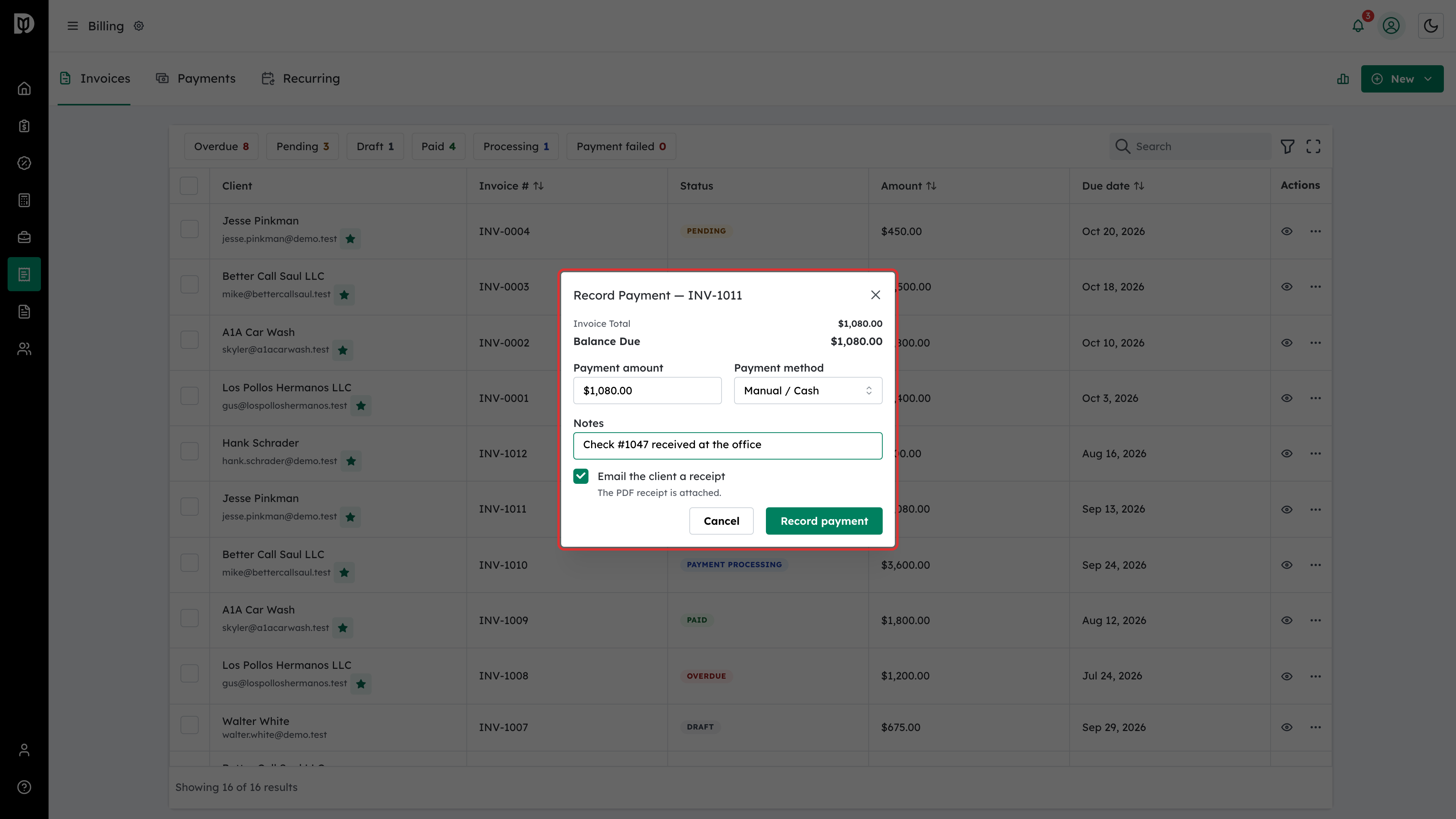
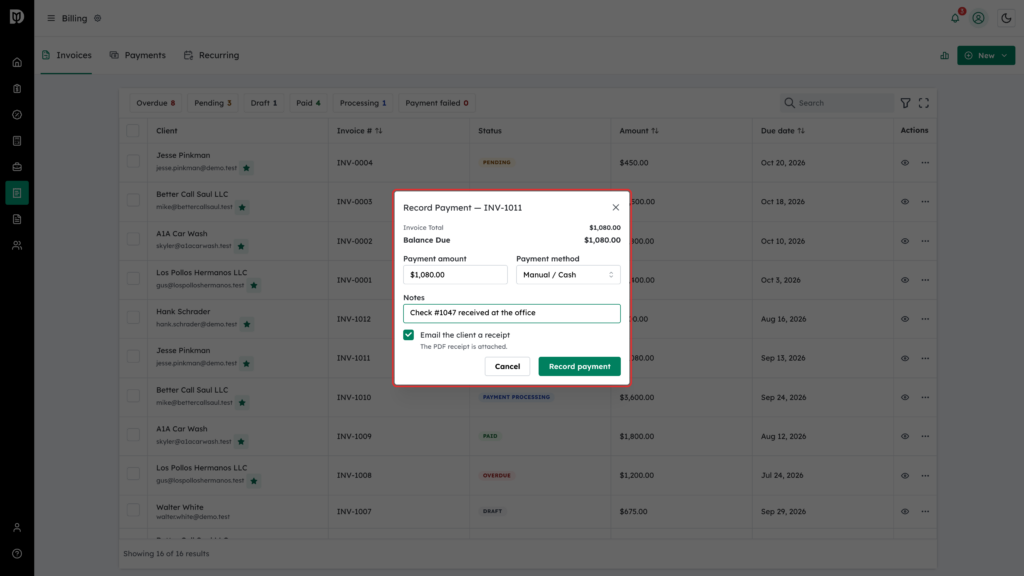
Not every payment arrives online. The Record Payment action shows the invoice total, what has already been paid and the balance still due. To record money you have already received (a check, cash or a transfer), choose Manual / Cash as the Payment method, enter the Payment amount, add a note and click Record payment. Debits updates the invoice status for you. Email the client a receipt is ticked by default and attaches a PDF receipt — untick it when you are back-entering old payments.
Choosing Credit Card or ACH / Bank Transfer instead charges the client now: pick a Saved method to charge and click Charge saved method, or enter card details. To charge the balance across two to four methods, click Split across payment methods.
-
Check a single client’s history
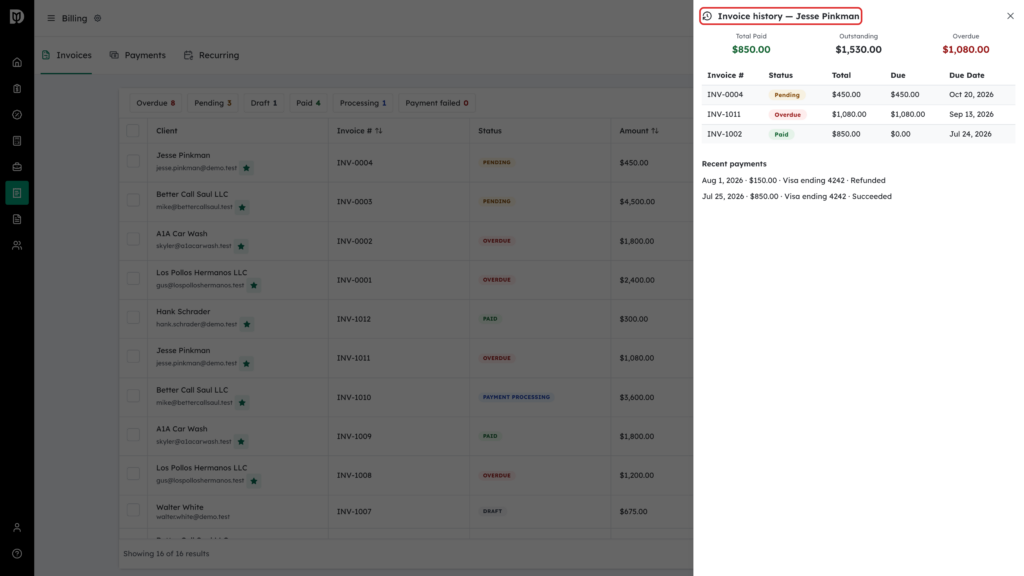
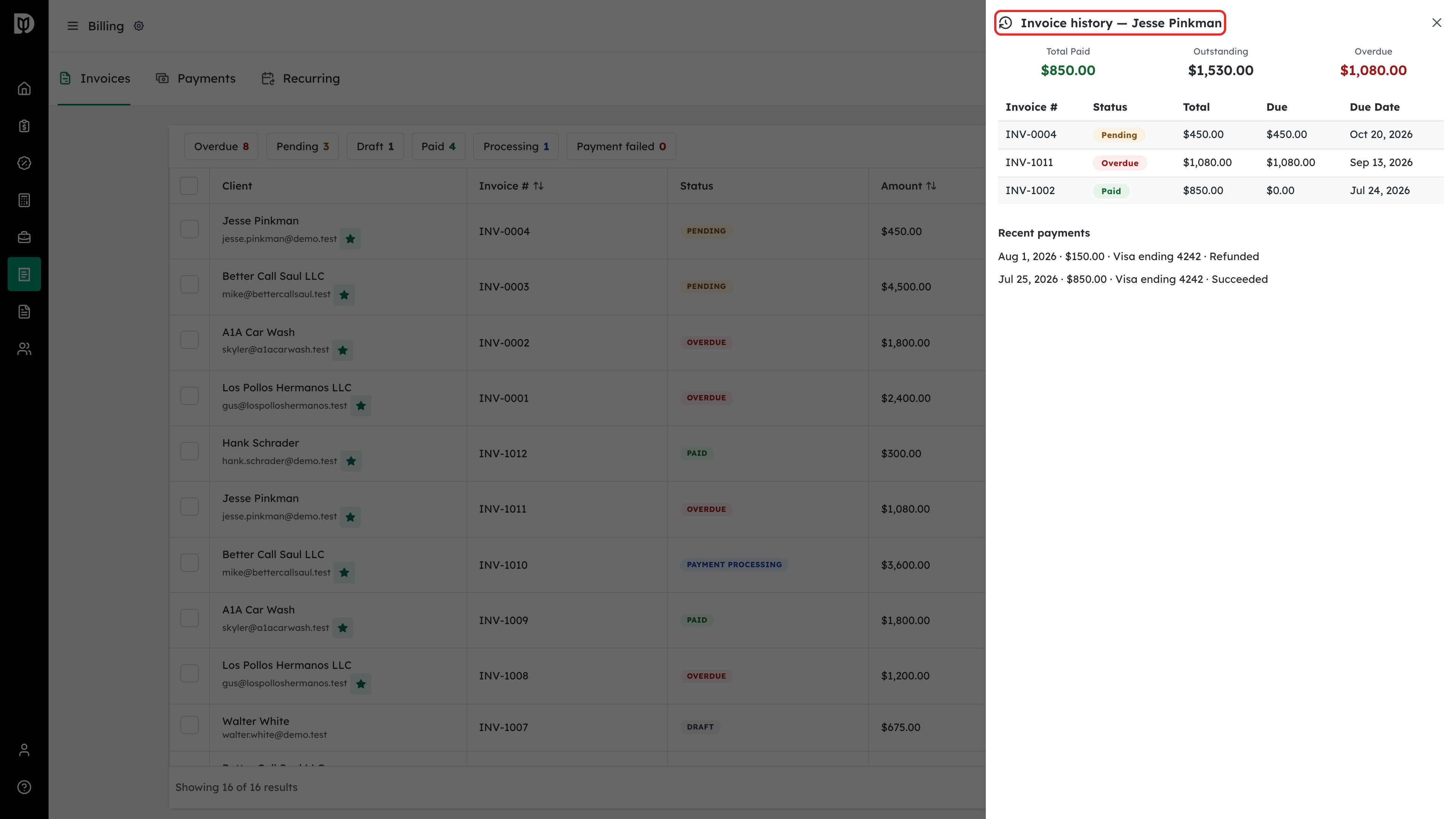
A contact’s billing history collects their invoices and payments in one place, which is usually faster than filtering the main list when a client queries something.