Configure the chasing once and stop writing those emails by hand. Reminders go out before the due date, dunning escalates after it.
-
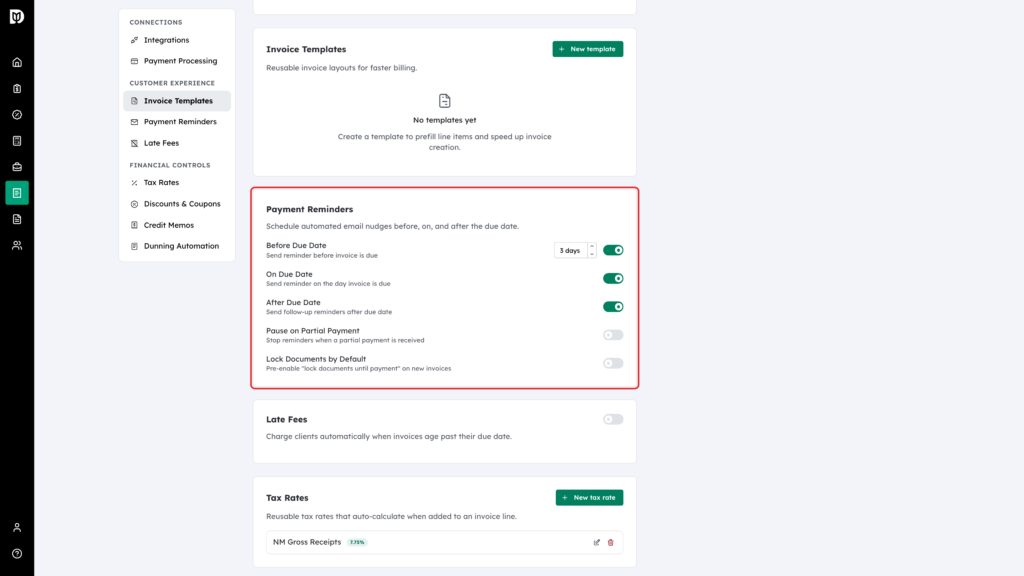
Set your reminder schedule
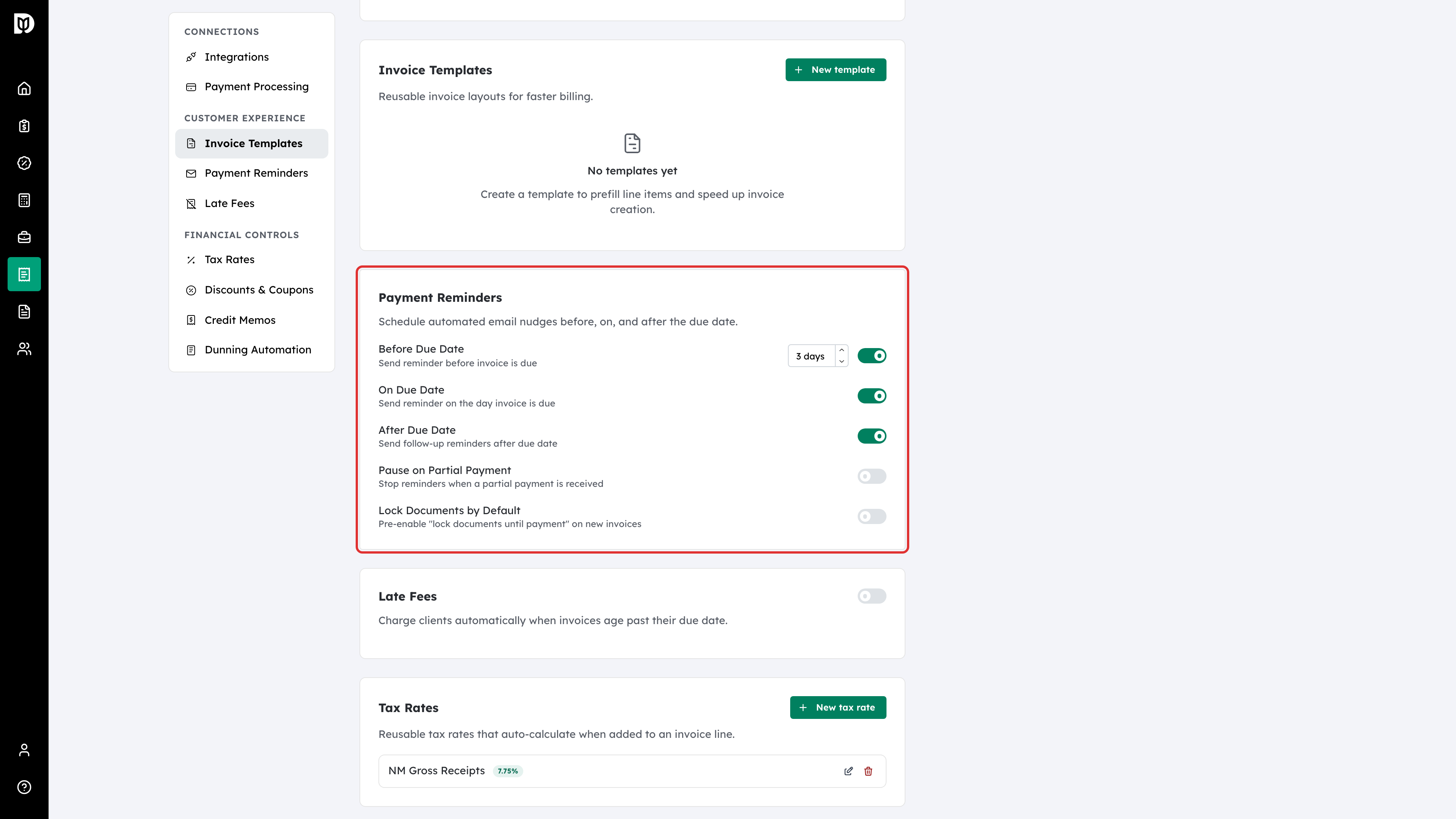
Reminders are the polite nudges around the due date. Switch on Before Due Date (and choose how many days before), On Due Date and After Due Date as you need them.
-
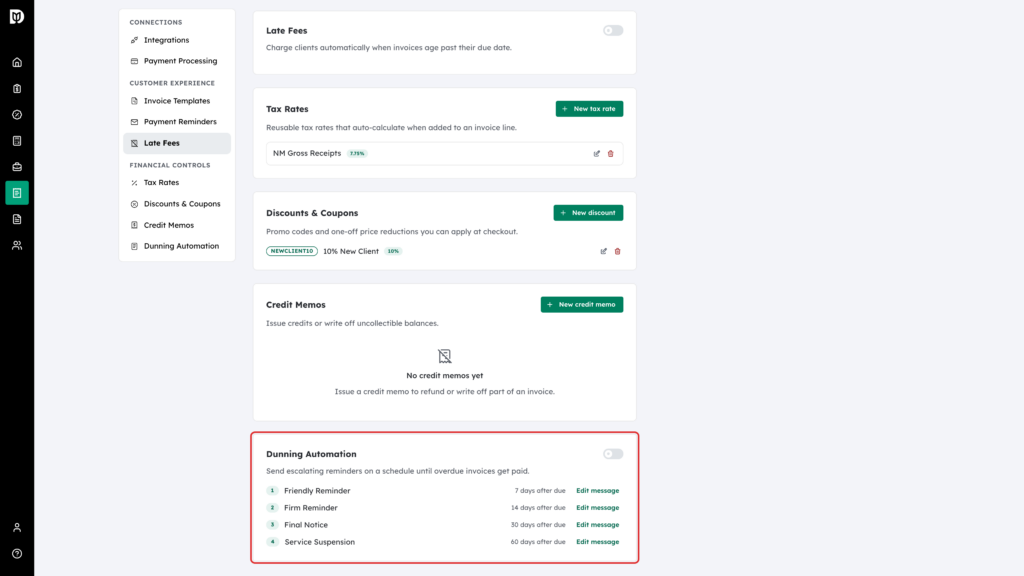
Build the dunning ladder
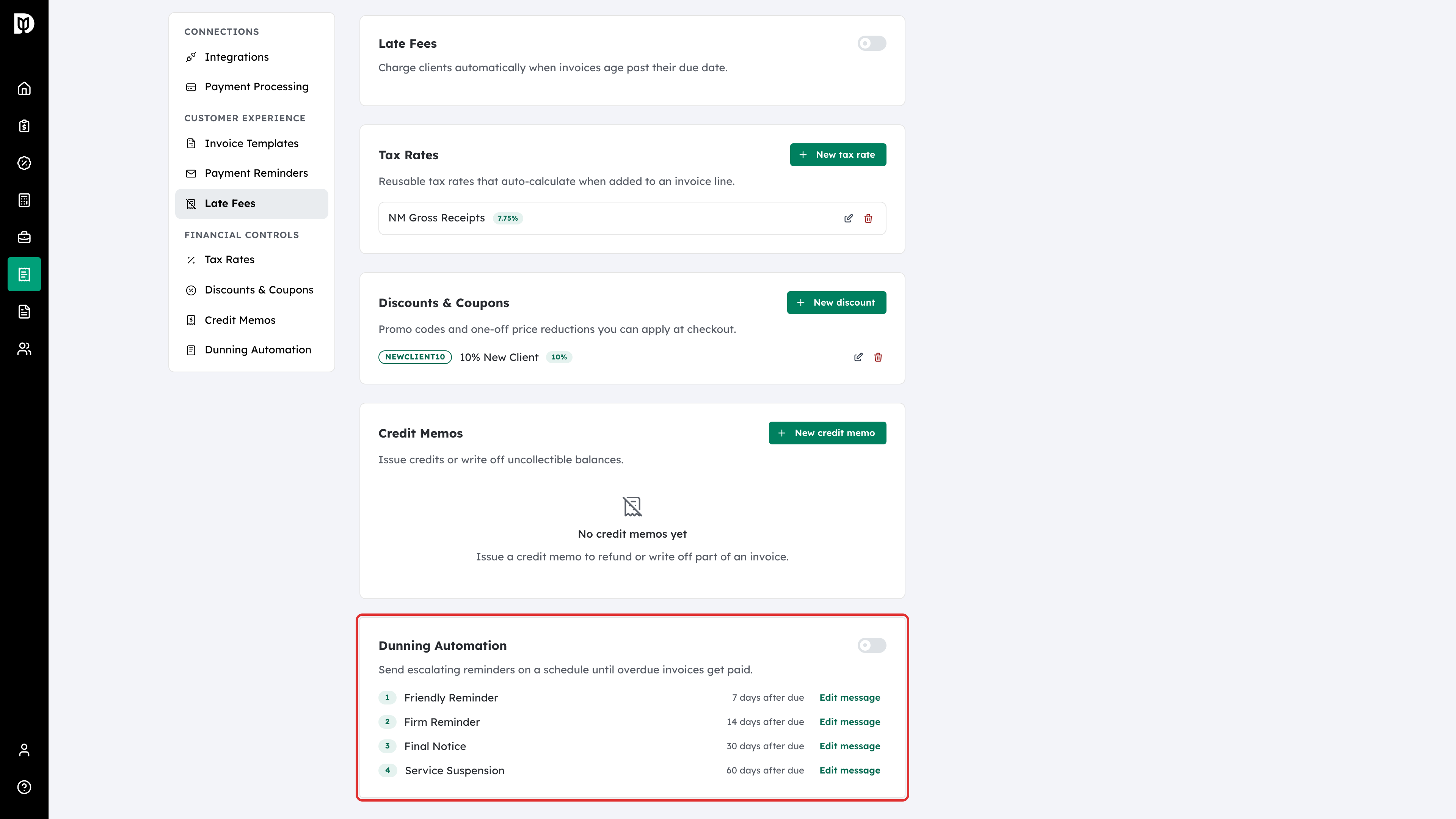
Dunning is the escalation for invoices that stay unpaid. Dunning Automation has four levels — Friendly Reminder, Firm Reminder, Final Notice and Service Suspension — each at a set number of days past due.
-
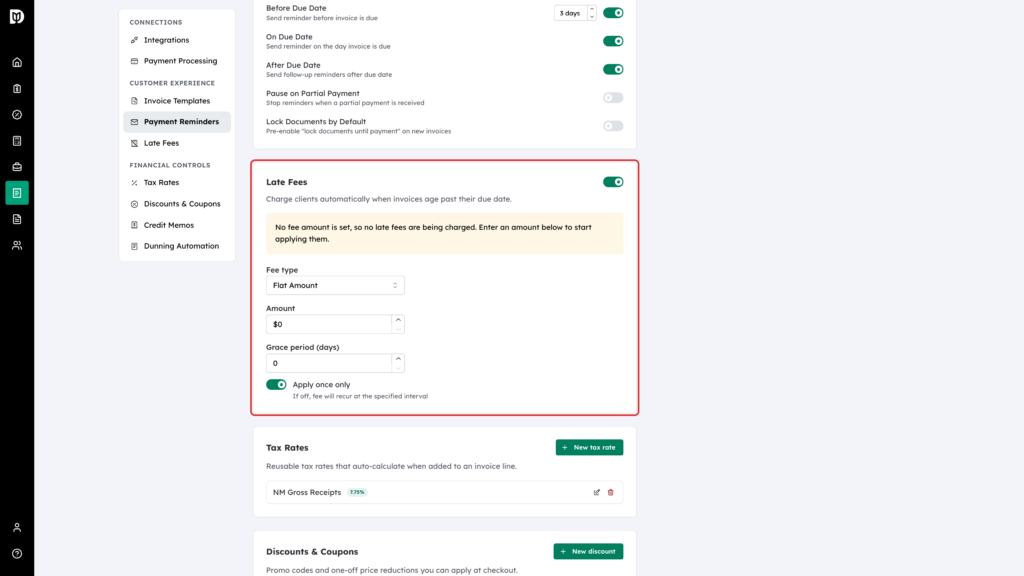
Add late fees
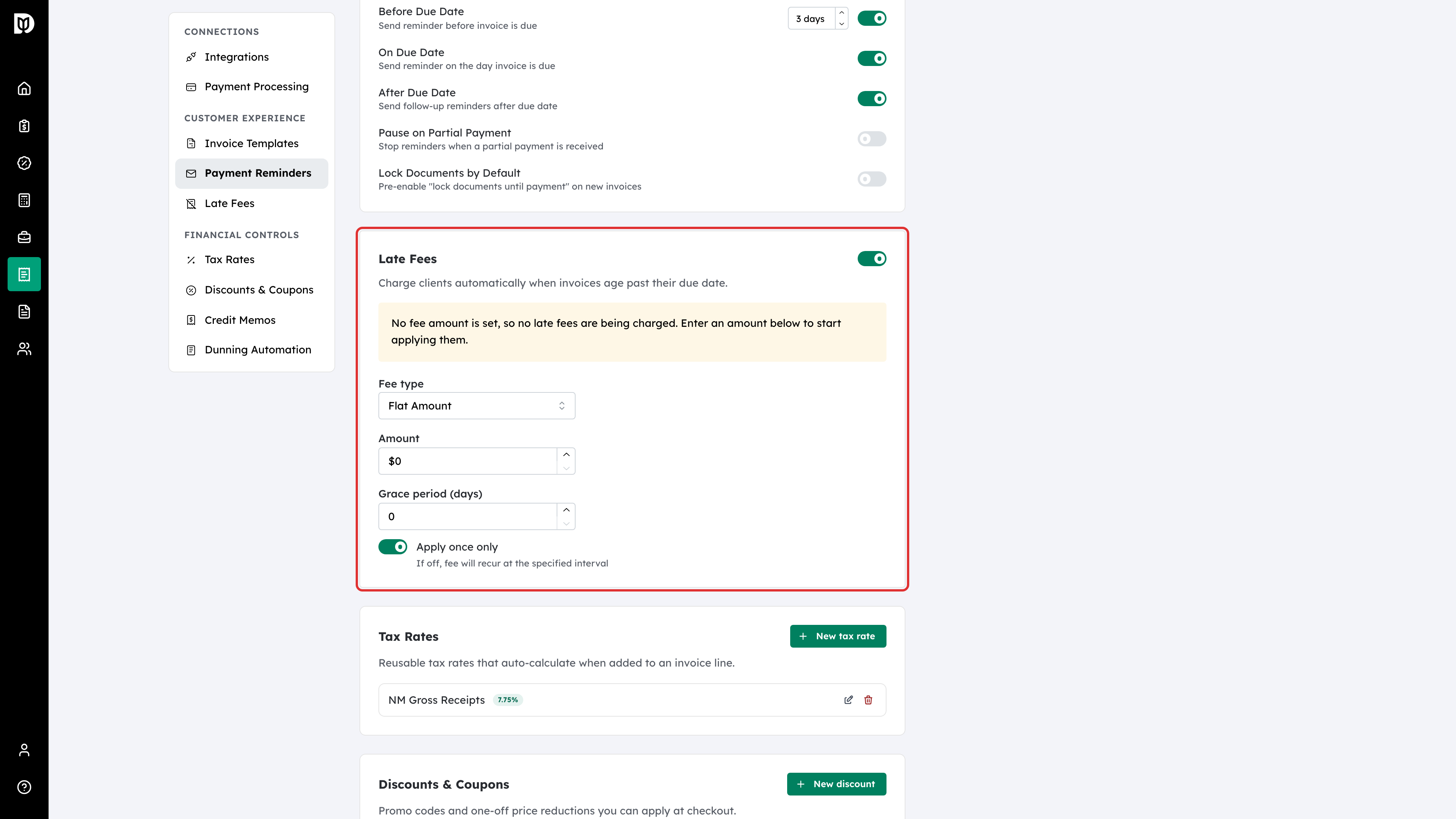
Late fees can be applied automatically once an invoice passes its due date and the Grace period (days), as a Percentage or a Flat Amount. Enter an amount: with late fees switched on and no amount, the card warns that no late fees are being charged.
-
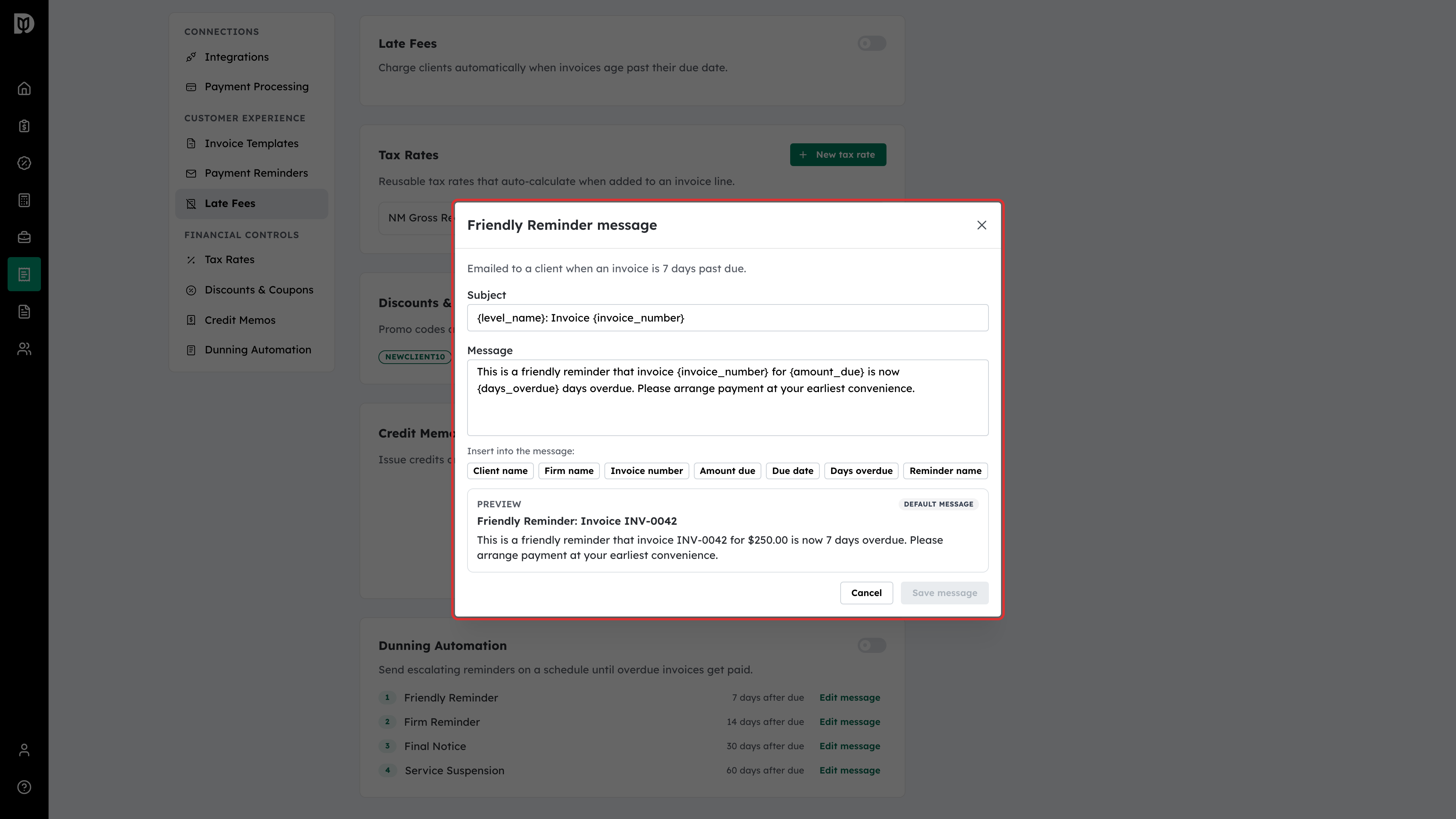
Edit the dunning messages
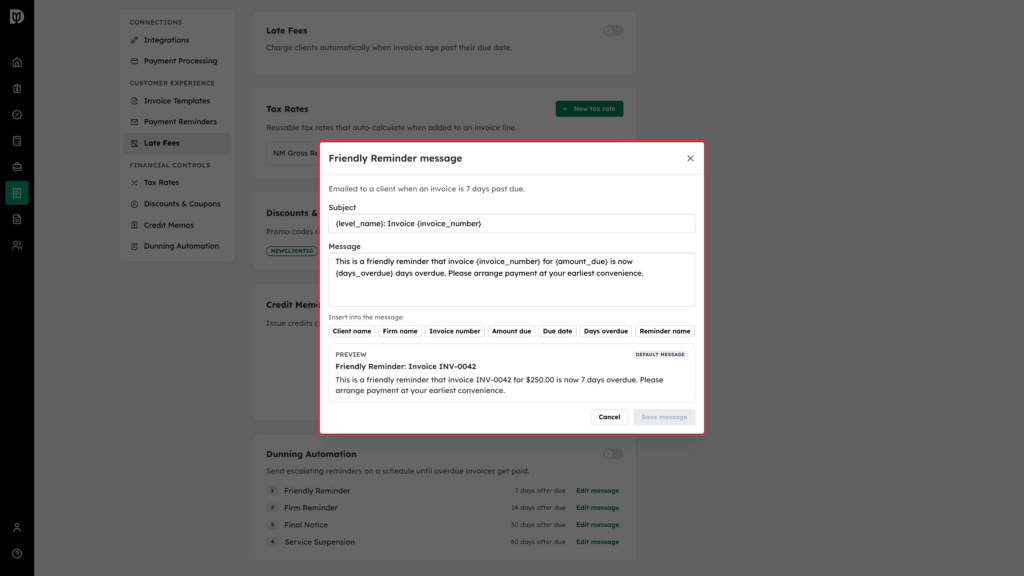
Each dunning level has an Edit message button, so reminders sound like your firm rather than like software. Change the Subject and Message, insert placeholders such as the client name, amount due or days overdue, and check the live preview before you click Save message. A level you have changed shows a Custom message badge; Reset to default puts the original wording back.