Who this is for: Clients who use the Debits client portal.
What you’ll learn: How to read your Billing page, see upcoming recurring bills, choose which card pays each bill, turn on emailed receipts and manage your saved payment methods.
Before you begin
- You need to be signed in to your client portal.
- If you are the named contact person for one or more businesses, you see those businesses’ billing too, and can manage it the same way as your own.
- You can choose cards for a recurring plan only when your accountant has set that plan to charge automatically.
Step-by-step instructions
Step 1: See what is coming up from your dashboard
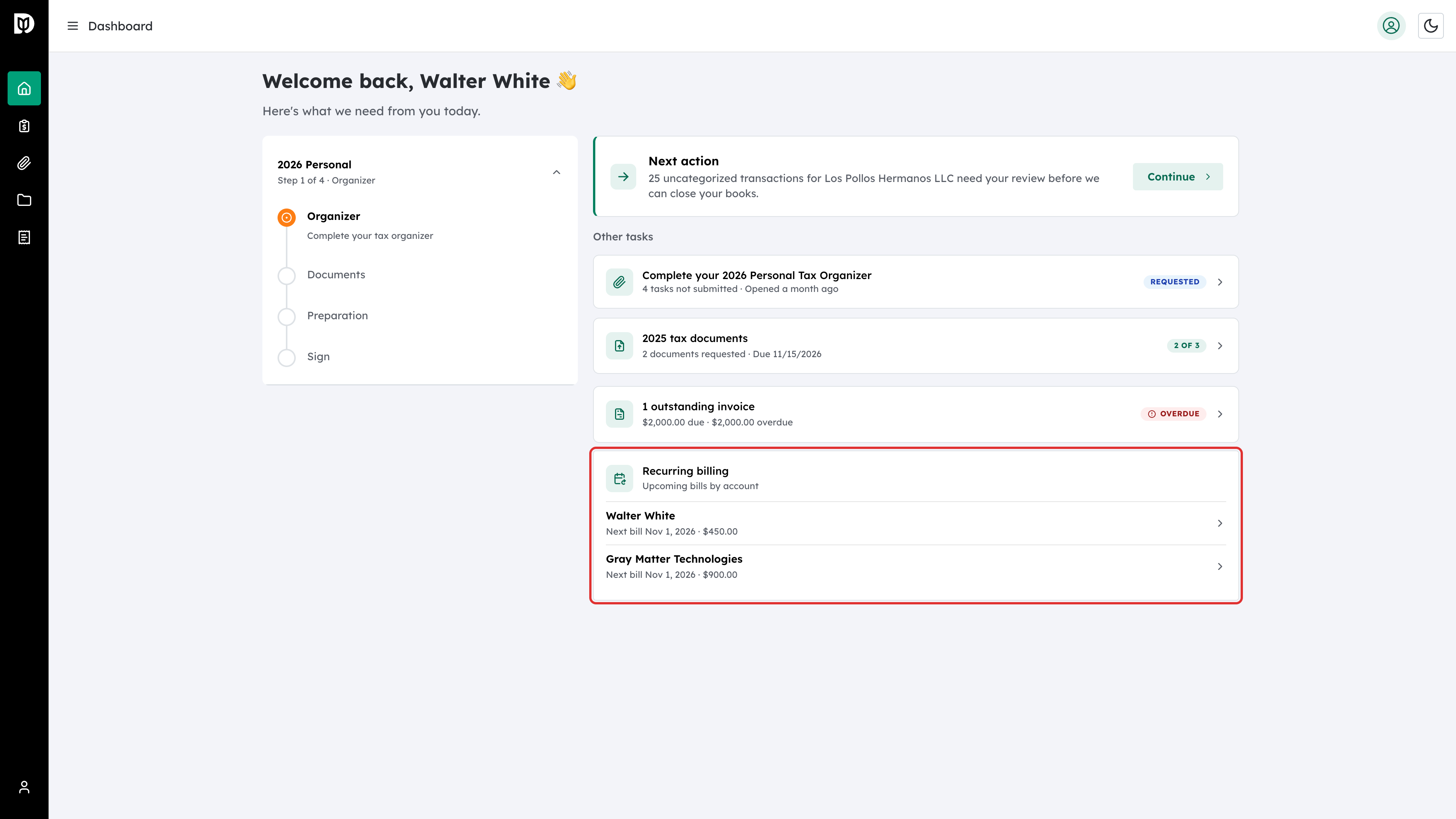
The Recurring billing card on your dashboard lists the next bill for each account you pay for. Select a line to open the Billing page for that account. If an account still needs a card, its line says so.
Step 2: Choose whose billing to see
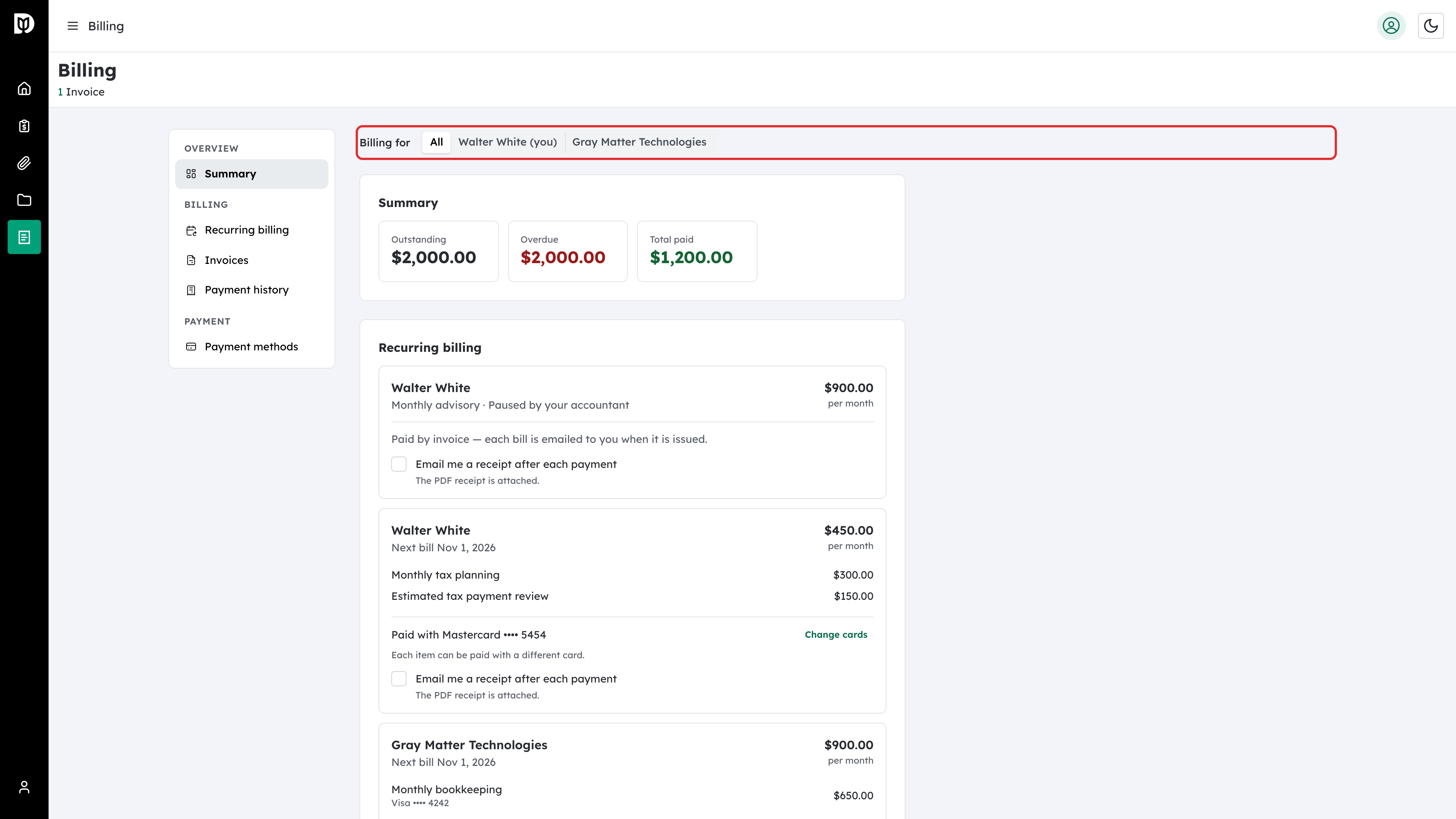
Open Billing from the menu. If you pay for more than one account, use Billing for at the top to switch between All, yourself and each business.
Step 3: Narrow the page to one business
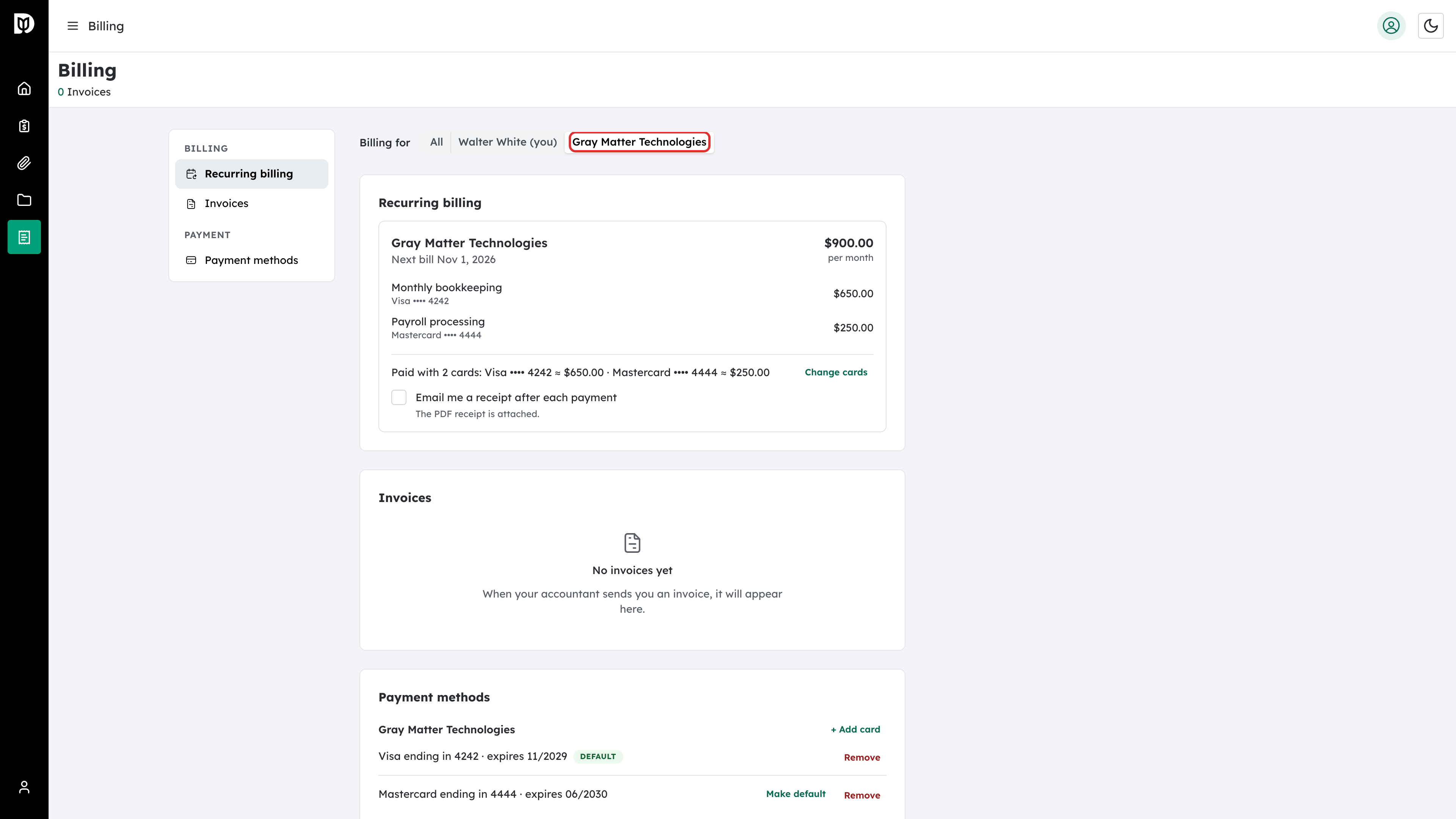
Select a business to see only its plans, invoices, payments and cards. In the All view, each invoice shows who it is for, and cards are grouped by business.
Step 4: Review your recurring plans
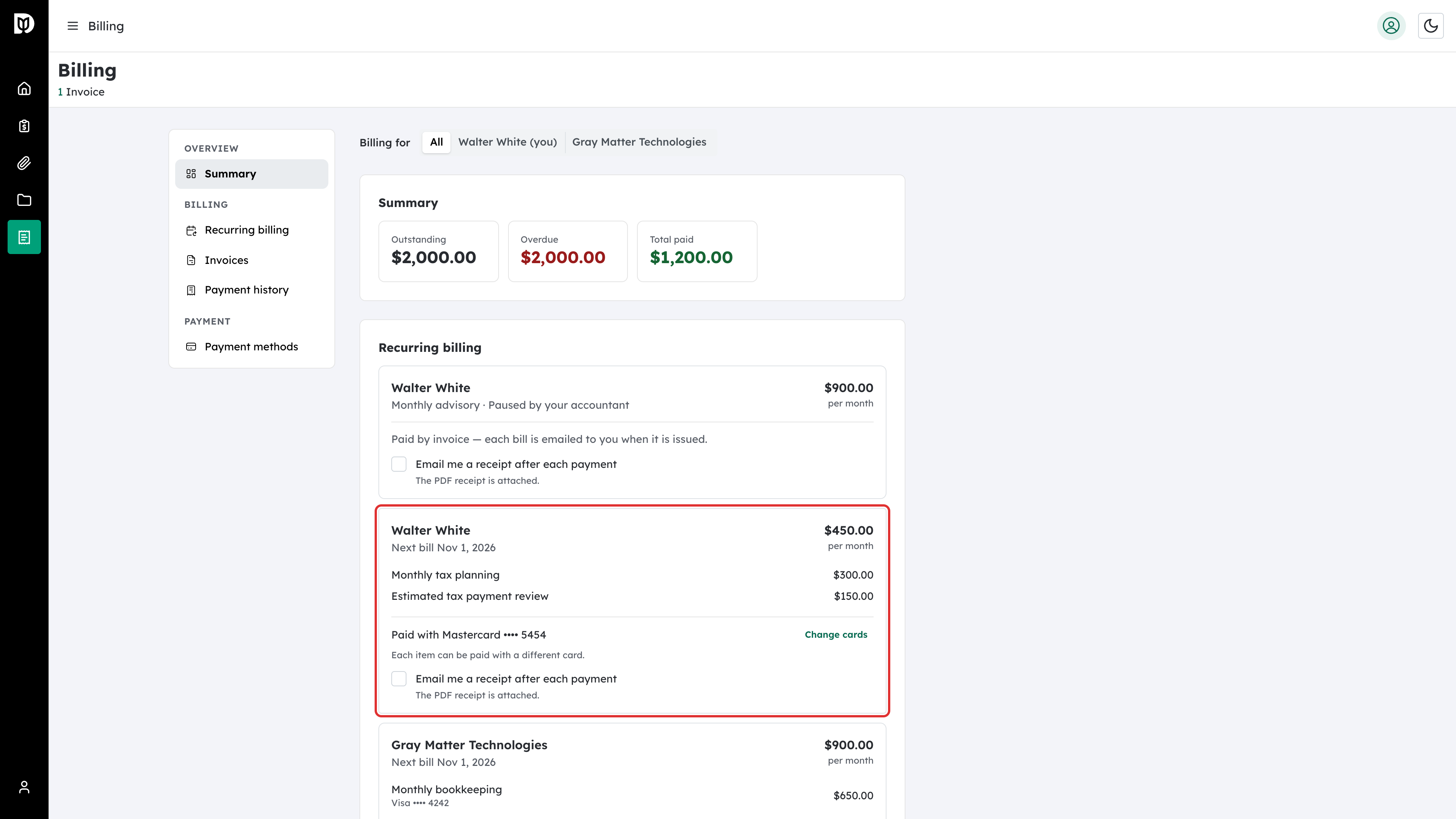
Under Recurring billing, each plan shows its items, the amount per period, the next bill date and the card that pays it. A plan appears here as soon as your accountant sets it up, before its first bill.
Step 5: Change how a plan is paid
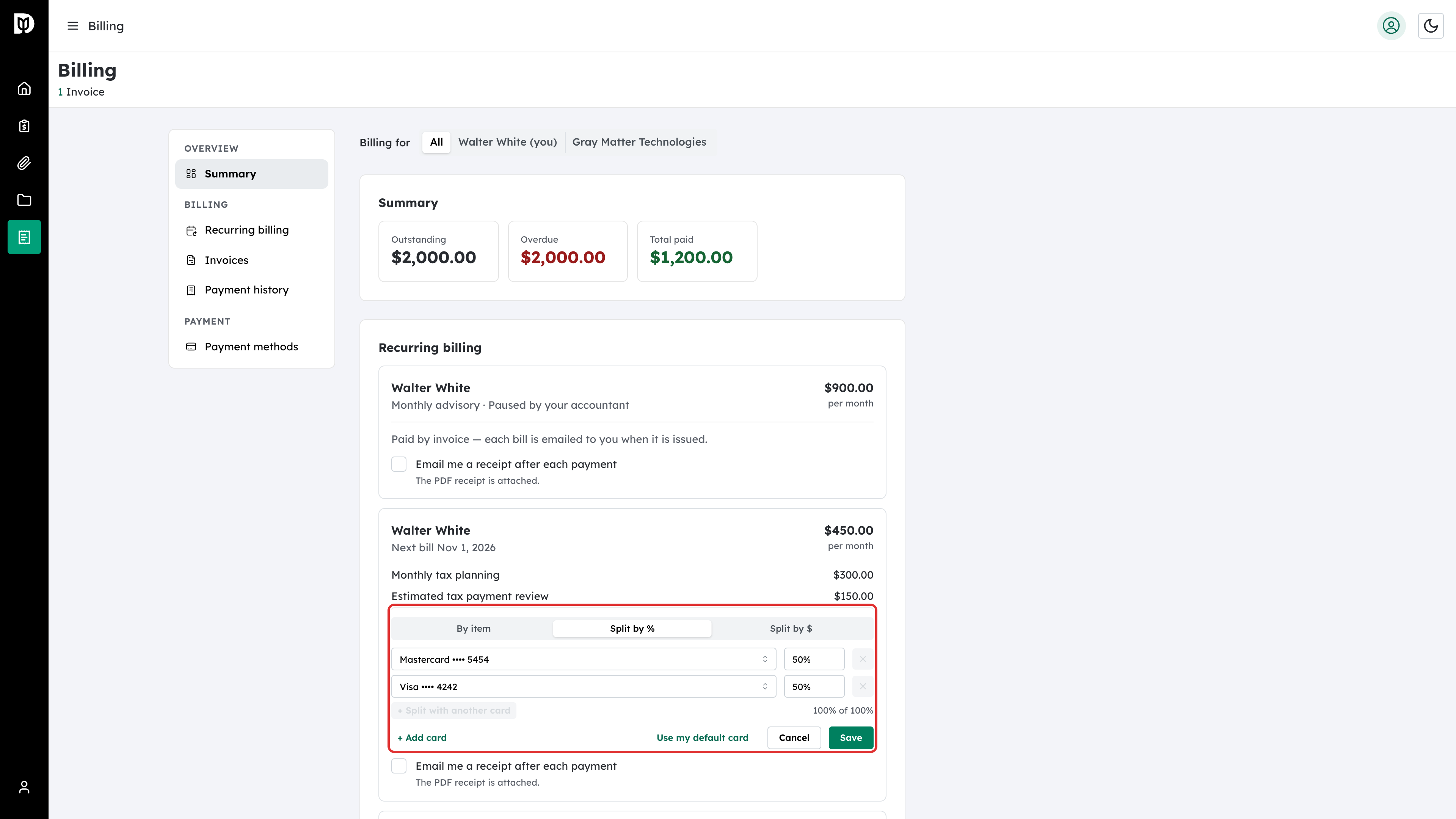
Select Change cards on the plan (Change card on a plan with one item). Then choose how to pay:
- By item picks a card for each item. On a one-item plan, this choice is called One card.
- Split by % divides every bill across your cards by percentage.
- Split by $ divides every bill across your cards by amount.
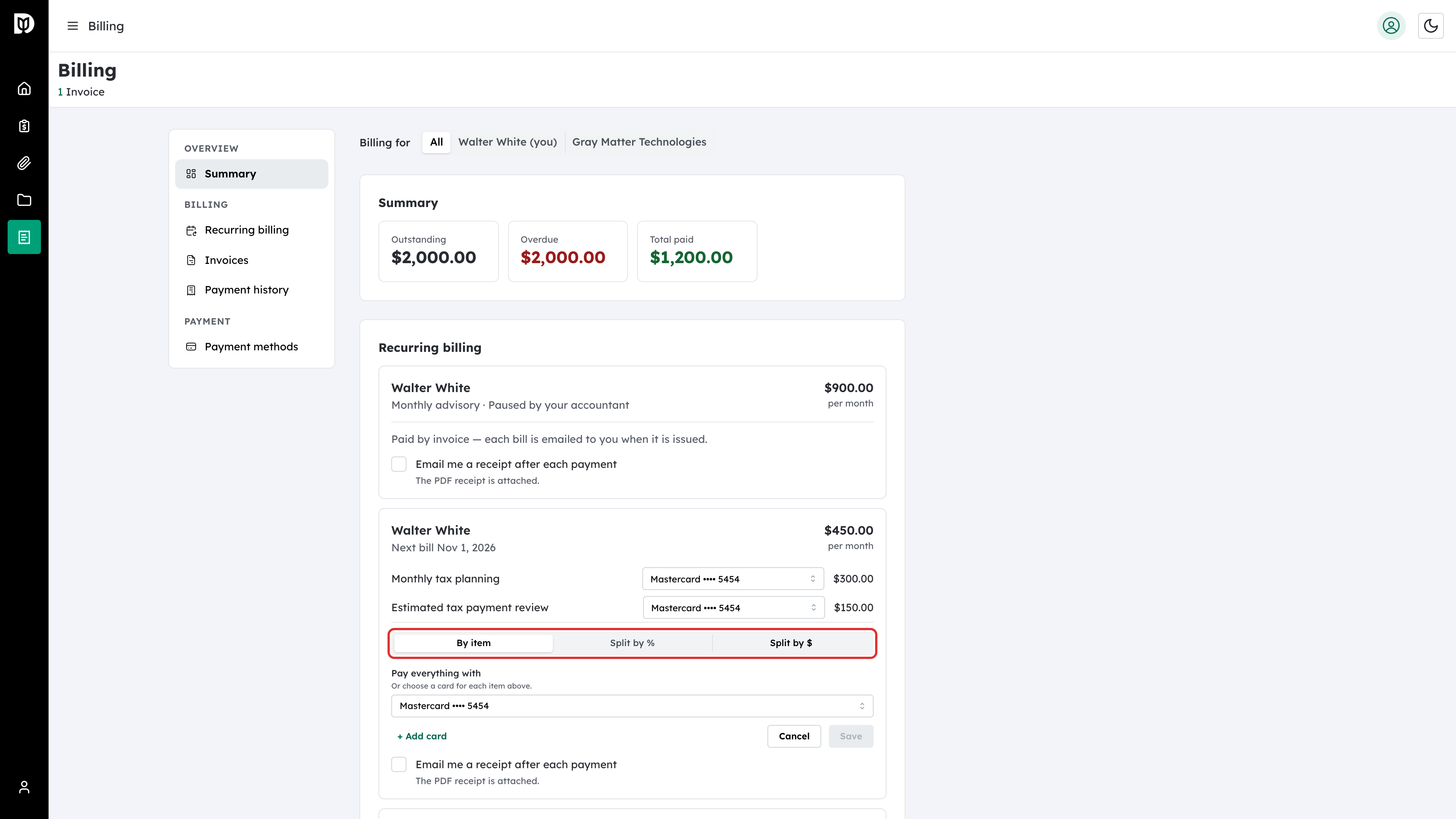
Step 6: Pick a card for each item
With By item selected, choose a card next to each item. To pay everything with one card, use Pay everything with instead.
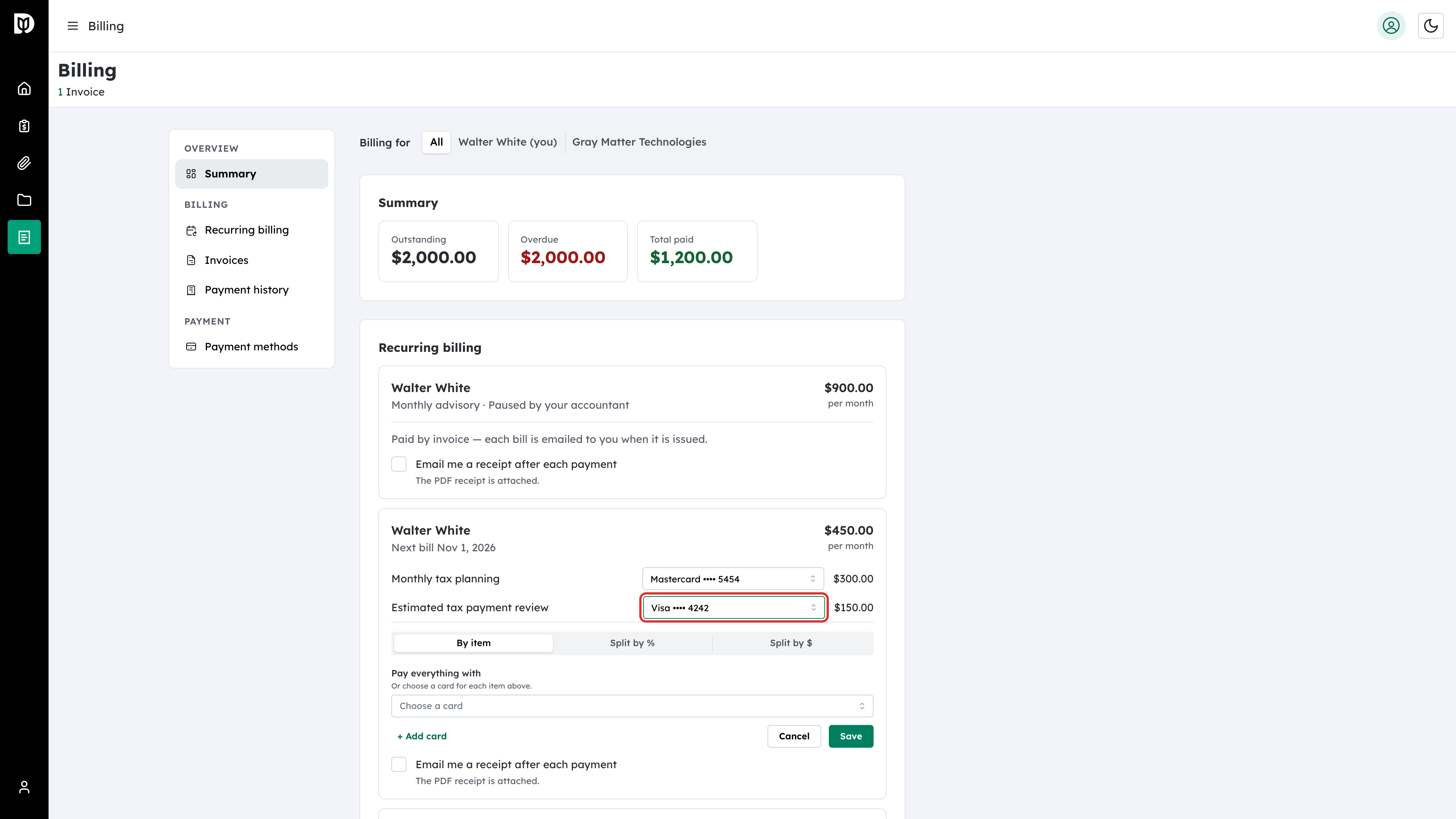
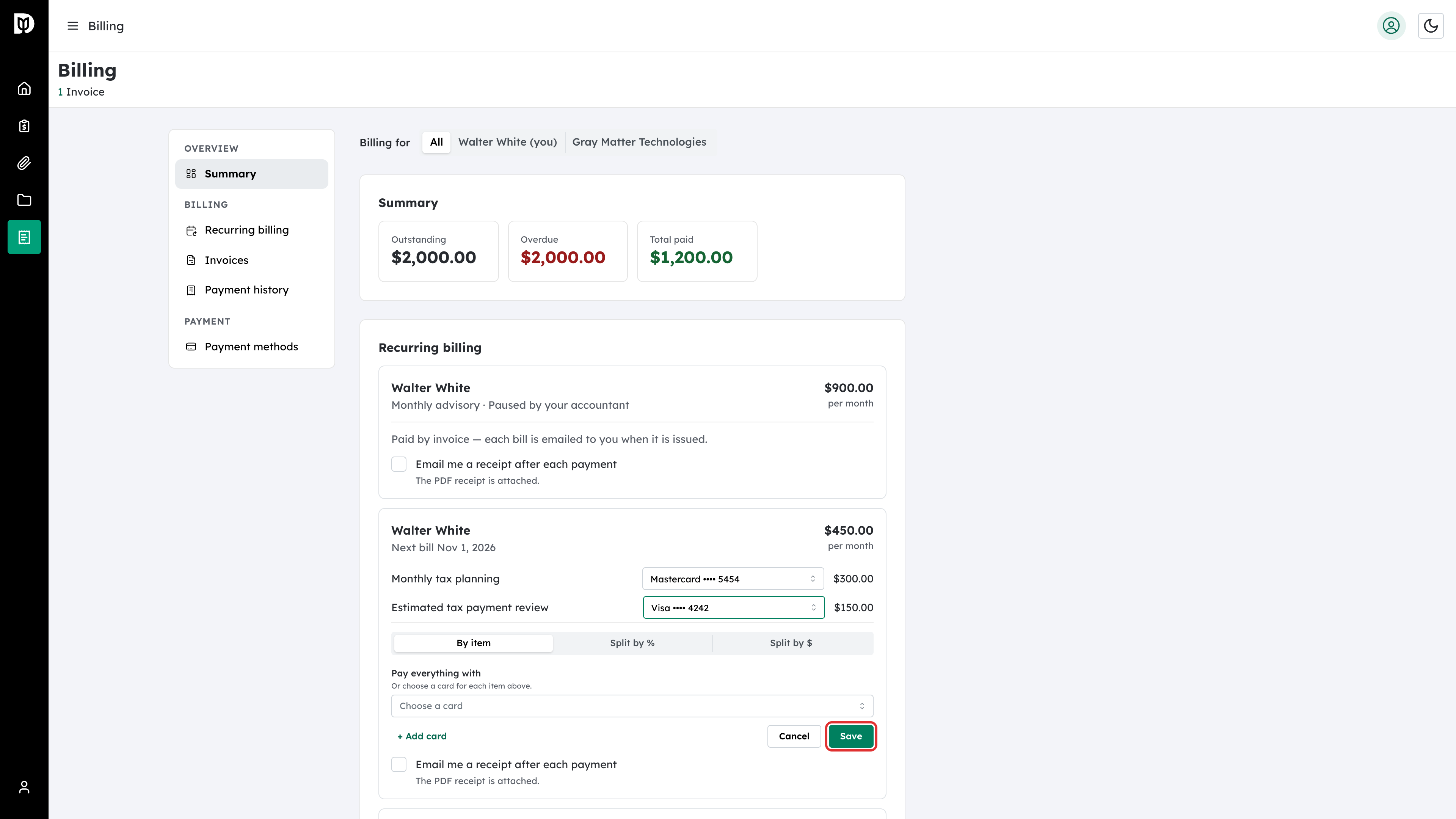
Step 7: Save your choice
Select Save. Select Cancel to leave the plan as it was.
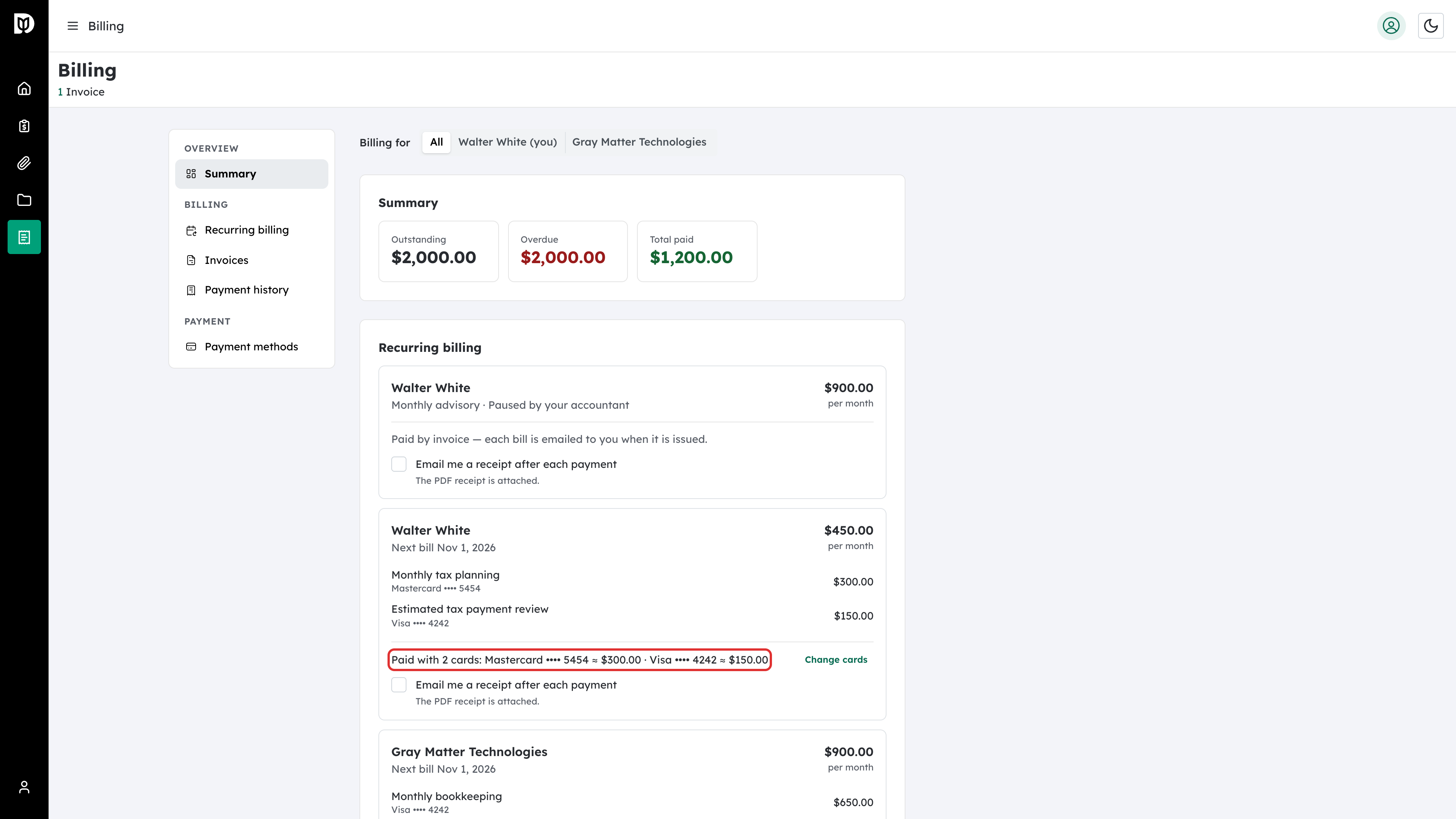
Step 8: Check how the plan will be paid
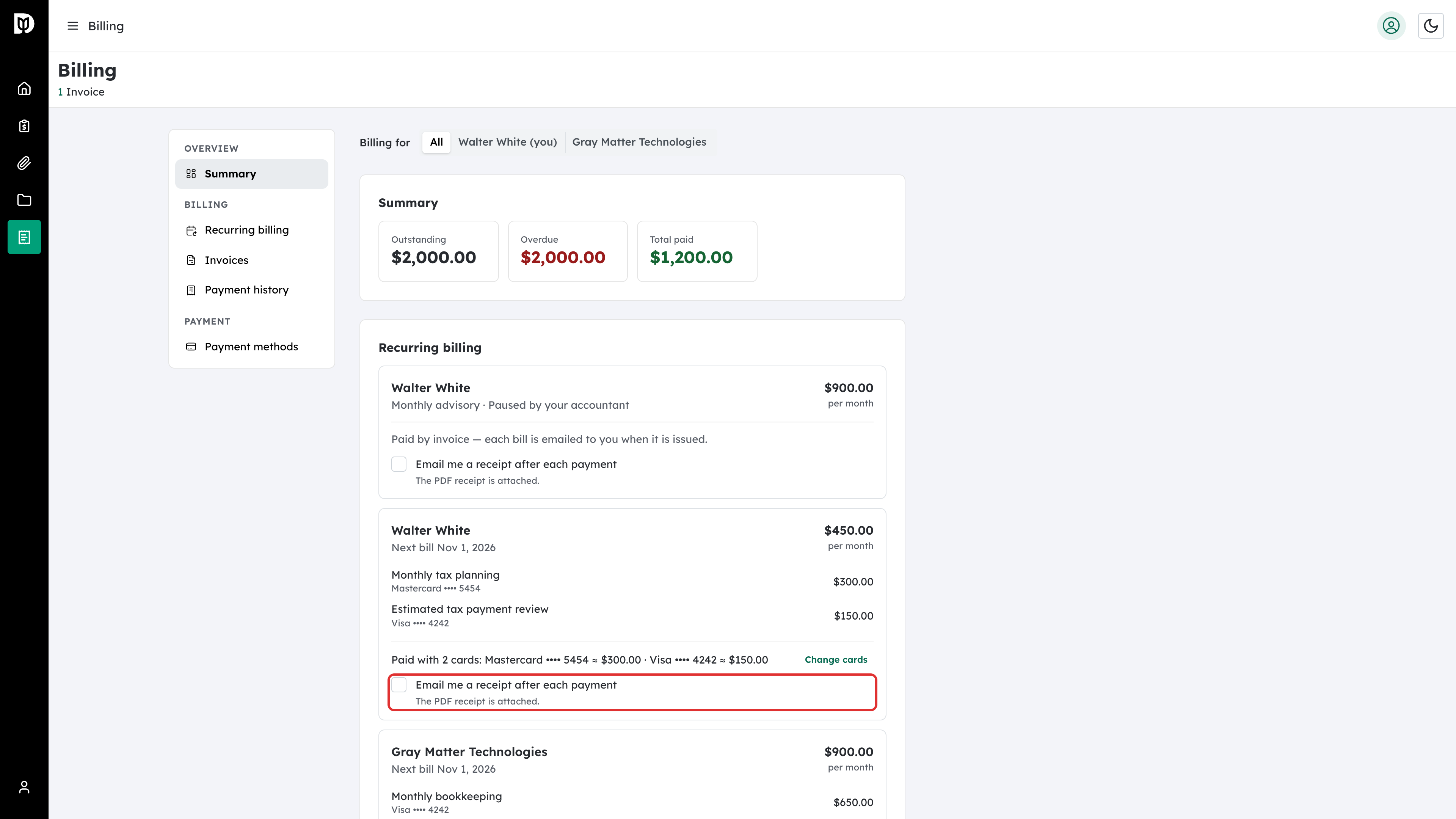
The plan now shows which card pays each item and an estimate for each card, for example Paid with 2 cards.
Step 9: Split a plan across cards
To share every bill between cards, select Split by % or Split by $, choose the cards and enter each share. You can split across two to four cards. Select Use my default card to go back to paying with your default card.
Step 10: Choose whether to get receipts
Tick Email me a receipt after each payment on a plan to get an email with a PDF receipt each time it is paid. It is off until you or your accountant turn it on. On a business’s plan, the checkbox appears only for the person the bills are addressed to.
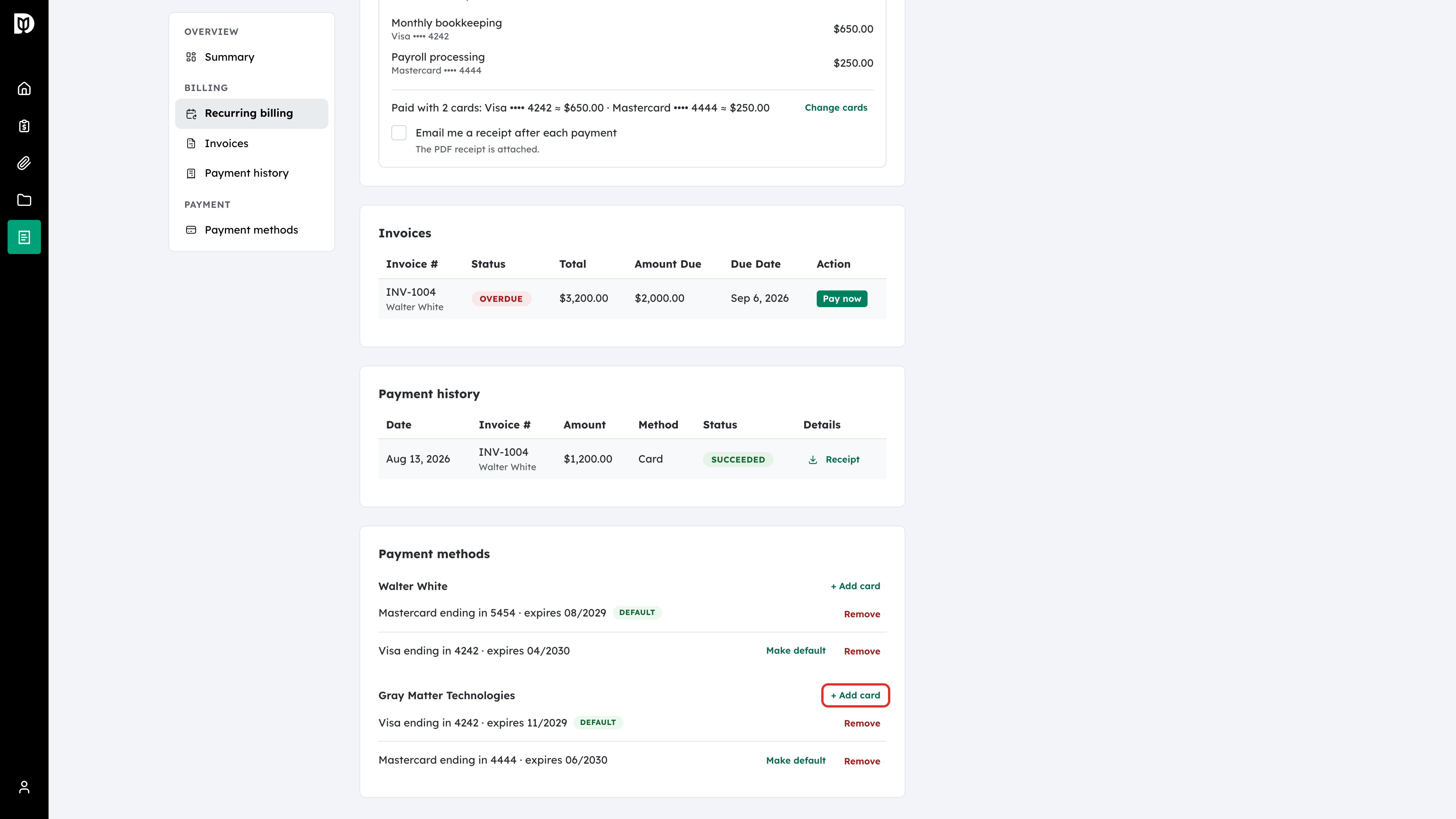
Step 11: Add or manage payment methods
Under Payment methods, select Add card next to yourself or a business (or Add payment method if you pay for one account) to save a new card or bank account for it. Use Make default to change your default, or Remove to delete a method. A new bank account needs to be verified before it can be used. Select Verify on it and enter the details from the small deposit your bank shows.
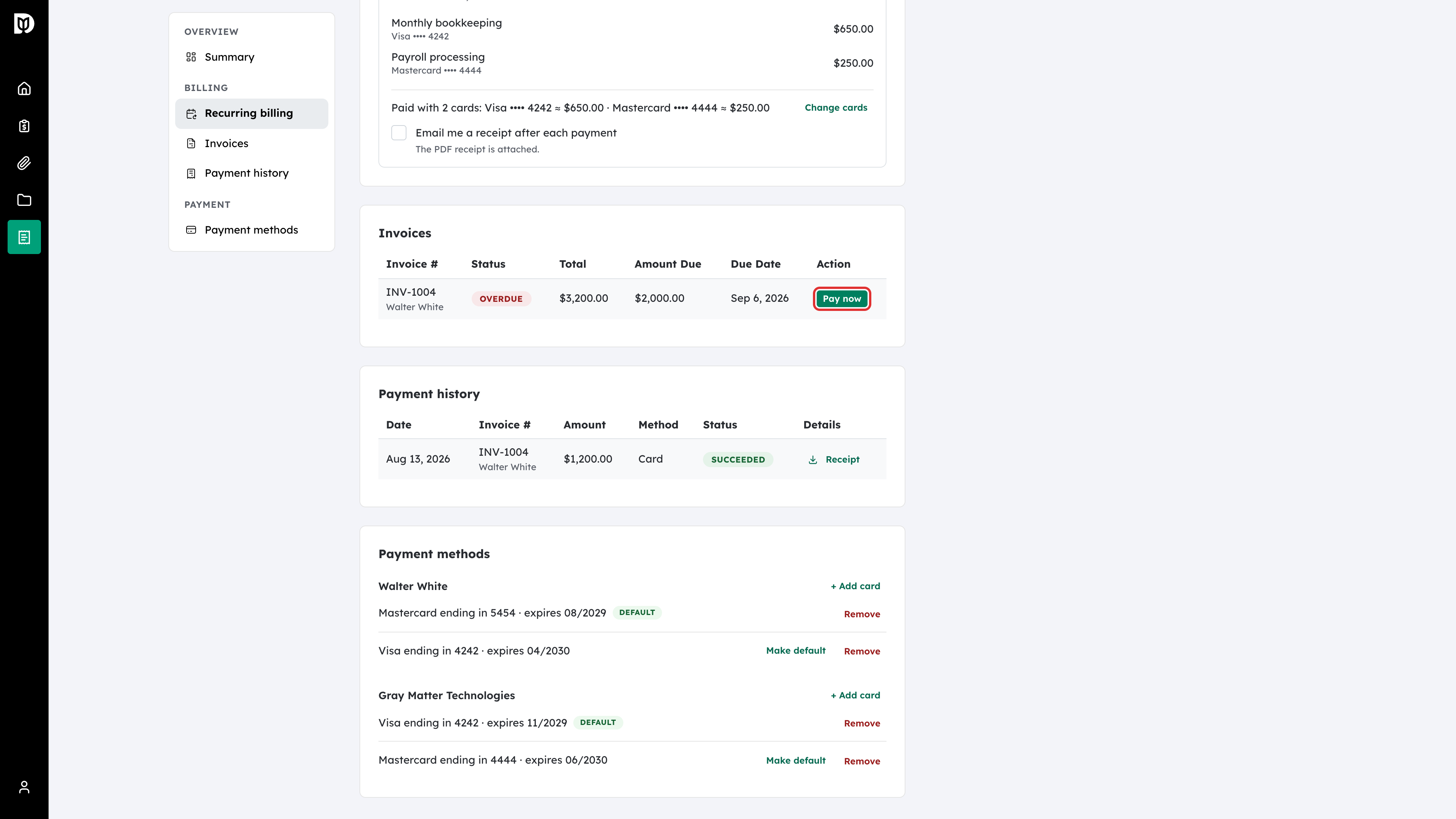
Step 12: Pay an invoice
Under Invoices, select Pay now on any invoice that is due. Under Payment history, select Receipt to download a receipt. A bank payment that is still clearing shows After it clears until its receipt is ready.
What happens next
Each recurring bill is charged to the cards you chose on its bill date. When you add a card or verify a bank account, Debits uses it straight away to pay any overdue invoices for that account, oldest first. A recurring invoice is charged this way only when your accountant set that plan to charge automatically.
Troubleshooting
- There is no Change cards link on a plan: The plan is paid by invoice, not charged automatically. Pay each bill with Pay now, or ask your accountant to turn on automatic charging.
- You can’t save a split: Each card’s share must be at least $1, and the shares must add up to the whole bill. You can use up to four cards.
- You can’t remove a card: A recurring plan depends on it. Add another payment method first, then remove the old one.
- There is no receipts checkbox on a business plan: Only the person the bills are addressed to sees it. Ask your accountant to change it for you.