Who this is for: Firm owners, admins, managers and staff who manage recurring billing.
What you’ll learn: How to charge a recurring schedule across several of a client’s saved cards by percent, by amount, or with a card chosen for each line item.
Before you begin
- The client must have saved cards or verified bank accounts. A percent or amount split needs at least two. The client adds them from their billing page.
- The cards must be saved on the schedule’s contact. For a business, that means cards saved for the business.
- Splitting only applies to schedules with Auto-Charge turned on.
- A schedule can be split across at most four cards.
Step-by-step instructions
Step 1: Create or edit a recurring schedule
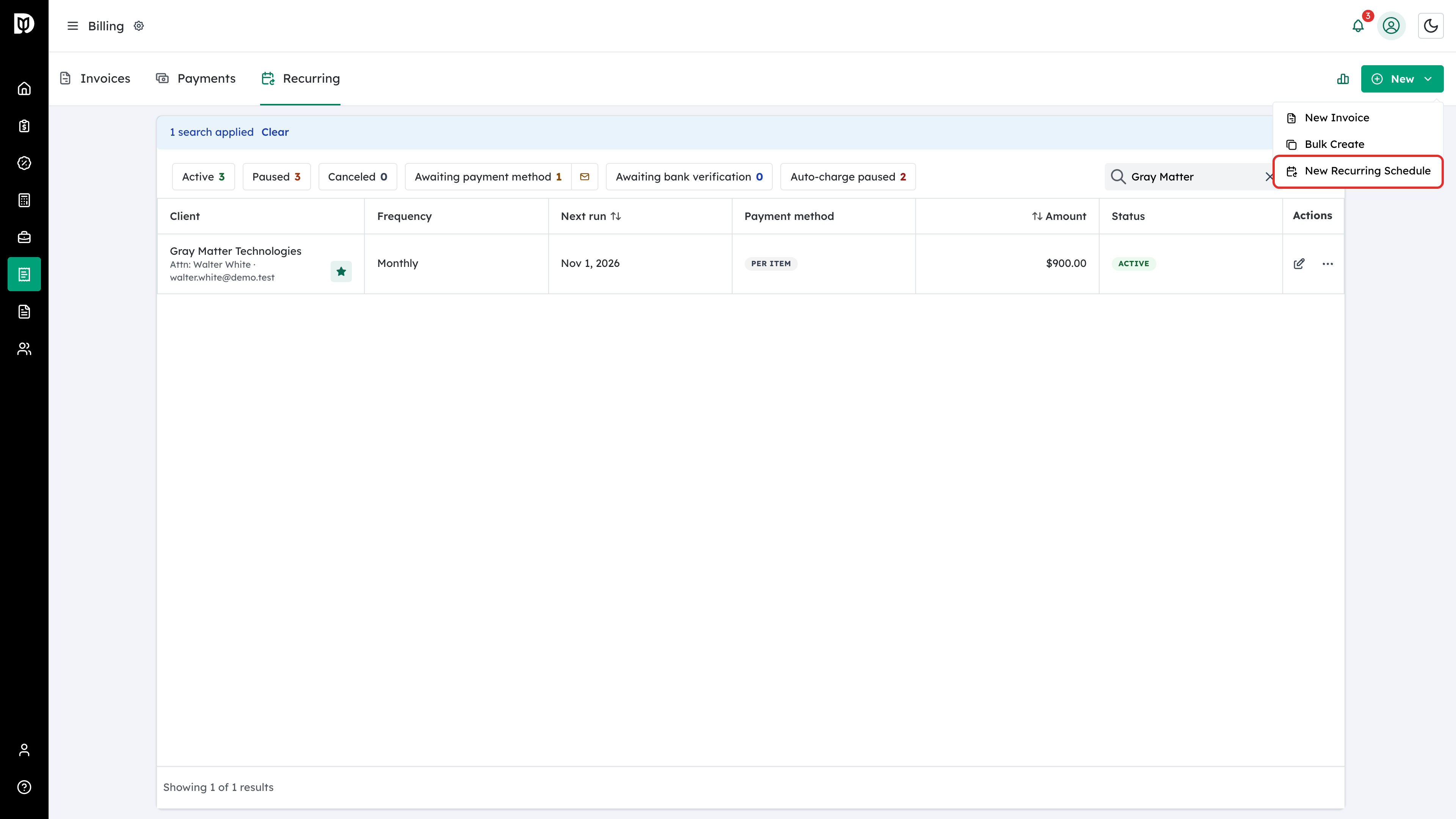
Go to Billing > Recurring, select New, then New Recurring Schedule. To change an existing schedule, select the edit icon on its row instead.
Step 2: Choose the client and contact person
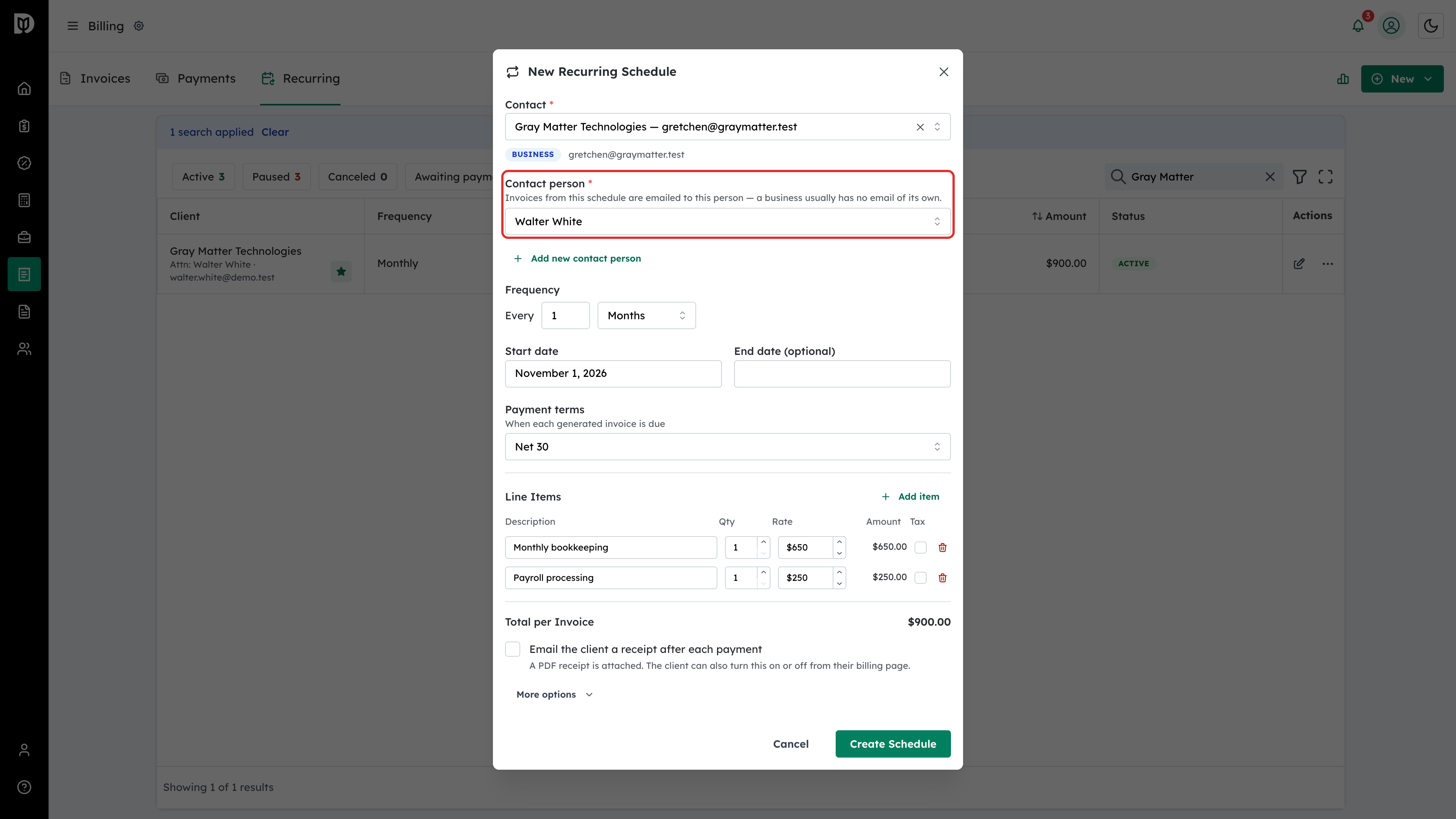
Pick the client under Contact. For a business, also choose a Contact person. Invoices from the schedule are emailed to that person, because a business usually has no email of its own.
Step 3: Add the line items
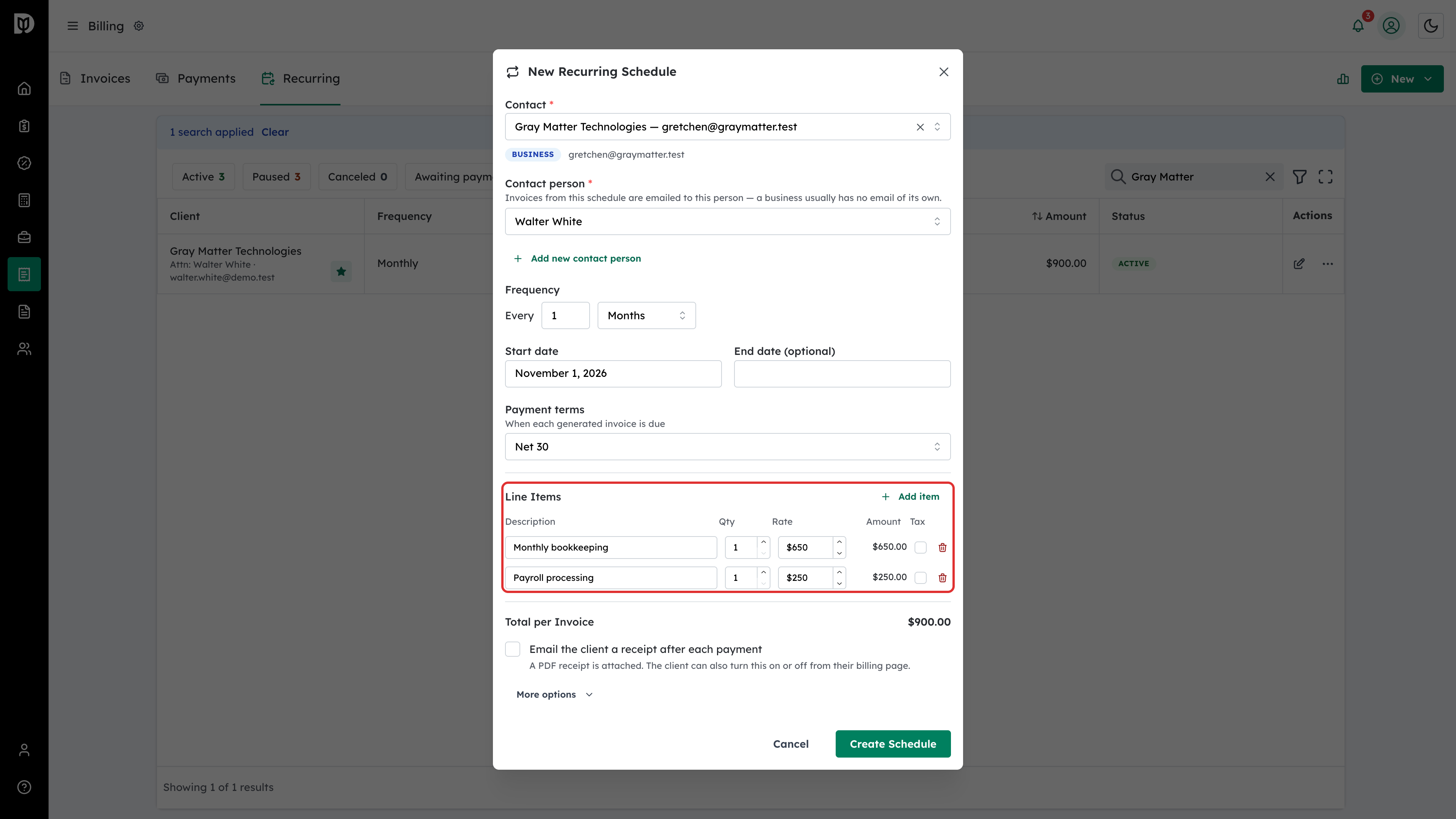
Set the frequency and start date, then add each service under Line Items. Select Add item for each extra line.
Step 4: Make sure Auto-Charge is on
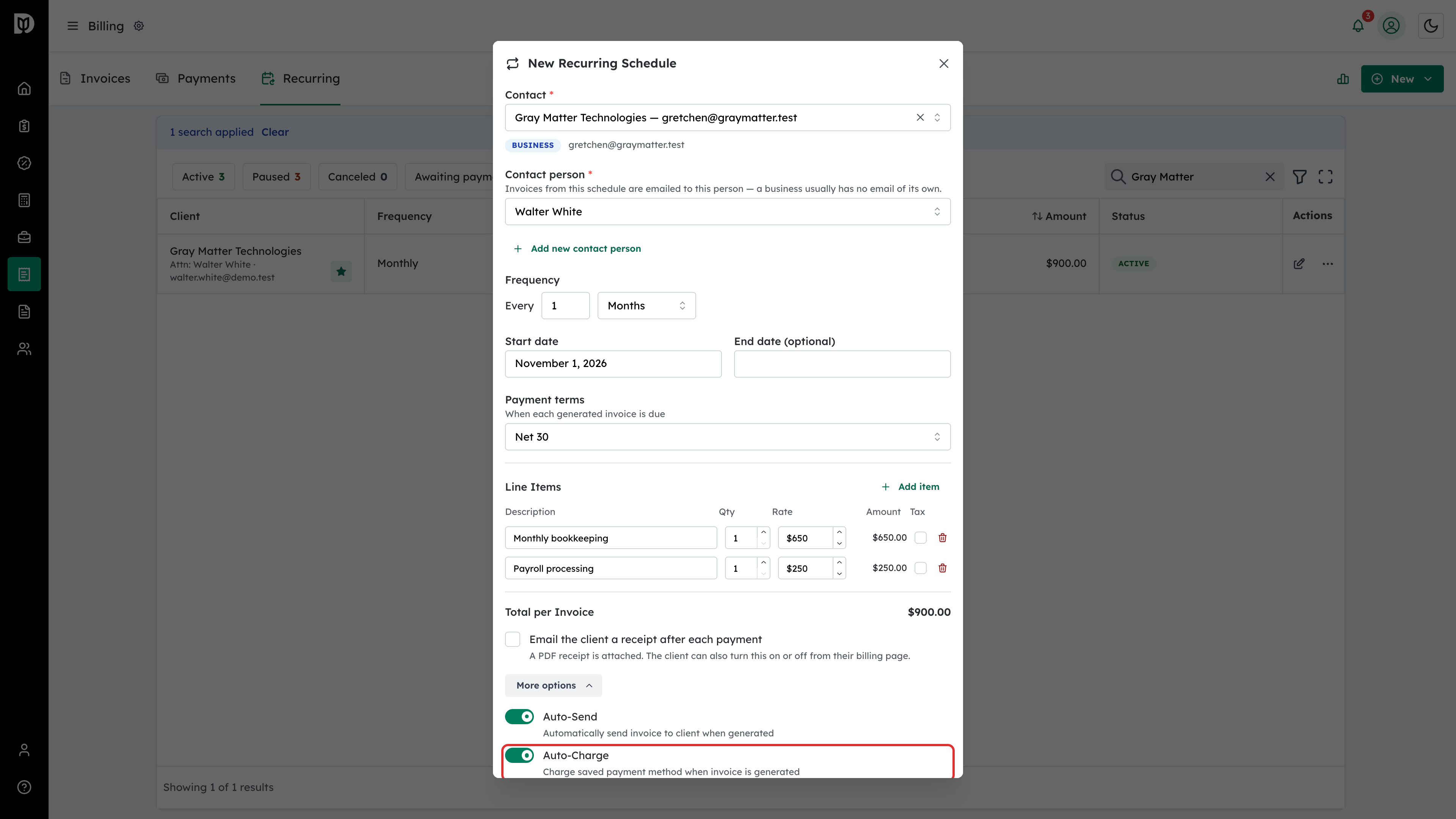
Select More options and check that Auto-Charge is on. The split options only appear when it is.
Step 5: Turn on the split and choose a method
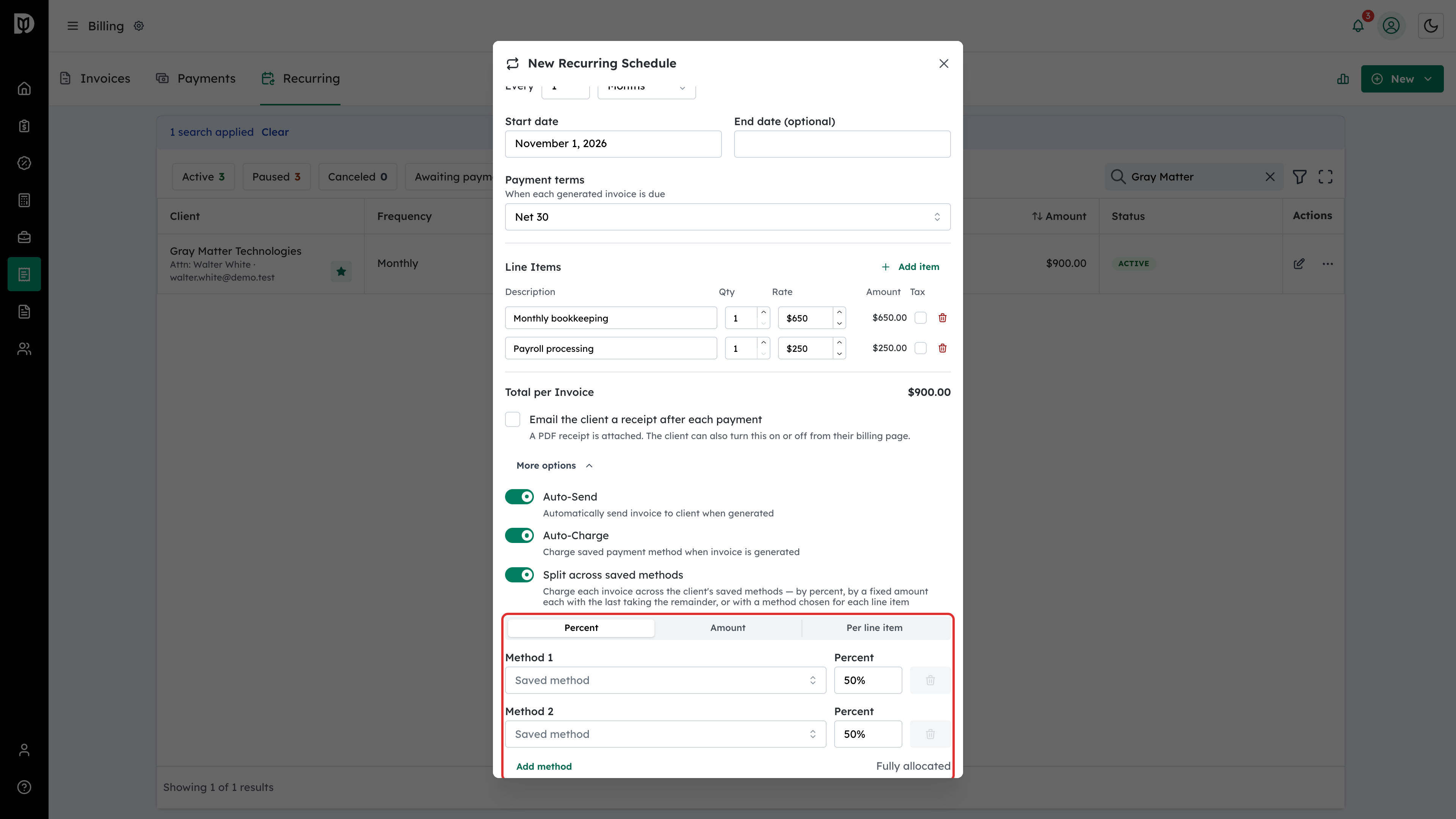
Turn on Split across saved methods, then choose how to divide each invoice:
- Percent charges each card a share of every invoice.
- Amount charges each card a fixed amount, and the last card pays whatever is left.
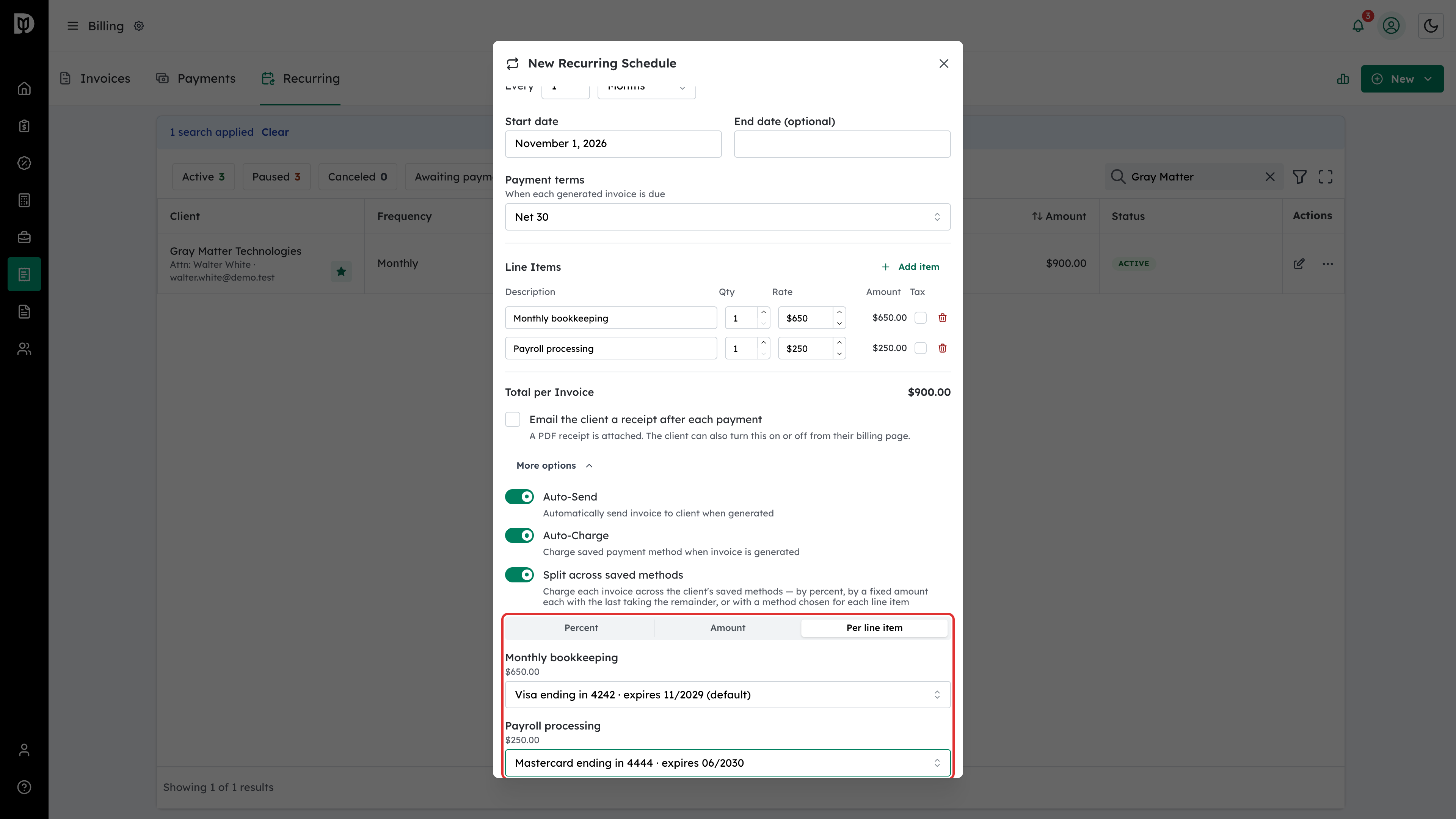
- Per line item chooses the card that pays for each line.
For Percent or Amount, pick a saved method for each row and enter its share. Select Add method to add another card.
Step 6: Choose a card for each line item
With Per line item selected, choose a card under each line. Each card is charged for its own lines, plus any tax on those lines. Any other charges, such as a late fee, are shared between the cards in proportion.
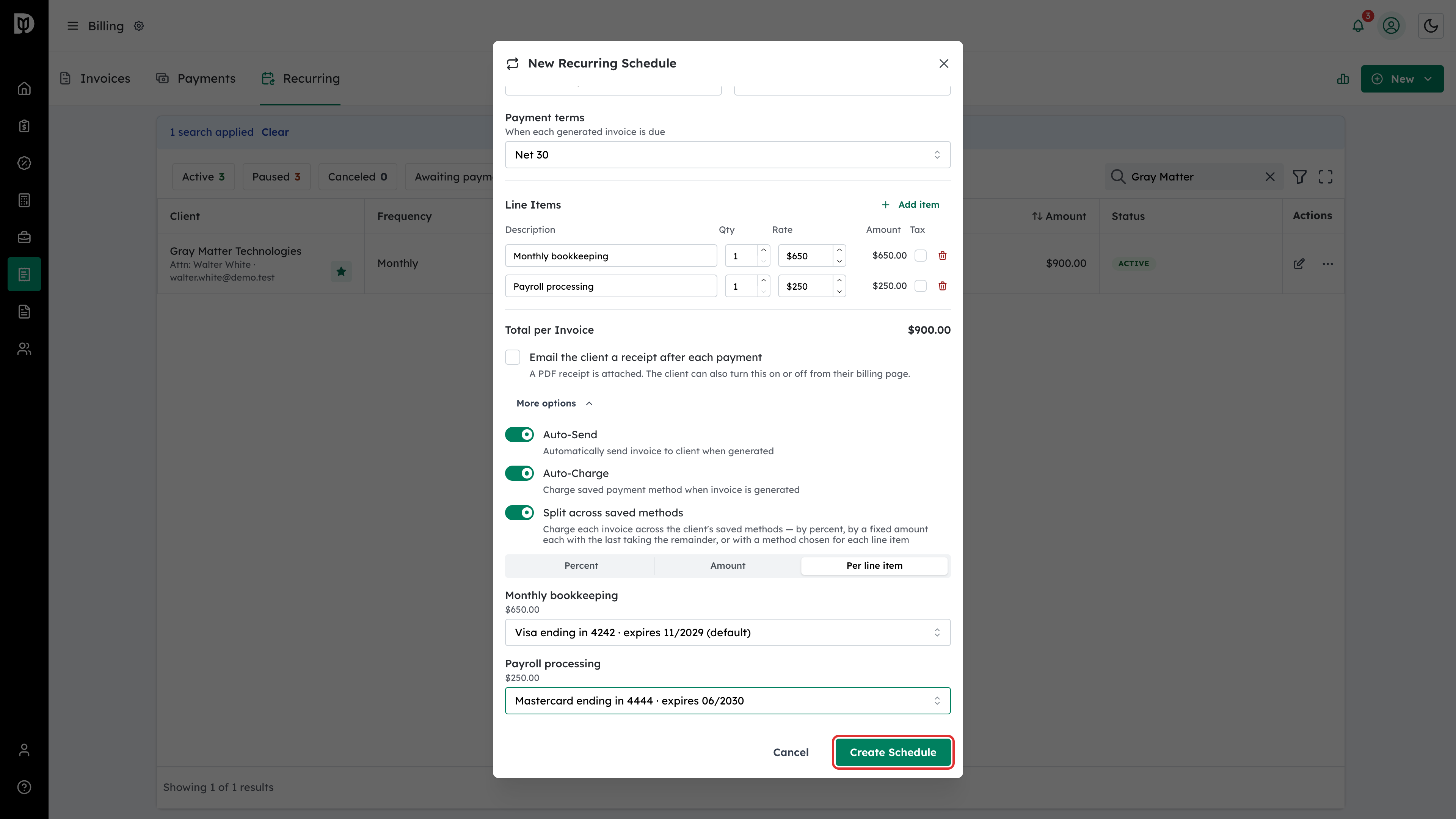
Step 7: Save the schedule
Select Create Schedule, or Update Schedule if you are editing one.
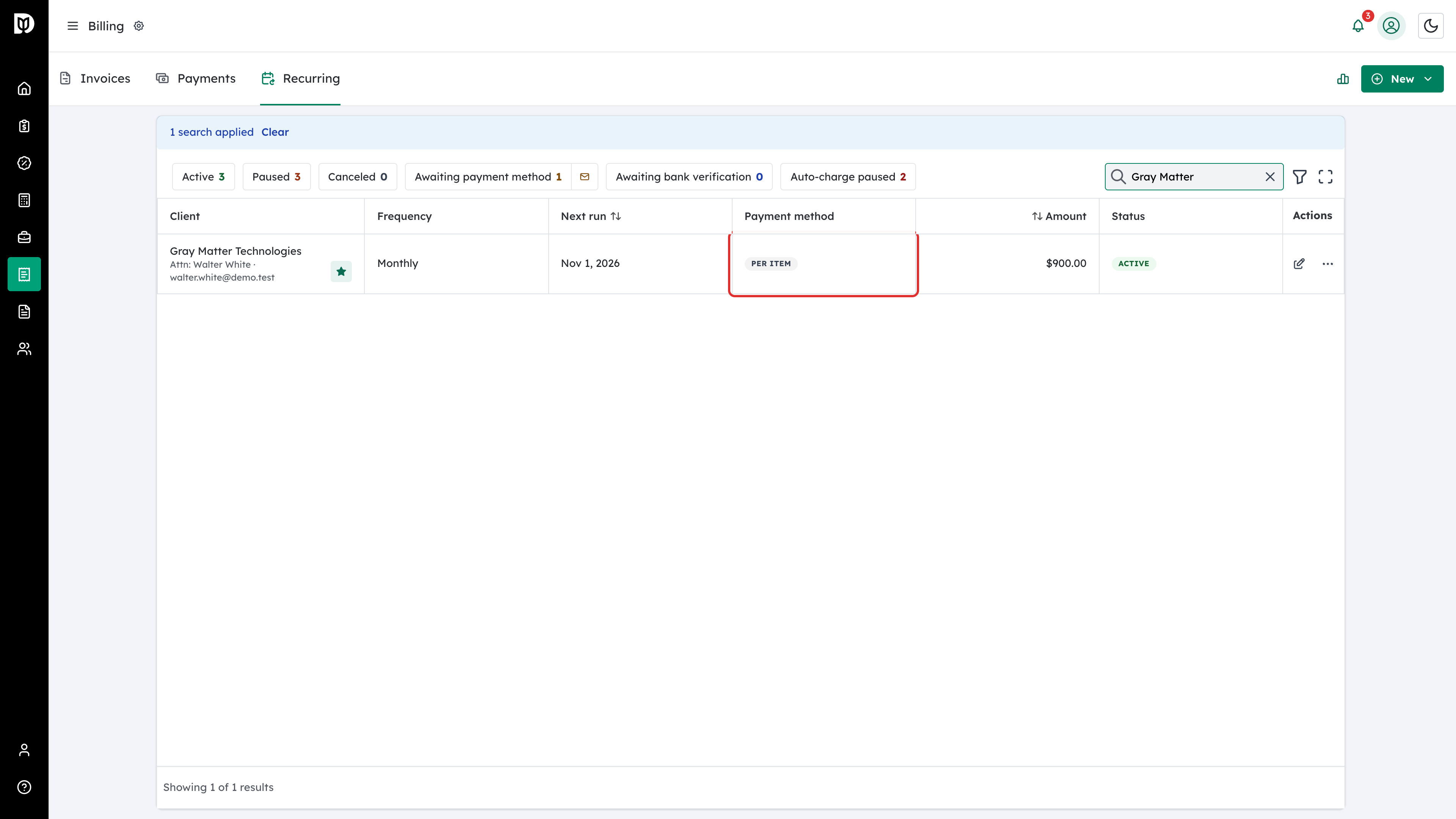
Step 8: Check the Recurring table
The schedule’s Payment method column shows how it is paid. A per-item schedule shows PER ITEM.
What happens next
On each run, Debits creates the invoice and charges each card for its share. The client sees the plan, the card for each item and an estimate per card on their billing page. They can change the cards or set their own split there. If the client changes the cards while you have the schedule open, saving tells you so instead of overwriting their choice.
Troubleshooting
- The split options don’t appear: Turn on Auto-Charge under More options first.
- The form says the client needs at least two chargeable saved methods: A percent or amount split needs two or more cards or verified bank accounts. Ask the client to add another from their billing page.
- A per-item schedule won’t save: Every line needs a card. When the lines use more than one card, each card’s lines must add up to at least $1. You can use at most four different cards.
- An invoice was charged to one card instead of being split: When a bill is too small to split, Debits collects it on one of the cards you chose. It never falls back to the client’s default card.
- One card was declined: On a per-item schedule, only the lines that card pays for stay unpaid. The client can pick a new card for those lines from their billing page.