Invite the people in your firm who need to work in Debits, and decide what each of them can reach before the invitation goes out.
Before you start
- You need to be the firm owner, an admin or a manager. Managers can invite the Staff role only.
- Have the invitee’s work email address ready. That is where the invitation goes.
Send the invitation
-
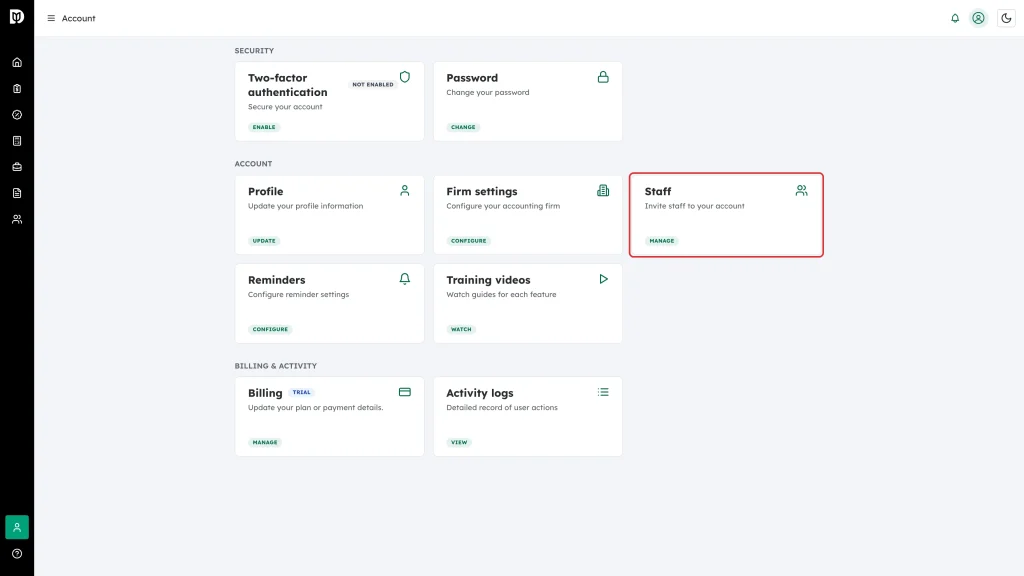
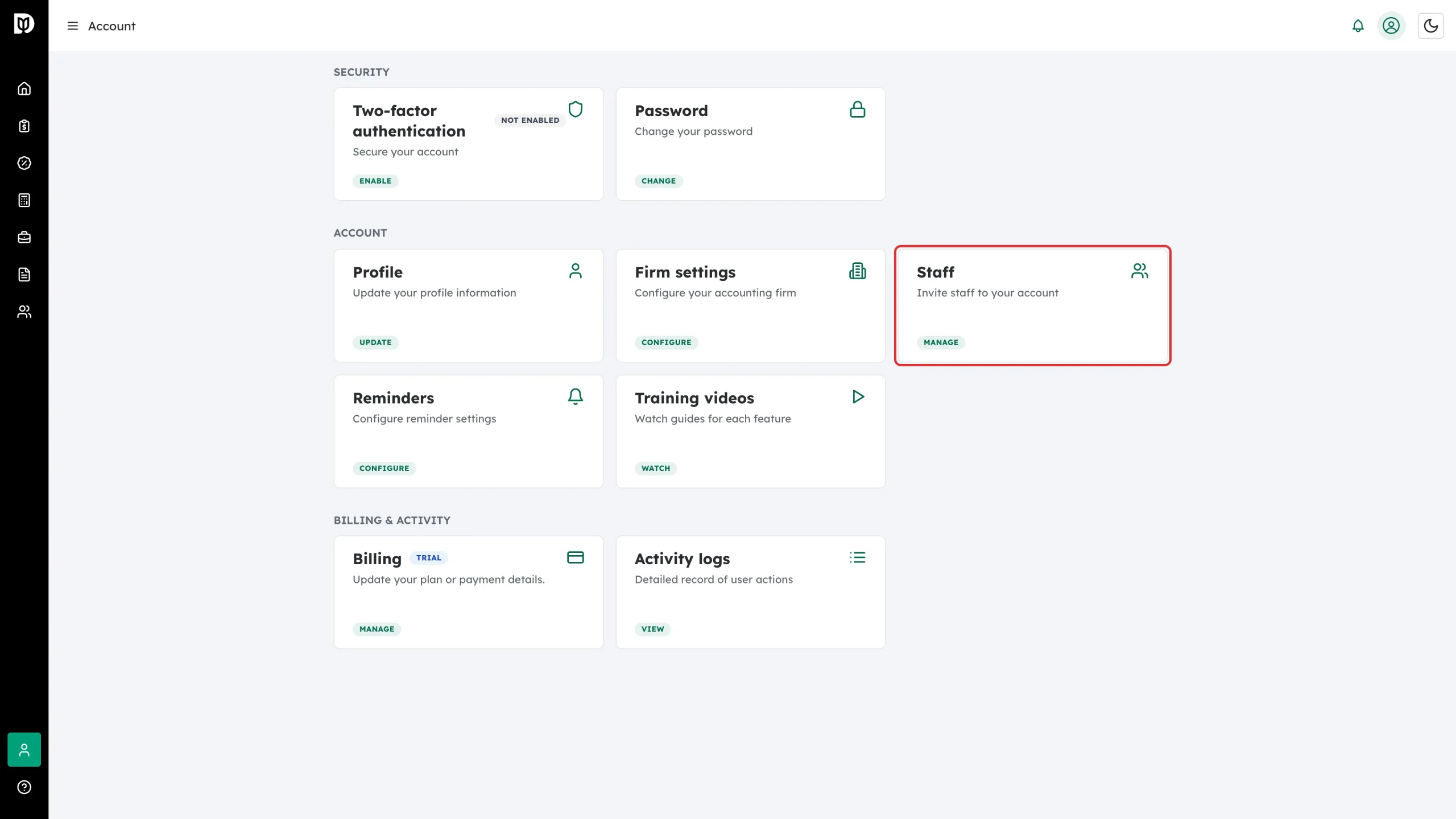
Open Account from the left sidebar and click Manage on the Staff card.
-
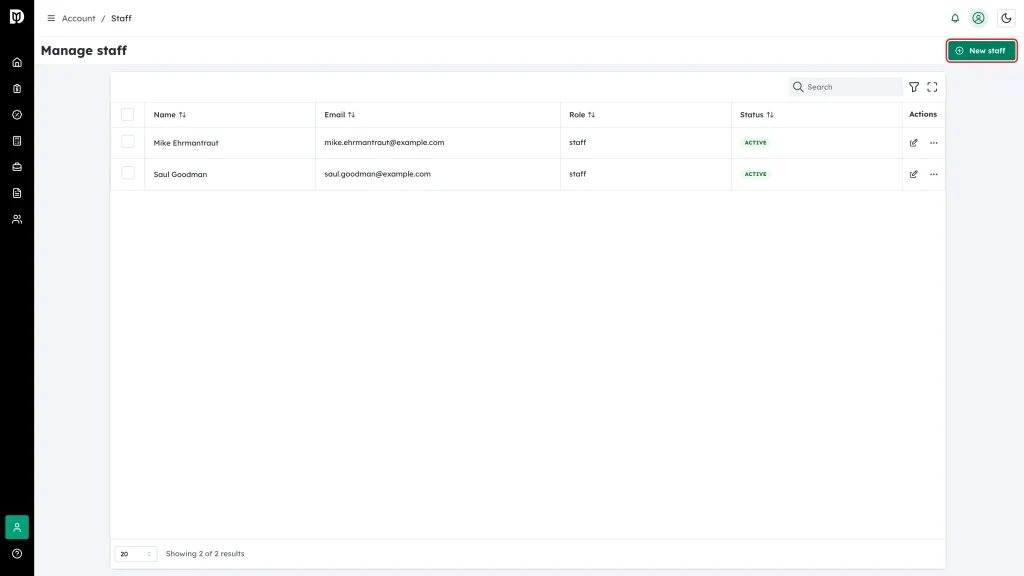
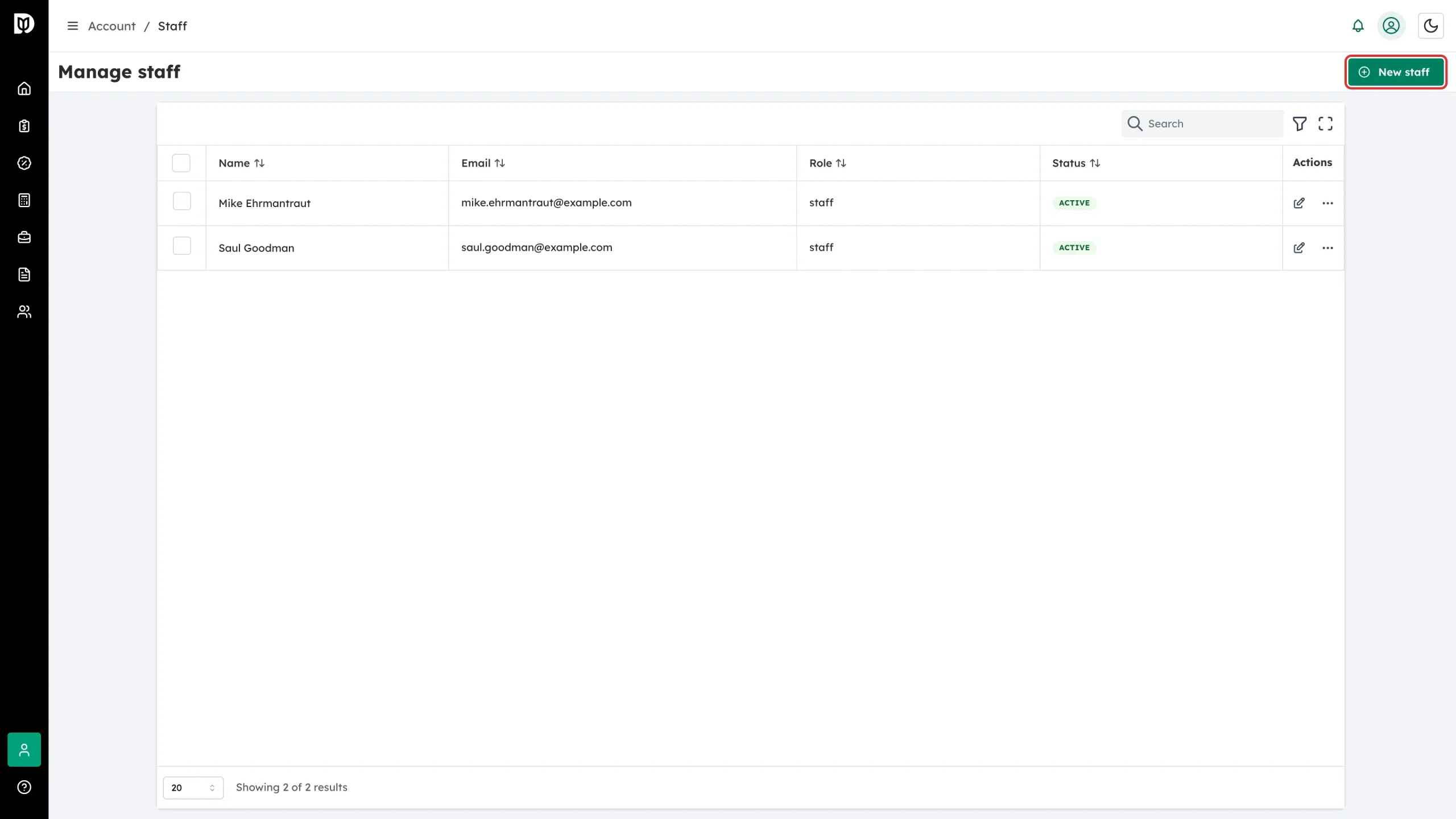
On the Manage staff page, click New staff at the top right.
-
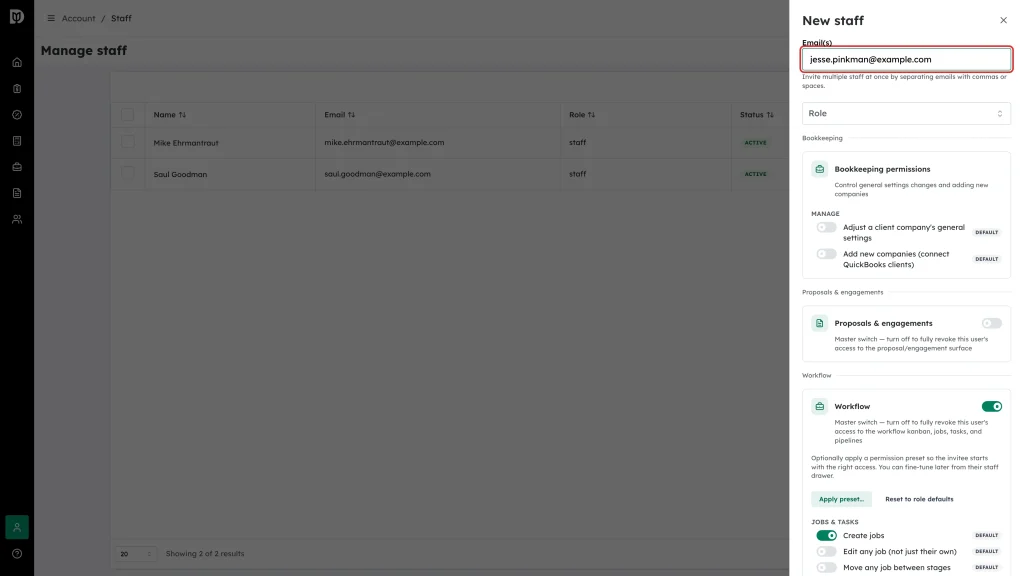
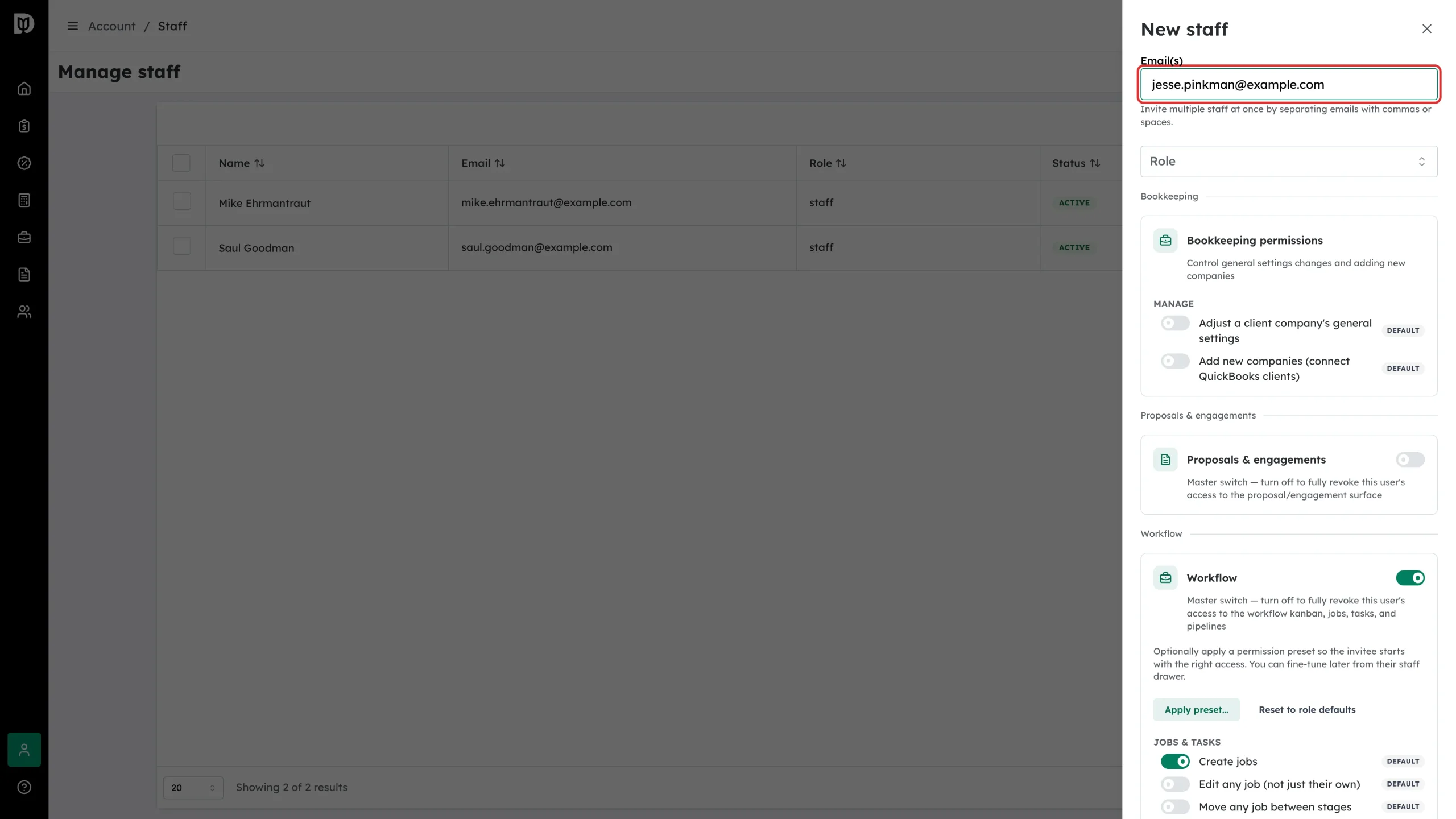
In the Email(s) field, type the address. To invite several people at once, separate the addresses with commas or spaces.
-
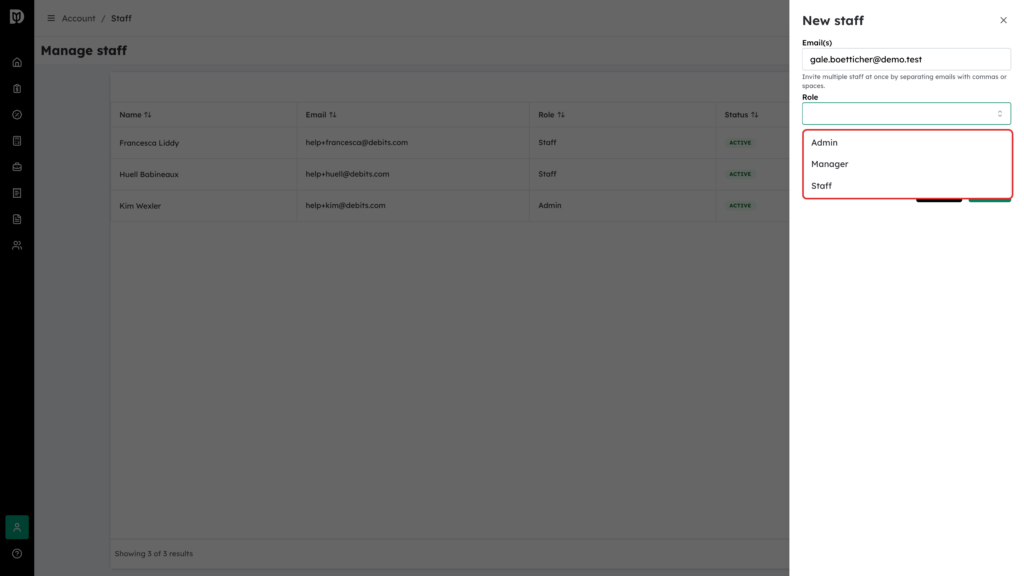
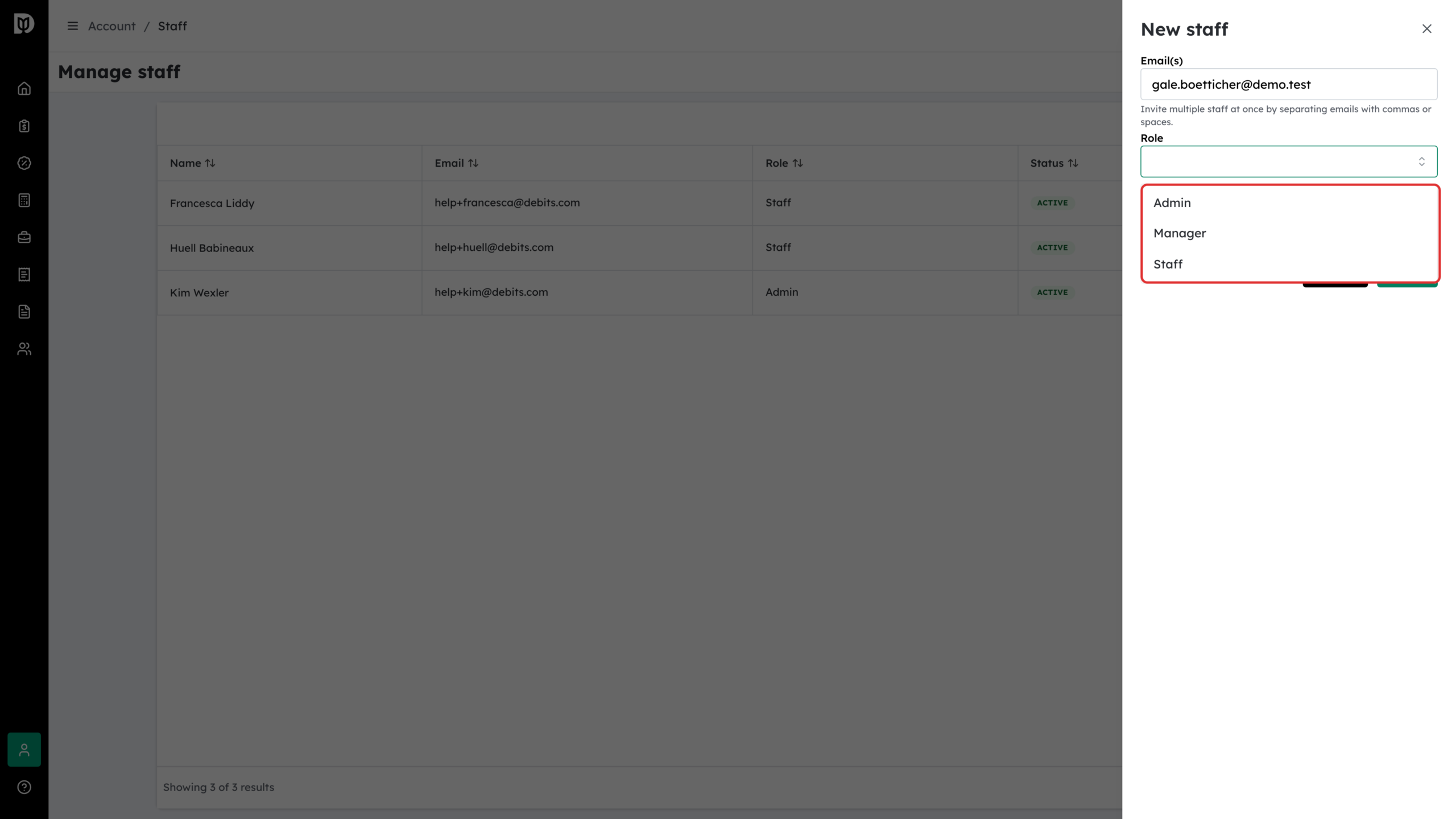
Open Role and choose Admin, Manager or Staff. The permission cards appear once a role is chosen.
-
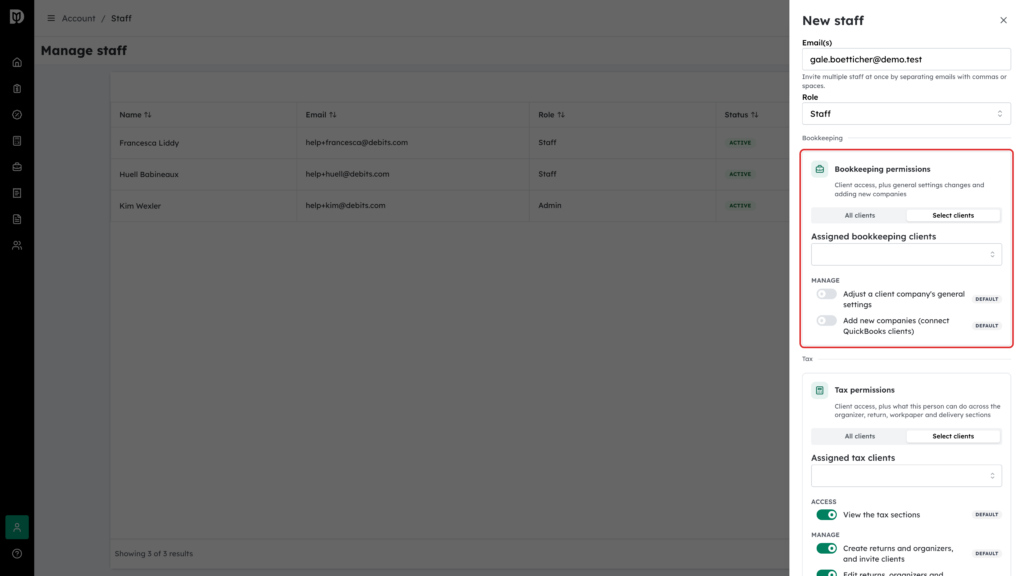
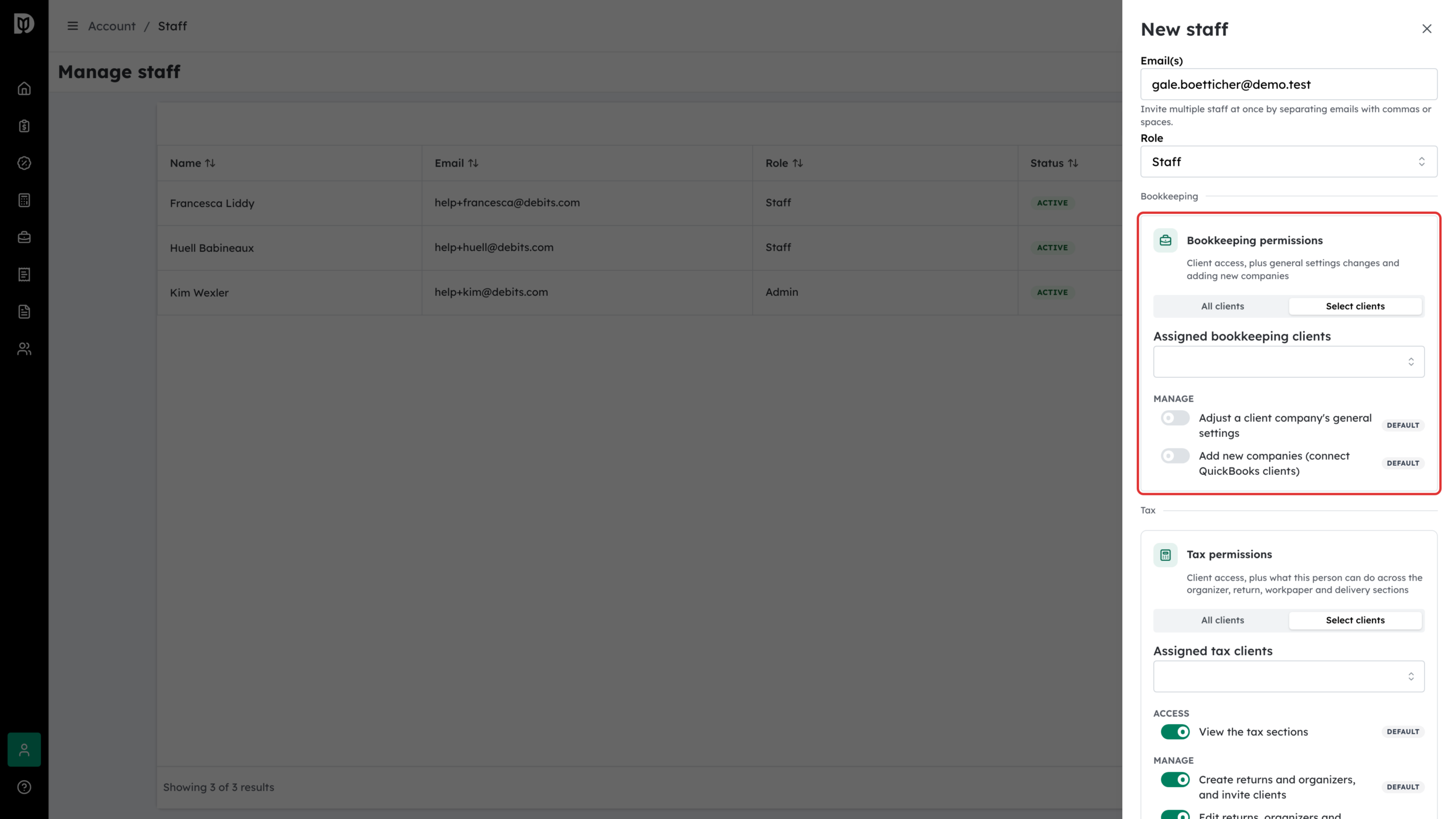
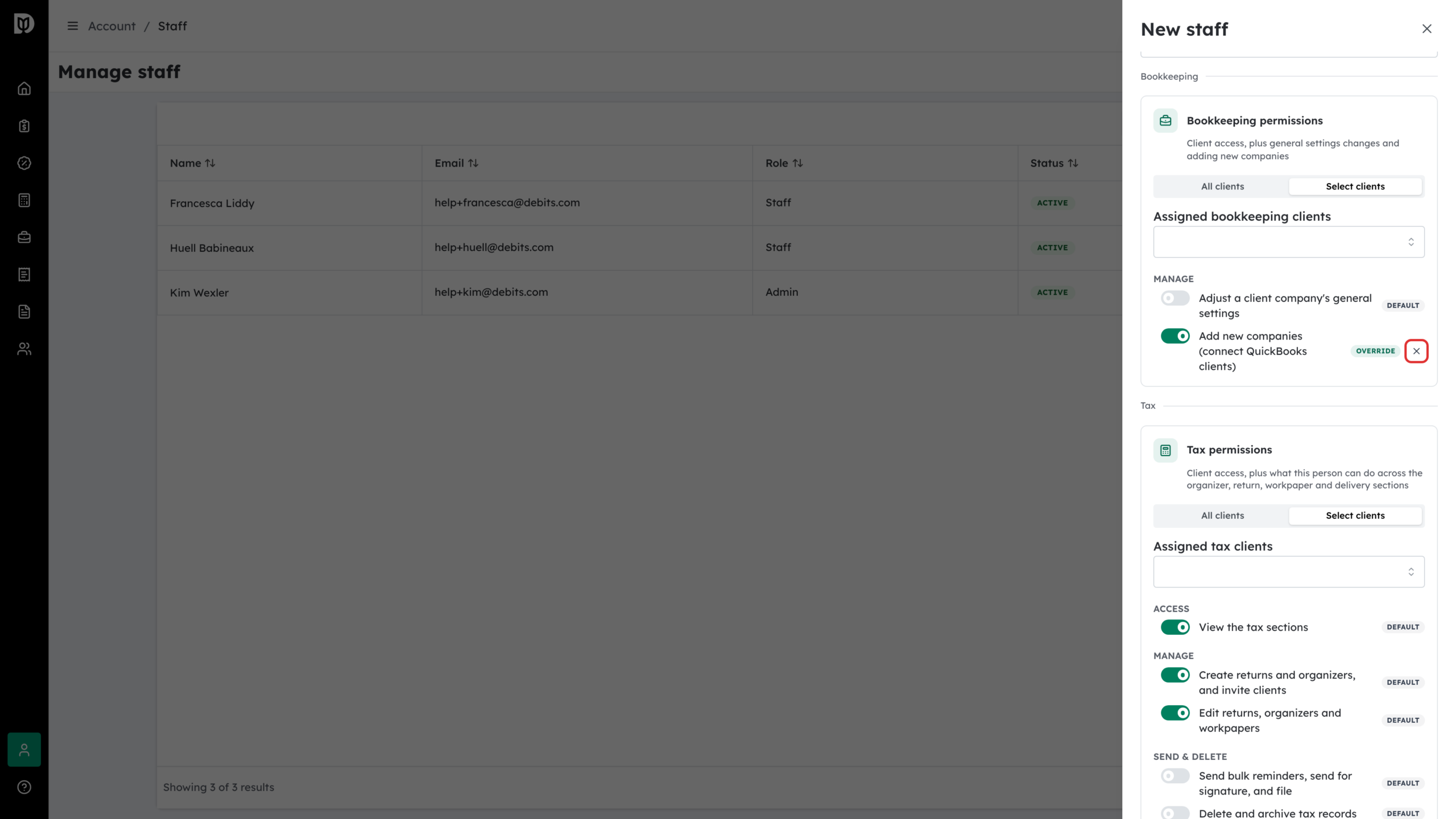
If you chose Staff, the Bookkeeping permissions card and the Tax permissions card each start with client access: All clients or Select clients. Pick Select clients to restrict them, then choose the companies in Assigned bookkeeping clients and the clients in Assigned tax clients.
-
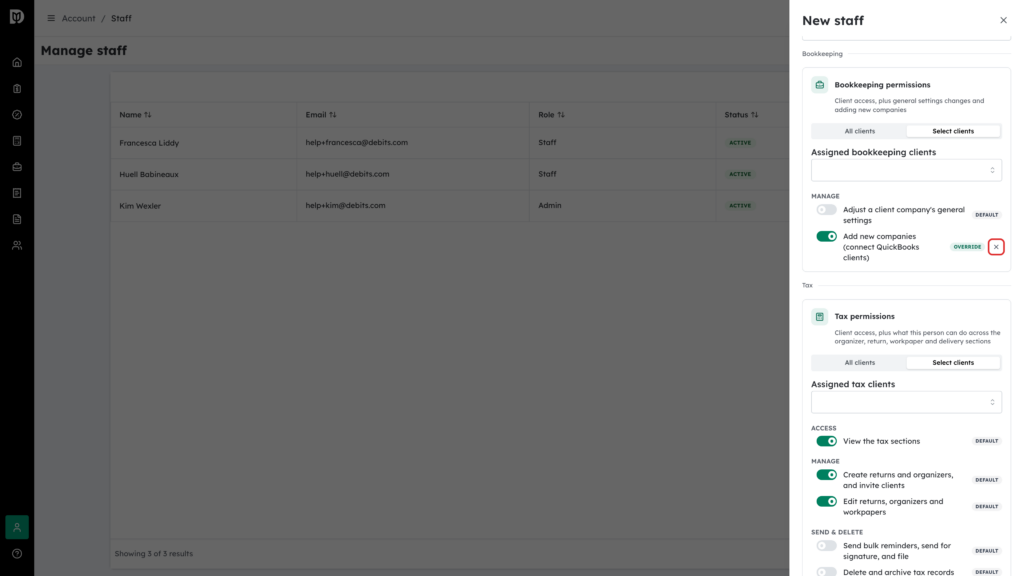
Set their permissions. Every switch starts at the role’s default and is marked DEFAULT; a switch you change is marked OVERRIDE, and the X beside it (Clear override) puts it back to the default.
- Bookkeeping permissions has two switches: Adjust a client company’s general settings and Add new companies (connect QuickBooks clients). Both are off by default for staff.
- Tax permissions has five switches that cover organizers, returns, workpapers and delivery: View the tax sections, Create returns and organizers, and invite clients, Edit returns, organizers and workpapers, Send bulk reminders, send for signature, and file, and Delete and archive tax records. For staff, the first three are on and Send bulk reminders, send for signature, and file and Delete and archive tax records are off by default.
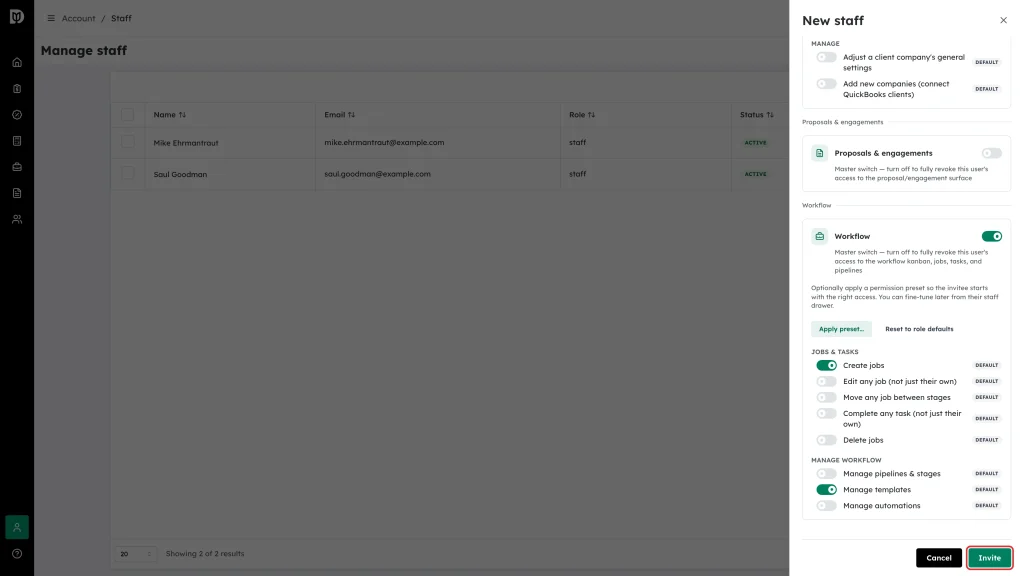
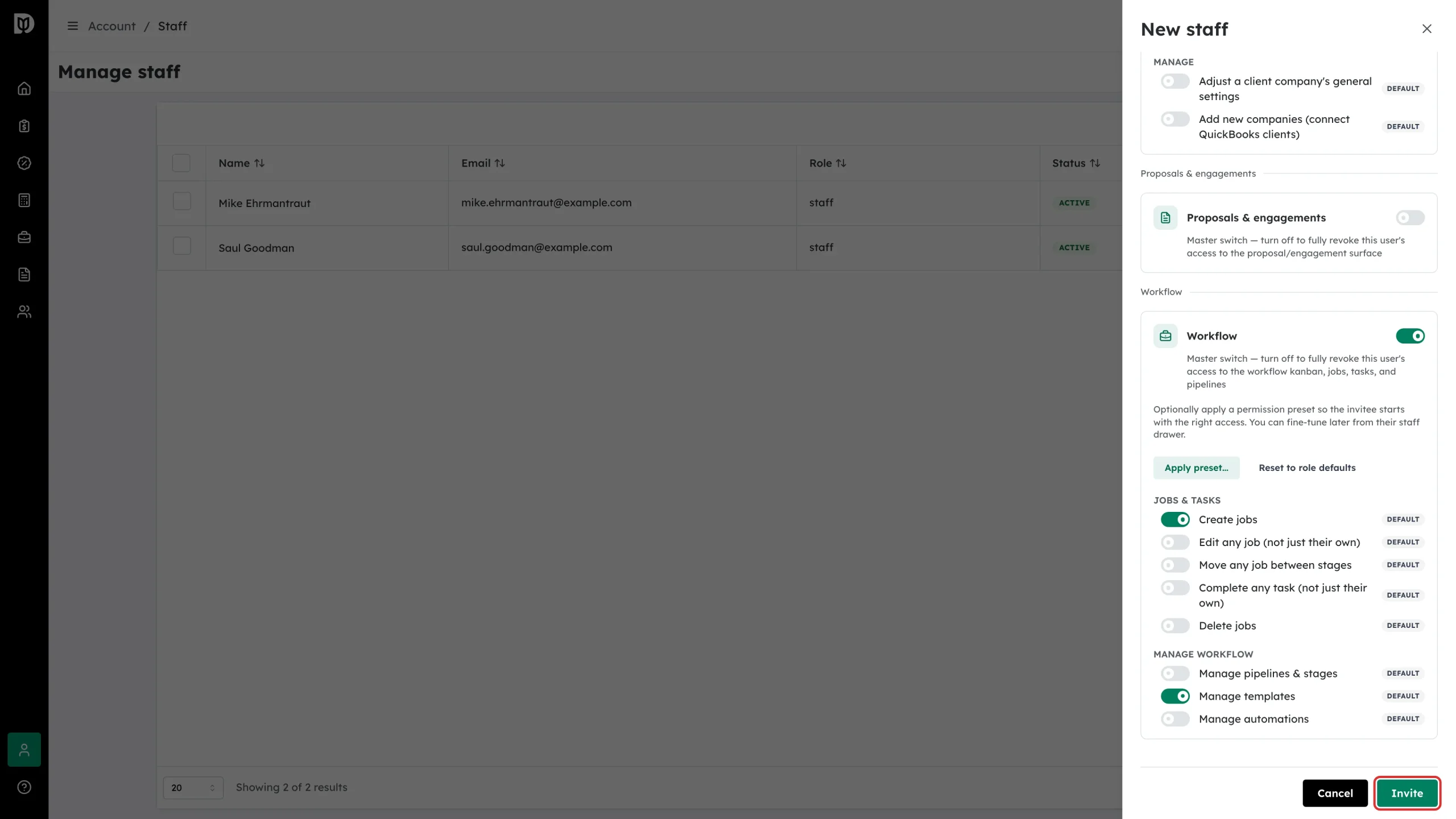
- Billing, Proposals & engagements, Workflow, 1099s and Reports each have a master switch you can turn off entirely. Proposals & engagements and Workflow start off for every new invite, and only the firm owner can grant billing access.
-
Click Invite at the bottom of the drawer.
What happens next
Debits emails each address a link to create their account and join your firm, and confirms with an Invite sent message. If you invited several people, it tells you how many went out and names anyone it could not invite.
The new person appears in the Manage staff table straight away. Their Status stays pending until they accept, then turns ACTIVE.
Which role?
Your firm has four roles: Owner, Admin, Manager and Staff. There is one owner, the person who holds the account.
- Admin — reaches every bookkeeping and tax client automatically, and can edit staff permissions. There is nothing to assign, and Debits shows a green note saying so.
- Manager — reaches every bookkeeping and tax client automatically, with the same starting permissions as an admin, but each permission can still be adjusted. A manager can edit and invite Staff only.
- Staff — reaches only the clients you assign, and only the areas you switch on.
Changing access later
Use the edit (pencil) icon on someone’s row in Manage staff. You can change their role, their assigned clients and every permission from there.
Take care when you change someone’s role: switching a staff member to admin or manager, or back to staff, clears their assigned client list. Re-assign their clients after a role change.