Debits pulls transactions from QuickBooks Online only. The sync start date controls how far back Debits looks. Move it earlier to bring in older transactions for a clean-up, a migration, or a catch-up period.
Moving the date earlier adds a one-time charge to your next bill for each additional month, at the company’s bookkeeping package rate: $5 per month on Core or $10 per month on Complete. Moving it later is free.
Before you start
- You need an accountant owner or admin role, or bookkeeping permission to manage company settings.
- The company must be connected to QuickBooks Online.
Steps
-
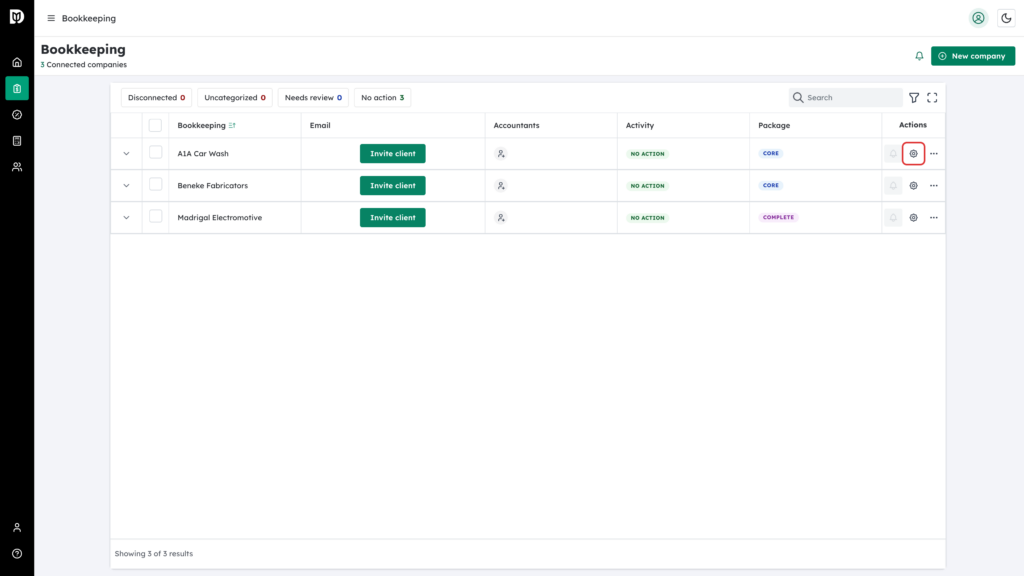
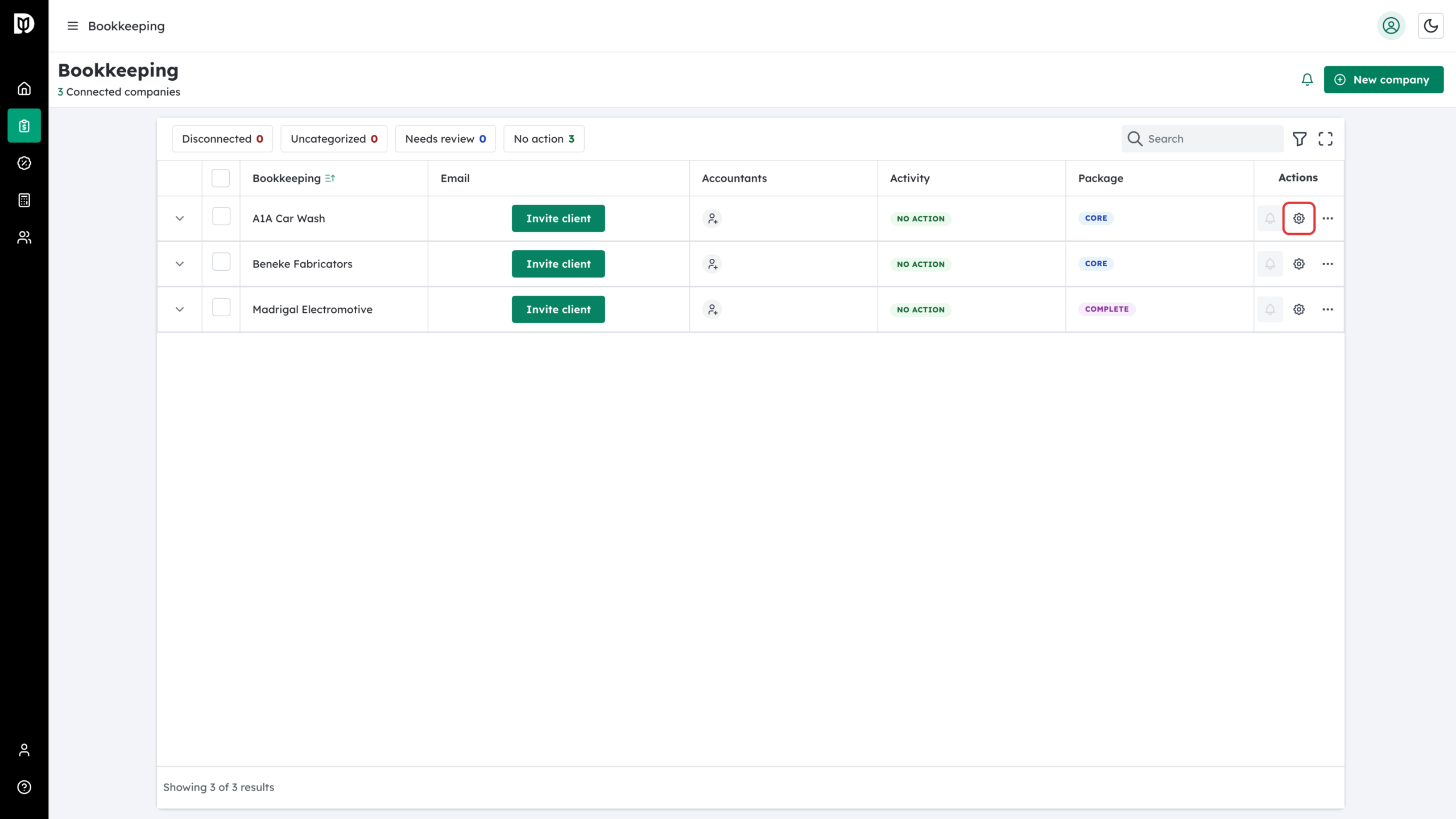
In the left sidebar, open Bookkeeping. In the Actions column of the company you want to change, click the gear icon.
-
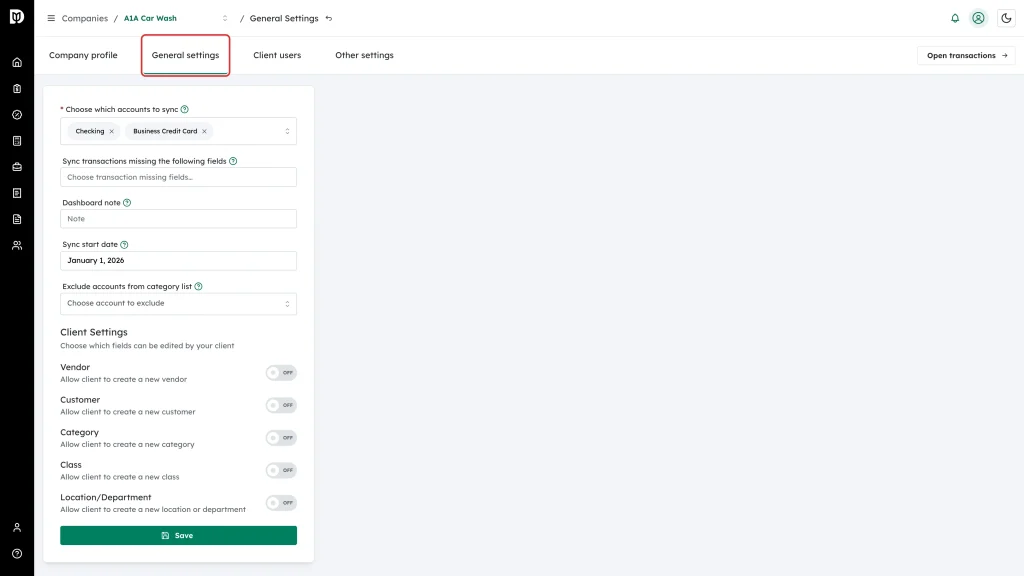
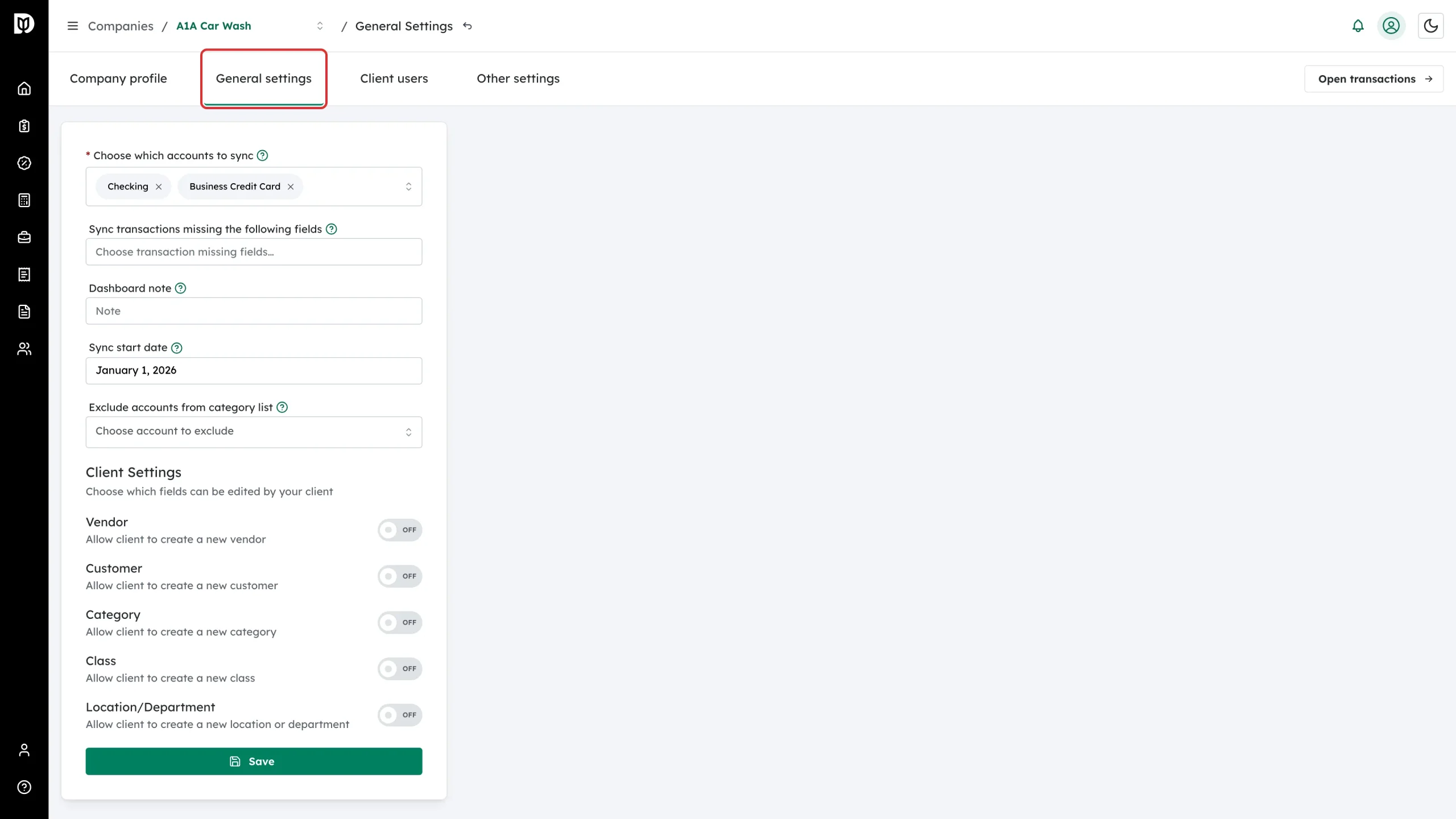
Open the General settings tab.
-
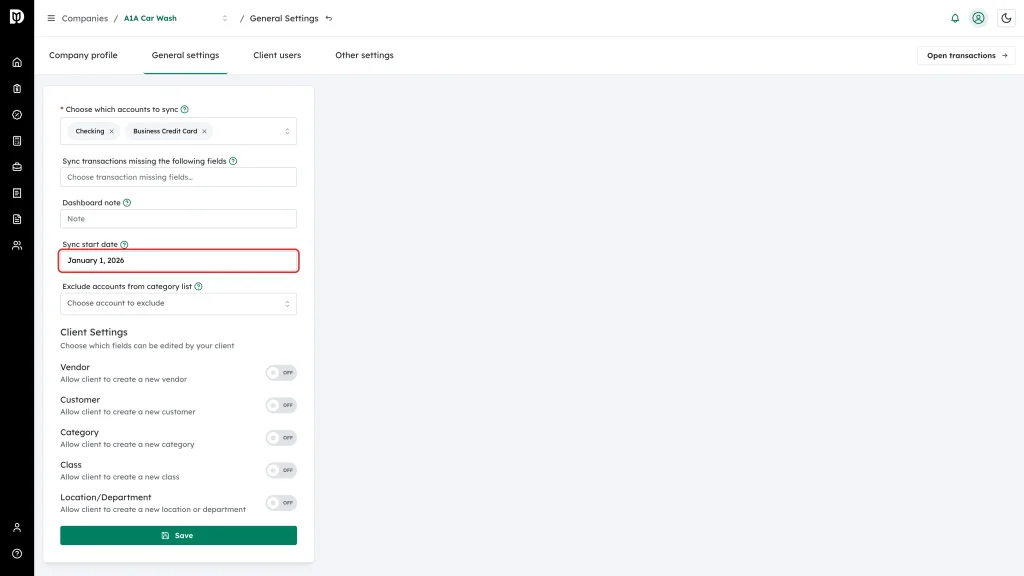
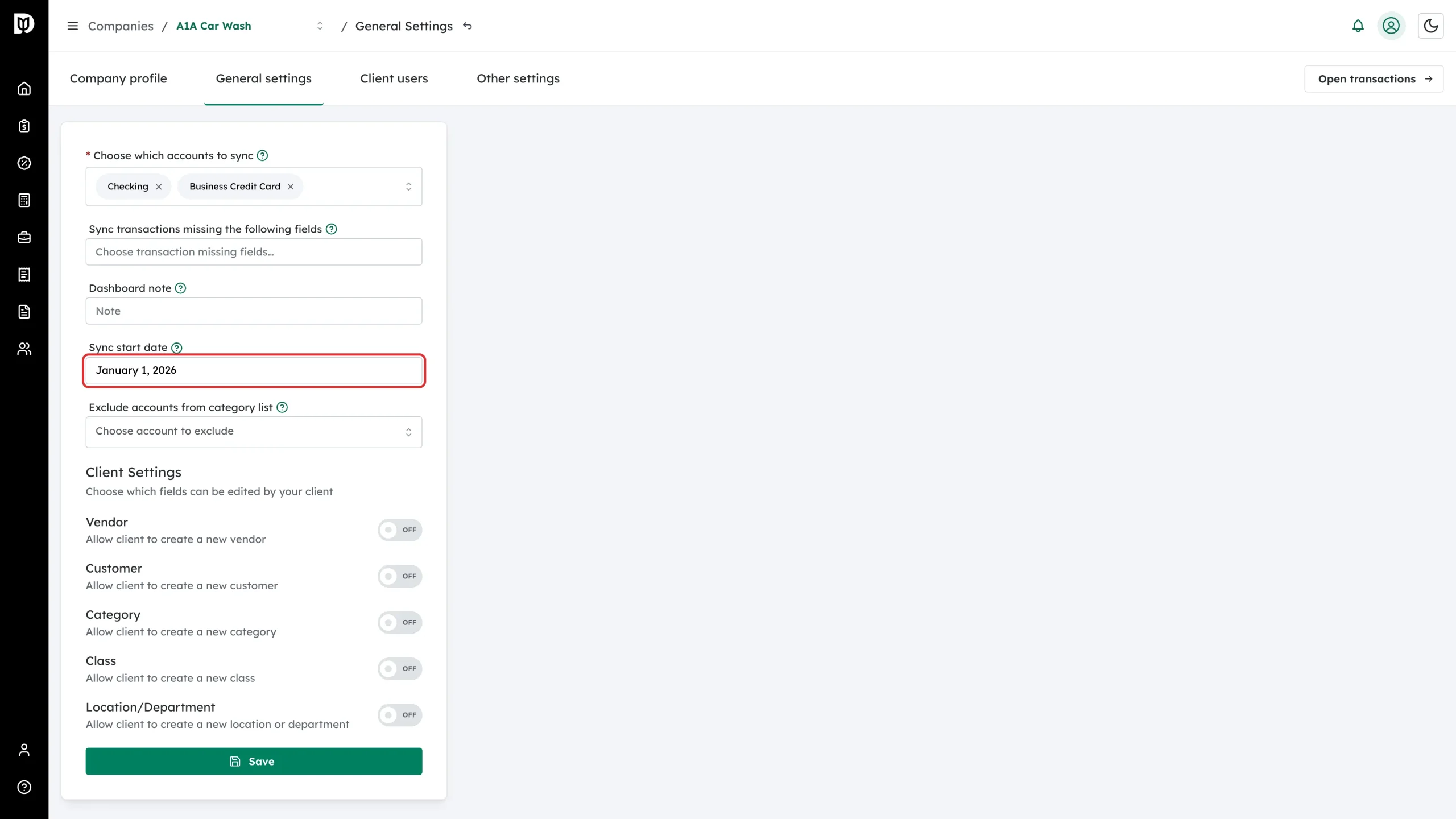
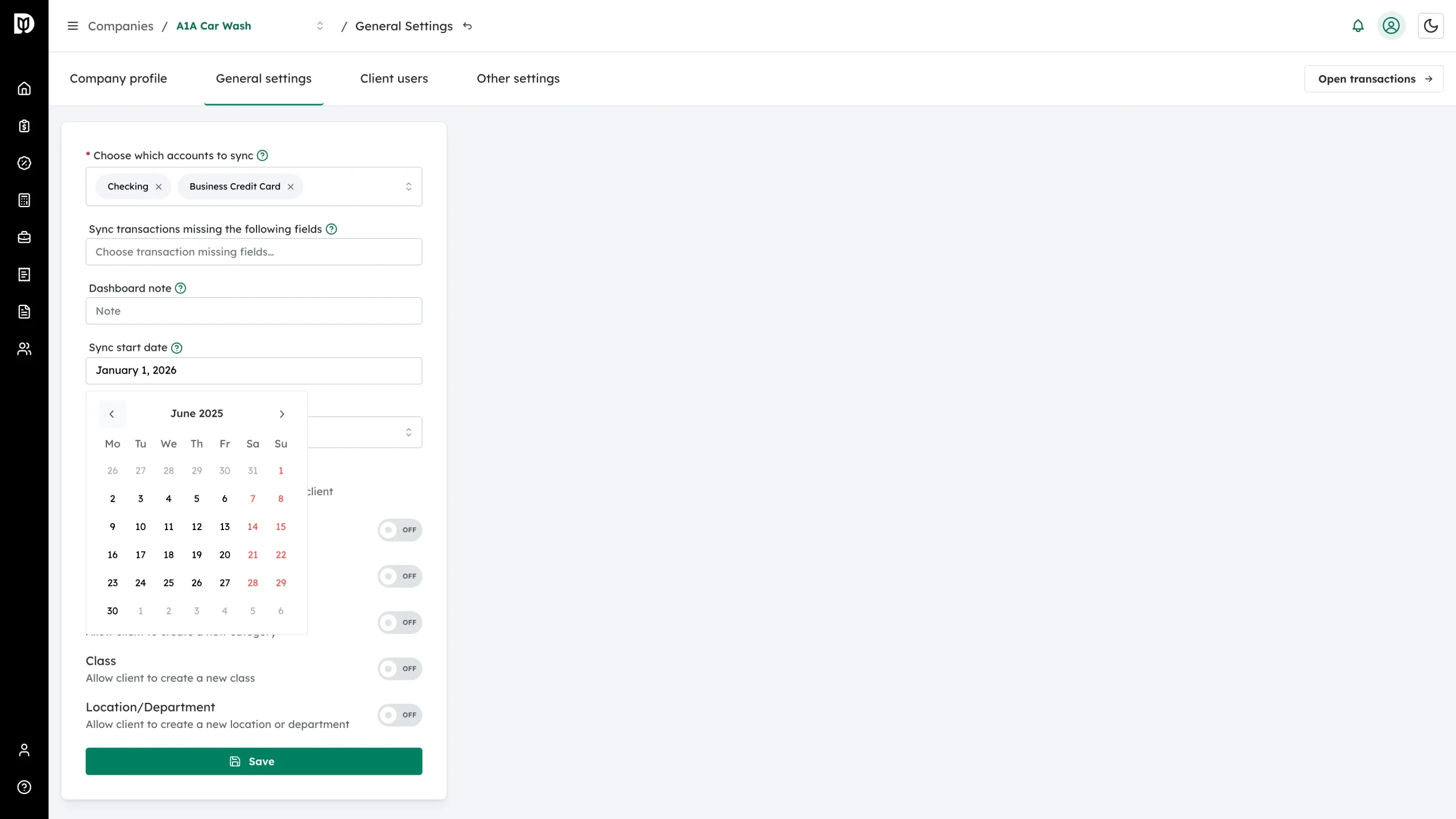
Click the Sync start date field.
-
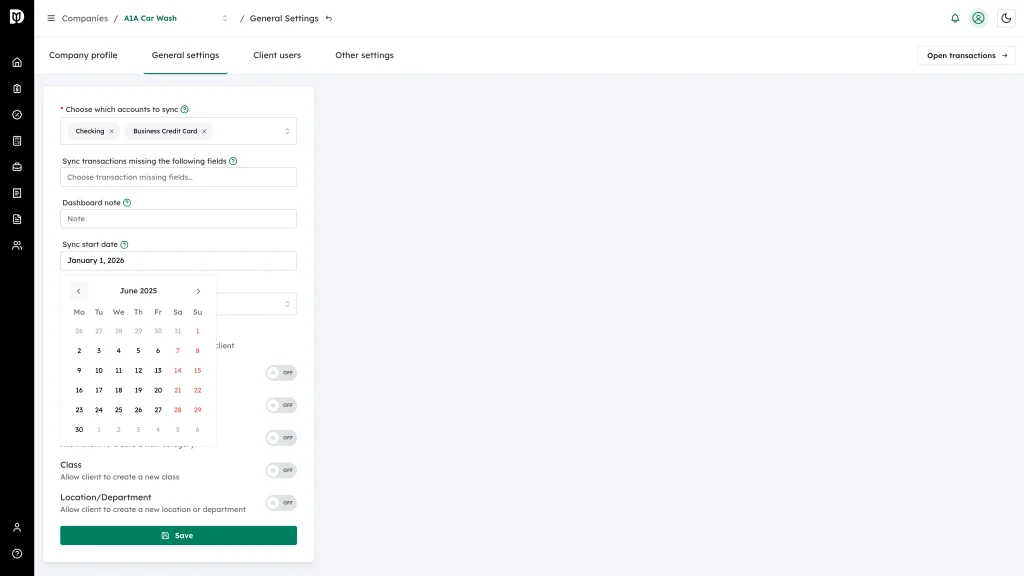
Use the arrows in the date picker to move to the month you want, then click the day you want Debits to start from.
-
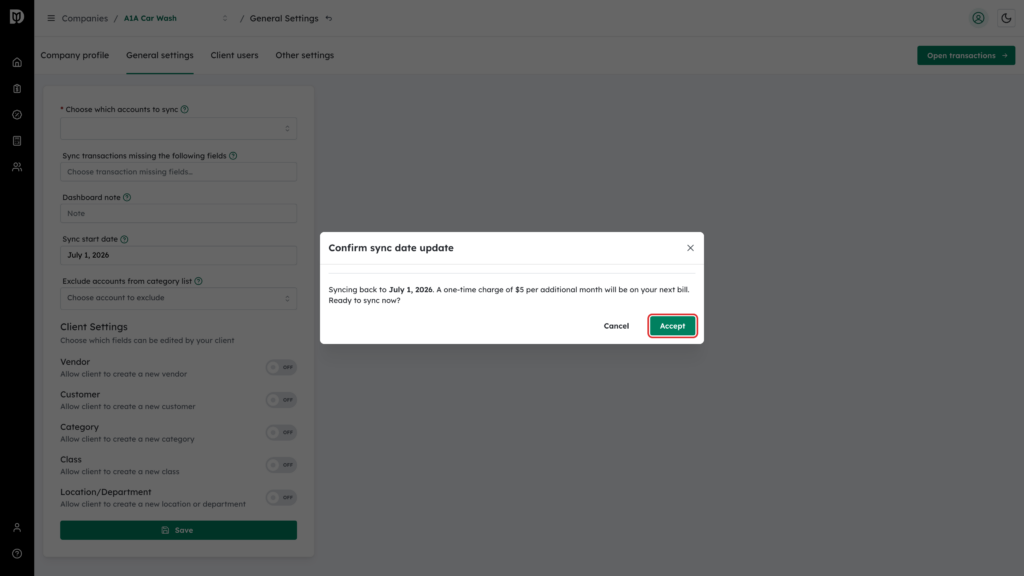
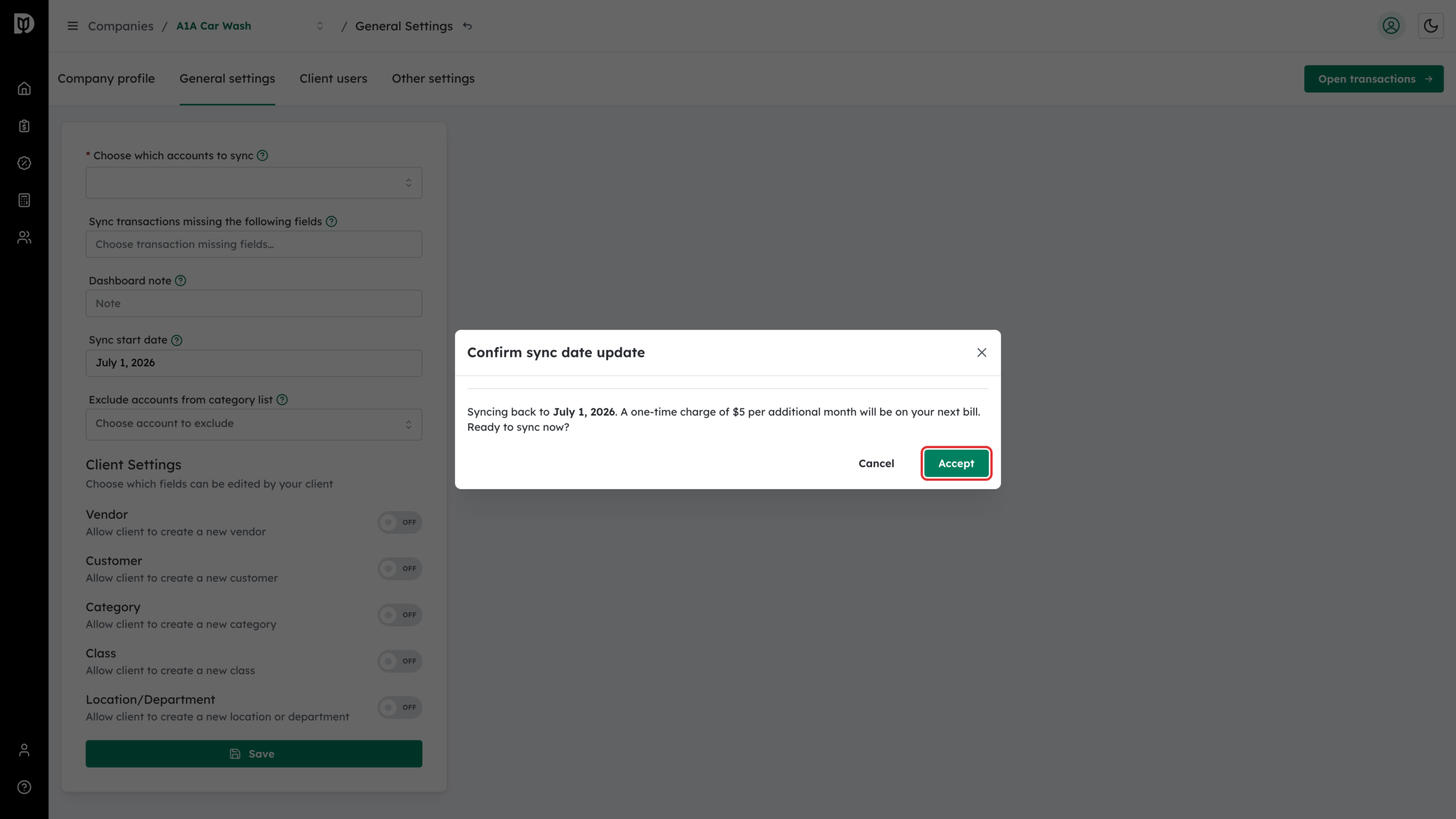
Click Save. If the new date is earlier than the current one, the Confirm sync date update window appears and tells you how far back Debits will sync and the one-time charge per additional month ($5 on Core, $10 on Complete) that will be added to your next bill. Click Accept to continue, or Cancel to keep the old date.
What happens next
- Debits starts pulling transactions from the new date up to today. A large backfill can take a while.
- New transactions appear on the Categorize tab of the company’s transactions page.
- The charge, if any, appears on your next invoice — nothing is billed at the moment you click Accept.
Notes
- If you move the date forward, Debits saves it without showing the confirmation window and does not remove transactions it has already synced.
- The sync start date is set per company. Changing it for one company does not affect the others.