Hide chart-of-accounts entries you never want anyone to pick when coding a transaction. Excluded accounts disappear from the Account picker on that company’s transactions.
Before you start
- You need an accountant owner or admin role, or bookkeeping permission to manage company settings.
- Exclusions are set per company.
Steps
-
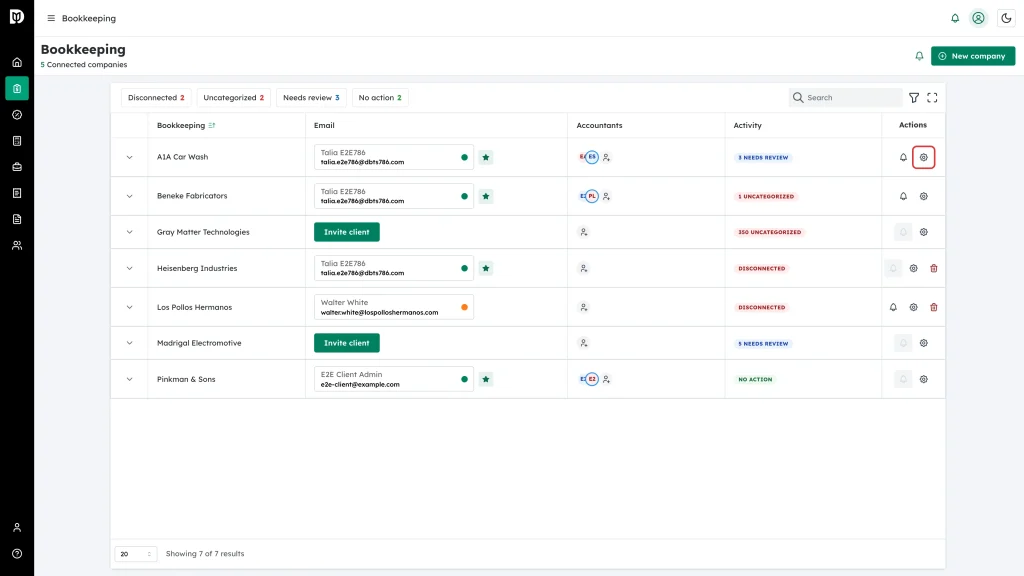
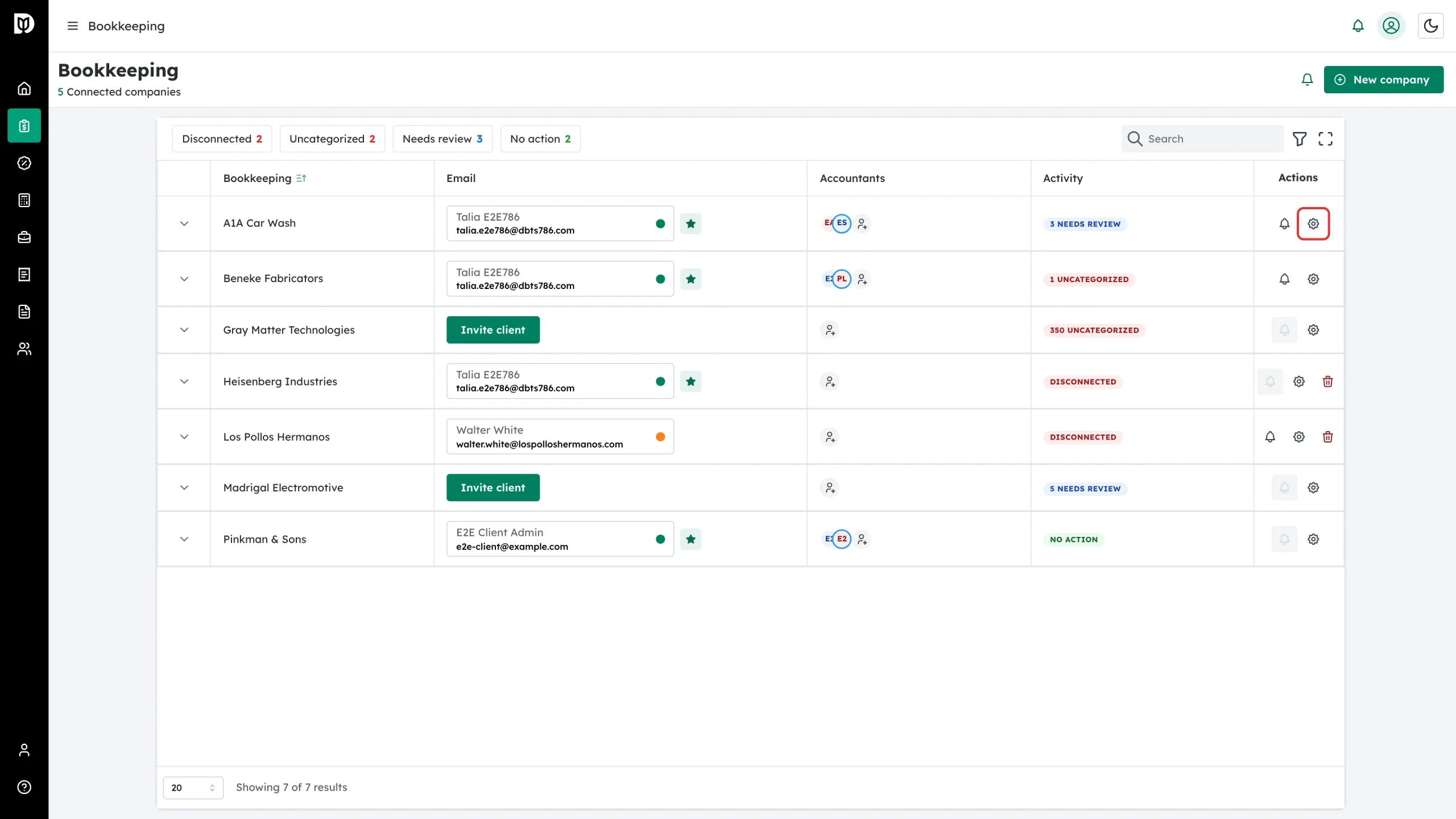
In the left sidebar, open Bookkeeping. In the Actions column of the company you want to change, click the gear icon.
-
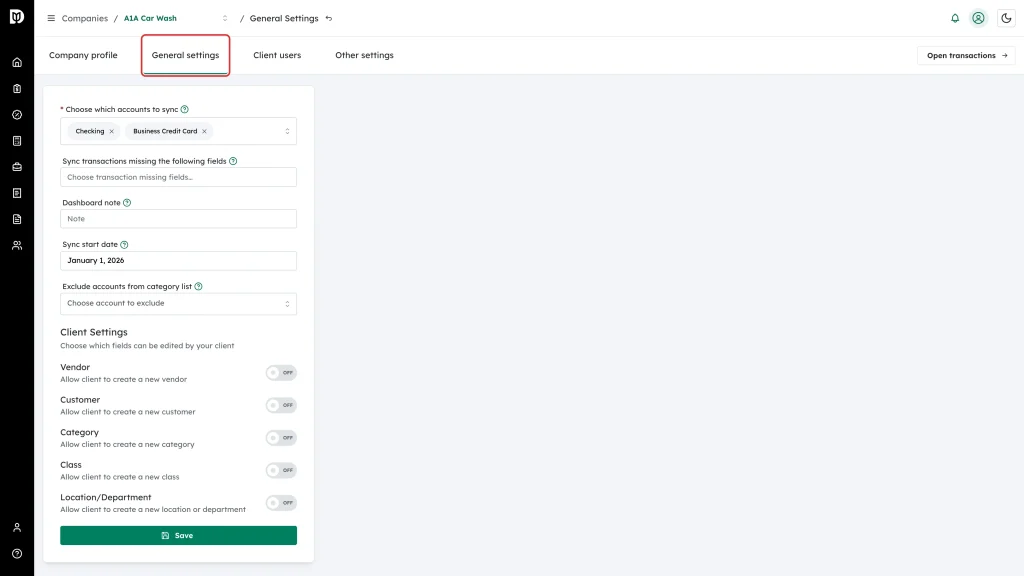
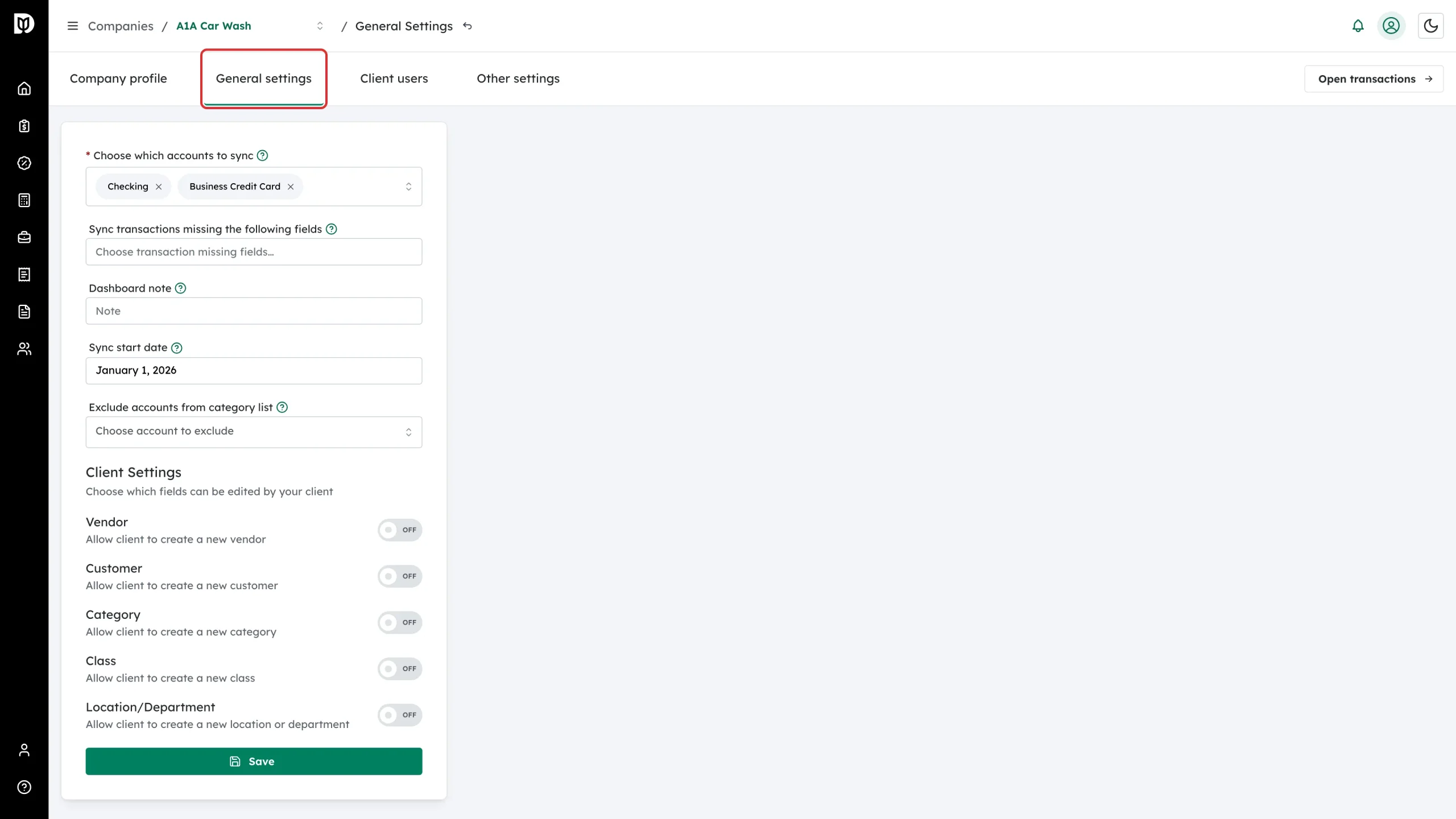
Open the General settings tab.
-
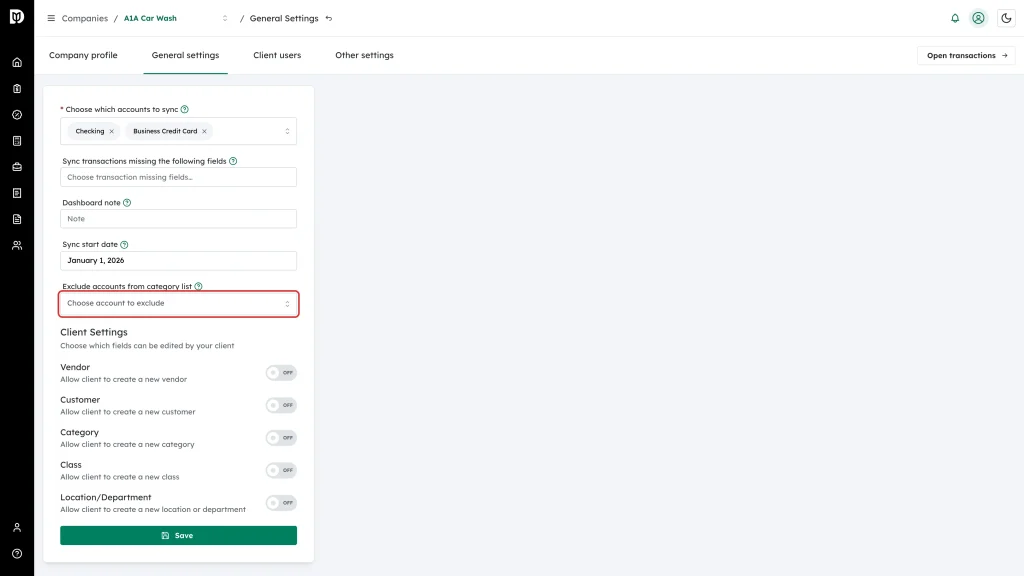
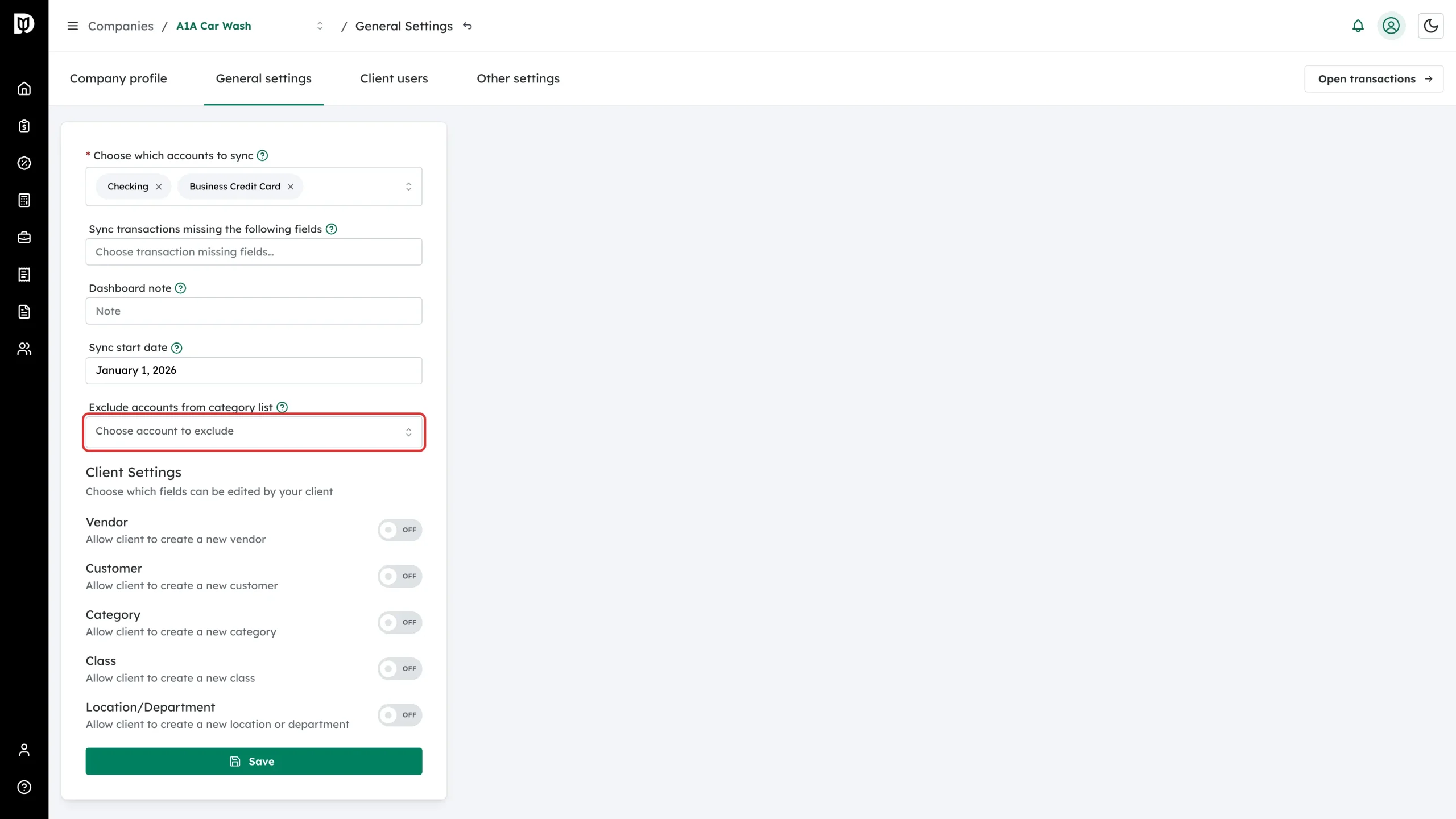
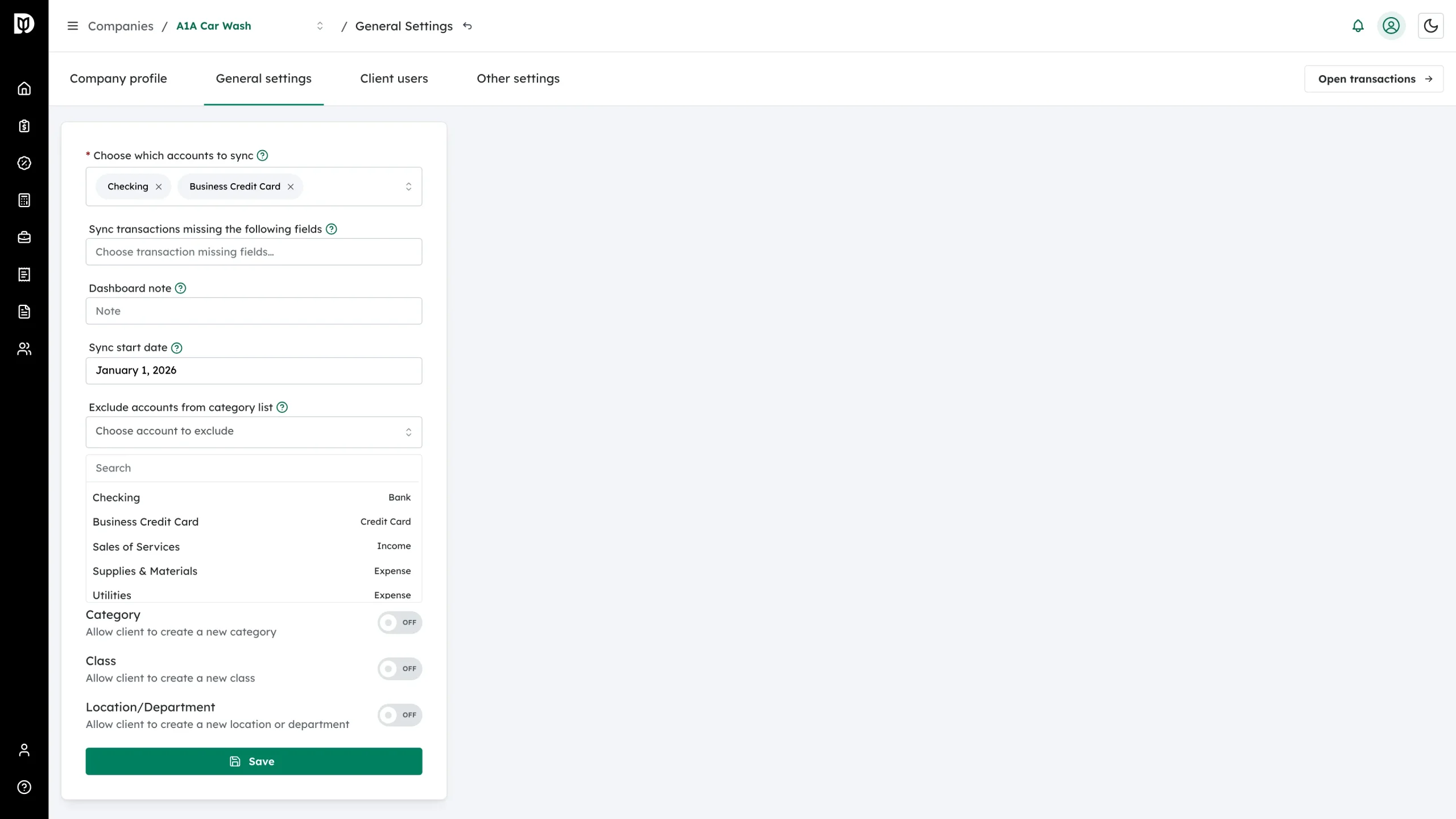
Click the box under Exclude accounts from category list. It reads Choose account to exclude until you pick something.
-
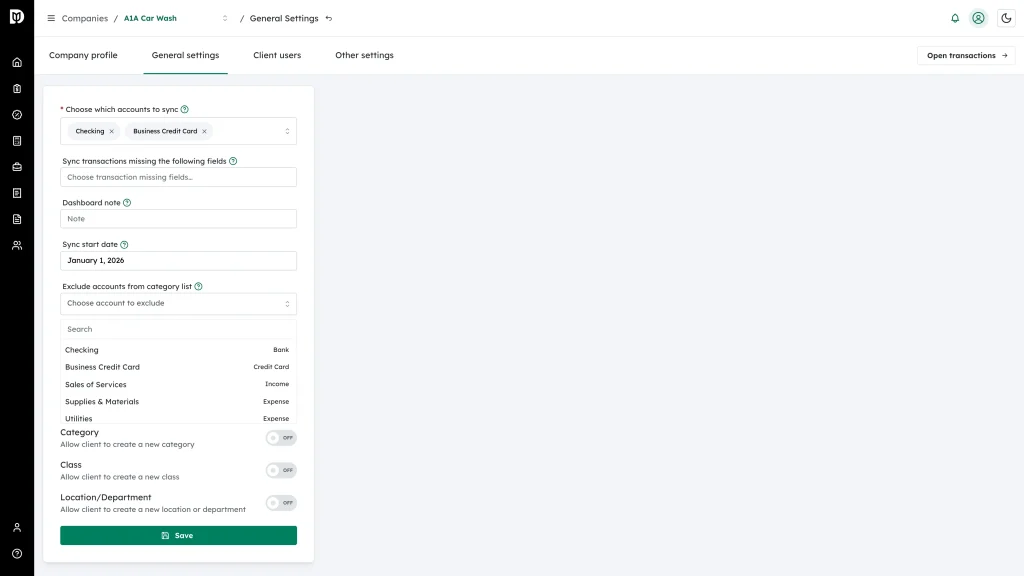
Use the Search box or scroll the list, then click each account you want to hide. The account type — Bank, Credit Card, Income, Expense — is shown on the right of each row.
-
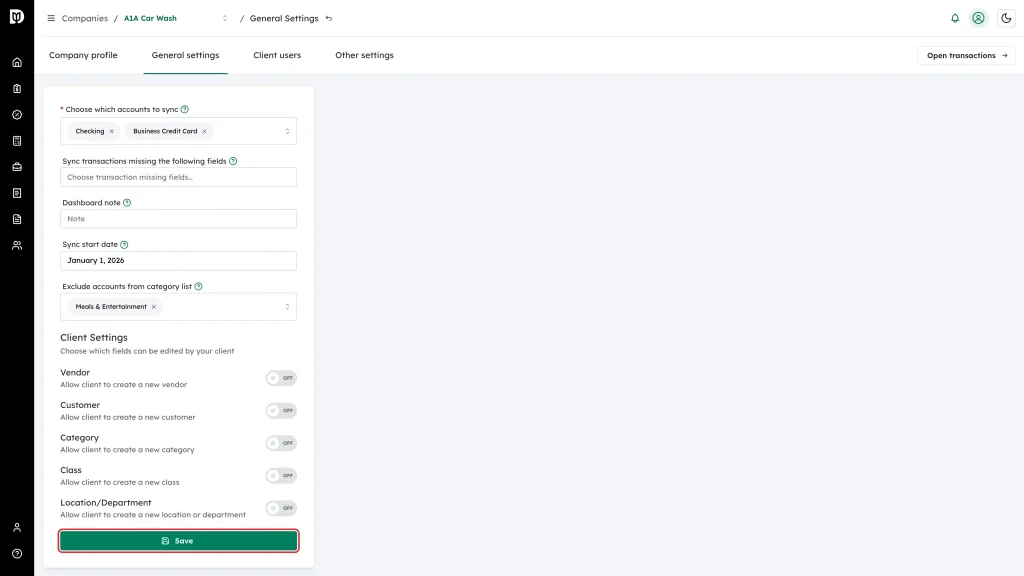
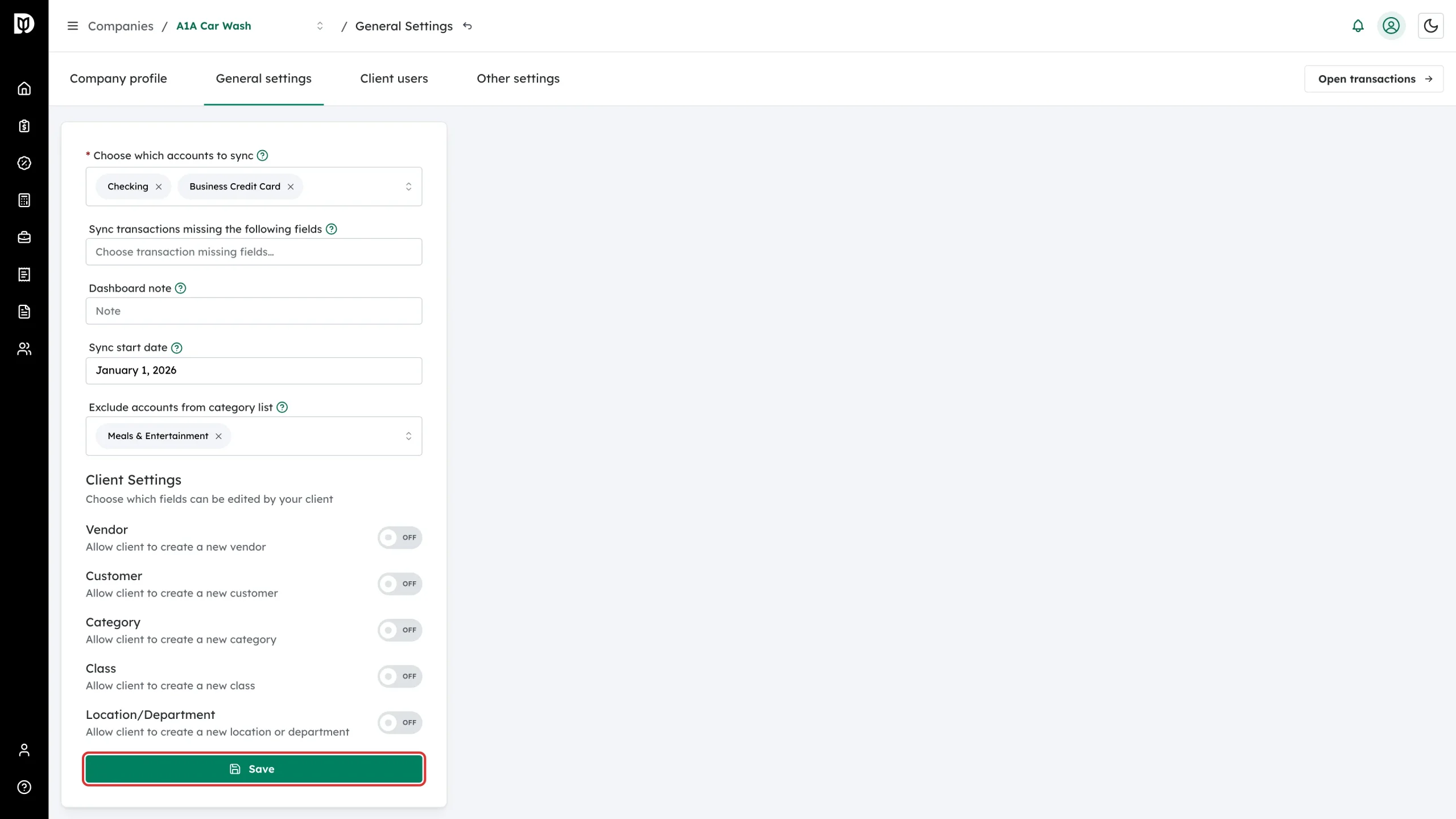
Each excluded account becomes a tag in the box. Click Save.
What happens next
- The account no longer appears in the Account picker on the company’s transactions, for you or for the client.
- The account is also removed from the choices in Choose which accounts to sync on the same page.
- Existing transactions already coded to that account keep their coding — the account is hidden, not deleted.
Notes
- Nothing changes in QuickBooks Online. The account stays in the client’s chart of accounts.
- To bring an account back, click the x on its tag and save again.