Who this is for: Accountants who want to compare a client’s results against a plan.
What you’ll learn: How to build a budget for a company, keep alternative scenarios, and show Budget vs Actual in a report.
Before you begin
- Budgets belong to the company, not to one report. Set the budget once for the fiscal year and every monthly report uses its own month.
- To show the comparison in a report, add the Budget vs Actual section in Edit Report Sections.
Step-by-step instructions
Step 1: Open the Budgeting view
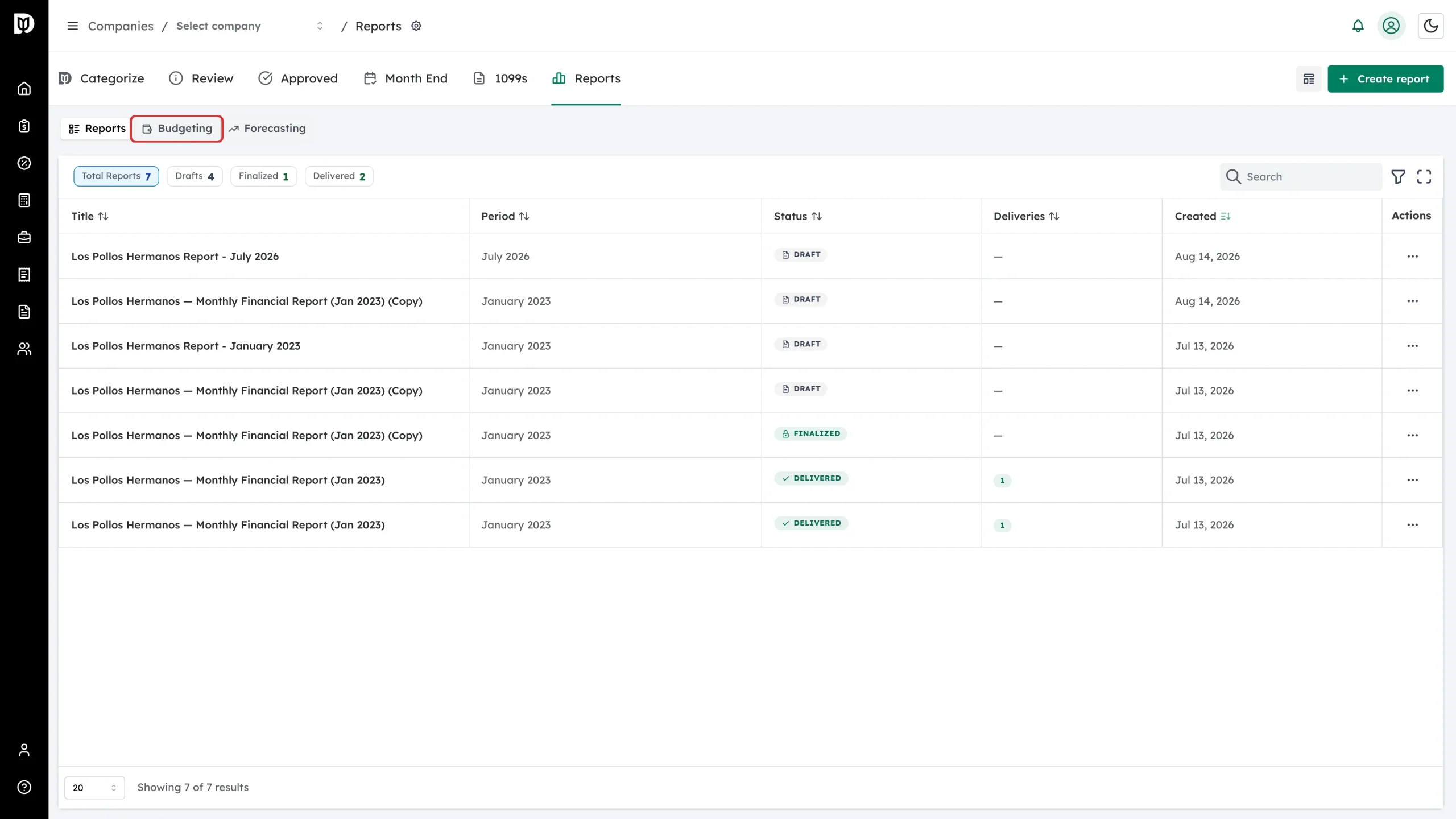
In the company’s Reports tab, switch from Reports to Budgeting.
Step 2: Open the budget editor
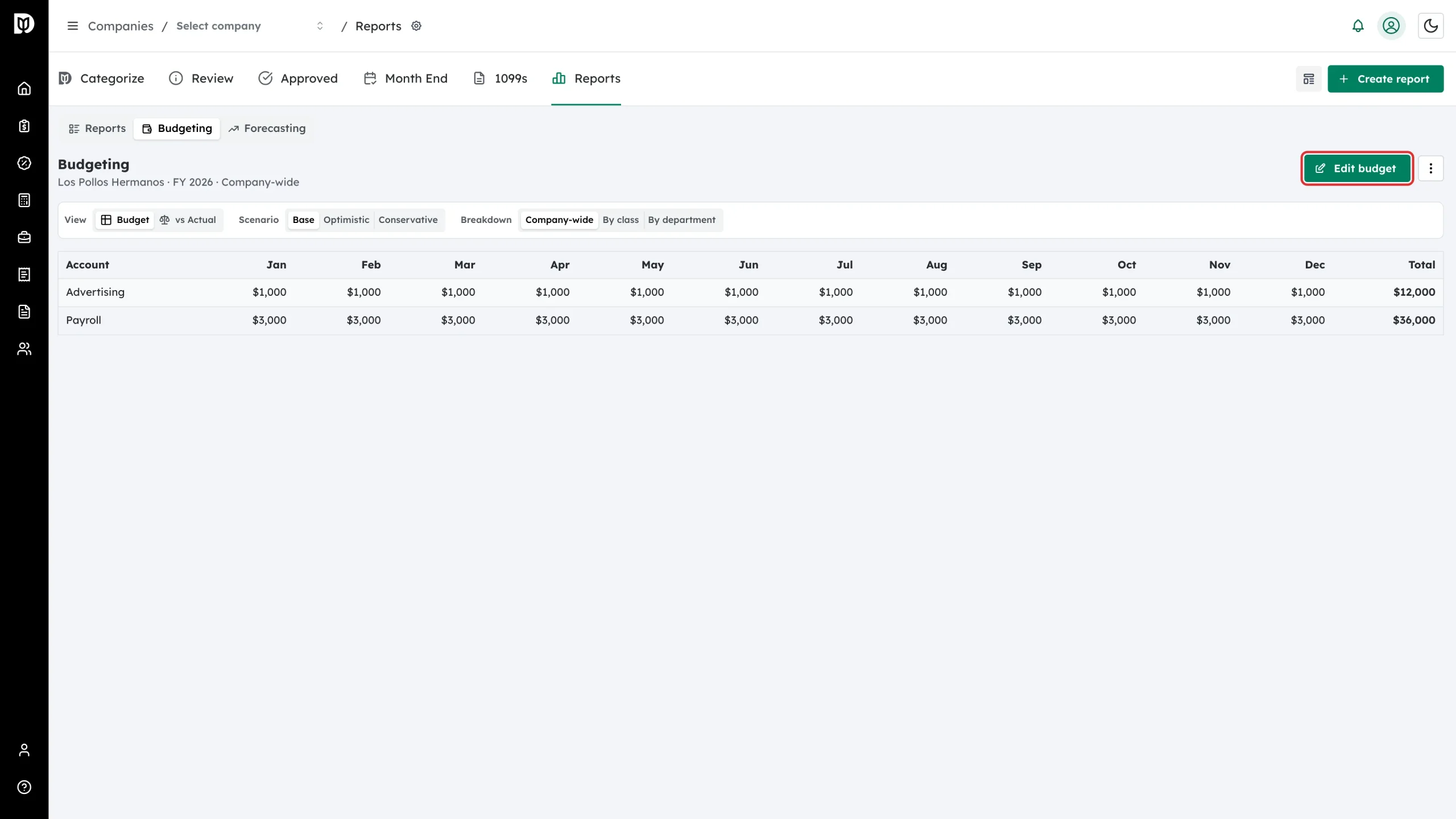
Select Edit budget.
Step 3: Review the editor
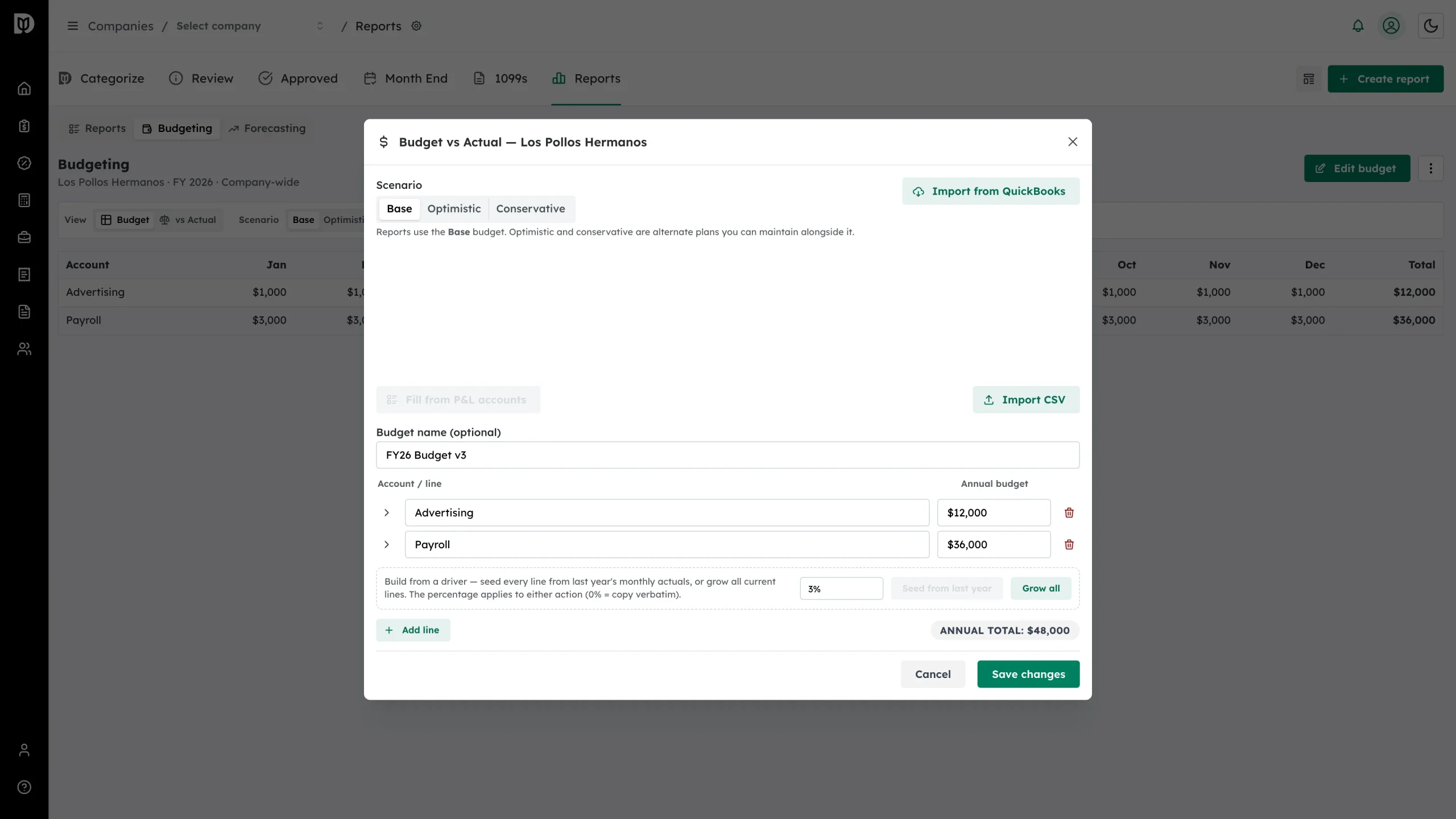
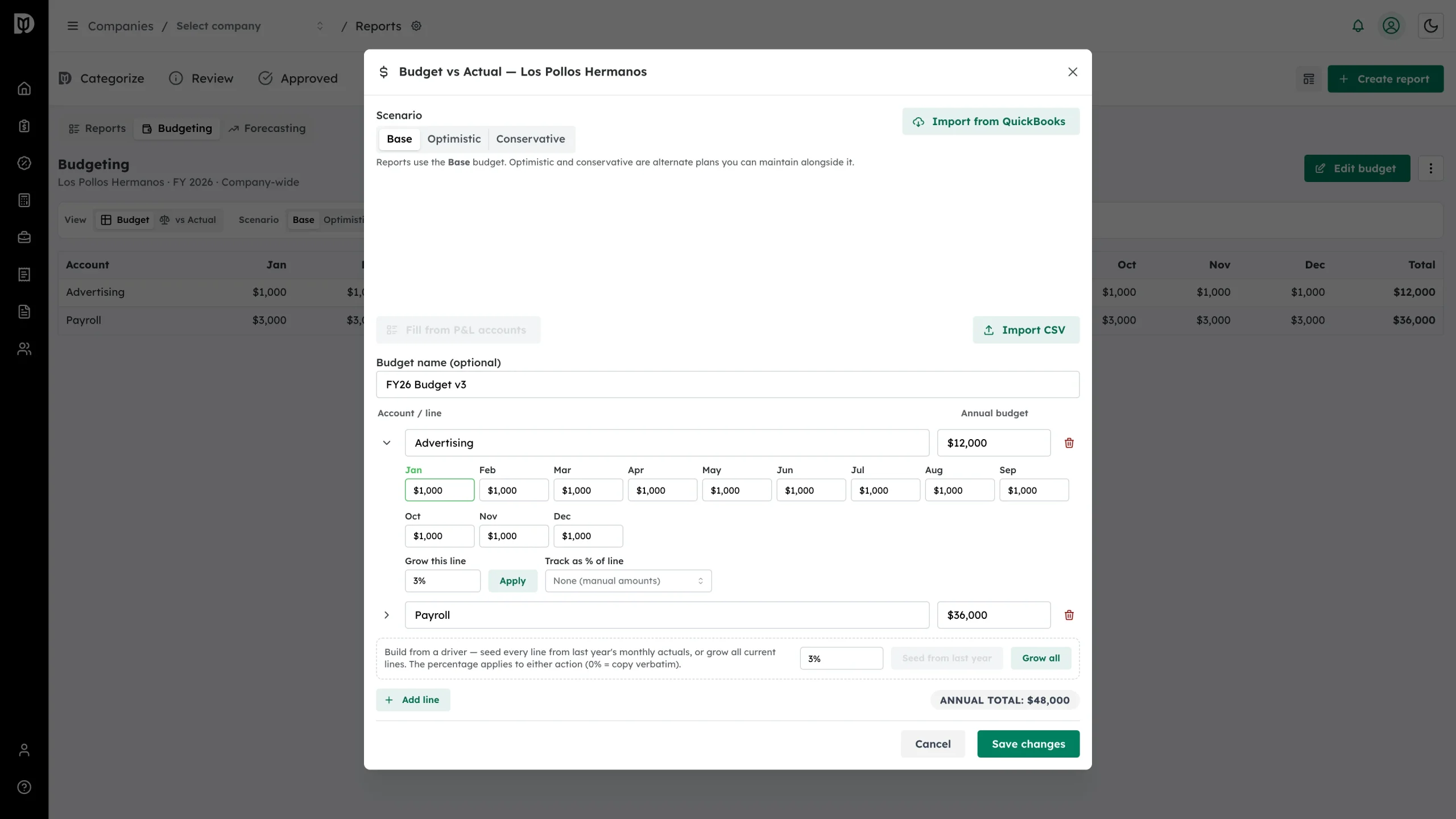
The editor holds one line per account, each with an annual amount, and shows the annual total as you work.
Step 4: Choose a scenario
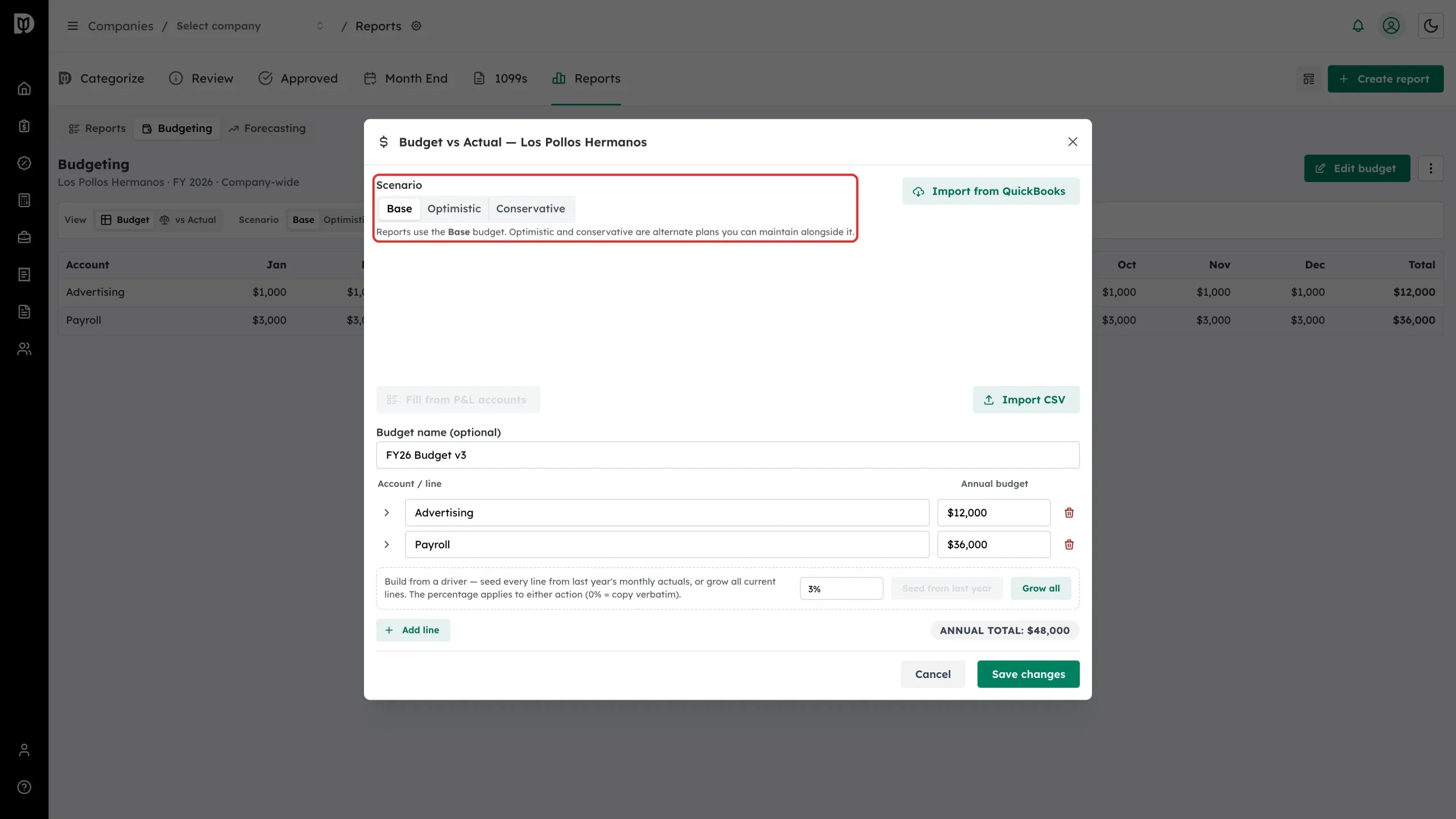
Use Scenario to keep a Base, Optimistic or Conservative plan. Reports always use the Base budget; the other two are alternative plans you can maintain alongside it.
Step 5: Start from the company’s accounts
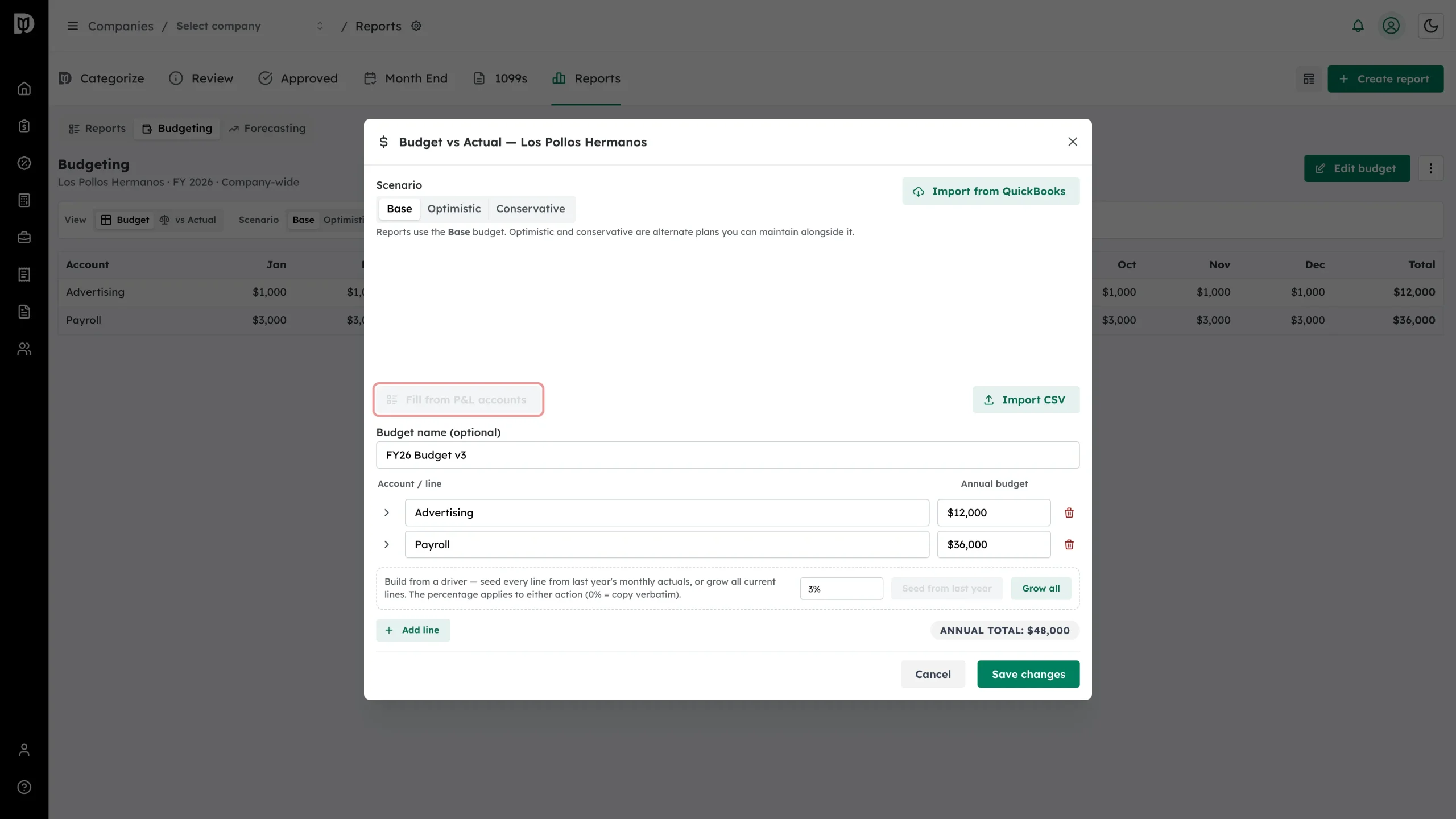
Select Fill from P&L accounts to create a line for every account on the client’s Profit & Loss, so the labels match exactly. Drag a line by its handle to change the order.
Step 6: Or import your own file
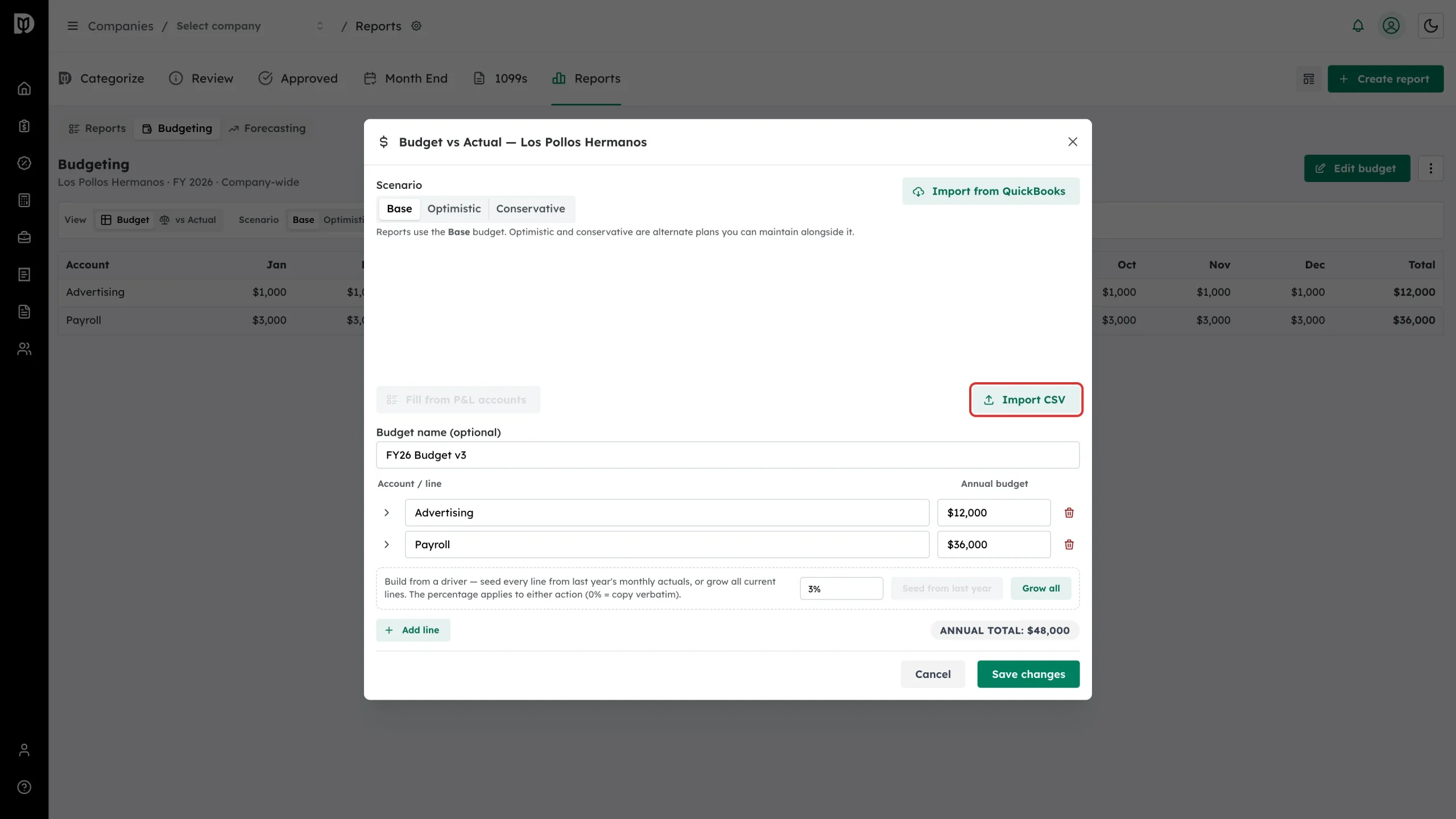
Select Import CSV to bring a budget in from a spreadsheet.
Step 7: Or import the QuickBooks budget
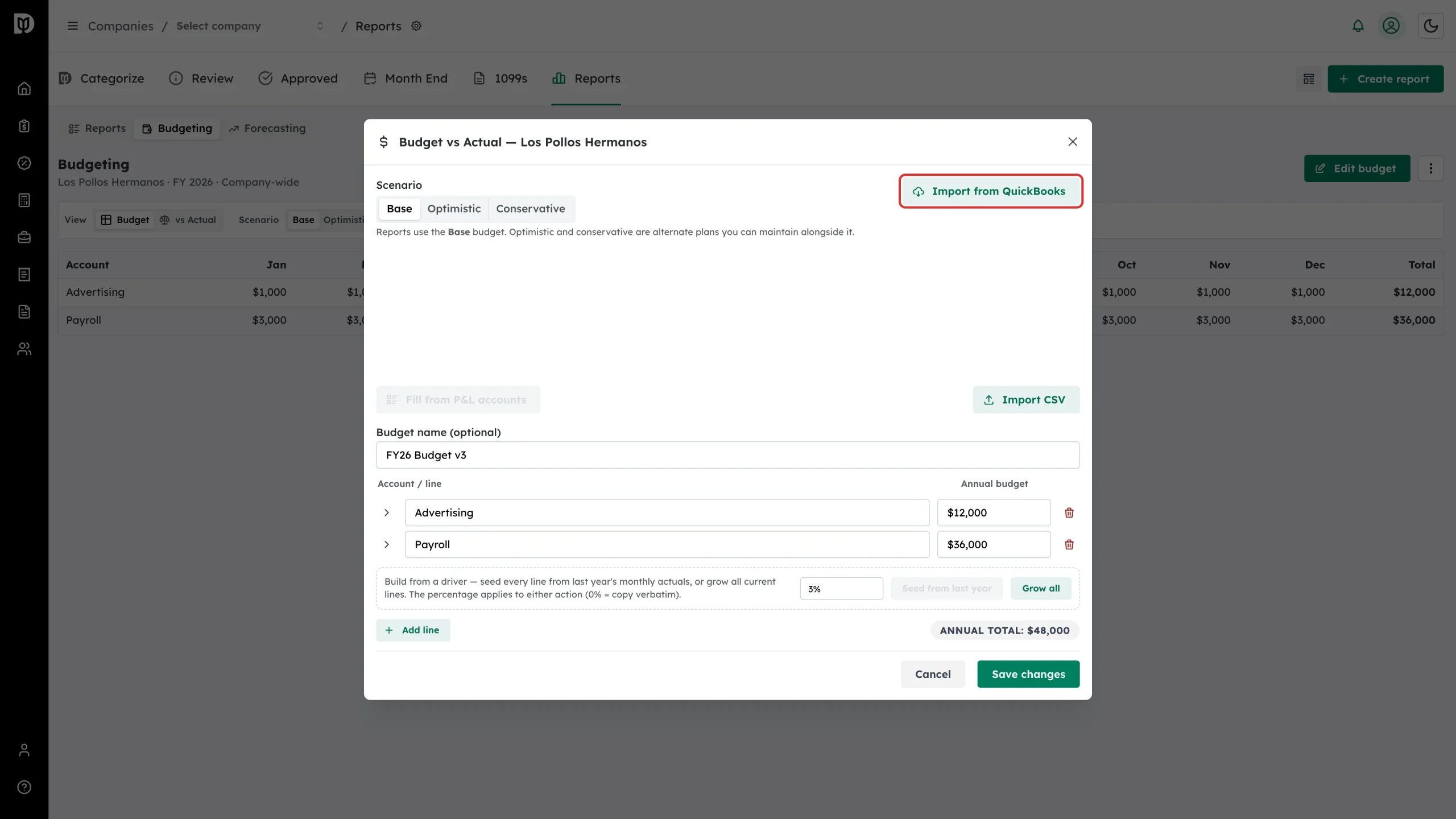
Select Import from QuickBooks to pull a budget the client already keeps in QuickBooks.
Step 8: Phase a line across the year
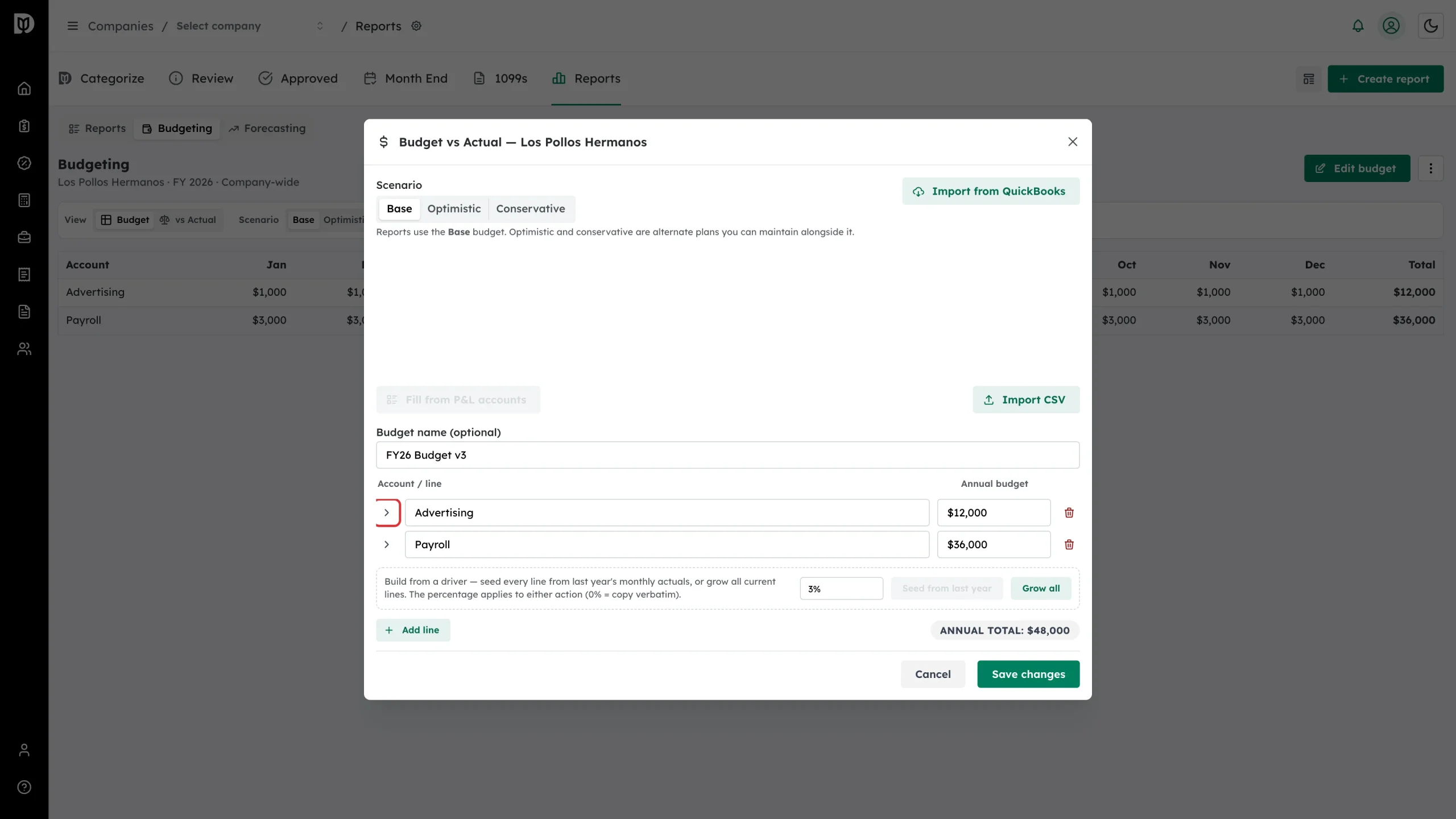
An annual amount splits evenly across twelve months. To handle seasonality, expand a line with the arrow beside it.
Step 9: Set the monthly amounts
Enter each month’s figure. The report’s own month is highlighted. You can also grow the line by a percentage, or track it as a percentage of another line.
Step 10: Save the budget
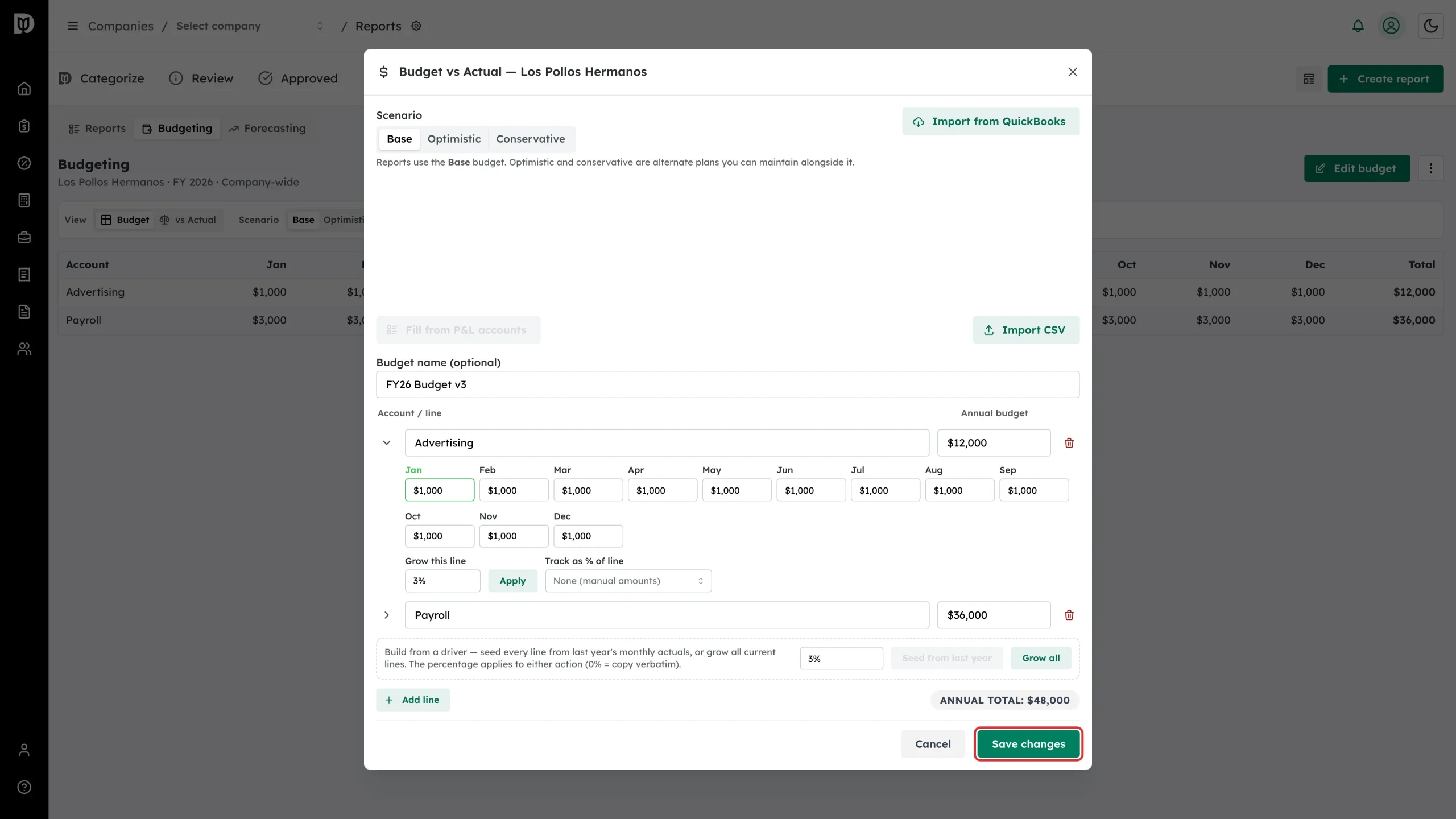
Select Save changes (or Create budget the first time).
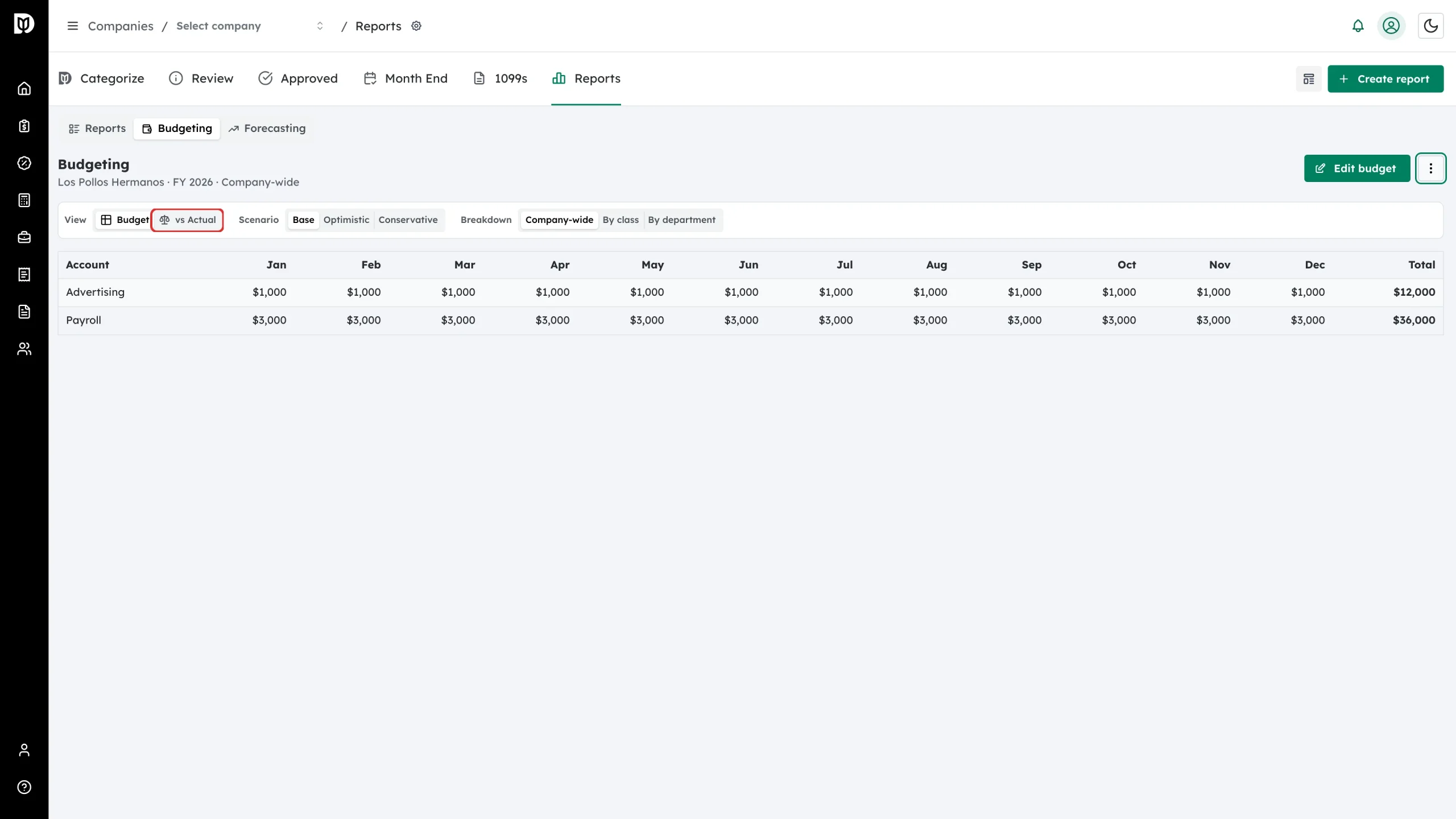
Step 11: Choose how to view it
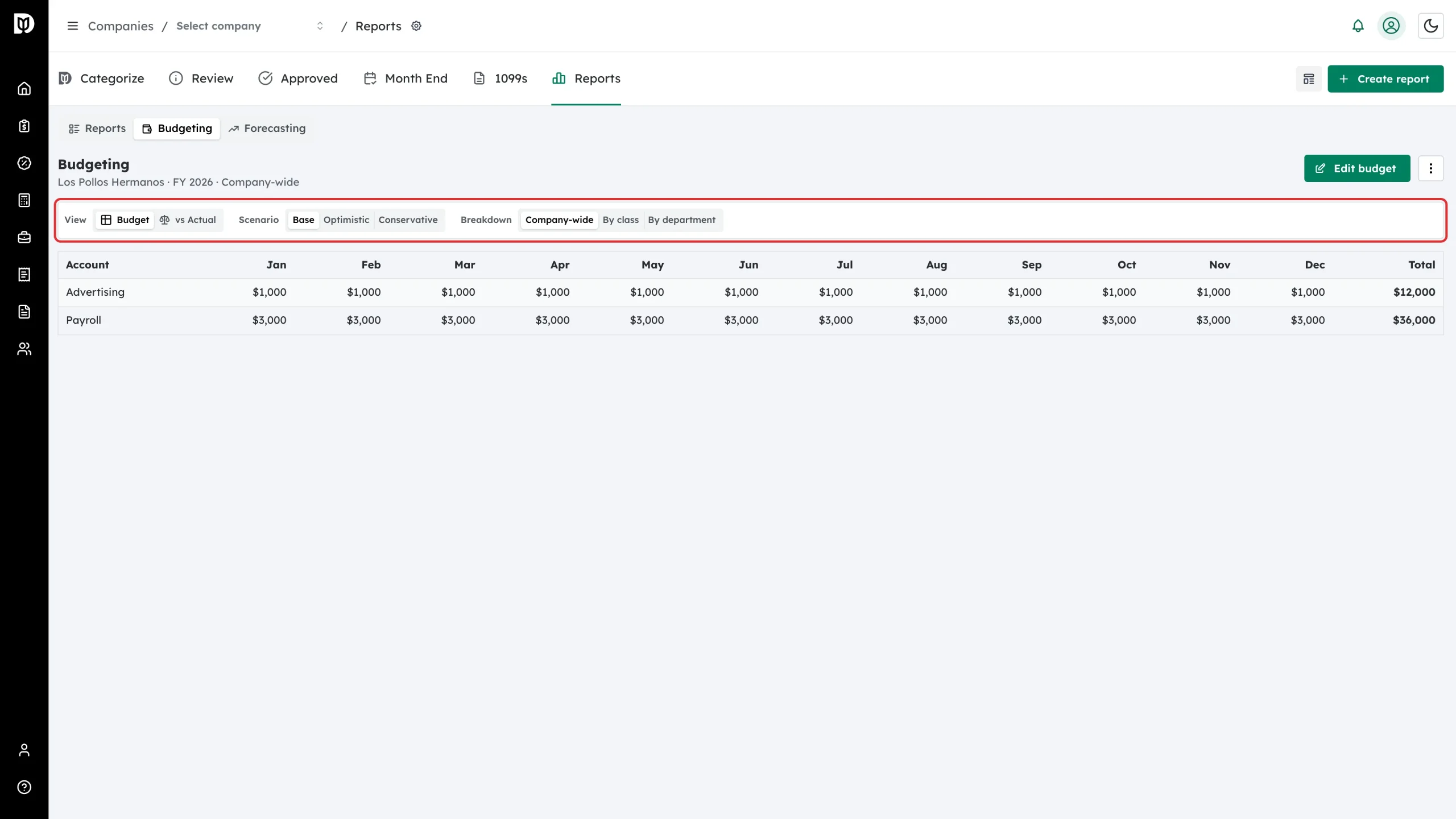
Back in the workspace, use the control bar to switch between the Budget table and vs Actual, to change scenario, and to break the budget down Company-wide, By class or By department.
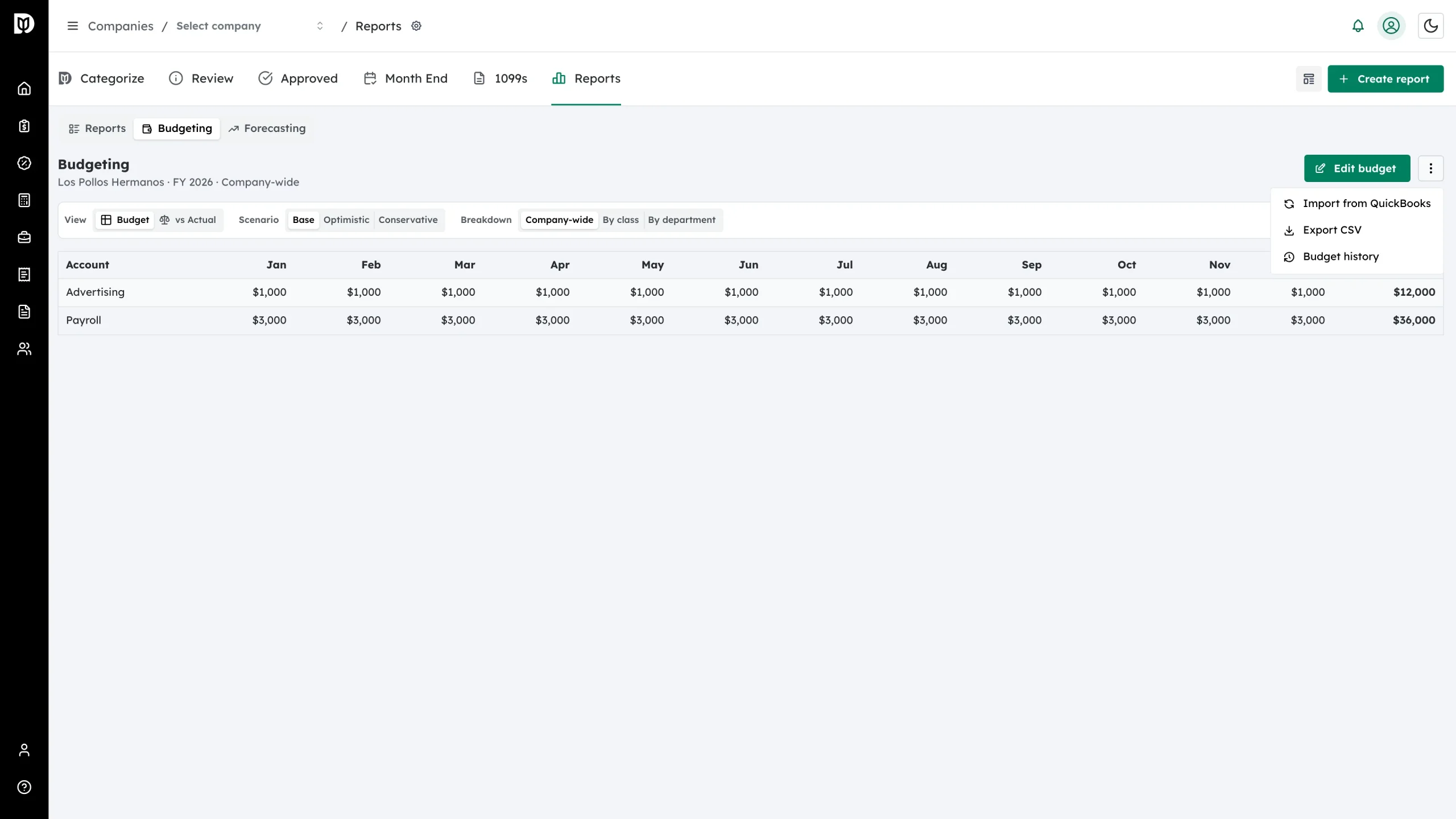
Step 12: Import, export or review history
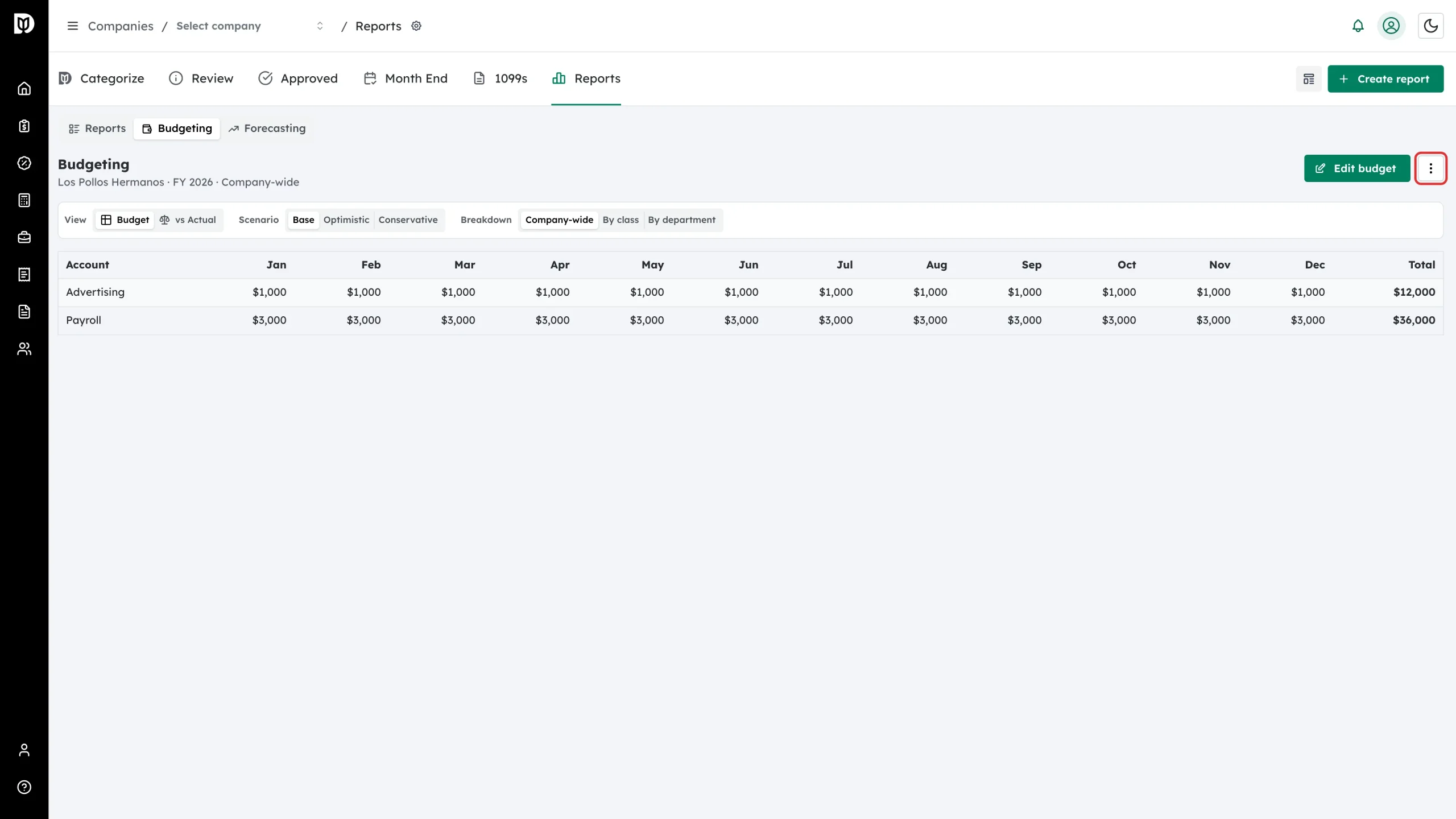
The three-dot menu beside Edit budget holds the extra actions.
Step 13: Pick an action
Choose Import from QuickBooks, Export CSV, or Budget history to see every saved version of the budget.
Step 14: Compare against actuals
Switch the view to vs Actual to see the variance against the company’s live QuickBooks figures. Set an Alert threshold % to flag lines that miss by more than you allow, and select Explain variances for an AI summary of what moved.
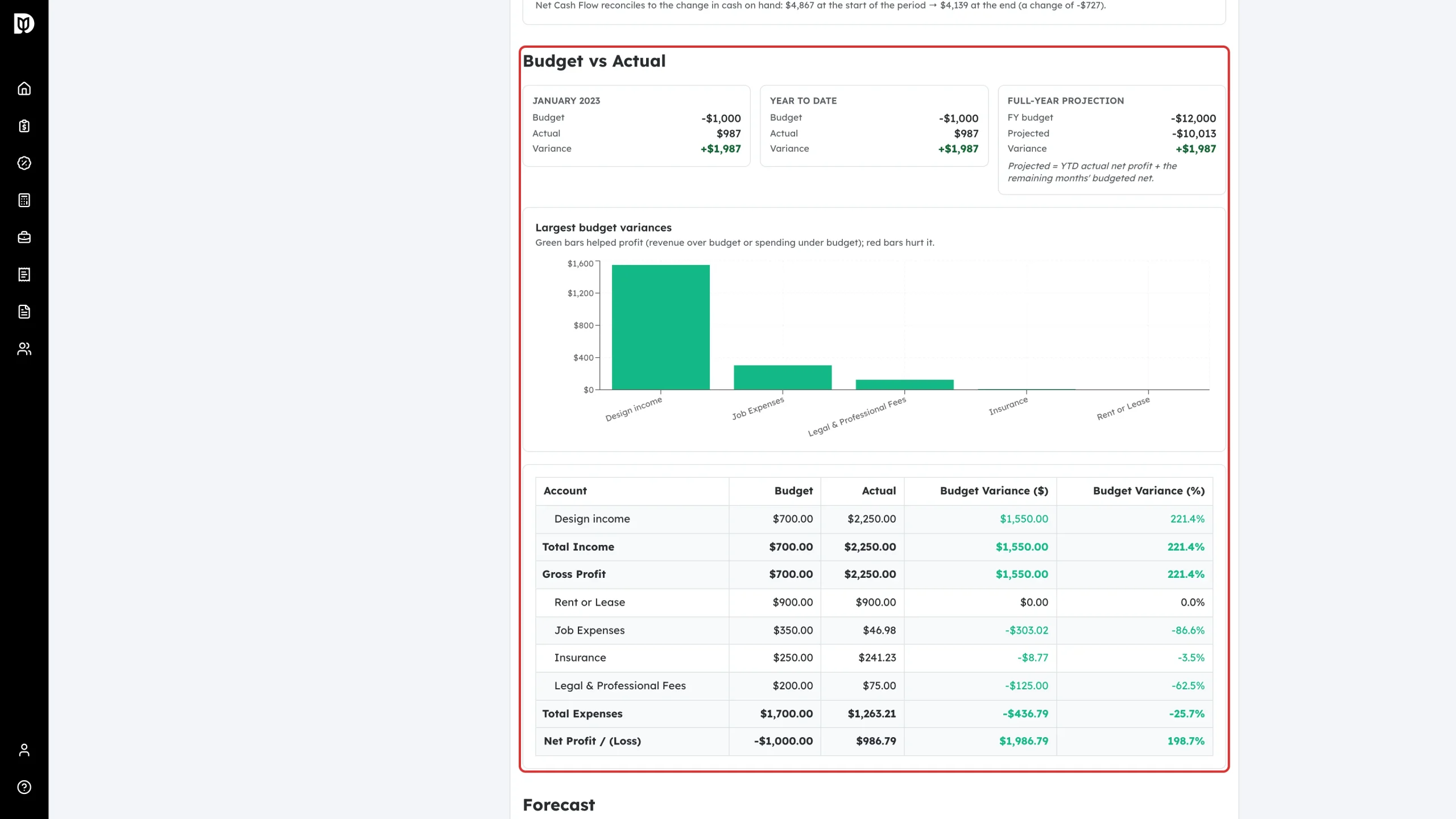
What happens next
Any report with the Budget vs Actual section picks the budget up automatically. The section shows the month, the year to date and a full-year projection, the largest variances as a chart, and a variance table by account. Beating budget on revenue and staying under budget on expenses are both shown as favourable.
Troubleshooting
- The section says no budget has been set. The company has no saved budget for that fiscal year. Build one on the Budgeting view.
- Import from QuickBooks found nothing. The client keeps no detailed budget in QuickBooks for that year — enter it manually or import a CSV instead.
- vs Actual can’t load. The comparison needs a live QuickBooks connection. Reconnect the company and try again.
- A class or department breakdown isn’t in the client’s PDF. That breakdown is a workspace view only; delivered reports always freeze the company-wide budget.