Who this is for: Clients who received a financial report link from their accountant.
What you’ll learn: How to open, read and save the report your accountant delivered.
Before you begin
- Look for the delivery email from your accountant. It contains a secure link — there is no password to remember.
Step-by-step instructions
Step 1: Open the link
Select the button in the email. Your report opens in the browser, with the report title, its period and a Finalized report badge at the top.
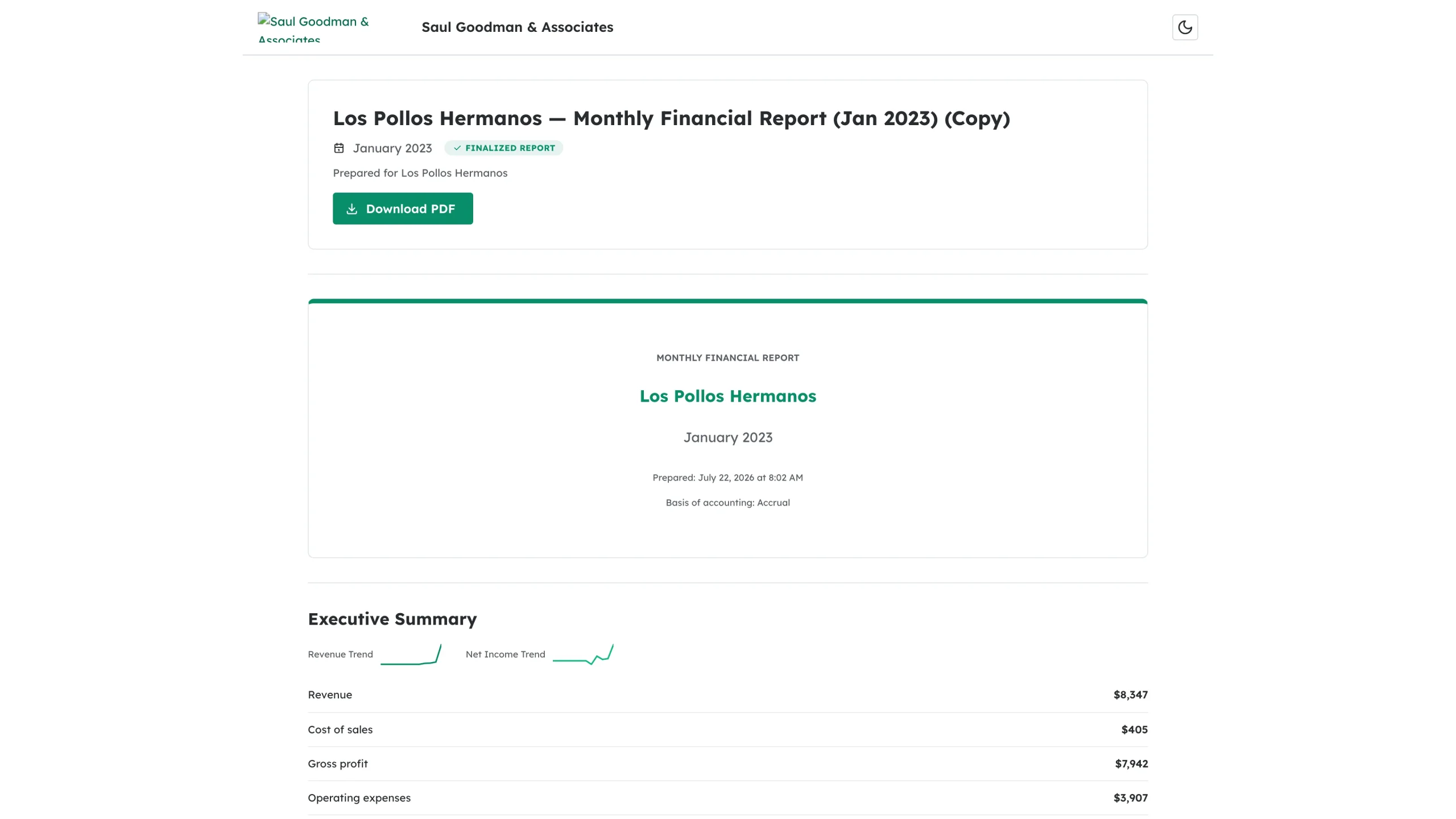
Step 2: Save a copy
Select Download PDF to save the report. The same button appears again at the foot of the report.
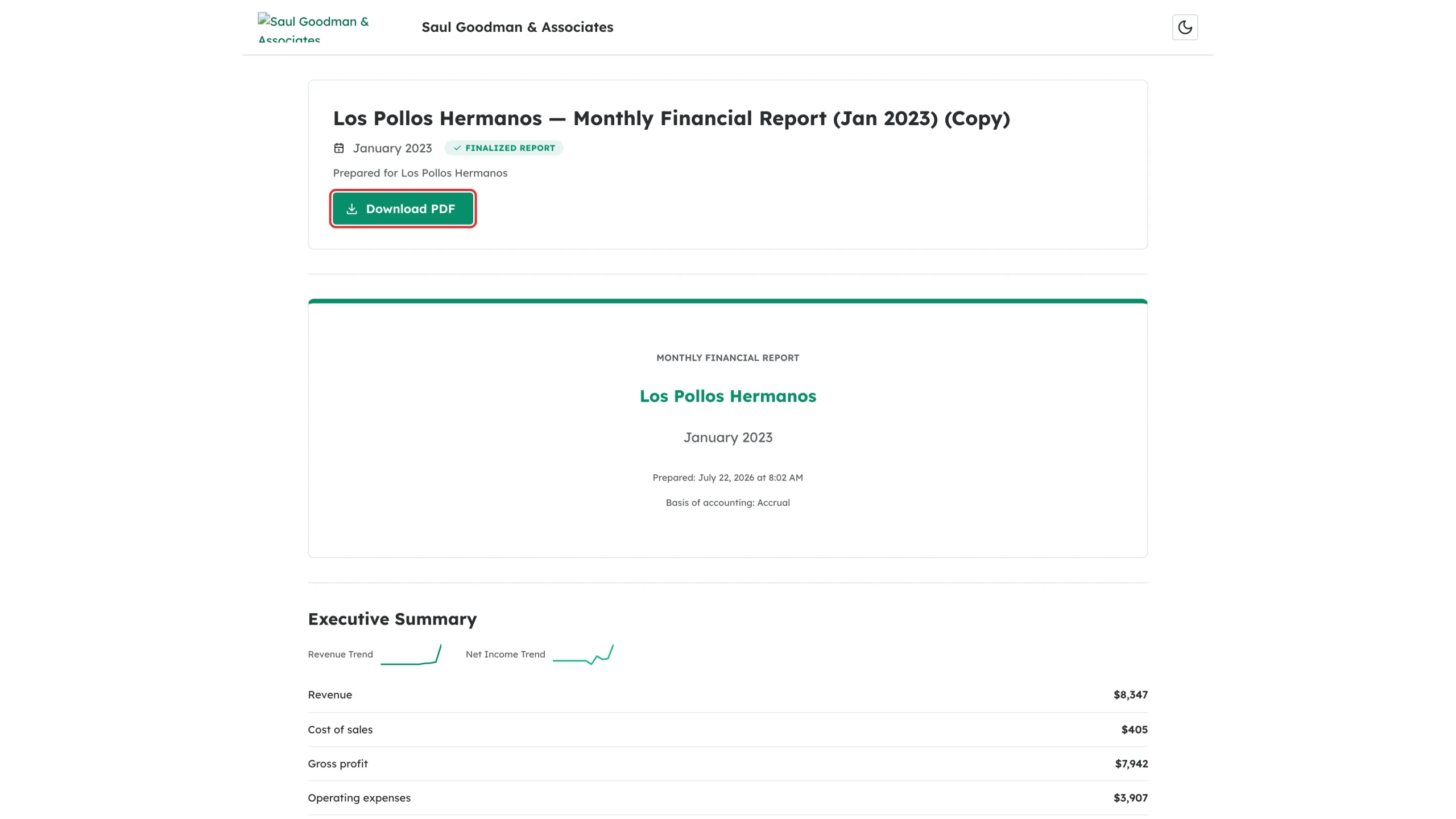
Step 3: Check who prepared it
The page is branded by your accounting firm, with their logo and a link to their website.
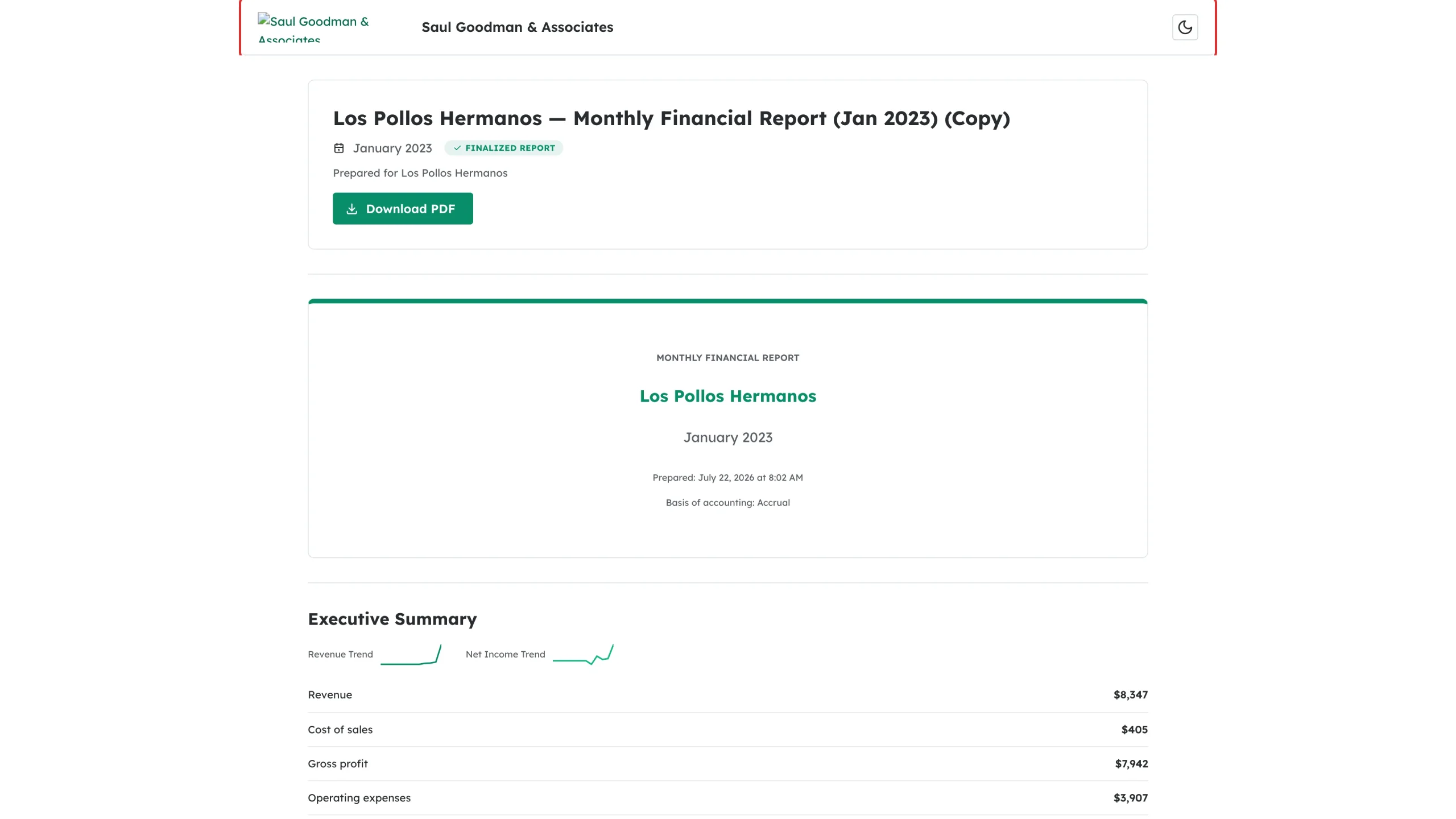
Step 4: Read the report
Scroll through to see the summary, charts, statements, KPIs and any commentary your accountant added.
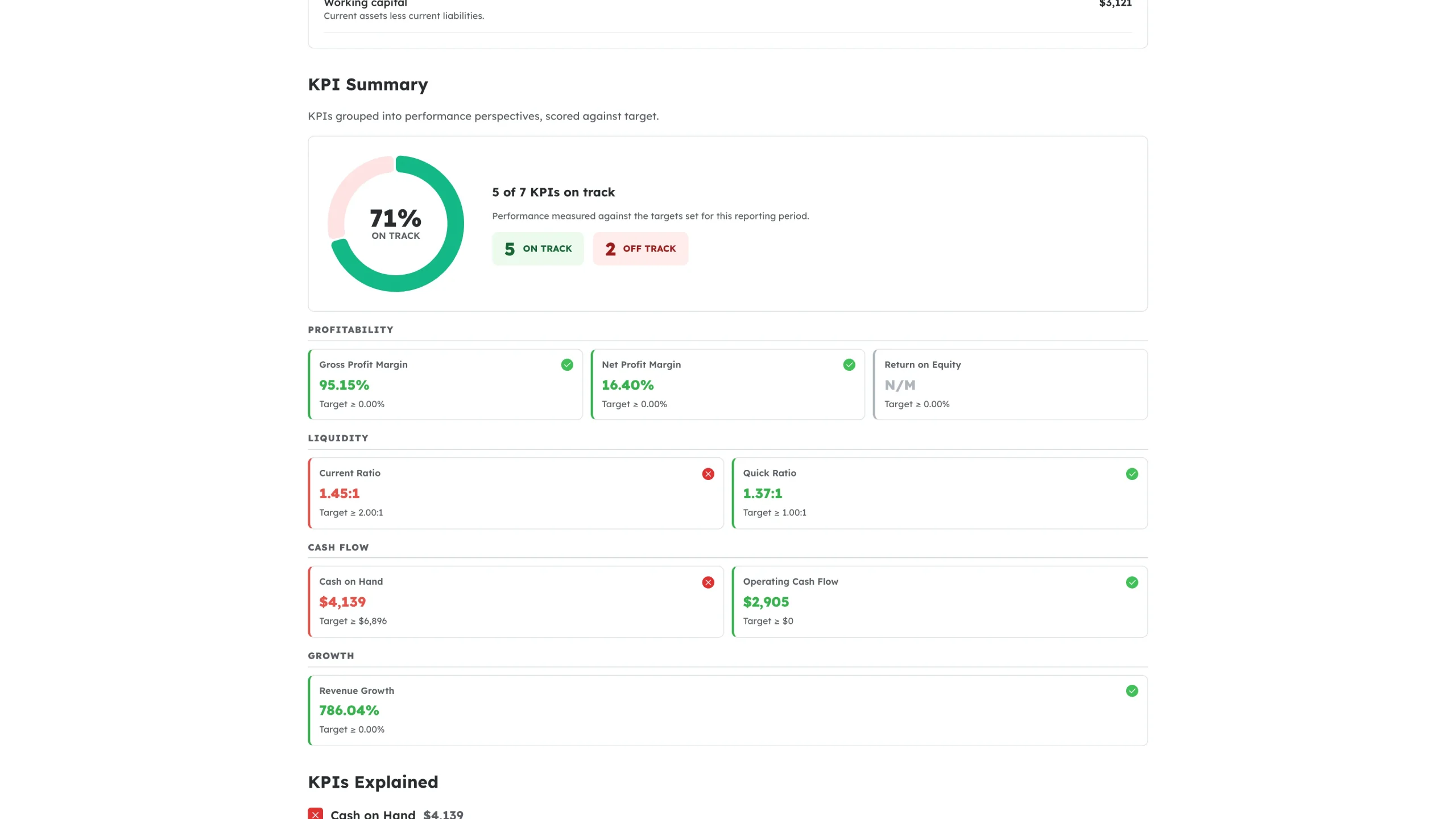
What happens next
You can reopen the same link any time to read the report or download the PDF again. Your accountant can see when you opened and downloaded it.
Troubleshooting
- The link says it is no longer valid. Secure links expire. Ask your accountant to resend the report, or sign in to your Debits portal — opening the report there refreshes the link for you.
- Nothing downloads. Check your browser’s pop-up or download settings and try again.
- You have questions about the numbers. Contact the firm named at the foot of the report — the page tells you who prepared it.