Who this is for: Accountants sending a finalized report to their clients.
What you’ll learn: How to choose recipients, add a message, publish to the portal and send.
Before you begin
- The report must be finalized.
- Recipients can be existing company contacts, or people you add by name and email at the time of sending.
Step-by-step instructions
Step 1: Start the delivery
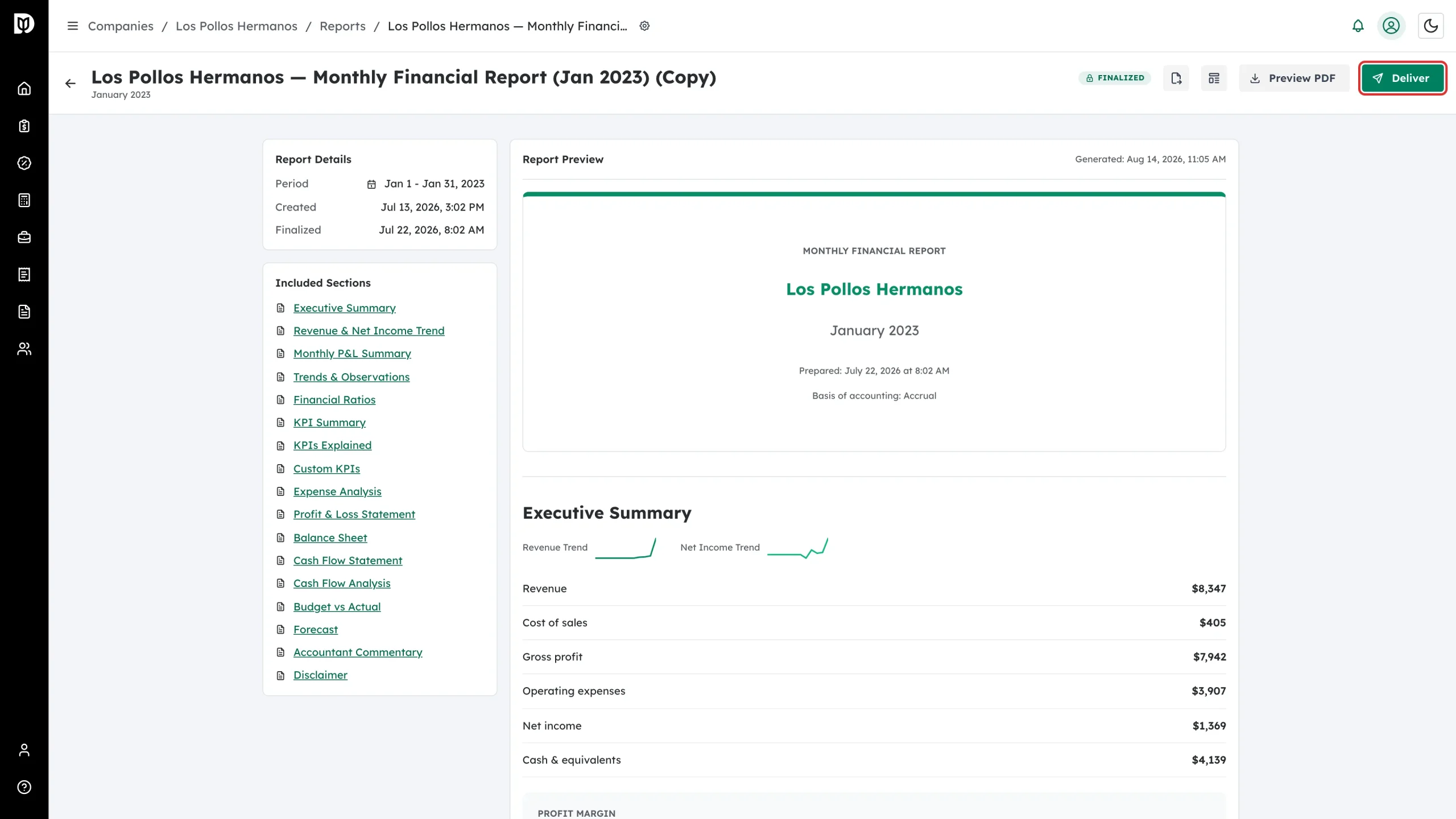
Open the finalized report and select Deliver. You can also deliver from the three-dot menu on the report’s row.
Step 2: Review the Deliver Report window
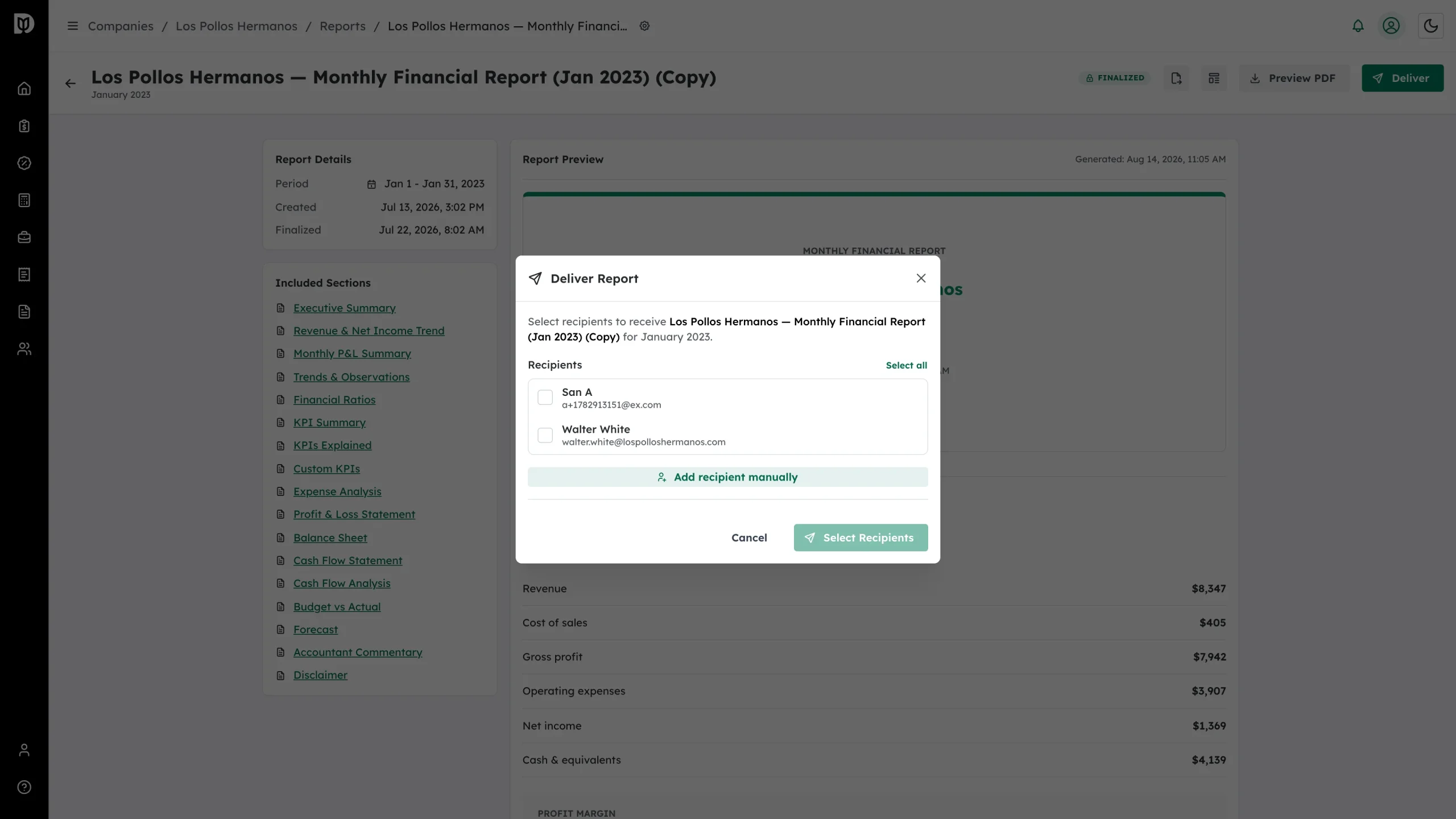
The window names the report and period being sent, and lists the company’s contacts.
Step 3: Choose recipients
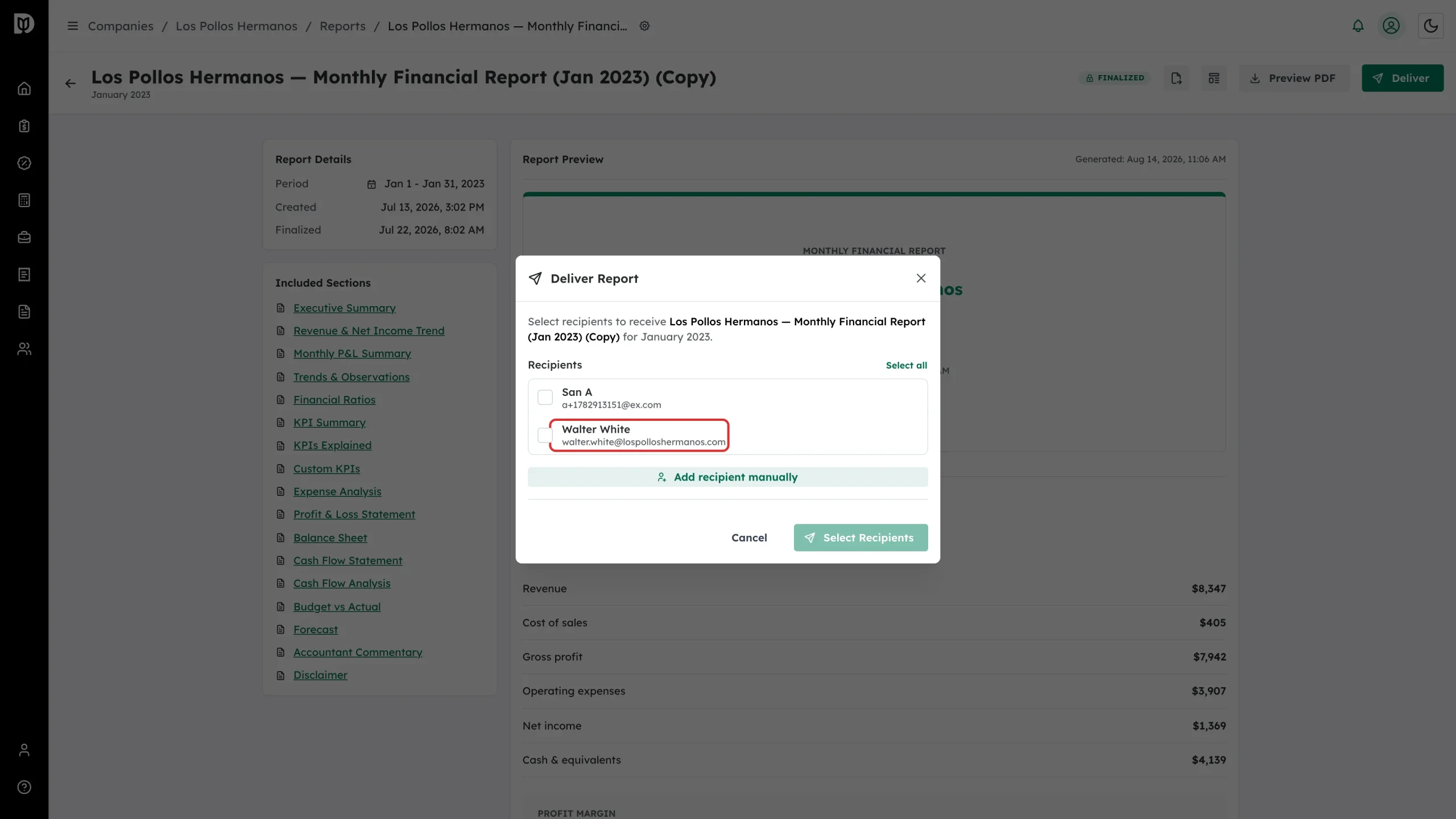
Tick each person who should receive the report, or use Select all. If the company has many contacts, use the search box to find someone.
Step 4: Confirm the selection
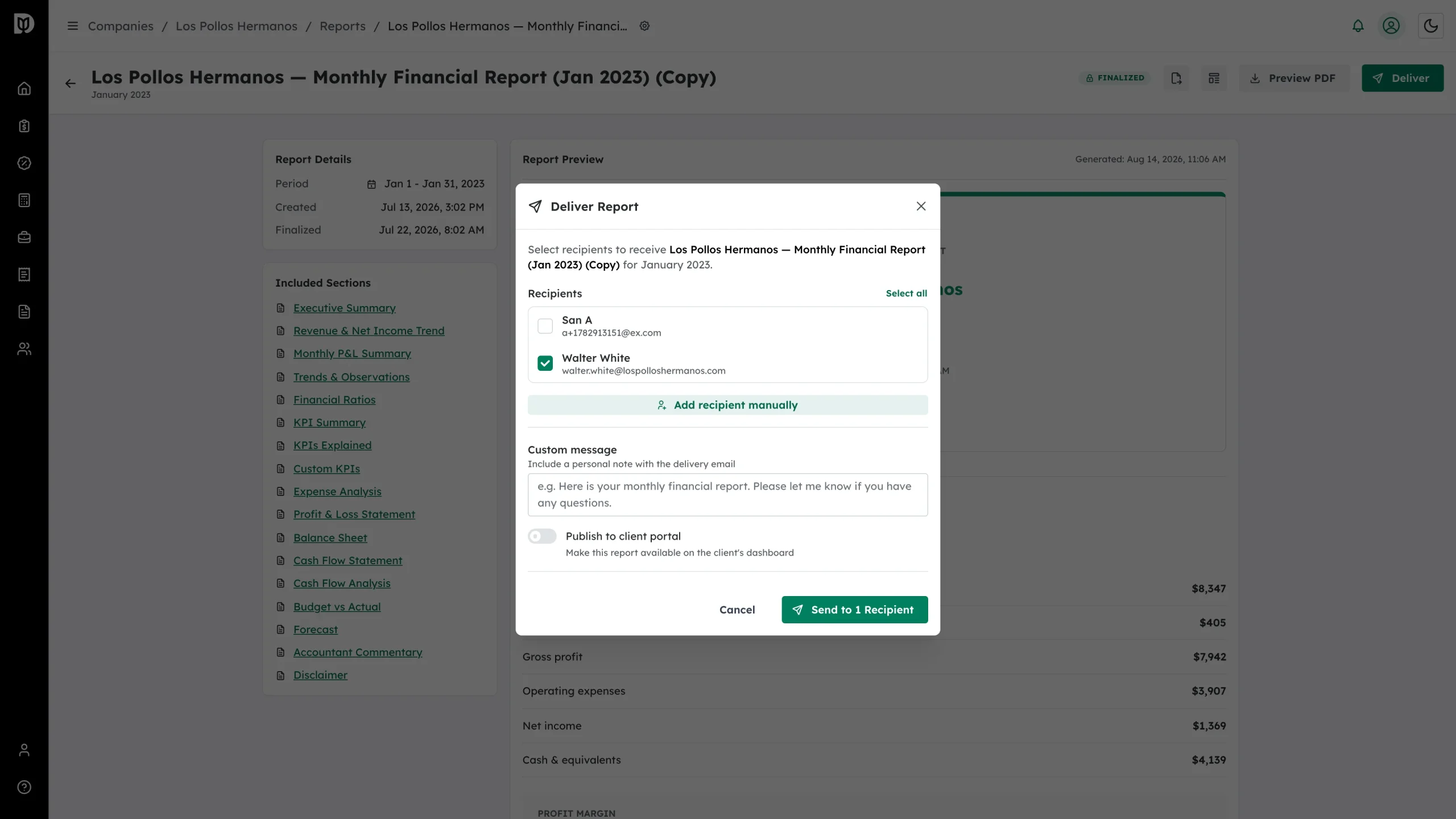
Selected recipients are ticked, and the send button updates with the number of people it will email.
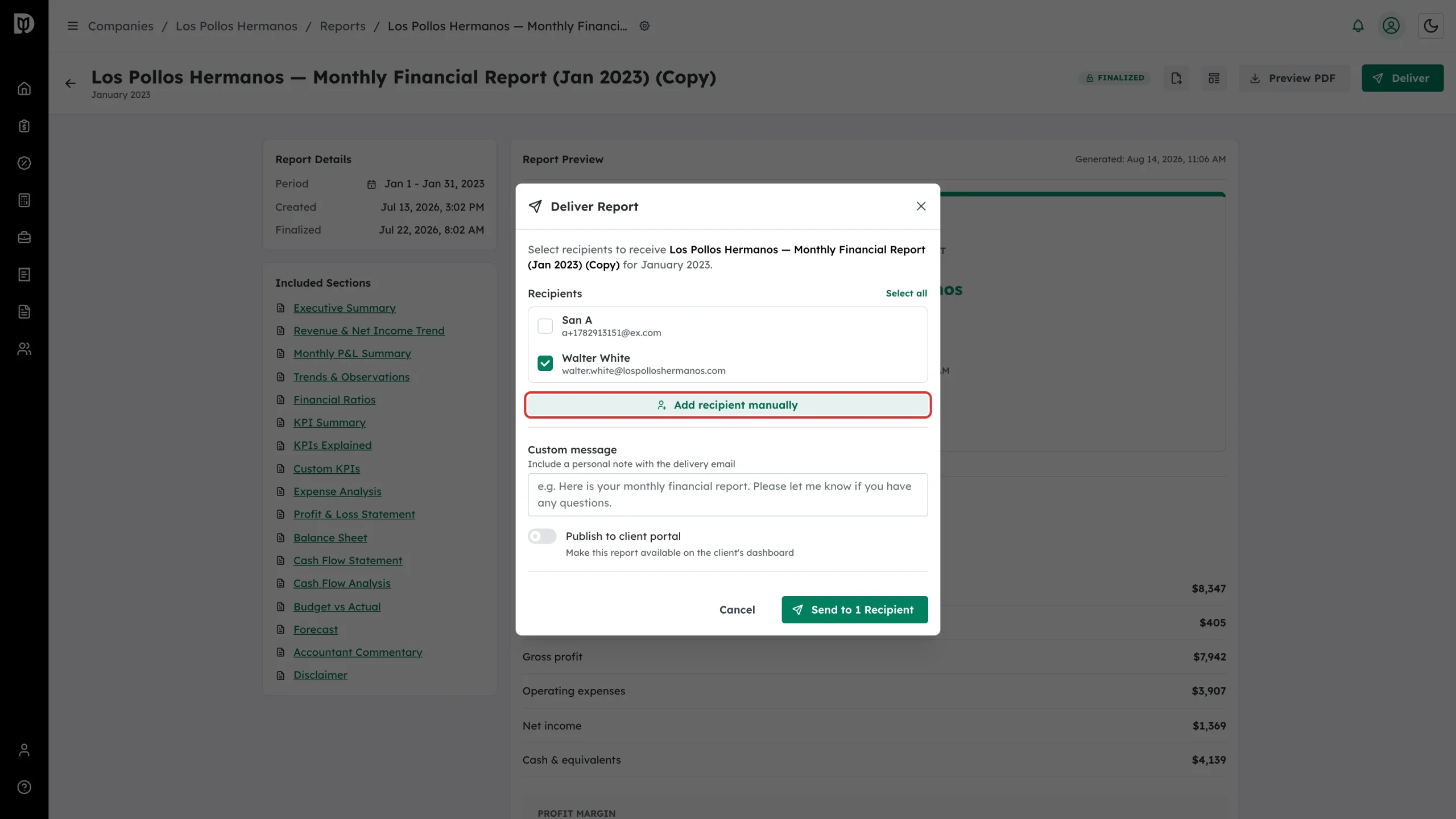
Step 5: Add someone who isn’t a contact
Select Add recipient manually and enter a name and email address.
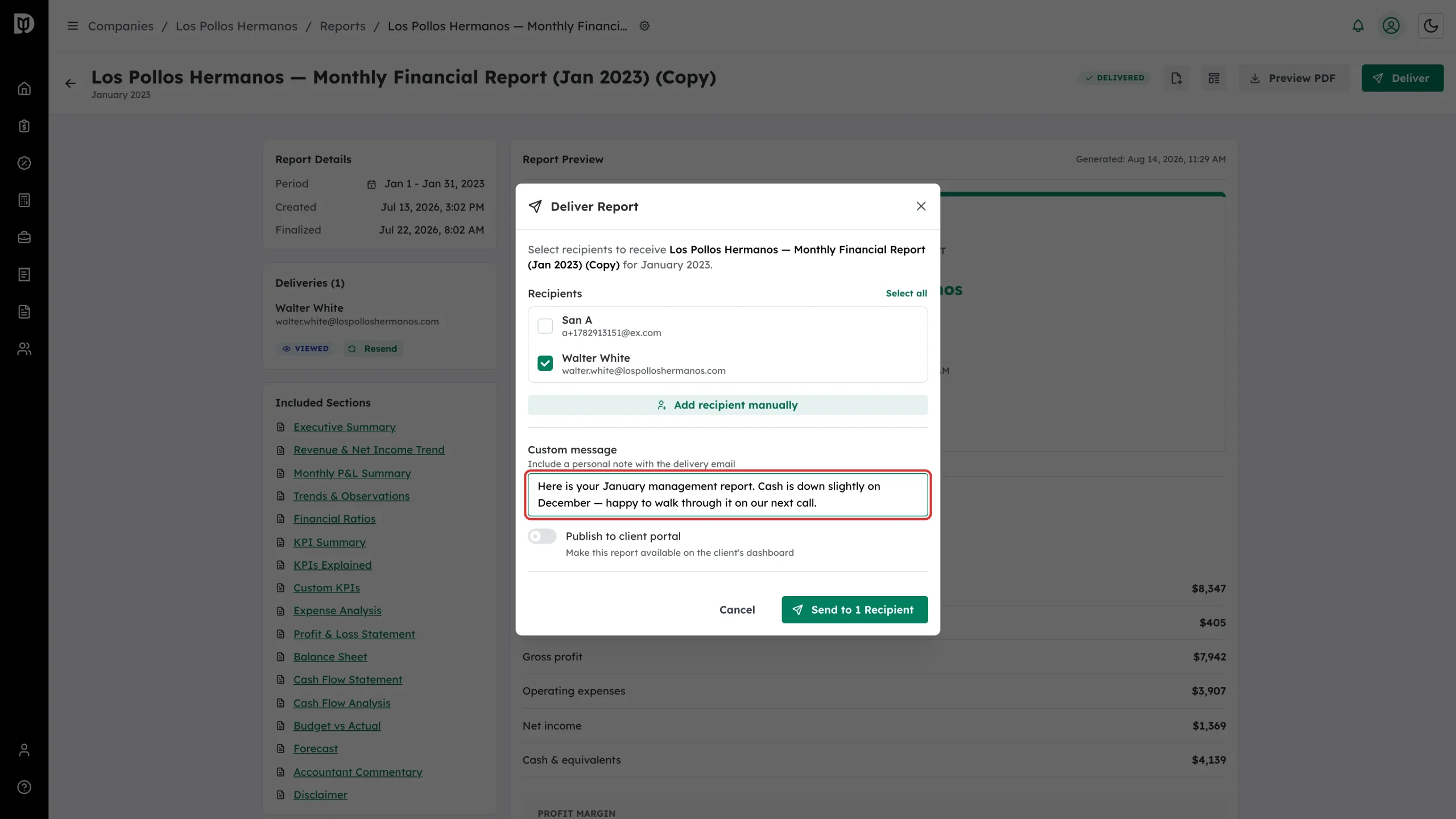
Step 6: Add a message
Use Custom message to include a personal note in the delivery email.
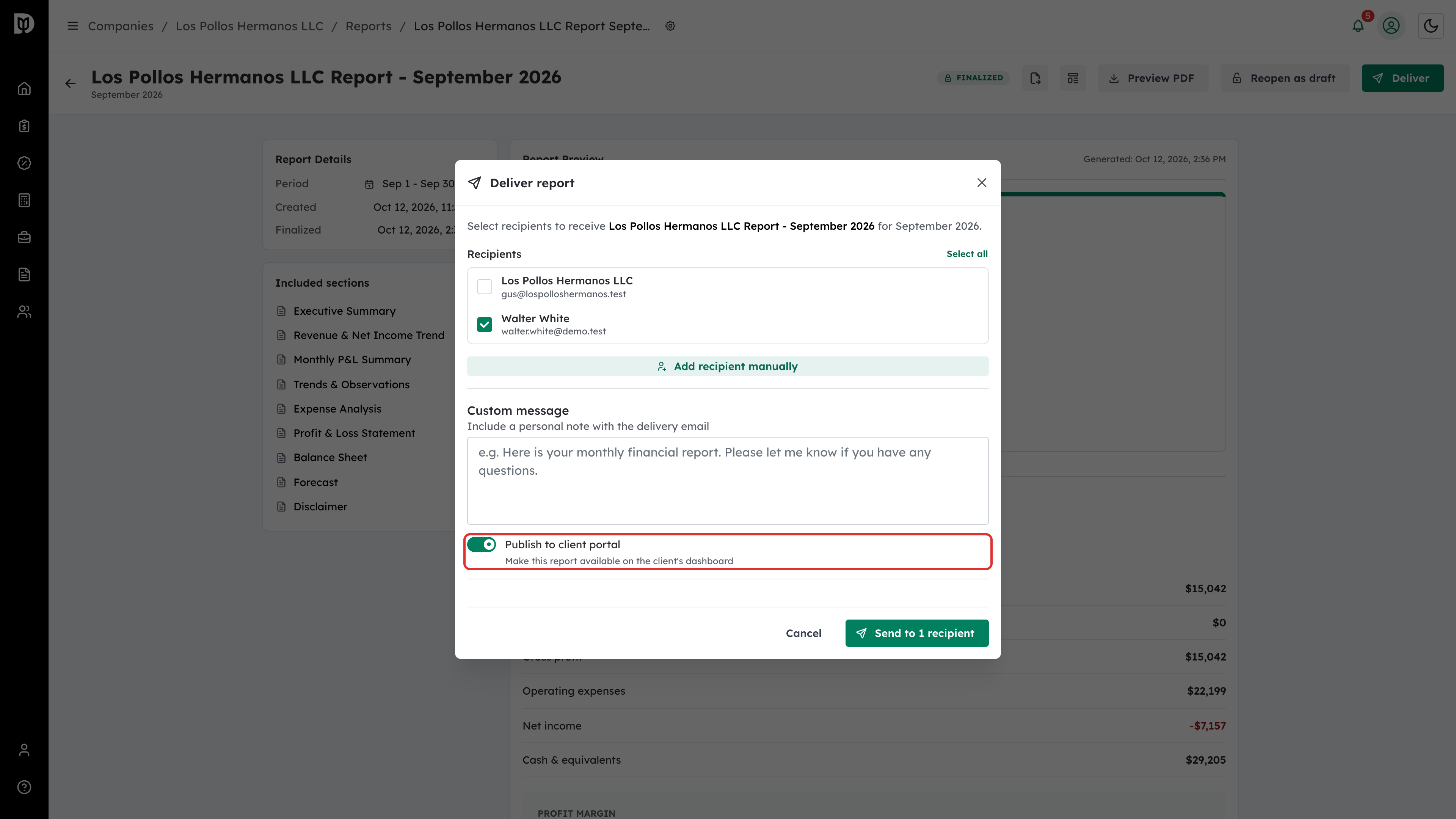
Step 7: Publish to the client portal
Publish to client portal is on by default, so the report also stays on the client’s dashboard after the emailed link expires. Turn it off only if you want to send the secure link alone.
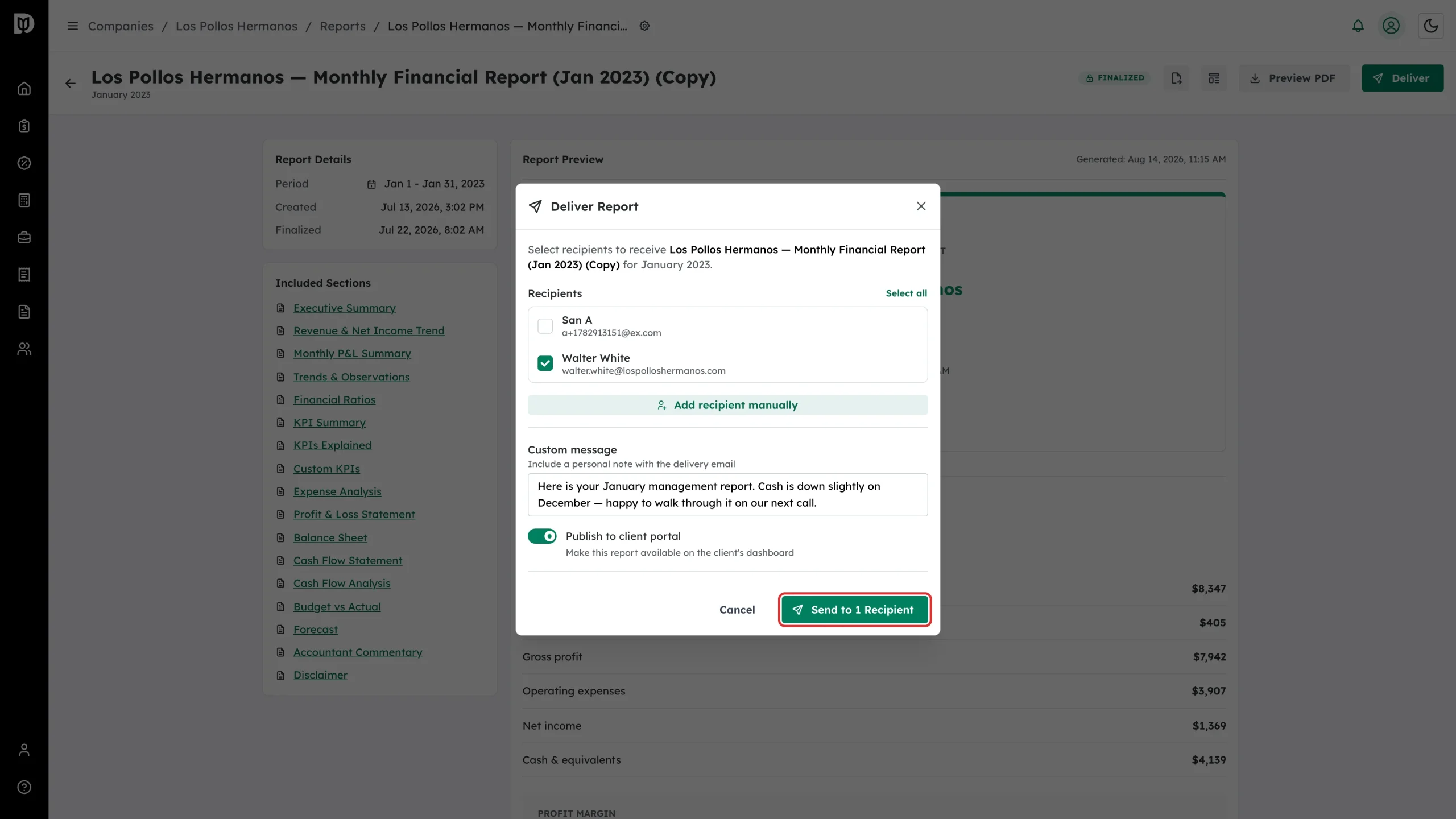
Step 8: Send it
Select Send to … Recipients. Each person gets an email with a secure link to their report.
What happens next
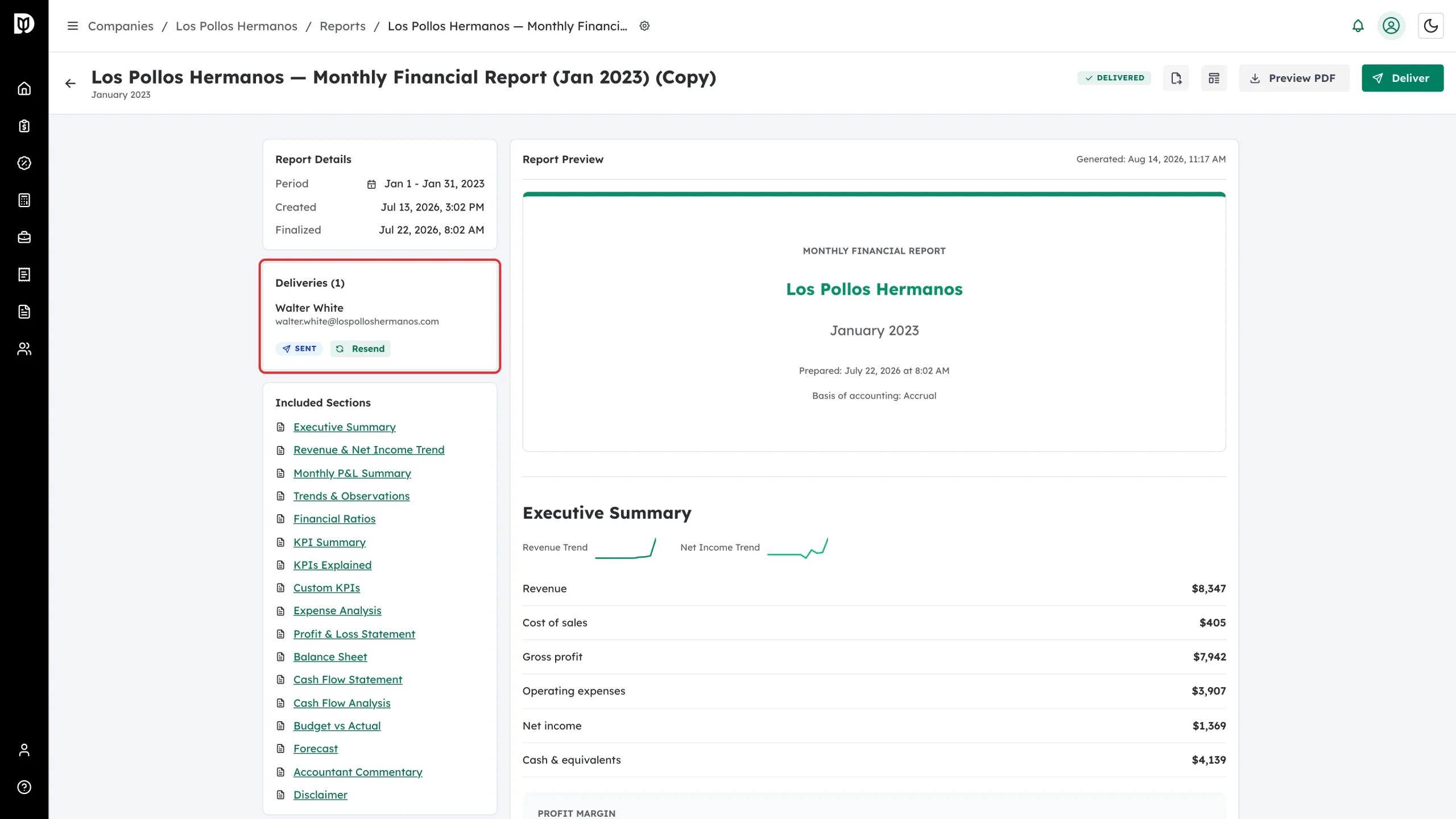
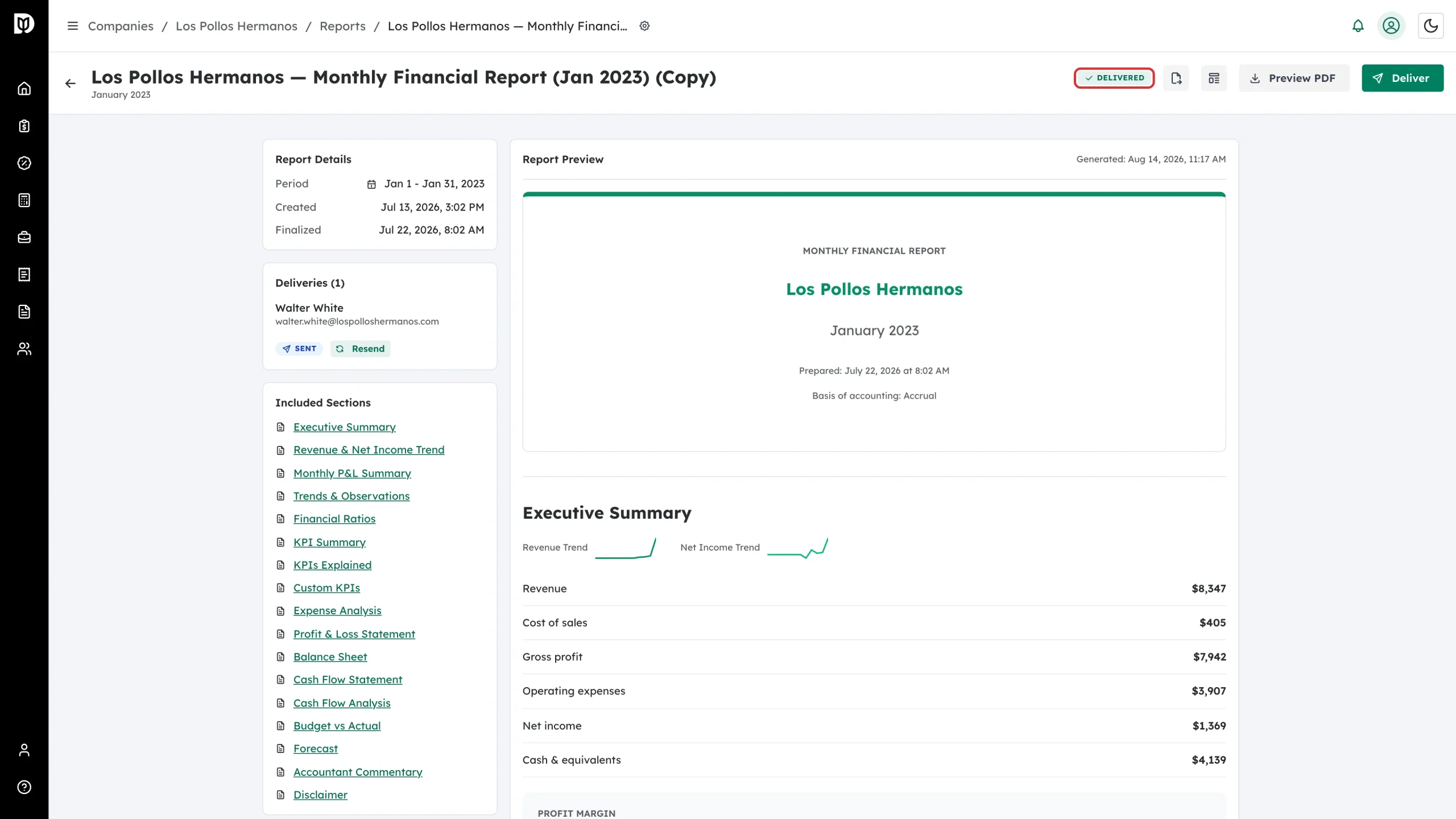
The report status changes to Delivered and a Deliveries panel appears in the report. It shows each recipient, how many times they have been sent the report, and whether they have viewed or downloaded it. If an email could not be sent, that recipient shows a red Email failed badge; a portal-only delivery reads Available in portal.
Sending it again
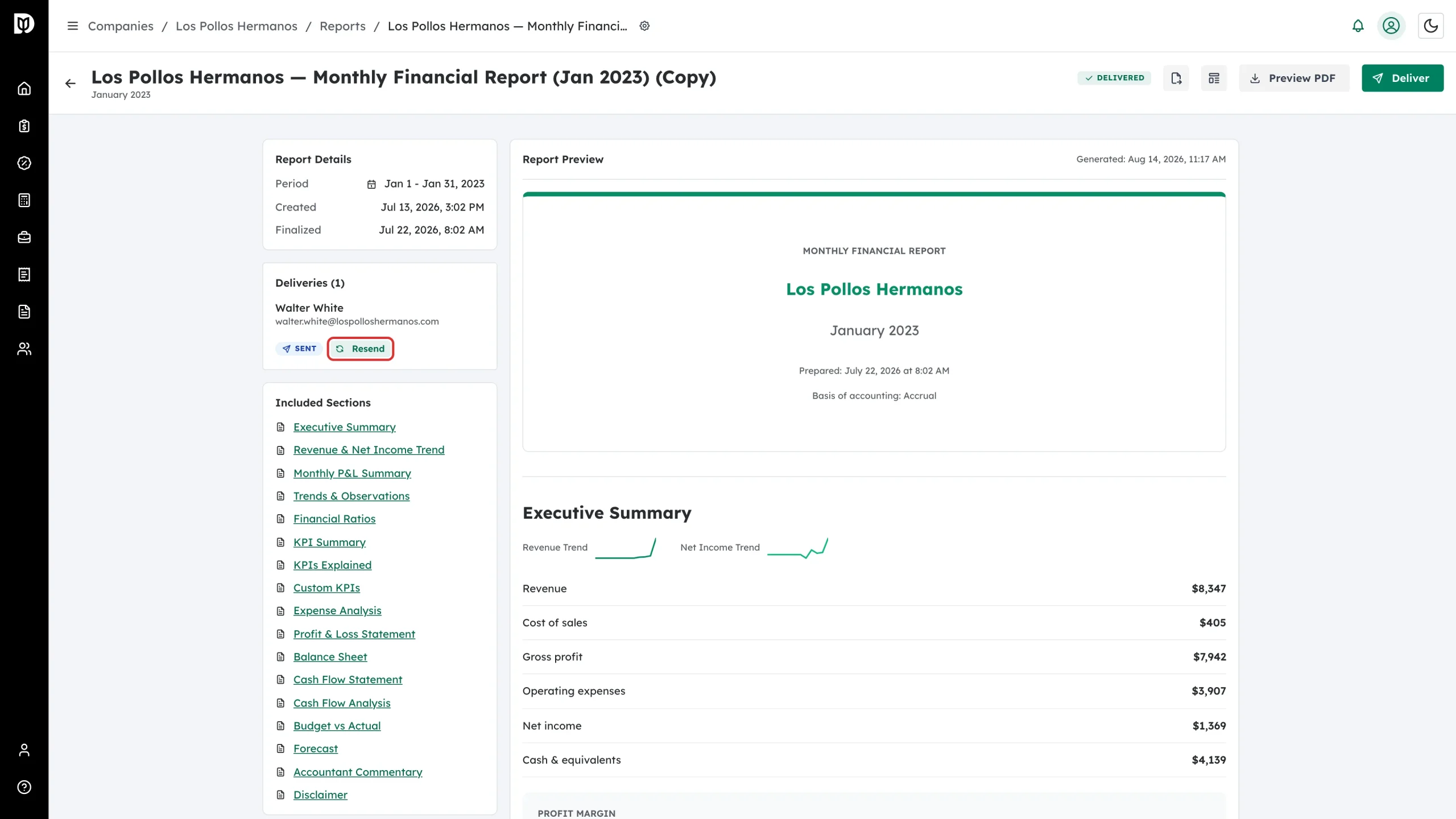
Select Resend beside a recipient to send the report again. Debits issues a fresh secure link, so any earlier link for that person stops working.
Troubleshooting
- No contacts appear. The company has no contacts yet — add recipients manually, or add contacts to the company first.
- The send button is disabled. Select at least one recipient.
- The client can’t find the report in their portal. It was sent with Publish to client portal turned off. Deliver it again with the switch on.
- A recipient shows Email failed. The email to that person did not go out. Check their address and select Resend.
- The client says the link has expired. Select Resend to issue a new one.