Who this is for: Accountants and clients reading the KPI sections of a report.
What you’ll learn: How to choose the KPIs a report scores, set their targets, and read the finished scorecard.
Before you begin
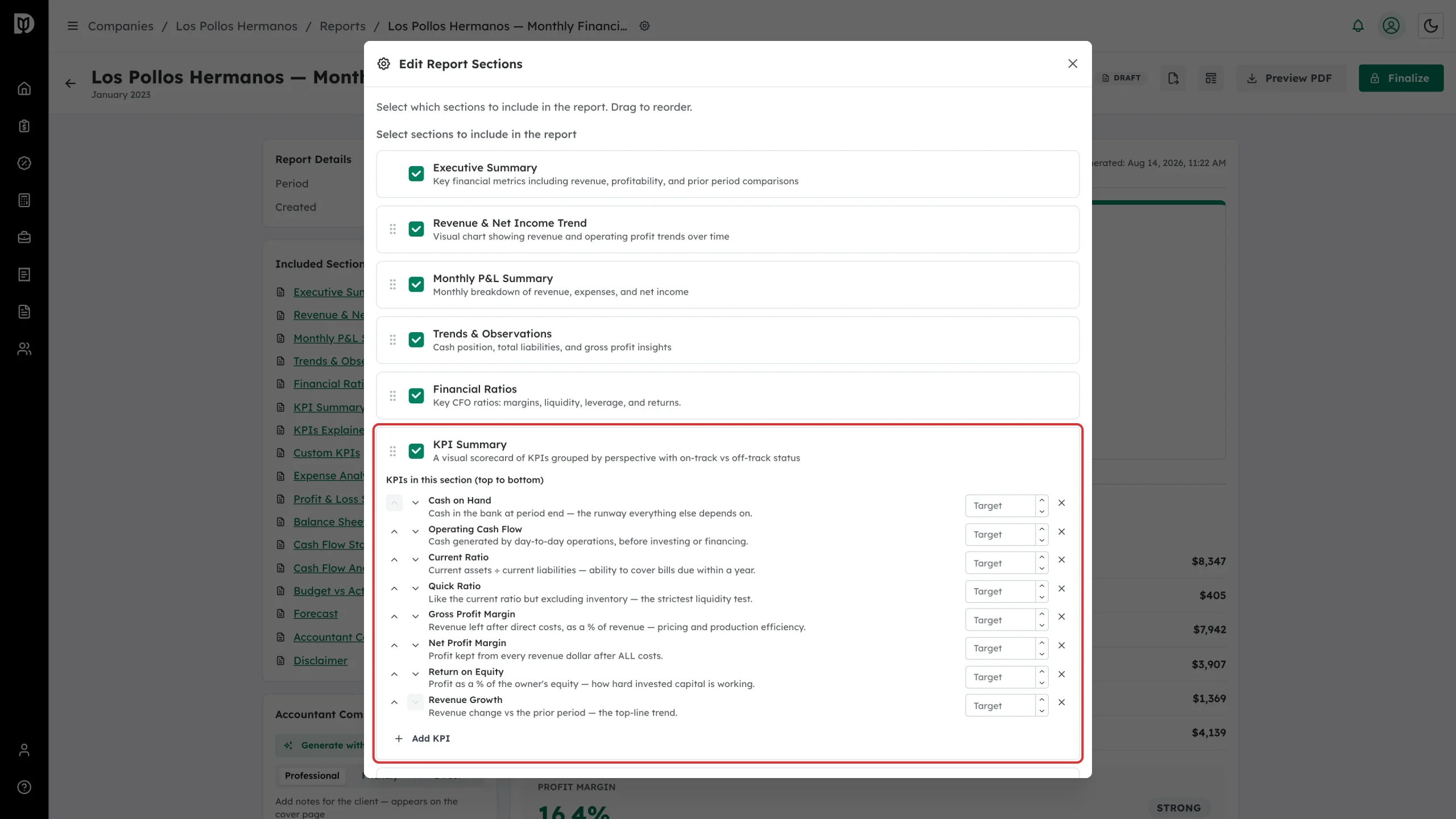
- Add the KPI Summary and KPIs Explained sections in Edit Report Sections.
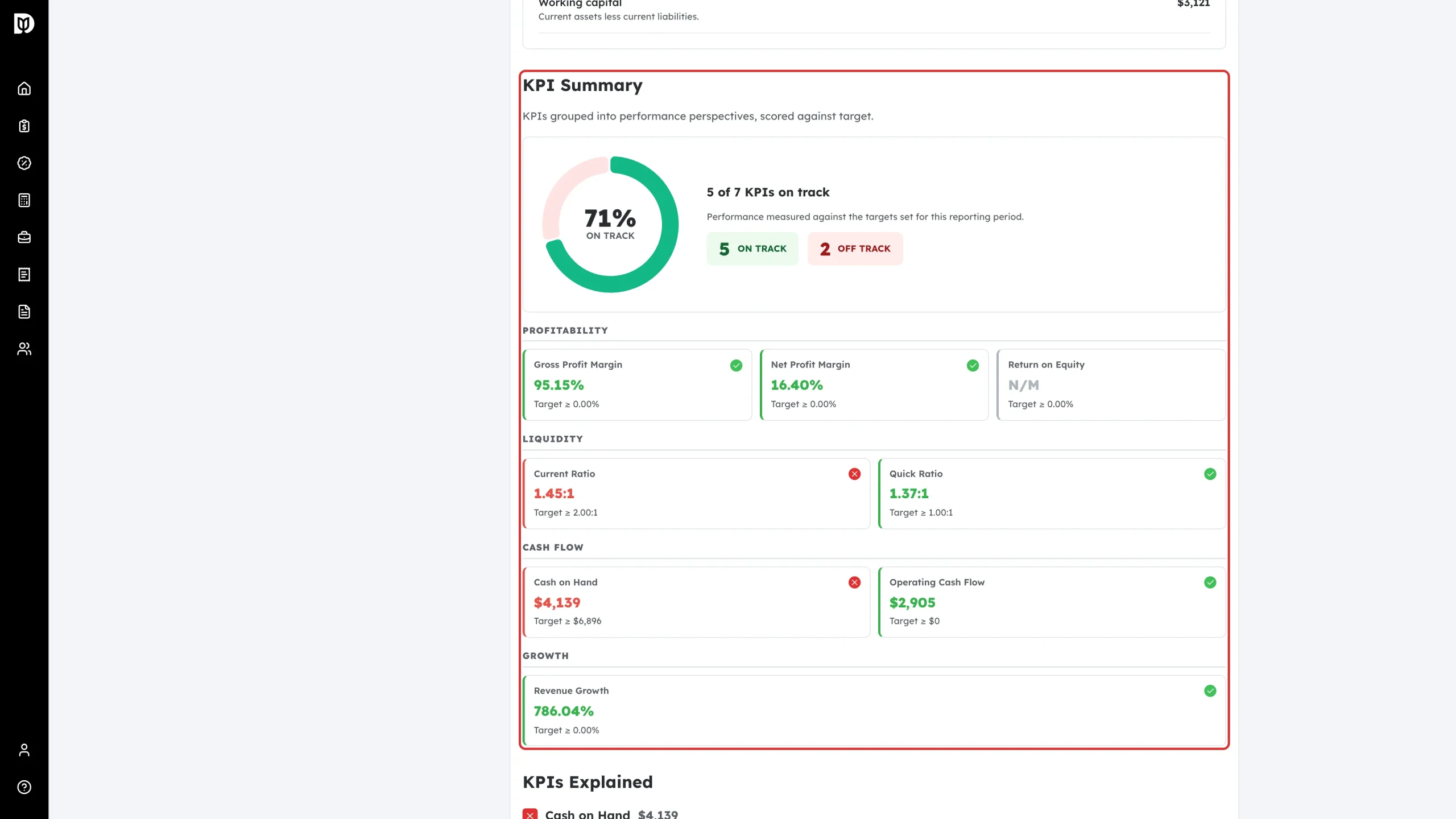
- KPIs are grouped into four perspectives: Profitability, Liquidity, Cash Flow and Growth.
Step-by-step instructions
Step 1: Read the on-track percentage
The KPI Summary opens with a gauge showing the percentage of KPIs on track, and how many are on track versus off track for the period.
Step 2: Read each perspective
Under the gauge, each perspective lists its KPIs with the value and the target. A green tick means on track; a red cross means off track. A grey N/M means the KPI isn’t meaningful for the period — for example, return on equity when equity is negative.
Step 3: Read the plain-English appendix
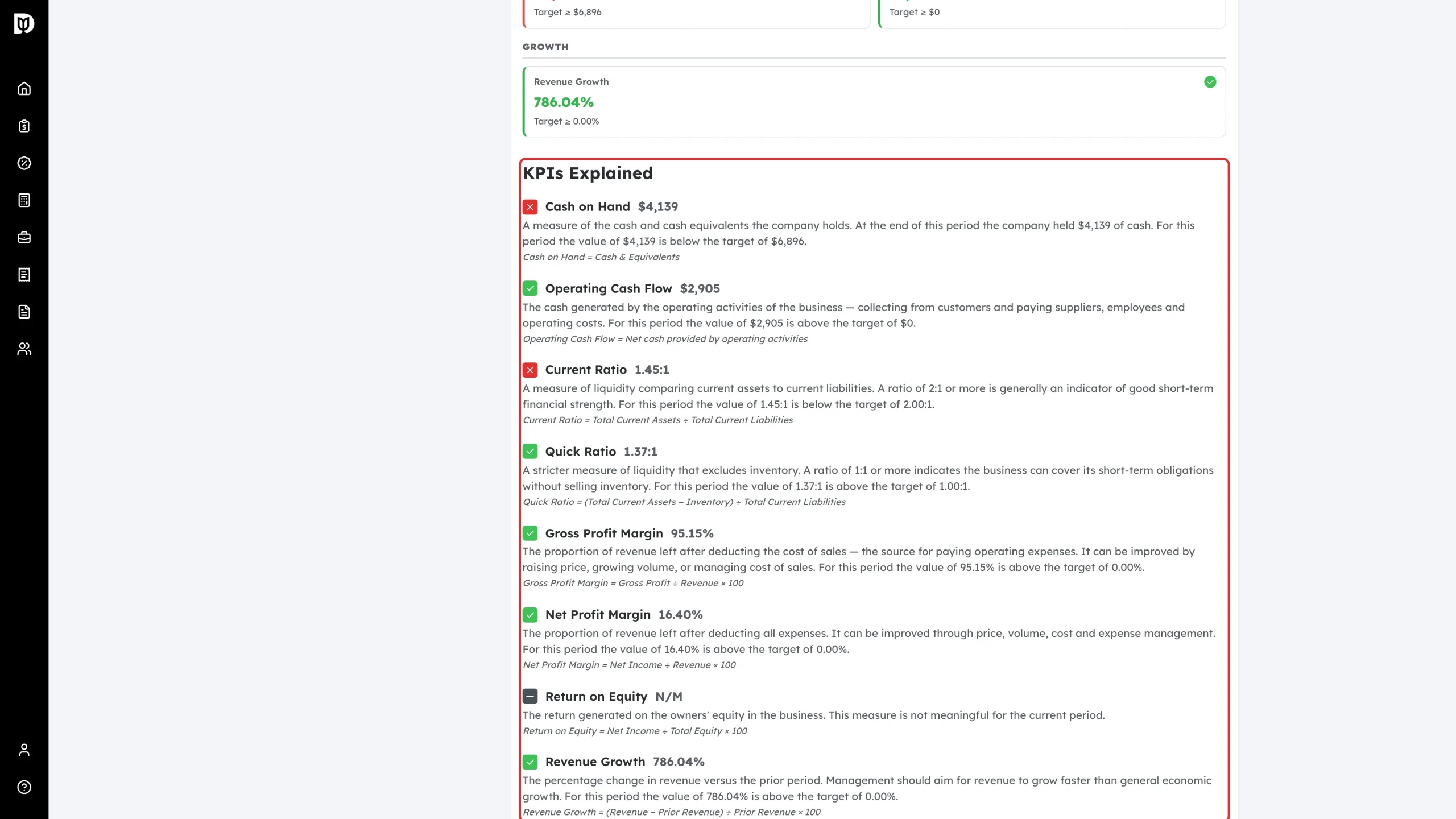
KPIs Explained describes each KPI in plain language, with its value, whether it is above or below target, and the formula behind it.
Step 4: Choose which KPIs the report scores
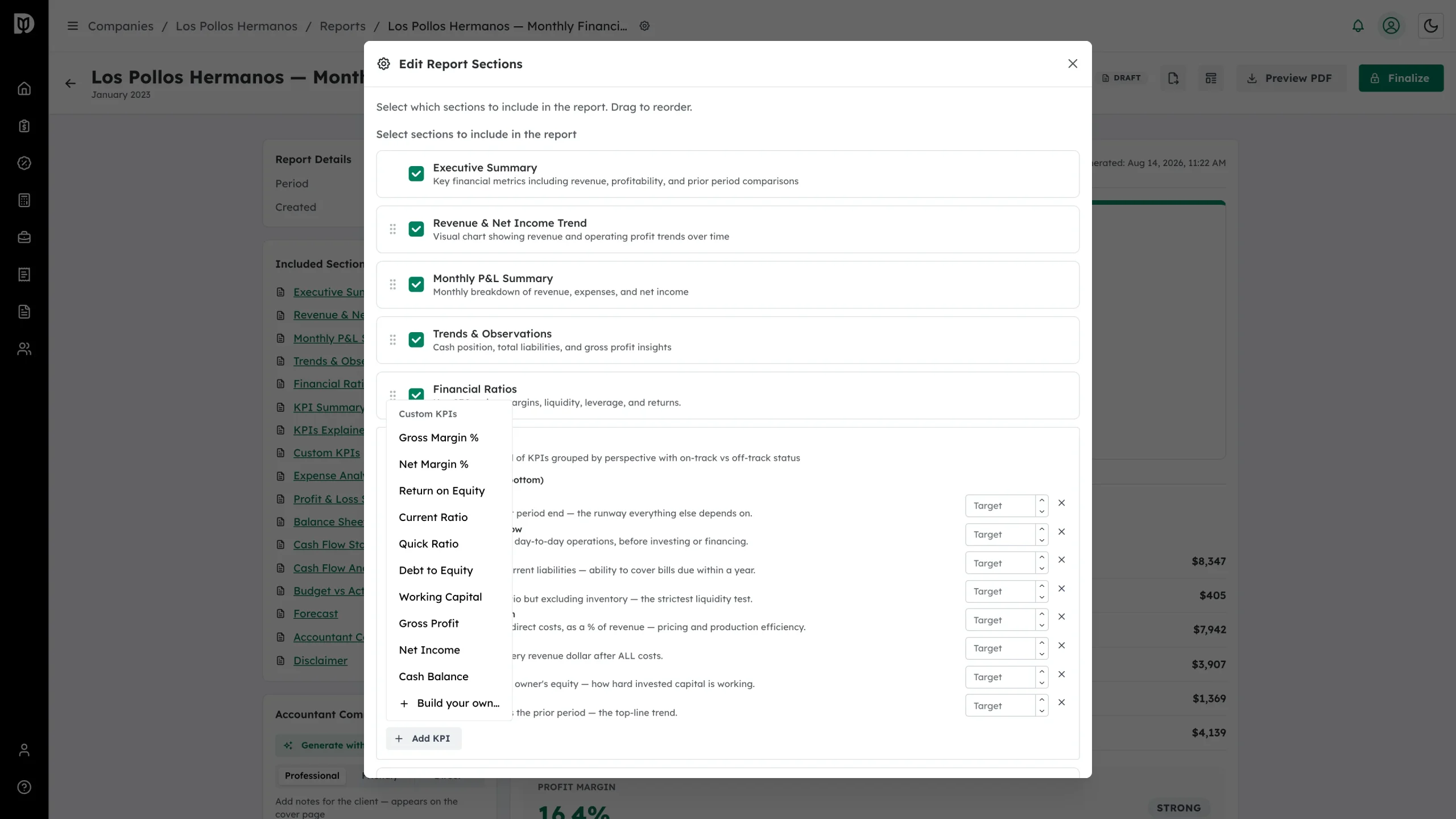
To change the list, open Edit Report Sections and expand KPI Summary. KPIs in this section (top to bottom) shows what will appear; use the arrows to reorder and the cross to remove. At least one KPI must remain.
Step 5: Set a target for each KPI
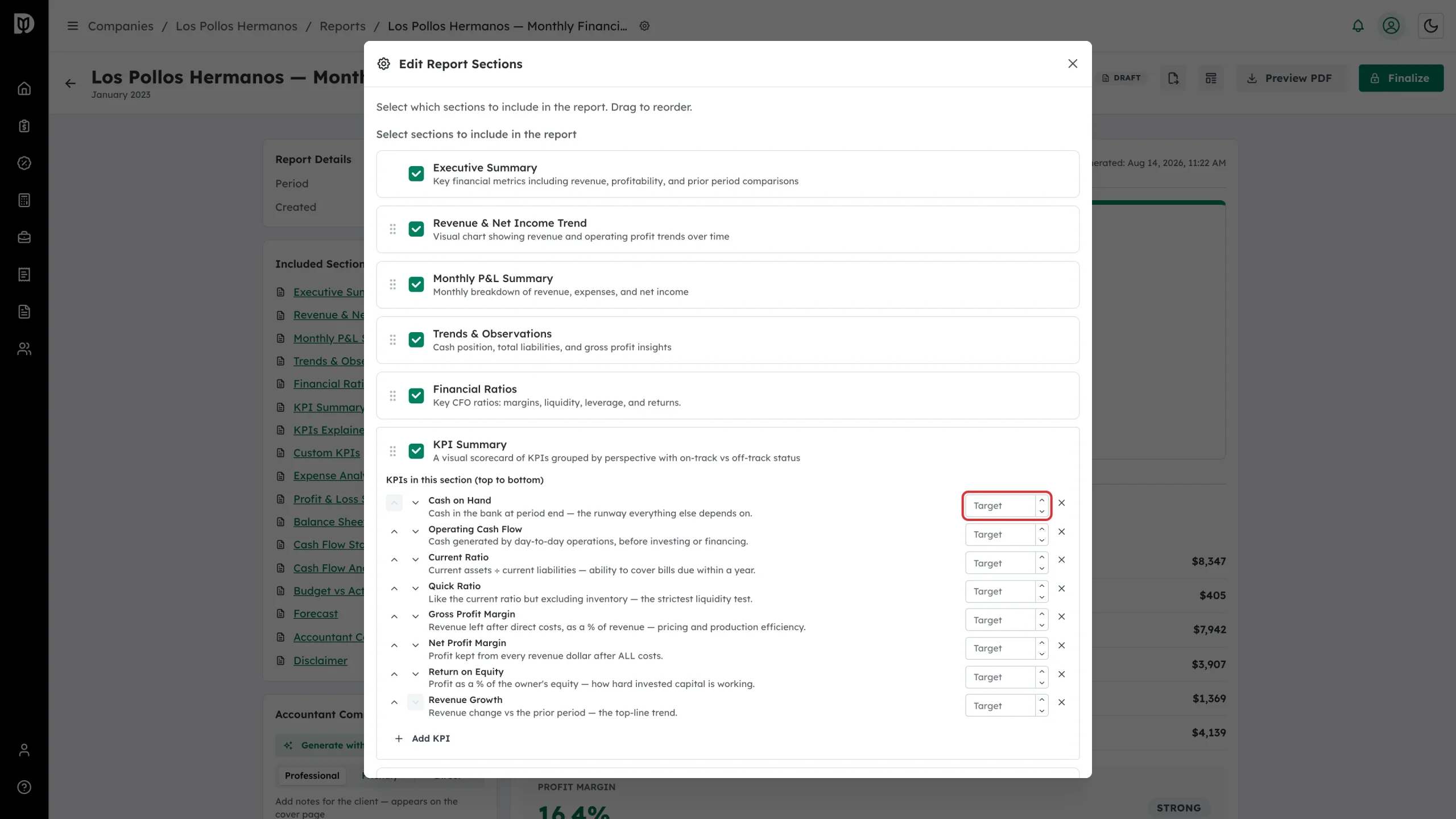
Enter a Target next to a KPI. That target is what the tick or cross is scored against, and it is saved for the company, so next month’s report starts from the same targets.
Step 6: Add another KPI
Select Add KPI to add a standard KPI you removed earlier, one of the common presets, or a KPI you build yourself.
What happens next
Save your changes. The scorecard is captured in the snapshot when you finalize, so the delivered report shows the same values, targets and status the client discussed with you.
Troubleshooting
- A KPI shows N/M. It isn’t meaningful for this period — commonly a return or leverage ratio when equity is negative.
- Everything is on track at 0.00%. No targets have been set yet, so each KPI is being scored against zero. Set real targets in step 5.
- The cross removal is greyed out. One KPI must remain in the section; add another before removing the last one.