Who this is for: Clients whose accountant publishes reports to their Debits portal.
What you’ll learn: How to find your reports, open them and save a PDF copy.
Before you begin
- Sign in to Debits with the account your accountant invited you to.
- Your accountant must have delivered the report and published it to the portal. A report sent by secure link only won’t appear here.
Step-by-step instructions
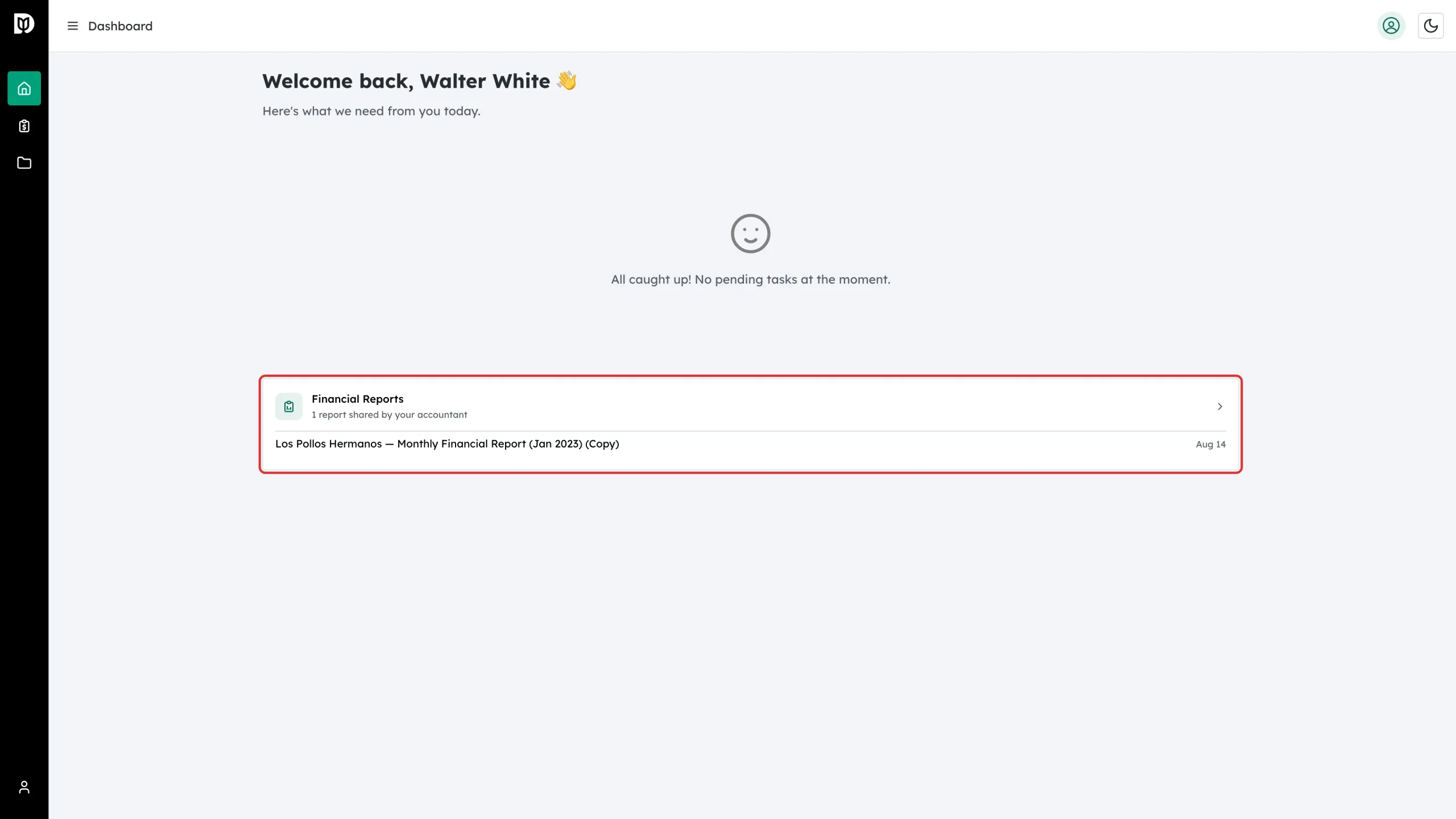
Step 1: Open the Financial Reports card
On your dashboard, find the Financial Reports card. It shows how many reports your accountant has shared, the most recent ones, and a NEW badge for anything you haven’t opened. Select the card.
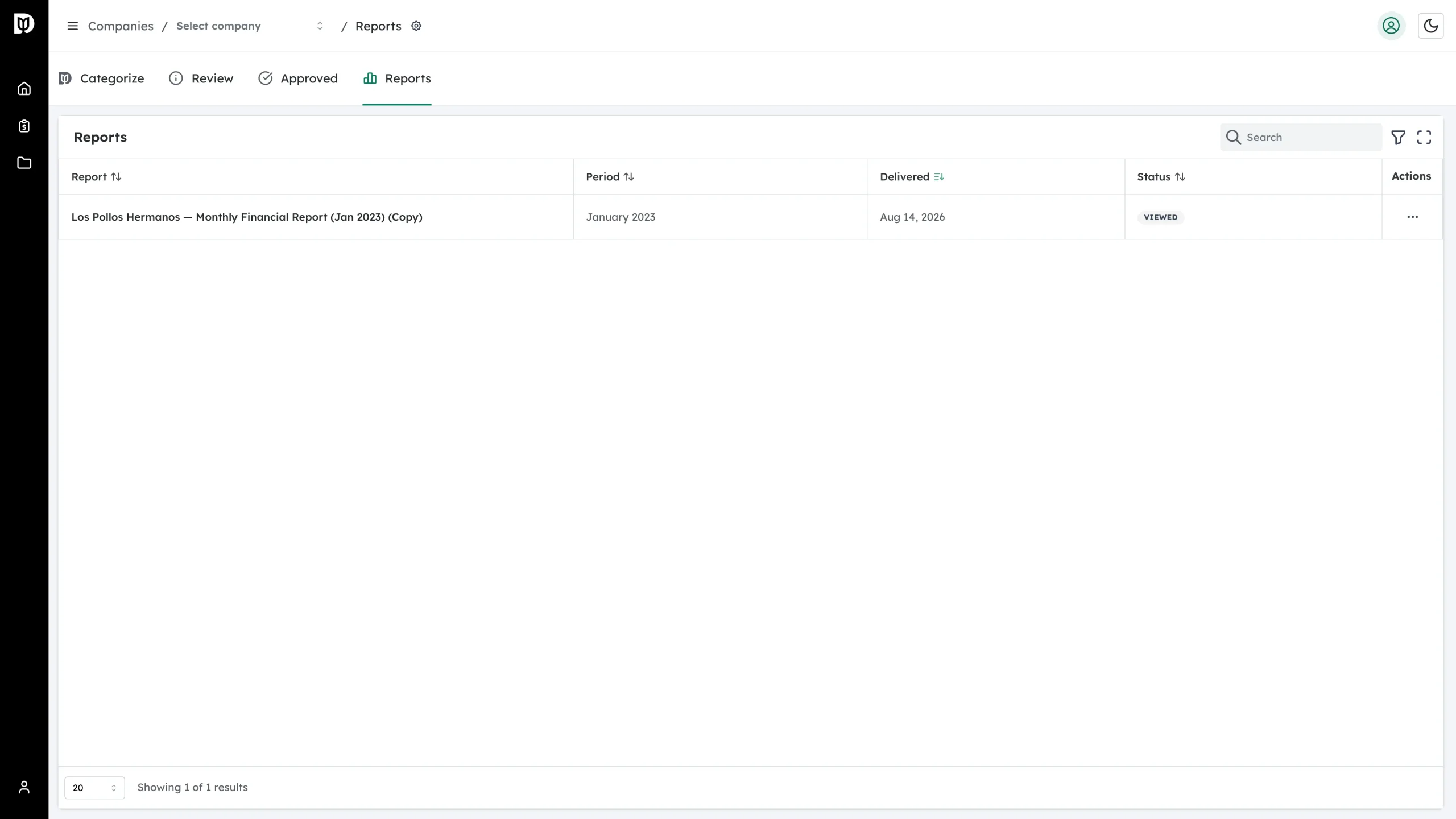
Step 2: Review your reports
The Reports list shows every report shared with you, the period it covers, the date it was delivered and whether you have opened it yet.
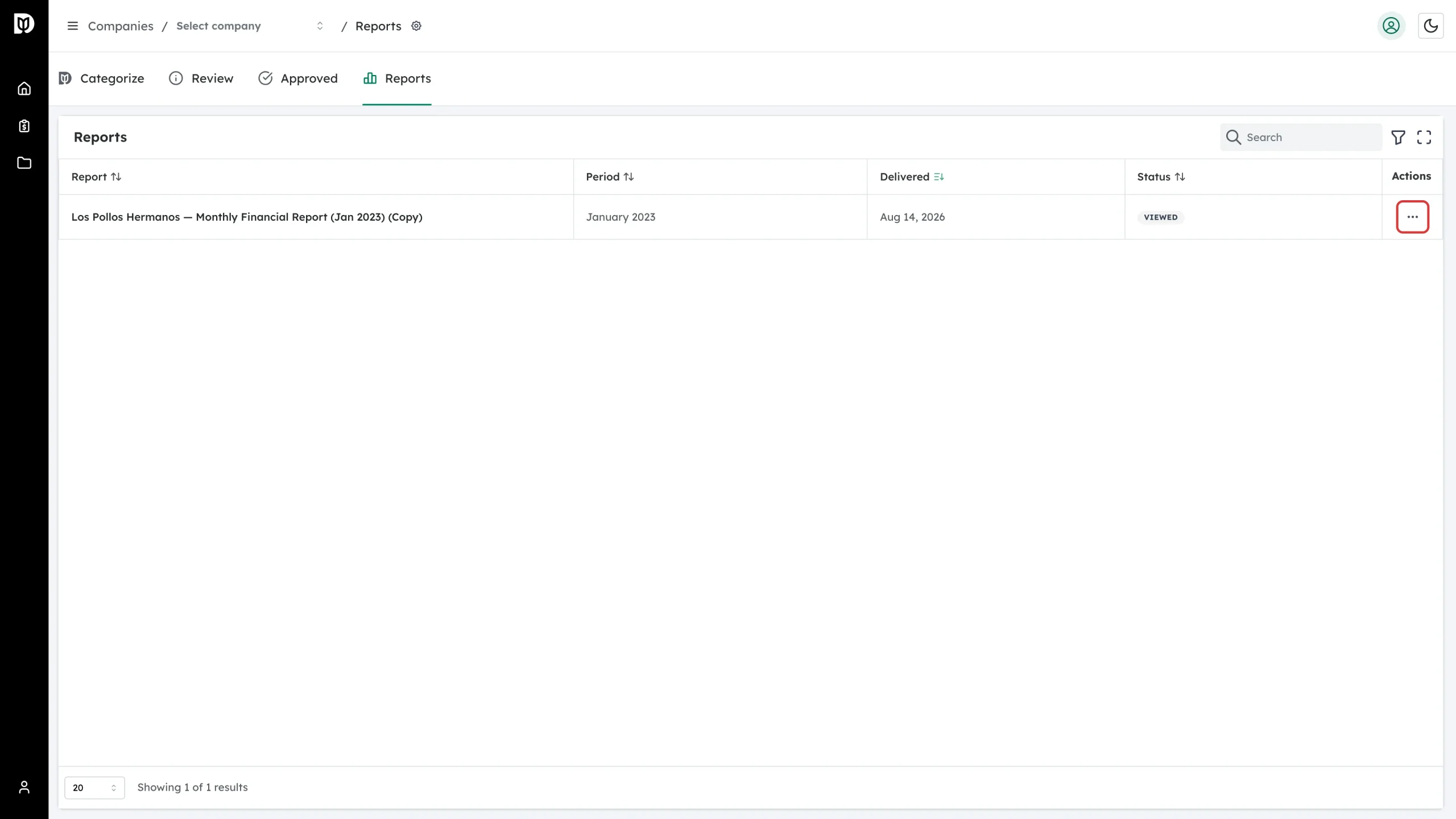
Step 3: Open the actions menu
Select the three-dot menu at the end of a report’s row.
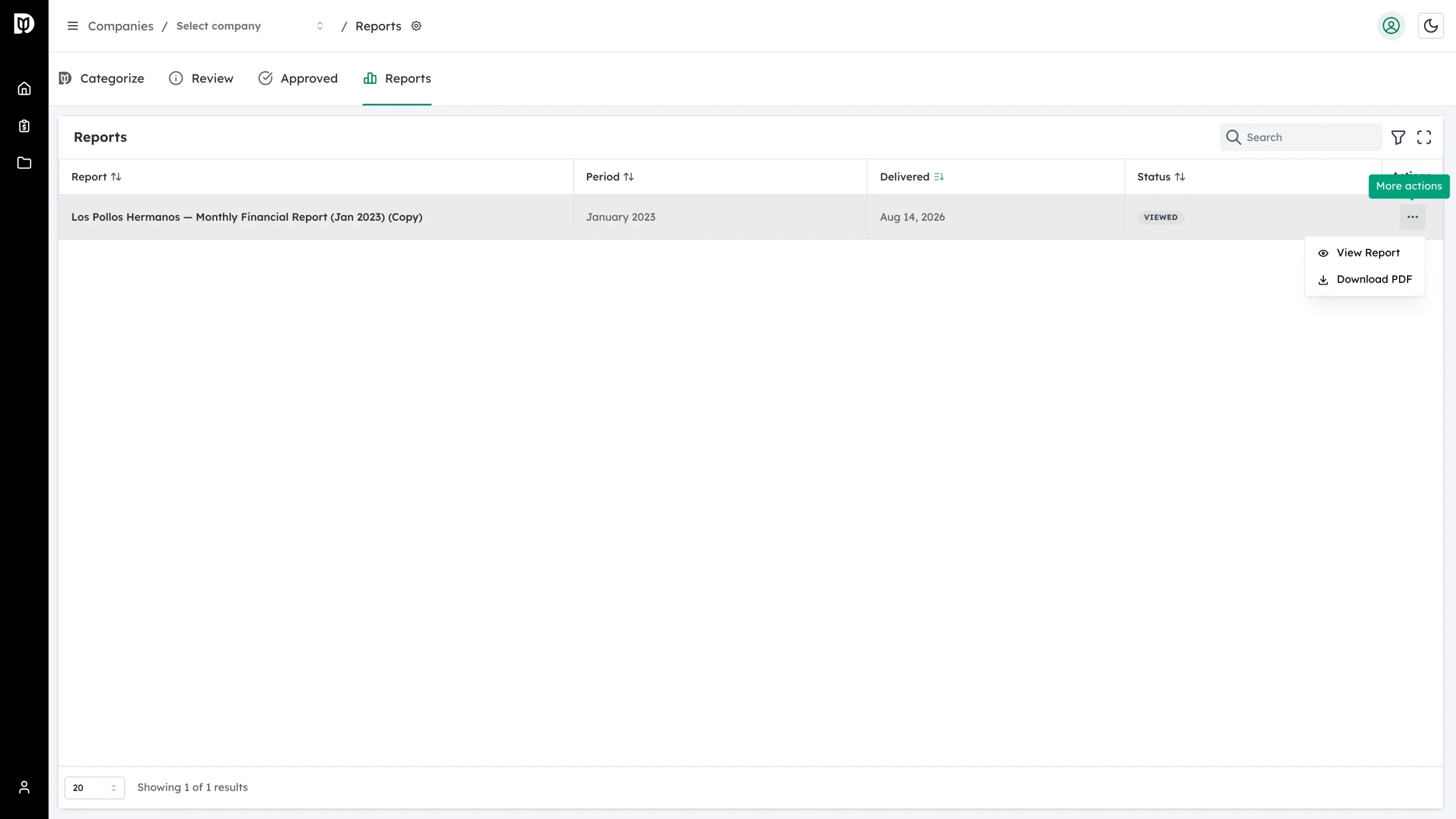
Step 4: Choose View Report or Download PDF
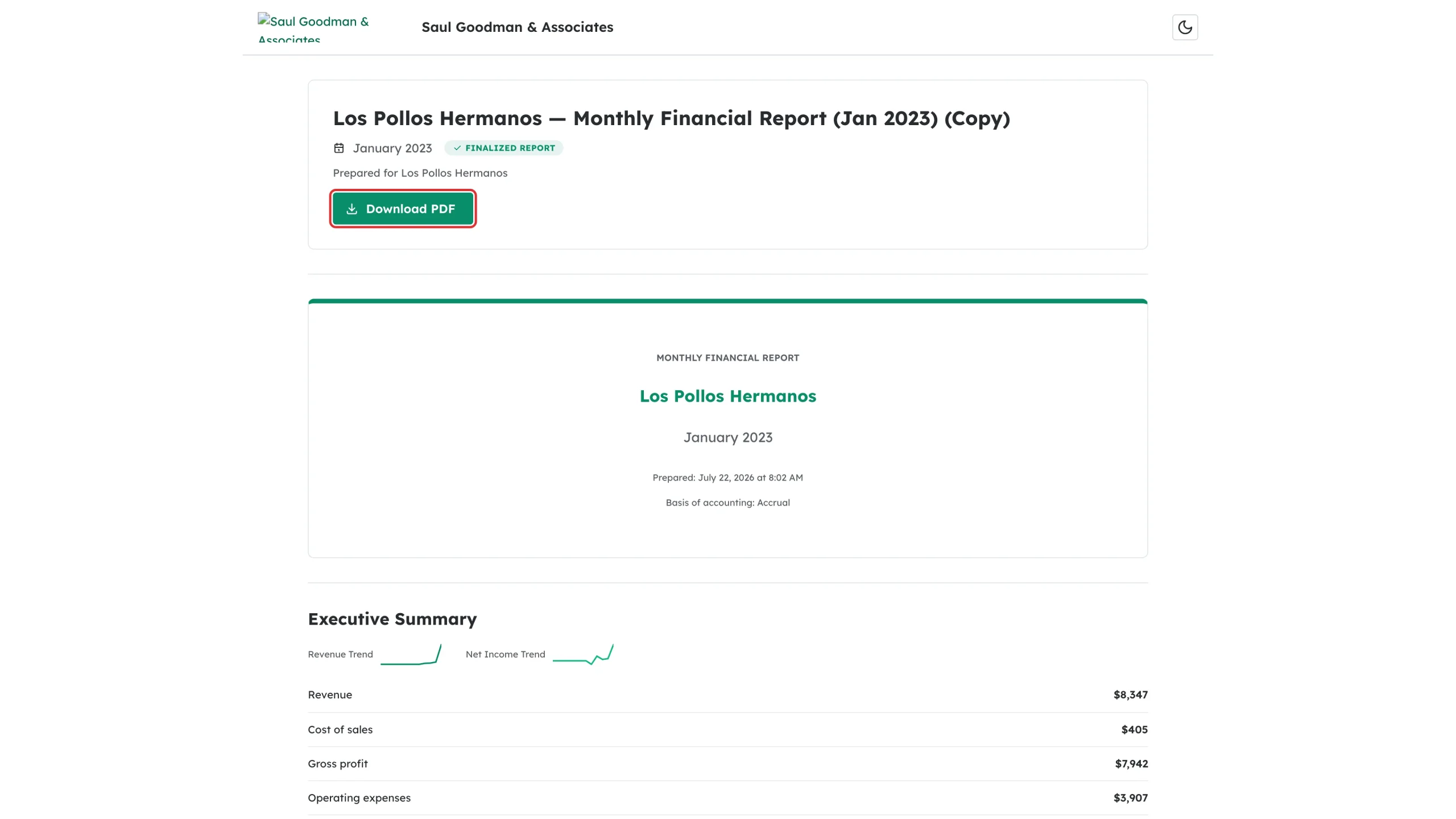
View Report opens the report in a new tab. Download PDF saves a copy straight away.
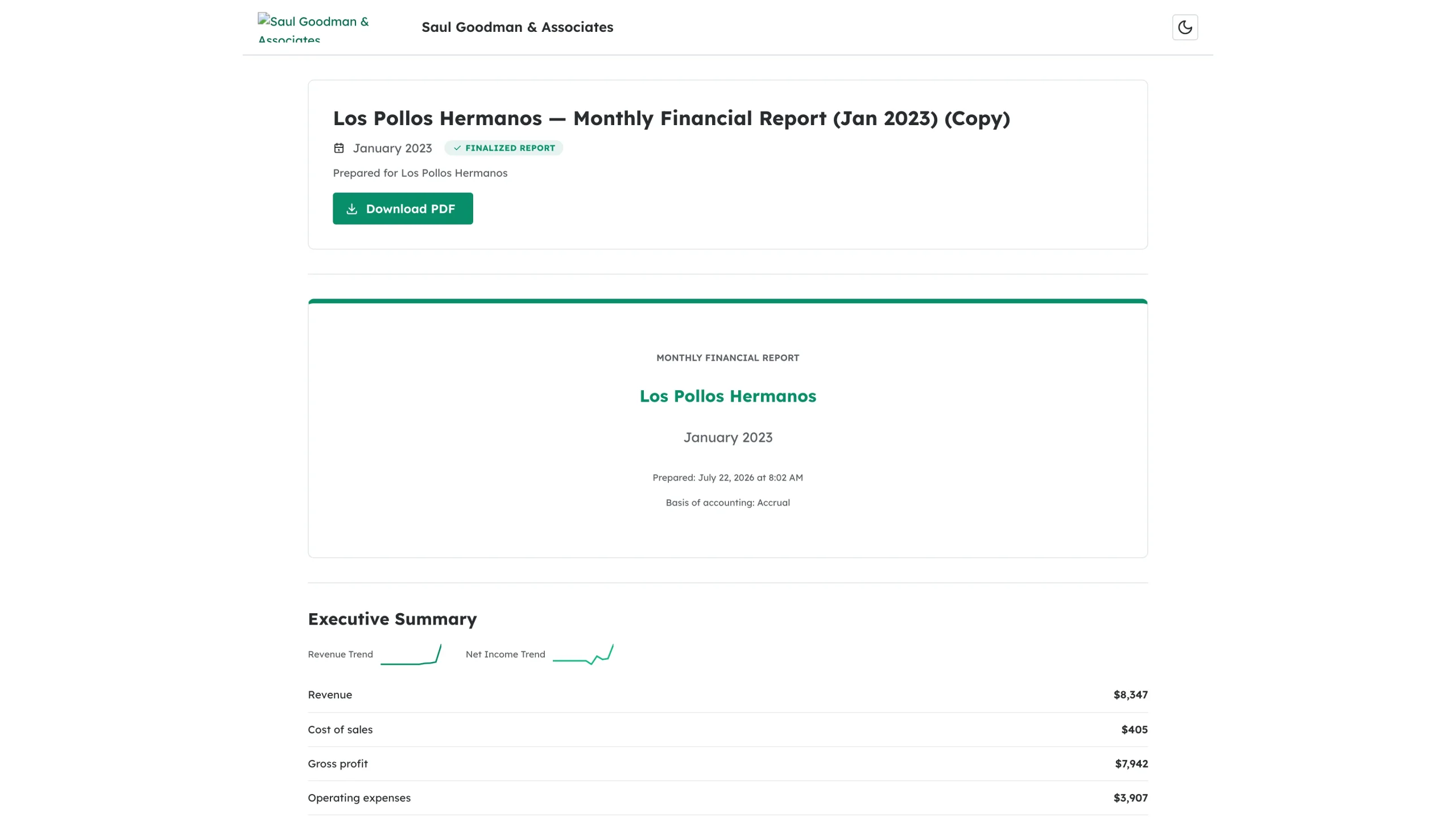
Step 5: Read the report
The report opens branded by your accounting firm, with the same sections your accountant prepared.
Step 6: Save a copy
Select Download PDF on the report page to save it.
What happens next
Reports stay in your portal so you can revisit them any time. Once you open one, its status changes from New to Viewed, and your accountant can see that you have read it.
Troubleshooting
- A report you expected isn’t listed. It may have been sent by secure link only — check your email, or ask your accountant to publish it to your portal.
- There is no Financial Reports card. Nothing has been published to your portal yet.
- The emailed link stopped working. Open the report from your portal instead — that refreshes the link for you.