Who this is for: Accountants who want a client’s report laid out their own way, without changing the client’s QuickBooks chart of accounts.
What you’ll learn: How to move accounts and QuickBooks sub-accounts between sections, group them under your own heading (for example, an “SDE Adjustments” group), and save the layout for every report for that company.
Before you begin
- The company must be connected to QuickBooks. The accounts you arrange are the ones on its Profit & Loss.
- Open a draft report for the company. Arrange accounts sits under Included sections while the report is a draft.
- The layout belongs to the company, not to one report. Every report you build for that company uses it.
Step-by-step instructions
Step 1: Open Arrange accounts
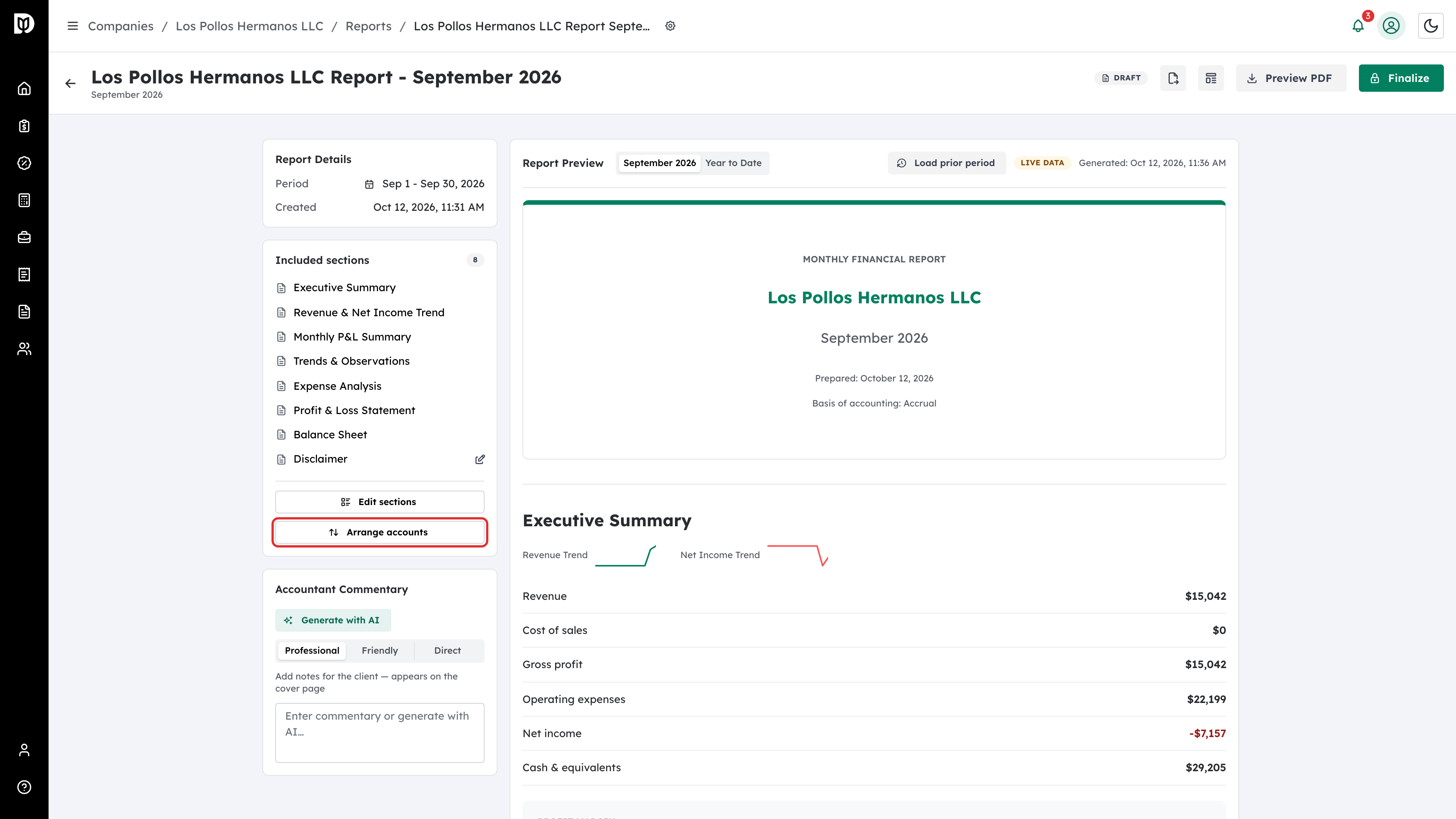
In the report workspace, select Arrange accounts under Included sections.
Step 2: Read how the layout works
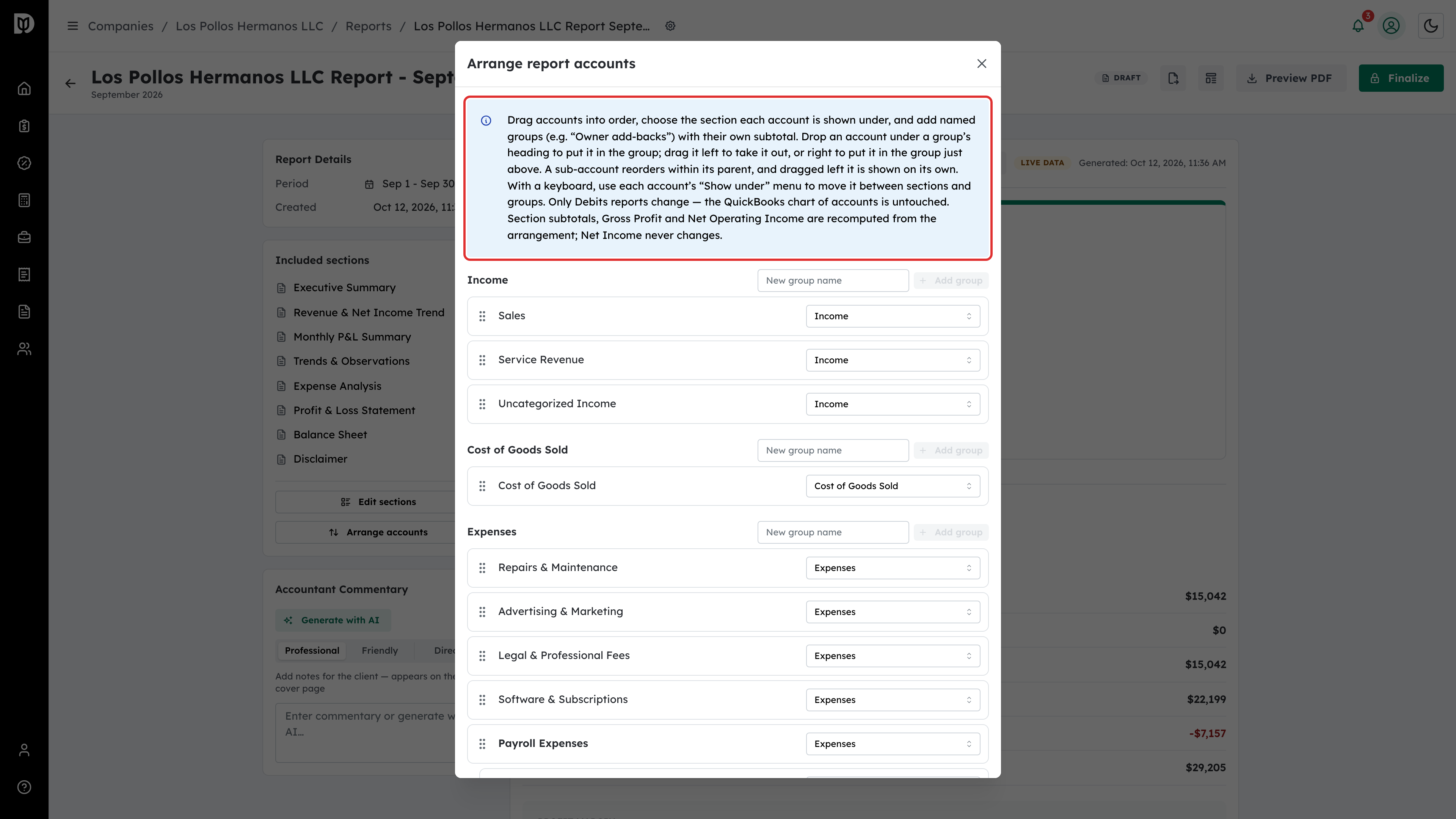
The Arrange report accounts window lists every account on the Profit & Loss under its section: Income, Cost of Goods Sold, Expenses, Other Income and Other Expenses. Drag an account by its handle to change its order, or use its menu on the right to choose where it is shown.
Step 3: Name a new group
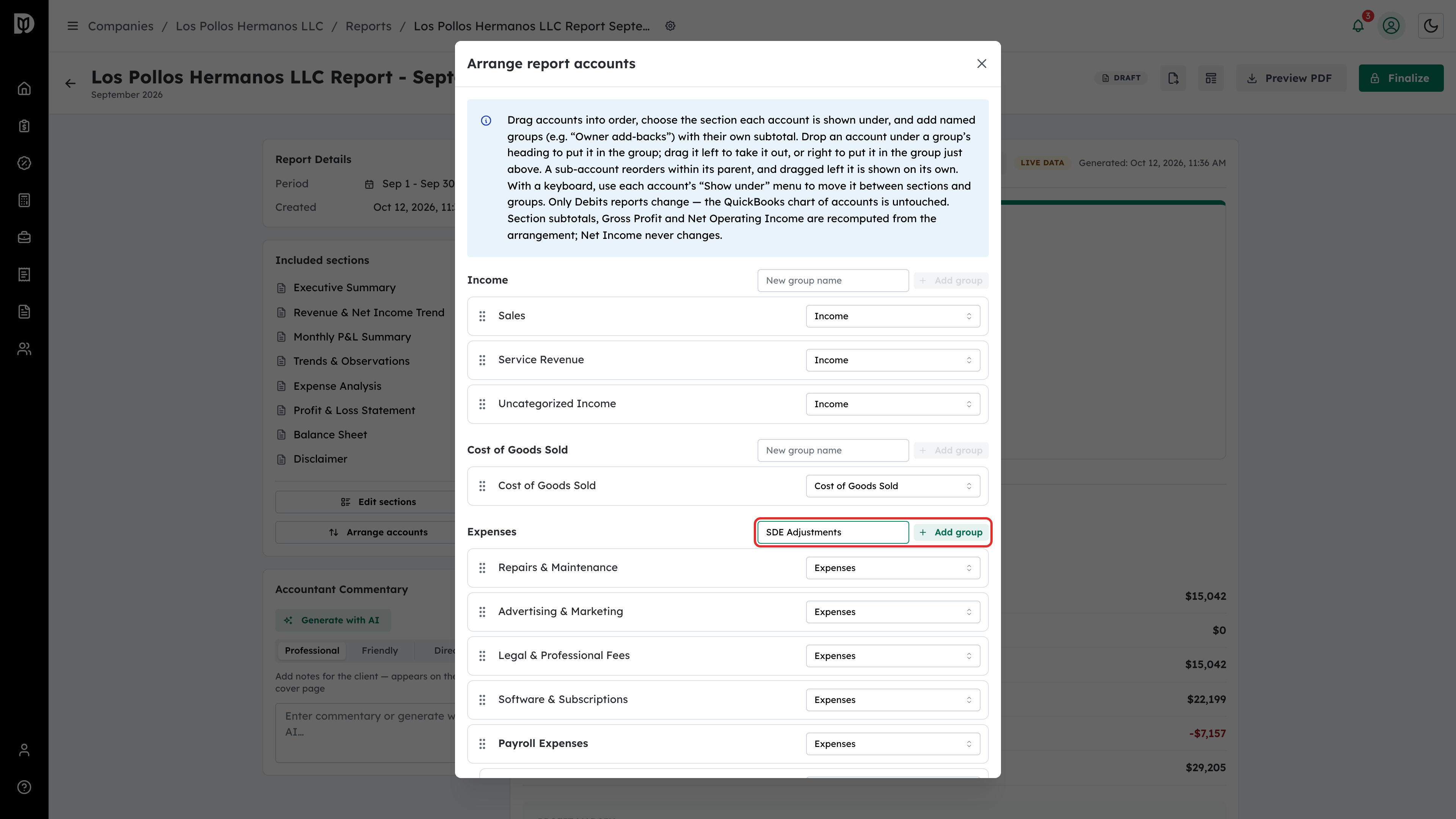
To show some accounts under a heading of your own, type a name in the New group name box beside the section it belongs in. For example, type SDE Adjustments beside Expenses. Then select Add group.
Step 4: Check the new group
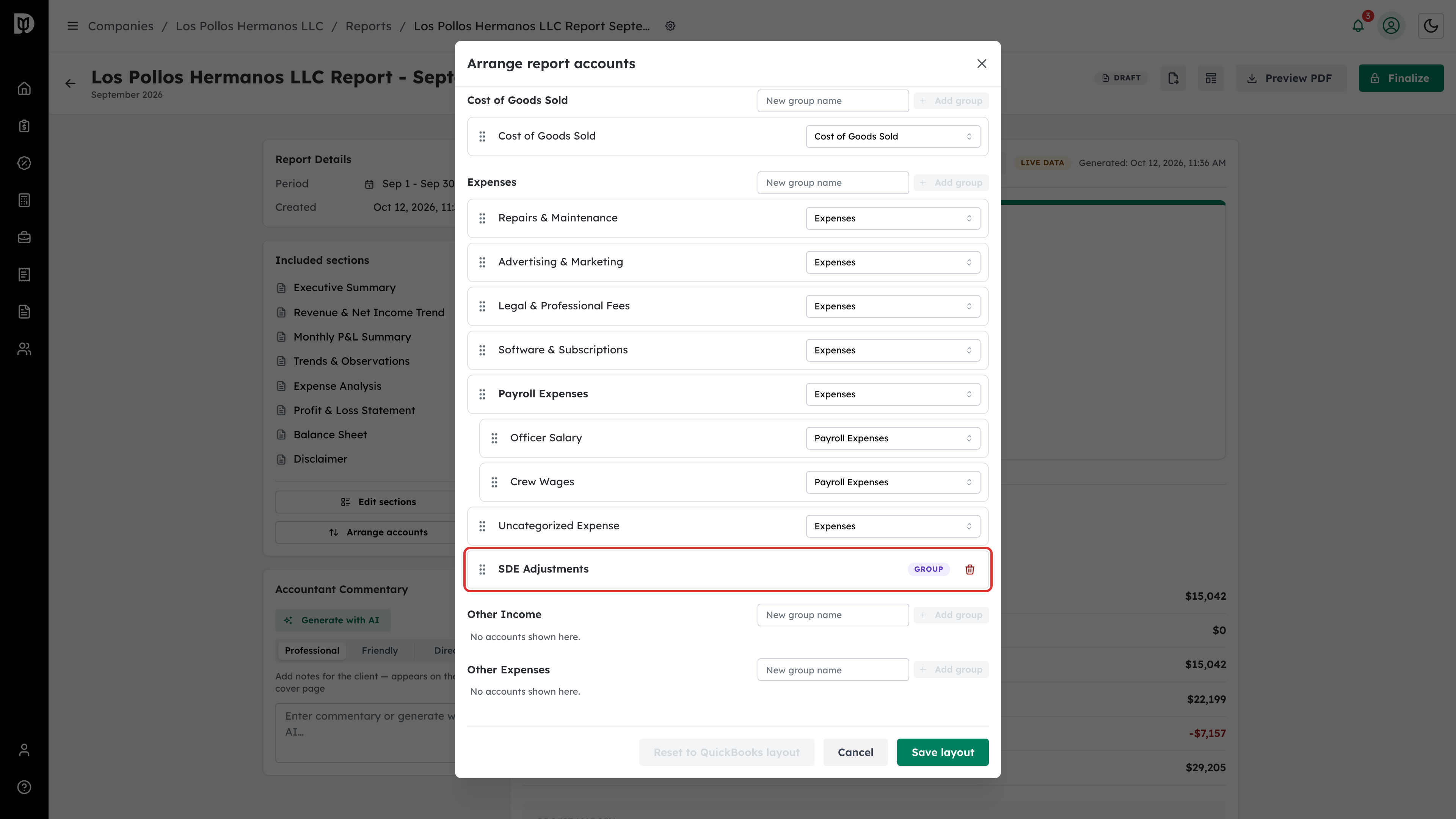
The group appears at the end of its section with a Group badge. Use the trash icon to remove a group you no longer need.
Step 5: Pick the account to move
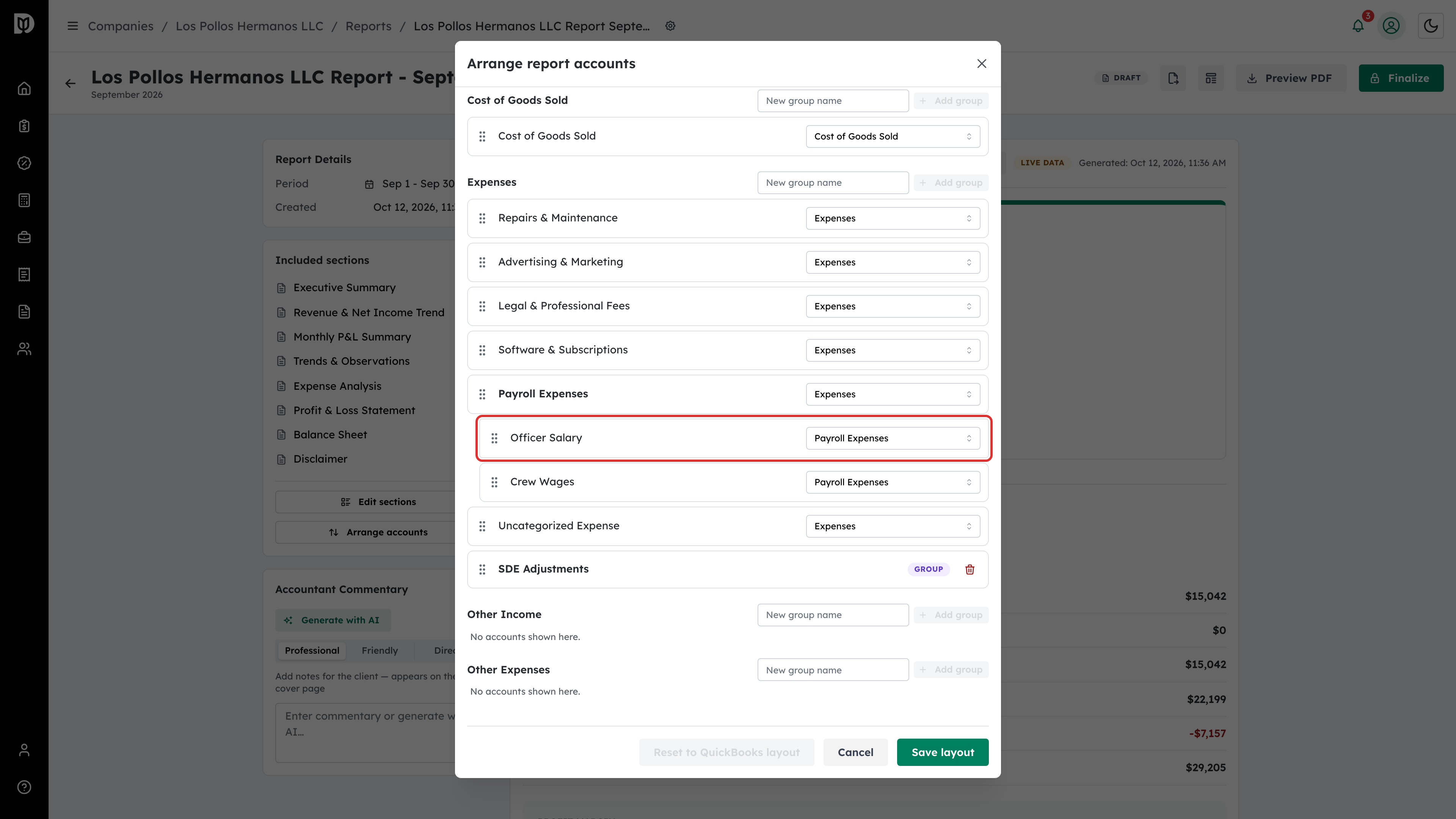
Find the account you want to move. A QuickBooks sub-account is indented under its parent, like Officer Salary under Payroll Expenses, and its menu shows the parent’s name.
Step 6: Move it into the group
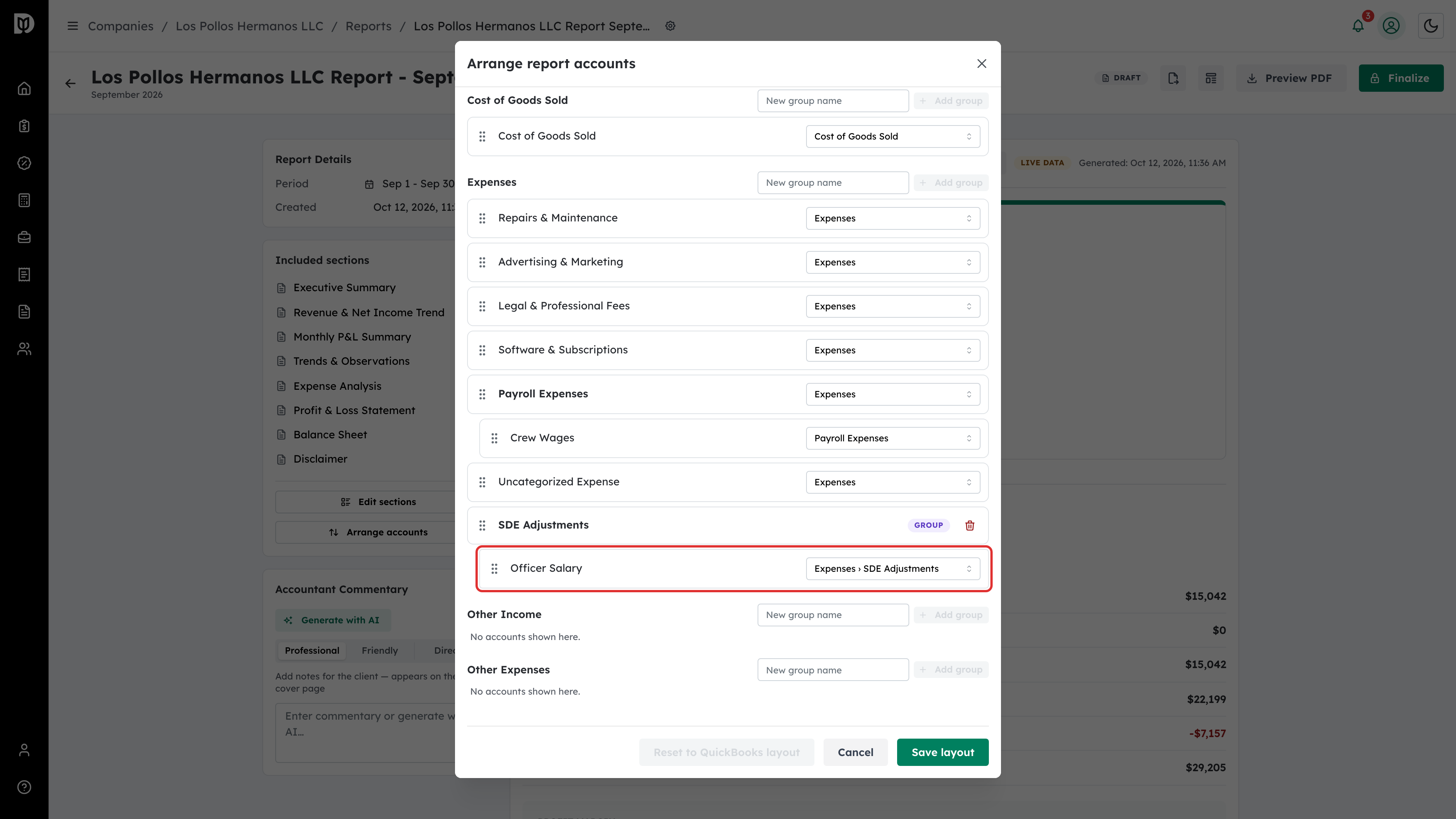
Open the account’s menu and choose the group, for example Expenses › SDE Adjustments. You can also pick another section. A parent account moves together with its sub-accounts. To put a sub-account back, choose its parent under Sub-account of in the same menu.
Step 7: Save the layout
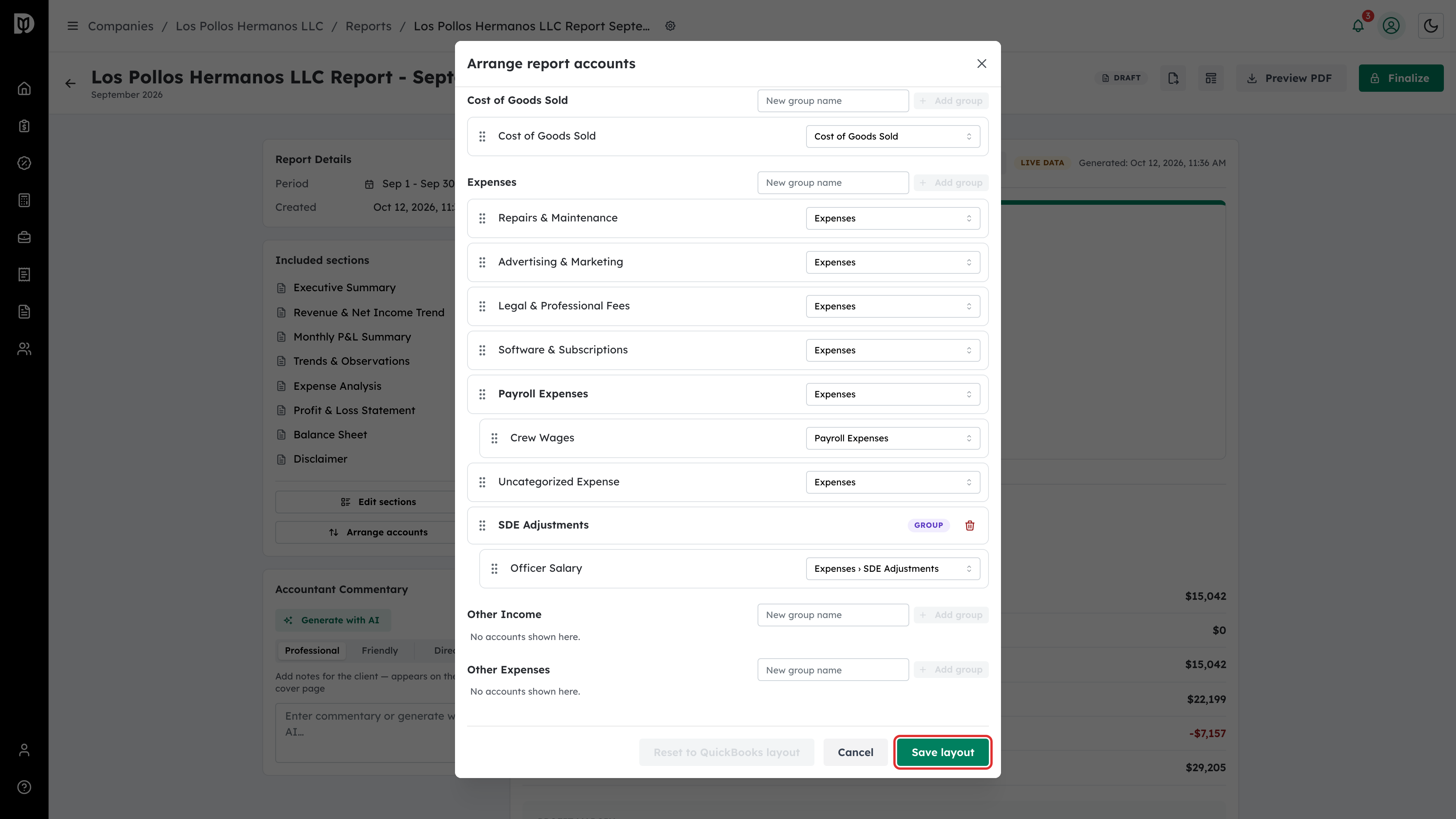
Select Save layout. To go back to the QuickBooks order at any time, open the window again and select Reset to QuickBooks layout.
Step 8: Check the report
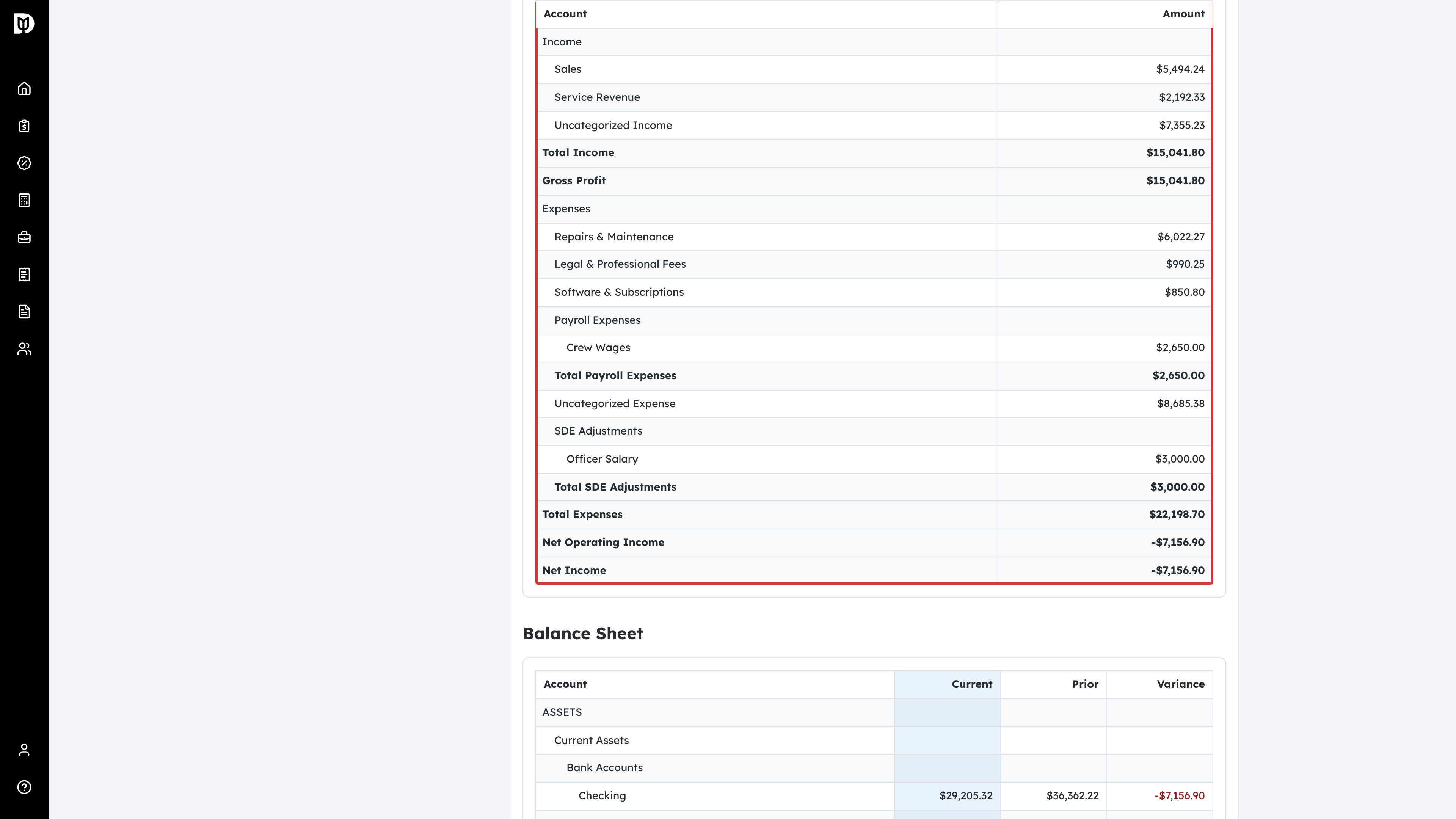
The statements in the preview now follow your layout. The group has its own Total line, and the parent account’s total drops by the amount you moved out of it.
What happens next
- Debits recalculates section subtotals, Gross Profit and Net Operating Income from your layout. Net Income never changes.
- Only Debits reports change. The client’s QuickBooks chart of accounts is not touched.
- The layout is saved for the company. It is used by the Profit & Loss sections of every report for that company, including year to date, by month, year over year and budget vs actual.
- Accounts are matched by their QuickBooks account, not by name, so two accounts with the same name under different parents stay separate.
- A report you have already finalized keeps the layout it was finalized with.
Troubleshooting
- An account is missing from the list. The list shows the accounts on the company’s Profit & Loss for the year to date. An account with no activity this year is not listed.
- Arrange accounts is not shown. The report is finalized. If it has not been sent yet, select Reopen as draft.
- Totals look different from QuickBooks. Section subtotals follow your layout. Net Income always matches QuickBooks.