Who this is for: Accountants who need to see exactly what happened on a tax delivery and when.
What you’ll learn: How to read the audit trail for a return.
Before you begin
- Open the tax delivery you want to inspect.
Step-by-step instructions
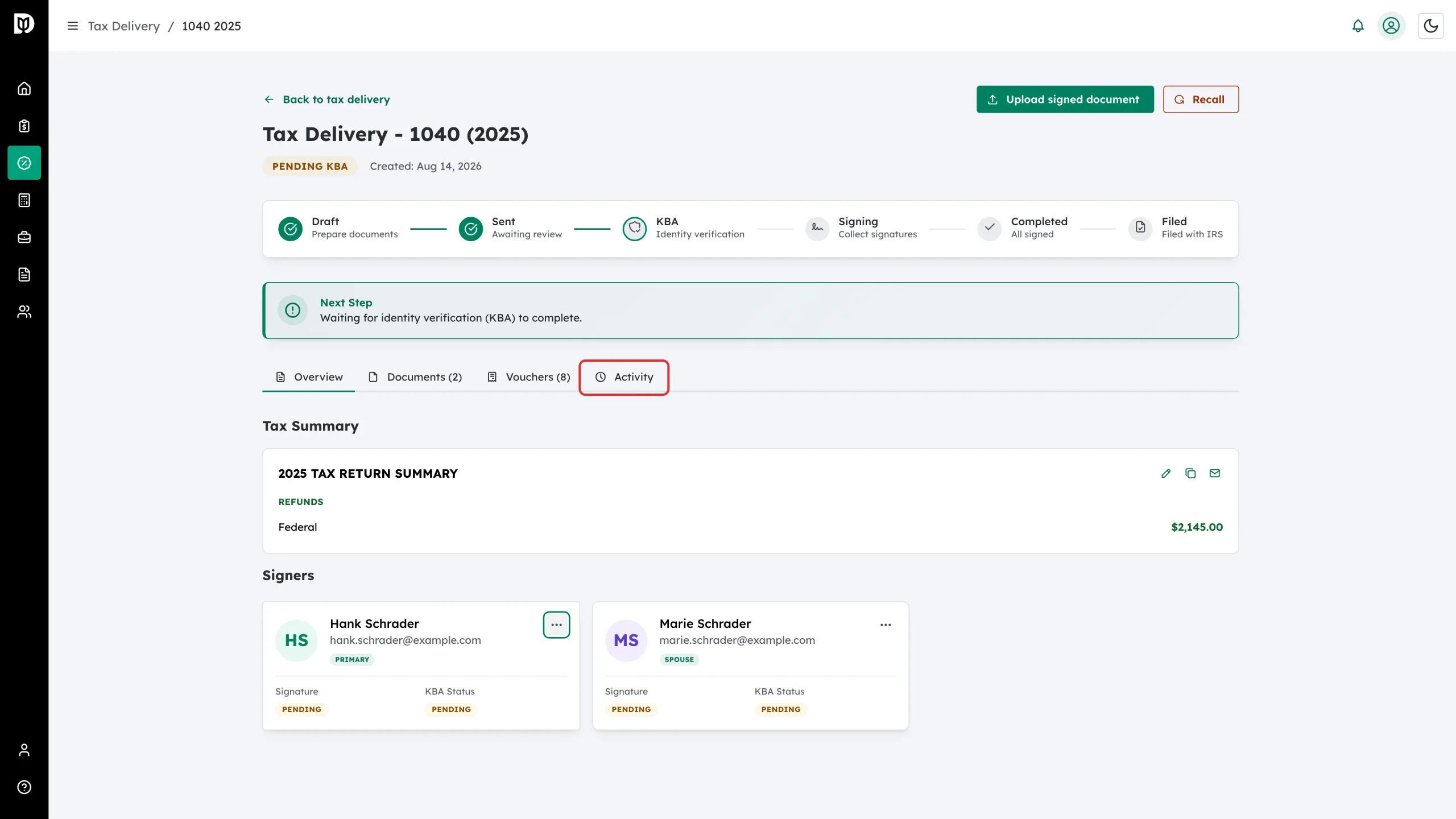
Step 1: Open the Activity tab
On the tax delivery detail page, click Activity.
Step 2: Read the timeline
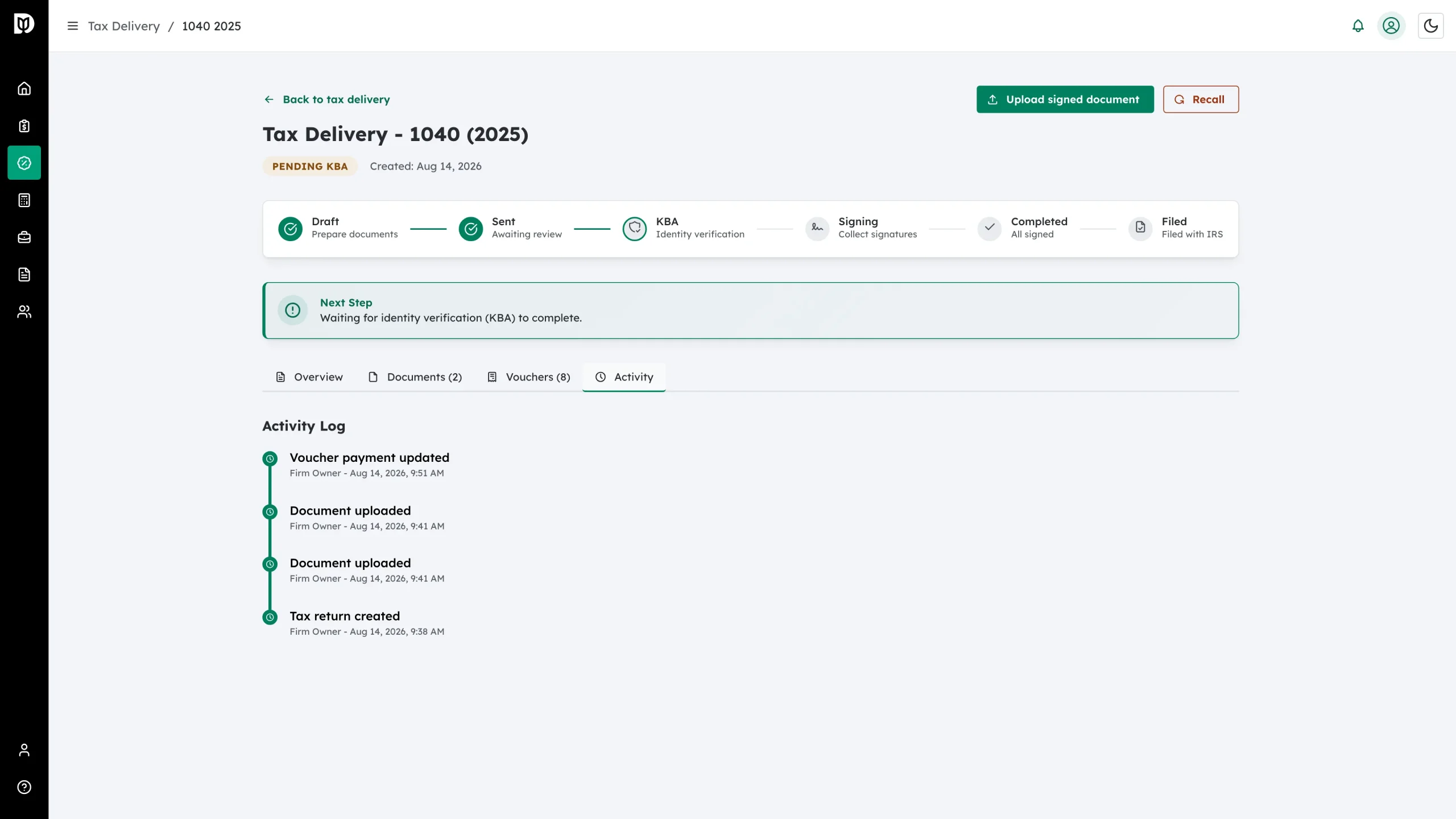
The Activity Log lists everything that has happened, newest first. Each entry gives you the event, who did it, and the exact date and time.
Step 3: Know what the events mean
Common entries include:
- Tax return created, Document uploaded, Summary extracted from documents
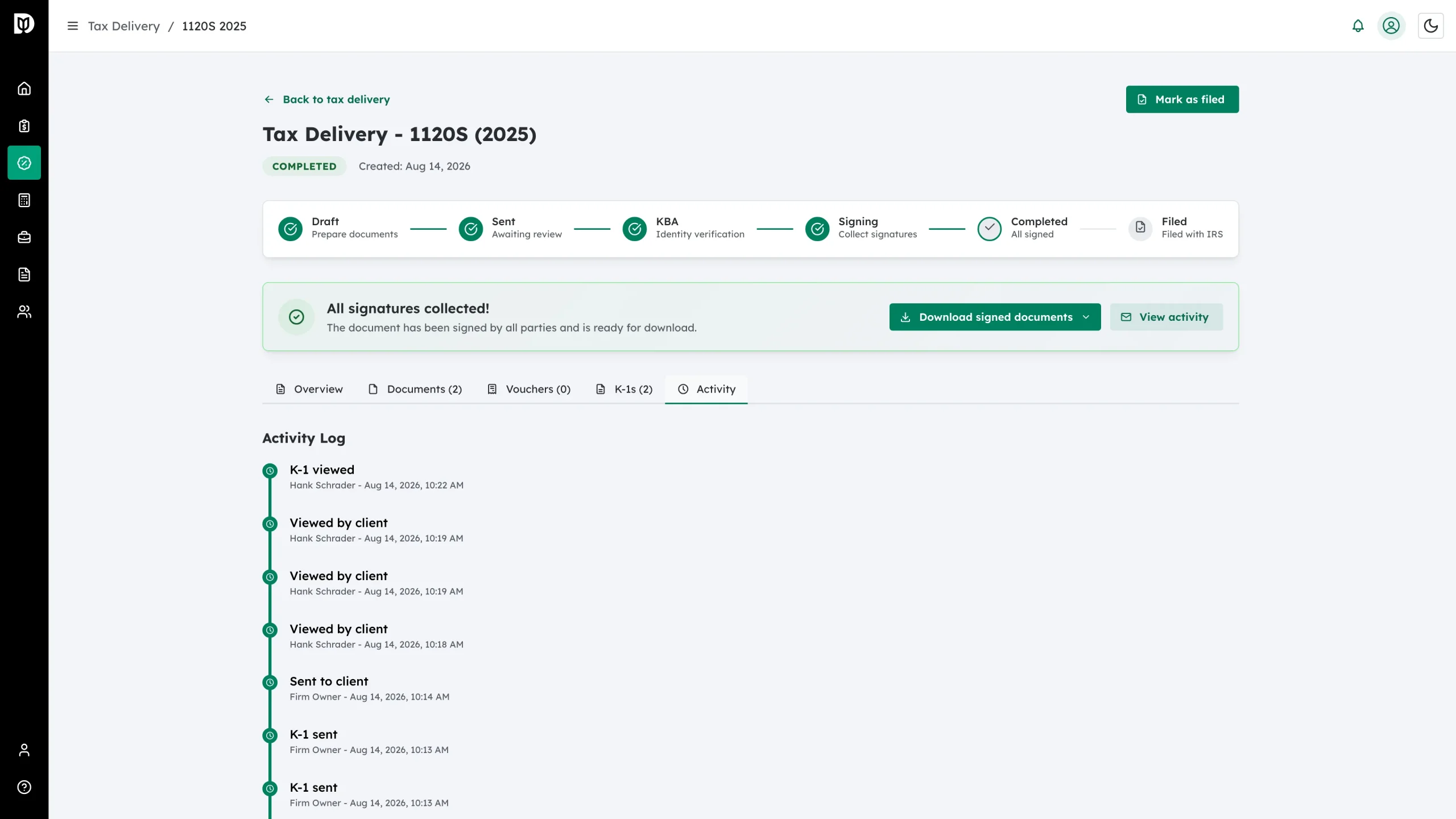
- Sent to client, Resent to client, Viewed by client, Reminder sent, Delivery failed
- Identity verification started / passed / failed
- Document signed, Signing completed, Declined by signer, Rejected by client
- Wet signature form downloaded, Wet signature uploaded, Signed document uploaded by accountant
- Voucher updated, Voucher payment updated, Voucher marked as paid, Voucher reminder sent
- K-1 sent / viewed / downloaded
- Marked as filed, Unmarked as filed, Completion emails resent
What happens next
Use the log to see who you are waiting on, to confirm a client really did open their link, and to keep a compliance record for each delivery.
Troubleshooting
- Only one entry: A brand new delivery has just “Tax return created”. More appear as you and the client act.
- A client says they never got the email: Look for Sent to client and Delivery failed entries to confirm what happened.