Who this is for: Firm owners, admins, managers and staff who deliver tax returns and bill for them.
What you’ll learn: How to hold individual documents in a tax delivery behind an invoice, so the client can only sign or download them after paying.
Before you begin
- The tax delivery must have at least one document the client can see. Internal documents have no padlock, because the client never sees them.
- The invoice that releases the document must already exist and be unpaid. Create it in Billing first if you need to.
- Think about which document to hold. Holding the Form 8879 stops the client signing it, which means the return cannot be e-filed. If the filing must go ahead regardless, hold the client copy instead.
Step-by-step instructions
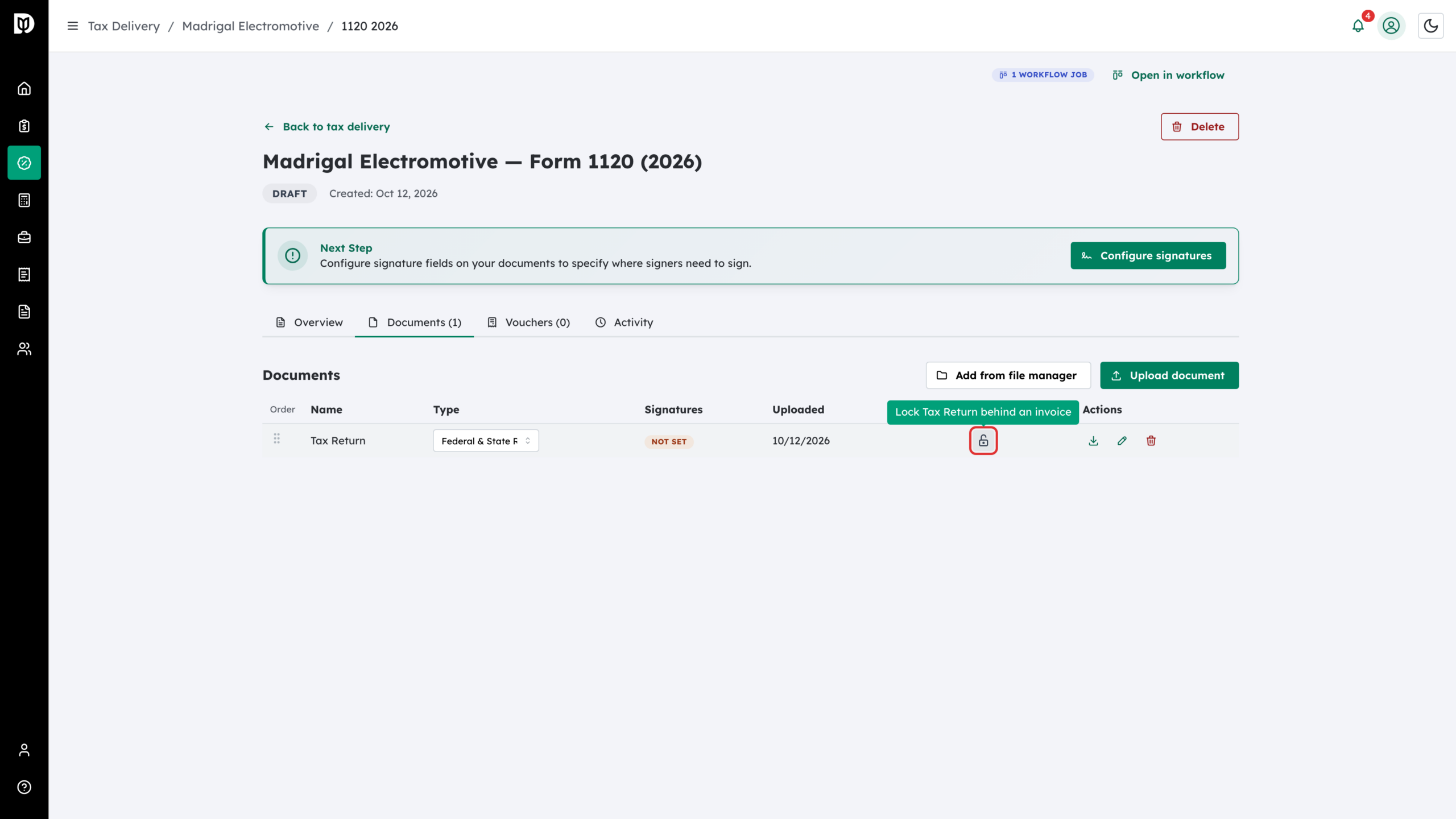
Step 1: Open the Documents tab and click the padlock
Open the tax delivery and go to the Documents tab. Each document the client can see has a padlock in the Held for payment column. Click the open padlock on the document you want to hold.
Step 2: Choose who the invoice is from
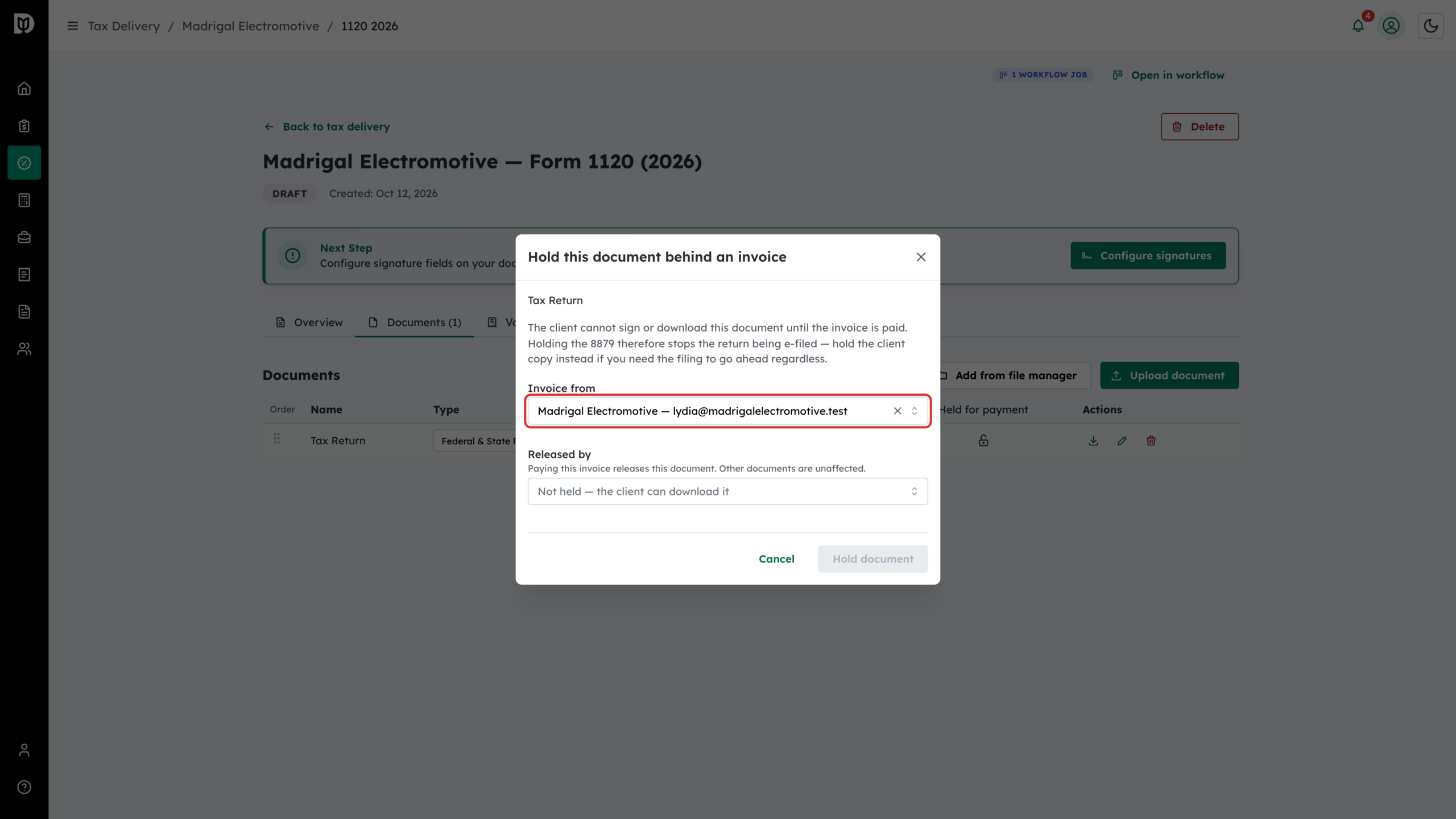
The Hold this document behind an invoice window opens. Invoice from starts on the return’s own client. Change it if someone else pays, for example a business paying for its owner’s personal return. If you pick someone who is not on the return, a warning tells you that the client will see that invoice’s number, balance and a link to pay it.
Step 3: Choose the invoice that releases it
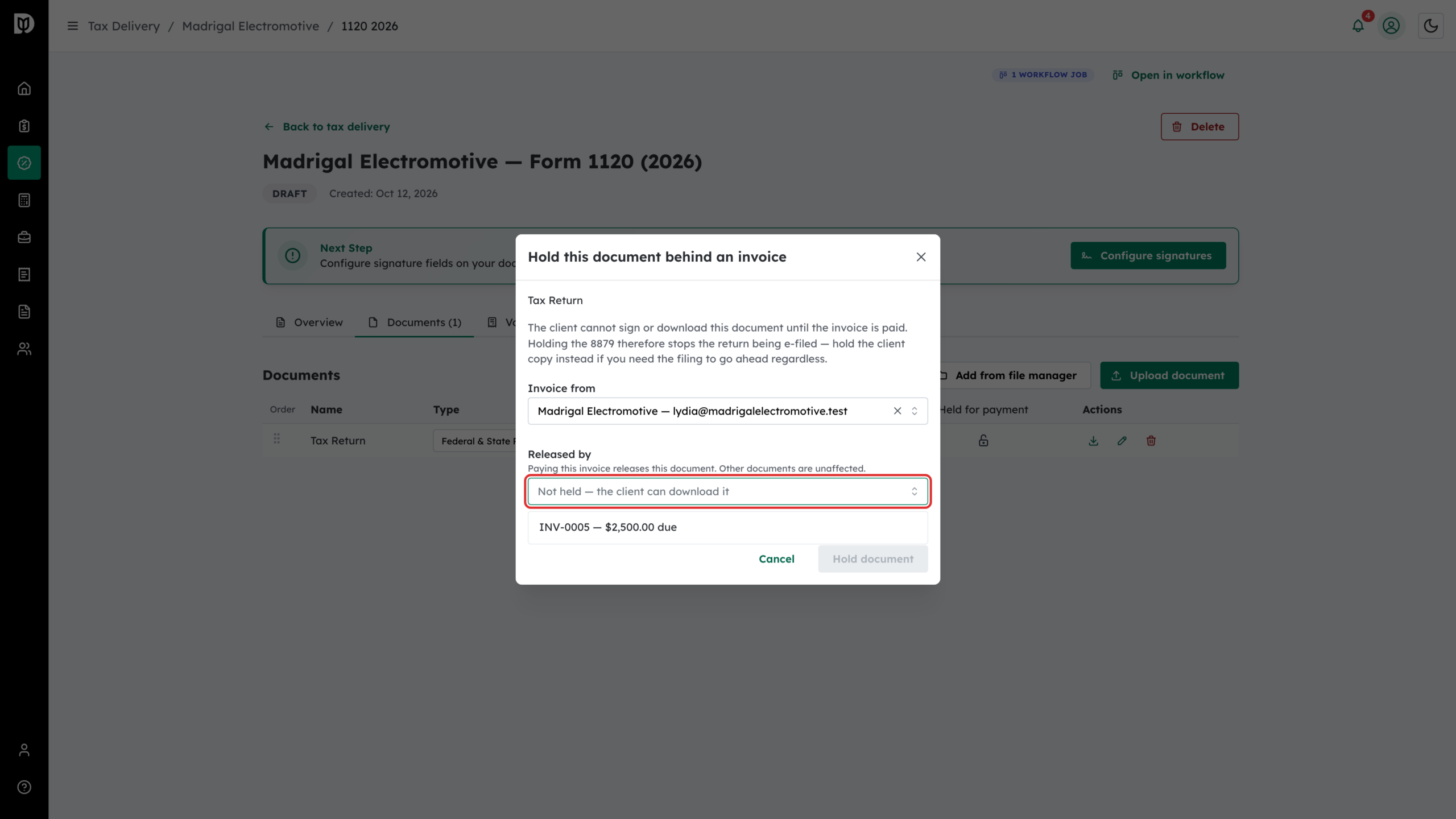
Open Released by and pick the invoice. Paying this invoice releases this document only; other documents are not affected.
Step 4: Click Hold document
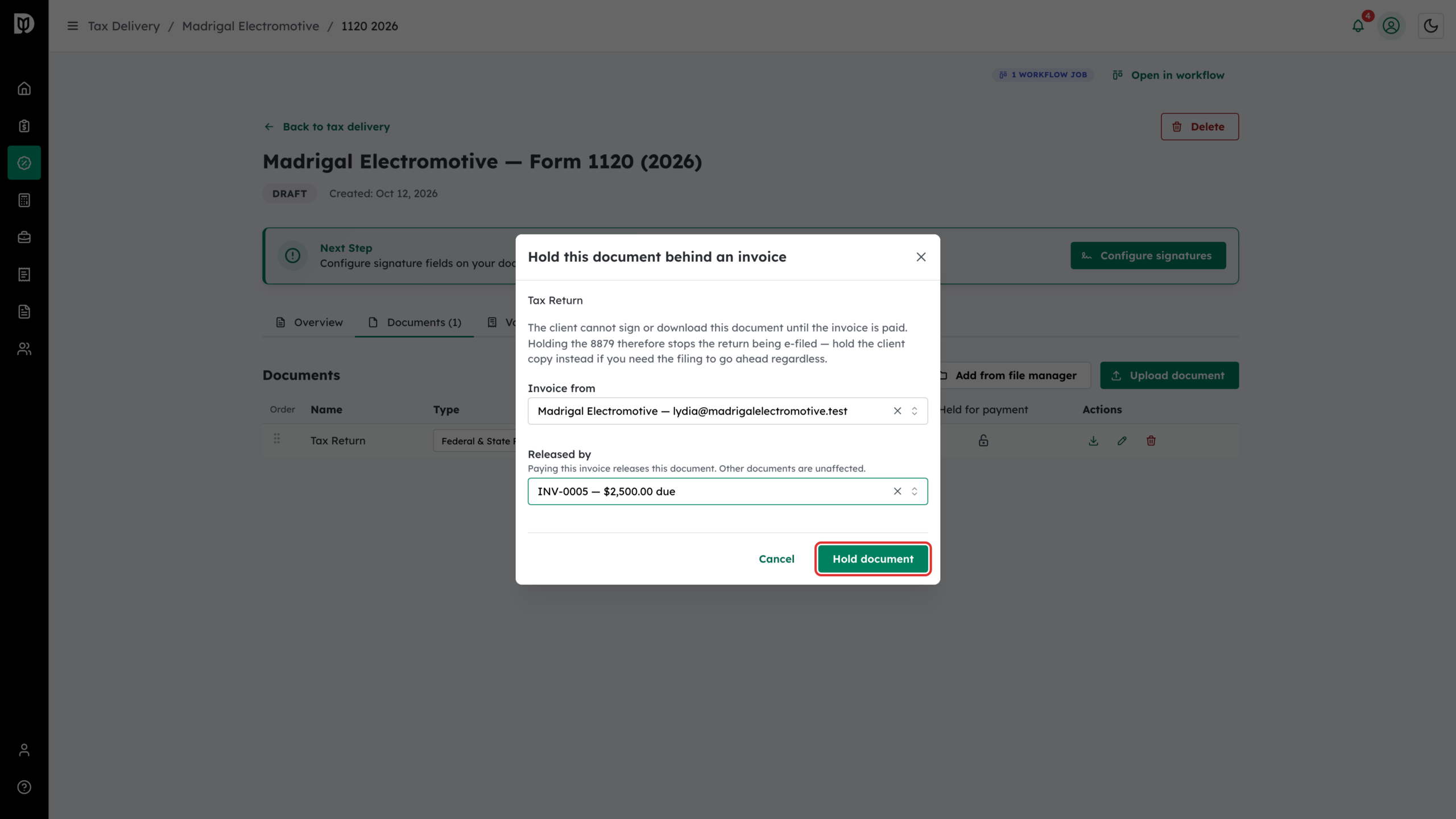
Click Hold document.
Step 5: Check the padlock
The padlock closes. Hover over it to see which invoice is holding the document, for example “Tax Return is held until INV-0005 is paid”. Repeat for any other document you want to hold. Each document can be held by a different invoice.
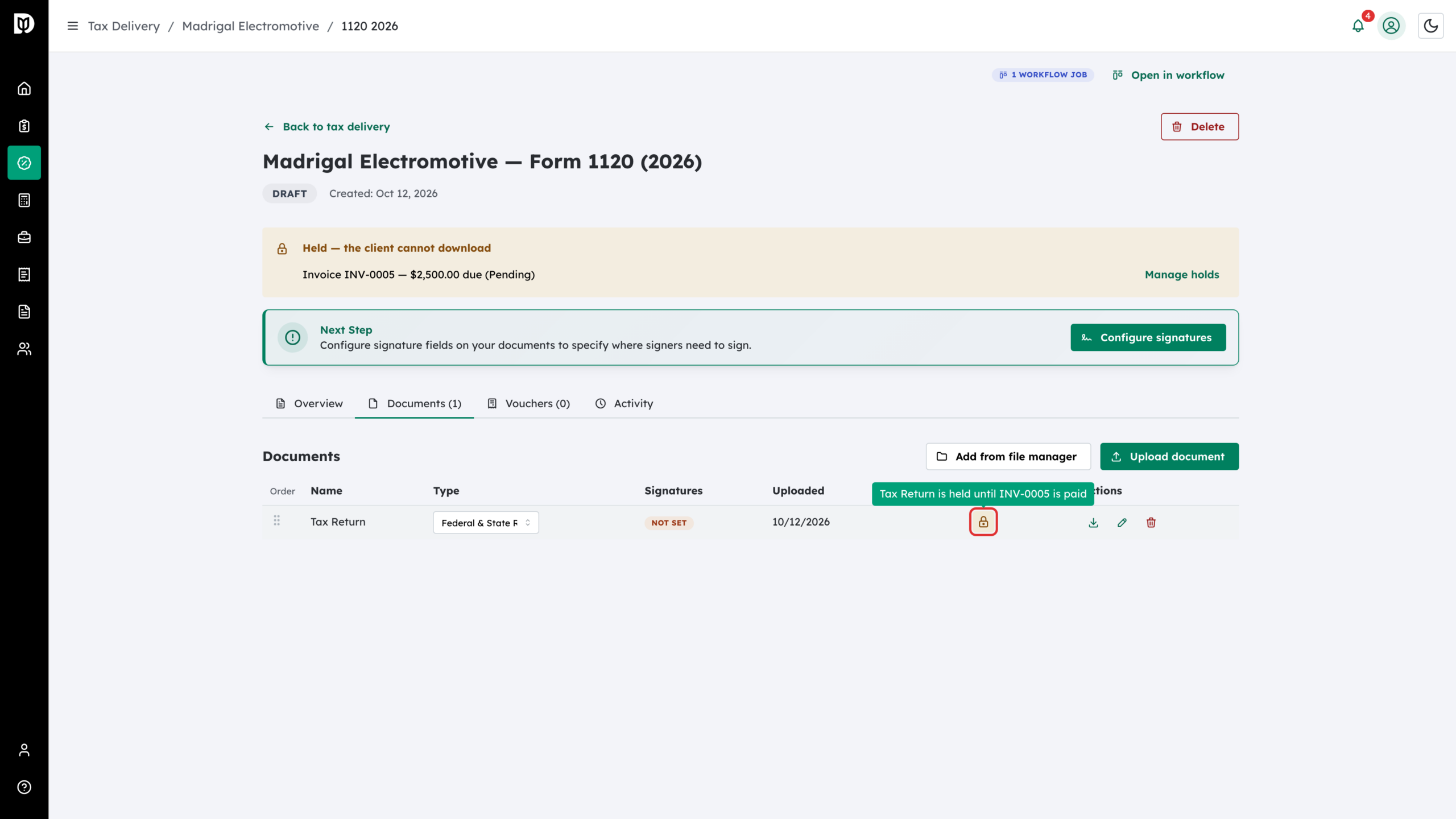
Step 6: Check the banner
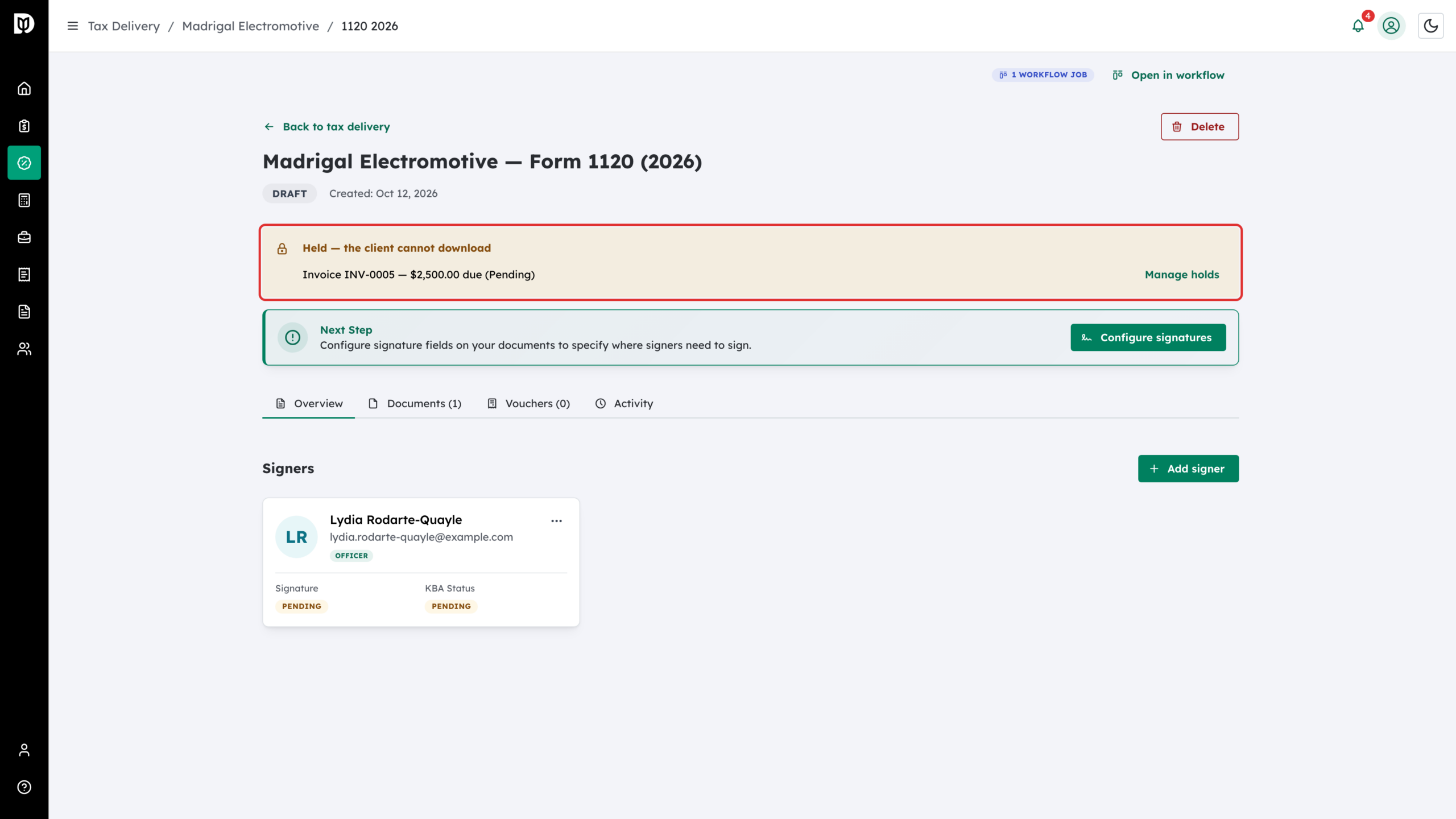
A banner at the top of the delivery shows the hold: Held — the client cannot download, with the invoice and the amount due. Click Manage holds to change them. To lift a hold, click the closed padlock and click Release document.
What happens next
When the client opens the return, a payment card for each holding invoice appears above the signing steps, on every step. Documents that are not held can still be signed. Documents that are held show as unavailable until the invoice is paid, and the client is told which invoice to pay.
Once the invoice is paid, the document is released and the banner reads Released — invoice settled. If the invoice is set to unlock when the client submits payment, a bank (ACH) payment releases the document as soon as it is submitted, without waiting days for it to clear, and the banner reads Released on payment submission.
Troubleshooting
- A document has no padlock: it is not visible to the client, so there is nothing to hold.
- Released by has no invoices: the client has no unpaid invoices. Create one in Billing, or pick a different payer in Invoice from.
- “Invoices could not be loaded”: you need access to Billing to see invoices.
- The client paid but the return still cannot be e-filed: check whether the 8879 is held by a different, still unpaid invoice.