Who this is for: Firm owners, admins, managers and staff who prepare returns for C corporations.
What you’ll learn: How to send a Form 1120 tax organizer to a corporation, what it asks, and how to deliver the finished 1120 for signature.
Before you begin
- Save the corporation as a business contact, with a contact person who has an email address. You can also add it from the wizards.
- If the corporation has a fiscal year, Debits labels it by the year the fiscal year begins, the same year the IRS form uses. The period is shown beside the year.
Send a Form 1120 organizer
Step 1: Choose the 1120 return type
Go to Tax > Organizers, click New tax organizer and choose One by one. Pick the Tax year, set Return type to 1120 and click Next.

Step 2: Choose the corporation
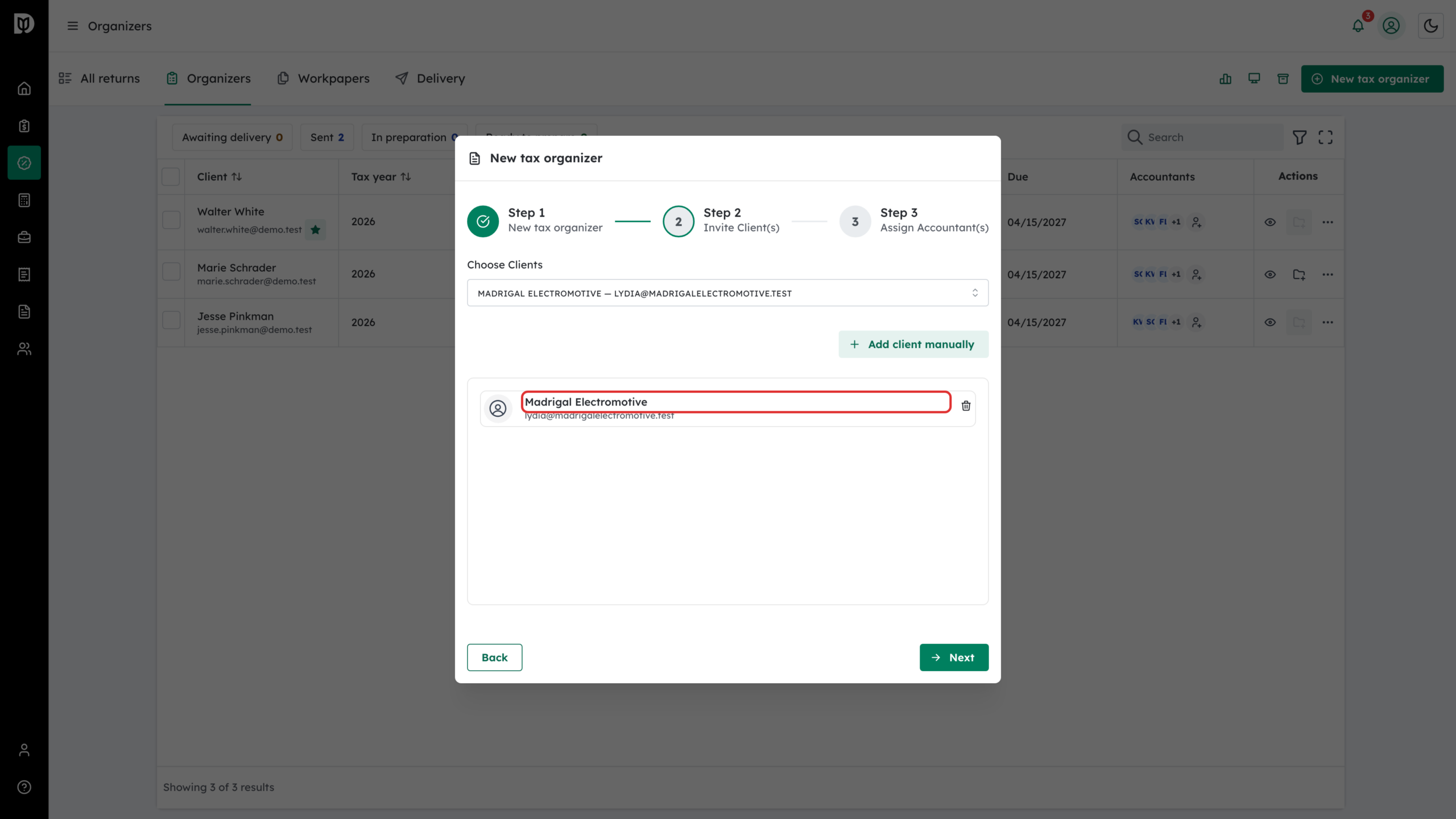
In Choose Clients, pick the corporation, or click Add client manually to add it. Click Next.
Step 3: Send the invitation
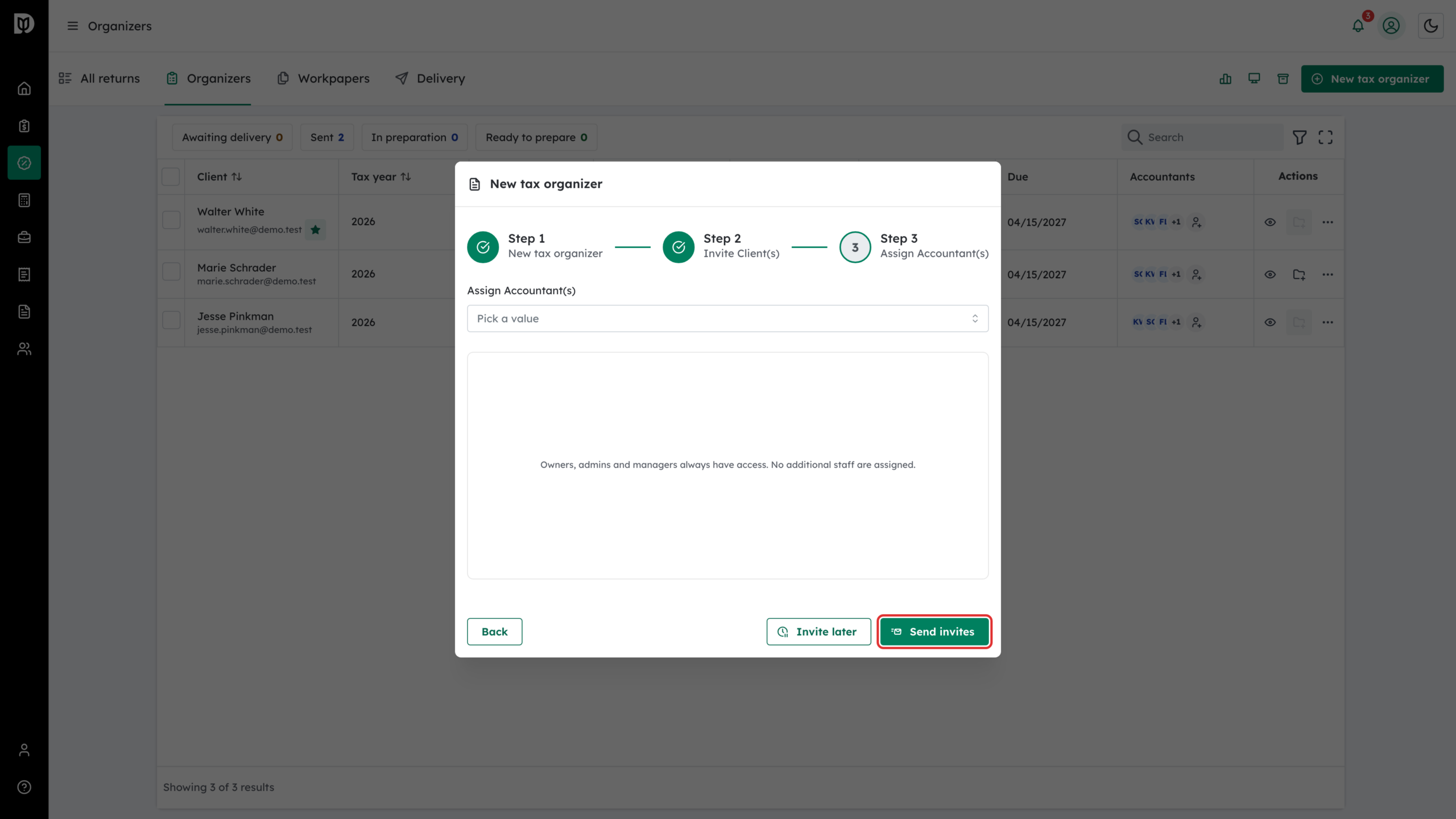
Optionally assign accountants, then click Send invites. The invitation goes to the corporation’s contact person.
Step 4: Check the new organizer
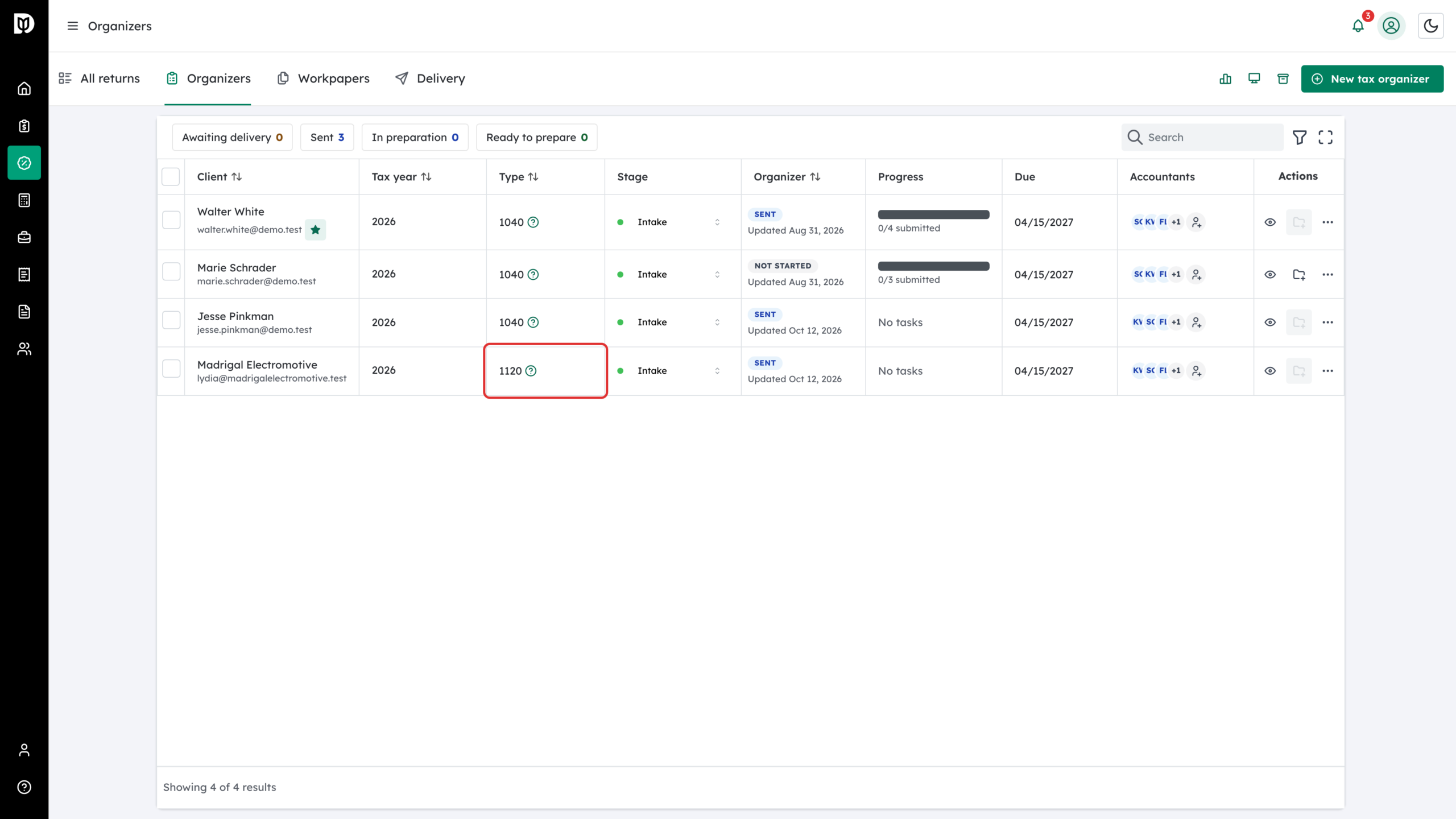
The organizer appears in the list with the type 1120 and the status Sent.
Step 5: Know what the client is asked
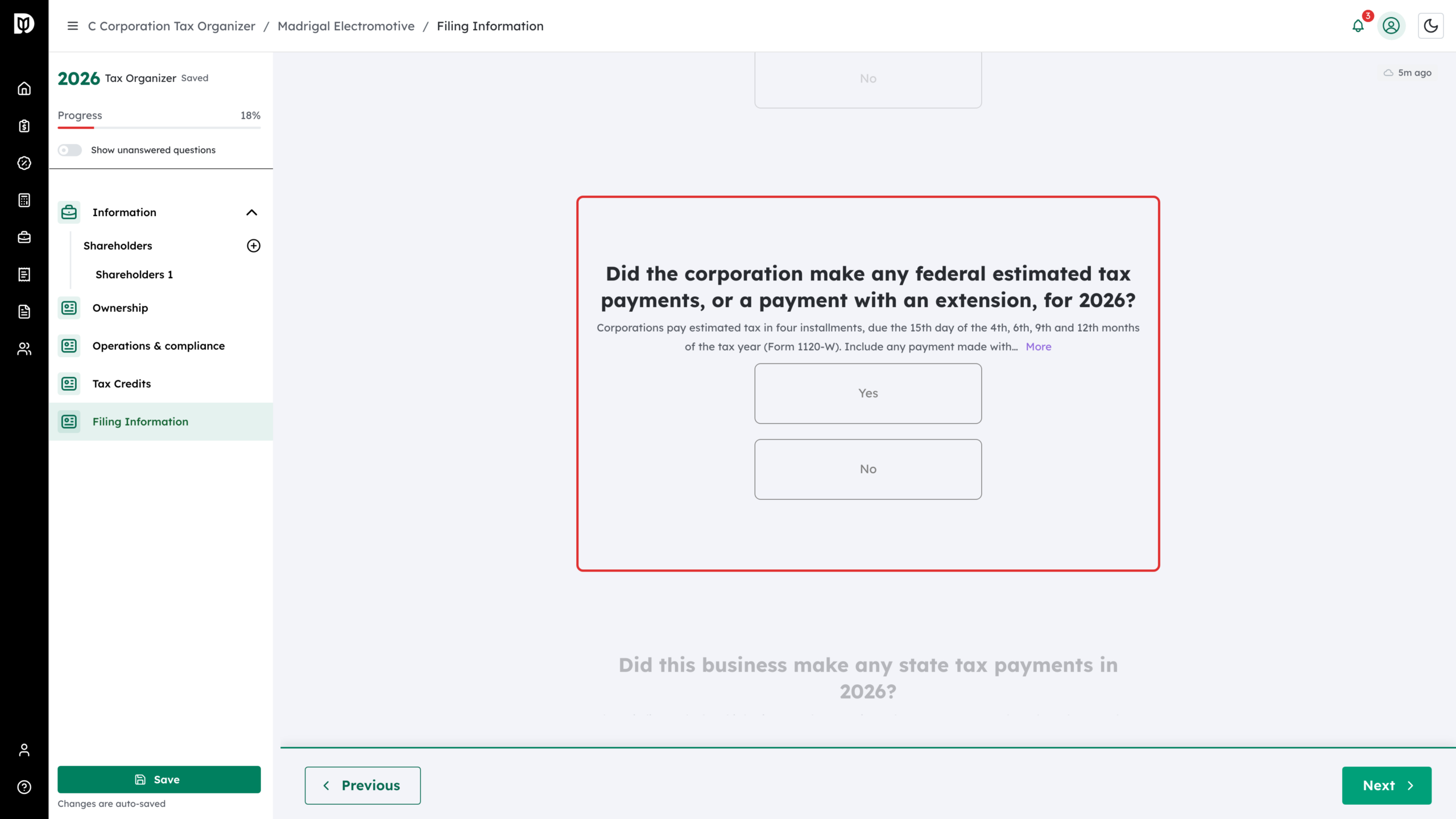
The 1120 organizer is a C Corporation Tax Organizer. It skips the S-election questions an 1120S asks and adds C-corporation questions, including:
- Compensation paid to officers, with each officer’s time, stock owned and pay
- Cash or property distributed to shareholders
- Any net operating loss (NOL) carried forward, and other carryovers such as capital losses, charitable contributions or credits
- Whether one foreign person owned 25% or more of the corporation
- Whether the corporation is part of a controlled group
- Federal estimated tax payments (Form 1120-W) and any payment made with an extension
Deliver a Form 1120 for signature
Step 6: Create the delivery
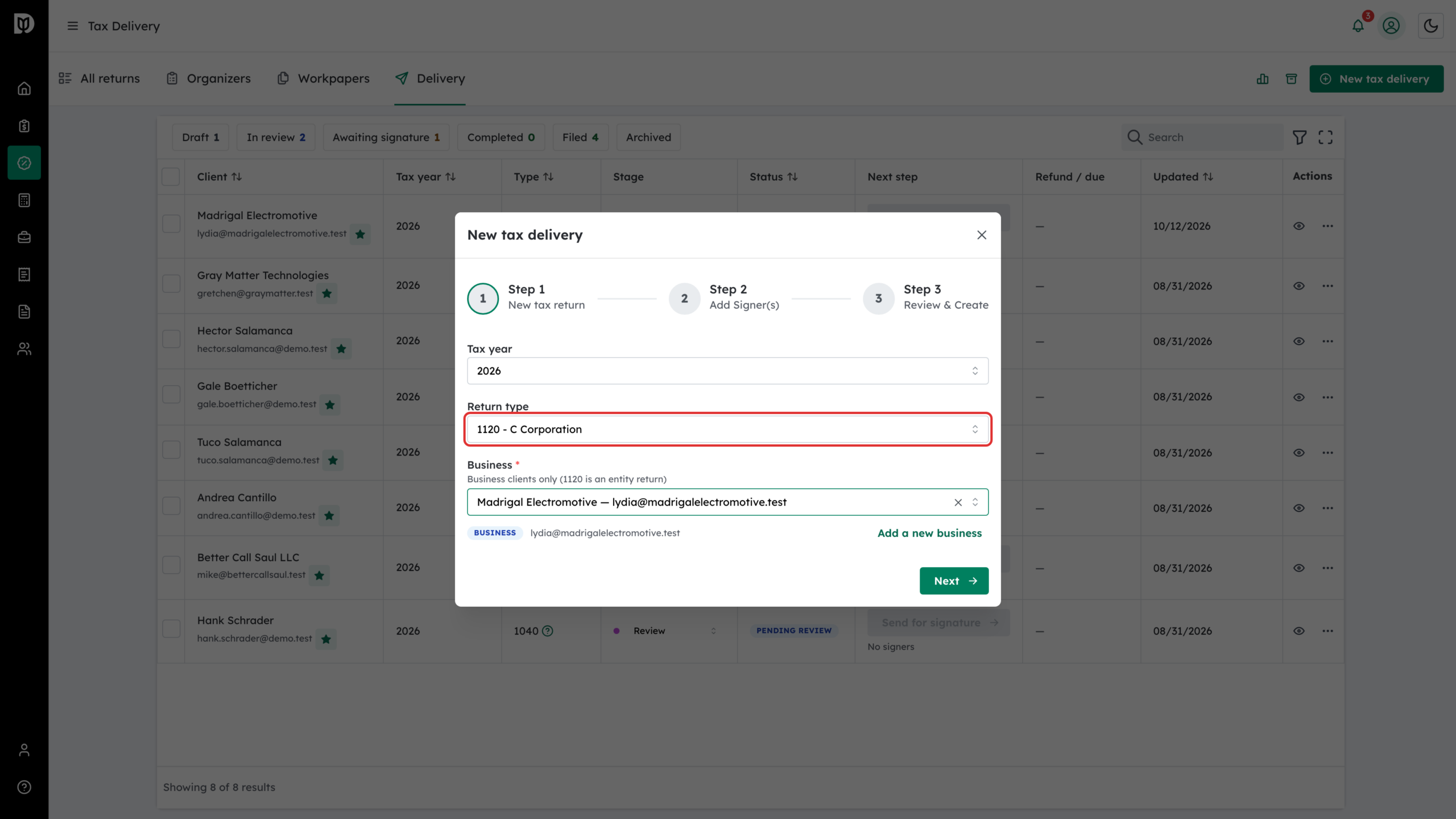
Go to Tax > Delivery and click New tax delivery. Pick the Tax year, set Return type to 1120 – C Corporation, choose the corporation in Business and click Next.
Step 7: Add the officer who signs
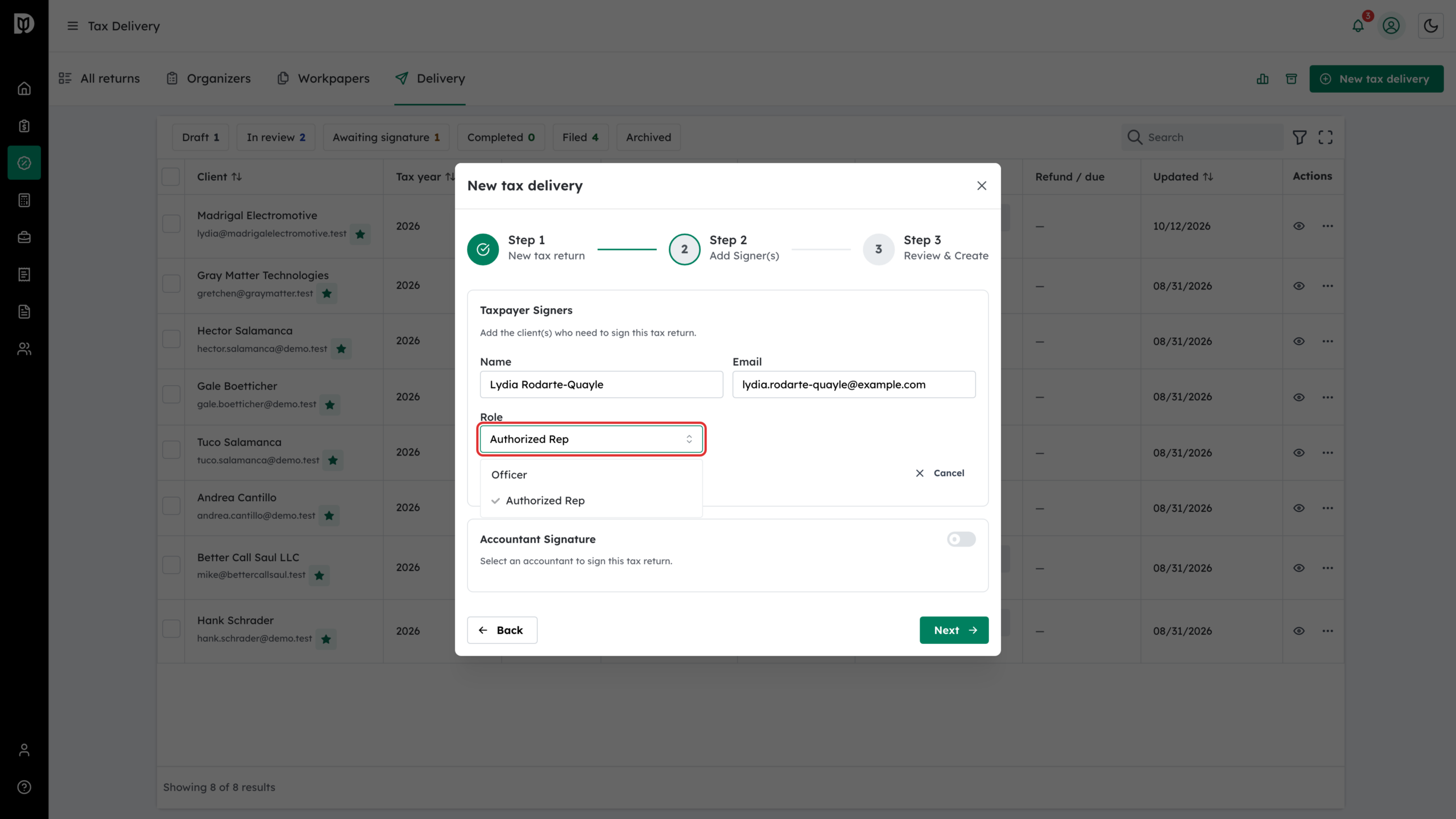
Search for the signer, or click Add manually and enter their name and email. For a 1120 the Role is Officer or Authorized Rep. There is no Partner role. Click Add signer, and turn on Accountant Signature if someone at your firm also signs. Click Next.
Step 8: Review and create
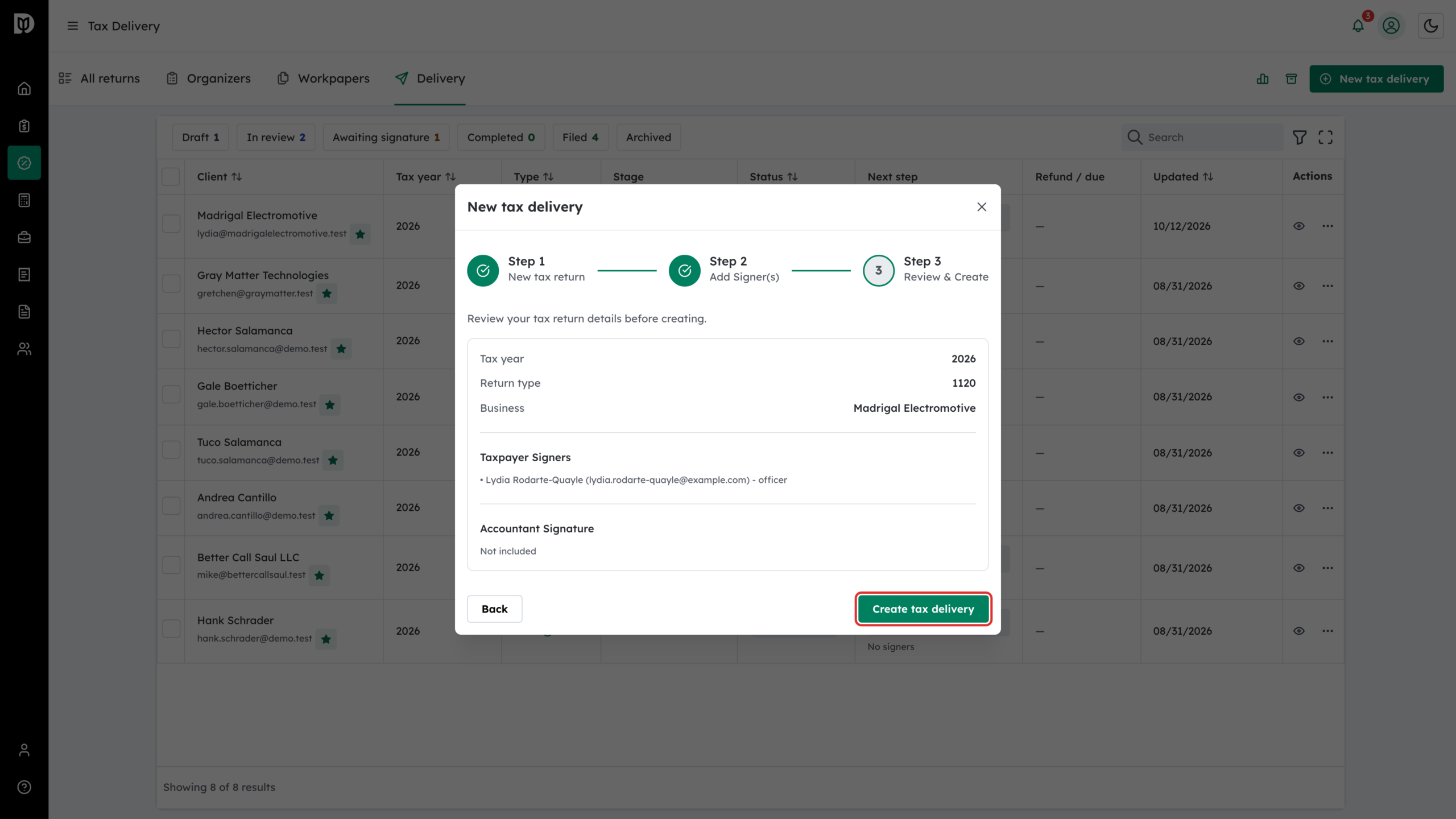
Check the tax year, return type, business and signers, then click Create tax delivery.
Step 9: Finish the delivery
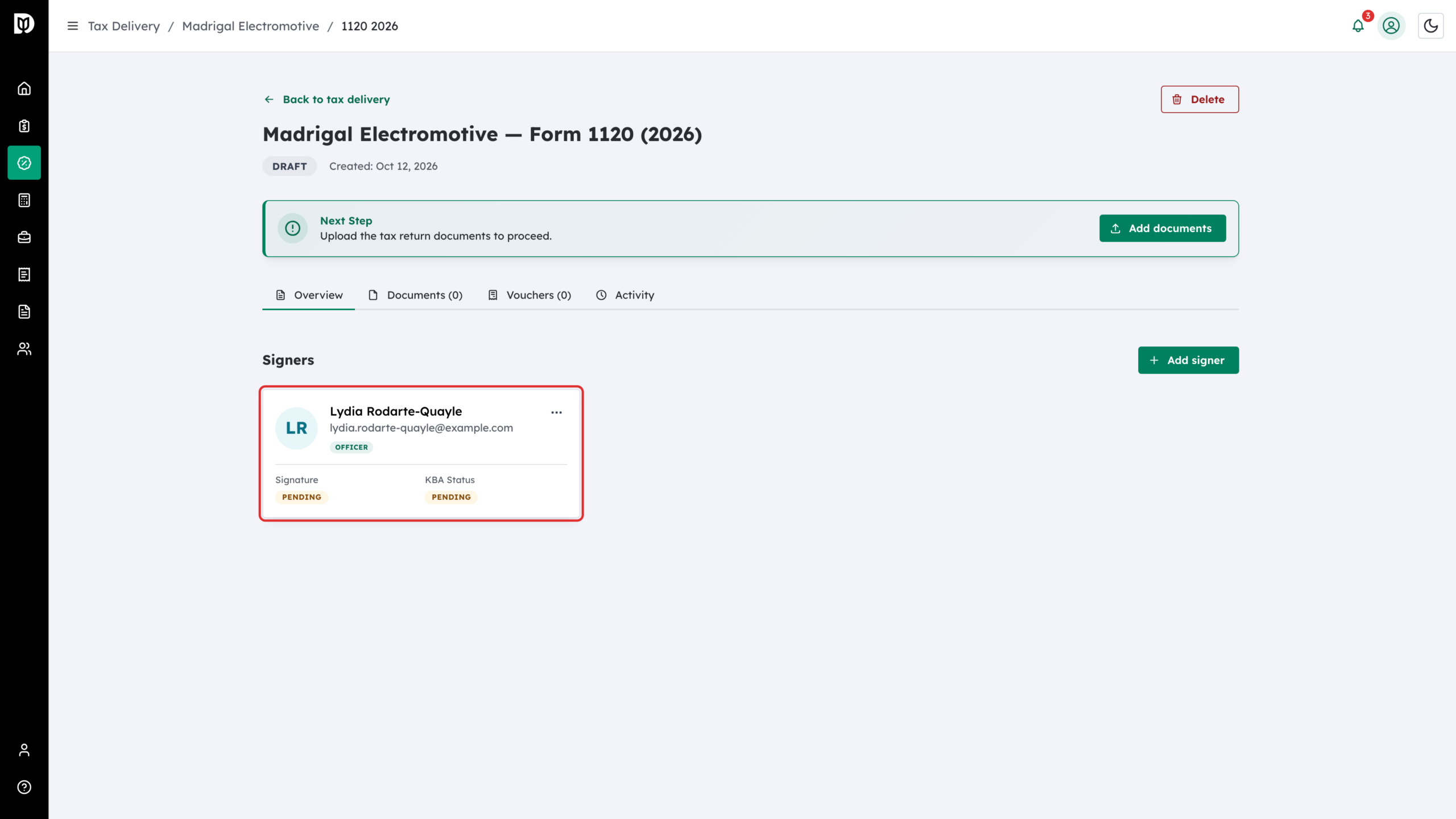
The delivery opens as a draft with the officer on its signer card. Upload the documents, place the signature fields and send it for signature as you would for any return.
What happens next
The officer signs from the emailed link. On the signing page, their form is named Form 8879-CORP. A 1120 issues no K-1s, so the delivery has no K-1 tab. Once it is signed, mark it filed as usual.
Troubleshooting
- The signer was not added: check the email address. Each signer needs a valid, unique email.
- Next is greyed out on Step 1: a 1120 is an entity return, so pick a business first.