Who this is for: Firm owners, admins, managers and staff who manage tax returns.
What you’ll learn: How to archive a return together with its organizer, workpaper binder and workflow card, what the client sees afterwards, and how to restore archived records.
Before you begin
- Archiving hides records from your working lists. It does not delete anything, and archived records can be restored at any time.
- To remove a record for good, use Delete instead.
Step-by-step instructions
Step 1: Choose Archive
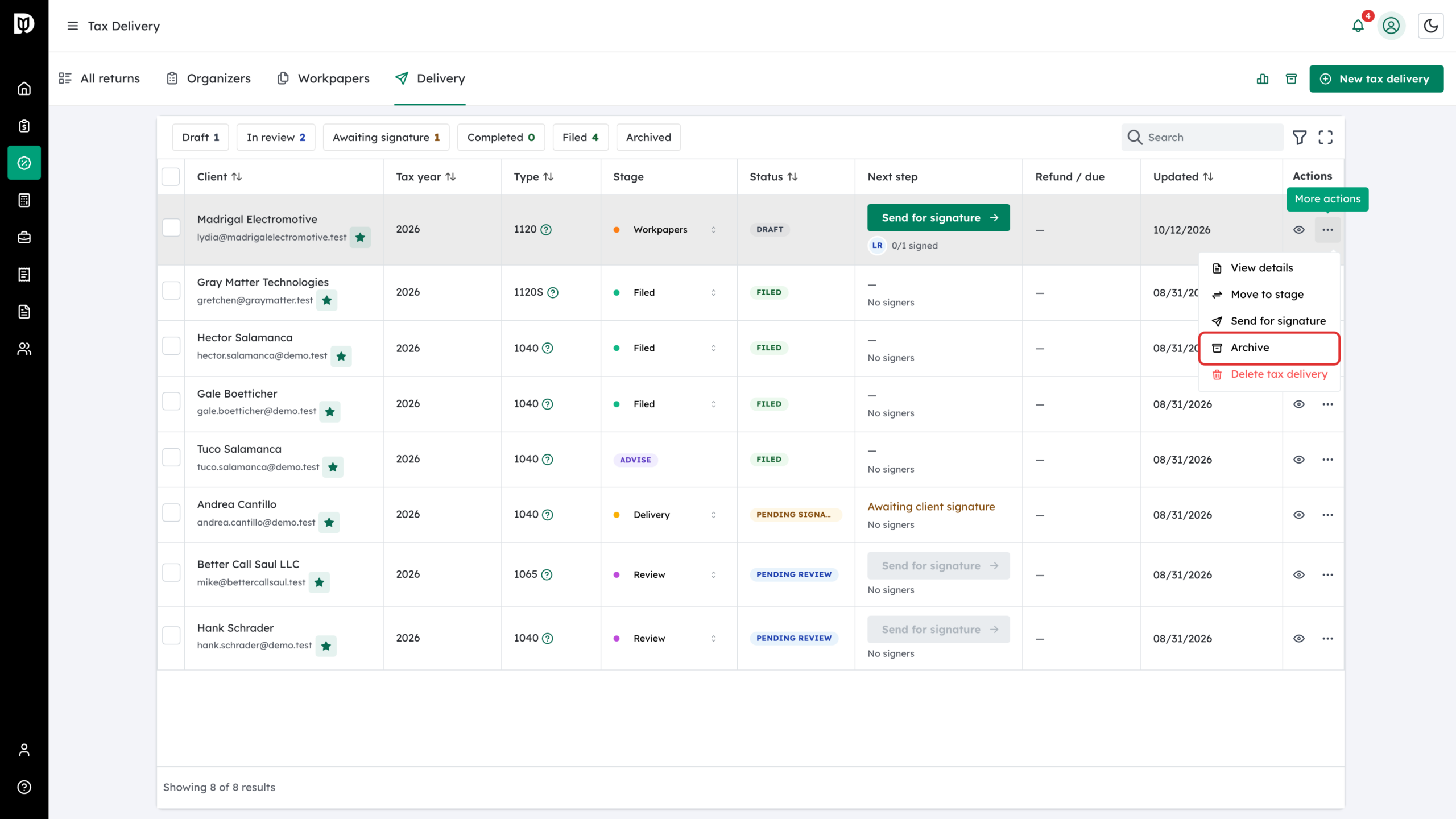
Open the row’s More actions menu and click Archive. You can start from a tax delivery, an organizer or a workpaper binder.
Step 2: Choose what else to archive
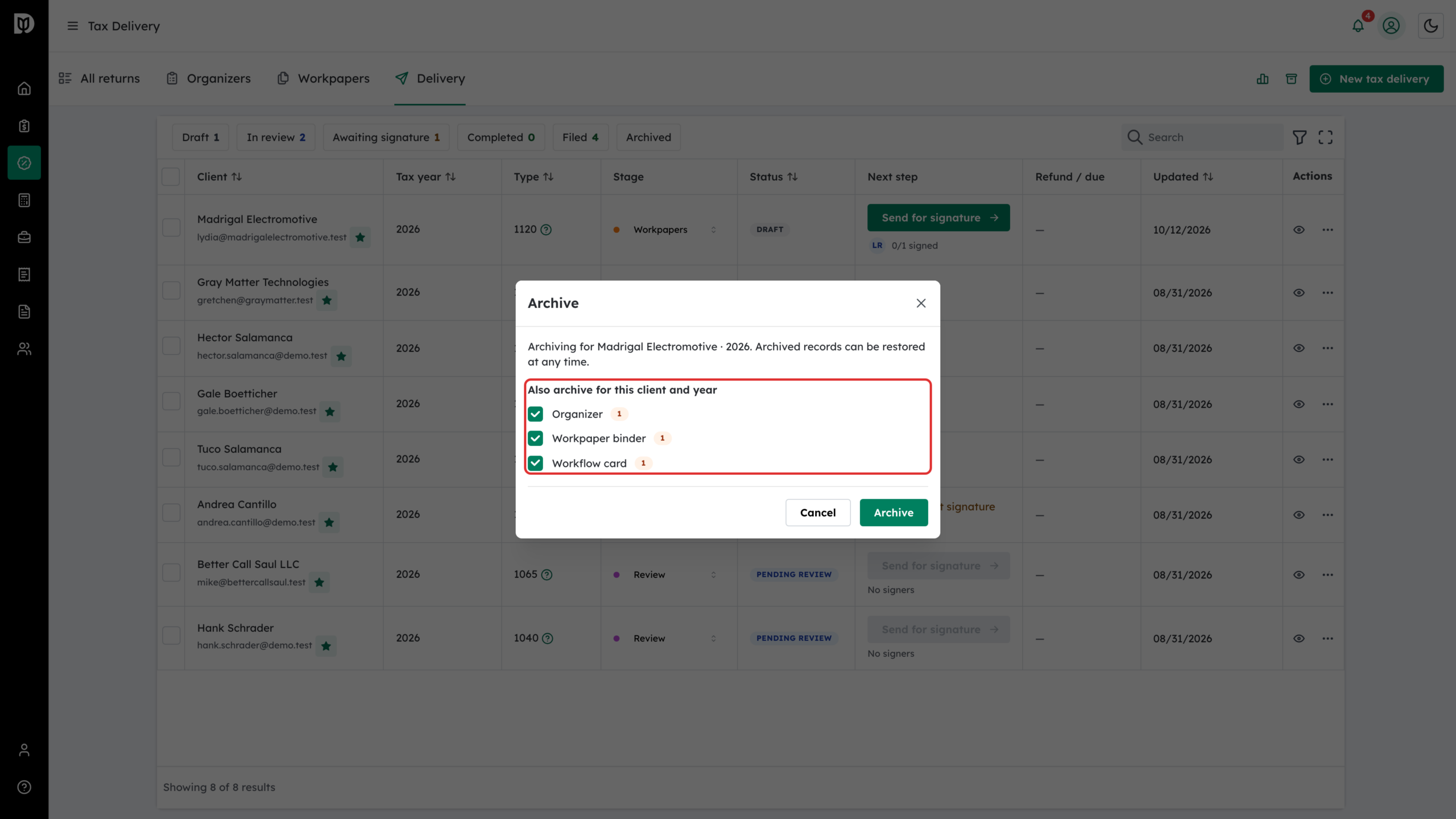
The Archive window names the client and year. Under Also archive for this client and year, Debits lists the related records it found and how many of each: Organizer, Workpaper binder, Tax delivery and Workflow card. If the client has more than one record of the kind you started from, they appear as, for example, Other workpaper binders. Untick anything you want to keep.
For a business return, the list includes records filed under the business owner, such as the organizer and binder, as long as they belong to this return.
Step 3: Click Archive
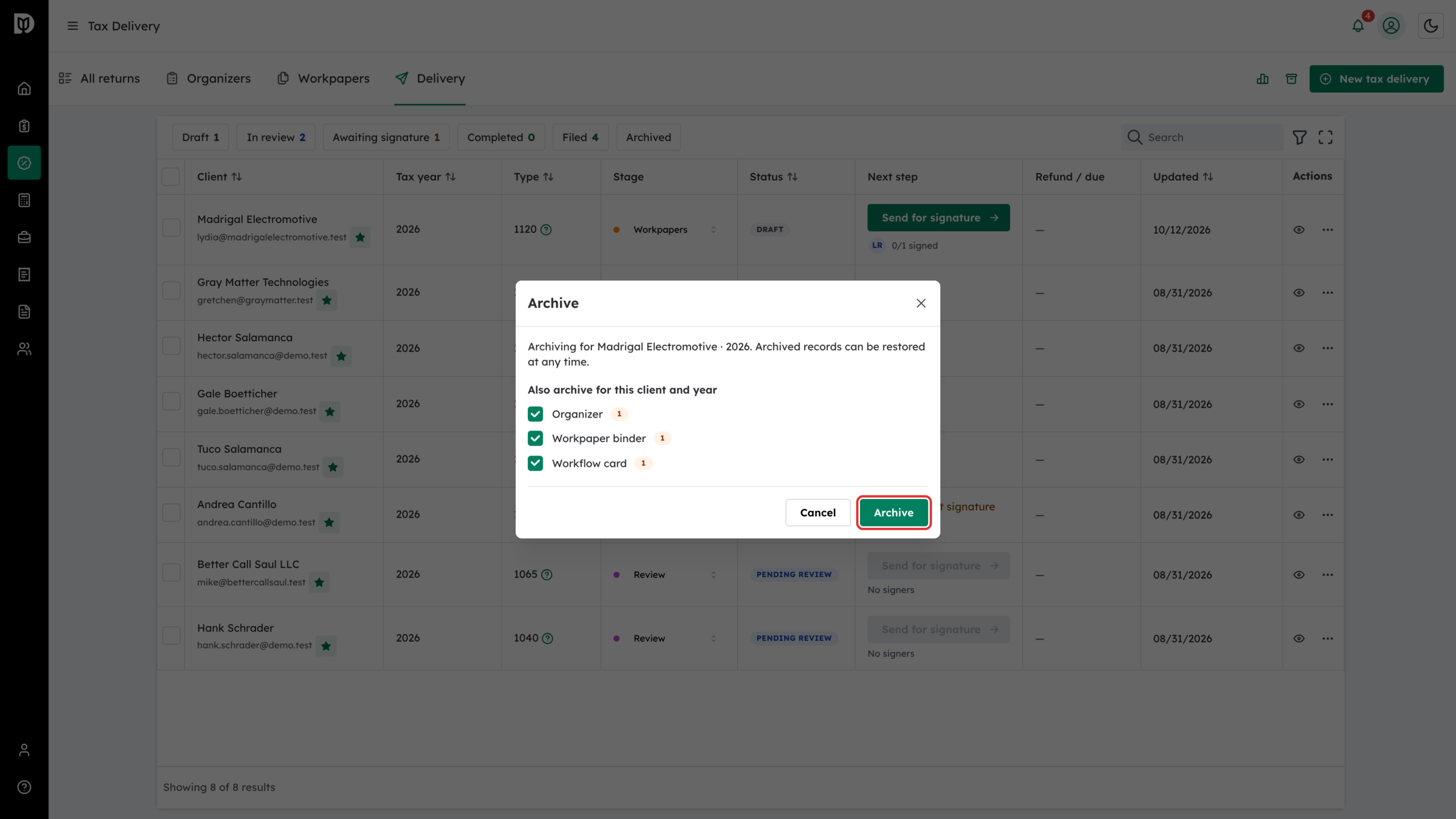
Click Archive. The records leave your working lists, and the workflow card leaves the board.
Step 4: Find archived returns
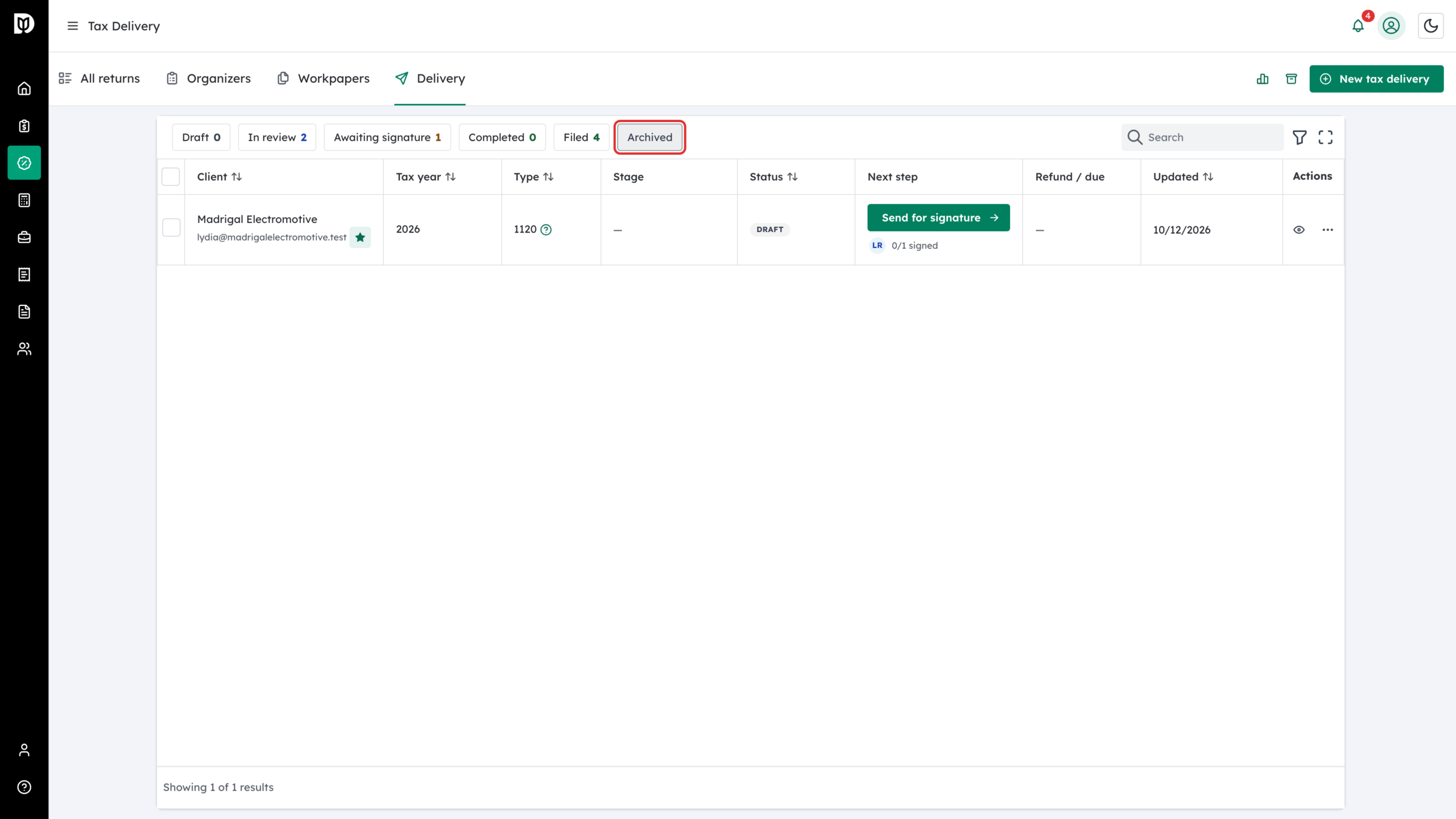
On the Delivery tab, click the Archived chip to list archived tax deliveries.
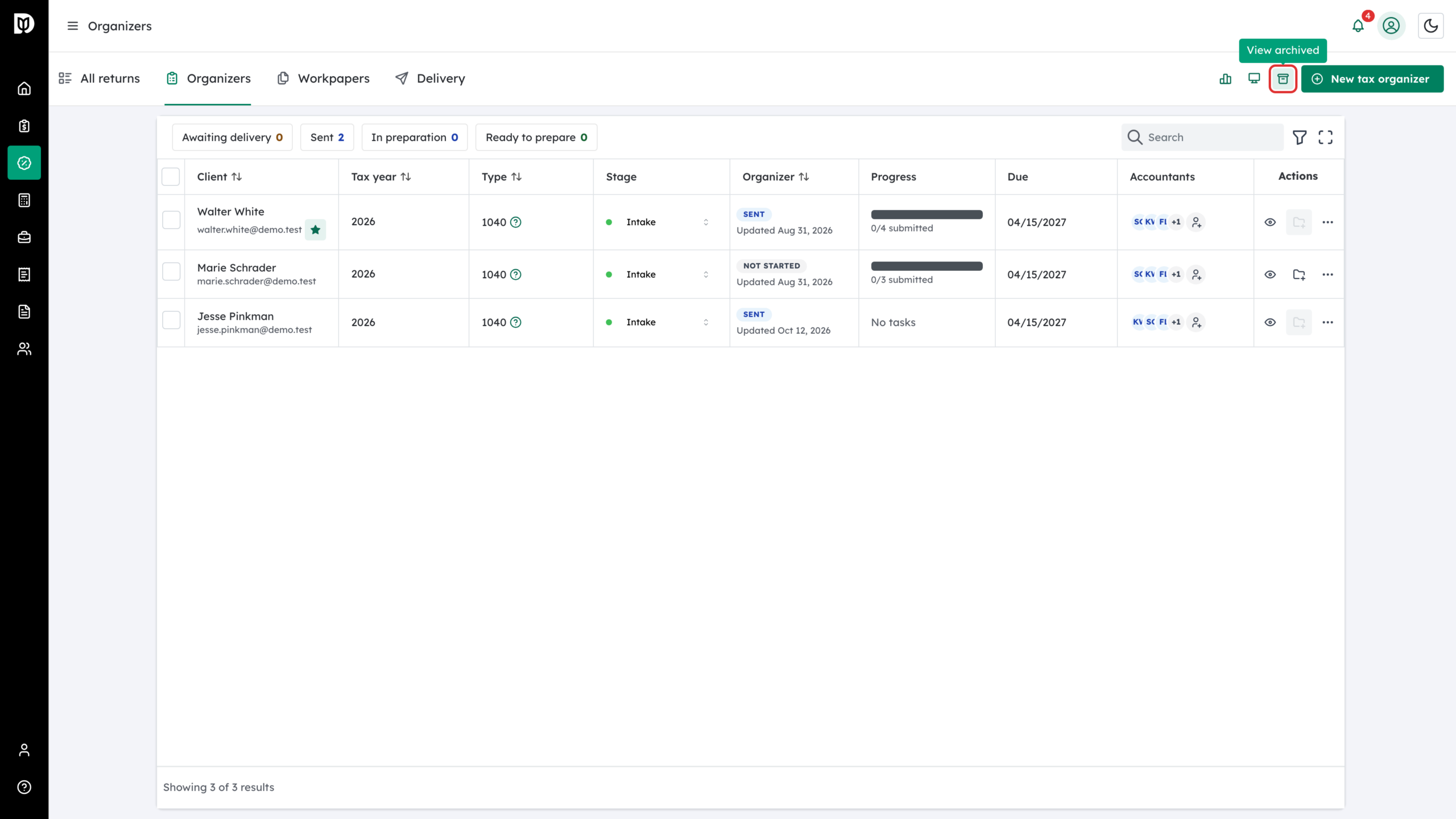
Step 5: Open the archive drawer
To restore a record, click the View archived icon in the tab bar. The Organizers, Workpapers and Delivery tabs each have their own drawer, with search, year and form filters.
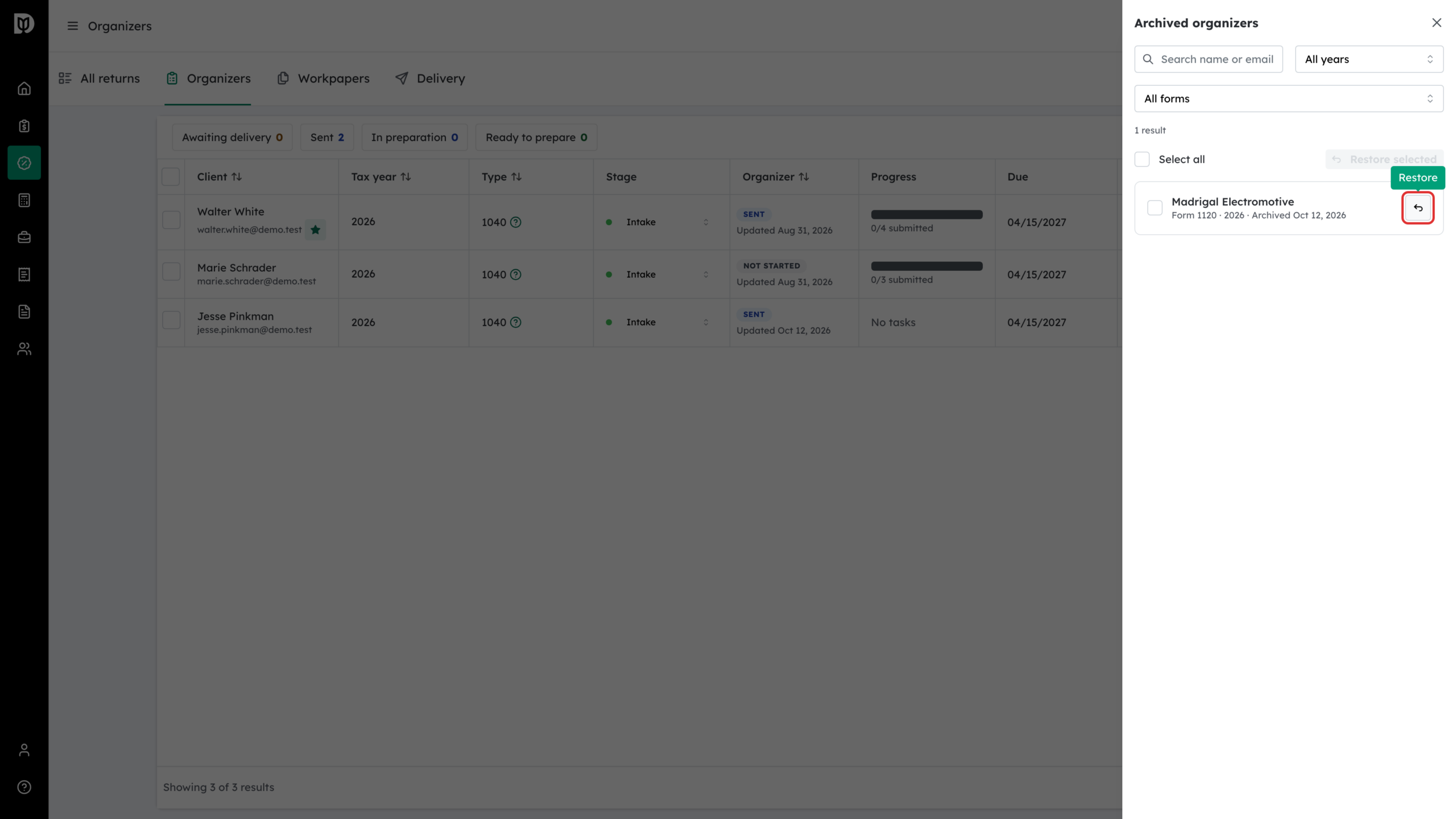
Step 6: Restore
Click the Restore button next to a record, or tick several and click Restore selected. Restoring brings back only that record, so restore the related organizer, binder or delivery from their own tabs if you need them too.
What happens next
An archived organizer stays visible to the client on their Tax Organizers page with an Archived badge. They can open it to read their answers, but they cannot change it.
Troubleshooting
- A related record was not listed: it may belong to a different client or year. Archive it from its own tab.
- A record is still showing after archiving: check whether you unticked it in the Archive window.
- A business return’s binder was left behind: records archived before this was improved were not always grouped together. Restore the delivery and archive it again, or archive the leftover binder directly.